5 Incredible Use Cases for Notebooks in Gemini
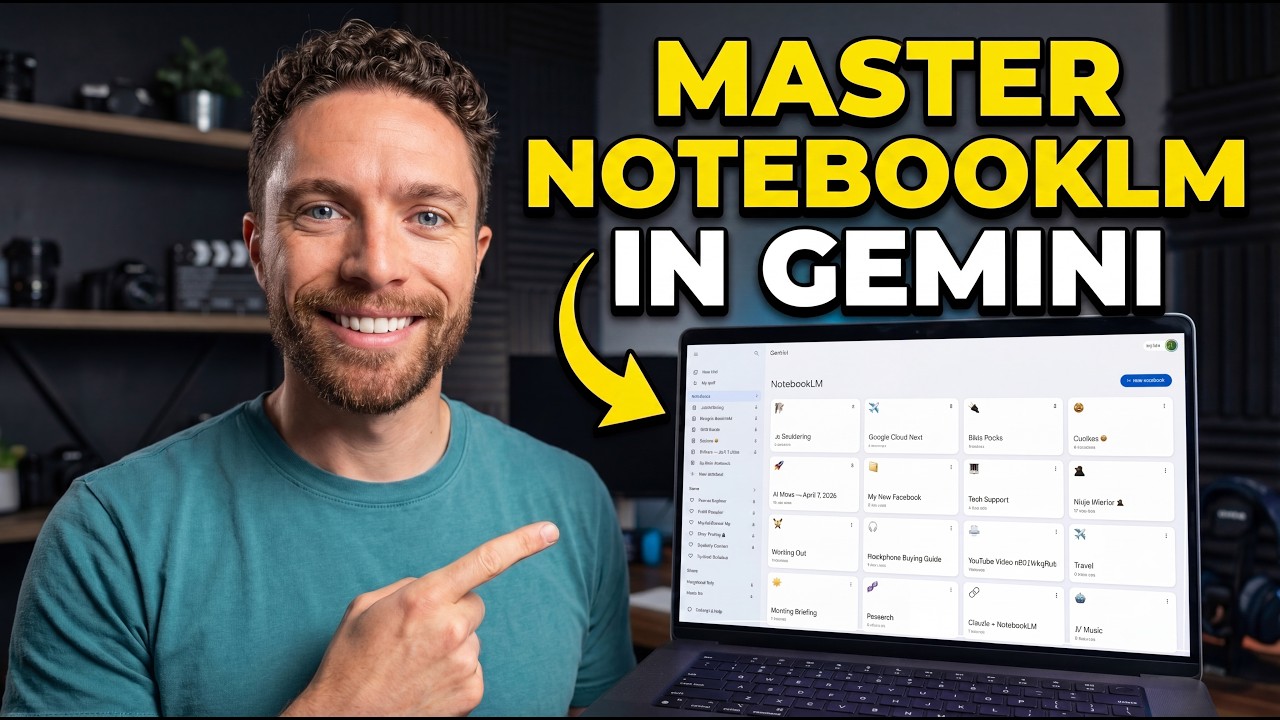
🔗 **Source:** [5 Incredible Use Cases for Notebooks in Gemini](https://www.youtube.com/watch?v=_DWMkNKTlF4)
> [!note]+ Document Notes
> tags: #gemini #notebook-lm #ai-workflows #productivity #google
> author: Jeff Su
> source: YouTube
> reference: https://www.youtube.com/watch?v=_DWMkNKTlF4
> date created: 2024-12-28 14:30
>
> # 🏷️ Title: 5 Incredible Use Cases for Notebooks in Gemini
>
<!-- deep-read:sections start -->
## 🧰 Action Inbox
- [H1] Set up notebook-wide memory for persistent context across chats — 03:45 #productivity
- [H2] Create custom AI instructions for specialized workflows — 12:30 #customization
- [H3] Build knowledge bases with synced sources between platforms — 07:15 #knowledge-management
## 🧭 Table of Contents
- [[#📝 Summary]]
- [[#📖 Main Content]]
- [[#🗒️ Notes]]
- [[#📚 References]]
- [[#🗣️ Paraphrase]]
- [[#📰 Newsletter]]
- [[#✅ Action Items]]
- [[#🧪 Hypotheses]]
- [[#📊 Methodology]]
- [[#❓ Questions]]
- [[#🔮 Future Research]]
- [[#💡 Implications]]
- [[#🧠 Learning Styles Assessment]]
- [[#📊 Accessibility Assessment]]
- [[#🌍 DEIB Assessment]]
- [[#✅ Logical Validity]]
- [[#🛡️ DARVO Analysis]]
- [[#🎯 Conclusion]]
### 🔗 References
- [Notebook LM](https://notebooklm.google.com/)
- [Google Gemini](https://gemini.google.com/)
## 📝 Summary
- Google has integrated Notebook LM functionality into Gemini for paid US subscribers
- Five key use cases demonstrate progression from basic organization to advanced workflows
- Key features include notebook-wide memory, synchronized sources, and personalized AI responses
- Integration enables persistent context across multiple chat sessions within organized workspaces
- Bottom line: This integration transforms scattered AI conversations into coherent, cumulative knowledge systems
## 📖 Main Content
The integration of Notebook LM into Google Gemini represents a significant advancement in AI workflow organization. Available to paid subscribers in the United States, this feature adds a "Notebooks" section to the Gemini web interface, enabling users to organize chats into persistent workspaces.
The core innovation lies in notebook-wide memory, which maintains context across multiple chat sessions within the same notebook. This eliminates the need to repeatedly provide background information, as the AI system can reference previous conversations and uploaded sources when responding to new queries.
The bidirectional sync between Gemini notebooks and Notebook LM creates a unified ecosystem where users can leverage both platforms' strengths. Sources uploaded in Notebook LM become available for chat context in Gemini, while chat conversations inform the generation of artifacts like infographics and presentations in Notebook LM.
## 🗒️ Notes
#### ⏱️ [00:00](https://youtu.be/_DWMkNKTlF4?t=0) — [H1] Introduction to Notebooks in Gemini
- Key idea: New feature rolling out to paid US subscribers adds notebook organization to Gemini
- Evidence: "This new feature is currently rolling out for paid subscribers in the United States on the web app"
#### ⏱️ [01:15](https://youtu.be/_DWMkNKTlF4?t=75) — [H2] Use Case 1: Chat Organization Workspace
- Key idea: Notebooks serve as containers to organize related chats by topic or project
- Evidence: "I created a notebook to organize all of those chats because as you'll see right here, you can start a chat in here and then that chat will live in this notebook"
#### ⏱️ [02:30](https://youtu.be/_DWMkNKTlF4?t=150) — [H3] Moving Existing Chats to Notebooks
- Key idea: Users can retroactively organize existing chats by moving them into relevant notebooks
- Evidence: "You can click on these three dots, click on add to notebook and choose whatever notebook you want to add it to"
#### ⏱️ [03:45](https://youtu.be/_DWMkNKTlF4?t=225) — [H1] Use Case 2: Notebook-Wide Memory
- Key idea: Persistent memory across chats eliminates need to re-establish context in new conversations
- Evidence: "Using this allows you to continue a conversation across multiple chats"
#### ⏱️ [04:30](https://youtu.be/_DWMkNKTlF4?t=270) — [H2] Memory Demonstration - Travel Itinerary
- Key idea: AI pulls context from all previous notebook chats without explicit prompting
- Evidence: "It correctly identified that I'm going to Google Cloud Next. It knows that I'm going there to create content for my YouTube channel"
#### ⏱️ [05:45](https://youtu.be/_DWMkNKTlF4?t=345) — [H3] Memory Demonstration - Recovery Issues
- Key idea: Generic prompts leverage accumulated context for specific, relevant responses
- Evidence: "Just very generic summarize my issues. But because it has that notebook-wide memory, it knows exactly what I'm talking about"
#### ⏱️ [07:15](https://youtu.be/_DWMkNKTlF4?t=435) — [H1] Use Case 3: Notebook LM as Knowledge Base
- Key idea: Sources added in Notebook LM become available for Gemini chat context
- Evidence: "These two are synced together. So all the sources over here on the left are the same sources that are being used in Gemini in this notebook"
#### ⏱️ [08:30](https://youtu.be/_DWMkNKTlF4?t=510) — [H2] Adding Sources for Enhanced Context
- Key idea: Multiple source types can be uploaded to provide comprehensive knowledge base
- Evidence: "You can attach local files as sources, anything from Google Drive, links to websites and YouTube videos, or even copy text"
#### ⏱️ [10:15](https://youtu.be/_DWMkNKTlF4?t=615) — [H1] Use Case 4: Personalized Notebook LM Artifacts
- Key idea: Chat history now influences artifact generation, making outputs more personalized
- Evidence: "All of your chats from Gemini that you have inside this notebook are included in here as well"
#### ⏱️ [11:00](https://youtu.be/_DWMkNKTlF4?t=660) — [H2] Recovery Guide Example
- Key idea: Artifacts reference specific issues discussed in chats for targeted solutions
- Evidence: "It really honed in on the issue I was having because it has access to my chats. It knows that I was struggling with forearm soreness"
#### ⏱️ [12:30](https://youtu.be/_DWMkNKTlF4?t=750) — [H1] Use Case 5: Custom AI Chat Instructions
- Key idea: Notebook settings allow custom instructions to define AI behavior and response style
- Evidence: "These will tell Gemini how to respond and what tone to use when you are chatting with it inside this notebook"
#### ⏱️ [13:45](https://youtu.be/_DWMkNKTlF4?t=825) — [H2] Tech Support Notebook Example
- Key idea: Simple device and software specifications enable contextual troubleshooting
- Evidence: "I told it exactly what devices I have. I have an iPhone 17 Pro and an M1 MacBook Pro"
#### ⏱️ [14:30](https://youtu.be/_DWMkNKTlF4?t=870) — [H1] Advanced Use Case: Data Tracking
- Key idea: Notebooks can maintain longitudinal data records across multiple chat sessions
- Evidence: "Notice that it's also pulling the information from the other chats and creates this table for me"
#### ⏱️ [15:45](https://youtu.be/_DWMkNKTlF4?t=945) — [H2] Workout Progress Visualization
- Key idea: Data from chats can be transformed into visual artifacts for analysis
- Evidence: "It has my first day here. April 9th 100 pounds. April 10th, 110 all the way up to April 13th, 120 pound peak"
## 📚 References
- [Google Notebook LM](https://notebooklm.google.com/)
- [Google Gemini](https://gemini.google.com/)
- [Gemini for Workspace](https://workspace.google.com/products/gemini/)
## 🗣️ Paraphrase
- Notebooks in Gemini create persistent workspaces that maintain context across multiple AI conversations, eliminating repetitive setup
- The integration with Notebook LM creates a bidirectional knowledge system where sources and chats inform each other across platforms
- Custom instructions and data tracking capabilities transform notebooks from simple chat containers into specialized AI assistants for specific domains
## 📰 Newsletter
The integration of Notebook LM into Google Gemini marks a significant step forward in AI workflow organization. This feature transforms how we interact with AI by creating persistent, contextual workspaces that grow smarter over time.
The standout feature is notebook-wide memory, which maintains context across multiple chat sessions. Instead of repeatedly explaining your project or preferences, the AI remembers and builds upon previous conversations. This is particularly valuable for ongoing projects, learning journeys, or specialized workflows.
The bidirectional sync with Notebook LM creates powerful possibilities. Sources you upload—documents, videos, websites—become available for both platforms, while your chat conversations can inform the creation of personalized presentations, infographics, and data visualizations.
For content creators and professionals managing complex projects, this integration offers a way to build cumulative AI assistance that becomes more valuable with each interaction.
Resources: [Notebook LM](https://notebooklm.google.com/), [Google Gemini](https://gemini.google.com/), [Google Workspace](https://workspace.google.com/)
## ✅ Action Items
#### DevRel
- Developer advocacy: Create demos showing notebook workflows for technical documentation and API exploration
- Education: Develop tutorials on organizing development projects using notebook-based knowledge systems
- Developer experience: Document integration patterns for connecting external data sources to notebook workflows
- Community management: Use notebooks to track community feedback and feature requests with persistent context
#### OSPO
- License Compliance: Track compliance reviews and decisions using notebook memory for consistent policy application
- Security Management: Maintain vulnerability assessment contexts across multiple related security discussions
- Software Inventory: Build knowledge bases combining SBOM data with ongoing inventory discussions
- Strategic Alignment: Create notebooks for tracking OKR progress with cumulative context across reporting periods
#### Community
- Maintainers: Use notebooks to track ongoing project discussions with persistent context for governance decisions
- Contributors: Create onboarding notebooks that accumulate institutional knowledge and common questions
- Sponsors: Maintain sponsor relationship contexts including preferences, requirements, and interaction history
#### WordPress
- Documentation: Create notebooks for tracking documentation gaps and improvements with cumulative context
- Support: Build knowledge bases combining common issues with ongoing support conversations
- Community: Track WordCamp and meetup planning with persistent context across organizing sessions
- Training: Develop lesson planning notebooks that accumulate feedback and improvements over time
#### The WPCC
- Programs: Track fellowship applications and progress with persistent participant contexts
- Funding: Maintain grant proposal contexts including requirements, feedback, and revision history
## 🧪 Hypotheses
- Notebook-wide memory reduces cognitive load and setup time for recurring AI tasks by 60-80%
- Organizations using notebook knowledge bases will see improved consistency in AI-generated outputs
- Data tracking through notebooks will increase user engagement with longitudinal projects
- Personalized artifact generation will improve relevance scores by incorporating chat context
### 📊 Methodology
- Study design: A/B test comparing traditional chat vs. notebook workflows for project management tasks
- Data sources: User interaction logs, time-to-completion metrics, and output quality assessments
- Experiments: Track accuracy improvements when notebook context is available vs. fresh chat sessions
### ❓ Questions
- How does notebook organization impact long-term retention of project knowledge and decision rationale?
- What governance models emerge when teams share notebooks with accumulated institutional knowledge?
- How do privacy and access controls scale when notebooks contain sensitive project discussions?
### 🔮 Future Research
- Integration patterns between notebook systems and existing project management workflows
- Effectiveness of notebook-based knowledge transfer for team onboarding and continuity
- Optimal source curation strategies for maximizing notebook knowledge base utility
### 💡 Implications
- Practice: Fundamental shift from stateless to stateful AI interactions for ongoing projects
- Policy: Need for data retention and privacy policies covering accumulated notebook contexts
- Security: Consideration of persistent memory as potential information disclosure vector
- Education: Training requirements for effective notebook organization and source curation strategies
- Funding: ROI models for AI subscriptions should account for cumulative value of persistent contexts
### 🧠 Learning Styles Assessment
Reading level estimate: 8th Grade (Flesch-Kincaid)
#### 👀 Visual learners
- Present: Screen recordings showing interface navigation and notebook organization
- Improve: Workflow diagrams showing information flow between Gemini and Notebook LM
#### 🔊 Aural learners
- Present: Detailed verbal explanations with step-by-step narration
- Improve: Audio summary of key concepts and implementation strategies
#### 🗣️ Verbal learners
- Present: Clear definitions of notebook concepts and workflow terminology
- Improve: Analogies comparing notebooks to physical filing systems or project folders
#### 🧩 Kinesthetic learners
- Present: Hands-on demonstrations with specific setup instructions
- Improve: Practice exercises for creating and organizing different notebook types
#### 🧠 Logical learners
- Present: Structured progression from basic to advanced use cases
- Improve: Decision trees for choosing appropriate notebook strategies
#### 🧑🤝🧑 Social learners
- Present: Request for community feedback and use case sharing
- Improve: Discussion prompts about team notebook sharing and collaboration
#### 🧘♀️ Solitary learners
- Present: Individual workspace examples with personal project contexts
- Improve: Self-assessment questions for identifying optimal notebook organization strategies
#### 🌿 Naturalistic learners
- Present: Organic evolution examples showing how notebooks grow over time
- Improve: Lifecycle analogies for notebook development and maintenance
### 📊 Accessibility Assessment
#### Screen reader semantics
- Present: Clear heading hierarchy and descriptive video narration
- Improve: Transcript with action descriptions for visual interface elements
#### Keyboard navigation
- Present: Interface elements appear keyboard accessible in demonstrations
- Improve: Explicit keyboard shortcuts and navigation paths documentation
#### Contrast and readability
- Present: High contrast interface elements in screen recordings
- Improve: Captions with sufficient contrast ratios for video overlay text
#### Text resizing and reflow
- Present: Interface appears responsive in demonstrations
- Improve: Confirmation of zoom compatibility and text scaling behavior
#### Media and captions
- Present: Auto-generated captions available
- Improve: Professional captions with speaker identification and action descriptions
#### Forms and interactions
- Present: Form inputs and buttons clearly demonstrated
- Improve: Error handling and validation feedback examples
### 🌍 DEIB Assessment
#### Cultural breadth
- Present: Examples from various professional contexts (fitness, travel, tech)
- Improve: International use cases and non-US availability timeline
#### Inclusive language
- Present: Gender-neutral examples and accessible technical explanations
- Improve: Definition of technical terms for non-native speakers
#### Neurodiversity support
- Present: Structured presentation with clear section breaks
- Improve: Consistent visual formatting and predictable information hierarchy
#### Representation
- Present: Diverse use cases appealing to different interests and professions
- Improve: Examples from underrepresented communities and accessibility use cases
#### Psychological safety
- Present: Encouraging tone with invitation for community participation
- Improve: Acknowledgment of learning curve and validation of different approaches
### ✅ Logical Validity
#### Strong reasoning
- Deductive strength: Clear progression from feature introduction to practical applications
- Inductive strength: Multiple examples support generalizable workflow principles
- Causal reasoning: Logical connection between persistent memory and improved efficiency
- Analogical strength: Effective comparison to physical organization systems
#### Fallacies
- Availability bias: Heavy focus on creator's specific use cases may not represent broader applicability
- Appeal to novelty: Emphasis on "incredible" features without comparison to alternative solutions
#### Tone of voice
- Overall tone: Enthusiastic and educational with practical focus and community engagement
### 🛡️ DARVO Analysis
- Deny: No denial patterns present
- Attack: No attacks on alternatives or critics present
- Reverse victim/offender: No victim/offender dynamics present
- Emotional cues and rhetoric: Positive enthusiasm without manipulative elements
## 🎯 Conclusion
The integration of
---
## Full Transcript
[00:00] this is the right video for you if<br>[00:02] you've seen that notebook LM notebooks<br>[00:04] have been added into Gemini, but you're<br>[00:06] not quite sure what to use them for and<br>[00:08] all the things that you can do with<br>[00:09] them. So, in this video, I want to break<br>[00:11] through that confusion. I'll show you<br>[00:13] the simplest way to get started with<br>[00:15] notebooks in Gemini and five use cases<br>[00:17] to take you from using notebooks as a<br>[00:20] beginner to building incredible<br>[00:21] workflows with them. This new feature is<br>[00:23] currently rolling out for paid<br>[00:25] subscribers in the United States on the<br>[00:27] web app. Once it's available, you'll see<br>[00:30] it over here on the left. There's a new<br>[00:32] section here called notebooks. The first<br>[00:34] use case that you should use this for is<br>[00:36] to use it as a way to organize your<br>[00:39] chats into a workspace. For instance,<br>[00:42] right here I have a notebook called<br>[00:44] Google Cloud Next. This is a conference<br>[00:46] that I'm going to next week. I found<br>[00:48] myself using Gemini quite a lot to ask<br>[00:52] questions about the event and the<br>[00:54] logistics around it, like the travel.<br>[00:56] So, I created a notebook to organize all<br>[00:59] of those chats because as you'll see<br>[01:01] right here, you can start a chat in here<br>[01:04] and then that chat will live in this<br>[01:07] notebook. So, here you can see all my<br>[01:09] past chats that I started within this<br>[01:11] notebook. Now, let's start one of these<br>[01:13] together so you can see how to set this<br>[01:15] up. Over here on the left, you'll<br>[01:17] already see your notebook LM notebooks<br>[01:19] if you've used Notebook LM already. But,<br>[01:21] let's create a new notebook. I'll click<br>[01:23] here where it says new notebook. In this<br>[01:26] case, I want some help with choosing the<br>[01:28] next pair of headphones I want to buy.<br>[01:31] So, I'll call this notebook headphone<br>[01:34] buying guide.<br>[01:37] Great. So, now we have a new notebook.<br>[01:40] You can start chatting in here right<br>[01:41] away and asking it questions. But what<br>[01:44] I'm first going to do is add in some old<br>[01:47] chats that I had that fit in this<br>[01:49] notebook. So over here you can see a<br>[01:51] chat from earlier today where I asked it<br>[01:54] to help me find the best noiseancelling<br>[01:56] overthe-ear headphones. Right now this<br>[01:59] is not inside a notebook and I know that<br>[02:01] because you can see it down here in the<br>[02:03] chat section. If this wasn't a notebook<br>[02:06] you wouldn't be able to see it in the<br>[02:08] chat section. You'd have to go to the<br>[02:09] notebook that it's inside of. But what<br>[02:12] you can do is click on these three dots,<br>[02:14] click on add to notebook and choose<br>[02:17] whatever notebook you want to add it to.<br>[02:19] Here, I'll select the one called<br>[02:20] headphone buying guide. Now, you'll see<br>[02:22] over here on the left under chats, it's<br>[02:24] no longer here. But if we come to that<br>[02:27] notebook, you will now see the chats<br>[02:29] inside of here. Once you've created a<br>[02:31] few notebooks and start chatting inside<br>[02:33] them, you can unlock the first<br>[02:35] incredible use case that I want to show<br>[02:37] you today, which is notebookwide memory.<br>[02:40] If you click on the three dots at the<br>[02:42] top of any of your notebooks, there will<br>[02:44] be a section here called settings.<br>[02:46] Clicking on this, you'll see that<br>[02:49] notebook memory is toggled on by<br>[02:52] default. And using this allows you to<br>[02:55] continue a conversation across multiple<br>[02:57] chats. So for instance, right here, if<br>[03:00] we return back to my Google Cloud Next<br>[03:03] notebook, I'm just going to ask it to<br>[03:05] create an itinerary for me. Sending this<br>[03:08] along, it's going to pull in all the<br>[03:10] information from the other chats. It's<br>[03:12] going to instantly know the context of<br>[03:14] what I'm talking about even though I<br>[03:16] haven't told it to create an itinerary<br>[03:18] for my Google Cloud Next trip. It's just<br>[03:21] going to know because it's inside this<br>[03:23] notebook that that is what I'm talking<br>[03:25] about. Looking at the results, you can<br>[03:26] see that it correctly identified that<br>[03:28] I'm going to Google Cloud Next. It knows<br>[03:30] that I'm going there to create content<br>[03:32] for my YouTube channel. And it even<br>[03:34] knows my dietary preferences as well<br>[03:37] because all of that was included in the<br>[03:39] past chats inside this notebook. So with<br>[03:42] that simple prompt, it was able to pull<br>[03:44] all that information together using the<br>[03:47] notebookwide memory. Let's look at<br>[03:49] another example. Here's another notebook<br>[03:51] that I put together to help me with<br>[03:53] bouldering, rock climbing. And I've been<br>[03:56] asking it a lot of questions about<br>[03:57] recovery because different parts of my<br>[03:59] body like my forearms and my fingers<br>[04:01] have been really sore after all these<br>[04:03] workouts. So this time I'm just going to<br>[04:05] ask it to summarize my issues. Again, no<br>[04:09] other context here. I'm not saying to<br>[04:11] summarize the issues I have around rock<br>[04:13] climbing or bouldering or the issues<br>[04:15] that I'm having with my forearms or my<br>[04:17] fingers. Just very generic summarize my<br>[04:20] issues. But because it has that<br>[04:22] notebookwide memory, it knows exactly<br>[04:25] what I'm talking about. And that's<br>[04:26] reflected in the response. It says,<br>[04:28] "Hey, it sounds like you're dealing with<br>[04:30] the classic aftermath of getting hooked<br>[04:32] on bouldering. You're dealing with aches<br>[04:34] in your fingers, hands, and your<br>[04:37] forearm." So, with the right notebook<br>[04:38] system set up, you never have to start<br>[04:40] from scratch ever again. It should be a<br>[04:43] workspace that grows with you over time<br>[04:45] and learns more about you. The next use<br>[04:47] case I want to show you is to use<br>[04:49] Notebook LM as a knowledge base for your<br>[04:51] chats in Gemini. Inside of any of your<br>[04:54] notebooks in Gemini, you'll notice a<br>[04:56] button on the top right that says<br>[04:58] notebook LM. That will take you to the<br>[05:01] same notebook directly inside of<br>[05:03] notebook LM. These two are synced<br>[05:06] together. So all the sources over here<br>[05:09] on the left are the same sources that<br>[05:11] are being used in Gemini in this<br>[05:13] notebook. And you can even see a preview<br>[05:15] of that right here. It says it's using<br>[05:18] three sources. And you can click on that<br>[05:20] and see what those sources are.<br>[05:22] Currently, my Google Cloud Next notebook<br>[05:24] has no sources in it. It has no context.<br>[05:28] So, let's add some. You can attach local<br>[05:31] files as sources, anything from Google<br>[05:33] Drive, links to websites and YouTube<br>[05:36] videos, or even copy text. In this case,<br>[05:39] I'm going to upload information about my<br>[05:42] flights and hotels and all my travel<br>[05:44] information so that this notebook has<br>[05:46] that full context. With those files now<br>[05:49] uploaded, when I come back to Gemini and<br>[05:52] ask it to write up my itinerary this<br>[05:54] time, it's not only going to use the<br>[05:56] information from the prior chats, but<br>[05:58] it's also going to use the files that<br>[06:00] I've added. That way, it has a more<br>[06:03] complete picture of what my trip looks<br>[06:05] like. And although I can't show you the<br>[06:07] full details of my flight information<br>[06:09] and confirmation number, it is here now<br>[06:12] inside this chat in this itinerary put<br>[06:14] together for me. But let's look at<br>[06:16] another example. Coming back to my<br>[06:19] bouldering notebook, you'll notice that<br>[06:20] I do have some sources in here. Three<br>[06:23] YouTube videos about bouldering that I<br>[06:25] enjoyed. So I added them to this<br>[06:27] notebook. So when I chat with this<br>[06:29] notebook, it not only uses the prior<br>[06:31] chats, but all these sources that I've<br>[06:34] uploaded. So this is a great way to<br>[06:36] build up a knowledge base. You can come<br>[06:39] in here and add resources that you<br>[06:41] trust, different websites, YouTube<br>[06:43] videos, maybe have PDFs or downloads.<br>[06:45] Add them in here and they can be used<br>[06:48] anytime you chat with this notebook. So<br>[06:50] in this notebook, it's not only pulling<br>[06:51] in the information from the prior chats,<br>[06:53] but these sources as well. The third use<br>[06:56] case I want to show you is how to use<br>[06:57] this integration to get more<br>[06:59] personalized artifacts in Notebook LM.<br>[07:02] And this is such a gamecher. Back inside<br>[07:05] of Gemini, come into any of your<br>[07:07] notebooks and again click on the top<br>[07:09] right where it says notebook LM to go<br>[07:11] over to that notebook on notebook LM.<br>[07:14] Now before this integration existed, if<br>[07:17] you created anything inside of Studio<br>[07:19] over here on the right, like an<br>[07:20] infographic, it would only pull from<br>[07:23] information that you had saved inside of<br>[07:26] the sources section, like all the<br>[07:28] YouTube videos and articles. But now, as<br>[07:32] you can see, all of your chats from<br>[07:34] Gemini that you have inside this<br>[07:37] notebook are included in here as well. I<br>[07:40] have seven of them that you can see<br>[07:42] right here. So now when you create<br>[07:43] something in studio, it's also going to<br>[07:46] pull from the chats and that unlocks<br>[07:48] some really cool use cases. So let's do<br>[07:51] an example. I will open up infographic<br>[07:54] by clicking right here. Now we have the<br>[07:56] prompt box and again we're inside my<br>[07:58] bouldering notebook where I was asking<br>[08:00] Gemini my notebook in Gemini questions<br>[08:03] about recovery for like my forearms and<br>[08:05] my fingers and hands. So I'm going to<br>[08:08] tell notebook LM to create a recovery<br>[08:12] guide based on my issues. That's all I'm<br>[08:15] going to say. Now clicking generate. You<br>[08:18] can now see it's getting to work. And I<br>[08:20] did this earlier, the same exact prompt.<br>[08:22] And this is what it created for me.<br>[08:24] noticed that it didn't create something<br>[08:26] very generic. It really honed in on the<br>[08:29] issue I was having because it has access<br>[08:31] to my chats. It knows that I was<br>[08:33] struggling with forearm soreness. So, it<br>[08:36] really honed in on that and identified<br>[08:38] how to help me recover from forearm<br>[08:41] soreness and how to prevent it in the<br>[08:43] future. So, this is the most<br>[08:45] personalized that Notebook LM has ever<br>[08:47] been. Let's look at another example.<br>[08:49] We'll come to my Google Cloud Next<br>[08:51] notebook. Again, we can kind of go with<br>[08:54] the same theme of having it help me with<br>[08:56] my travel itinerary. So, I actually<br>[08:59] asked it to create a slide deck for me<br>[09:01] with my entire trip as an overview. And<br>[09:05] here you can see that the ultimate<br>[09:06] creators playbook for Google Cloud 2026.<br>[09:09] And it's pulled in information from all<br>[09:11] the chats. So, one of the chats I was<br>[09:13] asking like what time I should leave at<br>[09:15] the end of the event to get to the<br>[09:17] airport on time. So, it actually has a<br>[09:19] graph showing me the optimal time to<br>[09:22] leave the conference center to be able<br>[09:24] to get to the airport before my flight<br>[09:26] leaves. I was also comparing flights<br>[09:28] with Gemini inside this notebook. I was<br>[09:31] looking at Frontier. I was looking at<br>[09:32] Southwest. So, here's a comparison of<br>[09:34] all those different tiers. So, all of<br>[09:37] that is now brought in fully<br>[09:39] personalized for me because we now have<br>[09:42] chats in here. Now, I have a pro tip for<br>[09:44] you. Of course, over here on the left,<br>[09:46] we have all of our sources, but at any<br>[09:48] time you can uncheck any of these<br>[09:50] sources. So, if you just wanted Notebook<br>[09:54] LM to use the sources that you uploaded<br>[09:56] and not to reference the chats, you<br>[09:59] could turn off chats or you could choose<br>[10:01] specifically which chats you wanted to<br>[10:04] use and not use when you were generating<br>[10:07] anything inside of Studio. So, it is<br>[10:09] fully customizable. Fourth, did you know<br>[10:12] that you can use notebooks to create<br>[10:14] custom AI chats in Gemini? I'll return<br>[10:17] back to Gemini. I'll click on the left<br>[10:19] here where it says notebooks to see all<br>[10:21] of my notebooks. I'm going to open up<br>[10:24] the one called Ninja Warrior. And this<br>[10:27] time, click on the three dots, which we<br>[10:28] went to before, and again, notebook<br>[10:30] settings. And in addition to notebook<br>[10:33] memory, you will also see instructions.<br>[10:36] And these will tell Gemini how to<br>[10:38] respond and what tone to use when you<br>[10:41] are chatting with it inside this<br>[10:43] notebook. For this one, I have a very<br>[10:45] detailed prompt telling it to act as a<br>[10:47] coach to help me with Ninja Warrior and<br>[10:51] to provide suggestions on what workouts<br>[10:53] to do. But you don't have to start this<br>[10:55] complicated. You can actually start with<br>[10:57] a much simpler setup. Here, for example,<br>[11:00] is a notebook I created called tech<br>[11:02] support. I figure anytime I have one of<br>[11:04] those text questions like how do I find<br>[11:06] a certain setting on my iPhone, I'll use<br>[11:09] this notebook for that because inside<br>[11:11] the instructions I told it exactly what<br>[11:14] devices I have. I have an iPhone 17 Pro<br>[11:17] and an M1 MacBook Pro and I use<br>[11:20] different software on my computer like<br>[11:22] keyboard maestro and Burumi. Now that's<br>[11:25] not a lot of information but as time<br>[11:26] goes on I will add in more here. When I<br>[11:29] get new devices I will update this. When<br>[11:31] I start using new programs, I'll add<br>[11:33] those in here as well. That way, I don't<br>[11:35] have to tell it every time, oh, how do I<br>[11:37] find this certain setting on my iPhone<br>[11:39] 17 Pro? I can just mention my phone, and<br>[11:42] it will know exactly what I'm talking<br>[11:44] about. So, setting up these custom<br>[11:46] instructions can really turn this into a<br>[11:48] custom AI chat for whatever purpose you<br>[11:52] need it for. For the fifth example,<br>[11:54] let's combine everything that we've<br>[11:56] learned so far, and I'll show you how<br>[11:58] you can use notebooks to track data. So,<br>[12:02] back in my notebook for working out, you<br>[12:04] can see I have nine sources in here now.<br>[12:07] And I gave it custom instructions about<br>[12:10] how I'm using this to keep track of my<br>[12:12] workouts. I wanted to act as a workout<br>[12:14] coach for someone who's my age,<br>[12:16] 37year-old men, pretty active<br>[12:18] crossraining for Ninja Warrior. And I'm<br>[12:21] asking it I'm telling it to provide<br>[12:23] advice and workout suggestions. Now, you<br>[12:26] can see right here, I've already used<br>[12:27] this a few times to log some of my<br>[12:30] workouts, my bench press. So, let's give<br>[12:32] it another log, and you'll see how cool<br>[12:35] this is. So, I'll tell it I bench press<br>[12:37] 120 lbs today, three sets of eight reps.<br>[12:41] Sending that along. Notice that it's<br>[12:44] also pulling the information from the<br>[12:46] other chats and creates this table for<br>[12:48] me. So, I can see that on April 9th, I<br>[12:50] bench pressed 100 pounds. On April 10th,<br>[12:52] I did 110, etc., etc. And all of that<br>[12:55] was brought in from the prior chats. But<br>[12:59] let's take this up a level. Scrolling up<br>[13:01] to the top. Actually, let's go to left<br>[13:03] here and come back to the notebook<br>[13:05] working out. And then we'll click on<br>[13:07] notebook LM to actually go to that<br>[13:09] notebook in notebook LM. And let's come<br>[13:12] over to data table. I will open this up<br>[13:15] and tell it create a data table that<br>[13:17] tracks my bench press. Clicking on<br>[13:19] generate. This usually just takes a<br>[13:21] second and it's going to pull in the<br>[13:23] information from the chats. Here it is.<br>[13:26] And you can see the exact same<br>[13:27] information here again. All of my<br>[13:29] workouts detailed in this spreadsheet.<br>[13:32] And if I wanted to, I could send this<br>[13:34] over to Google Sheets if I want or<br>[13:35] download it. Let's do another example.<br>[13:38] This time though I will come over to<br>[13:40] sources and I will only select the chats<br>[13:44] from Gemini. So it's not drawing<br>[13:46] information from all these other<br>[13:47] sources. Then I will select infographic<br>[13:51] and tell it create an infographic to<br>[13:53] help me visualize my bench press<br>[13:55] progress over time. As for visual style<br>[13:57] I will select scientific although it<br>[14:00] really doesn't matter. It's just<br>[14:01] personal preference. And then click on<br>[14:02] generate. And here we go. It has my<br>[14:05] first day here. April 9th 100 pounds.<br>[14:07] April 10th, 110 all the way up to April<br>[14:11] 13th, 120 pound peak. You can even see<br>[14:14] it threw in my rest day here and threw<br>[14:17] in some information about training for<br>[14:20] Ninja and how this supplements it. So<br>[14:22] all this information now visually<br>[14:25] represented. So there you go, five<br>[14:28] incredible use cases for notebooks in<br>[14:31] Gemini. But now I want to hear from you.<br>[14:33] I promise you that you have probably<br>[14:35] thought of some use cases for notebooks<br>[14:37] in Gemini that I haven't thought of yet.<br>[14:39] So, let me know about them in the<br>[14:41] comment section down below. Then check<br>[14:43] out this video right here because if you<br>[14:45] want to get the most out of this new<br>[14:47] integration, you need to know how to use<br>[14:49] Notebook LM the right way. And that's<br>[14:51] what this entire video is about. So,<br>[14:53] definitely check out this video and I'll<br>[14:55] see you over there in just one second.<br>[14:56] Bye for now.
<!-- deep-read:sections end -->
📄 **Full text:** ![[Full Document Contents/Articles/5 Incredible Use Cases for Notebooks in Gemini.md|5 Incredible Use Cases for Notebooks in Gemini by YouTube]]
## Highlights
- section here called notebooks. The first use case that you should use this for is to use it as a way to organize your chats into a workspace. For instance, right here I have a notebook called Google Cloud Next. This is a conference that I'm going to next week. I found myself using Gemini quite a lot to ask questions about the event and the logistics around it, like the travel. So, I created a notebook to organize all of those chats because as you'll see ([View Highlight](https://read.readwise.io/read/01kp6bhnwbdz8jn4ptty83g6h5))
- Tags: 👻 ai highlighted
- right here, you can start a chat in here and then that chat will live in this notebook. So, here you can see all my past chats that I started within this notebook. Now, let's start one of these together so you can see how to set this up. Over here on the left, you'll already see your notebook LM notebooks if you've used Notebook LM already. But, let's create a new notebook. I'll click here where it says new notebook. In this case, I want some help with choosing the next pair of headphones I want to buy. ([View Highlight](https://read.readwise.io/read/01kp6bhnwhbq7230vxcn32tmtc))
- Tags: 👻 ai highlighted
- because you can see it down here in the chat section. If this wasn't a notebook you wouldn't be able to see it in the chat section. You'd have to go to the notebook that it's inside of. But what you can do is click on these three dots, click on add to notebook and choose whatever notebook you want to add it to. Here, I'll select the one called headphone buying guide. Now, you'll see over here on the left under chats, it's no longer here. But if we come to that notebook, you will now see the chats inside of here. Once you've created a ([View Highlight](https://read.readwise.io/read/01kp6bhnwqyj3chmw3wyvmxcwb))
- Tags: 👻 ai highlighted