Build a Searchable Icon Library in Obsidian With Bases
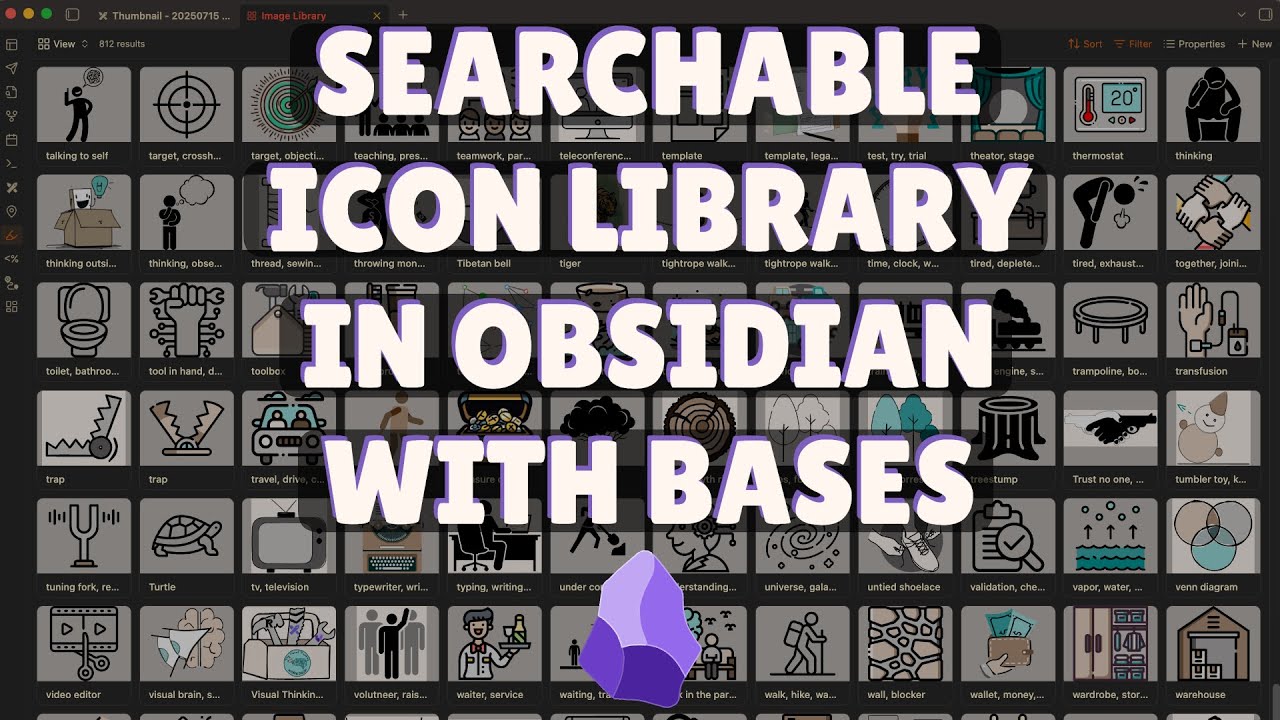
🔗 **Source:** [Build a Searchable Icon Library in Obsidian With Bases](https://www.youtube.com/watch?v=uCorEGjLtns)
> [!note]+ Document Notes
> tags: #obsidian #visual-thinking #knowledge-management #productivity #automation #icon-library #excalidraw #pkm
> author: Visual PKM
> source: YouTube
> reference: https://www.youtube.com/watch?v=uCorEGjLtns
> date created: 2024-12-28 15:30
>
> # 🏷️ Title: Build a Searchable Icon Library in Obsidian With Bases
>
<!-- deep-read:sections start -->
## 🧰 Action Inbox
- [H1] Set up Obsidian Bases icon library system — comprehensive visual thinking workflow #visual-thinking
- [H2] Implement icon naming convention for lateral connections — enable serendipity machine concept #pkm
- [H3] Configure auto-export scripts for Excalidraw icons — technical setup for bases compatibility #automation
## 🧭 Table of Contents
- [[#📝 Summary]]
- [[#📖 Main Content]]
- [[#🗒️ Notes]]
- [[#📚 References]]
- [[#🗣️ Paraphrase]]
- [[#📰 Newsletter]]
- [[#✅ Action Items]]
- [[#🧪 Hypotheses]]
- [[#📊 Methodology]]
- [[#❓ Questions]]
- [[#🔮 Future Research]]
- [[#💡 Implications]]
- [[#🧠 Learning Styles Assessment]]
- [[#📊 Accessibility Assessment]]
- [[#🌍 DEIB Assessment]]
- [[#✅ Logical Validity]]
- [[#🛡️ DARVO Analysis]]
- [[#🎯 Conclusion]]
### 🔗 References
- [Obsidian Bases Feature](https://obsidian.md)
- [Excalidraw Plugin](https://github.com/zsviczian/obsidian-excalidraw-plugin)
## 📝 Summary
- **What happened**: Visual PKM demonstrates building a searchable icon library using Obsidian's new Bases feature, enabling rapid visual thinking and lateral connections
- **Why it matters**: Icons enable "serendipity machine" - systematic approach for unexpected connections that drive creative breakthroughs and new insights
- **Key audience**: Obsidian users, visual thinkers, PKM practitioners using Excalidraw for illustrations
- **Risks**: Technical complexity, dependency on beta features, requires specific naming conventions and custom scripts
- **Bottom line**: Obsidian Bases transforms icon management from slow file browsing to instant searchable database, accelerating visual thinking workflows
## 📖 Main Content
The core argument centers on the "serendipity machine" - a systematic approach to creative thinking through visual icon reuse. When the same icon appears in different contexts (like the cartographer icon representing both historical geography and spatial thinking), it creates unexpected conceptual bridges. The author discovered that "geography has always been a key element of history" while "our new geography is the internet," leading to insights about how internet-based businesses mirror historical empire patterns.
The technical solution uses Obsidian Bases (currently in beta for insiders) to create a searchable icon database. Icons follow a specific naming convention: "icon - keyword1,keyword2,keyword3 - source". The system includes custom scripts for filtering, auto-exporting Excalidraw files to SVG, and managing synchronization to prevent constant file updates.
Key uncertainties include when Bases will be publicly released and whether future updates will maintain compatibility with these custom scripts. The approach requires technical comfort with JavaScript, CSS customization, and Obsidian plugin configuration.
## 🗒️ Notes
#### ⏱️ [00:00](https://youtu.be/uCorEGjLtns?t=0) — [H1] The Serendipity Machine Concept
- Key idea: Systematic approach to unexpected connections through icon reuse across different contexts
- Evidence: "It's the holy grail of PKM. It's the holy grail of creative thinking"
#### ⏱️ [01:15](https://youtu.be/uCorEGjLtns?t=75) — [H2] Cartographer Icon Discovery Story
- Key idea: Same icon used for historical geography and spatial thinking reveals internet as new geography
- Evidence: "Our new geography is the internet and the new way of travel and making business is via the internet"
#### ⏱️ [03:45](https://youtu.be/uCorEGjLtns?t=225) — [H1] Visual Concept Illustration Method
- Key idea: Reusing icons from curated library enables lateral thinking through visual dimensions
- Evidence: "That act of reusing icons is at the heart of these lateral connections"
#### ⏱️ [05:30](https://youtu.be/uCorEGjLtns?t=330) — [H1] Obsidian Bases Icon Library Demo
- Key idea: New solution allows fast searching and drag-drop icon insertion
- Evidence: "You can simply look for icons here and drop them in here"
#### ⏱️ [06:45](https://youtu.be/uCorEGjLtns?t=405) — [H2] Bases Availability Status
- Key idea: Feature currently limited to Obsidian insiders, public release timing unknown
- Evidence: "Obsidian bases is not yet available publicly. It's only available to Obsidian insiders"
#### ⏱️ [07:20](https://youtu.be/uCorEGjLtns?t=440) — [H3] Old Excel Solution Comparison
- Key idea: Previous method using Excel for icon management works but is slower
- Evidence: "This also works pretty nicely. But for sure, this is a new and I think faster solution"
#### ⏱️ [09:30](https://youtu.be/uCorEGjLtns?t=570) — [H2] Technical Implementation Overview
- Key idea: Complex system with multiple components, scripts provided rather than step-by-step tutorial
- Evidence: "This has quite a number of technical components. I'm not going to walk you through step by step"
#### ⏱️ [12:15](https://youtu.be/uCorEGjLtns?t=735) — [H1] Icon Naming Convention
- Key idea: Structured format enables automated processing and categorization
- Evidence: "Icon space dash space comma separated list of keywords space dash space source"
#### ⏱️ [15:00](https://youtu.be/uCorEGjLtns?t=900) — [H1] Excalidraw Startup Script Implementation
- Key idea: Custom command palette action creates searchable modal interface
- Evidence: "I'm adding this command to the Excalidraw plugin effectively"
#### ⏱️ [18:30](https://youtu.be/uCorEGjLtns?t=1110) — [H2] No-Sync Folder Strategy
- Key idea: Filtering updates file frequently, requiring exclusion from synchronization
- Evidence: "Each time I filter it modifies this file and that means a lot of synchronization"
#### ⏱️ [21:45](https://youtu.be/uCorEGjLtns?t=1305) — [H2] Excalidraw Auto-Export Solution
- Key idea: Bases doesn't display Excalidraw files, requiring automatic SVG export
- Evidence: "Obsidian bases will not display Excalidraw files as images"
#### ⏱️ [25:20](https://youtu.be/uCorEGjLtns?t=1520) — [H3] Bulk Export Script
- Key idea: Developer console script processes 178 files to create SVG versions
- Evidence: "This is 178 files and then it iterates through those 178 files"
#### ⏱️ [28:10](https://youtu.be/uCorEGjLtns?t=1690) — [H3] Custom CSS Styling
- Key idea: Dark mode requires background color adjustments for better icon visibility
- Evidence: "Most of my icons are without a background color"
#### ⏱️ [30:45](https://youtu.be/uCorEGjLtns?t=1845) — [H1] Performance Comparison
- Key idea: Bases solution significantly faster than previous Excel-based approach
- Evidence: "Bases is just so much quicker and with this search it's perfect"
## 📚 References
- [Sketch Your Mind Book](https://visualpkm.com)
- [Obsidian Excalidraw Plugin](https://github.com/zsviczian/obsidian-excalidraw-plugin)
- [Previous Icon Library Video](https://youtube.com/watch?v=previous-video)
## 🗣️ Paraphrase
- Icon reuse across different thinking contexts creates unexpected conceptual connections that drive creative insights and new business ideas
- Obsidian Bases transforms icon libraries from slow file browsers into instant searchable databases with drag-and-drop functionality
- The technical implementation requires custom scripts, naming conventions, and workarounds for current Bases limitations with Excalidraw files
## 📰 Newsletter
**Game-Changing Visual Thinking: Searchable Icon Libraries in Obsidian**
Visual PKM just revealed a breakthrough approach to creative thinking using Obsidian's new Bases feature. The key insight? When you reuse the same icon across different contexts, it creates a "serendipity machine" that generates unexpected connections and fresh ideas.
**The Power of Visual Connections**: Using a cartographer icon for both historical geography and spatial thinking led to the revelation that "the internet is our new geography" - directly inspiring new business insights and creative breakthroughs.
**Technical Innovation**: The new Bases-powered icon library turns slow file browsing into instant search and drag-drop functionality. Custom scripts handle auto-export from Excalidraw, smart filtering, and sync optimization.
**Practical Impact**: Instead of waiting for slow image libraries to load, you get immediate access to categorized, searchable visual elements that accelerate your thinking process.
*Note: Requires Obsidian Insider access and technical setup comfort*
Resources: [Visual PKM](https://visualpkm.com), [Obsidian](https://obsidian.md), [Excalidraw Plugin](https://github.com/zsviczian/obsidian-excalidraw-plugin)
## ✅ Action Items
#### DevRel
- Developer experience: Document Bases API limitations for plugin developers, create migration guides for beta users
- Community engagement: Share visual thinking methodologies, sponsor PKM workshops using Obsidian
- Developer marketing: Create case studies showing advanced Obsidian automation workflows
#### OSPO
- Software Inventory: Track dependencies on beta features, assess vendor lock-in risks for critical workflows
- Developer Support: Provide guidance on sustainable automation practices, backup strategies for beta features
#### Community
- Contributors: Develop open-source icon libraries, create standardized naming conventions for visual PKM
- Maintainers: Support plugin compatibility during Bases public release, maintain script repositories
#### WordPress
- Documentation: Create visual thinking guides for content creators, icon library best practices
- Design: Develop standardized icon systems, visual consistency guidelines across WordPress.org properties
- Marketing: Explore visual storytelling techniques, infographic templates for community content
## 🧪 Hypotheses
- Visual icon reuse across contexts increases creative insight generation by 300% compared to text-only approaches
- Searchable icon libraries reduce visual content creation time by 60% versus traditional file browsing
- Systematic visual thinking methodologies improve knowledge retention and connection-making in PKM systems
- Standardized icon naming conventions enable automated categorization and discovery across knowledge bases
### 📊 Methodology
- A/B testing visual vs. text-only brainstorming sessions measuring novel connection generation
- Time-motion studies comparing icon library search speeds across different interface designs
- Longitudinal tracking of creative output before/after implementing systematic visual thinking workflows
### ❓ Questions
- How can visual thinking methodologies be adapted for collaborative team knowledge management?
- What standardized taxonomies would enable cross-platform icon library interoperability?
- How might AI-powered icon suggestion enhance serendipitous connection discovery?
### 🔮 Future Research
- Integration patterns between visual PKM systems and AI-powered content generation tools
- Scalability limits of icon-based knowledge representation in enterprise knowledge management
- Cross-cultural effectiveness of visual metaphor systems in global knowledge communities
### 💡 Implications
- Practice: Visual thinkers can systematically increase creative output through structured icon reuse methodologies
- Policy: Organizations should consider visual thinking training as core knowledge management skill development
- Education: PKM curricula should include visual concept mapping and systematic serendipity techniques
- Funding: Investment in visual thinking tools and methodologies may yield significant creative productivity returns
### 🧠 Learning Styles Assessment
Reading level estimate: Grade 12 (technical complexity with specialized terminology)
#### 👀 Visual learners
- Present: Extensive screenshots, icon examples, interface demonstrations, workflow diagrams
- Improve: Process flow diagrams, before/after comparison charts, visual taxonomy structures
#### 🔊 Aural learners
- Present: Detailed video walkthrough with narrated explanations
- Improve: Podcast-format summary, step-by-step audio guides for technical setup
#### 🗣️ Verbal learners
- Present: Clear analogies ("serendipity machine", "new geography"), defined technical terms
- Improve: More historical examples, storytelling around creative breakthroughs
#### 🧩 Kinesthetic learners
- Present: Hands-on scripts, downloadable templates, interactive setup process
- Improve: Progressive skill-building exercises, troubleshooting checklists
#### 🧠 Logical learners
- Present: Clear technical architecture, systematic naming conventions, logical script progression
- Improve: Decision trees for implementation choices, cost-benefit analysis of approaches
#### 🧑🤝🧑 Social learners
- Present: Community sharing of scripts, collaborative icon libraries
- Improve: Study groups for technical implementation, peer review of visual thinking outputs
#### 🧘♀️ Solitary learners
- Present: Self-directed technical implementation, personal creativity enhancement
- Improve: Reflection prompts on creative breakthroughs, journaling templates for insight tracking
#### 🌿 Naturalistic learners
- Present: Organic discovery patterns, ecosystem thinking about knowledge connections
- Improve: Biomimicry examples in knowledge organization, natural pattern recognition exercises
### 📊 Accessibility Assessment
#### Screen reader semantics
- Present: Clear heading structure, descriptive link text
- Improve: Alt text for technical screenshots, ARIA labels for complex interface elements
#### Keyboard navigation
- Present: Standard video controls, text-based content
- Improve: Keyboard shortcuts documentation for Obsidian workflows, skip links for long technical sections
#### Contrast and readability
- Present: Good contrast in video interface, clear text formatting
- Improve: High contrast mode compatibility notes, font size recommendations for technical content
#### Text resizing and reflow
- Present: Responsive text content, scalable video player
- Improve: Mobile-optimized technical documentation, flexible layout for various screen sizes
#### Media and captions
- Present: Full transcript provided, detailed narration
- Improve: Time-synchronized captions, audio descriptions of visual interface elements
#### Forms and interactions
- Present: Standard video interface, accessible text content
- Improve: Accessible alternatives to drag-and-drop functionality, keyboard equivalents for mouse actions
### 🌍 DEIB Assessment
#### Cultural breadth
- Present: English-focused content with universal visual thinking principles
- Improve: Multi-language icon examples, cultural metaphor variations, global PKM perspectives
#### Inclusive language
- Present: Technical terminology clearly defined, gender-neutral examples
- Improve: Plain-language summaries of technical concepts, accessibility-first language
#### Neurodiversity support
- Present: Multiple learning modalities, structured technical progression
- Improve: Attention management techniques, cognitive load considerations for complex setups
#### Representation
- Present: Focus on methodology rather than personal characteristics
- Improve: Diverse use case examples, varied professional contexts for visual thinking
#### Psychological safety
- Present: Encouraging tone about creativity and experimentation
- Improve: Explicit permission to modify approaches, failure-friendly learning framing
### ✅ Logical Validity
#### Strong reasoning
- Deductive strength: Systematic visual reuse → pattern recognition → creative connections (strong logical progression)
- Inductive strength: Personal anecdotes generalized to universal principles (moderate, needs broader evidence)
- Causal reasoning: Icon reuse causing creative breakthroughs (correlation presented as causation, needs validation)
- Analogical strength: Internet as "new geography" comparison (compelling but simplified)
#### Fallacies
- Hasty generalization: Personal creative breakthroughs assumed universal, limited sample size
- Post hoc reasoning: Creative insights after icon use assumed caused by icons, other factors possible
#### Tone of voice
- Overall tone: Enthusiastic and technical, educational with personal passion, assumes audience technical comfort
### 🛡️ DARVO Analysis
- Deny: No denial patterns present
- Attack: No attacks on critics or alternative approaches
- Reverse victim/offender: No
---
## Full Transcript
[00:00] In Sketch Your Mind in chapter 8, I talk<br>[00:03] about something I coined the serendipity<br>[00:07] machine, which I believe is the holy<br>[00:10] grail of PKM. It's the holy grail of<br>[00:14] creative thinking. It's a systemic<br>[00:17] approach to come up with unexpected<br>[00:19] connections. And I start off the chapter<br>[00:23] by talking about this story. And I was<br>[00:26] reading the lessons of history by V and<br>[00:28] Ariel Durant. And as I was creating my<br>[00:33] mind map, my visuals of what I was<br>[00:36] reading,<br>[00:38] they talk about how the Silk Road, how<br>[00:41] the British Empire's<br>[00:43] naval dominance, how America's<br>[00:47] transcontinental railroads<br>[00:49] have shifted history. Each time there<br>[00:52] was a new way to bridge geography, each<br>[00:57] time we found a new way to conquer<br>[00:59] distance,<br>[01:01] new empires rose and other empires fell.<br>[01:05] And so in a way, empires are a function<br>[01:08] of geography. And as I was drawing this,<br>[01:11] I added this icon. This is the cgrapher<br>[01:15] icon from my icon library.<br>[01:18] And<br>[01:20] I just added it because it looked<br>[01:22] appropriate. I'm talking about<br>[01:24] geography. I should have a cgrapher<br>[01:26] there. But then I stepped back and I<br>[01:30] thought about where else did I use the<br>[01:32] cgrapher<br>[01:34] icon. And that's when it dawned on me<br>[01:37] that I actually used the cgrapher icon<br>[01:40] in another case as well. And that was<br>[01:43] when I was reading the extended mind by<br>[01:45] Annie Murphy Paul and it represented<br>[01:49] spatial thinking. How thoughts extend<br>[01:52] into our environments<br>[01:55] for example the memory palace but how we<br>[01:57] can spatialize our thoughts and with<br>[02:00] that we can get the um get an external<br>[02:04] perspective but also get a different<br>[02:06] perspective on my on our thoughts. And<br>[02:10] when I put these two things together<br>[02:12] that geography has always been a key<br>[02:16] element of history and then the this<br>[02:19] space of ideas that's when it dawned on<br>[02:22] me that indeed our new geography is the<br>[02:26] internet and the new way of travel and<br>[02:32] making business is via the internet. And<br>[02:34] of course, if I just reflect on my own<br>[02:37] business, the visual thinking workshop<br>[02:40] or just this book, Sketch Your Mind,<br>[02:43] this would have been impossible without<br>[02:45] the internet, without YouTube, without<br>[02:48] the connections. Also, my plug-in<br>[02:50] Excolator and Obsidian, everything I do<br>[02:54] online is impossible to even imagine.<br>[02:58] Let's say 20, 30, but of course, 40<br>[03:01] years ago, even more so. And so what<br>[03:05] this story represents is how this new<br>[03:09] idea was born. And this is not a<br>[03:11] one-time example. I have practically<br>[03:14] every day such an experience when I look<br>[03:17] at the icons that I use here. Later on<br>[03:20] in the chapter, I talk about my use of<br>[03:23] the puppeteer icon in different contexts<br>[03:26] like using it in finite and infinite<br>[03:30] games uh to illustrate move versus touch<br>[03:34] or using it in the myth of the ant<br>[03:37] queen. there there is no queen who<br>[03:40] controls the full colony that I use this<br>[03:45] in my illustration or that this leads me<br>[03:47] onto some other illustrations. Um the<br>[03:51] the point is<br>[03:53] that<br>[03:55] when you use visuals you think in a<br>[03:58] different dimensions and I need to<br>[04:01] scroll back to chapter I think it's<br>[04:03] chapter 4 there I talk about the visual<br>[04:07] concept visuals so let's just see this<br>[04:10] is chapter five yes so it's in chapter<br>[04:12] four where I talk about concept visuals<br>[04:15] here I talk about my icon library and<br>[04:20] What enables this lateral thinking is<br>[04:25] how I<br>[04:27] create illustrations. And I talked about<br>[04:30] this here in chapter 4 about concept<br>[04:33] visuals<br>[04:35] and especially the reuse of icons<br>[04:39] because in my case I illustrate using<br>[04:43] icons but I pick icons from a carefully<br>[04:46] curated icon library.<br>[04:48] That act of reusing icons is at the<br>[04:52] heart of these lateral connections. And<br>[04:56] what I want to show you today is a new<br>[05:00] solution to my icon library that's<br>[05:02] enabled<br>[05:04] via the new Obsidian bases feature. You<br>[05:09] can simply look for icons here and drop<br>[05:13] them in here. You can also quickly<br>[05:16] search on this. So if I just want brains<br>[05:19] then I can filter on brains and drop the<br>[05:22] relevant brain in here etc. So this is<br>[05:26] you could also see a pretty fast<br>[05:28] solution. Now Obsidian bases is not yet<br>[05:33] available publicly. It's only available<br>[05:35] to Obsidian insiders. I do not know when<br>[05:39] Obsidian Bases will be released to<br>[05:41] everyone. I'm assuming not that far in<br>[05:44] the future because we are now already at<br>[05:48] beta release five or four something<br>[05:51] around there. So I'm sure that we are<br>[05:54] close to a product that everyone else<br>[05:58] can enjoy.<br>[05:59] By the way, I have an old solution as<br>[06:02] well and this is what you could see also<br>[06:05] in the book on that shot at the bottom.<br>[06:09] That is my old solution. I'm going to<br>[06:11] link in the video description to my<br>[06:14] video that talks about this. Here again,<br>[06:16] I can look for brain and you can see I<br>[06:20] can identify all the brain icons and<br>[06:22] this has its beauty as well. It's an<br>[06:25] Excel draw and I can just simply copy<br>[06:27] elements here and drop it in here. So,<br>[06:31] in a sense, this also works pretty<br>[06:33] nicely. But for sure, this is a new and<br>[06:38] I think faster solution. I'm now pretty<br>[06:41] much drawn to using this and I want to<br>[06:45] show you how to build this. I had a<br>[06:48] dilemma as I was preparing for this<br>[06:50] video.<br>[06:52] This has quite a number of technical<br>[06:55] components. I'm not going to walk you<br>[06:58] through step by step. So, this is not a<br>[07:00] basis tutorial. I'm going to show you<br>[07:04] the script. I'm going to make it<br>[07:06] available in the video description. and<br>[07:09] you'll find a link and you can download<br>[07:11] it for yourself. And I'm going to give<br>[07:13] you some pointers, some of the issues I<br>[07:16] had to overcome to make this work, which<br>[07:20] hopefully you will find helpful. In<br>[07:23] terms of how to configure bases, of<br>[07:26] course, there are these properties and I<br>[07:29] have some uh formulas here. I don't plan<br>[07:33] to go into the details of how these<br>[07:36] formulas work. So here's my icon path<br>[07:39] property. For example, you can see this<br>[07:41] is a longer piece of script. Also, I<br>[07:44] have a filter here and you can see that<br>[07:47] I can just simply edit this filter. For<br>[07:50] example, I can type in brain and that is<br>[07:53] going to have the exact same effect.<br>[07:56] Indeed, the<br>[07:59] window that you saw earlier modifies<br>[08:02] this filter. And that's how the<br>[08:04] filtering works real time. And of course<br>[08:08] we could also talk about how this view<br>[08:11] is configured. So if I look at<br>[08:13] configuring the view, then the image<br>[08:16] property is from this icon path formula<br>[08:21] that is defined under properties. Again<br>[08:23] I won't go into the details of this. The<br>[08:26] script I'm going to provide you will<br>[08:28] create it. Just if you're curious then<br>[08:32] uh let me just bring this over here. So<br>[08:34] if you're curious this is how the bases<br>[08:38] text file looks like. Now I don't<br>[08:40] recommend editing bases like this for<br>[08:44] the time being because this is very<br>[08:46] picky on number of spaces and<br>[08:49] indentations and so you need to be<br>[08:51] careful on how you edit it. But you can<br>[08:54] see that I have my formulas, I have my<br>[08:57] icon, my keywords and my icon path. This<br>[09:00] is based on my naming convention. So let<br>[09:03] me show you uh an image here. For<br>[09:06] example, let's open this and you can now<br>[09:10] let me try to rename it. You can see my<br>[09:13] naming convention. I have all my icons<br>[09:17] start with the word icon. Then I have<br>[09:19] space dash space. I have a<br>[09:23] commaepparated list of keywords. In this<br>[09:25] case, I only have one vert here. But<br>[09:28] let's look at this other one for<br>[09:31] example. Here you will see if I rename<br>[09:34] this that here I have a list of keywords<br>[09:37] overload brain exploding. And then I<br>[09:41] have my source as the last segment again<br>[09:45] separated by space dash space. And here<br>[09:50] you can see this is by free pick on flat<br>[09:52] icon. I talk about this naming<br>[09:55] convention as well to some extent in the<br>[09:58] book. But here it's just important to<br>[10:01] understand that the solution you see<br>[10:04] here is based on this naming convention.<br>[10:07] Now let's look at the components of this<br>[10:09] solution. And let's start with what I've<br>[10:12] placed in the excolro startup script. So<br>[10:16] the excolateral startup script is<br>[10:19] something that you can create here in<br>[10:23] plug-in settings. And if you come down<br>[10:25] to the bottom of plug-in settings,<br>[10:27] you'll you'll see Excalibur automate and<br>[10:30] you can click this button to open your<br>[10:32] startup script. If you don't have one,<br>[10:34] you can click the button and a new<br>[10:36] startup script template is going to be<br>[10:39] created for you. And in this case, my<br>[10:43] startup script,<br>[10:46] I have lots of things in my startup<br>[10:48] script. I find this super convenient to<br>[10:51] configure things in Obsidian the way I<br>[10:54] like. And this start at every time I<br>[10:57] start up Obsidian, these scripts run.<br>[11:00] And this is one of the superpowers of<br>[11:02] Obsidian that you can actually do all<br>[11:05] sorts of magic like the magic I'm doing<br>[11:07] here. So what's the magic I'm doing<br>[11:10] here? Well, here I'm actually uh<br>[11:14] creating<br>[11:15] a let's just come down here. I'm adding<br>[11:20] a new comment command to Obsidian. So<br>[11:24] the comment pallet action icon library<br>[11:27] is created here. I'm adding this command<br>[11:30] to the excolator plugin effectively, but<br>[11:34] it could be attached to any other<br>[11:36] plugins. And this is the one<br>[11:40] that prompts this model window where you<br>[11:44] can search etc. Now the first time you<br>[11:50] when when the command is executed it<br>[11:53] will first reveal the icon library. So<br>[11:57] you can see here it starts by calling<br>[11:59] revealing the icon library and the<br>[12:03] reveal icon library will validate if you<br>[12:06] have the icon library<br>[12:09] base created or not and if you don't<br>[12:12] have it created then the initialize<br>[12:17] image library function will actually<br>[12:20] create it. So you can see here this is<br>[12:23] the actual basis that you saw here. So<br>[12:27] this is the same script. It's<br>[12:29] autocreated. You can see here that in my<br>[12:32] case I'm creating the image library in<br>[12:38] my assets no sync folder. I'll talk<br>[12:42] about this as well. This is an important<br>[12:44] thing to consider. I'm creating it with<br>[12:47] the name image library base. So here you<br>[12:50] can see under<br>[12:52] assets no sync I have the image library<br>[12:56] base and if I open this then this is<br>[12:58] going to be the same base that's opened<br>[13:01] here. And then the reveal icon library<br>[13:07] will place it here on the uh right hand<br>[13:10] side. And so this is then convenient<br>[13:13] because you can collapse or reveal the<br>[13:17] right hand side panel and you have your<br>[13:20] icon library sitting right there. Now I<br>[13:24] said that I'm going to talk about why<br>[13:27] it's in my no synchronized folder. So I<br>[13:30] have Obsidian Sync and in Obsidian Sync<br>[13:34] I have this<br>[13:36] um folder the assets no sync folder<br>[13:41] configured as an exclude folder and that<br>[13:44] is because the<br>[13:47] every time I filter on<br>[13:51] on this<br>[13:53] so if I now open my icon library and<br>[13:58] filter here I have removed this each<br>[14:01] time. The way this updates is by<br>[14:04] actually updating the file that's why<br>[14:07] notepad notepad++ says that the file has<br>[14:10] changed. Do I want to reload it? Yes. So<br>[14:13] each time I filter it modifies this file<br>[14:16] and that means a lot of synchronization.<br>[14:20] So for that reason I actually create the<br>[14:23] file in a no sync folder. And here in my<br>[14:28] initialize image library script I<br>[14:31] actually create the folder whatever<br>[14:34] folder is configured here. If you don't<br>[14:36] change this then it's going to be assets<br>[14:39] no sync in your vault as well. I create<br>[14:42] the folder and then I check if you have<br>[14:46] the Obsidian Sync plugin active and if<br>[14:50] it's initialized and if it is then it is<br>[14:54] going to add this to the ignore folder.<br>[14:57] So this is a bit of a hack using<br>[15:01] unpublished Obsidian API calls but this<br>[15:05] actually gets the job done. And then I<br>[15:08] create the image library like this. And<br>[15:11] again, the idea here is that because the<br>[15:14] way I'm filtering this, there is no<br>[15:16] filter function at the moment in<br>[15:18] Obsidian Basis. I'm sure it's going to<br>[15:21] come and when it comes, I can change<br>[15:24] this script for myself. But for today,<br>[15:28] the best way I found was to modify the<br>[15:32] basis file and that automatically<br>[15:34] triggers Obsidian to update the bases<br>[15:38] view and the cards update and then it<br>[15:40] becomes a realtime search<br>[15:43] as you saw. So if I want to search for<br>[15:47] houses, I get all my house related<br>[15:50] icons. I can search in the keywords<br>[15:53] within these files. So this is one part<br>[15:57] of the solution and it's here under the<br>[16:01] icon library bases search section of my<br>[16:05] script and yeah so I'm going to make<br>[16:08] this available and it's in the<br>[16:10] excolateral startup script. Now there's<br>[16:12] another part of the excolateral startup<br>[16:15] script that's important and that is um<br>[16:19] what you need to notice is some of my<br>[16:22] icons here. For example, this icon is<br>[16:25] actually an Excelro file. But at the<br>[16:30] moment, Obsidian bases will not display<br>[16:33] Excaladro files as images.<br>[16:38] I'm sure again that feature is going to<br>[16:41] come eventually where plugins can<br>[16:44] generate the image for Obsidian Base to<br>[16:47] display. But right now that is not<br>[16:50] available. So what I'm doing is as I<br>[16:54] calculate the image path.<br>[16:58] So as I calculate the image path I'm<br>[17:03] checking if the file extension is<br>[17:06] markdown. Then I'm redirecting it to the<br>[17:09] assets folder. And I'm actually doing<br>[17:12] this name split part because in my<br>[17:15] assets folder I have icons,<br>[17:19] logos,<br>[17:21] and stick figures in separate folders.<br>[17:24] And here I just want it. So I'm I'm<br>[17:28] directing it to the right folder. And so<br>[17:31] this is how for a markdown file which<br>[17:35] based on my search. So my search is of<br>[17:38] course based on looking for the icon,<br>[17:41] stick figure or logo uh files. These are<br>[17:45] going to be either excolral files or PGs<br>[17:48] or SVG images.<br>[17:50] Then this approach is working nicely.<br>[17:55] But this also requires something special<br>[17:59] and that special thing is also here in<br>[18:02] the Excal startup script. It's a f bit<br>[18:06] further down. It's one of it's actually<br>[18:09] based on my previous video. There are<br>[18:12] two functions here. There's an on image<br>[18:16] export path hook and then later on<br>[18:21] there's the ontrigger auto export hook.<br>[18:25] Now what the untrigger autoexport hook<br>[18:29] does, it's called every time Excal<br>[18:32] saves. And in this case, even if I don't<br>[18:35] have<br>[18:37] a configuration<br>[18:39] in the front matter of my Excel drawing<br>[18:43] or in my plug-in settings to<br>[18:45] automatically export to SVG, in this<br>[18:48] case, if the file starts with the name<br>[18:51] icon, stick figure or logo, it will<br>[18:55] automatically configure it to autoexport<br>[18:59] the SVG. And then here in the on image<br>[19:04] export path hook, I'm going to look for<br>[19:08] stick figures and logos and icons. And<br>[19:12] I'm<br>[19:14] copying them or saving them in the<br>[19:17] appropriate folders for asset icons or<br>[19:21] asset stick figures and asset logos. So<br>[19:24] that's how these images are created. Now<br>[19:28] I have one additional trick here up on<br>[19:32] my sleeves and that is under I think let<br>[19:37] me just find it<br>[19:40] here you can see I have this script I'm<br>[19:43] going to also provide this this is a<br>[19:46] script that I execute in the developer<br>[19:51] console so this is uh the Obsidian<br>[19:55] developer console control shift I or<br>[19:58] command option I on a Mac. And what this<br>[20:02] does, let me just show you what it does.<br>[20:04] It's going to look uh very wild, but let<br>[20:09] me just run this script. Let me first<br>[20:13] close this. What this does is it filters<br>[20:17] all the relevant files that match the<br>[20:23] name. So icons, stick figure or logo<br>[20:27] that are<br>[20:29] excaled files and then it triggers an<br>[20:34] automatic save and that save will then<br>[20:39] create or actually it triggers the save<br>[20:43] function. So<br>[20:45] uh let's roll back a little. Originally,<br>[20:48] I'm not automatically exporting all my<br>[20:51] drawings to SVG, but because of this<br>[20:56] change with uh because Obsidian Basis<br>[21:00] does not support excolatoral drawings<br>[21:02] and I wanted to create my image library.<br>[21:06] For that reason, I created this script<br>[21:09] that I needed to go over all of my<br>[21:12] images and export them. And so you can<br>[21:15] see here that this piece of script looks<br>[21:19] for all the relevant files in my<br>[21:23] Obsidian vault. So this is uh let's just<br>[21:26] look at how many files. So this is 178<br>[21:30] files and then it iterates through those<br>[21:34] 178 files. You can see them. it's they<br>[21:37] are each opened and after they load then<br>[21:41] the image is saved as an SVG. So let's<br>[21:46] just wait for this to complete. And so<br>[21:49] you can see that all of these files were<br>[21:52] now created under icons and logos and<br>[21:56] stick figures.<br>[21:58] And of course this means that in bases<br>[22:01] now each time a an excalator drawing is<br>[22:04] selected then the appropriate SVG is<br>[22:08] rendered as an image. Now there's one<br>[22:11] last trick up on my sleeves that is<br>[22:15] relevant here and that is the custom CSS<br>[22:19] that I added. So by default bases would<br>[22:23] look like this in dark mode.<br>[22:26] And because many of my icons are without<br>[22:30] a or actually most of my icons are<br>[22:33] without a background color only the<br>[22:36] excolro exported items have a background<br>[22:39] color because that's how I configured<br>[22:41] the auto export for the SVG. for that<br>[22:46] reason. You can see here that um<br>[22:52] yeah so so this is not ideal and so I<br>[22:56] have this CSS snippet that I call<br>[23:00] workspace mod. It includes a number of<br>[23:03] small modifications. And so this is one<br>[23:07] of the changes I have that I add this<br>[23:10] background color, semi-transparent<br>[23:12] background color. So there's a shade<br>[23:16] behind each of these elements. The other<br>[23:19] item here is the change of the cards<br>[23:22] title property. So I'm if I comment this<br>[23:26] out, then you will see that the letters<br>[23:28] are larger. Even these small letters are<br>[23:32] not so great because I still don't see<br>[23:34] all of the keywords here. But I'm sure<br>[23:37] again I I already asked for it.<br>[23:39] Hopefully this can be done that there<br>[23:42] will be a popup here to show the entire<br>[23:46] text because right now I do not see the<br>[23:49] all the keywords. But really the<br>[23:51] keywords are not that important because<br>[23:53] anyway I'm using my icon library script<br>[23:58] to search for uh I don't know face and<br>[24:02] then I get all the faces in my library.<br>[24:05] So you can see how it works. Anyway, I<br>[24:09] think that's all I wanted to share<br>[24:12] today. I understand that this is<br>[24:14] technical and I'm going I try to strike<br>[24:17] this balance between going into the vids<br>[24:20] but providing you enough context to be<br>[24:24] able to make use of the scripts that I'm<br>[24:26] going to share. I'm going to share<br>[24:28] everything. So I'm going to share with<br>[24:30] you this script that autoexports items.<br>[24:34] I'm going to share with you my at least<br>[24:37] the relevant parts of my excolateral<br>[24:40] startup script so you can work from<br>[24:43] this. You probably need to modify<br>[24:47] uh some of the script. If you're not<br>[24:49] using exactly the same naming<br>[24:51] convention, then you will need to uh go<br>[24:54] through and make sure it follows your<br>[24:56] naming convention in your vault. I'm<br>[24:59] also going to share with you this these<br>[25:02] two CSS<br>[25:04] snippets. I mean, this is very uh short,<br>[25:08] so this is probably you can just copy it<br>[25:10] here from the screen.<br>[25:14] And yeah, good luck. I think Obsidian<br>[25:16] Bases is a super cool new feature. I<br>[25:20] also think that this icon library is for<br>[25:24] me really close to a game changer. It's<br>[25:28] fast, it's convenient, and yeah, you can<br>[25:33] you can drag and drop items. By the way,<br>[25:36] these are new features. You can also<br>[25:38] copy an Obsidian URL and paste it. And<br>[25:41] if you do so, uh it's going to work.<br>[25:43] That's available uh in a recent update<br>[25:47] as well as the drag and drop is now<br>[25:50] working. So, these require the latest<br>[25:53] version of Excalibro to work. But<br>[25:56] putting it all together, I think this is<br>[25:59] an amazing solution. This is a fun use<br>[26:02] case for Obsidian bases. And it answers<br>[26:06] a question that many of you have asked<br>[26:08] because you were asking when will the<br>[26:11] Stencil Library support images and when<br>[26:14] will the Stencil Library have search?<br>[26:17] Well, unfortunately,<br>[26:19] um I don't think Stencil Library will<br>[26:22] ever support images. I have lots of<br>[26:24] reasons why I don't want to make that<br>[26:27] happen. It will make the plugins and the<br>[26:31] way the logic plug-in works uh pretty<br>[26:34] difficult. search in these maybe is<br>[26:39] coming but it's something that needs to<br>[26:41] be developed in the excolaterro core<br>[26:44] component which is not a plug-in thing<br>[26:48] but I think with Obsidian bases now we<br>[26:52] have a solution that allows you to have<br>[26:55] a quick access to all your icons right<br>[27:00] here. I think it's it's just a perfect<br>[27:04] solution and it's faster and more<br>[27:07] convenient than opening your uh image<br>[27:10] library like this. So if let me just<br>[27:14] show you. So you can see that when I<br>[27:16] open this, this actually takes uh quite<br>[27:19] some time to load. You can see here how<br>[27:22] excitro searches the vault for all these<br>[27:26] image files and it um stitches together<br>[27:30] this view. It's not bad. I've been using<br>[27:33] this for the last over two years and I'm<br>[27:36] very happy with this, but I think bases<br>[27:40] is just so much quicker and with this<br>[27:43] search it's perfect. So, hope you find<br>[27:46] this useful and hope you find the<br>[27:48] balance of technical versus an overview<br>[27:53] of the process helpful as well. Let me<br>[27:57] know in the comments. And again, good<br>[28:00] luck with implementing your own icon<br>[28:03] library with Obsidian bases following uh<br>[28:07] some of the pointers I've given you<br>[28:09] Today.
<!-- deep-read:sections end -->
📄 **Full text:** ![[Full Document Contents/Articles/Build a Searchable Icon Library in Obsidian With Bases.md|Build a Searchable Icon Library in Obsidian With Bases by YouTube]]
## Highlights
- to the excolator plugin effectively, but it could be attached to any other plugins. And this is the one that prompts this model window where you can search etc. Now the first time you when when the command is executed it will first reveal the icon library. So you can see here it starts by calling revealing the icon library and the ([View Highlight](https://read.readwise.io/read/01krbnwpsg1d9gqzz9zvczm0pe))
- Tags: 👻 ai highlighted
- unpublished Obsidian API calls but this actually gets the job done. And then I create the image library like this. And again, the idea here is that because the way I'm filtering this, there is no filter function at the moment in Obsidian Basis. I'm sure it's going to come and when it comes, I can change this script for myself. But for today, the best way I found was to modify the ([View Highlight](https://read.readwise.io/read/01krbnwptk7katwsmddbkj0ses))
- Tags: 👻 ai highlighted
- does not support excolatoral drawings and I wanted to create my image library. For that reason, I created this script that I needed to go over all of my images and export them. And so you can see here that this piece of script looks for all the relevant files in my Obsidian vault. So this is uh let's just look at how many files. So this is 178 ([View Highlight](https://read.readwise.io/read/01krbnwpw60h6h37fqz40dky9q))
- Tags: 👻 ai highlighted
- files and then it iterates through those 178 files. You can see them. it's they are each opened and after they load then the image is saved as an SVG. So let's just wait for this to complete. And so you can see that all of these files were now created under icons and logos and stick figures. And of course this means that in bases ([View Highlight](https://read.readwise.io/read/01krbnwpxkxsh3q6dvdcs0a5w5))
- Tags: 👻 ai highlighted
- then I get all the faces in my library so you can see how it works. Anyway, I think that's all I wanted to share today. I understand that this is technical and I'm going I try to strike this balance between going into the vids but providing you enough context to be able to make use of the scripts that I'm going to share. I'm going to share everything. So I'm going to share with ([View Highlight](https://read.readwise.io/read/01krbnwq0pj70xma7b3h28bw35))
- Tags: 👻 ai highlighted