Introducing YouTube Channel Visualizer
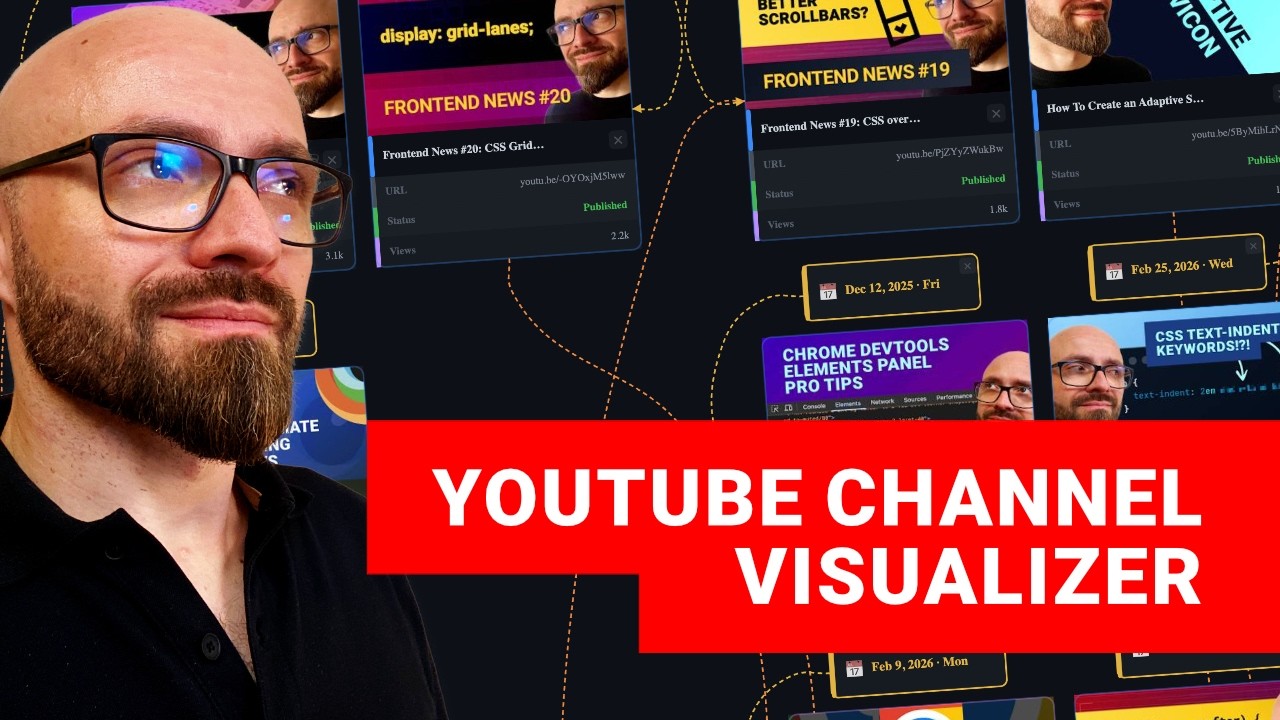
🔗 **Source:** [Introducing YouTube Channel Visualizer](https://www.youtube.com/watch?v=TypepS0ZSoQ)
> [!note]+ Document Notes
> tags: #youtube #data-visualization #jointjs #claude-ai #developer-tools
> author: CSS Weekly
> source: YouTube
> reference: https://www.youtube.com/watch?v=TypepS0ZSoQ
> date created: 2024-12-19 09:30
>
> # 🏷️ Title: Introducing YouTube Channel Visualizer
>
<!-- deep-read:sections start -->
## 🧰 Action Inbox
- [H1] Try the YouTube Channel Visualizer tool with your own channel — link in description #youtube
- [H2] Install JointJS Claude Code Playground plugin for building visual tools — GitHub repo available #developer-tools
- [H3] Export channel visualization as PNG for social media sharing — built-in export feature #data-visualization
## 🧭 Table of Contents
- [[#📝 Summary]]
- [[#📖 Main Content]]
- [[#🗒️ Notes]]
- [[#📚 References]]
- [[#🗣️ Paraphrase]]
- [[#📰 Newsletter]]
- [[#✅ Action Items]]
- [[#🧪 Hypotheses]]
- [[#📊 Methodology]]
- [[#❓ Questions]]
- [[#🔮 Future Research]]
- [[#💡 Implications]]
- [[#🧠 Learning Styles Assessment]]
- [[#📊 Accessibility Assessment]]
- [[#🌍 DEIB Assessment]]
- [[#✅ Logical Validity]]
- [[#🛡️ DARVO Analysis]]
- [[#🎯 Conclusion]]
### 🔗 References
- [YouTube Channel Visualizer Tool](https://www.youtube.com/watch?v=TypepS0ZSoQ)
- [JointJS Claude Code Playground Plugin](https://github.com/jointjs/claude-code-playground)
## 📝 Summary
- **What happened**: Developer Zoran Jambor created a YouTube Channel Visualizer tool that displays channel videos as interactive diagrams with multiple view modes
- **Why it matters**: Provides creators with visual insights into content performance, posting patterns, and channel planning capabilities
- **Key stakeholders**: YouTube creators, content planners, developers interested in data visualization
- **Risks and tradeoffs**: Requires YouTube API key, limited to localStorage persistence, single HTML file architecture
- **Bottom line**: A powerful visualization tool built with Claude AI and JointJS that helps creators understand and plan their content strategy
## 📖 Main Content
The YouTube Channel Visualizer is a single-page HTML application that transforms YouTube channel data into interactive visual diagrams. Built through "vibe coding" with Claude AI and enhanced with the JointJS diagramming library, the tool offers multiple visualization modes including timeline, tags, views, and grid layouts.
The tool fetches data via YouTube API and stores everything locally in the browser's localStorage, requiring no account creation. Users can drag and drop video nodes, modify connections between elements, add custom tags, and plan future content directly within the interface.
Key technical features include support for up to 100+ videos with smooth performance, multiple export formats (PNG, JSON, Markdown), and real-time editing capabilities. The visualization clearly shows content patterns, performance metrics, and helps identify successful video types for strategic planning.
## 🗒️ Notes
#### ⏱️ [00:00](https://youtu.be/TypepS0ZSoQ?t=0) — [H1] Tool Introduction and Purpose
- Key idea: Developer built YouTube Channel Visualizer to visualize channel videos after wanting such a tool
- Evidence: "I published a lot of videos on this channel, and I always wanted a tool that would actually allow me to visualize those videos somehow"
#### ⏱️ [00:30](https://youtu.be/TypepS0ZSoQ?t=30) — [H2] Interactive Canvas Features
- Key idea: Main canvas allows zooming and dragging with interactive nodes for all elements
- Evidence: "On this main canvas, you can zoom in and zoom out, and also, all nodes here, all elements are interactive"
#### ⏱️ [01:15](https://youtu.be/TypepS0ZSoQ?t=75) — [H3] Connection Line Visualization Options
- Key idea: Multiple line styles (Direct, Manhattan, Metro) with Rounded or Curve options for visualizing connections
- Evidence: "The options available are Direct, Manhattan, and Metro. And you can have a different style of those lines, Rounded or Curve"
#### ⏱️ [02:30](https://youtu.be/TypepS0ZSoQ?t=150) — [H2] View Mode Options
- Key idea: Four main view modes available - timeline, tags, views, and grid for different organizational perspectives
- Evidence: "Another cool thing is that you can visualize the videos on your channel in the timeline view, as we have here, or alternatively by tags, views, and grid"
#### ⏱️ [03:15](https://youtu.be/TypepS0ZSoQ?t=195) — [H3] Tag Management System
- Key idea: Interactive tag system allows dragging videos to tags and creating custom tags with emoji icons
- Evidence: "If you open the Tags view in the sidebar, you can drag any number of other tags and connect your videos to those tags"
#### ⏱️ [04:00](https://youtu.be/TypepS0ZSoQ?t=240) — [H1] JointJS Library Integration
- Key idea: Tool powered by JointJS library and built using Claude Code Playground plugin
- Evidence: "Everything here is interactive because this is powered by JointJS library. I actually vibe-coded this tool using the Claude Code Playground plugin"
#### ⏱️ [04:30](https://youtu.be/TypepS0ZSoQ?t=270) — [H2] Performance Analysis via Views Mode
- Key idea: Views mode reveals which videos perform well and helps identify successful content patterns
- Evidence: "Another view that we have here is Views, which is really cool because it allows you to see which videos are performing well on your channel"
#### ⏱️ [06:00](https://youtu.be/TypepS0ZSoQ?t=360) — [H3] Local Storage and Export Features
- Key idea: Everything stored in localStorage with export options for JSON, Markdown, and PNG formats
- Evidence: "Everything in this app is actually stored in localStorage. So if you refresh the page, anything you change will be preserved"
#### ⏱️ [07:45](https://youtu.be/TypepS0ZSoQ?t=465) — [H2] Alternative View Modes
- Key idea: Calendar and Stats views provide additional perspectives on channel performance and patterns
- Evidence: "You also have two different views: a Calendar view that allows you to visualize your channel on a simple calendar grid"
#### ⏱️ [08:30](https://youtu.be/TypepS0ZSoQ?t=510) — [H1] API Integration and Channel Import
- Key idea: Users can import their own channels using YouTube API key and channel handle
- Evidence: "This tool wouldn't be useful if you couldn't actually import your own channel into it. And you can very easily do that because there's an API section"
#### ⏱️ [09:45](https://youtu.be/TypepS0ZSoQ?t=585) — [H2] Content Planning Capabilities
- Key idea: Tool doubles as content planner by adding future videos with status tracking
- Evidence: "You can also use this as a planning tool for your channel. So, for example, if you're planning a new video"
#### ⏱️ [11:30](https://youtu.be/TypepS0ZSoQ?t=690) — [H1] Privacy and Security Features
- Key idea: 100% local operation with API keys never sent externally, single HTML file architecture
- Evidence: "This tool is just 100% local. It's a single HTML file, and the API key that you're going to save here will not be sent anywhere"
#### ⏱️ [12:15](https://youtu.be/TypepS0ZSoQ?t=735) — [H2] Development Process with Claude AI
- Key idea: Tool was vibe-coded using Claude Code Playground plugin with some manual code tweaking
- Evidence: "I did vibe code this entirely using the Claude Code Playground plugin... I did jump into the code and tweak some things myself"
#### ⏱️ [13:30](https://youtu.be/TypepS0ZSoQ?t=810) — [H1] JointJS Claude Plugin Introduction
- Key idea: Custom JointJS-enhanced Claude plugin available on GitHub for building visual diagram tools
- Evidence: "I actually also built another Claude Code Playground plugin that comes with JointJS built in"
#### ⏱️ [15:00](https://youtu.be/TypepS0ZSoQ?t=900) — [H3] Plugin Installation Process
- Key idea: Two-command installation process through Claude terminal for accessing the JointJS marketplace
- Evidence: "You need to run two commands in your Claude Code... This will add the marketplace through which the plugin is available"
## 📚 References
- [YouTube Channel Visualizer Tool](https://www.youtube.com/watch?v=TypepS0ZSoQ)
- [JointJS Claude Code Playground Plugin](https://github.com/jointjs/claude-code-playground)
- [JointJS YouTube Channel](https://youtube.com/jointjs)
- [CSS Weekly](https://css-weekly.com/)
## 🗣️ Paraphrase
- A developer created a visual tool to analyze YouTube channels by displaying videos as interactive diagrams with multiple organizational views
- The application uses local browser storage and YouTube API integration to provide performance insights without requiring user accounts
- Built with AI assistance and enhanced with professional diagramming libraries, demonstrating how modern tools can accelerate development of sophisticated visualizations
## 📰 Newsletter
**New Tool Alert: YouTube Channel Visualizer**
Ever wondered how your content performs visually? Developer Zoran Jambor just released a fascinating YouTube Channel Visualizer that turns your video library into interactive diagrams.
**Key benefits:**
- **Multiple views**: Timeline, tags, performance, and grid layouts
- **Content planning**: Add future videos with status tracking
- **Performance insights**: Quickly spot your best-performing content
- **Zero setup**: Works locally in your browser with just an API key
The tool showcases the power of combining AI-assisted development (built with Claude) and professional libraries (JointJS) to create sophisticated visualizations. Perfect for content creators looking to understand their publishing patterns and plan strategically.
**Try it yourself**: The tool is available as a single HTML file, and there's even a custom Claude plugin for building similar visualization tools.
Resources: [YouTube Channel Visualizer](https://youtu.be/TypepS0ZSoQ), [JointJS Plugin](https://github.com/jointjs/claude-code-playground), [CSS Weekly](https://css-weekly.com/)
## ✅ Action Items
#### DevRel
- Developer advocacy: Demo YouTube visualizer at developer meetups, create tutorials for building similar tools
- Education: Workshop on AI-assisted development with Claude Code Playground
- Developer experience: Document JointJS plugin installation and usage patterns
- Developer marketing: Case study on rapid prototyping with AI and visualization libraries
- Community management: Encourage developers to share their own visualization tools
#### Community
- Contributors: Encourage community to build visualizers for other platforms (GitHub, Medium, etc.)
- Ecosystem: Share examples of data visualization tools built with similar approaches
- Maintainers: Provide templates and boilerplates for common visualization patterns
## 🧪 Hypotheses
- Visual representation of content performance helps creators identify successful patterns more effectively than tabular data
- Local-first applications with API integration provide optimal privacy-to-functionality ratio for creator tools
- AI-assisted development with specialized plugins can accelerate creation of complex interactive visualizations
- Interactive diagrams improve content planning workflow compared to traditional spreadsheet or list-based approaches
### 📊 Methodology
- A/B test comparing content strategy decisions using visual vs. tabular performance data
- Survey content creators on privacy concerns with cloud-based vs. local analytics tools
- Measure development time for building similar tools with and without AI assistance
- User testing of planning workflow efficiency with interactive diagrams vs. traditional tools
### ❓ Questions
- How does visual performance analysis change content creation strategies compared to traditional analytics?
- What other creator platforms would benefit from similar visualization approaches?
- Could this visualization approach be applied to cross-platform content analysis?
### 🔮 Future Research
- Integration with multiple platform APIs for unified creator dashboard
- Advanced pattern recognition for content performance prediction
- Collaborative features for team-based content planning
### 💡 Implications
- **Practice**: Content creators can make more informed strategic decisions through visual performance analysis
- **Education**: Demonstrates effective combination of AI tools with professional libraries for rapid prototyping
- **Privacy**: Shows viability of local-first applications for sensitive creator analytics
- **Development**: Establishes pattern for building specialized plugins for AI-assisted development environments
### 🧠 Learning Styles Assessment
Reading level estimate: 8th-9th Grade Level
#### 👀 Visual learners
- Present: Extensive tool demonstration with screenshots, interactive diagram examples
- Improve: Architecture diagrams showing data flow, API integration patterns
#### 🔊 Aural learners
- Present: Video walkthrough with detailed narration of features
- Improve: Audio summary of key development concepts and plugin installation
#### 🗣️ Verbal learners
- Present: Clear explanations of technical terms, step-by-step processes
- Improve: Analogies for diagramming concepts, comparison with traditional analytics tools
#### 🧩 Kinesthetic learners
- Present: Interactive tool demonstration, hands-on plugin installation guide
- Improve: Code-along tutorial, step-by-step tool building exercise
#### 🧠 Logical learners
- Present: Clear feature categorization, systematic tool walkthrough
- Improve: Decision tree for choosing visualization modes, performance metrics comparison
#### 🧑🤝🧑 Social learners
- Present: Community sharing encouragement, tagging for feedback
- Improve: Group exercises for analyzing different creator channels, peer review of visualizations
#### 🧘♀️ Solitary learners
- Present: Self-contained tool, individual exploration encouraged
- Improve: Reflection prompts on own content patterns, personal analytics worksheets
#### 🌿 Naturalistic learners
- Present: Organic tool development story, iterative improvement process
- Improve: Content ecosystem metaphors, growth pattern analogies
### 📊 Accessibility Assessment
#### Screen reader semantics
- Present: Video has spoken narration describing visual elements
- Improve: Structured headings for tool sections, alt text for interface screenshots
#### Keyboard navigation
- Present: Tool claims full interactivity
- Improve: Verify keyboard-only navigation paths, focus indicators for diagram elements
#### Contrast and readability
- Present: Clear video demonstration
- Improve: Contrast testing for diagram elements, text size verification in tool
#### Text resizing and reflow
- Present: Single-page HTML architecture suggests responsiveness
- Improve: Test diagram layout at various zoom levels, ensure text remains readable
#### Media and captions
- Present: Video has clear audio narration
- Improve: Add closed captions, transcript for video content
#### Forms and interactions
- Present: API key input, interactive diagram elements
- Improve: Ensure form labels, error handling for API connection issues
### 🌍 DEIB Assessment
#### Cultural breadth
- Present: Tool works with any YouTube channel globally
- Improve: Multi-language support for tag creation, international date formats
#### Inclusive language
- Present: Technical documentation uses clear, professional language
- Improve: Plain language explanations for non-technical creators
#### Neurodiversity support
- Present: Multiple visualization modes accommodate different processing preferences
- Improve: Reduce cognitive load with simplified onboarding, consistent navigation patterns
#### Representation
- Present: Developer sharing knowledge openly
- Improve: Showcase diverse creators using the tool, varied content examples
#### Psychological safety
- Present: Encouraging tone for sharing creations and feedback
- Improve: Clear community guidelines for tool sharing, supportive feedback culture
### ✅ Logical Validity
#### Strong reasoning
- Deductive strength: Strong logical progression from problem (wanting visualization) to solution (building tool)
- Inductive strength: Good evidence from tool demonstration supporting claims about functionality
- Causal reasoning: Clear cause-effect relationship between AI assistance and rapid development
- Analogical strength: Effective comparison between different visualization modes
#### Fallacies
- Appeal to novelty: Slightly overemphasizes "vibe coding" concept without sufficient comparison to traditional development
- Hasty generalization: Claims about JointJS performance based on limited demonstration
#### Tone of voice
- Overall tone: Enthusiastic and educational with authentic developer passion, maintains professional credibility while encouraging experimentation
### 🛡️ DARVO Analysis
- Deny: No denial patterns present
- Attack: No attacking behavior observed
- Reverse victim/offender: No victim/offender dynamics present
- Emotional cues and rhetoric: Positive, encouraging tone focused on sharing knowledge and tools
---
## Full Transcript
[00:00] I published a lot of videos on this channel,
and I always wanted a tool that would actually <br>[00:03] allow me to visualize those videos somehow. Well,
I'm a developer, so I built that tool. Actually, <br>[00:09] I vibe coded it. Stick around, and I'll show
you how you can visualize your own YouTube <br>[00:13] channel in this tool, or even better, how you can
build your own tool like this one very easily.<br>[00:18] The link is in the description,
so check it out yourself. And <br>[00:21] this tool essentially visualizes the
latest 20 videos from the CSS Weekly <br>[00:26] YouTube channel. Let me quickly
show you what you can do with it.<br>[00:28] On this main canvas, you can zoom in
and zoom out, and also, all nodes here, <br>[00:34] all elements are interactive. So you can drag and
drop them, adjust them, arrange them any way you <br>[00:40] like. And you also have a number of options to
visualize things differently. The first options <br>[00:44] here are lines, which are connections between
those elements. So if you change the lines, <br>[00:49] you're going to see different connection types
between years, dates, and tags. The options <br>[00:53] available are Direct, Manhattan, and Metro. And
you can have a different style of those lines, <br>[00:59] Rounded or Curve. So this allows you to
actually visualize the connections between <br>[01:04] different elements of your YouTube channel
easily. Direct and Rounded is something that <br>[01:09] you would see in the standard diagram, but if you
want something a little bit nicer and smoother, <br>[01:14] then you can go with the Curve and play
around with either Manhattan or Metro. I <br>[01:19] think this looks really interesting, and it
just gives you an idea about how much work <br>[01:25] goes over time into a simple YouTube channel
that publishes a couple of videos per month.<br>[01:30] Another cool thing is that you can visualize
the videos on your channel in the timeline view, <br>[01:35] as we have here, or alternatively by tags,
views, and grid. I'm going to switch to tag, <br>[01:40] and this will group the videos by tags that
are available. The most videos are tagged with <br>[01:45] “Tutorial,” then we have “News,” which is actually
Fronted News series. And the last group is “Quick <br>[01:50] Tip,” with only two videos. I've used just a
couple of main groups to visualize my channel, <br>[01:54] but you can do anything you want, of course, with
it. If you open the Tags view in the sidebar, <br>[01:59] you can drag any number of other tags and connect
your videos to those tags like this. Or you can <br>[02:06] even add new tags here. Just add a name, “My
tag,” and if you want to have a nice icon, <br>[02:12] you can just add an emoji, and you're going
to have the exact tag for your channel. I'm <br>[02:16] just going to delete those two because I
don't think they're really necessary here.<br>[02:20] Everything here is interactive because this
is powered by JointJS library. I actually <br>[02:25] vibe-coded this tool using the Claude Code
Playground plugin, and I've enhanced it with <br>[02:30] JointJS library. I'm going to talk about
this in a bit, so you can see exactly how <br>[02:33] to build a tool like this yourself. But first,
I still want to show you how it actually works.<br>[02:37] Another view that we have here is Views, which
is really cool because it allows you to see which <br>[02:43] videos are performing well on your channel. For
example, in my use case, most of the videos are <br>[02:49] going to fall into the category between 1,000
and 2,000 views. There are a few outliers here, <br>[02:56] specifically those two. My funny take on
Claude Code source code leak and a guide <br>[03:01] on calc-size() function. So, this gives me an
idea that maybe I should create more videos in <br>[03:06] this style if I want to get more views on my
channel. Pretty cool. The last view is Grid, <br>[03:11] which essentially groups the videos in this
nice grid. The filter group here allows you <br>[03:16] to visualize videos by the type — I have
only short and long videos, I don't have <br>[03:21] live streams on my channel, so I'm not going
to see anything here. But if I turn on videos, <br>[03:26] I should see all my videos. And if I
turn shorts, I should see my shorts.<br>[03:29] And now I actually see that one of the videos
is not properly tagged. So I'm just going to <br>[03:34] tweak it right here. There we go. So now this
is properly tagged, and I have my short exactly <br>[03:41] where it is. Of course, I mentioned it before,
you can drag those around any way you like, <br>[03:46] and the connections are going to still work
exactly as you expect. And of course, you can <br>[03:52] add new connections here. Maybe you want to tag
this video as News as well. And this is going to, <br>[03:55] well, create a connection between this video and
this tag. One thing that I want to mention here is <br>[04:01] that everything in this app is actually stored
in `localStorage`. So if you refresh the page, <br>[04:07] anything you change will be preserved.
So you can play around, tweak things, <br>[04:11] and when you return to the app, you're going
to get exactly the state that you had before; <br>[04:16] localStorage is not 100% persistent, but you can
export the entire state of the app. If you open <br>[04:21] the second sidebar, you have the export available
as JSON, Markdown, and State, so you can just copy <br>[04:27] the JSON, paste it into a file, save it, and later
on if you're going to move to a different browser, <br>[04:32] to a different machine, or if you just delete
entire cache of your browser, then you can simply <br>[04:36] import that JSON into the app and you're going to
continue exactly where you left off. The upside <br>[04:40] of this is, of course, that you don't have to
create an account to use it properly. Another cool <br>[04:44] feature that I really like is Export PNG, which
actually exports the PNG of the current state. So, <br>[04:50] if you do that, you're going to get a really nice
image, this visual representation of your channel <br>[04:54] that you can then share on your social media.
I really like this because it clearly shows how <br>[04:58] much work goes into a single YouTube channel and
how much work creators are doing to actually give <br>[05:05] you the content that you're watching. So,
this diagram is actually the default view, <br>[05:09] but you also have two different views: a Calendar
view that allows you to visualize your channel on <br>[05:14] a simple calendar grid. I didn't do enough
work in April on my channel, nor in March, <br>[05:19] but February was much better. And the last view
here is Stats view. And this one will just surface <br>[05:27] some of the important things about your channel.
For example, these are the best-performing videos <br>[05:32] on my channel. I can clearly see what the
difference is between the first and the second <br>[05:36] one. And there are some other stats here that you
can dig into to learn more about your own channel.<br>[05:42] Of course, this tool wouldn't be useful if you
couldn't actually import your own channel into it. <br>[05:46] And you can very easily do that because there's
an API section in the sidebar here that you can <br>[05:51] open. Just enter your channel handle and API key.
Link to get the key is right here, so just hit it; <br>[05:58] once you do that, you can specify how many videos
you want to import. JointJS, the diagramming <br>[06:03] library that handles all of this, is actually
pretty robust and really great at performance, <br>[06:08] so you can actually push it to limits. As you've
seen, 100 videos were fetched through my channel, <br>[06:13] which is quite a lot, as you can clearly see,
and the diagram is really smooth and works <br>[06:20] really great. There are no issues whatsoever
here. So, if you have a bigger channel, <br>[06:26] you can visualize it here as well. Let's
arrange the diagram by views. And again, <br>[06:30] I can see which videos are doing well and which
videos might not be doing that well. You can also <br>[06:36] use this as a planning tool for your channel. So,
for example, if you're planning a new video, well, <br>[06:41] let's say I'm recording this video right now, so
I'm going to switch to Timeline view. And let's <br>[06:46] just go all the way to the end. There are a lot
of videos here, but luckily, I can zoom in quite <br>[06:51] far out. So, I will add another card for the
video that I'm just recording. This is going <br>[06:56] to be a YouTube Visualizer video. The type is
going to be video. I don't have a link yet. I <br>[07:02] don't have the image URL because I didn't create
it yet, and there are no views currently. So, this <br>[07:06] is going to be enough for starters. The status is
Planned. I can switch it to Recording, and that <br>[07:11] is the current status because I am recording this
video right now. I know that this will be released <br>[07:16] in April, but I don't know exactly at which
date, so I'm just going to connect it like this.<br>[07:21] So I actually can use this tool not only as a
YouTube channel visualizer, but as a YouTube <br>[07:26] channel planner that allows me to visualize what
type of content I am going to create next. Well, <br>[07:33] let's do a short video here. I don't know what
the title will be here, so let's just say TBD. <br>[07:39] And yeah, now I can see exactly that I have
one video in the recording state and one in <br>[07:45] the Planning state. Of course, in the stats view,
I can see that I do have one planned video and <br>[07:50] one video currently in the state of recording,
this video that you're watching. In any case, <br>[07:56] I want to mention again here that this tool
is just 100% local. It's a single HTML file, <br>[08:01] and the API key that you're going to save here
will not be sent anywhere. It's just locally <br>[08:07] on your browser. So, you can play around with
it and visualize your own channel, export it, <br>[08:12] share it on social media. If you do use it, if
you do create a nice screenshot for your channel, <br>[08:16] tag me in the post because I'd really love to
see it. And now, let me quickly show you how I <br>[08:20] actually built this tool. I'll jump into Visual
Studio Code. And this is exactly the file that <br>[08:26] we're talking about here. It's a single HTML file.
It's quite large, and it was 100% vibecoded. Okay, <br>[08:32] to be honest, I did jump into the code and
tweak some things myself because I think it's <br>[08:36] a little bit faster and easier to do so if
you know what you're doing. But essentially, <br>[08:40] I did vibe code this entirely using the Claude
Code Playground plugin. If you're not familiar <br>[08:46] with the Claude Code Playground plugin, well,
then you should check it out because I think <br>[08:50] it's really cool. It allows you to build
simple tools that are essentially one-page <br>[08:55] HTML apps that you can share and tweak any way
you like. As I was testing it out, I realized <br>[09:00] that there are quite a lot of downsides if you
want to do something like this, a nice, visual, <br>[09:05] interactive representation on a diagram. So I
actually plugged in a JointJS diagramming library, <br>[09:12] which is a proper library that is running all of
this that you see here, and for that, I actually <br>[09:18] also built another Claude Code Playground plugin
that comes with JointJS built in. So if you want <br>[09:24] to build a tool like this, where you can just
visualize something on a graph or a diagram, then <br>[09:29] you should try the custom version of Claude Code
Playgrounds. This JointJS-enhanced version of the <br>[09:34] plugin is available on GitHub. Link is going to be
in the description, so check it out yourself. And <br>[09:40] essentially, you just install the plugin through
the third-party marketplace. Installation <br>[09:44] instructions are right here. You need to run two
commands in your Claude Code. I'll just copy this <br>[09:49] command here, I’ll jump into my terminal, I'll
enter Claude, and I'll just paste in this command. <br>[09:53] This will add the marketplace through which the
plugin is available. If I go into plugins now, <br>[09:59] I can see this new marketplace that I've added,
`jointjs`, and if I open it, then I can just <br>[10:03] browse its plugins directly, or I can just
copy the second command, paste it into Claude, <br>[10:08] and this will install this third-party plugin.
When I install it, I need to exit and enter Claude <br>[10:12] again for this plugin to be actually available.
And you can see all skills that are available <br>[10:18] in this plugin under `/jointjs` because this is
the namespace under which the plugin is created, <br>[10:23] and JointJS is the library that the plugin
actually uses. I actually created a YouTube <br>[10:27] video about this on JointJS YouTube channel, so
check it out there. The link is going to be in <br>[10:33] the description as well. But all in all, what you
need to know is that you can build any visual tool <br>[10:39] using this plugin. If you want to build a codemap,
you can just specify `/codemap react`, and this is <br>[10:44] then going to build a codemap for React. But you
can just also interact with Claude Code as you <br>[10:50] normally do: “build me a jointjs visual tool for a
YouTube” or whatever it is that you want to build. <br>[10:58] It took me about 20 or something prompts to build
this YouTube Visualizer, I did tweak some code <br>[11:02] manually, but essentially, this is vibe-coded
using exactly the plugin that I've shown you. <br>[11:07] So if you want to build a tool like this one that
utilizes a proper diagramming library, well then <br>[11:13] you should check out JointJS Claude Playground
plugin that I built specifically to be able to <br>[11:19] create tools like this one very easily. So check
out the plugin; if you do create something with <br>[11:25] it, please share it with me. I'd love to see it,
and I love to feature it in CSS Weekly as well. <br>[11:30] Just as well if you use this tool to visualize
your YouTube channel, share the results with me, <br>[11:35] I would really, really love to see it. Thank
you so much for your attention. My name is Zoran <br>[11:39] Jambor. I will see and hear you in a different
YouTube visualizer. Or rather, in the next video.
<!-- deep-read:sections end -->
📄 **Full text:** ![[Full Document Contents/Articles/Introducing YouTube Channel Visualizer.md|Introducing YouTube Channel Visualizer by YouTube]]
## Highlights
- I published a lot of videos on this channel, and I always wanted a tool that would actually allow me to visualize those videos somehow. Well, I'm a developer, so I built that tool. Actually, I vibe coded it. Stick around, and I'll show you how you can visualize your own YouTube channel in this tool, or even better, how you can build your own tool like this one very easily. The link is in the description, so check it out yourself. And this tool essentially visualizes the latest 20 videos from the CSS Weekly YouTube channel. Let me quickly show you what you can do with it. On this main canvas, you can zoom in and zoom out, and also, all nodes here, ([View Highlight](https://read.readwise.io/read/01kptv5q338ybmj5ffy37nwfjc))
- Tags: 👻 ai highlighted
- Just as well if you use this tool to visualize your YouTube channel, share the results with me, I would really, really love to see it. Thank you so much for your attention. My name is Zoran Jambor. I will see and hear you in a different YouTube visualizer. Or rather, in the next video. ([View Highlight](https://read.readwise.io/read/01kptv5q4d8jtw3zry278v3krj))
- Tags: 👻 ai highlighted