Making Digital Documents Accessible: Practical Steps for Inclusive Design
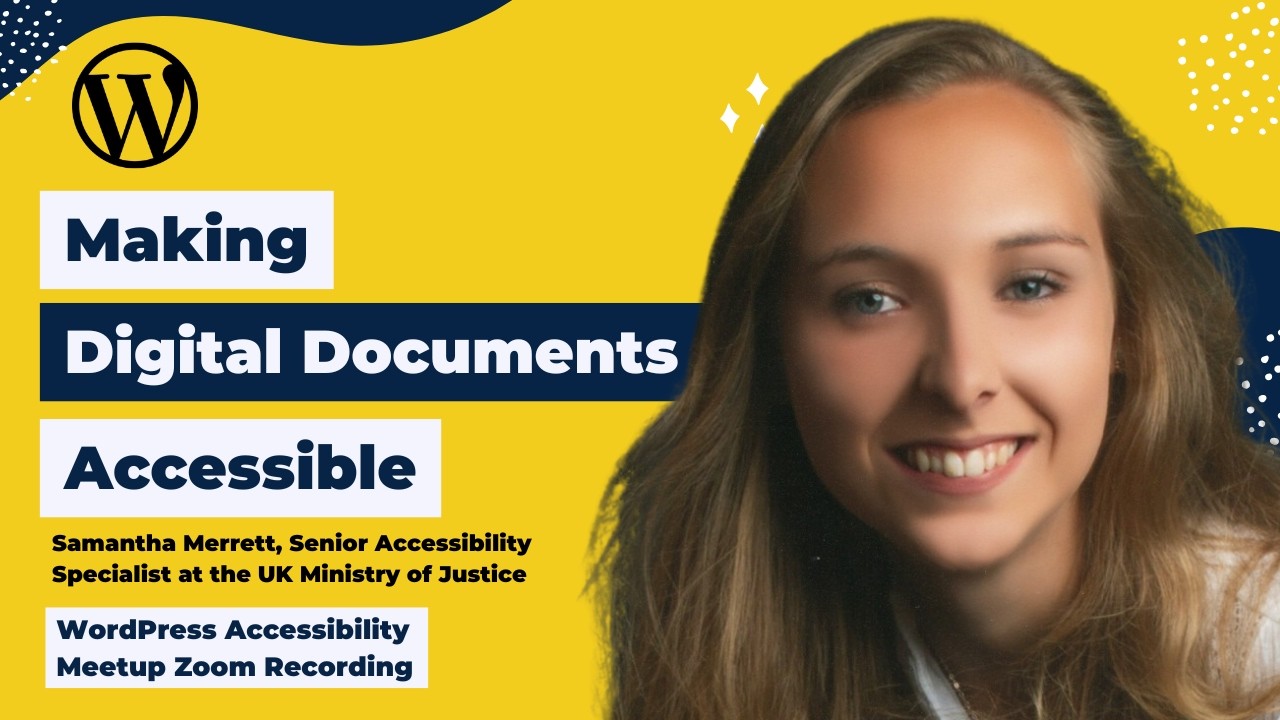
🔗 **Source:** [Making Digital Documents Accessible: Practical Steps for Inclusive Design](https://www.youtube.com/watch?v=ovP9o-G0WWU)
> [!note]+ Document Notes
> tags: [accessibility, digital-documents, inclusive-design, document-formats, screen-readers]
> author: WordPress Accessibility Meetup
> source: YouTube
> reference: https://www.youtube.com/watch?v=ovP9o-G0WWU
> date created: 2025-01-27 11:37
>
> # 🏷️ Title: Making Digital Documents Accessible: Practical Steps for Inclusive Design
>
<!-- deep-read:sections start -->
## 🧰 Action Inbox
- [H1] Audit current document formats across organization — determine HTML vs PDF usage #document-accessibility
- [H2] Create document accessibility training for team — focus on Word/PowerPoint best practices #training
- [H3] Implement document format decision framework — ask "who, how, share" questions #process-improvement
## 🧭 Table of Contents
- [📝 Summary](#-summary)
- [📖 Main Content](#-main-content)
- [🗒️ Notes](#️-notes)
- [📚 References](#-references)
- [🗣️ Paraphrase](#️-paraphrase)
- [📰 Newsletter](#-newsletter)
- [✅ Action Items](#-action-items)
- [🧪 Hypotheses](#-hypotheses)
- [📊 Methodology](#-methodology)
- [❓ Questions](#-questions)
- [🔮 Future Research](#-future-research)
- [💡 Implications](#-implications)
- [🧠 Learning Styles Assessment](#-learning-styles-assessment)
- [📊 Accessibility Assessment](#-accessibility-assessment)
- [🌍 DEIB Assessment](#-deib-assessment)
- [✅ Logical Validity](#-logical-validity)
- [🛡️ DARVO Analysis](#-darvo-analysis)
- [🎯 Conclusion](#-conclusion)
### 🔗 References
- [WordPress Accessibility Meetup](https://www.equalizeddigital.com/meetup)
- [Equalized Digital](https://www.equalizeddigital.com)
## 📝 Summary
- **What happened**: Samantha Merritt, Senior Accessibility Specialist at UK Ministry of Justice, presented comprehensive guidance on creating accessible digital documents across formats
- **Why it matters**: One inaccessible PDF can break an entire user journey; document accessibility is legally required and impacts user mental health and job performance
- **Key stakeholders**: Content creators, developers, accessibility specialists, government organizations, anyone producing digital documents
- **Risks and tradeoffs**: Converting accessible source documents to inaccessible formats undermines accessibility work; PDF creation requires specialized knowledge vs simpler HTML/Word alternatives
- **Bottom line**: Choose HTML/web pages first, Word processing second, avoid PDFs when possible, and implement consistent accessibility practices across all document formats
## 📖 Main Content
Document accessibility extends beyond website compliance to encompass all digital content formats. Samantha Merritt argues that organizations often treat documents as afterthoughts while focusing primarily on web accessibility, yet documents are equally critical to user experience and legal compliance.
The presentation emphasizes format choice as foundational to accessibility success. Users can create fully accessible content in Word or PowerPoint, then inadvertently destroy accessibility by converting to PDF without proper tagging. This "format trap" highlights why choosing the right initial format matters more than post-creation fixes.
Evidence from UK government surveys reveals significant impacts of inaccessible documents on employees: health effects (fatigue, headaches, eye strain), emotional responses (frustration, anger, overwhelm), and professional consequences (delayed tasks, lost focus, abandoned work). One colleague noted: "Document accessibility is essential for me to be able to do my job. Constantly having to deal with inaccessible documents has a negative impact on my mental health."
The core recommendation prioritizes HTML publication over attachments, Word processing over presentations for text-heavy content, and avoiding PDFs except when absolutely necessary. When PDFs are required, they demand specialized tagging knowledge that most content creators lack, making them impractical for routine use.
## 🗒️ Notes
#### ⏱️ [00:00](https://youtu.be/ovP9o-G0WWU?t=0) — [H1] Introduction and meetup logistics
- Key idea: WordPress Accessibility Meetup focuses on practical document accessibility
- Evidence: "Sometimes documents get slightly sidelined" compared to web accessibility
#### ⏱️ [05:30](https://youtu.be/ovP9o-G0WWU?t=330) — [H2] Why accessible documents matter
- Key idea: One inaccessible PDF can break entire user journeys
- Evidence: Both websites AND documents are required by law to be accessible
#### ⏱️ [08:45](https://youtu.be/ovP9o-G0WWU?t=525) — [H1] Real user impact testimonial
- Key idea: Inaccessible documents cause health, emotional, and professional problems
- Evidence: "Document accessibility is essential for me to be able to do my job. Constantly having to deal with inaccessible documents has a negative impact on my mental health"
#### ⏱️ [12:20](https://youtu.be/ovP9o-G0WWU?t=740) — [H1] Format choice fundamentals
- Key idea: Document format has massive impact on final accessibility
- Evidence: PowerPoint exported to PDF without accessibility work undoes all good work
#### ⏱️ [15:45](https://youtu.be/ovP9o-G0WWU?t=945) — [H2] Decision framework for formats
- Key idea: Ask three questions - who will use it, how will they use it, how will you share it
- Evidence: Covers spreadsheets, Word docs, presentations, PDFs, and web pages
#### ⏱️ [18:30](https://youtu.be/ovP9o-G0WWU?t=1110) — [H3] PowerPoint usage guidelines
- Key idea: Presentations should tell stories with presenter as main focus
- Evidence: "Please do not make a presentation and export it to PDF. It is very difficult to make it accessible"
#### ⏱️ [21:15](https://youtu.be/ovP9o-G0WWU?t=1275) — [H2] Word processing as default choice
- Key idea: "If it's made in Word, it can stay in Word" - best compatibility with assistive technology
- Evidence: Easiest to make accessible, best for PDF conversion if needed, most personalizable
#### ⏱️ [24:00](https://youtu.be/ovP9o-G0WWU?t=1440) — [H1] Why PDFs should be avoided
- Key idea: PDFs not designed to be flexible, cause problems for assistive technology users
- Evidence: "I always open a PDF with trepidation because more than half the time trying to read one with my assisted technology is a frustrating experience"
#### ⏱️ [27:30](https://youtu.be/ovP9o-G0WWU?t=1650) — [H1] Headings as document backbone
- Key idea: Headings are most important element - users should understand content from headings alone
- Evidence: Must be descriptive, hierarchical (like Russian dolls), never skip levels
#### ⏱️ [31:45](https://youtu.be/ovP9o-G0WWU?t=1905) — [H2] Table accessibility requirements
- Key idea: Four key elements - header row/column, prevent row breaks, no merging, descriptive title
- Evidence: "Do not add tables as images" - impossible to make accessible via alt text
#### ⏱️ [35:20](https://youtu.be/ovP9o-G0WWU?t=2120) — [H3] Alternative text best practices
- Key idea: Alt text should be short, meaningful, relevant to context, convey emotion/tone
- Evidence: Good example captures "Great Dane with mouth wide open, lips flopping, catching treat midair" including comical wild appearance
#### ⏱️ [39:10](https://youtu.be/ovP9o-G0WWU?t=2350) — [H2] Presentation-specific guidance
- Key idea: Use slide masters for consistency, unique slide titles, readable fonts
- Evidence: Don't rely on color alone - say "labeled with letter A and colored in red"
#### ⏱️ [42:30](https://youtu.be/ovP9o-G0WWU?t=2550) — [H3] Spreadsheet accessibility basics
- Key idea: Cell A1 never blank, meaningful sheet names, structured tables, no merged cells
- Evidence: Provide index sheets as table of contents for multi-sheet workbooks
#### ⏱️ [45:45](https://youtu.be/ovP9o-G0WWU?t=2745) — [H2] PDF tagging introduction
- Key idea: Tags are labels describing structure - headings, paragraphs, lists, tables
- Evidence: Found at View > Show/Hide > Navigation Pane > Accessibility Tags
#### ⏱️ [48:20](https://youtu.be/ovP9o-G0WWU?t=2900) — [H3] Neurodiversity considerations
- Key idea: Plain English, accessible fonts, good contrast, consistent formatting matter too
- Evidence: Avoid italics/underline, check color contrast, maintain consistency
## 📚 References
- [WordPress Accessibility Meetup](https://www.facebook.com/groups/wordpress.accessibility)
- [Equalized Digital](https://www.equalizeddigital.com)
- [Accessibility Craft Podcast](https://accessibilitycraft.com)
- [WCAG 2.2 Guidelines](https://www.w3.org/WAI/WCAG22/quickref/)
## 🗣️ Paraphrase
- Document accessibility requires choosing appropriate formats upfront rather than trying to fix accessibility issues after creation, with HTML/web pages preferred over document attachments
- The human impact of inaccessible documents extends beyond inconvenience to causing health problems, emotional distress, and job performance issues for users who rely on assistive technology
- Effective document accessibility centers on proper heading structure, meaningful alternative text, accessible table formatting, and avoiding format conversions that strip accessibility features
## 📰 Newsletter
**Making Your WordPress Documents Truly Accessible**
Creating accessible websites is just half the battle - your downloadable documents need the same attention to inclusive design. Samantha Merritt from the UK Ministry of Justice shared essential strategies for document accessibility that every WordPress site owner should implement.
**The Hidden Document Problem**: One inaccessible PDF can break an entire user journey, even on a perfectly accessible website. Users report opening PDFs "with trepidation" because assistive technology struggles with poorly formatted documents.
**Format Smart, Not Hard**: Before creating any document, ask: Who will use this? How will they access it? How will I share it? Often, the content can live directly on a webpage instead of as a download, providing better accessibility and easier maintenance.
**Quick Wins for Better Documents**: Use proper heading structures (think Russian dolls - each level nests inside the previous), write meaningful alternative text that captures tone and context, and create tables with clear headers and titles. Most importantly, avoid converting accessible Word documents to PDFs without proper tagging.
Ready to audit your document accessibility? Start by reviewing your most downloaded files and consider which could move from PDFs to web pages.
Resources: [Learn WordPress](https://learn.wordpress.org/), [Developer Docs](https://developer.wordpress.org/), [WP-CLI](https://wp-cli.org/)
## ✅ Action Items
#### WordPress
- **Core**: Add document accessibility guidelines to WordPress admin interface, create document format selector with accessibility guidance
- **Documentation**: Develop comprehensive document accessibility section in WordPress accessibility handbook
- **Training**: Create lesson plans covering document accessibility for different user roles (content creators, developers, administrators)
- **Accessibility**: Integrate document accessibility checks into existing accessibility testing workflows and tooling
#### OSPO
- **Policy & Governance**: Establish organizational document accessibility policies, require accessibility statements for document downloads
- **Developer Support**: Provide training on accessible document creation tools and workflows
- **Community Engagement**: Support document accessibility community of practice across organizations
#### Community
- **Contributors**: Create accessibility-focused document templates and style guides for community use
- **Maintainers**: Implement document accessibility review processes for project documentation
- **Sponsors**: Fund document accessibility training and tooling development
#### DevRel
- **Education**: Develop workshops on document accessibility for developers and content creators
- **Developer Experience**: Create accessible documentation templates and style guides
- **Community Management**: Moderate discussions around document accessibility best practices and tool recommendations
## 🧪 Hypotheses
- Organizations focusing only on web accessibility while neglecting document accessibility create incomplete user experiences that violate accessibility standards
- Format choice (HTML vs Word vs PDF) has greater impact on final document accessibility than post-creation remediation efforts
- Employee productivity and wellbeing improve measurably when organizations implement systematic document accessibility practices
- Document accessibility training focusing on format selection rather than remediation techniques produces better long-term outcomes
### 📊 Methodology
- Survey content creators across organizations about current document creation workflows and accessibility knowledge gaps
- A/B test document format choices (HTML vs PDF) measuring user task completion rates and satisfaction scores
- Longitudinal study tracking employee health and productivity metrics before and after document accessibility training implementation
### ❓ Questions
- What percentage of accessibility-compliant websites still fail users due to inaccessible document downloads?
- How do document accessibility violations compare to web accessibility violations in legal compliance contexts?
- Which document accessibility issues create the highest user impact relative to implementation difficulty?
### 🔮 Future Research
- Development of automated document accessibility scanning tools integrated into content management systems
- Cross-cultural study of document accessibility preferences and assistive technology usage patterns globally
- Investigation of emerging document formats and their accessibility implications for future content strategy
### 💡 Implications
- **Practice**: Content creators need format selection training before document creation training; accessibility audits must include document downloads
- **Policy**: Legal compliance requires both web and document accessibility; organizations need unified accessibility policies across content types
- **Security**: Document accessibility scanning tools need integration with existing security and compliance workflows
- **Education**: Accessibility training curricula must expand beyond web focus to comprehensive digital content accessibility
- **Funding**: Document accessibility remediation costs significantly exceed prevention costs, justifying upfront training investment
### 🧠 Learning Styles Assessment
Reading level estimate: 12th grade (technical content with specialized terminology)
#### 👀 Visual learners
- Present: Slide deck with dog memes, screenshots of software interfaces, visual examples of good/bad alt text
- Improve: Add flowcharts for format decision-making, before/after document structure diagrams
#### 🔊 Aural learners
- Present: Live presentation with detailed verbal descriptions of visual content
- Improve: Create audio-only version focusing on practical implementation steps
#### 🗣️ Verbal learners
- Present: Clear definitions of accessibility terms, analogies (Russian dolls for heading hierarchy)
- Improve: More storytelling around user impact, comparative language for different approaches
#### 🧩 Kinesthetic learners
- Present: Specific software navigation instructions, hands-on table creation guidance
- Improve: Interactive workshops, practice exercises with real documents, step-by-step checklists
#### 🧠 Logical learners
- Present: Decision frameworks, systematic approach to format selection, hierarchical heading structures
- Improve: Flowcharts for troubleshooting accessibility issues, metrics for measuring improvement
#### 🧑🤝🧑 Social learners
- Present: Community meetup format, Q&A opportunities, shared experiences from government work
- Improve: Peer review exercises, collaborative document creation workshops
#### 🧘♀️ Solitary learners
- Present: Comprehensive slide deck for independent review, individual reflection prompts
- Improve: Self-assessment checklists, personal action planning templates
#### 🌿 Naturalistic learners
- Present: Organic integration of accessibility into existing workflows
- Improve: Ecosystem thinking about document accessibility within broader organizational systems
### 📊 Accessibility Assessment
#### Screen reader semantics
- Present: Proper heading hierarchy discussion, table structure guidance, meaningful alt text examples
- Improve: More specific ARIA labeling guidance for complex document structures
#### Keyboard navigation
- Present: Table navigation instructions, logical tab order considerations
- Improve: Document-specific keyboard shortcuts and navigation patterns
#### Contrast and readability
- Present: Mentions of color contrast and readable fonts in presentations
- Improve: Specific contrast ratio guidance, font selection criteria
#### Text resizing and reflow
- Present: Discussion of flexible HTML formats vs rigid PDFs
- Improve: Specific guidance on responsive document design
#### Media and captions
- Present: Comprehensive alt text guidance with emotional context
- Improve: Audio description guidance for multimedia documents
#### Forms and interactions
- Present: Interactive elements in presentations and spreadsheets
- Improve: Form accessibility within document contexts
#### Standards reference
- Aligns with WCAG 2.2 AA principles while extending to document-specific contexts
### 🌍 DEIB Assessment
#### Cultural breadth
- Present: UK government perspective with universal principles
- Improve: Examples from diverse organizational contexts and international standards
#### Inclusive language
- Present: Plain English emphasis,
---
## Full Transcript
[00:00] Welcome to WordPress accessibility<br>[00:01] meetup. Making digital documents<br>[00:04] accessible. Practical<br>[00:07] steps for inclusive design with Samantha<br>[00:10] Merritt who is a senior accessibility<br>[00:11] specialist at the Ministry of Justice in<br>[00:14] the UK.<br>[00:16] A few announcements. If you've not<br>[00:18] joined before, we do have a Facebook<br>[00:21] group which is a great place that you<br>[00:22] can connect between meetups. If you need<br>[00:25] assistance or you want to share what<br>[00:27] you're working on and get feedback, if<br>[00:29] you have plug-in questions or if you<br>[00:32] want to help others, you can find this<br>[00:34] Facebook group if you go to<br>[00:35] facebook.comgroupswordpress.acessibility.<br>[00:42] Everyone always asks, is this being<br>[00:44] recorded? And the answer is yes, it is<br>[00:46] being recorded. It takes us about two<br>[00:49] weeks to get the edited video corrected<br>[00:52] captions and a transcript and a summary<br>[00:54] written and then we post those on our<br>[00:56] website. You can find upcoming events<br>[00:59] and past recordings in one place if you<br>[01:02] go to equalized digital.com/meup.<br>[01:06] I also encourage you to join our email<br>[01:09] list to get news and event<br>[01:11] announcements. You can sign up if you go<br>[01:13] to equizeddedigital.comfocusate.<br>[01:19] And we send a weekly email newsletter on<br>[01:22] Thursdays that includes a roundup of<br>[01:25] articles related to web accessibility.<br>[01:28] And then we also send out reminders as<br>[01:30] new events get scheduled. But this is<br>[01:32] the great way to get notified when this<br>[01:34] recording is available because it will<br>[01:36] be included in our weekly newsletter.<br>[01:40] You can also find our meetups in audio<br>[01:43] format if you tune in to our podcast<br>[01:46] which you can learn more about if you go<br>[01:47] to accessibilitycraft.com.<br>[01:50] We are seeking additional sponsors for<br>[01:53] the meetup. This is part of the official<br>[01:55] WordPress meetups program, but they told<br>[01:57] us that there were not funds to cover<br>[01:59] the cost of captioning and transcription<br>[02:01] and other things that make the meetup as<br>[02:04] accessible as possible for attendees.<br>[02:06] So, they said go out and find sponsors.<br>[02:08] So if you or your company would be<br>[02:10] interested in sponsoring the meetup, you<br>[02:13] can contact us at<br>[02:15] meetupqualizeddigital.com.<br>[02:18] This is the same email address to use if<br>[02:20] you have any other suggestions for the<br>[02:22] meetup, if you need any additional<br>[02:24] accommodations to make the meetup work<br>[02:26] for you. So please feel free to reach<br>[02:30] out if needed.<br>[02:33] My name is Amber Hines and I'm the CEO<br>[02:35] of a company called Equalized Digital.<br>[02:37] We are the lead organizer for this<br>[02:39] meetup. We are a missiondriven<br>[02:41] organization and a corporate member of<br>[02:43] the IAAP, the International Association<br>[02:46] of Accessibility Professionals focused<br>[02:49] on WordPress accessibility. We have a<br>[02:51] WordPress plug-in accessibility checker<br>[02:53] that helps you find and fix problems on<br>[02:55] your websites. We also have online<br>[02:58] courses for NVDA and voiceover screen<br>[03:01] reader testing as well as a course on<br>[03:04] selling accessibility. We do<br>[03:06] accessibility audits, remediation, and<br>[03:08] consulting. And you can learn more about<br>[03:09] us if you go to equalizedigital.com.<br>[03:14] We do have a sponsor that I want to<br>[03:15] thank today, and that is GoDaddy. They<br>[03:18] are covering the cost of our live<br>[03:19] captioning. And actually, it doesn't say<br>[03:21] this on the slide, but they are also<br>[03:22] going to be covering the cost of<br>[03:24] transcription, which we very much<br>[03:25] appreciate after the fact to make sure<br>[03:27] we have corrected captions on our<br>[03:29] videos.<br>[03:31] GoDaddyy's mission is to empower a<br>[03:34] worldwide community of entrepreneurs by<br>[03:36] giving them all the help and tools they<br>[03:38] need to grow online, including a<br>[03:40] simpler, safer WordPress experience.<br>[03:43] GoDaddy provides a managed WordPress<br>[03:46] experience that is as easy as it is<br>[03:49] effective. The latest version of<br>[03:51] WordPress comes pre-installed with<br>[03:53] exclusive themes, plugins, and tools to<br>[03:56] get you up and running quickly with<br>[03:58] automated backups, updates, and malware<br>[04:00] removal so that their pros can spend<br>[04:03] less time on monotonous maintenance and<br>[04:05] more time building their businesses. You<br>[04:08] can learn more about GoDaddy if you go<br>[04:09] to godaddy.com.<br>[04:12] We always encourage folks, no matter<br>[04:14] where you are on social media, if you<br>[04:17] are willing to go on whatever that<br>[04:18] platform is and tweet or post or<br>[04:23] comment, however it works on that<br>[04:25] platform, and just give them a quick<br>[04:26] shout out and say thank you for covering<br>[04:28] the cost of captioning for WordPress<br>[04:30] accessibility meetup. that helps to tell<br>[04:32] them that this is an important uh<br>[04:35] sponsorship and that attendees value the<br>[04:38] accessibility support and makes them<br>[04:40] want to continue to sponsor us. So, if<br>[04:42] you are willing to do that and give them<br>[04:44] a short shout out, we would very much<br>[04:46] appreciate that.<br>[04:49] Two events that you should be aware of.<br>[04:52] Our next meetup will be on Thursday,<br>[04:54] March 5th at 10:00 a.m. Central time in<br>[04:57] the US. So, the same time slot, but on<br>[05:00] Thursday, March 5th, and it will be how<br>[05:02] to audit a web page, behind the scenes<br>[05:05] on Equalized Digital's process. I'm<br>[05:06] going to be walking folks through how I<br>[05:09] audit a full web page top to bottom, and<br>[05:12] then also how we as a team report on<br>[05:14] issues. I'm going to show you all the<br>[05:17] audit library website that we built for<br>[05:20] managing our library of issues so that<br>[05:23] we can report faster. and I built it<br>[05:26] with a very no code process using<br>[05:29] gravity forms and ACF in 2025 and it's<br>[05:32] something that easily could be copied if<br>[05:34] it's something that you want to do. So<br>[05:36] that will be our next meetup. And then<br>[05:39] the following meetup in this same time<br>[05:41] slot on Tuesday, March 17th will be<br>[05:45] scaling accessibility, treating<br>[05:47] accessibility as a front-end<br>[05:48] architecture and a leadership<br>[05:50] responsibility. And we'll have more<br>[05:52] information about that coming. and<br>[05:54] registration for that in coming days.<br>[05:58] Let me pull up our speaker here. I am<br>[06:01] very excited to introduce Samantha<br>[06:04] Merritt. Samantha is a senior<br>[06:06] accessibility specialist at the Ministry<br>[06:08] of Justice where she leads strategic<br>[06:10] initiatives to embed accessibility<br>[06:12] across digital services. She has over<br>[06:15] seven years of experience championing<br>[06:17] accessible documents and inclusive<br>[06:18] design. Samantha has developed<br>[06:21] crossgovernment training programs,<br>[06:23] creating hands-on learning spaces like<br>[06:26] the MOJ accessibility bar and<br>[06:28] co-organizes the document accessibility<br>[06:31] community of practice, a network<br>[06:33] spanning 65 plus public sector<br>[06:35] organizations.<br>[06:37] Samantha is CPAC certified and<br>[06:40] passionate about moving accessibility<br>[06:42] beyond compliance by fostering<br>[06:44] empathydriven experiences. Samantha has<br>[06:47] presented at major conferences including<br>[06:49] WordPress accessibility day and the MoJ<br>[06:52] digital accessibility conference and<br>[06:54] regularly collaborates with government<br>[06:56] teams to improve accessibility standards<br>[06:58] and capabilities. Welcome Samantha. We<br>[07:01] are so happy to have you here.<br>[07:05] >> Thank you very much. I'm just going to<br>[07:07] share my screen before I get going. So I<br>[07:10] will and while while you're doing that<br>[07:13] I'll just give a quick note to everyone<br>[07:15] that there is a Q&A module available in<br>[07:17] Zoom if you want to put any questions<br>[07:19] that you have in the Q&A then at the end<br>[07:23] of the presentation I'll come back on<br>[07:25] and ask those to Samantha.<br>[07:27] >> Lovely. Thank you very much. Hopefully<br>[07:29] that is sharing for everybody. So<br>[07:32] welcome. It is 4:00 in the afternoon for<br>[07:34] me, but I appreciate it's probably all<br>[07:36] different times for people across the<br>[07:37] world, but hello everybody and thank you<br>[07:39] for joining this session. I was very<br>[07:42] excited to be part of uh one of Equaliz<br>[07:44] Digital's meetup. So hopefully you will<br>[07:47] get something out of today because it's<br>[07:49] all about creating accessible documents.<br>[07:53] So just an agenda for the session and<br>[07:55] I'll do a little bit of housekeeping and<br>[07:56] then we will dive straight in because we<br>[07:59] want to utilize every minute that we<br>[08:00] have together today.<br>[08:02] The agenda for the session is I'm going<br>[08:05] to start off by talking about why<br>[08:07] accessible documents matter. I think um<br>[08:10] web is very much well understood and we<br>[08:12] often talk a lot about remediation of<br>[08:14] web pages and auditing all really<br>[08:17] important and should definitely be<br>[08:18] considered. Sometimes documents get<br>[08:20] slightly sidelined. Um, so that's why<br>[08:23] we're going to talk about why that<br>[08:24] shouldn't be the case before we dive<br>[08:26] into how to choose the right document<br>[08:28] format, which is really, really<br>[08:30] important and really helpful when you're<br>[08:32] trying to create an accessible document.<br>[08:35] Then I will give you some practical tips<br>[08:37] um about creating accessible documents<br>[08:40] in all sorts of software. So hopefully<br>[08:41] you can go away and maybe use some of<br>[08:43] them today or you're just going to be<br>[08:45] reminded that they exist. And then we'll<br>[08:47] end on and talk about building that into<br>[08:49] maybe a workflow or how in your role,<br>[08:51] whatever that might be in your<br>[08:53] workspace, how you can build some of<br>[08:55] these tips into your everyday work which<br>[08:57] might be helpful. So I hope something I<br>[08:59] provide today will be something you can<br>[09:01] take away and embed in your role um<br>[09:04] later today or even tomorrow.<br>[09:07] I won't bother talking about who I am<br>[09:08] today because Amber did an amazing job<br>[09:11] of doing that for me, but uh just as a<br>[09:13] visual description for anyone who might<br>[09:15] uh benefit from that. So, I'm a woman in<br>[09:17] her 20ies. I've got blonde hair, which<br>[09:20] is in a ponytail today, and I'm wearing<br>[09:21] a pair of glasses. And as Amber said,<br>[09:24] I'm a senior accessibility specialist,<br>[09:26] and I work at the Ministry of Justice in<br>[09:28] the UK.<br>[09:30] So, I am going to visually describe<br>[09:32] everything on my slides today. So,<br>[09:34] there's nothing on the slide that you<br>[09:36] won't get via my voice, but you can also<br>[09:38] have copies of this if you need to after<br>[09:40] the session, which I can I can send out<br>[09:42] with any top tips as well. and you're<br>[09:44] always more than welcome to get in touch<br>[09:45] with me after the session.<br>[09:48] So, let's dive straight in and let's<br>[09:51] start with the important topic really,<br>[09:53] which is why am I here today talking to<br>[09:55] you about this topic in in general? Why<br>[09:58] do accessible documents matter? So, to<br>[10:01] start off, we're going to have a quick<br>[10:02] look at what that means when we're<br>[10:03] talking about choosing accessible<br>[10:05] documents and making sure we're building<br>[10:06] them correctly.<br>[10:10] What is an accessible document if I was<br>[10:11] going to define it? So, on the slide,<br>[10:14] I've included, I should have said at the<br>[10:16] start in my presentation, a few pictures<br>[10:18] of dogs all the way through. Um, I own a<br>[10:21] lovely dog myself who's currently<br>[10:22] snoring away on the chair next to me.<br>[10:24] Uh, and so I couldn't put a presentation<br>[10:26] together without putting a little bit of<br>[10:28] of doggy love in there, too. So, I will<br>[10:29] visually describe all of the pictures in<br>[10:32] my presentation so we can all enjoy them<br>[10:33] together.<br>[10:35] But on this first slide is my first dog<br>[10:37] picture, and it's a pug sitting down<br>[10:39] with its head tilted to one side. It's<br>[10:42] sitting in front of a blackboard and<br>[10:43] it's got lots of question marks all over<br>[10:44] it because it's asking for an answer to<br>[10:47] this question. So for me, defining an<br>[10:50] accessible document is a document that<br>[10:53] allows as many people as possible to<br>[10:55] access and use that information.<br>[10:58] If you've ever tried to make a document<br>[11:00] accessible, um it may feel somewhat<br>[11:02] tedious. It might feel like there's a<br>[11:04] huge checklist of items and you're not<br>[11:06] sure where to start or what tool might<br>[11:08] be best to help you. But it's important<br>[11:10] to keep in mind that that the effort<br>[11:12] that you're putting in is really really<br>[11:13] worth it and it will produce a really<br>[11:15] accessible outcome for your users.<br>[11:18] At the end of the day, why are we<br>[11:20] creating something or writing something<br>[11:22] if we don't want it to be read by the<br>[11:25] users that we're creating it for? It<br>[11:26] would be pointless and waste of our<br>[11:28] time. So, I've got a couple of questions<br>[11:30] for you when it comes to thinking about<br>[11:32] why document why does document<br>[11:34] accessibility matter? So, I'm not going<br>[11:36] to ask the group or put things in the<br>[11:38] chat. We're just going to think about<br>[11:38] this in our own in our own minds, but<br>[11:41] true or false. Quite simply, do you<br>[11:43] think that one inaccessible PDF can<br>[11:45] break an entire user journey? So, it's<br>[11:48] true or false.<br>[11:50] Give everyone a couple of seconds to<br>[11:51] have a think about that. And I'm hoping<br>[11:52] the first answer that popped into your<br>[11:54] head was true because that was what I<br>[11:56] was looking for.<br>[11:57] From my own experience of working with<br>[11:59] colleagues um across government and<br>[12:01] injustice, we sometimes think, oh, it's<br>[12:03] only one PDF. No one really is going to<br>[12:05] use it. um it's just our terms and<br>[12:07] conditions or it's just the rules and<br>[12:08] guidance on how to use our system. I<br>[12:11] think actually somebody is probably<br>[12:12] going to use that and that's probably<br>[12:14] quite a critical document for them to be<br>[12:16] able to understand your service. So that<br>[12:18] one inaccessible PDF could actually be<br>[12:21] quite um difficult for a user to<br>[12:23] understand and interpret if they really<br>[12:24] need to. So it's really important that<br>[12:26] we make that accessible. It's great that<br>[12:28] your service is fully accessible, but<br>[12:30] actually that PDF might be equally as<br>[12:32] needed.<br>[12:35] And then I get asked the question, so<br>[12:37] what is actually required by law? Is it<br>[12:39] just the website needs to be accessible<br>[12:41] or the service? Right? I don't need to<br>[12:42] worry about the documents. Or is it<br>[12:44] really both of them? And my answer is<br>[12:46] always, of course, both need to be<br>[12:48] accessible. You need an accessible<br>[12:50] service or product or website. And you<br>[12:53] also need accessible documents on that<br>[12:54] product or embedded in that website. And<br>[12:57] it's really important that you think<br>[12:58] about that as well. They are often an<br>[13:00] afterthought. They're often something we<br>[13:02] pull together maybe at the end once<br>[13:03] we've created something, but actually<br>[13:05] they are just as important as the<br>[13:07] service itself.<br>[13:09] So, we like to buff some uh buff some<br>[13:12] myths when we're working with colleagues<br>[13:13] here at Ministry of Justice and just in<br>[13:15] general when I'm talking to people about<br>[13:18] document accessibility and and why it's<br>[13:20] really important.<br>[13:22] Essentially, as we've said, having an<br>[13:24] accessible document helps everybody have<br>[13:27] access to the same information,<br>[13:29] hopefully at the same time, which builds<br>[13:31] that kind of inclusive society.<br>[13:34] There's a projection for the number of<br>[13:36] adults to outweigh children for the<br>[13:37] first time in history by 2034. So,<br>[13:40] inclusion and accessibility is going to<br>[13:42] become really, really important in our<br>[13:44] everyday lives.<br>[13:46] It's also kind of expected that f future<br>[13:49] iterations of the web content<br>[13:51] accessibility guidelines, the WCAG 3.0<br>[13:55] will very much include document<br>[13:56] accessibility. So, it's really important<br>[13:58] that we're kind of getting ready for<br>[14:00] that change and understanding what that<br>[14:01] will mean.<br>[14:03] And for me, working in the UK in a<br>[14:05] public sector organization, it's very<br>[14:08] much the law for us as well. And we<br>[14:09] can't forget that. And so making sure<br>[14:11] document accessibility is front and<br>[14:13] center is kind of really really<br>[14:15] important for us and I'm sure many of us<br>[14:17] on the call today as well.<br>[14:21] So I got a quote when I was building<br>[14:23] some training materials. I was speaking<br>[14:25] to colleagues and users who kind of have<br>[14:28] to grapple with inaccessible documents<br>[14:30] every day in their everyday role. And I<br>[14:33] asked them just tell me tell me what do<br>[14:34] you think of that? How does it make you<br>[14:36] feel? And one of my colleagues said,<br>[14:38] "Document accessibility is essential for<br>[14:41] me to be able to do my job. Constantly<br>[14:43] having to deal with inaccessible<br>[14:45] documents has a negative impact on my<br>[14:47] mental health. Think of the countless<br>[14:49] days wasted trying to grapple with<br>[14:50] poorly designed documents or the talent<br>[14:53] and skills we lose because people just<br>[14:55] can't do their jobs properly." And I<br>[14:58] love that quote and I always use it<br>[14:59] because I think it's really powerful for<br>[15:01] people to understand the impact that<br>[15:03] inaccessible documents and content in<br>[15:05] general can have on not only external<br>[15:08] users or customers that we're providing<br>[15:10] for but also the people that we work<br>[15:12] with on an everyday basis.<br>[15:16] We produce a survey um inside our<br>[15:18] organization and we ask colleagues how<br>[15:21] does it make you feel when you come<br>[15:22] across inaccessible documents at work.<br>[15:25] people were really forthcoming with<br>[15:27] their thoughts and their feelings which<br>[15:28] I was really really grateful for because<br>[15:30] it helped us understand kind of some<br>[15:32] common themes and and kind of what<br>[15:34] impact this can have on people.<br>[15:37] There was things like health conditions.<br>[15:39] So, you know, inaccessible documents can<br>[15:41] cause people to feel really quite<br>[15:42] fatigued and they can get headaches and<br>[15:44] eye strain.<br>[15:46] Emotionally, they felt frustrated, like<br>[15:49] really angry and sad and overwhelmed<br>[15:51] because they just couldn't understand<br>[15:53] the information or get into it with<br>[15:54] their assisted technology.<br>[15:57] And then professionally, they would have<br>[15:58] to delay tasks. They might lose focus or<br>[16:02] just abandon tasks altogether because it<br>[16:04] was just never going to be possible. If<br>[16:06] they can't understand that document,<br>[16:07] they just can't do their job properly.<br>[16:09] And that has a real big impact on<br>[16:11] people. when actually it's a relatively<br>[16:13] simple thing to solve if we just start<br>[16:15] creating accessible documents.<br>[16:19] But you've all joined this course today<br>[16:21] because I assume you all care a little<br>[16:23] bit about accessibility and you're kind<br>[16:25] of hungry to learn a little bit more. So<br>[16:27] enough about why you should care about<br>[16:29] it because I think you're probably all<br>[16:31] on my page when we're talking about why.<br>[16:33] Let's think about how. So we're going to<br>[16:35] start off by thinking about the right<br>[16:37] format choice. And you might think<br>[16:39] that's obvious, but it's not always that<br>[16:41] obvious.<br>[16:43] Format has a really big impact on the<br>[16:45] final accessible output because you<br>[16:48] could create a fully accessible document<br>[16:50] and then you convert it to something<br>[16:51] that's inaccessible or you publish it in<br>[16:54] a way that is inaccessible. So for<br>[16:57] example, in our organization, we create<br>[17:00] a lot of presentations very similar to<br>[17:02] the one I'm sharing with you today. What<br>[17:04] somebody could do with this presentation<br>[17:06] is then export it to a PDF format, not<br>[17:10] do any of the accessibility work and<br>[17:11] publish it. The PowerPoint itself might<br>[17:14] be quite accessible. They might have<br>[17:15] built in all the kind of things we're<br>[17:17] going to talk about today, but by<br>[17:18] converting it to PDF and just clicking<br>[17:20] save as and PDF or even worse printing<br>[17:24] to PDF, they're actually undoing a lot<br>[17:26] of the good work they've been they've<br>[17:27] done, it will make that final document<br>[17:29] format very inaccessible. So, it's<br>[17:31] important to think about that when we're<br>[17:32] choosing the right format choice.<br>[17:36] So, it's very important and as the meme<br>[17:40] on this slide suggests, which is Woody<br>[17:42] and Buzz from Toy Story, and the words<br>[17:43] read, "Bad choices." Bad choices<br>[17:46] everywhere. There are bad choices<br>[17:48] everywhere, but there are also good<br>[17:49] choices. And when you're making that<br>[17:51] choice, I tend to tell people, ask<br>[17:54] yourself the following questions.<br>[17:56] Who's going to use it? How are they<br>[17:58] going to use your document? and how are<br>[18:00] you going to share it? Now, that that<br>[18:03] answer might always be the same if<br>[18:04] you're always producing content in a<br>[18:06] similar way for a similar user group or<br>[18:08] it might be very different every single<br>[18:10] time you're creating something. So, it's<br>[18:12] important to always ask yourself that<br>[18:14] question so you can just double check<br>[18:16] that you are using the right document<br>[18:17] format.<br>[18:19] In today's presentation, I'm going to<br>[18:21] talk about spreadsheets. I'm going to<br>[18:22] talk about word documents or processed<br>[18:24] documents in general, PowerPoint<br>[18:26] presentations or presentations you might<br>[18:28] create in any kind of presenting<br>[18:30] software, PDFs and web pages.<br>[18:34] Of course, there are a lot of other<br>[18:36] document format choices, but for me in<br>[18:38] the work that I do and the kind of work<br>[18:40] I've seen others are doing, these are<br>[18:42] kind of the most common document format<br>[18:44] types that we use.<br>[18:46] I'll also put a slight disclaimer out<br>[18:48] that a lot of the tips and some of the<br>[18:50] screenshots and things I'm going to<br>[18:51] explain are done on Microsoft products<br>[18:54] because that is what we use internally<br>[18:55] here within the UK uh Ministry of<br>[18:58] Justice. But actually a lot of the<br>[19:00] advice applies to all software types.<br>[19:02] And hopefully you can take what I'm<br>[19:04] using today and apply that to things<br>[19:05] like Google Docs or Libra Office. The<br>[19:08] tips should be software agnostic no<br>[19:10] matter what you're using. But just bear<br>[19:12] that in mind when I'm kind of showing<br>[19:13] screenshots and things if that's what<br>[19:14] you're going to base. some of your<br>[19:16] guidance off of.<br>[19:19] So, presentations then PowerPoint<br>[19:21] presentations, whatever presentation<br>[19:22] you're using.<br>[19:24] PowerPoint presentations and<br>[19:25] presentations in general should be used<br>[19:27] to convey a story or a message. I've got<br>[19:31] a dog meme on this slide. The dog looks<br>[19:33] quite intense. Its eyes really, really<br>[19:35] close to the camera and the words say,<br>[19:37] "I have my eye on you."<br>[19:39] The reason the dog looks so intense is<br>[19:41] because I would say for me and my<br>[19:43] experience working with colleagues,<br>[19:45] PowerPoint and presentations are one of<br>[19:47] the most misused format types.<br>[19:50] It should primarily be used for<br>[19:52] presentations that tell a story. They're<br>[19:56] quite a visual tool most the time, but<br>[19:58] the presenter should be the main focus<br>[20:01] of any kind of presentation. The slides<br>[20:03] are there as a resource andor a backup.<br>[20:06] What they shouldn't be used for are<br>[20:08] projects or reports. And we always say<br>[20:11] to people, please do not make a<br>[20:13] presentation and export it to PDF. It is<br>[20:16] very difficult to make it accessible and<br>[20:19] you're making it very hard work for<br>[20:20] yourself when there's a lot other format<br>[20:22] choices you could use for that kind of<br>[20:24] content.<br>[20:27] Moving on to Excel or kind of a data<br>[20:29] data sheet in general, any kind of<br>[20:32] spreadsheet software. Again, this one's<br>[20:35] more self-explanatory and people tend to<br>[20:36] use this one, right? It's for storing<br>[20:38] and analyzing data and and reporting on<br>[20:40] large amounts of data. So, you might use<br>[20:43] it for budget sheets, attendance<br>[20:45] reports, balance sheets, any kind of<br>[20:47] thing like that. What we shouldn't use<br>[20:49] spreadsheets for is writing lots of<br>[20:52] text. And it's not ideal for any kind of<br>[20:54] like project management or forms or<br>[20:56] anything like that. Again, there are<br>[20:58] better format types for that kind of<br>[20:59] thing.<br>[21:02] What for what format type you might ask?<br>[21:04] Well, most of the time word or any kind<br>[21:07] of word processing software is going to<br>[21:09] be your best option. We have a little<br>[21:12] bit of a saying that we tend to inform<br>[21:14] colleagues of within uh Justice and that<br>[21:16] is if it's made in Word, it can stay in<br>[21:19] Word. If you're in doubt about what<br>[21:22] format you should choose or you're not<br>[21:24] quite sure where best it sits, stick it<br>[21:25] in some kind of word document and then<br>[21:28] afterward you can convert it out to<br>[21:30] something else if you decide it's a<br>[21:31] better suited to a different format.<br>[21:35] Any kind of word processing is great<br>[21:36] because it's easy to make the<br>[21:38] information more accessible.<br>[21:40] If you are ever going to move to the<br>[21:42] dreaded PDF option, it is the best for<br>[21:45] converting to PDF.<br>[21:48] It tends to be the most compatible for<br>[21:50] sort of wide range of assisted<br>[21:51] technology and it can be quite<br>[21:54] personalized by users. So they can<br>[21:55] change colors, size, text, which they<br>[21:58] can and all the others as well, but Word<br>[22:00] tends to be the easiest one to do that<br>[22:02] in. So again, that's why we tend to<br>[22:04] default to Word if we're in doubt of<br>[22:06] where we probably what format we might<br>[22:08] should be using depending on the<br>[22:09] scenario.<br>[22:13] Understood, that's not the end of your<br>[22:14] options. There are various other<br>[22:17] options.<br>[22:18] Think webpage first if you can. So if<br>[22:22] you're publishing information online, do<br>[22:24] you need to add an attachment or could<br>[22:27] you just put the information directly<br>[22:28] onto a web page?<br>[22:30] Really, you're asking yourself the<br>[22:32] question, do I really need this<br>[22:33] document?<br>[22:35] The same applies if you're sending<br>[22:37] emails. Do you always have to attach a<br>[22:39] file or could you just copy that<br>[22:41] information into the email instead?<br>[22:44] Admittedly, that's not always going to<br>[22:46] work. A lot of the time that makes<br>[22:47] emails quite long and lengthy and it's<br>[22:49] just not going to work right. That's<br>[22:51] fine. But as long as you've considered<br>[22:53] whether attachment is needed or not,<br>[22:55] you're making the right step and then<br>[22:57] you can make the right choice<br>[22:58] afterwards.<br>[23:01] You might have noticed I purposefully<br>[23:03] didn't talk about PDFs because they're a<br>[23:06] little bit of a bug bear of mine, I must<br>[23:08] admit. So, should we create a PDF is the<br>[23:11] question. And the simple answer would be<br>[23:14] no. Another dog meme. I've got kind of a<br>[23:17] massive puppy with its paw held up to<br>[23:19] the camera and the words read how about<br>[23:21] no written across the top. Little bit<br>[23:23] sassy maybe. But we tend to advise teams<br>[23:27] to publish in HTML wherever possible. So<br>[23:31] users can use their own custom browse<br>[23:33] settings and make adaptions to that<br>[23:35] content where they need to. It also<br>[23:38] means that as content owners, we can<br>[23:41] easily update that information because<br>[23:42] all we've got to do is find that web<br>[23:44] page or that HTML page rather than<br>[23:46] having to go, who owns that PDF? Who saw<br>[23:50] that last? Who who got that saved? Oh,<br>[23:52] they've left now. So, we'll have to<br>[23:54] start all over again. And that can<br>[23:56] sometimes be quite frustrating.<br>[23:58] Also, from an assisted technology point<br>[24:00] of view, we've had user testimonies that<br>[24:02] say things similar to the following. I<br>[24:06] always open a PDF with trepidation<br>[24:08] because more than half the time trying<br>[24:10] to read one with my assisted technology<br>[24:12] is a frustrating experience. So users<br>[24:15] already have that feeling before they've<br>[24:17] even opened up the document or even<br>[24:19] attempted to. So I tend to try and avoid<br>[24:21] them where I can to stop other users<br>[24:23] having that feeling when they receive<br>[24:24] content from me. It's not always<br>[24:26] possible, but where I can, I avoid a<br>[24:29] PDF.<br>[24:32] Why do people come back to me all the<br>[24:34] time and say, "Why? I like a PDF. We've<br>[24:36] always done it in PDF format. So, why do<br>[24:38] we have to stop now?"<br>[24:40] The problem with a PDF is they're not<br>[24:42] designed to be flexible in their layout,<br>[24:44] and they can cause problems for assisted<br>[24:46] tech users as a result. As the dog meme<br>[24:49] on this slide, which features a bulldog<br>[24:51] type looking dog with its chin on the<br>[24:53] floor looking quite unhappy, saying,<br>[24:55] "Oh, look, another PDF file."<br>[24:58] Some of the myths I hear about PDFs is<br>[25:00] they can't be accessible, they can't be<br>[25:02] edited, they should never be used, and<br>[25:05] they never work with screen readers.<br>[25:08] They're all myths. They can be made<br>[25:10] accessible, they can be edited if you've<br>[25:12] got the right software. We can use them<br>[25:15] if we need to in the right circumstance,<br>[25:17] and they can work with screen readers if<br>[25:19] we make sure that we've done the<br>[25:20] accessibility work on them. But that's a<br>[25:23] lot of cans and ifs. That's if the<br>[25:25] knowledge is there, if we have the right<br>[25:27] software. So, we tend just to avoid all<br>[25:29] of those myths and all of those ifs and<br>[25:32] just act on what we know. And we can<br>[25:34] teach people how to make accessible word<br>[25:36] documents, publish accessible HTML<br>[25:38] content a lot easier than we can teach<br>[25:41] someone about a PDF tagging tree. And<br>[25:44] I'm going to talk a little bit about<br>[25:45] that at the end of the presentation<br>[25:46] because I can't not talk about PDFs. But<br>[25:49] we don't dwell on it and we tend to try<br>[25:50] and avoid them where we can. But again,<br>[25:53] we do our best, but it's not it's not<br>[25:55] perfect.<br>[25:57] So that is formats. That is kind of<br>[25:59] different types of document formats, and<br>[26:01] they're the kind of the main ones I'm<br>[26:02] going to cover today. So my next part of<br>[26:05] the presentation is kind of split into<br>[26:07] four parts. and I'm going to take you<br>[26:09] through some top tips for word documents<br>[26:12] or any kind of word processing doc, any<br>[26:15] kind of presentation that you might be<br>[26:17] creating, any kind of spreadsheet you're<br>[26:19] pulling together, and then we're going<br>[26:20] to end on a few tips on PDFs. I'm<br>[26:24] keeping it brief on purpose, but if<br>[26:26] anybody wants to know more, you can<br>[26:27] always reach out to me. I am happy to<br>[26:30] talk about PDFs, even if I don't like<br>[26:31] them very much. So, we're going to start<br>[26:33] by talking about wonderful word<br>[26:35] documents.<br>[26:37] And again, I've talking about some of<br>[26:39] the things I'm going to talk about are<br>[26:40] about the Microsoft suite here. But<br>[26:42] again, I'm sure these are applied across<br>[26:44] the software suite. No matter what<br>[26:45] you're using,<br>[26:48] if you're going to talk about any kind<br>[26:50] of document accessibility, regardless of<br>[26:52] what you're creating, headings are so so<br>[26:56] important. Headings are the backbone of<br>[26:59] any document or any um kind of content<br>[27:01] that you might create.<br>[27:04] A user should be able to scan your<br>[27:06] content or your document using just your<br>[27:08] headings and get a really comprehensive<br>[27:10] overview of that page content.<br>[27:13] Headings structure that information by<br>[27:15] splitting it into different sections. So<br>[27:18] they can help people find information<br>[27:20] quickly regardless of how they're<br>[27:22] accessing that information.<br>[27:23] via a screen reader with voice<br>[27:25] recognition or reading the information<br>[27:27] on the screen.<br>[27:30] So, make sure your headings are<br>[27:31] descriptive and make sure they're<br>[27:33] understandable on their own. Let your<br>[27:35] heading text tell the story about the<br>[27:38] contents of that page.<br>[27:41] So, all readers will benefit from a well<br>[27:44] structured document and headings are a<br>[27:46] massive, massive part of that. So, make<br>[27:48] sure you're using them when you're<br>[27:49] creating any kind of content. Again,<br>[27:53] if you are working any in any kind of<br>[27:55] word processing document and you're<br>[27:56] using the styled headings that are<br>[27:58] provided for you, so your heading ones,<br>[27:59] your heading twos, normally in in a<br>[28:02] styles pane somewhere that you can<br>[28:03] format,<br>[28:05] the first heading in your document<br>[28:07] should always be your heading one.<br>[28:09] That's your main heading. It's sometime<br>[28:11] referred to as title, but in Word, don't<br>[28:13] get those two confused. Your first<br>[28:15] heading in your document should always<br>[28:17] be your heading one. subsections,<br>[28:20] subheadings will be heading two and so<br>[28:21] on. There's heading three and four.<br>[28:23] You're looking to create a nice solid<br>[28:25] hierarchy.<br>[28:27] When I talk about this, I often talk<br>[28:28] about it in terms of like Russian dolls.<br>[28:30] I always think about the first one is<br>[28:31] your heading one. Inside that you have<br>[28:33] your heading two, then you get your<br>[28:34] heading three. You can go all the way<br>[28:36] down to five and six if you really want<br>[28:38] to. I wouldn't necessarily advise it. It<br>[28:41] makes structure quite complex, but if<br>[28:42] you need to, they're there to use. If<br>[28:45] you think about them as Russian dolls<br>[28:46] and every time you start a new section,<br>[28:48] you go back to that that big one at the<br>[28:50] start and you you start going down<br>[28:51] again. It's helpful to think of them<br>[28:53] like that because you can't stop and<br>[28:55] skip at a heading level. You have to<br>[28:56] open up each doll to get to the one<br>[28:58] inside. And heading levels are very<br>[29:00] similar. You can't skip one and get the<br>[29:02] little one inside it unless you open<br>[29:04] them all up. So, it's helpful to think<br>[29:05] about them in that way.<br>[29:08] Just be careful of using like preset<br>[29:10] styles. Just make sure they are<br>[29:12] accessible. Some of the preset styles we<br>[29:14] see are like using light fonts with<br>[29:16] awful contrast. So, just make your own<br>[29:20] styles if you need to. Make sure they've<br>[29:21] got the appropriate contrast and maybe<br>[29:24] bold styling if that's appropriate.<br>[29:28] The other thing to say about uh<br>[29:30] structure is tables. So, headings are<br>[29:33] really really important and tables are<br>[29:35] pretty high up that list as well.<br>[29:38] Tables are a really useful tool for kind<br>[29:41] of organizing any type of data. They can<br>[29:44] make it nice and easy to read and they<br>[29:46] can make comparisons between data sets.<br>[29:49] However, to make a table accessible, you<br>[29:52] have to ensure that you've considered<br>[29:54] the kind of four bullet points that I<br>[29:56] have on this slide. And I've got the<br>[29:58] first one says identify the header row.<br>[30:01] So make sure somewhere in your table, it<br>[30:04] doesn't have to necessarily be a header<br>[30:06] row. It could be a header column. I<br>[30:08] think most commonly in table structure,<br>[30:10] you will have a header row. It's just<br>[30:11] natural, but you might not. And maybe a<br>[30:13] header column is more applicable. As<br>[30:15] long as you've identified a row or<br>[30:17] column as your header, you've helped to<br>[30:18] make that table more accessible.<br>[30:21] Also, if you have a table that's going<br>[30:23] to span across maybe two pages or maybe<br>[30:26] even more than that, don't let your rows<br>[30:29] break across pages. So don't let, for<br>[30:31] example, if you've got one row of a<br>[30:32] table, don't let some of the information<br>[30:34] sit on one page and the rest of it sit<br>[30:36] on the other. Make sure that row travels<br>[30:38] as a group as and it comes together. So<br>[30:41] that's a really important point to make<br>[30:42] as well.<br>[30:44] Don't split or merge cells. Just don't<br>[30:47] do it. It makes the content quite<br>[30:49] difficult to navigate sometimes. So just<br>[30:51] make sure you've got a really nice<br>[30:52] regular table with equal numbers of rows<br>[30:55] to columns, etc.<br>[30:57] Give your table a title. Make sure<br>[30:59] you've made it descriptive. Tell people<br>[31:02] what that table is about and what it's<br>[31:04] showing. Even if that title just says<br>[31:06] table of contents, that's all you need<br>[31:08] to write if that's what it is. Just make<br>[31:10] sure you're making it really clear.<br>[31:13] Also, you can add alternative text to a<br>[31:15] table. So, just a short sentence of text<br>[31:18] to say this table shows X. Or you can<br>[31:21] pull out some of the most important<br>[31:23] information. Whatever you think would be<br>[31:25] most useful context for a user to have<br>[31:28] about that table, that's what should go<br>[31:30] into your text.<br>[31:33] And finally, I always say to people,<br>[31:34] check you can tab through in a logical<br>[31:36] order. Check that you can go from top to<br>[31:38] bottom in your table and you're tabbing<br>[31:40] in a way and you're reading that<br>[31:42] information in a way that makes sense.<br>[31:44] Then you can kind of guarantee you've<br>[31:46] you've structured a table in an<br>[31:47] accessible way.<br>[31:49] What's my biggest no when it comes to<br>[31:51] tables? And trust me, I've seen it. Do<br>[31:54] not add tables as images. I've seen<br>[31:57] people screenshot a table and paste it<br>[31:59] into a document. Um, I'm sure everybody<br>[32:02] on this call already can see the the<br>[32:03] issue with that. It's not very<br>[32:05] accessible at all. I challenge someone<br>[32:07] to write me a sentence of text or<br>[32:09] alternative text that describes a<br>[32:11] picture of a table. It's going to be<br>[32:13] quite tricky. Tables have got a lot of<br>[32:15] data in them. So, it's really really<br>[32:17] difficult to make it's it's pretty much<br>[32:19] impossible to make a picture of a table<br>[32:21] fully accessible. So, just make sure<br>[32:23] you're adding them as raw raw tables<br>[32:25] that you can navigate through.<br>[32:30] Where can you build all that in? How can<br>[32:32] you add all of that? Well, regardless of<br>[32:34] what software program you're using,<br>[32:35] there should be a tables property<br>[32:38] dialogue box of some kind. If you write<br>[32:40] select your table there in there, you'll<br>[32:43] be able to select to make sure your row<br>[32:44] doesn't break across pages, select your<br>[32:47] header row, add your title, add your<br>[32:50] alternative text, and that way you can<br>[32:53] make sure you're adding all your<br>[32:54] elements in really quite a simple way<br>[32:56] just using your table's properties box.<br>[32:58] It takes a little bit of time to add all<br>[32:59] that information in, but once you've<br>[33:01] added it in, you set your table up quite<br>[33:03] nicely to be accessible.<br>[33:09] On the theme of kind of shapes and<br>[33:10] tables, we're going to talk a little bit<br>[33:12] about text boxes and shapes.<br>[33:16] So, shapes are often used as quite a<br>[33:19] visual tool to like enhance the layout<br>[33:22] of appearance of text on a page maybe.<br>[33:24] So, like you've got something that says<br>[33:26] like important notice and you put it in<br>[33:27] a red box because you think that makes<br>[33:29] it stand out.<br>[33:31] Content in shapes is not often read<br>[33:34] aloud by screen reader users.<br>[33:37] So, screen readers can't always navigate<br>[33:39] into those shapes and make that content<br>[33:41] visible or understood.<br>[33:43] So, we tend to tell our users and our<br>[33:46] colleagues that we work with to avoid<br>[33:48] using kind of text boxes and shapes. it<br>[33:50] adds extra load because then you have to<br>[33:52] add alternative text and it kind of<br>[33:54] defeats the object of using that shape<br>[33:56] in the first place.<br>[33:58] Instead, we tend to encourage colleagues<br>[34:00] to add borders around text because that<br>[34:04] means the text is accessible to all<br>[34:06] users. It's just text on a page with a<br>[34:08] nice border around it.<br>[34:10] But it also makes sure that that text<br>[34:12] will stand out if you want it to also be<br>[34:14] visually um visually appear kind of<br>[34:17] enhanced on the page for whatever<br>[34:18] reason.<br>[34:20] We also tell people it's all well and<br>[34:22] good to make sure it's visually enhanced<br>[34:24] on the page, but also make sure the text<br>[34:26] tells that same story. So, make sure<br>[34:29] your text says important note or please<br>[34:32] note or something along those lines to<br>[34:35] make it really really clear that that<br>[34:36] text is also really important for<br>[34:38] anybody who might be listening to it.<br>[34:44] On a similar note, we're going to talk<br>[34:46] about images and alt text.<br>[34:49] It's really important, right? I think no<br>[34:51] matter what whatever you're talking<br>[34:53] about in accessibility, alternative text<br>[34:55] will always come up because it's really<br>[34:58] really important when it comes to making<br>[35:00] sure that your images are described in a<br>[35:02] way that can be understood by everybody.<br>[35:06] So,<br>[35:07] I've got a couple of examples on the<br>[35:09] next slide of kind of good, bad, and<br>[35:12] maybe okay alternative text and kind of<br>[35:14] how we tend to use it with our<br>[35:16] colleagues at the MOJ.<br>[35:19] But when it comes to adding text, just<br>[35:21] make sure you're making it short and<br>[35:23] concise but meaningful.<br>[35:25] The text should describe the meaning of<br>[35:27] any kind of non-ext content so people<br>[35:30] might not perceive it or understand it<br>[35:31] otherwise.<br>[35:33] Only tell the user what they need to<br>[35:35] know. Don't overload them with other<br>[35:38] stuff that isn't really that important.<br>[35:40] And make sure it's relevant for the<br>[35:43] context that you're using it in. So<br>[35:45] sometimes I'll have colleagues write<br>[35:47] great alternative text, really detailed,<br>[35:50] really lovely, but really not that<br>[35:52] relevant to what they're talking about.<br>[35:53] So really as a user I'm getting more<br>[35:55] information than I really need. And<br>[35:57] actually that's kind of a bit of<br>[35:58] cognitive overload then. So just making<br>[36:01] sure that what we're writing is really<br>[36:02] relevant and concise to what we're<br>[36:04] talking about and the context in which<br>[36:06] we're talking about it in.<br>[36:09] So good, bad, and ugly or text.<br>[36:13] Images can make you feel a particular<br>[36:15] way and that's a lot of the time<br>[36:17] probably why we use them. And that's<br>[36:20] something that should be made available<br>[36:21] to a screen reader user or any user who<br>[36:24] might not be viewing the images in the<br>[36:26] in kind of on a web page or in a<br>[36:28] document as normal.<br>[36:30] So on the slide on the picture on the<br>[36:32] slide is a great Dane with kind of a<br>[36:35] wild look catching a treat in midair<br>[36:37] with its mouth wide open.<br>[36:39] So an example of bad alternative text<br>[36:41] would be something along the lines of<br>[36:43] image 342 point JPJ.<br>[36:46] That often happens when we don't add<br>[36:48] alternative text and the uh automated<br>[36:52] software just picks up the file name for<br>[36:53] example and sticks that in that field.<br>[36:56] That doesn't give the user any<br>[36:57] information. It's completely useless and<br>[37:00] we might have just left it blank because<br>[37:01] it it gives me no information.<br>[37:04] An example of like maybe okay<br>[37:06] alternative text would be like dog with<br>[37:08] its mouth wide open. It describes the<br>[37:11] basics but it doesn't really give any<br>[37:13] much more detail than that. So I might<br>[37:15] be able to work out why the image has<br>[37:17] been used based on the context. But I<br>[37:20] could do better.<br>[37:23] But good alternative text would be<br>[37:25] something like I started this um this<br>[37:27] section off with a great day with its<br>[37:29] mouth wide open, lips flopping open,<br>[37:31] catching a treat midair.<br>[37:34] Cuz for me, this image is more than just<br>[37:36] about a dog catching a treat. The dog<br>[37:39] looks a little bit wild. The picture is<br>[37:41] supposed to be slightly comical, I<br>[37:43] think. Well, that's exact. That's the<br>[37:45] emotion I get from the picture and<br>[37:46] that's why I wanted to communicate that<br>[37:48] in my or text.<br>[37:50] The image expresses a particular tone<br>[37:52] and that really matters. So, it should<br>[37:55] really go in the or text, which is why I<br>[37:57] kind of put the word wild in there in my<br>[37:59] original example as well, because I<br>[38:00] think that kind of adds to that comical<br>[38:02] effect.<br>[38:05] And then finishing off with formatting<br>[38:07] link text. So, I have a grumpy looking<br>[38:10] dog on this slide with very, very wild<br>[38:13] hair. And this is how I often feel when<br>[38:16] I review documents that have<br>[38:17] inaccessible link text.<br>[38:20] Many a time do I read content when all<br>[38:22] the links say read more information.<br>[38:24] Click here, select here for more<br>[38:27] information. They're useless. In the<br>[38:30] same way, giving the full URL is really<br>[38:32] helpful. You need to make sure that your<br>[38:35] links are meaningful in what they say<br>[38:36] and that they're descriptive.<br>[38:39] Users can bring up a list of links as a<br>[38:41] really good navigational tool, but it's<br>[38:43] only a good navigational tool if we're<br>[38:45] actually making sure the text is<br>[38:47] descriptive and helpful. So, just making<br>[38:49] sure that when you're using links in<br>[38:50] your documents that they are descriptive<br>[38:55] and don't forget, I've got a dog image,<br>[38:57] a black lab with big brown eyes looking<br>[39:00] at the camera with the words, don't<br>[39:01] forget me. So, what shouldn't we forget?<br>[39:04] We shouldn't forget about designing a<br>[39:06] document for neurodyiversity. It's often<br>[39:08] overlooked, but spoken a lot about<br>[39:10] screen readers and that's really<br>[39:11] important. It really is. But it's<br>[39:14] important to design in other ways as<br>[39:15] well. also plain English. We make sure<br>[39:17] we're thinking about that we're using<br>[39:19] clear language, accessible fonts. We're<br>[39:23] not using italics and underline all of<br>[39:25] the time or at all really in most of our<br>[39:28] content. We're checking our colors.<br>[39:30] We're checking that they've got good<br>[39:32] contrast. We're consistent in the way<br>[39:34] that we're formatting things. These all<br>[39:36] matter. And just because I haven't<br>[39:38] pulled them out today as top tips<br>[39:40] doesn't mean they matter any less. It's<br>[39:42] just I've got a finite time to kind of<br>[39:44] give you some information today. So,<br>[39:46] I've chosen to to put them on one slide.<br>[39:48] But just keep those things in mind as<br>[39:50] well. Don't forget about those when<br>[39:51] you're pulling your content together and<br>[39:53] finishing off your documents.<br>[39:58] Moving into polished presentations or<br>[40:01] what should you think about when you're<br>[40:02] pulling together a presentation?<br>[40:06] Again, most presentation software has<br>[40:09] some kind of master slide or slide<br>[40:12] master.<br>[40:13] Slide masters are so important. They<br>[40:16] create an accessible layout for your<br>[40:19] slides and they really help to ensure<br>[40:21] consistency.<br>[40:23] When you create a slide deck using slide<br>[40:26] master and then you decide, do you know<br>[40:28] what? Don't like that blue background. I<br>[40:30] want to put a purple background on,<br>[40:32] which I'm not sure about your color<br>[40:33] contrast, but we'll put that one aside<br>[40:35] for a moment. If you do that in the<br>[40:37] master layout, every slide in your<br>[40:39] presentation will change with you.<br>[40:41] Rather than you having to click on every<br>[40:43] slide or do it in a more manual way,<br>[40:45] slide master helps to create that<br>[40:47] consistency.<br>[40:49] It also helps with adding slide headings<br>[40:51] and things like that and making sure<br>[40:52] things are scaled in the right way. So,<br>[40:56] using your master slide or slide master<br>[40:58] is really, really important. So try and<br>[41:00] use that if you're creating a slide<br>[41:01] deck.<br>[41:04] If you have a presentation with kind of<br>[41:06] lots of slides, sections are a really<br>[41:08] nice way to structure it. So if you're<br>[41:11] including several different topics, so<br>[41:13] my presentation today, I had a kind of<br>[41:14] an intro. I've got word presentation.<br>[41:17] I'm talking about spreadsheets next.<br>[41:19] It's got sections in there to help<br>[41:21] provide structure to my presentation.<br>[41:24] It's nice when people are reading the<br>[41:26] presentation outside of maybe the main<br>[41:28] meeting. They've got that structure<br>[41:29] there to help them understand what's<br>[41:31] included in that presentation. They're<br>[41:33] not a necess they're not a necessity,<br>[41:35] but they're definitely a nice to have<br>[41:37] for longer presentations.<br>[41:41] These are a necessity, though. And they<br>[41:43] those are these are unique slide titles.<br>[41:47] So, you must have unique is the key word<br>[41:50] here. Descriptive titles on each slide.<br>[41:54] Even if they aren't visible, although<br>[41:56] that's not really that advisable. It's<br>[41:57] always good to have visible slide<br>[41:59] titles, but do you want to hide them off<br>[42:01] the slide? You can do that. Just make<br>[42:04] sure they're unique. So, we never repeat<br>[42:06] a slide title.<br>[42:08] Even if we have multiple slides with the<br>[42:10] same information or continued<br>[42:13] information. So, I don't know, you've<br>[42:14] got two slides about resources.<br>[42:17] Each slide needs to be numbered so that<br>[42:19] you're making them unique. even if<br>[42:21] they've just a more just another slide<br>[42:22] about more resources, make sure that's<br>[42:24] written in the slide title. Don't repeat<br>[42:26] your title.<br>[42:28] Um, again, this helps when you're trying<br>[42:31] to skim through or using a screen reader<br>[42:33] and you want to get an idea of the<br>[42:34] content. Making sure that you've got<br>[42:36] nice list of slide titles is really,<br>[42:38] really helpful and people can choose the<br>[42:40] content they want to listen to.<br>[42:44] Again, the format and tips are no<br>[42:46] different to the ones we just been<br>[42:49] through for kind of word documents.<br>[42:50] They're very, very similar. So, another<br>[42:52] dog view a dog looking quite grumpy at<br>[42:54] the camera. Cuz I think when we start<br>[42:56] creating presentations, we often get a<br>[42:58] little bit caught up in they must look<br>[43:00] pretty and I want to make them this<br>[43:02] color and I want it to look like this,<br>[43:04] which don't get me wrong is good to do<br>[43:05] and it's good to design these things,<br>[43:08] but also just use a readable font. Be<br>[43:11] generous with these spacing. Don't use<br>[43:13] transitions that whirl me around and<br>[43:15] spin me around until I'm a bit dizzy.<br>[43:17] Keep it nice and simple. Keep your links<br>[43:20] short and descriptive. Make sure you're<br>[43:22] not using acronyms and jargon all of the<br>[43:24] time. And explain what you're saying.<br>[43:26] And as we've said, make sure your slide<br>[43:28] titles are unique. I think I might keep<br>[43:30] saying that one until um everybody<br>[43:33] around me knows what I mean.<br>[43:36] And finally on presentations,<br>[43:38] don't use color on its own to specify<br>[43:40] things. So if you're given a<br>[43:42] presentation,<br>[43:44] just be really mindful that people are<br>[43:46] going to be experiencing those sides in<br>[43:48] different ways. So on the slide, I have<br>[43:51] two circles. One is red and one is red<br>[43:55] with the letter A in the middle. So I<br>[43:58] want to avoid indicating with color<br>[43:59] alone. So if you say something like<br>[44:01] highlighted in red is, not everyone will<br>[44:04] know what you're pointing to. Instead,<br>[44:06] say labeled with letter A and colored in<br>[44:08] red. There may be some in the audience<br>[44:11] who are not viewing the screen at all.<br>[44:13] Uh so send the slides in advance and<br>[44:15] give those short descriptions of that<br>[44:16] visual content and that will help people<br>[44:18] navigate through that content in their<br>[44:20] own way.<br>[44:24] And finally in our last kind of five<br>[44:26] minutes of this presentation we're going<br>[44:28] to talk about spreadsheets PDFs and then<br>[44:31] we are finished. and spreadsheets. There<br>[44:33] isn't loads to kind of say on<br>[44:35] spreadsheets in terms of giving you some<br>[44:37] top tips because there are just some<br>[44:40] simple things you can do to help make<br>[44:41] your spreadsheets as accessible as they<br>[44:42] can be. And the first thing is index<br>[44:45] sheets and file names. If you've got<br>[44:48] several sheets in your workbook<br>[44:50] and provide an index sheet at the start,<br>[44:52] so it's basically like a table of<br>[44:54] contents or a chapter list and create<br>[44:57] links to those other worksheets. So tell<br>[44:59] the user what the workbook is about. and<br>[45:02] provide that list of worksheets or<br>[45:04] contents which are inside that workbook.<br>[45:06] It's a really nice way just to kind of<br>[45:08] give a bit of an overview about what<br>[45:09] your spreadsheet covers and kind of the<br>[45:11] different data or sheets that you've got<br>[45:13] included in there.<br>[45:17] Use cell A1. So I've got a dog on this<br>[45:20] side with a hat on and a magnifying<br>[45:22] glass looking a bit like Sherlock Holmes<br>[45:24] I suppose like a private investigator.<br>[45:26] And that's because I always look for<br>[45:29] cell A1 whenever I open up a<br>[45:31] spreadsheet. Cell A1 is an important<br>[45:34] cell and it should never be left blank.<br>[45:37] Cell A1 can give you a summary of your<br>[45:39] workbook.<br>[45:41] So it should be used for the title of<br>[45:43] the table maybe and then the the kind of<br>[45:46] table will follow that. But just make<br>[45:48] sure you always put something in cell A1<br>[45:50] so that it makes it really clear what<br>[45:52] that worksheet is going to be about.<br>[45:57] name your sheets and name your tables.<br>[46:00] So the default most of the time for like<br>[46:03] spreadsheets is going to be like sheet<br>[46:04] one, sheet two. That's not really that<br>[46:07] helpful, is it? Doesn't tell me what<br>[46:09] that worksheet's about. So give the<br>[46:11] meaningful names.<br>[46:14] So make sure that you're making sure<br>[46:16] your worksheet, whatever that worksheet<br>[46:17] is about, you've given it a title that<br>[46:18] reflects that.<br>[46:20] It's also important as we've spoken<br>[46:22] about in any application, if you're<br>[46:24] going to use a table, make sure it's<br>[46:26] actually a table. Uh I think especially<br>[46:29] in kind of any spreadsheet software,<br>[46:31] it's really easy just to put stuff in<br>[46:32] columns and rows and not actually make<br>[46:35] it a fully structured table that's<br>[46:37] properly formatted. So just make sure<br>[46:39] you are actually using a proper table<br>[46:40] format if you are going to use a table<br>[46:42] in a spreadsheet.<br>[46:46] And finally, no blanking, no merging.<br>[46:50] So, do not merge or split cells into an<br>[46:52] irregular pattern. I think we've heard<br>[46:54] that elsewhere maybe when we talked<br>[46:56] about word docks and tables. Uh, very<br>[46:58] similar in spreadsheets. Don't leave<br>[47:01] cells blank. Um, always put something in<br>[47:03] that cell. It might be a zero, could be<br>[47:06] a not applicable or empty. Whatever it<br>[47:09] is is appropriate. Just don't leave any<br>[47:11] cells blank in the middle of a table.<br>[47:14] And delete any any empty rows or<br>[47:16] columns. You don't want any space in<br>[47:18] there. that's just sort of sitting<br>[47:19] empty. It doesn't work well when you're<br>[47:22] trying to navigate through with any kind<br>[47:23] of assisted tech. Makes life a little<br>[47:25] bit more difficult. So, just make sure<br>[47:27] it's nice and neat and you've got rid of<br>[47:28] any of those empty rows or columns in<br>[47:31] your table.<br>[47:34] And finally, and to end, perfect PDFs.<br>[47:38] Or is that possible in the next two<br>[47:41] minutes? Probably not. But here's an<br>[47:44] introduction to a perfect PDF. So, if<br>[47:47] you're going to talk PDF language,<br>[47:49] you've got to use the word tags. Tags<br>[47:52] are like labels that describe the<br>[47:54] structure and meaning of content.<br>[47:58] On this slide, I have a picture of a dog<br>[47:59] tag with the word with the name Bella on<br>[48:01] it. That's the name of my dog. So, I<br>[48:03] couldn't resist talking about tags and<br>[48:05] not put a dog tag with her name on it in<br>[48:07] there. But tags in a PDF work slightly<br>[48:10] differently, but they tell assisted<br>[48:11] technology what each part of that PDF<br>[48:14] is.<br>[48:16] So it could be a heading, paragraph, a<br>[48:18] list, a table and so on. Think of them<br>[48:22] as the kind of behind the scenes code<br>[48:24] that makes a PDF readable and navigable<br>[48:28] for everybody. So it's really important<br>[48:30] that we're using tags and we understand<br>[48:32] them.<br>[48:34] If you are using any kind of PDF<br>[48:36] software and you want to have a look at<br>[48:37] the tags, there's a screenshot on the<br>[48:40] slide to desri to show how to get there.<br>[48:42] But if I was going to explain it, you go<br>[48:44] to the view menu, you say show and hide,<br>[48:48] navigation pane, and then accessibility<br>[48:50] tags. They're often turned on by<br>[48:53] default, but if you don't do a lot of<br>[48:55] PDF work, there might be a chance that<br>[48:57] they're not turned on. So that's how you<br>[48:59] find them if you haven't already used<br>[49:01] them before or know where they live.<br>[49:05] And as I said before, there are various<br>[49:07] different types of tag.<br>[49:09] And you will choose your type of tag<br>[49:12] depending on what kind of content it is.<br>[49:14] So if it's just paragraph text on the<br>[49:16] page, it gets a P tag for paragraph. If<br>[49:19] it's a heading, it will get an H1, H2,<br>[49:21] H3 depending on the level of heading. If<br>[49:24] it's a list, lists get a little bit more<br>[49:27] complicated because there are various<br>[49:28] different items within a list. So you<br>[49:30] have the main list, the list item, and<br>[49:32] you might have a label, which could be<br>[49:34] like your bullet point or your hyphen or<br>[49:35] your dash, and then you have your list<br>[49:38] body, which is then the little bit that<br>[49:39] follows that bullet point, which could<br>[49:41] be your text.<br>[49:43] Each part of that list gets gets given a<br>[49:45] tag. That's where it gets a little bit<br>[49:47] more complex because they have to be<br>[49:48] nested within each other, etc., etc.,<br>[49:50] but gives you an idea about how tags<br>[49:53] work. Images of course get a figure tag<br>[49:56] and tables again kind of work similar to<br>[50:00] lists in that you get a table tag and<br>[50:02] then each row header table data cell get<br>[50:05] individual tags as well. Don't worry too<br>[50:08] much about this if if if PDF tagging and<br>[50:11] accessibility is new to you. This is<br>[50:13] very much an introduction to some of<br>[50:15] these things. But it gives you an idea<br>[50:17] into what goes into potentially creating<br>[50:19] accessible PDF document. And I think<br>[50:22] creating accessible PDFs would be at<br>[50:23] least one other session if not a few<br>[50:25] more to kind of really get your head<br>[50:27] around tagging and how that works in the<br>[50:29] tag tree as we call it which is just<br>[50:31] your list of tags um in your PDF<br>[50:33] document.<br>[50:36] If you are going to change your tags<br>[50:38] around in a PDF, you can change the<br>[50:39] order of them. You can drag and move<br>[50:41] them. Um you just need to check that<br>[50:43] they're in the right order when you're<br>[50:44] going through your PDF. Deleting empty<br>[50:47] tags is always a good top tip. You don't<br>[50:49] need empty tags. just get rid of them.<br>[50:52] It's very very important that you still<br>[50:53] check for alternative text in a PDF<br>[50:55] document. Um, checking the content has<br>[50:58] got the right tag assigned to it, of<br>[51:00] course. Uh, and checking like headings,<br>[51:02] lists, tables, links, form fields,<br>[51:05] whatever you've got in there. Just<br>[51:07] double checking that the tags are<br>[51:08] correct because it doesn't always work<br>[51:11] when it's converted across. Not<br>[51:12] everything is going to potentially align<br>[51:14] nicely. So, just walk through your tag<br>[51:16] tree as we call it. So go down from top<br>[51:18] to bottom and double check that they're<br>[51:21] all assigned correctly.<br>[51:25] But you'll be glad to know that my<br>[51:27] presentation is nearly over. So just<br>[51:29] some final thoughts for you. And I'm<br>[51:31] sorry to throw that PDF stuff in at the<br>[51:33] end. And I don't mean to throw that in<br>[51:35] and leave everybody a bit mystified by<br>[51:36] it. But there's a lot to dig into and I<br>[51:38] wanted to kind of cover the full<br>[51:40] spectrum of accessible documents today,<br>[51:42] which is why I've already gone top level<br>[51:44] with it. But as I say, if anybody wants<br>[51:45] to know anymore, I'm always happy to to<br>[51:47] have a conversation.<br>[51:50] So, I was going to leave you with some<br>[51:51] thoughts and a nice white dog winking at<br>[51:54] me on the camera kind of giving me some<br>[51:55] top tips to remember. I'd leave you with<br>[51:58] the following. If you're creating any<br>[52:00] kind of document that is not for<br>[52:02] personal use, please test it and check<br>[52:05] it for accessibility.<br>[52:07] I don't care if three people are going<br>[52:09] to read that document. That's more than<br>[52:11] just you. So it needs to be accessible.<br>[52:14] Reducing two versions of things is not<br>[52:17] ideal.<br>[52:18] One accessible version only if possible,<br>[52:20] but that's not always possible and we<br>[52:23] acknowledge that. So where that's not<br>[52:26] going to be possible for whatever<br>[52:27] reason, of course, producing two<br>[52:29] versions is the best next step.<br>[52:33] as you would do maybe if you were<br>[52:34] creating a product or service. Test at<br>[52:36] every stage of development, making sure<br>[52:38] that from the moment you've started to<br>[52:40] write something in a document to the<br>[52:41] moment you press publish, you've tested<br>[52:43] it and check that it's accessible.<br>[52:47] And of course with any kind of I'm sure<br>[52:49] you've heard this many a time in<br>[52:50] webinars before, build in accessibility<br>[52:54] from the start. Get a template. Make<br>[52:57] sure everybody in your organization is<br>[52:59] working from an accessible template<br>[53:00] because if they are, it's going to save<br>[53:02] everybody a lot of time further down the<br>[53:04] road because you're building it in from<br>[53:06] the beginning. So that's what we try and<br>[53:08] do here. We try and get people working<br>[53:10] from templates and that helps to build<br>[53:12] that consistency across the piece.<br>[53:15] But that is enough from me. I'm just<br>[53:16] going to thank you and hand over for any<br>[53:18] kind of questions or comments people<br>[53:20] might have. But thank you very much.<br>[53:23] >> Yeah, thank you Samantha. That was<br>[53:24] great. We do have quite a few questions,<br>[53:28] so I'm going to try and get through them<br>[53:30] kind of quickly. Um, there's a few that<br>[53:33] were short, so I'll probably do those<br>[53:34] first. But for everyone, I am also going<br>[53:36] to look at up votes. So, if there's a<br>[53:39] specific question you want to make sure<br>[53:40] we ask if you want to give that the<br>[53:42] thumbs up or the upvote in the Q&A<br>[53:45] panel, that will help. Uh, someone had<br>[53:48] asked, "What program are you using to<br>[53:50] view tags on the PDF in that screen<br>[53:52] share that you showed? do Adobe Acrobat<br>[53:56] Pro.<br>[53:57] >> Okay. And is that typically what you<br>[53:59] would recommend for looking at the tags?<br>[54:03] >> Yeah. Yeah. Well, it's the one I've used<br>[54:05] most of the time. I don't have any<br>[54:06] experience using any other tools, so I<br>[54:08] guess I'm slightly biased, but it's the<br>[54:10] one that works for me and it kind of is<br>[54:11] quite clear. So, yeah. Perfect. Um,<br>[54:15] another question that came in that's<br>[54:17] kind of short is why do you recommend<br>[54:19] not using the title format instead of<br>[54:22] like heading formats in Word? I think<br>[54:25] this might also apply to Google Docs<br>[54:27] which also has a title format. Yeah,<br>[54:29] great question. Um, a couple of reasons.<br>[54:30] One, it messes with your heading order.<br>[54:32] So, title isn't recognized as a<br>[54:34] formalized heading. So, in terms of<br>[54:36] looking at your navigation pane and a<br>[54:38] screen reader order, title isn't<br>[54:40] recognized in the same way a heading one<br>[54:41] is. So, we don't use heading one. Sorry,<br>[54:44] we don't use title at all. And we always<br>[54:45] start with a heading one because that<br>[54:47] gives us a nice structure to our<br>[54:48] document. If you're then going to also<br>[54:50] convert to PDF, title is not recognized<br>[54:53] in a heading order in a there's no title<br>[54:55] tag. So, again, heading one and and<br>[54:58] making sure that it's marked as a<br>[54:59] heading one is the best way to make sure<br>[55:01] that heading order is has good<br>[55:03] structure. Um, we pretty much never use<br>[55:06] title. It doesn't work in our heading<br>[55:08] orders. So, we avoid it completely. But<br>[55:10] great question.<br>[55:11] Okay. Yeah. And uh Amber had had a<br>[55:14] follow-up question, a different Amber,<br>[55:15] not me, about is there a time when using<br>[55:18] the title heading would ever be<br>[55:20] appropriate? Like could you have that<br>[55:22] and a heading one or<br>[55:24] >> Yes. So that I think the only instance<br>[55:26] I've ever seen and it is very particular<br>[55:28] for my area of work, but we create like<br>[55:30] reports and things that we publish and<br>[55:31] there might be like a title page which<br>[55:33] has the heading of the report or the<br>[55:35] title of the report and then we'll also<br>[55:37] repeat that title maybe second page down<br>[55:39] when we're actually going into the body<br>[55:41] content. So that first title on our nice<br>[55:43] glossy title page would be title as in<br>[55:45] formatted as a title. And then when we<br>[55:48] get into the main body copy and we<br>[55:49] repeat it again, it then becomes a<br>[55:51] heading one and it's part of our proper<br>[55:53] content. That is the only time I've ever<br>[55:55] really seen it used and it and it works<br>[55:57] is when you've kind of got that front<br>[55:59] page, but you know that content's<br>[56:00] repeated later on, so it's fine. It<br>[56:02] makes sense to just mark it as heading<br>[56:04] one. So, I hope that kind of makes<br>[56:05] sense, but that's the only time I've<br>[56:07] ever seen it used successfully.<br>[56:10] Yep, that does make sense. Jennifer had<br>[56:13] asked, "Are page headers and footers to<br>[56:16] be avoided or do you have any thoughts<br>[56:18] about using page headers and footers?" I<br>[56:20] had a slide on this and I took it out<br>[56:22] because I was like time is not going to<br>[56:23] allow. So I'm so glad you asked. Uh yes.<br>[56:26] So we don't use page headers or footers<br>[56:29] for any important content. So we we say<br>[56:31] to our colleagues use them for page<br>[56:33] numbers. Use them for maybe content<br>[56:36] that's duplicated elsewhere in the in<br>[56:38] the document. But for things like<br>[56:41] version numbers, dates, author names.<br>[56:44] Don't put anything in your header or<br>[56:45] your footer that you don't want it to be<br>[56:47] missed by a user. If you want to make<br>[56:49] sure people understand that information,<br>[56:50] it's like version numbers super<br>[56:53] important. Everybody should know what<br>[56:54] version they're looking at or listening<br>[56:56] to. So, make sure that content is in<br>[56:58] your body copy somewhere. Don't put it<br>[56:59] in your head or your footer.<br>[57:01] >> So, could it be like if you had the<br>[57:03] cover page like you were talking about<br>[57:05] and you had all that information there<br>[57:06] in the body and then you're just<br>[57:08] repeating it on every page?<br>[57:11] >> Would that cause too much noise or would<br>[57:14] you then like make it an artifact? If<br>[57:15] you were exporting to PDF, you'd just be<br>[57:17] like, "This is an artifact. Ignore it."<br>[57:20] >> Repeated content.<br>[57:20] >> Exactly that. Yeah. If it's repeated,<br>[57:22] then we'll just artifact it when we<br>[57:24] convert it across. Um, if you want on<br>[57:26] every page, you can do. It's no problem<br>[57:28] because you can do that and it reduces<br>[57:30] that noise as you say. Okay. Um, someone<br>[57:34] had asked, should the visual reading<br>[57:36] order match the order of the tags<br>[57:39] in PDFs, I'm assuming, is what we're<br>[57:41] talking about.<br>[57:41] >> Yeah. Um, most of the time, yes. I'm<br>[57:45] trying to think of an instance where<br>[57:46] that might not be appropriate because if<br>[57:48] you don't want something to appear in<br>[57:50] your reading order, you should have<br>[57:51] artifacted it anyway. So yes, I would<br>[57:54] think most of the time your visual<br>[57:56] reading order should match your tag<br>[57:58] tree. Absolutely. Um otherwise it's<br>[58:00] going to get a bit confusing if your tag<br>[58:01] order is different to how it visually<br>[58:03] appears on the page as well.<br>[58:05] >> Okay. I love how concise you are. I<br>[58:07] think we're going to get through a lot<br>[58:08] of these, but there's 13, so we'll see.<br>[58:11] Um, what problems do italics create?<br>[58:15] >> Love that question. So, we tend to use<br>[58:17] don't use italics for anything. The only<br>[58:19] time I've ever used it is when I used to<br>[58:21] work in a scientific organization and we<br>[58:23] used it for like bacteria names and<br>[58:25] things like that because that's how<br>[58:26] they're often read and recognized. The<br>[58:29] reason we don't is for dyslexic users<br>[58:31] most of the time. So, anyone with<br>[58:32] dyslexia sometimes with kind of the<br>[58:35] slanted letters that are all joined up,<br>[58:36] it can make texts more difficult to<br>[58:38] read. So, we just tried to avoid that<br>[58:40] alto together and make it as easy to<br>[58:41] read as possible.<br>[58:45] >> Perfect. Um, so there's a question and<br>[58:48] this one is probably not going to be as<br>[58:50] short and I'm sure we can probably have<br>[58:52] you come back to talk more about PDFs,<br>[58:55] but this question in particular said,<br>[58:57] "I'd love any thoughts on making<br>[58:59] fillable PDF forms accessible." This is<br>[59:02] from Daniel who works at a college that<br>[59:04] loves those. Daniel says, "I convert to<br>[59:07] web fill forms when possible, but<br>[59:09] sometimes it's not."<br>[59:11] >> Yeah, absolutely. And it is possible to<br>[59:13] create an accessible PDF form. It's not<br>[59:14] impossible. I'm glad to hear that you<br>[59:16] try the web form because that would be<br>[59:18] always our first option, but failing<br>[59:19] that PDF form is definitely second best.<br>[59:22] Um, and absolutely. So, it's kind of<br>[59:24] similar. So, tagging is still really,<br>[59:26] really important, but you also have to<br>[59:28] make sure your form fields are properly<br>[59:29] labeled very much like you would in a<br>[59:31] web form really, but there are<br>[59:32] mechanisms to do that in a PDF. So, we<br>[59:34] can absolutely do another session on<br>[59:36] accessible forms. Um, if that would be<br>[59:38] really really helpful. So, I'm happy to<br>[59:40] happy to do that some point.<br>[59:41] >> Yeah, I'll definitely follow up with<br>[59:43] you. I think that would be great.<br>[59:45] Um, there was a question about<br>[59:47] alternatives to Adobe, but it sounds<br>[59:49] like you only use Adobe and I also only<br>[59:51] use Adobe. So, I don't know if either of<br>[59:53] us can answer that, but um, if anyone<br>[59:56] has one and they want to throw one in<br>[59:58] the chat for this person, I think that<br>[59:59] would be really helpful.<br>[60:01] >> Yeah, please do. Okay. Do you have<br>[60:03] another like five minutes or so to<br>[60:05] answer a few more questions? I know<br>[60:06] we're at time. Yeah. Okay, perfect. Uh,<br>[60:10] Antoine said, "A customer of mine has a<br>[60:12] scientific paper website. They sometimes<br>[60:15] get images of graphs that include<br>[60:17] annotations or highlighted figures. This<br>[60:20] is inserted in a PDF. What would be the<br>[60:22] best solution? Describing the whole<br>[60:24] graph and the highlights or just the<br>[60:26] main goal of the graph, which are<br>[60:28] usually the highlights/anotations?"<br>[60:31] Yeah, great question. And I'm going to<br>[60:32] be really awkward and say context<br>[60:34] dependent. So if you're using a graph<br>[60:36] and the only the information in that<br>[60:38] graph is only accessible via that image<br>[60:40] of that graph, then you need to provide<br>[60:42] some kind of long description to<br>[60:44] describe all of the information. I would<br>[60:46] not put that in your alternative text. I<br>[60:48] would include that as content on the<br>[60:50] page of where that graph is located.<br>[60:52] However, if the graph and what's in it<br>[60:55] has been described further on in the<br>[60:57] content or elsewhere in the document,<br>[60:59] then just a simple top level overview of<br>[61:01] that graph might be sufficient. So just<br>[61:03] depending on how you're using it and in<br>[61:05] what context will depend on what you<br>[61:07] then need to provide. But most of the<br>[61:09] time you need an equitable experience,<br>[61:11] right? So if no one can get that<br>[61:13] information elsewhere, you need to make<br>[61:15] sure that description is there<br>[61:16] somewhere.<br>[61:18] And if the description is in the<br>[61:19] content, I'm assuming in your<br>[61:21] alternative text, you could maybe even<br>[61:22] point them to say something like find<br>[61:24] description for figure, you know, under<br>[61:26] heading figure A or something like that.<br>[61:28] >> Yeah. Described further in the text,<br>[61:30] whatever is appropriate. Yeah. Just make<br>[61:31] sure that that's noted so someone knows.<br>[61:33] Okay, fine. I'll read about it further<br>[61:35] on.<br>[61:37] >> Um, Jean had said, uh, and I do think<br>[61:41] you touched on this a little bit, so<br>[61:42] this might have come in before you've<br>[61:43] gotten there. Shouldn't an accessible<br>[61:44] digital document include cognitive<br>[61:46] disabilities as well? things like font<br>[61:48] leading less left justification,<br>[61:51] misuse of all caps, underlining text<br>[61:53] that is not a link. Um, you have any<br>[61:56] extra you hit on things that I again had<br>[61:59] in but took out. Absolutely. So, we tend<br>[62:01] to tell people about bold as well<br>[62:02] because people often tend to use bold<br>[62:04] and they go a bit over overbearing with<br>[62:06] their bold sometimes. So, we try and<br>[62:08] tell people just use it where you really<br>[62:09] need to make sure the text also tells<br>[62:11] the story. But yeah, you hit on all the<br>[62:13] nails there. Left just left aligned, not<br>[62:15] justified text. That's really important<br>[62:17] as well. Making sure that Yeah. column<br>[62:19] formats are not ideal. So, just trying<br>[62:21] to keep things in an easy to read format<br>[62:23] as well. Yeah. Not underlining content<br>[62:25] that isn't links and all caps.<br>[62:28] Absolutely. We avoid those. Um it's just<br>[62:30] like you're shouting at somebody through<br>[62:32] the through the screen, which is not<br>[62:34] what we want to get across. So, never<br>[62:35] never advise that. Yep. Uh Christine<br>[62:40] says, "I work in academia and students<br>[62:42] and professors tend to make academic<br>[62:45] posters in PowerPoint. What would be a<br>[62:47] more accessible tool for that?"<br>[62:50] An academic poster is an interesting<br>[62:52] one. Um without looking at the content,<br>[62:54] it's hard to to decide, but I would say<br>[62:57] we tend to we get people creating power<br>[63:00] uh posters in like presentations and<br>[63:02] PowerPoint as well. We tend to try and<br>[63:04] convince them to use a word document<br>[63:06] instead. they can do a lot of the same<br>[63:07] kind of visual stuff they can do in<br>[63:08] Word. Um, but again, it depends how<br>[63:12] they're going to share them. So, if<br>[63:14] they're going to share it as a<br>[63:15] PowerPoint, that's not the best idea.<br>[63:16] Word would definitely be the best one.<br>[63:19] If they're going to be printed out and<br>[63:20] put on a a wall or something, of course,<br>[63:23] there's additional considerations to<br>[63:24] that. So, again, yeah, hard to hard to<br>[63:27] advise depending on how they're going to<br>[63:29] be used, but maybe Word maybe<br>[63:31] potentially. But<br>[63:32] >> you know a thought I had is if it's a<br>[63:34] poster that's intended for print then in<br>[63:37] design which of course I don't know if<br>[63:39] students and faculty but to me like in<br>[63:42] design is what you're supposed to be<br>[63:44] making designed graphics in and I think<br>[63:48] that might export better than PowerPoint<br>[63:51] >> to an accessible PDF if you're providing<br>[63:53] that as an alter funky things in design<br>[63:55] if you want to do for a bit of a poster<br>[63:57] but yeah<br>[63:58] >> yeah<br>[64:00] um maybe follow up on this as well with<br>[64:02] the design thing. Tony had asked when<br>[64:04] you were saying not to use shapes<br>[64:08] >> in Word. Um, does that include text<br>[64:10] boxes?<br>[64:12] >> Yeah. So, text boxes are treated the<br>[64:14] same as a rectangle that you might<br>[64:16] insert. So, we don't use text boxes, we<br>[64:19] use borders. So, yeah, text boxes or<br>[64:21] shapes are the same. But great question.<br>[64:23] And you can add those borders just like<br>[64:25] if you highlight a paragraph and go up<br>[64:27] in some of the settings that already<br>[64:29] exist in Word. You can still design it<br>[64:31] in the same way.<br>[64:32] >> It will look exactly the same. Um it<br>[64:34] just won't be embedded in a box. It will<br>[64:35] just be text on a page and visually<br>[64:37] we'll have a nice board around it. But<br>[64:39] for someone using screener, for example,<br>[64:41] there'll be no impact uh to their<br>[64:43] experience. It will just be like text on<br>[64:44] a page. So yeah,<br>[64:45] >> whereas a text box would actually<br>[64:47] announce as like an image or a shape.<br>[64:49] you'd have to add all text and yeah, all<br>[64:52] the things that go along with that.<br>[64:54] >> That is good to know. Um,<br>[64:59] let's see. I'm trying to see if there's<br>[65:02] anything else we can get out. We're<br>[65:03] about at time. Um,<br>[65:06] I think maybe some of these are like<br>[65:09] remediation and PDFs and that kind of<br>[65:12] stuff. Oh, there was one quick question.<br>[65:14] Do you have much experience with Apple<br>[65:15] Pages and how those export to PDFs?<br>[65:19] I no, I'm just going to hold my hand up<br>[65:20] and say no, I have no experience with<br>[65:22] that. Happy to try it and test it with<br>[65:24] someone. Happy to explore, but have no<br>[65:26] experience I can share at the moment.<br>[65:28] >> Okay. Um, well, I really appreciate you<br>[65:30] coming. I do think we're definitely<br>[65:32] going to invite you back for a follow-up<br>[65:33] conversation, maybe to answer a lot of<br>[65:35] these questions about PDFs and<br>[65:37] remediation. Um, and I know we have a<br>[65:39] few other people in the audience here<br>[65:40] who might be interested. So, if you are<br>[65:42] interested in speaking, you can also<br>[65:43] contact us because we're always looking<br>[65:45] for speakers. Um, can you share Samantha<br>[65:47] the best place for people to follow up<br>[65:49] with you if they have additional<br>[65:50] questions that we didn't get answered<br>[65:52] today?<br>[65:52] >> Yeah, absolutely. So, you can find me on<br>[65:54] LinkedIn. I'm on LinkedIn. I'm active on<br>[65:56] LinkedIn. So, just search my name and<br>[65:58] you'll see me come up and feel free to<br>[65:59] message me through there. It's probably<br>[66:00] the best way to get in contact and then<br>[66:02] I will get back in touch and please do.<br>[66:04] It's lovely to hear from people. So,<br>[66:06] always happy to connect with the<br>[66:07] accessibility community. So,<br>[66:09] >> yeah. And it's Samantha Merritt, which<br>[66:11] is me rt<br>[66:13] for anyone who's searching you on<br>[66:15] LinkedIn.<br>[66:16] >> Indeed.<br>[66:18] >> Well, thank you so much and thank you to<br>[66:20] everyone who came. Uh, and we'll be back<br>[66:22] here in about two weeks for another<br>[66:25] meetup. Bye. Lovely. Thank you<br>[66:27] everybody.<br>[66:29] Thanks, Amber.
<!-- deep-read:sections end -->
[[3. Resources/Readwise/Full Document Contents/Articles/Making Digital Documents Accessible Practical Steps for Inclusive Design|Full Document Contents]]
## Document Notes
---
tags: #accessibility #digital-documents #inclusive-design #document-formats #screen-readers
author: WordPress Accessibility Meetup
source: YouTube
reference: https://www.youtube.com/watch?v=ovP9o-G0WWU
date created: 2025-01-27 11:37
---
# 🏷️ Title: Making Digital Documents Accessible: Practical Steps for Inclusive Design
## 🧰 Action Inbox
- [H1] Audit current document formats across organization — determine HTML vs PDF usage #document-accessibility
- [H2] Create document accessibility training for team — focus on Word/PowerPoint best practices #training
- [H3] Implement document format decision framework — ask "who, how, share" questions #process-improvement
## 🧭 Table of Contents
- [[#📝 Summary]]
- [[#📖 Main Content]]
- [[#🗒️ Notes]]
- [[#📚 References]]
- [[#🗣️ Paraphrase]]
- [[#📰 Newsletter]]
- [[#✅ Action Items]]
- [[#🧪 Hypotheses]]
- [[#📊 Methodology]]
- [[#❓ Questions]]
- [[#🔮 Future Research]]
- [[#💡 Implications]]
- [[#🧠 Learning Styles Assessment]]
- [[#📊 Accessibility Assessment]]
- [[#🌍 DEIB Assessment]]
- [[#✅ Logical Validity]]
- [[#🛡️ DARVO Analysis]]
- [[#🎯 Conclusion]]
### 🔗 References
- [WordPress Accessibility Meetup](https://www.equalizeddigital.com/meetup)
- [Equalized Digital](https://www.equalizeddigital.com)
## 📝 Summary
- **What happened**: Samantha Merritt, Senior Accessibility Specialist at UK Ministry of Justice, presented comprehensive guidance on creating accessible digital documents across formats
- **Why it matters**: One inaccessible PDF can break an entire user journey; document accessibility is legally required and impacts user mental health and job performance
- **Key stakeholders**: Content creators, developers, accessibility specialists, government organizations, anyone producing digital documents
- **Risks and tradeoffs**: Converting accessible source documents to inaccessible formats undermines accessibility work; PDF creation requires specialized knowledge vs simpler HTML/Word alternatives
- **Bottom line**: Choose HTML/web pages first, Word processing second, avoid PDFs when possible, and implement consistent accessibility practices across all document formats
## 📖 Main Content
Document accessibility extends beyond website compliance to encompass all digital content formats. Samantha Merritt argues that organizations often treat documents as afterthoughts while focusing primarily on web accessibility, yet documents are equally critical to user experience and legal compliance.
The presentation emphasizes format choice as foundational to accessibility success. Users can create fully accessible content in Word or PowerPoint, then inadvertently destroy accessibility by converting to PDF without proper tagging. This "format trap" highlights why choosing the right initial format matters more than post-creation fixes.
Evidence from UK government surveys reveals significant impacts of inaccessible documents on employees: health effects (fatigue, headaches, eye strain), emotional responses (frustration, anger, overwhelm), and professional consequences (delayed tasks, lost focus, abandoned work). One colleague noted: "Document accessibility is essential for me to be able to do my job. Constantly having to deal with inaccessible documents has a negative impact on my mental health."
The core recommendation prioritizes HTML publication over attachments, Word processing over presentations for text-heavy content, and avoiding PDFs except when absolutely necessary. When PDFs are required, they demand specialized tagging knowledge that most content creators lack, making them impractical for routine use.
## 🗒️ Notes
#### ⏱️ [00:00](https://youtu.be/ovP9o-G0WWU?t=0) — [H1] Introduction and meetup logistics
- Key idea: WordPress Accessibility Meetup focuses on practical document accessibility
- Evidence: "Sometimes documents get slightly sidelined" compared to web accessibility
#### ⏱️ [05:30](https://youtu.be/ovP9o-G0WWU?t=330) — [H2] Why accessible documents matter
- Key idea: One inaccessible PDF can break entire user journeys
- Evidence: Both websites AND documents are required by law to be accessible
#### ⏱️ [08:45](https://youtu.be/ovP9o-G0WWU?t=525) — [H1] Real user impact testimonial
- Key idea: Inaccessible documents cause health, emotional, and professional problems
- Evidence: "Document accessibility is essential for me to be able to do my job. Constantly having to deal with inaccessible documents has a negative impact on my mental health"
#### ⏱️ [12:20](https://youtu.be/ovP9o-G0WWU?t=740) — [H1] Format choice fundamentals
- Key idea: Document format has massive impact on final accessibility
- Evidence: PowerPoint exported to PDF without accessibility work undoes all good work
#### ⏱️ [15:45](https://youtu.be/ovP9o-G0WWU?t=945) — [H2] Decision framework for formats
- Key idea: Ask three questions - who will use it, how will they use it, how will you share it
- Evidence: Covers spreadsheets, Word docs, presentations, PDFs, and web pages
#### ⏱️ [18:30](https://youtu.be/ovP9o-G0WWU?t=1110) — [H3] PowerPoint usage guidelines
- Key idea: Presentations should tell stories with presenter as main focus
- Evidence: "Please do not make a presentation and export it to PDF. It is very difficult to make it accessible"
#### ⏱️ [21:15](https://youtu.be/ovP9o-G0WWU?t=1275) — [H2] Word processing as default choice
- Key idea: "If it's made in Word, it can stay in Word" - best compatibility with assistive technology
- Evidence: Easiest to make accessible, best for PDF conversion if needed, most personalizable
#### ⏱️ [24:00](https://youtu.be/ovP9o-G0WWU?t=1440) — [H1] Why PDFs should be avoided
- Key idea: PDFs not designed to be flexible, cause problems for assistive technology users
- Evidence: "I always open a PDF with trepidation because more than half the time trying to read one with my assisted technology is a frustrating experience"
#### ⏱️ [27:30](https://youtu.be/ovP9o-G0WWU?t=1650) — [H1] Headings as document backbone
- Key idea: Headings are most important element - users should understand content from headings alone
- Evidence: Must be descriptive, hierarchical (like Russian dolls), never skip levels
#### ⏱️ [31:45](https://youtu.be/ovP9o-G0WWU?t=1905) — [H2] Table accessibility requirements
- Key idea: Four key elements - header row/column, prevent row breaks, no merging, descriptive title
- Evidence: "Do not add tables as images" - impossible to make accessible via alt text
#### ⏱️ [35:20](https://youtu.be/ovP9o-G0WWU?t=2120) — [H3] Alternative text best practices
- Key idea: Alt text should be short, meaningful, relevant to context, convey emotion/tone
- Evidence: Good example captures "Great Dane with mouth wide open, lips flopping, catching treat midair" including comical wild appearance
#### ⏱️ [39:10](https://youtu.be/ovP9o-G0WWU?t=2350) — [H2] Presentation-specific guidance
- Key idea: Use slide masters for consistency, unique slide titles, readable fonts
- Evidence: Don't rely on color alone - say "labeled with letter A and colored in red"
#### ⏱️ [42:30](https://youtu.be/ovP9o-G0WWU?t=2550) — [H3] Spreadsheet accessibility basics
- Key idea: Cell A1 never blank, meaningful sheet names, structured tables, no merged cells
- Evidence: Provide index sheets as table of contents for multi-sheet workbooks
#### ⏱️ [45:45](https://youtu.be/ovP9o-G0WWU?t=2745) — [H2] PDF tagging introduction
- Key idea: Tags are labels describing structure - headings, paragraphs, lists, tables
- Evidence: Found at View > Show/Hide > Navigation Pane > Accessibility Tags
#### ⏱️ [48:20](https://youtu.be/ovP9o-G0WWU?t=2900) — [H3] Neurodiversity considerations
- Key idea: Plain English, accessible fonts, good contrast, consistent formatting matter too
- Evidence: Avoid italics/underline, check color contrast, maintain consistency
## 📚 References
- [WordPress Accessibility Meetup](https://www.facebook.com/groups/wordpress.accessibility)
- [Equalized Digital](https://www.equalizeddigital.com)
- [Accessibility Craft Podcast](https://accessibilitycraft.com)
- [WCAG 2.2 Guidelines](https://www.w3.org/WAI/WCAG22/quickref/)
## 🗣️ Paraphrase
- Document accessibility requires choosing appropriate formats upfront rather than trying to fix accessibility issues after creation, with HTML/web pages preferred over document attachments
- The human impact of inaccessible documents extends beyond inconvenience to causing health problems, emotional distress, and job performance issues for users who rely on assistive technology
- Effective document accessibility centers on proper heading structure, meaningful alternative text, accessible table formatting, and avoiding format conversions that strip accessibility features
## 📰 Newsletter
**Making Your WordPress Documents Truly Accessible**
Creating accessible websites is just half the battle - your downloadable documents need the same attention to inclusive design. Samantha Merritt from the UK Ministry of Justice shared essential strategies for document accessibility that every WordPress site owner should implement.
**The Hidden Document Problem**: One inaccessible PDF can break an entire user journey, even on a perfectly accessible website. Users report opening PDFs "with trepidation" because assistive technology struggles with poorly formatted documents.
**Format Smart, Not Hard**: Before creating any document, ask: Who will use this? How will they access it? How will I share it? Often, the content can live directly on a webpage instead of as a download, providing better accessibility and easier maintenance.
**Quick Wins for Better Documents**: Use proper heading structures (think Russian dolls - each level nests inside the previous), write meaningful alternative text that captures tone and context, and create tables with clear headers and titles. Most importantly, avoid converting accessible Word documents to PDFs without proper tagging.
Ready to audit your document accessibility? Start by reviewing your most downloaded files and consider which could move from PDFs to web pages.
Resources: [Learn WordPress](https://learn.wordpress.org/), [Developer Docs](https://developer.wordpress.org/), [WP-CLI](https://wp-cli.org/)
## ✅ Action Items
#### WordPress
- **Core**: Add document accessibility guidelines to WordPress admin interface, create document format selector with accessibility guidance
- **Documentation**: Develop comprehensive document accessibility section in WordPress accessibility handbook
- **Training**: Create lesson plans covering document accessibility for different user roles (content creators, developers, administrators)
- **Accessibility**: Integrate document accessibility checks into existing accessibility testing workflows and tooling
#### OSPO
- **Policy & Governance**: Establish organizational document accessibility policies, require accessibility statements for document downloads
- **Developer Support**: Provide training on accessible document creation tools and workflows
- **Community Engagement**: Support document accessibility community of practice across organizations
#### Community
- **Contributors**: Create accessibility-focused document templates and style guides for community use
- **Maintainers**: Implement document accessibility review processes for project documentation
- **Sponsors**: Fund document accessibility training and tooling development
#### DevRel
- **Education**: Develop workshops on document accessibility for developers and content creators
- **Developer Experience**: Create accessible documentation templates and style guides
- **Community Management**: Moderate discussions around document accessibility best practices and tool recommendations
## 🧪 Hypotheses
- Organizations focusing only on web accessibility while neglecting document accessibility create incomplete user experiences that violate accessibility standards
- Format choice (HTML vs Word vs PDF) has greater impact on final document accessibility than post-creation remediation efforts
- Employee productivity and wellbeing improve measurably when organizations implement systematic document accessibility practices
- Document accessibility training focusing on format selection rather than remediation techniques produces better long-term outcomes
### 📊 Methodology
- Survey content creators across organizations about current document creation workflows and accessibility knowledge gaps
- A/B test document format choices (HTML vs PDF) measuring user task completion rates and satisfaction scores
- Longitudinal study tracking employee health and productivity metrics before and after document accessibility training implementation
### ❓ Questions
- What percentage of accessibility-compliant websites still fail users due to inaccessible document downloads?
- How do document accessibility violations compare to web accessibility violations in legal compliance contexts?
- Which document accessibility issues create the highest user impact relative to implementation difficulty?
### 🔮 Future Research
- Development of automated document accessibility scanning tools integrated into content management systems
- Cross-cultural study of document accessibility preferences and assistive technology usage patterns globally
- Investigation of emerging document formats and their accessibility implications for future content strategy
### 💡 Implications
- **Practice**: Content creators need format selection training before document creation training; accessibility audits must include document downloads
- **Policy**: Legal compliance requires both web and document accessibility; organizations need unified accessibility policies across content types
- **Security**: Document accessibility scanning tools need integration with existing security and compliance workflows
- **Education**: Accessibility training curricula must expand beyond web focus to comprehensive digital content accessibility
- **Funding**: Document accessibility remediation costs significantly exceed prevention costs, justifying upfront training investment
### 🧠 Learning Styles Assessment
Reading level estimate: 12th grade (technical content with specialized terminology)
#### 👀 Visual learners
- Present: Slide deck with dog memes, screenshots of software interfaces, visual examples of good/bad alt text
- Improve: Add flowcharts for format decision-making, before/after document structure diagrams
#### 🔊 Aural learners
- Present: Live presentation with detailed verbal descriptions of visual content
- Improve: Create audio-only version focusing on practical implementation steps
#### 🗣️ Verbal learners
- Present: Clear definitions of accessibility terms, analogies (Russian dolls for heading hierarchy)
- Improve: More storytelling around user impact, comparative language for different approaches
#### 🧩 Kinesthetic learners
- Present: Specific software navigation instructions, hands-on table creation guidance
- Improve: Interactive workshops, practice exercises with real documents, step-by-step checklists
#### 🧠 Logical learners
- Present: Decision frameworks, systematic approach to format selection, hierarchical heading structures
- Improve: Flowcharts for troubleshooting accessibility issues, metrics for measuring improvement
#### 🧑🤝🧑 Social learners
- Present: Community meetup format, Q&A opportunities, shared experiences from government work
- Improve: Peer review exercises, collaborative document creation workshops
#### 🧘♀️ Solitary learners
- Present: Comprehensive slide deck for independent review, individual reflection prompts
- Improve: Self-assessment checklists, personal action planning templates
#### 🌿 Naturalistic learners
- Present: Organic integration of accessibility into existing workflows
- Improve: Ecosystem thinking about document accessibility within broader organizational systems
### 📊 Accessibility Assessment
#### Screen reader semantics
- Present: Proper heading hierarchy discussion, table structure guidance, meaningful alt text examples
- Improve: More specific ARIA labeling guidance for complex document structures
#### Keyboard navigation
- Present: Table navigation instructions, logical tab order considerations
- Improve: Document-specific keyboard shortcuts and navigation patterns
#### Contrast and readability
- Present: Mentions of color contrast and readable fonts in presentations
- Improve: Specific contrast ratio guidance, font selection criteria
#### Text resizing and reflow
- Present: Discussion of flexible HTML formats vs rigid PDFs
- Improve: Specific guidance on responsive document design
#### Media and captions
- Present: Comprehensive alt text guidance with emotional context
- Improve: Audio description guidance for multimedia documents
#### Forms and interactions
- Present: Interactive elements in presentations and spreadsheets
- Improve: Form accessibility within document contexts
#### Standards reference
- Aligns with WCAG 2.2 AA principles while extending to document-specific contexts
### 🌍 DEIB Assessment
#### Cultural breadth
- Present: UK government perspective with universal principles
- Improve: Examples from diverse organizational contexts and international standards
#### Inclusive language
- Present: Plain English emphasis,
---
## Full Transcript
[00:00] Welcome to WordPress accessibility<br>[00:01] meetup. Making digital documents<br>[00:04] accessible. Practical<br>[00:07] steps for inclusive design with Samantha<br>[00:10] Merritt who is a senior accessibility<br>[00:11] specialist at the Ministry of Justice in<br>[00:14] the UK.<br>[00:16] A few announcements. If you've not<br>[00:18] joined before, we do have a Facebook<br>[00:21] group which is a great place that you<br>[00:22] can connect between meetups. If you need<br>[00:25] assistance or you want to share what<br>[00:27] you're working on and get feedback, if<br>[00:29] you have plug-in questions or if you<br>[00:32] want to help others, you can find this<br>[00:34] Facebook group if you go to<br>[00:35] facebook.comgroupswordpress.acessibility.<br>[00:42] Everyone always asks, is this being<br>[00:44] recorded? And the answer is yes, it is<br>[00:46] being recorded. It takes us about two<br>[00:49] weeks to get the edited video corrected<br>[00:52] captions and a transcript and a summary<br>[00:54] written and then we post those on our<br>[00:56] website. You can find upcoming events<br>[00:59] and past recordings in one place if you<br>[01:02] go to equalized digital.com/meup.<br>[01:06] I also encourage you to join our email<br>[01:09] list to get news and event<br>[01:11] announcements. You can sign up if you go<br>[01:13] to equizeddedigital.comfocusate.<br>[01:19] And we send a weekly email newsletter on<br>[01:22] Thursdays that includes a roundup of<br>[01:25] articles related to web accessibility.<br>[01:28] And then we also send out reminders as<br>[01:30] new events get scheduled. But this is<br>[01:32] the great way to get notified when this<br>[01:34] recording is available because it will<br>[01:36] be included in our weekly newsletter.<br>[01:40] You can also find our meetups in audio<br>[01:43] format if you tune in to our podcast<br>[01:46] which you can learn more about if you go<br>[01:47] to accessibilitycraft.com.<br>[01:50] We are seeking additional sponsors for<br>[01:53] the meetup. This is part of the official<br>[01:55] WordPress meetups program, but they told<br>[01:57] us that there were not funds to cover<br>[01:59] the cost of captioning and transcription<br>[02:01] and other things that make the meetup as<br>[02:04] accessible as possible for attendees.<br>[02:06] So, they said go out and find sponsors.<br>[02:08] So if you or your company would be<br>[02:10] interested in sponsoring the meetup, you<br>[02:13] can contact us at<br>[02:15] meetupqualizeddigital.com.<br>[02:18] This is the same email address to use if<br>[02:20] you have any other suggestions for the<br>[02:22] meetup, if you need any additional<br>[02:24] accommodations to make the meetup work<br>[02:26] for you. So please feel free to reach<br>[02:30] out if needed.<br>[02:33] My name is Amber Hines and I'm the CEO<br>[02:35] of a company called Equalized Digital.<br>[02:37] We are the lead organizer for this<br>[02:39] meetup. We are a missiondriven<br>[02:41] organization and a corporate member of<br>[02:43] the IAAP, the International Association<br>[02:46] of Accessibility Professionals focused<br>[02:49] on WordPress accessibility. We have a<br>[02:51] WordPress plug-in accessibility checker<br>[02:53] that helps you find and fix problems on<br>[02:55] your websites. We also have online<br>[02:58] courses for NVDA and voiceover screen<br>[03:01] reader testing as well as a course on<br>[03:04] selling accessibility. We do<br>[03:06] accessibility audits, remediation, and<br>[03:08] consulting. And you can learn more about<br>[03:09] us if you go to equalizedigital.com.<br>[03:14] We do have a sponsor that I want to<br>[03:15] thank today, and that is GoDaddy. They<br>[03:18] are covering the cost of our live<br>[03:19] captioning. And actually, it doesn't say<br>[03:21] this on the slide, but they are also<br>[03:22] going to be covering the cost of<br>[03:24] transcription, which we very much<br>[03:25] appreciate after the fact to make sure<br>[03:27] we have corrected captions on our<br>[03:29] videos.<br>[03:31] GoDaddyy's mission is to empower a<br>[03:34] worldwide community of entrepreneurs by<br>[03:36] giving them all the help and tools they<br>[03:38] need to grow online, including a<br>[03:40] simpler, safer WordPress experience.<br>[03:43] GoDaddy provides a managed WordPress<br>[03:46] experience that is as easy as it is<br>[03:49] effective. The latest version of<br>[03:51] WordPress comes pre-installed with<br>[03:53] exclusive themes, plugins, and tools to<br>[03:56] get you up and running quickly with<br>[03:58] automated backups, updates, and malware<br>[04:00] removal so that their pros can spend<br>[04:03] less time on monotonous maintenance and<br>[04:05] more time building their businesses. You<br>[04:08] can learn more about GoDaddy if you go<br>[04:09] to godaddy.com.<br>[04:12] We always encourage folks, no matter<br>[04:14] where you are on social media, if you<br>[04:17] are willing to go on whatever that<br>[04:18] platform is and tweet or post or<br>[04:23] comment, however it works on that<br>[04:25] platform, and just give them a quick<br>[04:26] shout out and say thank you for covering<br>[04:28] the cost of captioning for WordPress<br>[04:30] accessibility meetup. that helps to tell<br>[04:32] them that this is an important uh<br>[04:35] sponsorship and that attendees value the<br>[04:38] accessibility support and makes them<br>[04:40] want to continue to sponsor us. So, if<br>[04:42] you are willing to do that and give them<br>[04:44] a short shout out, we would very much<br>[04:46] appreciate that.<br>[04:49] Two events that you should be aware of.<br>[04:52] Our next meetup will be on Thursday,<br>[04:54] March 5th at 10:00 a.m. Central time in<br>[04:57] the US. So, the same time slot, but on<br>[05:00] Thursday, March 5th, and it will be how<br>[05:02] to audit a web page, behind the scenes<br>[05:05] on Equalized Digital's process. I'm<br>[05:06] going to be walking folks through how I<br>[05:09] audit a full web page top to bottom, and<br>[05:12] then also how we as a team report on<br>[05:14] issues. I'm going to show you all the<br>[05:17] audit library website that we built for<br>[05:20] managing our library of issues so that<br>[05:23] we can report faster. and I built it<br>[05:26] with a very no code process using<br>[05:29] gravity forms and ACF in 2025 and it's<br>[05:32] something that easily could be copied if<br>[05:34] it's something that you want to do. So<br>[05:36] that will be our next meetup. And then<br>[05:39] the following meetup in this same time<br>[05:41] slot on Tuesday, March 17th will be<br>[05:45] scaling accessibility, treating<br>[05:47] accessibility as a front-end<br>[05:48] architecture and a leadership<br>[05:50] responsibility. And we'll have more<br>[05:52] information about that coming. and<br>[05:54] registration for that in coming days.<br>[05:58] Let me pull up our speaker here. I am<br>[06:01] very excited to introduce Samantha<br>[06:04] Merritt. Samantha is a senior<br>[06:06] accessibility specialist at the Ministry<br>[06:08] of Justice where she leads strategic<br>[06:10] initiatives to embed accessibility<br>[06:12] across digital services. She has over<br>[06:15] seven years of experience championing<br>[06:17] accessible documents and inclusive<br>[06:18] design. Samantha has developed<br>[06:21] crossgovernment training programs,<br>[06:23] creating hands-on learning spaces like<br>[06:26] the MOJ accessibility bar and<br>[06:28] co-organizes the document accessibility<br>[06:31] community of practice, a network<br>[06:33] spanning 65 plus public sector<br>[06:35] organizations.<br>[06:37] Samantha is CPAC certified and<br>[06:40] passionate about moving accessibility<br>[06:42] beyond compliance by fostering<br>[06:44] empathydriven experiences. Samantha has<br>[06:47] presented at major conferences including<br>[06:49] WordPress accessibility day and the MoJ<br>[06:52] digital accessibility conference and<br>[06:54] regularly collaborates with government<br>[06:56] teams to improve accessibility standards<br>[06:58] and capabilities. Welcome Samantha. We<br>[07:01] are so happy to have you here.<br>[07:05] >> Thank you very much. I'm just going to<br>[07:07] share my screen before I get going. So I<br>[07:10] will and while while you're doing that<br>[07:13] I'll just give a quick note to everyone<br>[07:15] that there is a Q&A module available in<br>[07:17] Zoom if you want to put any questions<br>[07:19] that you have in the Q&A then at the end<br>[07:23] of the presentation I'll come back on<br>[07:25] and ask those to Samantha.<br>[07:27] >> Lovely. Thank you very much. Hopefully<br>[07:29] that is sharing for everybody. So<br>[07:32] welcome. It is 4:00 in the afternoon for<br>[07:34] me, but I appreciate it's probably all<br>[07:36] different times for people across the<br>[07:37] world, but hello everybody and thank you<br>[07:39] for joining this session. I was very<br>[07:42] excited to be part of uh one of Equaliz<br>[07:44] Digital's meetup. So hopefully you will<br>[07:47] get something out of today because it's<br>[07:49] all about creating accessible documents.<br>[07:53] So just an agenda for the session and<br>[07:55] I'll do a little bit of housekeeping and<br>[07:56] then we will dive straight in because we<br>[07:59] want to utilize every minute that we<br>[08:00] have together today.<br>[08:02] The agenda for the session is I'm going<br>[08:05] to start off by talking about why<br>[08:07] accessible documents matter. I think um<br>[08:10] web is very much well understood and we<br>[08:12] often talk a lot about remediation of<br>[08:14] web pages and auditing all really<br>[08:17] important and should definitely be<br>[08:18] considered. Sometimes documents get<br>[08:20] slightly sidelined. Um, so that's why<br>[08:23] we're going to talk about why that<br>[08:24] shouldn't be the case before we dive<br>[08:26] into how to choose the right document<br>[08:28] format, which is really, really<br>[08:30] important and really helpful when you're<br>[08:32] trying to create an accessible document.<br>[08:35] Then I will give you some practical tips<br>[08:37] um about creating accessible documents<br>[08:40] in all sorts of software. So hopefully<br>[08:41] you can go away and maybe use some of<br>[08:43] them today or you're just going to be<br>[08:45] reminded that they exist. And then we'll<br>[08:47] end on and talk about building that into<br>[08:49] maybe a workflow or how in your role,<br>[08:51] whatever that might be in your<br>[08:53] workspace, how you can build some of<br>[08:55] these tips into your everyday work which<br>[08:57] might be helpful. So I hope something I<br>[08:59] provide today will be something you can<br>[09:01] take away and embed in your role um<br>[09:04] later today or even tomorrow.<br>[09:07] I won't bother talking about who I am<br>[09:08] today because Amber did an amazing job<br>[09:11] of doing that for me, but uh just as a<br>[09:13] visual description for anyone who might<br>[09:15] uh benefit from that. So, I'm a woman in<br>[09:17] her 20ies. I've got blonde hair, which<br>[09:20] is in a ponytail today, and I'm wearing<br>[09:21] a pair of glasses. And as Amber said,<br>[09:24] I'm a senior accessibility specialist,<br>[09:26] and I work at the Ministry of Justice in<br>[09:28] the UK.<br>[09:30] So, I am going to visually describe<br>[09:32] everything on my slides today. So,<br>[09:34] there's nothing on the slide that you<br>[09:36] won't get via my voice, but you can also<br>[09:38] have copies of this if you need to after<br>[09:40] the session, which I can I can send out<br>[09:42] with any top tips as well. and you're<br>[09:44] always more than welcome to get in touch<br>[09:45] with me after the session.<br>[09:48] So, let's dive straight in and let's<br>[09:51] start with the important topic really,<br>[09:53] which is why am I here today talking to<br>[09:55] you about this topic in in general? Why<br>[09:58] do accessible documents matter? So, to<br>[10:01] start off, we're going to have a quick<br>[10:02] look at what that means when we're<br>[10:03] talking about choosing accessible<br>[10:05] documents and making sure we're building<br>[10:06] them correctly.<br>[10:10] What is an accessible document if I was<br>[10:11] going to define it? So, on the slide,<br>[10:14] I've included, I should have said at the<br>[10:16] start in my presentation, a few pictures<br>[10:18] of dogs all the way through. Um, I own a<br>[10:21] lovely dog myself who's currently<br>[10:22] snoring away on the chair next to me.<br>[10:24] Uh, and so I couldn't put a presentation<br>[10:26] together without putting a little bit of<br>[10:28] of doggy love in there, too. So, I will<br>[10:29] visually describe all of the pictures in<br>[10:32] my presentation so we can all enjoy them<br>[10:33] together.<br>[10:35] But on this first slide is my first dog<br>[10:37] picture, and it's a pug sitting down<br>[10:39] with its head tilted to one side. It's<br>[10:42] sitting in front of a blackboard and<br>[10:43] it's got lots of question marks all over<br>[10:44] it because it's asking for an answer to<br>[10:47] this question. So for me, defining an<br>[10:50] accessible document is a document that<br>[10:53] allows as many people as possible to<br>[10:55] access and use that information.<br>[10:58] If you've ever tried to make a document<br>[11:00] accessible, um it may feel somewhat<br>[11:02] tedious. It might feel like there's a<br>[11:04] huge checklist of items and you're not<br>[11:06] sure where to start or what tool might<br>[11:08] be best to help you. But it's important<br>[11:10] to keep in mind that that the effort<br>[11:12] that you're putting in is really really<br>[11:13] worth it and it will produce a really<br>[11:15] accessible outcome for your users.<br>[11:18] At the end of the day, why are we<br>[11:20] creating something or writing something<br>[11:22] if we don't want it to be read by the<br>[11:25] users that we're creating it for? It<br>[11:26] would be pointless and waste of our<br>[11:28] time. So, I've got a couple of questions<br>[11:30] for you when it comes to thinking about<br>[11:32] why document why does document<br>[11:34] accessibility matter? So, I'm not going<br>[11:36] to ask the group or put things in the<br>[11:38] chat. We're just going to think about<br>[11:38] this in our own in our own minds, but<br>[11:41] true or false. Quite simply, do you<br>[11:43] think that one inaccessible PDF can<br>[11:45] break an entire user journey? So, it's<br>[11:48] true or false.<br>[11:50] Give everyone a couple of seconds to<br>[11:51] have a think about that. And I'm hoping<br>[11:52] the first answer that popped into your<br>[11:54] head was true because that was what I<br>[11:56] was looking for.<br>[11:57] From my own experience of working with<br>[11:59] colleagues um across government and<br>[12:01] injustice, we sometimes think, oh, it's<br>[12:03] only one PDF. No one really is going to<br>[12:05] use it. um it's just our terms and<br>[12:07] conditions or it's just the rules and<br>[12:08] guidance on how to use our system. I<br>[12:11] think actually somebody is probably<br>[12:12] going to use that and that's probably<br>[12:14] quite a critical document for them to be<br>[12:16] able to understand your service. So that<br>[12:18] one inaccessible PDF could actually be<br>[12:21] quite um difficult for a user to<br>[12:23] understand and interpret if they really<br>[12:24] need to. So it's really important that<br>[12:26] we make that accessible. It's great that<br>[12:28] your service is fully accessible, but<br>[12:30] actually that PDF might be equally as<br>[12:32] needed.<br>[12:35] And then I get asked the question, so<br>[12:37] what is actually required by law? Is it<br>[12:39] just the website needs to be accessible<br>[12:41] or the service? Right? I don't need to<br>[12:42] worry about the documents. Or is it<br>[12:44] really both of them? And my answer is<br>[12:46] always, of course, both need to be<br>[12:48] accessible. You need an accessible<br>[12:50] service or product or website. And you<br>[12:53] also need accessible documents on that<br>[12:54] product or embedded in that website. And<br>[12:57] it's really important that you think<br>[12:58] about that as well. They are often an<br>[13:00] afterthought. They're often something we<br>[13:02] pull together maybe at the end once<br>[13:03] we've created something, but actually<br>[13:05] they are just as important as the<br>[13:07] service itself.<br>[13:09] So, we like to buff some uh buff some<br>[13:12] myths when we're working with colleagues<br>[13:13] here at Ministry of Justice and just in<br>[13:15] general when I'm talking to people about<br>[13:18] document accessibility and and why it's<br>[13:20] really important.<br>[13:22] Essentially, as we've said, having an<br>[13:24] accessible document helps everybody have<br>[13:27] access to the same information,<br>[13:29] hopefully at the same time, which builds<br>[13:31] that kind of inclusive society.<br>[13:34] There's a projection for the number of<br>[13:36] adults to outweigh children for the<br>[13:37] first time in history by 2034. So,<br>[13:40] inclusion and accessibility is going to<br>[13:42] become really, really important in our<br>[13:44] everyday lives.<br>[13:46] It's also kind of expected that f future<br>[13:49] iterations of the web content<br>[13:51] accessibility guidelines, the WCAG 3.0<br>[13:55] will very much include document<br>[13:56] accessibility. So, it's really important<br>[13:58] that we're kind of getting ready for<br>[14:00] that change and understanding what that<br>[14:01] will mean.<br>[14:03] And for me, working in the UK in a<br>[14:05] public sector organization, it's very<br>[14:08] much the law for us as well. And we<br>[14:09] can't forget that. And so making sure<br>[14:11] document accessibility is front and<br>[14:13] center is kind of really really<br>[14:15] important for us and I'm sure many of us<br>[14:17] on the call today as well.<br>[14:21] So I got a quote when I was building<br>[14:23] some training materials. I was speaking<br>[14:25] to colleagues and users who kind of have<br>[14:28] to grapple with inaccessible documents<br>[14:30] every day in their everyday role. And I<br>[14:33] asked them just tell me tell me what do<br>[14:34] you think of that? How does it make you<br>[14:36] feel? And one of my colleagues said,<br>[14:38] "Document accessibility is essential for<br>[14:41] me to be able to do my job. Constantly<br>[14:43] having to deal with inaccessible<br>[14:45] documents has a negative impact on my<br>[14:47] mental health. Think of the countless<br>[14:49] days wasted trying to grapple with<br>[14:50] poorly designed documents or the talent<br>[14:53] and skills we lose because people just<br>[14:55] can't do their jobs properly." And I<br>[14:58] love that quote and I always use it<br>[14:59] because I think it's really powerful for<br>[15:01] people to understand the impact that<br>[15:03] inaccessible documents and content in<br>[15:05] general can have on not only external<br>[15:08] users or customers that we're providing<br>[15:10] for but also the people that we work<br>[15:12] with on an everyday basis.<br>[15:16] We produce a survey um inside our<br>[15:18] organization and we ask colleagues how<br>[15:21] does it make you feel when you come<br>[15:22] across inaccessible documents at work.<br>[15:25] people were really forthcoming with<br>[15:27] their thoughts and their feelings which<br>[15:28] I was really really grateful for because<br>[15:30] it helped us understand kind of some<br>[15:32] common themes and and kind of what<br>[15:34] impact this can have on people.<br>[15:37] There was things like health conditions.<br>[15:39] So, you know, inaccessible documents can<br>[15:41] cause people to feel really quite<br>[15:42] fatigued and they can get headaches and<br>[15:44] eye strain.<br>[15:46] Emotionally, they felt frustrated, like<br>[15:49] really angry and sad and overwhelmed<br>[15:51] because they just couldn't understand<br>[15:53] the information or get into it with<br>[15:54] their assisted technology.<br>[15:57] And then professionally, they would have<br>[15:58] to delay tasks. They might lose focus or<br>[16:02] just abandon tasks altogether because it<br>[16:04] was just never going to be possible. If<br>[16:06] they can't understand that document,<br>[16:07] they just can't do their job properly.<br>[16:09] And that has a real big impact on<br>[16:11] people. when actually it's a relatively<br>[16:13] simple thing to solve if we just start<br>[16:15] creating accessible documents.<br>[16:19] But you've all joined this course today<br>[16:21] because I assume you all care a little<br>[16:23] bit about accessibility and you're kind<br>[16:25] of hungry to learn a little bit more. So<br>[16:27] enough about why you should care about<br>[16:29] it because I think you're probably all<br>[16:31] on my page when we're talking about why.<br>[16:33] Let's think about how. So we're going to<br>[16:35] start off by thinking about the right<br>[16:37] format choice. And you might think<br>[16:39] that's obvious, but it's not always that<br>[16:41] obvious.<br>[16:43] Format has a really big impact on the<br>[16:45] final accessible output because you<br>[16:48] could create a fully accessible document<br>[16:50] and then you convert it to something<br>[16:51] that's inaccessible or you publish it in<br>[16:54] a way that is inaccessible. So for<br>[16:57] example, in our organization, we create<br>[17:00] a lot of presentations very similar to<br>[17:02] the one I'm sharing with you today. What<br>[17:04] somebody could do with this presentation<br>[17:06] is then export it to a PDF format, not<br>[17:10] do any of the accessibility work and<br>[17:11] publish it. The PowerPoint itself might<br>[17:14] be quite accessible. They might have<br>[17:15] built in all the kind of things we're<br>[17:17] going to talk about today, but by<br>[17:18] converting it to PDF and just clicking<br>[17:20] save as and PDF or even worse printing<br>[17:24] to PDF, they're actually undoing a lot<br>[17:26] of the good work they've been they've<br>[17:27] done, it will make that final document<br>[17:29] format very inaccessible. So, it's<br>[17:31] important to think about that when we're<br>[17:32] choosing the right format choice.<br>[17:36] So, it's very important and as the meme<br>[17:40] on this slide suggests, which is Woody<br>[17:42] and Buzz from Toy Story, and the words<br>[17:43] read, "Bad choices." Bad choices<br>[17:46] everywhere. There are bad choices<br>[17:48] everywhere, but there are also good<br>[17:49] choices. And when you're making that<br>[17:51] choice, I tend to tell people, ask<br>[17:54] yourself the following questions.<br>[17:56] Who's going to use it? How are they<br>[17:58] going to use your document? and how are<br>[18:00] you going to share it? Now, that that<br>[18:03] answer might always be the same if<br>[18:04] you're always producing content in a<br>[18:06] similar way for a similar user group or<br>[18:08] it might be very different every single<br>[18:10] time you're creating something. So, it's<br>[18:12] important to always ask yourself that<br>[18:14] question so you can just double check<br>[18:16] that you are using the right document<br>[18:17] format.<br>[18:19] In today's presentation, I'm going to<br>[18:21] talk about spreadsheets. I'm going to<br>[18:22] talk about word documents or processed<br>[18:24] documents in general, PowerPoint<br>[18:26] presentations or presentations you might<br>[18:28] create in any kind of presenting<br>[18:30] software, PDFs and web pages.<br>[18:34] Of course, there are a lot of other<br>[18:36] document format choices, but for me in<br>[18:38] the work that I do and the kind of work<br>[18:40] I've seen others are doing, these are<br>[18:42] kind of the most common document format<br>[18:44] types that we use.<br>[18:46] I'll also put a slight disclaimer out<br>[18:48] that a lot of the tips and some of the<br>[18:50] screenshots and things I'm going to<br>[18:51] explain are done on Microsoft products<br>[18:54] because that is what we use internally<br>[18:55] here within the UK uh Ministry of<br>[18:58] Justice. But actually a lot of the<br>[19:00] advice applies to all software types.<br>[19:02] And hopefully you can take what I'm<br>[19:04] using today and apply that to things<br>[19:05] like Google Docs or Libra Office. The<br>[19:08] tips should be software agnostic no<br>[19:10] matter what you're using. But just bear<br>[19:12] that in mind when I'm kind of showing<br>[19:13] screenshots and things if that's what<br>[19:14] you're going to base. some of your<br>[19:16] guidance off of.<br>[19:19] So, presentations then PowerPoint<br>[19:21] presentations, whatever presentation<br>[19:22] you're using.<br>[19:24] PowerPoint presentations and<br>[19:25] presentations in general should be used<br>[19:27] to convey a story or a message. I've got<br>[19:31] a dog meme on this slide. The dog looks<br>[19:33] quite intense. Its eyes really, really<br>[19:35] close to the camera and the words say,<br>[19:37] "I have my eye on you."<br>[19:39] The reason the dog looks so intense is<br>[19:41] because I would say for me and my<br>[19:43] experience working with colleagues,<br>[19:45] PowerPoint and presentations are one of<br>[19:47] the most misused format types.<br>[19:50] It should primarily be used for<br>[19:52] presentations that tell a story. They're<br>[19:56] quite a visual tool most the time, but<br>[19:58] the presenter should be the main focus<br>[20:01] of any kind of presentation. The slides<br>[20:03] are there as a resource andor a backup.<br>[20:06] What they shouldn't be used for are<br>[20:08] projects or reports. And we always say<br>[20:11] to people, please do not make a<br>[20:13] presentation and export it to PDF. It is<br>[20:16] very difficult to make it accessible and<br>[20:19] you're making it very hard work for<br>[20:20] yourself when there's a lot other format<br>[20:22] choices you could use for that kind of<br>[20:24] content.<br>[20:27] Moving on to Excel or kind of a data<br>[20:29] data sheet in general, any kind of<br>[20:32] spreadsheet software. Again, this one's<br>[20:35] more self-explanatory and people tend to<br>[20:36] use this one, right? It's for storing<br>[20:38] and analyzing data and and reporting on<br>[20:40] large amounts of data. So, you might use<br>[20:43] it for budget sheets, attendance<br>[20:45] reports, balance sheets, any kind of<br>[20:47] thing like that. What we shouldn't use<br>[20:49] spreadsheets for is writing lots of<br>[20:52] text. And it's not ideal for any kind of<br>[20:54] like project management or forms or<br>[20:56] anything like that. Again, there are<br>[20:58] better format types for that kind of<br>[20:59] thing.<br>[21:02] What for what format type you might ask?<br>[21:04] Well, most of the time word or any kind<br>[21:07] of word processing software is going to<br>[21:09] be your best option. We have a little<br>[21:12] bit of a saying that we tend to inform<br>[21:14] colleagues of within uh Justice and that<br>[21:16] is if it's made in Word, it can stay in<br>[21:19] Word. If you're in doubt about what<br>[21:22] format you should choose or you're not<br>[21:24] quite sure where best it sits, stick it<br>[21:25] in some kind of word document and then<br>[21:28] afterward you can convert it out to<br>[21:30] something else if you decide it's a<br>[21:31] better suited to a different format.<br>[21:35] Any kind of word processing is great<br>[21:36] because it's easy to make the<br>[21:38] information more accessible.<br>[21:40] If you are ever going to move to the<br>[21:42] dreaded PDF option, it is the best for<br>[21:45] converting to PDF.<br>[21:48] It tends to be the most compatible for<br>[21:50] sort of wide range of assisted<br>[21:51] technology and it can be quite<br>[21:54] personalized by users. So they can<br>[21:55] change colors, size, text, which they<br>[21:58] can and all the others as well, but Word<br>[22:00] tends to be the easiest one to do that<br>[22:02] in. So again, that's why we tend to<br>[22:04] default to Word if we're in doubt of<br>[22:06] where we probably what format we might<br>[22:08] should be using depending on the<br>[22:09] scenario.<br>[22:13] Understood, that's not the end of your<br>[22:14] options. There are various other<br>[22:17] options.<br>[22:18] Think webpage first if you can. So if<br>[22:22] you're publishing information online, do<br>[22:24] you need to add an attachment or could<br>[22:27] you just put the information directly<br>[22:28] onto a web page?<br>[22:30] Really, you're asking yourself the<br>[22:32] question, do I really need this<br>[22:33] document?<br>[22:35] The same applies if you're sending<br>[22:37] emails. Do you always have to attach a<br>[22:39] file or could you just copy that<br>[22:41] information into the email instead?<br>[22:44] Admittedly, that's not always going to<br>[22:46] work. A lot of the time that makes<br>[22:47] emails quite long and lengthy and it's<br>[22:49] just not going to work right. That's<br>[22:51] fine. But as long as you've considered<br>[22:53] whether attachment is needed or not,<br>[22:55] you're making the right step and then<br>[22:57] you can make the right choice<br>[22:58] afterwards.<br>[23:01] You might have noticed I purposefully<br>[23:03] didn't talk about PDFs because they're a<br>[23:06] little bit of a bug bear of mine, I must<br>[23:08] admit. So, should we create a PDF is the<br>[23:11] question. And the simple answer would be<br>[23:14] no. Another dog meme. I've got kind of a<br>[23:17] massive puppy with its paw held up to<br>[23:19] the camera and the words read how about<br>[23:21] no written across the top. Little bit<br>[23:23] sassy maybe. But we tend to advise teams<br>[23:27] to publish in HTML wherever possible. So<br>[23:31] users can use their own custom browse<br>[23:33] settings and make adaptions to that<br>[23:35] content where they need to. It also<br>[23:38] means that as content owners, we can<br>[23:41] easily update that information because<br>[23:42] all we've got to do is find that web<br>[23:44] page or that HTML page rather than<br>[23:46] having to go, who owns that PDF? Who saw<br>[23:50] that last? Who who got that saved? Oh,<br>[23:52] they've left now. So, we'll have to<br>[23:54] start all over again. And that can<br>[23:56] sometimes be quite frustrating.<br>[23:58] Also, from an assisted technology point<br>[24:00] of view, we've had user testimonies that<br>[24:02] say things similar to the following. I<br>[24:06] always open a PDF with trepidation<br>[24:08] because more than half the time trying<br>[24:10] to read one with my assisted technology<br>[24:12] is a frustrating experience. So users<br>[24:15] already have that feeling before they've<br>[24:17] even opened up the document or even<br>[24:19] attempted to. So I tend to try and avoid<br>[24:21] them where I can to stop other users<br>[24:23] having that feeling when they receive<br>[24:24] content from me. It's not always<br>[24:26] possible, but where I can, I avoid a<br>[24:29] PDF.<br>[24:32] Why do people come back to me all the<br>[24:34] time and say, "Why? I like a PDF. We've<br>[24:36] always done it in PDF format. So, why do<br>[24:38] we have to stop now?"<br>[24:40] The problem with a PDF is they're not<br>[24:42] designed to be flexible in their layout,<br>[24:44] and they can cause problems for assisted<br>[24:46] tech users as a result. As the dog meme<br>[24:49] on this slide, which features a bulldog<br>[24:51] type looking dog with its chin on the<br>[24:53] floor looking quite unhappy, saying,<br>[24:55] "Oh, look, another PDF file."<br>[24:58] Some of the myths I hear about PDFs is<br>[25:00] they can't be accessible, they can't be<br>[25:02] edited, they should never be used, and<br>[25:05] they never work with screen readers.<br>[25:08] They're all myths. They can be made<br>[25:10] accessible, they can be edited if you've<br>[25:12] got the right software. We can use them<br>[25:15] if we need to in the right circumstance,<br>[25:17] and they can work with screen readers if<br>[25:19] we make sure that we've done the<br>[25:20] accessibility work on them. But that's a<br>[25:23] lot of cans and ifs. That's if the<br>[25:25] knowledge is there, if we have the right<br>[25:27] software. So, we tend just to avoid all<br>[25:29] of those myths and all of those ifs and<br>[25:32] just act on what we know. And we can<br>[25:34] teach people how to make accessible word<br>[25:36] documents, publish accessible HTML<br>[25:38] content a lot easier than we can teach<br>[25:41] someone about a PDF tagging tree. And<br>[25:44] I'm going to talk a little bit about<br>[25:45] that at the end of the presentation<br>[25:46] because I can't not talk about PDFs. But<br>[25:49] we don't dwell on it and we tend to try<br>[25:50] and avoid them where we can. But again,<br>[25:53] we do our best, but it's not it's not<br>[25:55] perfect.<br>[25:57] So that is formats. That is kind of<br>[25:59] different types of document formats, and<br>[26:01] they're the kind of the main ones I'm<br>[26:02] going to cover today. So my next part of<br>[26:05] the presentation is kind of split into<br>[26:07] four parts. and I'm going to take you<br>[26:09] through some top tips for word documents<br>[26:12] or any kind of word processing doc, any<br>[26:15] kind of presentation that you might be<br>[26:17] creating, any kind of spreadsheet you're<br>[26:19] pulling together, and then we're going<br>[26:20] to end on a few tips on PDFs. I'm<br>[26:24] keeping it brief on purpose, but if<br>[26:26] anybody wants to know more, you can<br>[26:27] always reach out to me. I am happy to<br>[26:30] talk about PDFs, even if I don't like<br>[26:31] them very much. So, we're going to start<br>[26:33] by talking about wonderful word<br>[26:35] documents.<br>[26:37] And again, I've talking about some of<br>[26:39] the things I'm going to talk about are<br>[26:40] about the Microsoft suite here. But<br>[26:42] again, I'm sure these are applied across<br>[26:44] the software suite. No matter what<br>[26:45] you're using,<br>[26:48] if you're going to talk about any kind<br>[26:50] of document accessibility, regardless of<br>[26:52] what you're creating, headings are so so<br>[26:56] important. Headings are the backbone of<br>[26:59] any document or any um kind of content<br>[27:01] that you might create.<br>[27:04] A user should be able to scan your<br>[27:06] content or your document using just your<br>[27:08] headings and get a really comprehensive<br>[27:10] overview of that page content.<br>[27:13] Headings structure that information by<br>[27:15] splitting it into different sections. So<br>[27:18] they can help people find information<br>[27:20] quickly regardless of how they're<br>[27:22] accessing that information.<br>[27:23] via a screen reader with voice<br>[27:25] recognition or reading the information<br>[27:27] on the screen.<br>[27:30] So, make sure your headings are<br>[27:31] descriptive and make sure they're<br>[27:33] understandable on their own. Let your<br>[27:35] heading text tell the story about the<br>[27:38] contents of that page.<br>[27:41] So, all readers will benefit from a well<br>[27:44] structured document and headings are a<br>[27:46] massive, massive part of that. So, make<br>[27:48] sure you're using them when you're<br>[27:49] creating any kind of content. Again,<br>[27:53] if you are working any in any kind of<br>[27:55] word processing document and you're<br>[27:56] using the styled headings that are<br>[27:58] provided for you, so your heading ones,<br>[27:59] your heading twos, normally in in a<br>[28:02] styles pane somewhere that you can<br>[28:03] format,<br>[28:05] the first heading in your document<br>[28:07] should always be your heading one.<br>[28:09] That's your main heading. It's sometime<br>[28:11] referred to as title, but in Word, don't<br>[28:13] get those two confused. Your first<br>[28:15] heading in your document should always<br>[28:17] be your heading one. subsections,<br>[28:20] subheadings will be heading two and so<br>[28:21] on. There's heading three and four.<br>[28:23] You're looking to create a nice solid<br>[28:25] hierarchy.<br>[28:27] When I talk about this, I often talk<br>[28:28] about it in terms of like Russian dolls.<br>[28:30] I always think about the first one is<br>[28:31] your heading one. Inside that you have<br>[28:33] your heading two, then you get your<br>[28:34] heading three. You can go all the way<br>[28:36] down to five and six if you really want<br>[28:38] to. I wouldn't necessarily advise it. It<br>[28:41] makes structure quite complex, but if<br>[28:42] you need to, they're there to use. If<br>[28:45] you think about them as Russian dolls<br>[28:46] and every time you start a new section,<br>[28:48] you go back to that that big one at the<br>[28:50] start and you you start going down<br>[28:51] again. It's helpful to think of them<br>[28:53] like that because you can't stop and<br>[28:55] skip at a heading level. You have to<br>[28:56] open up each doll to get to the one<br>[28:58] inside. And heading levels are very<br>[29:00] similar. You can't skip one and get the<br>[29:02] little one inside it unless you open<br>[29:04] them all up. So, it's helpful to think<br>[29:05] about them in that way.<br>[29:08] Just be careful of using like preset<br>[29:10] styles. Just make sure they are<br>[29:12] accessible. Some of the preset styles we<br>[29:14] see are like using light fonts with<br>[29:16] awful contrast. So, just make your own<br>[29:20] styles if you need to. Make sure they've<br>[29:21] got the appropriate contrast and maybe<br>[29:24] bold styling if that's appropriate.<br>[29:28] The other thing to say about uh<br>[29:30] structure is tables. So, headings are<br>[29:33] really really important and tables are<br>[29:35] pretty high up that list as well.<br>[29:38] Tables are a really useful tool for kind<br>[29:41] of organizing any type of data. They can<br>[29:44] make it nice and easy to read and they<br>[29:46] can make comparisons between data sets.<br>[29:49] However, to make a table accessible, you<br>[29:52] have to ensure that you've considered<br>[29:54] the kind of four bullet points that I<br>[29:56] have on this slide. And I've got the<br>[29:58] first one says identify the header row.<br>[30:01] So make sure somewhere in your table, it<br>[30:04] doesn't have to necessarily be a header<br>[30:06] row. It could be a header column. I<br>[30:08] think most commonly in table structure,<br>[30:10] you will have a header row. It's just<br>[30:11] natural, but you might not. And maybe a<br>[30:13] header column is more applicable. As<br>[30:15] long as you've identified a row or<br>[30:17] column as your header, you've helped to<br>[30:18] make that table more accessible.<br>[30:21] Also, if you have a table that's going<br>[30:23] to span across maybe two pages or maybe<br>[30:26] even more than that, don't let your rows<br>[30:29] break across pages. So don't let, for<br>[30:31] example, if you've got one row of a<br>[30:32] table, don't let some of the information<br>[30:34] sit on one page and the rest of it sit<br>[30:36] on the other. Make sure that row travels<br>[30:38] as a group as and it comes together. So<br>[30:41] that's a really important point to make<br>[30:42] as well.<br>[30:44] Don't split or merge cells. Just don't<br>[30:47] do it. It makes the content quite<br>[30:49] difficult to navigate sometimes. So just<br>[30:51] make sure you've got a really nice<br>[30:52] regular table with equal numbers of rows<br>[30:55] to columns, etc.<br>[30:57] Give your table a title. Make sure<br>[30:59] you've made it descriptive. Tell people<br>[31:02] what that table is about and what it's<br>[31:04] showing. Even if that title just says<br>[31:06] table of contents, that's all you need<br>[31:08] to write if that's what it is. Just make<br>[31:10] sure you're making it really clear.<br>[31:13] Also, you can add alternative text to a<br>[31:15] table. So, just a short sentence of text<br>[31:18] to say this table shows X. Or you can<br>[31:21] pull out some of the most important<br>[31:23] information. Whatever you think would be<br>[31:25] most useful context for a user to have<br>[31:28] about that table, that's what should go<br>[31:30] into your text.<br>[31:33] And finally, I always say to people,<br>[31:34] check you can tab through in a logical<br>[31:36] order. Check that you can go from top to<br>[31:38] bottom in your table and you're tabbing<br>[31:40] in a way and you're reading that<br>[31:42] information in a way that makes sense.<br>[31:44] Then you can kind of guarantee you've<br>[31:46] you've structured a table in an<br>[31:47] accessible way.<br>[31:49] What's my biggest no when it comes to<br>[31:51] tables? And trust me, I've seen it. Do<br>[31:54] not add tables as images. I've seen<br>[31:57] people screenshot a table and paste it<br>[31:59] into a document. Um, I'm sure everybody<br>[32:02] on this call already can see the the<br>[32:03] issue with that. It's not very<br>[32:05] accessible at all. I challenge someone<br>[32:07] to write me a sentence of text or<br>[32:09] alternative text that describes a<br>[32:11] picture of a table. It's going to be<br>[32:13] quite tricky. Tables have got a lot of<br>[32:15] data in them. So, it's really really<br>[32:17] difficult to make it's it's pretty much<br>[32:19] impossible to make a picture of a table<br>[32:21] fully accessible. So, just make sure<br>[32:23] you're adding them as raw raw tables<br>[32:25] that you can navigate through.<br>[32:30] Where can you build all that in? How can<br>[32:32] you add all of that? Well, regardless of<br>[32:34] what software program you're using,<br>[32:35] there should be a tables property<br>[32:38] dialogue box of some kind. If you write<br>[32:40] select your table there in there, you'll<br>[32:43] be able to select to make sure your row<br>[32:44] doesn't break across pages, select your<br>[32:47] header row, add your title, add your<br>[32:50] alternative text, and that way you can<br>[32:53] make sure you're adding all your<br>[32:54] elements in really quite a simple way<br>[32:56] just using your table's properties box.<br>[32:58] It takes a little bit of time to add all<br>[32:59] that information in, but once you've<br>[33:01] added it in, you set your table up quite<br>[33:03] nicely to be accessible.<br>[33:09] On the theme of kind of shapes and<br>[33:10] tables, we're going to talk a little bit<br>[33:12] about text boxes and shapes.<br>[33:16] So, shapes are often used as quite a<br>[33:19] visual tool to like enhance the layout<br>[33:22] of appearance of text on a page maybe.<br>[33:24] So, like you've got something that says<br>[33:26] like important notice and you put it in<br>[33:27] a red box because you think that makes<br>[33:29] it stand out.<br>[33:31] Content in shapes is not often read<br>[33:34] aloud by screen reader users.<br>[33:37] So, screen readers can't always navigate<br>[33:39] into those shapes and make that content<br>[33:41] visible or understood.<br>[33:43] So, we tend to tell our users and our<br>[33:46] colleagues that we work with to avoid<br>[33:48] using kind of text boxes and shapes. it<br>[33:50] adds extra load because then you have to<br>[33:52] add alternative text and it kind of<br>[33:54] defeats the object of using that shape<br>[33:56] in the first place.<br>[33:58] Instead, we tend to encourage colleagues<br>[34:00] to add borders around text because that<br>[34:04] means the text is accessible to all<br>[34:06] users. It's just text on a page with a<br>[34:08] nice border around it.<br>[34:10] But it also makes sure that that text<br>[34:12] will stand out if you want it to also be<br>[34:14] visually um visually appear kind of<br>[34:17] enhanced on the page for whatever<br>[34:18] reason.<br>[34:20] We also tell people it's all well and<br>[34:22] good to make sure it's visually enhanced<br>[34:24] on the page, but also make sure the text<br>[34:26] tells that same story. So, make sure<br>[34:29] your text says important note or please<br>[34:32] note or something along those lines to<br>[34:35] make it really really clear that that<br>[34:36] text is also really important for<br>[34:38] anybody who might be listening to it.<br>[34:44] On a similar note, we're going to talk<br>[34:46] about images and alt text.<br>[34:49] It's really important, right? I think no<br>[34:51] matter what whatever you're talking<br>[34:53] about in accessibility, alternative text<br>[34:55] will always come up because it's really<br>[34:58] really important when it comes to making<br>[35:00] sure that your images are described in a<br>[35:02] way that can be understood by everybody.<br>[35:06] So,<br>[35:07] I've got a couple of examples on the<br>[35:09] next slide of kind of good, bad, and<br>[35:12] maybe okay alternative text and kind of<br>[35:14] how we tend to use it with our<br>[35:16] colleagues at the MOJ.<br>[35:19] But when it comes to adding text, just<br>[35:21] make sure you're making it short and<br>[35:23] concise but meaningful.<br>[35:25] The text should describe the meaning of<br>[35:27] any kind of non-ext content so people<br>[35:30] might not perceive it or understand it<br>[35:31] otherwise.<br>[35:33] Only tell the user what they need to<br>[35:35] know. Don't overload them with other<br>[35:38] stuff that isn't really that important.<br>[35:40] And make sure it's relevant for the<br>[35:43] context that you're using it in. So<br>[35:45] sometimes I'll have colleagues write<br>[35:47] great alternative text, really detailed,<br>[35:50] really lovely, but really not that<br>[35:52] relevant to what they're talking about.<br>[35:53] So really as a user I'm getting more<br>[35:55] information than I really need. And<br>[35:57] actually that's kind of a bit of<br>[35:58] cognitive overload then. So just making<br>[36:01] sure that what we're writing is really<br>[36:02] relevant and concise to what we're<br>[36:04] talking about and the context in which<br>[36:06] we're talking about it in.<br>[36:09] So good, bad, and ugly or text.<br>[36:13] Images can make you feel a particular<br>[36:15] way and that's a lot of the time<br>[36:17] probably why we use them. And that's<br>[36:20] something that should be made available<br>[36:21] to a screen reader user or any user who<br>[36:24] might not be viewing the images in the<br>[36:26] in kind of on a web page or in a<br>[36:28] document as normal.<br>[36:30] So on the slide on the picture on the<br>[36:32] slide is a great Dane with kind of a<br>[36:35] wild look catching a treat in midair<br>[36:37] with its mouth wide open.<br>[36:39] So an example of bad alternative text<br>[36:41] would be something along the lines of<br>[36:43] image 342 point JPJ.<br>[36:46] That often happens when we don't add<br>[36:48] alternative text and the uh automated<br>[36:52] software just picks up the file name for<br>[36:53] example and sticks that in that field.<br>[36:56] That doesn't give the user any<br>[36:57] information. It's completely useless and<br>[37:00] we might have just left it blank because<br>[37:01] it it gives me no information.<br>[37:04] An example of like maybe okay<br>[37:06] alternative text would be like dog with<br>[37:08] its mouth wide open. It describes the<br>[37:11] basics but it doesn't really give any<br>[37:13] much more detail than that. So I might<br>[37:15] be able to work out why the image has<br>[37:17] been used based on the context. But I<br>[37:20] could do better.<br>[37:23] But good alternative text would be<br>[37:25] something like I started this um this<br>[37:27] section off with a great day with its<br>[37:29] mouth wide open, lips flopping open,<br>[37:31] catching a treat midair.<br>[37:34] Cuz for me, this image is more than just<br>[37:36] about a dog catching a treat. The dog<br>[37:39] looks a little bit wild. The picture is<br>[37:41] supposed to be slightly comical, I<br>[37:43] think. Well, that's exact. That's the<br>[37:45] emotion I get from the picture and<br>[37:46] that's why I wanted to communicate that<br>[37:48] in my or text.<br>[37:50] The image expresses a particular tone<br>[37:52] and that really matters. So, it should<br>[37:55] really go in the or text, which is why I<br>[37:57] kind of put the word wild in there in my<br>[37:59] original example as well, because I<br>[38:00] think that kind of adds to that comical<br>[38:02] effect.<br>[38:05] And then finishing off with formatting<br>[38:07] link text. So, I have a grumpy looking<br>[38:10] dog on this slide with very, very wild<br>[38:13] hair. And this is how I often feel when<br>[38:16] I review documents that have<br>[38:17] inaccessible link text.<br>[38:20] Many a time do I read content when all<br>[38:22] the links say read more information.<br>[38:24] Click here, select here for more<br>[38:27] information. They're useless. In the<br>[38:30] same way, giving the full URL is really<br>[38:32] helpful. You need to make sure that your<br>[38:35] links are meaningful in what they say<br>[38:36] and that they're descriptive.<br>[38:39] Users can bring up a list of links as a<br>[38:41] really good navigational tool, but it's<br>[38:43] only a good navigational tool if we're<br>[38:45] actually making sure the text is<br>[38:47] descriptive and helpful. So, just making<br>[38:49] sure that when you're using links in<br>[38:50] your documents that they are descriptive<br>[38:55] and don't forget, I've got a dog image,<br>[38:57] a black lab with big brown eyes looking<br>[39:00] at the camera with the words, don't<br>[39:01] forget me. So, what shouldn't we forget?<br>[39:04] We shouldn't forget about designing a<br>[39:06] document for neurodyiversity. It's often<br>[39:08] overlooked, but spoken a lot about<br>[39:10] screen readers and that's really<br>[39:11] important. It really is. But it's<br>[39:14] important to design in other ways as<br>[39:15] well. also plain English. We make sure<br>[39:17] we're thinking about that we're using<br>[39:19] clear language, accessible fonts. We're<br>[39:23] not using italics and underline all of<br>[39:25] the time or at all really in most of our<br>[39:28] content. We're checking our colors.<br>[39:30] We're checking that they've got good<br>[39:32] contrast. We're consistent in the way<br>[39:34] that we're formatting things. These all<br>[39:36] matter. And just because I haven't<br>[39:38] pulled them out today as top tips<br>[39:40] doesn't mean they matter any less. It's<br>[39:42] just I've got a finite time to kind of<br>[39:44] give you some information today. So,<br>[39:46] I've chosen to to put them on one slide.<br>[39:48] But just keep those things in mind as<br>[39:50] well. Don't forget about those when<br>[39:51] you're pulling your content together and<br>[39:53] finishing off your documents.<br>[39:58] Moving into polished presentations or<br>[40:01] what should you think about when you're<br>[40:02] pulling together a presentation?<br>[40:06] Again, most presentation software has<br>[40:09] some kind of master slide or slide<br>[40:12] master.<br>[40:13] Slide masters are so important. They<br>[40:16] create an accessible layout for your<br>[40:19] slides and they really help to ensure<br>[40:21] consistency.<br>[40:23] When you create a slide deck using slide<br>[40:26] master and then you decide, do you know<br>[40:28] what? Don't like that blue background. I<br>[40:30] want to put a purple background on,<br>[40:32] which I'm not sure about your color<br>[40:33] contrast, but we'll put that one aside<br>[40:35] for a moment. If you do that in the<br>[40:37] master layout, every slide in your<br>[40:39] presentation will change with you.<br>[40:41] Rather than you having to click on every<br>[40:43] slide or do it in a more manual way,<br>[40:45] slide master helps to create that<br>[40:47] consistency.<br>[40:49] It also helps with adding slide headings<br>[40:51] and things like that and making sure<br>[40:52] things are scaled in the right way. So,<br>[40:56] using your master slide or slide master<br>[40:58] is really, really important. So try and<br>[41:00] use that if you're creating a slide<br>[41:01] deck.<br>[41:04] If you have a presentation with kind of<br>[41:06] lots of slides, sections are a really<br>[41:08] nice way to structure it. So if you're<br>[41:11] including several different topics, so<br>[41:13] my presentation today, I had a kind of<br>[41:14] an intro. I've got word presentation.<br>[41:17] I'm talking about spreadsheets next.<br>[41:19] It's got sections in there to help<br>[41:21] provide structure to my presentation.<br>[41:24] It's nice when people are reading the<br>[41:26] presentation outside of maybe the main<br>[41:28] meeting. They've got that structure<br>[41:29] there to help them understand what's<br>[41:31] included in that presentation. They're<br>[41:33] not a necess they're not a necessity,<br>[41:35] but they're definitely a nice to have<br>[41:37] for longer presentations.<br>[41:41] These are a necessity, though. And they<br>[41:43] those are these are unique slide titles.<br>[41:47] So, you must have unique is the key word<br>[41:50] here. Descriptive titles on each slide.<br>[41:54] Even if they aren't visible, although<br>[41:56] that's not really that advisable. It's<br>[41:57] always good to have visible slide<br>[41:59] titles, but do you want to hide them off<br>[42:01] the slide? You can do that. Just make<br>[42:04] sure they're unique. So, we never repeat<br>[42:06] a slide title.<br>[42:08] Even if we have multiple slides with the<br>[42:10] same information or continued<br>[42:13] information. So, I don't know, you've<br>[42:14] got two slides about resources.<br>[42:17] Each slide needs to be numbered so that<br>[42:19] you're making them unique. even if<br>[42:21] they've just a more just another slide<br>[42:22] about more resources, make sure that's<br>[42:24] written in the slide title. Don't repeat<br>[42:26] your title.<br>[42:28] Um, again, this helps when you're trying<br>[42:31] to skim through or using a screen reader<br>[42:33] and you want to get an idea of the<br>[42:34] content. Making sure that you've got<br>[42:36] nice list of slide titles is really,<br>[42:38] really helpful and people can choose the<br>[42:40] content they want to listen to.<br>[42:44] Again, the format and tips are no<br>[42:46] different to the ones we just been<br>[42:49] through for kind of word documents.<br>[42:50] They're very, very similar. So, another<br>[42:52] dog view a dog looking quite grumpy at<br>[42:54] the camera. Cuz I think when we start<br>[42:56] creating presentations, we often get a<br>[42:58] little bit caught up in they must look<br>[43:00] pretty and I want to make them this<br>[43:02] color and I want it to look like this,<br>[43:04] which don't get me wrong is good to do<br>[43:05] and it's good to design these things,<br>[43:08] but also just use a readable font. Be<br>[43:11] generous with these spacing. Don't use<br>[43:13] transitions that whirl me around and<br>[43:15] spin me around until I'm a bit dizzy.<br>[43:17] Keep it nice and simple. Keep your links<br>[43:20] short and descriptive. Make sure you're<br>[43:22] not using acronyms and jargon all of the<br>[43:24] time. And explain what you're saying.<br>[43:26] And as we've said, make sure your slide<br>[43:28] titles are unique. I think I might keep<br>[43:30] saying that one until um everybody<br>[43:33] around me knows what I mean.<br>[43:36] And finally on presentations,<br>[43:38] don't use color on its own to specify<br>[43:40] things. So if you're given a<br>[43:42] presentation,<br>[43:44] just be really mindful that people are<br>[43:46] going to be experiencing those sides in<br>[43:48] different ways. So on the slide, I have<br>[43:51] two circles. One is red and one is red<br>[43:55] with the letter A in the middle. So I<br>[43:58] want to avoid indicating with color<br>[43:59] alone. So if you say something like<br>[44:01] highlighted in red is, not everyone will<br>[44:04] know what you're pointing to. Instead,<br>[44:06] say labeled with letter A and colored in<br>[44:08] red. There may be some in the audience<br>[44:11] who are not viewing the screen at all.<br>[44:13] Uh so send the slides in advance and<br>[44:15] give those short descriptions of that<br>[44:16] visual content and that will help people<br>[44:18] navigate through that content in their<br>[44:20] own way.<br>[44:24] And finally in our last kind of five<br>[44:26] minutes of this presentation we're going<br>[44:28] to talk about spreadsheets PDFs and then<br>[44:31] we are finished. and spreadsheets. There<br>[44:33] isn't loads to kind of say on<br>[44:35] spreadsheets in terms of giving you some<br>[44:37] top tips because there are just some<br>[44:40] simple things you can do to help make<br>[44:41] your spreadsheets as accessible as they<br>[44:42] can be. And the first thing is index<br>[44:45] sheets and file names. If you've got<br>[44:48] several sheets in your workbook<br>[44:50] and provide an index sheet at the start,<br>[44:52] so it's basically like a table of<br>[44:54] contents or a chapter list and create<br>[44:57] links to those other worksheets. So tell<br>[44:59] the user what the workbook is about. and<br>[45:02] provide that list of worksheets or<br>[45:04] contents which are inside that workbook.<br>[45:06] It's a really nice way just to kind of<br>[45:08] give a bit of an overview about what<br>[45:09] your spreadsheet covers and kind of the<br>[45:11] different data or sheets that you've got<br>[45:13] included in there.<br>[45:17] Use cell A1. So I've got a dog on this<br>[45:20] side with a hat on and a magnifying<br>[45:22] glass looking a bit like Sherlock Holmes<br>[45:24] I suppose like a private investigator.<br>[45:26] And that's because I always look for<br>[45:29] cell A1 whenever I open up a<br>[45:31] spreadsheet. Cell A1 is an important<br>[45:34] cell and it should never be left blank.<br>[45:37] Cell A1 can give you a summary of your<br>[45:39] workbook.<br>[45:41] So it should be used for the title of<br>[45:43] the table maybe and then the the kind of<br>[45:46] table will follow that. But just make<br>[45:48] sure you always put something in cell A1<br>[45:50] so that it makes it really clear what<br>[45:52] that worksheet is going to be about.<br>[45:57] name your sheets and name your tables.<br>[46:00] So the default most of the time for like<br>[46:03] spreadsheets is going to be like sheet<br>[46:04] one, sheet two. That's not really that<br>[46:07] helpful, is it? Doesn't tell me what<br>[46:09] that worksheet's about. So give the<br>[46:11] meaningful names.<br>[46:14] So make sure that you're making sure<br>[46:16] your worksheet, whatever that worksheet<br>[46:17] is about, you've given it a title that<br>[46:18] reflects that.<br>[46:20] It's also important as we've spoken<br>[46:22] about in any application, if you're<br>[46:24] going to use a table, make sure it's<br>[46:26] actually a table. Uh I think especially<br>[46:29] in kind of any spreadsheet software,<br>[46:31] it's really easy just to put stuff in<br>[46:32] columns and rows and not actually make<br>[46:35] it a fully structured table that's<br>[46:37] properly formatted. So just make sure<br>[46:39] you are actually using a proper table<br>[46:40] format if you are going to use a table<br>[46:42] in a spreadsheet.<br>[46:46] And finally, no blanking, no merging.<br>[46:50] So, do not merge or split cells into an<br>[46:52] irregular pattern. I think we've heard<br>[46:54] that elsewhere maybe when we talked<br>[46:56] about word docks and tables. Uh, very<br>[46:58] similar in spreadsheets. Don't leave<br>[47:01] cells blank. Um, always put something in<br>[47:03] that cell. It might be a zero, could be<br>[47:06] a not applicable or empty. Whatever it<br>[47:09] is is appropriate. Just don't leave any<br>[47:11] cells blank in the middle of a table.<br>[47:14] And delete any any empty rows or<br>[47:16] columns. You don't want any space in<br>[47:18] there. that's just sort of sitting<br>[47:19] empty. It doesn't work well when you're<br>[47:22] trying to navigate through with any kind<br>[47:23] of assisted tech. Makes life a little<br>[47:25] bit more difficult. So, just make sure<br>[47:27] it's nice and neat and you've got rid of<br>[47:28] any of those empty rows or columns in<br>[47:31] your table.<br>[47:34] And finally, and to end, perfect PDFs.<br>[47:38] Or is that possible in the next two<br>[47:41] minutes? Probably not. But here's an<br>[47:44] introduction to a perfect PDF. So, if<br>[47:47] you're going to talk PDF language,<br>[47:49] you've got to use the word tags. Tags<br>[47:52] are like labels that describe the<br>[47:54] structure and meaning of content.<br>[47:58] On this slide, I have a picture of a dog<br>[47:59] tag with the word with the name Bella on<br>[48:01] it. That's the name of my dog. So, I<br>[48:03] couldn't resist talking about tags and<br>[48:05] not put a dog tag with her name on it in<br>[48:07] there. But tags in a PDF work slightly<br>[48:10] differently, but they tell assisted<br>[48:11] technology what each part of that PDF<br>[48:14] is.<br>[48:16] So it could be a heading, paragraph, a<br>[48:18] list, a table and so on. Think of them<br>[48:22] as the kind of behind the scenes code<br>[48:24] that makes a PDF readable and navigable<br>[48:28] for everybody. So it's really important<br>[48:30] that we're using tags and we understand<br>[48:32] them.<br>[48:34] If you are using any kind of PDF<br>[48:36] software and you want to have a look at<br>[48:37] the tags, there's a screenshot on the<br>[48:40] slide to desri to show how to get there.<br>[48:42] But if I was going to explain it, you go<br>[48:44] to the view menu, you say show and hide,<br>[48:48] navigation pane, and then accessibility<br>[48:50] tags. They're often turned on by<br>[48:53] default, but if you don't do a lot of<br>[48:55] PDF work, there might be a chance that<br>[48:57] they're not turned on. So that's how you<br>[48:59] find them if you haven't already used<br>[49:01] them before or know where they live.<br>[49:05] And as I said before, there are various<br>[49:07] different types of tag.<br>[49:09] And you will choose your type of tag<br>[49:12] depending on what kind of content it is.<br>[49:14] So if it's just paragraph text on the<br>[49:16] page, it gets a P tag for paragraph. If<br>[49:19] it's a heading, it will get an H1, H2,<br>[49:21] H3 depending on the level of heading. If<br>[49:24] it's a list, lists get a little bit more<br>[49:27] complicated because there are various<br>[49:28] different items within a list. So you<br>[49:30] have the main list, the list item, and<br>[49:32] you might have a label, which could be<br>[49:34] like your bullet point or your hyphen or<br>[49:35] your dash, and then you have your list<br>[49:38] body, which is then the little bit that<br>[49:39] follows that bullet point, which could<br>[49:41] be your text.<br>[49:43] Each part of that list gets gets given a<br>[49:45] tag. That's where it gets a little bit<br>[49:47] more complex because they have to be<br>[49:48] nested within each other, etc., etc.,<br>[49:50] but gives you an idea about how tags<br>[49:53] work. Images of course get a figure tag<br>[49:56] and tables again kind of work similar to<br>[50:00] lists in that you get a table tag and<br>[50:02] then each row header table data cell get<br>[50:05] individual tags as well. Don't worry too<br>[50:08] much about this if if if PDF tagging and<br>[50:11] accessibility is new to you. This is<br>[50:13] very much an introduction to some of<br>[50:15] these things. But it gives you an idea<br>[50:17] into what goes into potentially creating<br>[50:19] accessible PDF document. And I think<br>[50:22] creating accessible PDFs would be at<br>[50:23] least one other session if not a few<br>[50:25] more to kind of really get your head<br>[50:27] around tagging and how that works in the<br>[50:29] tag tree as we call it which is just<br>[50:31] your list of tags um in your PDF<br>[50:33] document.<br>[50:36] If you are going to change your tags<br>[50:38] around in a PDF, you can change the<br>[50:39] order of them. You can drag and move<br>[50:41] them. Um you just need to check that<br>[50:43] they're in the right order when you're<br>[50:44] going through your PDF. Deleting empty<br>[50:47] tags is always a good top tip. You don't<br>[50:49] need empty tags. just get rid of them.<br>[50:52] It's very very important that you still<br>[50:53] check for alternative text in a PDF<br>[50:55] document. Um, checking the content has<br>[50:58] got the right tag assigned to it, of<br>[51:00] course. Uh, and checking like headings,<br>[51:02] lists, tables, links, form fields,<br>[51:05] whatever you've got in there. Just<br>[51:07] double checking that the tags are<br>[51:08] correct because it doesn't always work<br>[51:11] when it's converted across. Not<br>[51:12] everything is going to potentially align<br>[51:14] nicely. So, just walk through your tag<br>[51:16] tree as we call it. So go down from top<br>[51:18] to bottom and double check that they're<br>[51:21] all assigned correctly.<br>[51:25] But you'll be glad to know that my<br>[51:27] presentation is nearly over. So just<br>[51:29] some final thoughts for you. And I'm<br>[51:31] sorry to throw that PDF stuff in at the<br>[51:33] end. And I don't mean to throw that in<br>[51:35] and leave everybody a bit mystified by<br>[51:36] it. But there's a lot to dig into and I<br>[51:38] wanted to kind of cover the full<br>[51:40] spectrum of accessible documents today,<br>[51:42] which is why I've already gone top level<br>[51:44] with it. But as I say, if anybody wants<br>[51:45] to know anymore, I'm always happy to to<br>[51:47] have a conversation.<br>[51:50] So, I was going to leave you with some<br>[51:51] thoughts and a nice white dog winking at<br>[51:54] me on the camera kind of giving me some<br>[51:55] top tips to remember. I'd leave you with<br>[51:58] the following. If you're creating any<br>[52:00] kind of document that is not for<br>[52:02] personal use, please test it and check<br>[52:05] it for accessibility.<br>[52:07] I don't care if three people are going<br>[52:09] to read that document. That's more than<br>[52:11] just you. So it needs to be accessible.<br>[52:14] Reducing two versions of things is not<br>[52:17] ideal.<br>[52:18] One accessible version only if possible,<br>[52:20] but that's not always possible and we<br>[52:23] acknowledge that. So where that's not<br>[52:26] going to be possible for whatever<br>[52:27] reason, of course, producing two<br>[52:29] versions is the best next step.<br>[52:33] as you would do maybe if you were<br>[52:34] creating a product or service. Test at<br>[52:36] every stage of development, making sure<br>[52:38] that from the moment you've started to<br>[52:40] write something in a document to the<br>[52:41] moment you press publish, you've tested<br>[52:43] it and check that it's accessible.<br>[52:47] And of course with any kind of I'm sure<br>[52:49] you've heard this many a time in<br>[52:50] webinars before, build in accessibility<br>[52:54] from the start. Get a template. Make<br>[52:57] sure everybody in your organization is<br>[52:59] working from an accessible template<br>[53:00] because if they are, it's going to save<br>[53:02] everybody a lot of time further down the<br>[53:04] road because you're building it in from<br>[53:06] the beginning. So that's what we try and<br>[53:08] do here. We try and get people working<br>[53:10] from templates and that helps to build<br>[53:12] that consistency across the piece.<br>[53:15] But that is enough from me. I'm just<br>[53:16] going to thank you and hand over for any<br>[53:18] kind of questions or comments people<br>[53:20] might have. But thank you very much.<br>[53:23] >> Yeah, thank you Samantha. That was<br>[53:24] great. We do have quite a few questions,<br>[53:28] so I'm going to try and get through them<br>[53:30] kind of quickly. Um, there's a few that<br>[53:33] were short, so I'll probably do those<br>[53:34] first. But for everyone, I am also going<br>[53:36] to look at up votes. So, if there's a<br>[53:39] specific question you want to make sure<br>[53:40] we ask if you want to give that the<br>[53:42] thumbs up or the upvote in the Q&A<br>[53:45] panel, that will help. Uh, someone had<br>[53:48] asked, "What program are you using to<br>[53:50] view tags on the PDF in that screen<br>[53:52] share that you showed? do Adobe Acrobat<br>[53:56] Pro.<br>[53:57] >> Okay. And is that typically what you<br>[53:59] would recommend for looking at the tags?<br>[54:03] >> Yeah. Yeah. Well, it's the one I've used<br>[54:05] most of the time. I don't have any<br>[54:06] experience using any other tools, so I<br>[54:08] guess I'm slightly biased, but it's the<br>[54:10] one that works for me and it kind of is<br>[54:11] quite clear. So, yeah. Perfect. Um,<br>[54:15] another question that came in that's<br>[54:17] kind of short is why do you recommend<br>[54:19] not using the title format instead of<br>[54:22] like heading formats in Word? I think<br>[54:25] this might also apply to Google Docs<br>[54:27] which also has a title format. Yeah,<br>[54:29] great question. Um, a couple of reasons.<br>[54:30] One, it messes with your heading order.<br>[54:32] So, title isn't recognized as a<br>[54:34] formalized heading. So, in terms of<br>[54:36] looking at your navigation pane and a<br>[54:38] screen reader order, title isn't<br>[54:40] recognized in the same way a heading one<br>[54:41] is. So, we don't use heading one. Sorry,<br>[54:44] we don't use title at all. And we always<br>[54:45] start with a heading one because that<br>[54:47] gives us a nice structure to our<br>[54:48] document. If you're then going to also<br>[54:50] convert to PDF, title is not recognized<br>[54:53] in a heading order in a there's no title<br>[54:55] tag. So, again, heading one and and<br>[54:58] making sure that it's marked as a<br>[54:59] heading one is the best way to make sure<br>[55:01] that heading order is has good<br>[55:03] structure. Um, we pretty much never use<br>[55:06] title. It doesn't work in our heading<br>[55:08] orders. So, we avoid it completely. But<br>[55:10] great question.<br>[55:11] Okay. Yeah. And uh Amber had had a<br>[55:14] follow-up question, a different Amber,<br>[55:15] not me, about is there a time when using<br>[55:18] the title heading would ever be<br>[55:20] appropriate? Like could you have that<br>[55:22] and a heading one or<br>[55:24] >> Yes. So that I think the only instance<br>[55:26] I've ever seen and it is very particular<br>[55:28] for my area of work, but we create like<br>[55:30] reports and things that we publish and<br>[55:31] there might be like a title page which<br>[55:33] has the heading of the report or the<br>[55:35] title of the report and then we'll also<br>[55:37] repeat that title maybe second page down<br>[55:39] when we're actually going into the body<br>[55:41] content. So that first title on our nice<br>[55:43] glossy title page would be title as in<br>[55:45] formatted as a title. And then when we<br>[55:48] get into the main body copy and we<br>[55:49] repeat it again, it then becomes a<br>[55:51] heading one and it's part of our proper<br>[55:53] content. That is the only time I've ever<br>[55:55] really seen it used and it and it works<br>[55:57] is when you've kind of got that front<br>[55:59] page, but you know that content's<br>[56:00] repeated later on, so it's fine. It<br>[56:02] makes sense to just mark it as heading<br>[56:04] one. So, I hope that kind of makes<br>[56:05] sense, but that's the only time I've<br>[56:07] ever seen it used successfully.<br>[56:10] Yep, that does make sense. Jennifer had<br>[56:13] asked, "Are page headers and footers to<br>[56:16] be avoided or do you have any thoughts<br>[56:18] about using page headers and footers?" I<br>[56:20] had a slide on this and I took it out<br>[56:22] because I was like time is not going to<br>[56:23] allow. So I'm so glad you asked. Uh yes.<br>[56:26] So we don't use page headers or footers<br>[56:29] for any important content. So we we say<br>[56:31] to our colleagues use them for page<br>[56:33] numbers. Use them for maybe content<br>[56:36] that's duplicated elsewhere in the in<br>[56:38] the document. But for things like<br>[56:41] version numbers, dates, author names.<br>[56:44] Don't put anything in your header or<br>[56:45] your footer that you don't want it to be<br>[56:47] missed by a user. If you want to make<br>[56:49] sure people understand that information,<br>[56:50] it's like version numbers super<br>[56:53] important. Everybody should know what<br>[56:54] version they're looking at or listening<br>[56:56] to. So, make sure that content is in<br>[56:58] your body copy somewhere. Don't put it<br>[56:59] in your head or your footer.<br>[57:01] >> So, could it be like if you had the<br>[57:03] cover page like you were talking about<br>[57:05] and you had all that information there<br>[57:06] in the body and then you're just<br>[57:08] repeating it on every page?<br>[57:11] >> Would that cause too much noise or would<br>[57:14] you then like make it an artifact? If<br>[57:15] you were exporting to PDF, you'd just be<br>[57:17] like, "This is an artifact. Ignore it."<br>[57:20] >> Repeated content.<br>[57:20] >> Exactly that. Yeah. If it's repeated,<br>[57:22] then we'll just artifact it when we<br>[57:24] convert it across. Um, if you want on<br>[57:26] every page, you can do. It's no problem<br>[57:28] because you can do that and it reduces<br>[57:30] that noise as you say. Okay. Um, someone<br>[57:34] had asked, should the visual reading<br>[57:36] order match the order of the tags<br>[57:39] in PDFs, I'm assuming, is what we're<br>[57:41] talking about.<br>[57:41] >> Yeah. Um, most of the time, yes. I'm<br>[57:45] trying to think of an instance where<br>[57:46] that might not be appropriate because if<br>[57:48] you don't want something to appear in<br>[57:50] your reading order, you should have<br>[57:51] artifacted it anyway. So yes, I would<br>[57:54] think most of the time your visual<br>[57:56] reading order should match your tag<br>[57:58] tree. Absolutely. Um otherwise it's<br>[58:00] going to get a bit confusing if your tag<br>[58:01] order is different to how it visually<br>[58:03] appears on the page as well.<br>[58:05] >> Okay. I love how concise you are. I<br>[58:07] think we're going to get through a lot<br>[58:08] of these, but there's 13, so we'll see.<br>[58:11] Um, what problems do italics create?<br>[58:15] >> Love that question. So, we tend to use<br>[58:17] don't use italics for anything. The only<br>[58:19] time I've ever used it is when I used to<br>[58:21] work in a scientific organization and we<br>[58:23] used it for like bacteria names and<br>[58:25] things like that because that's how<br>[58:26] they're often read and recognized. The<br>[58:29] reason we don't is for dyslexic users<br>[58:31] most of the time. So, anyone with<br>[58:32] dyslexia sometimes with kind of the<br>[58:35] slanted letters that are all joined up,<br>[58:36] it can make texts more difficult to<br>[58:38] read. So, we just tried to avoid that<br>[58:40] alto together and make it as easy to<br>[58:41] read as possible.<br>[58:45] >> Perfect. Um, so there's a question and<br>[58:48] this one is probably not going to be as<br>[58:50] short and I'm sure we can probably have<br>[58:52] you come back to talk more about PDFs,<br>[58:55] but this question in particular said,<br>[58:57] "I'd love any thoughts on making<br>[58:59] fillable PDF forms accessible." This is<br>[59:02] from Daniel who works at a college that<br>[59:04] loves those. Daniel says, "I convert to<br>[59:07] web fill forms when possible, but<br>[59:09] sometimes it's not."<br>[59:11] >> Yeah, absolutely. And it is possible to<br>[59:13] create an accessible PDF form. It's not<br>[59:14] impossible. I'm glad to hear that you<br>[59:16] try the web form because that would be<br>[59:18] always our first option, but failing<br>[59:19] that PDF form is definitely second best.<br>[59:22] Um, and absolutely. So, it's kind of<br>[59:24] similar. So, tagging is still really,<br>[59:26] really important, but you also have to<br>[59:28] make sure your form fields are properly<br>[59:29] labeled very much like you would in a<br>[59:31] web form really, but there are<br>[59:32] mechanisms to do that in a PDF. So, we<br>[59:34] can absolutely do another session on<br>[59:36] accessible forms. Um, if that would be<br>[59:38] really really helpful. So, I'm happy to<br>[59:40] happy to do that some point.<br>[59:41] >> Yeah, I'll definitely follow up with<br>[59:43] you. I think that would be great.<br>[59:45] Um, there was a question about<br>[59:47] alternatives to Adobe, but it sounds<br>[59:49] like you only use Adobe and I also only<br>[59:51] use Adobe. So, I don't know if either of<br>[59:53] us can answer that, but um, if anyone<br>[59:56] has one and they want to throw one in<br>[59:58] the chat for this person, I think that<br>[59:59] would be really helpful.<br>[60:01] >> Yeah, please do. Okay. Do you have<br>[60:03] another like five minutes or so to<br>[60:05] answer a few more questions? I know<br>[60:06] we're at time. Yeah. Okay, perfect. Uh,<br>[60:10] Antoine said, "A customer of mine has a<br>[60:12] scientific paper website. They sometimes<br>[60:15] get images of graphs that include<br>[60:17] annotations or highlighted figures. This<br>[60:20] is inserted in a PDF. What would be the<br>[60:22] best solution? Describing the whole<br>[60:24] graph and the highlights or just the<br>[60:26] main goal of the graph, which are<br>[60:28] usually the highlights/anotations?"<br>[60:31] Yeah, great question. And I'm going to<br>[60:32] be really awkward and say context<br>[60:34] dependent. So if you're using a graph<br>[60:36] and the only the information in that<br>[60:38] graph is only accessible via that image<br>[60:40] of that graph, then you need to provide<br>[60:42] some kind of long description to<br>[60:44] describe all of the information. I would<br>[60:46] not put that in your alternative text. I<br>[60:48] would include that as content on the<br>[60:50] page of where that graph is located.<br>[60:52] However, if the graph and what's in it<br>[60:55] has been described further on in the<br>[60:57] content or elsewhere in the document,<br>[60:59] then just a simple top level overview of<br>[61:01] that graph might be sufficient. So just<br>[61:03] depending on how you're using it and in<br>[61:05] what context will depend on what you<br>[61:07] then need to provide. But most of the<br>[61:09] time you need an equitable experience,<br>[61:11] right? So if no one can get that<br>[61:13] information elsewhere, you need to make<br>[61:15] sure that description is there<br>[61:16] somewhere.<br>[61:18] And if the description is in the<br>[61:19] content, I'm assuming in your<br>[61:21] alternative text, you could maybe even<br>[61:22] point them to say something like find<br>[61:24] description for figure, you know, under<br>[61:26] heading figure A or something like that.<br>[61:28] >> Yeah. Described further in the text,<br>[61:30] whatever is appropriate. Yeah. Just make<br>[61:31] sure that that's noted so someone knows.<br>[61:33] Okay, fine. I'll read about it further<br>[61:35] on.<br>[61:37] >> Um, Jean had said, uh, and I do think<br>[61:41] you touched on this a little bit, so<br>[61:42] this might have come in before you've<br>[61:43] gotten there. Shouldn't an accessible<br>[61:44] digital document include cognitive<br>[61:46] disabilities as well? things like font<br>[61:48] leading less left justification,<br>[61:51] misuse of all caps, underlining text<br>[61:53] that is not a link. Um, you have any<br>[61:56] extra you hit on things that I again had<br>[61:59] in but took out. Absolutely. So, we tend<br>[62:01] to tell people about bold as well<br>[62:02] because people often tend to use bold<br>[62:04] and they go a bit over overbearing with<br>[62:06] their bold sometimes. So, we try and<br>[62:08] tell people just use it where you really<br>[62:09] need to make sure the text also tells<br>[62:11] the story. But yeah, you hit on all the<br>[62:13] nails there. Left just left aligned, not<br>[62:15] justified text. That's really important<br>[62:17] as well. Making sure that Yeah. column<br>[62:19] formats are not ideal. So, just trying<br>[62:21] to keep things in an easy to read format<br>[62:23] as well. Yeah. Not underlining content<br>[62:25] that isn't links and all caps.<br>[62:28] Absolutely. We avoid those. Um it's just<br>[62:30] like you're shouting at somebody through<br>[62:32] the through the screen, which is not<br>[62:34] what we want to get across. So, never<br>[62:35] never advise that. Yep. Uh Christine<br>[62:40] says, "I work in academia and students<br>[62:42] and professors tend to make academic<br>[62:45] posters in PowerPoint. What would be a<br>[62:47] more accessible tool for that?"<br>[62:50] An academic poster is an interesting<br>[62:52] one. Um without looking at the content,<br>[62:54] it's hard to to decide, but I would say<br>[62:57] we tend to we get people creating power<br>[63:00] uh posters in like presentations and<br>[63:02] PowerPoint as well. We tend to try and<br>[63:04] convince them to use a word document<br>[63:06] instead. they can do a lot of the same<br>[63:07] kind of visual stuff they can do in<br>[63:08] Word. Um, but again, it depends how<br>[63:12] they're going to share them. So, if<br>[63:14] they're going to share it as a<br>[63:15] PowerPoint, that's not the best idea.<br>[63:16] Word would definitely be the best one.<br>[63:19] If they're going to be printed out and<br>[63:20] put on a a wall or something, of course,<br>[63:23] there's additional considerations to<br>[63:24] that. So, again, yeah, hard to hard to<br>[63:27] advise depending on how they're going to<br>[63:29] be used, but maybe Word maybe<br>[63:31] potentially. But<br>[63:32] >> you know a thought I had is if it's a<br>[63:34] poster that's intended for print then in<br>[63:37] design which of course I don't know if<br>[63:39] students and faculty but to me like in<br>[63:42] design is what you're supposed to be<br>[63:44] making designed graphics in and I think<br>[63:48] that might export better than PowerPoint<br>[63:51] >> to an accessible PDF if you're providing<br>[63:53] that as an alter funky things in design<br>[63:55] if you want to do for a bit of a poster<br>[63:57] but yeah<br>[63:58] >> yeah<br>[64:00] um maybe follow up on this as well with<br>[64:02] the design thing. Tony had asked when<br>[64:04] you were saying not to use shapes<br>[64:08] >> in Word. Um, does that include text<br>[64:10] boxes?<br>[64:12] >> Yeah. So, text boxes are treated the<br>[64:14] same as a rectangle that you might<br>[64:16] insert. So, we don't use text boxes, we<br>[64:19] use borders. So, yeah, text boxes or<br>[64:21] shapes are the same. But great question.<br>[64:23] And you can add those borders just like<br>[64:25] if you highlight a paragraph and go up<br>[64:27] in some of the settings that already<br>[64:29] exist in Word. You can still design it<br>[64:31] in the same way.<br>[64:32] >> It will look exactly the same. Um it<br>[64:34] just won't be embedded in a box. It will<br>[64:35] just be text on a page and visually<br>[64:37] we'll have a nice board around it. But<br>[64:39] for someone using screener, for example,<br>[64:41] there'll be no impact uh to their<br>[64:43] experience. It will just be like text on<br>[64:44] a page. So yeah,<br>[64:45] >> whereas a text box would actually<br>[64:47] announce as like an image or a shape.<br>[64:49] you'd have to add all text and yeah, all<br>[64:52] the things that go along with that.<br>[64:54] >> That is good to know. Um,<br>[64:59] let's see. I'm trying to see if there's<br>[65:02] anything else we can get out. We're<br>[65:03] about at time. Um,<br>[65:06] I think maybe some of these are like<br>[65:09] remediation and PDFs and that kind of<br>[65:12] stuff. Oh, there was one quick question.<br>[65:14] Do you have much experience with Apple<br>[65:15] Pages and how those export to PDFs?<br>[65:19] I no, I'm just going to hold my hand up<br>[65:20] and say no, I have no experience with<br>[65:22] that. Happy to try it and test it with<br>[65:24] someone. Happy to explore, but have no<br>[65:26] experience I can share at the moment.<br>[65:28] >> Okay. Um, well, I really appreciate you<br>[65:30] coming. I do think we're definitely<br>[65:32] going to invite you back for a follow-up<br>[65:33] conversation, maybe to answer a lot of<br>[65:35] these questions about PDFs and<br>[65:37] remediation. Um, and I know we have a<br>[65:39] few other people in the audience here<br>[65:40] who might be interested. So, if you are<br>[65:42] interested in speaking, you can also<br>[65:43] contact us because we're always looking<br>[65:45] for speakers. Um, can you share Samantha<br>[65:47] the best place for people to follow up<br>[65:49] with you if they have additional<br>[65:50] questions that we didn't get answered<br>[65:52] today?<br>[65:52] >> Yeah, absolutely. So, you can find me on<br>[65:54] LinkedIn. I'm on LinkedIn. I'm active on<br>[65:56] LinkedIn. So, just search my name and<br>[65:58] you'll see me come up and feel free to<br>[65:59] message me through there. It's probably<br>[66:00] the best way to get in contact and then<br>[66:02] I will get back in touch and please do.<br>[66:04] It's lovely to hear from people. So,<br>[66:06] always happy to connect with the<br>[66:07] accessibility community. So,<br>[66:09] >> yeah. And it's Samantha Merritt, which<br>[66:11] is me rt<br>[66:13] for anyone who's searching you on<br>[66:15] LinkedIn.<br>[66:16] >> Indeed.<br>[66:18] >> Well, thank you so much and thank you to<br>[66:20] everyone who came. Uh, and we'll be back<br>[66:22] here in about two weeks for another<br>[66:25] meetup. Bye. Lovely. Thank you<br>[66:27] everybody.<br>[66:29] Thanks, Amber.
## Highlights
- to create an accessible document. Then I will give you some practical tips about creating accessible documents and all sorts of software. Hopefully, you can go away and maybe use some of them today, or you're just going to be reminded that they exist. Then we'll end on talk about building that into maybe a workflow or how, in your role, whatever that might be in your workspace, how you can build some of these tips into your everyday work, which might be helpful. I hope something I provide today will be something you can take away ([View Highlight](https://read.readwise.io/read/01kjg2gdnhm4jyb341wpm7xnmd))
- Tags: 👻 ai highlighted
- I am going to visually describe everything on my slides today so there's nothing on the slide that you won't get via my voice, but you can also have copies of this if you need to after the session, which I can send out with any top tips as well. You're always more than welcome to get in touch with me after the session. Let's dive straight in and let's start with the important topic, really, which is why am I here today talking to you about this topic in general? Why do accessible documents matter? ([View Highlight](https://read.readwise.io/read/01kjg2gdp6fq3jrp415swchask))
- Tags: 👻 ai highlighted
- To start off, we're going to have a quick look at what that means when we're talking about choosing accessible documents and making sure we're building them correctly. What is an accessible document if I was going to define it? On the slide, I've included, I should have said at the start of my presentation, a few pictures of dogs all the way through. I own a lovely dog myself who's currently snoring away on the chair next to me, and so I couldn't put a presentation together without putting a little bit of doggy love in there, too. I will visually describe all of the pictures in my presentation ([View Highlight](https://read.readwise.io/read/01kjg2gdps95c26cg8kbnjkaq6))
- Tags: 👻 ai highlighted
- so we can all enjoy them together. On this first slide is my first dog picture, and it's a pug sitting down with its head tilted to one side. It's sitting in front of a blackboard, and it's got lots of question marks all over it because it's asking for an answer to this question. For me, defining an accessible document is a document that allows as many people as possible to access and use that information. If you've ever tried to make a document accessible, ([View Highlight](https://read.readwise.io/read/01kjg2gdqz5rmjg43jg44t2xcg))
- Tags: 👻 ai highlighted
- and they're the main ones I'm going to cover today. My next part of the presentation is split into four parts. I'm going to take you through some top tips for Word documents or any kind of word processing doc, any kind of presentation that you might be creating, any kind of spreadsheet you're pulling together, and then we're going to end on a few tips on PDFs. I'm keeping it brief on purpose, but if anybody wants to know more, you can always reach out to me. I am happy to talk about PDFs, even if I don't like them very much. ([View Highlight](https://read.readwise.io/read/01kjg2gdxpbwfbw6p4kmyz3djf))
- Tags: 👻 ai highlighted
- We're going to start by talking about wonderful Word documents. Again, some of the things I'm going to talk about are about the Microsoft suite here, but again, I'm sure these are applied across the software suite, no matter what you're using. If you're going to talk about any kind of document accessibility, regardless of what you're creating, headings are so, so important. Headings are the backbone of any document or any kind of content ([View Highlight](https://read.readwise.io/read/01kjg2gdzr689rbfzne1cm995y))
- Tags: 👻 ai highlighted
- that you might create. A user should be able to scan your content or your document using just your headings and get a really comprehensive overview of that page content. Headings structure the information by splitting it into different sections. They can help people find information quickly, regardless of how they're accessing that information, so via a screen reader with voice recognition or reading the information on the screen. ([View Highlight](https://read.readwise.io/read/01kjg2ge5ema86w7fnqk0jtf8e))
- Tags: 👻 ai highlighted
- and you want to get an idea of the content, making sure that you've got nice list of slide titles is really, really helpful. People can choose the content they want to listen to. Again, the format and tips are no different to the ones we've just been through for Word documents; they're very, very similar. Another dog for you, a dog looking quite grumpy at the camera, because when we start creating presentations, we often get a little bit caught up in, they must look pretty and I want ([View Highlight](https://read.readwise.io/read/01kjg2gegcy80c58x2hs86n3rf))
- Tags: 👻 ai highlighted
- I'm sorry to throw that PDF stuff in at the end. I don't mean to throw that in and leave everybody a bit mystified by it. There's a lot to dig into, and I wanted to cover the full spectrum of accessible documents today, which is why I've very gone top-level with it. As I say, if anybody wants to know any more, I'm always happy to have a conversation. I'm going to leave you with some thoughts and a nice white dog winking at me on the camera, giving me some top tips to remember. I'd leave you with the following. If you're creating any kind of document that is not for personal use, ([View Highlight](https://read.readwise.io/read/01kjg2ger2q3jzdjndhg7ykdz2))
- Tags: 👻 ai highlighted
- We tend to try to convince them to use a Word document instead. They can do a lot of the same kind of visual stuff they can do in Word. Again, it depends how they're going to share them. If they're going to share it as a PowerPoint, that's not the best idea; Word would definitely be the best one. If they're going to be printed out and put on a wall or something, of course, there's additional considerations to that. Again, hard to advise, depending on how they're going to be used, but maybe Word, maybe potentially. ([View Highlight](https://read.readwise.io/read/01kjg2gezja6r70j4c4krpzjy9))
- Tags: 👻 ai highlighted