This Forever Changes How I Build Websites in GenerateBlocks
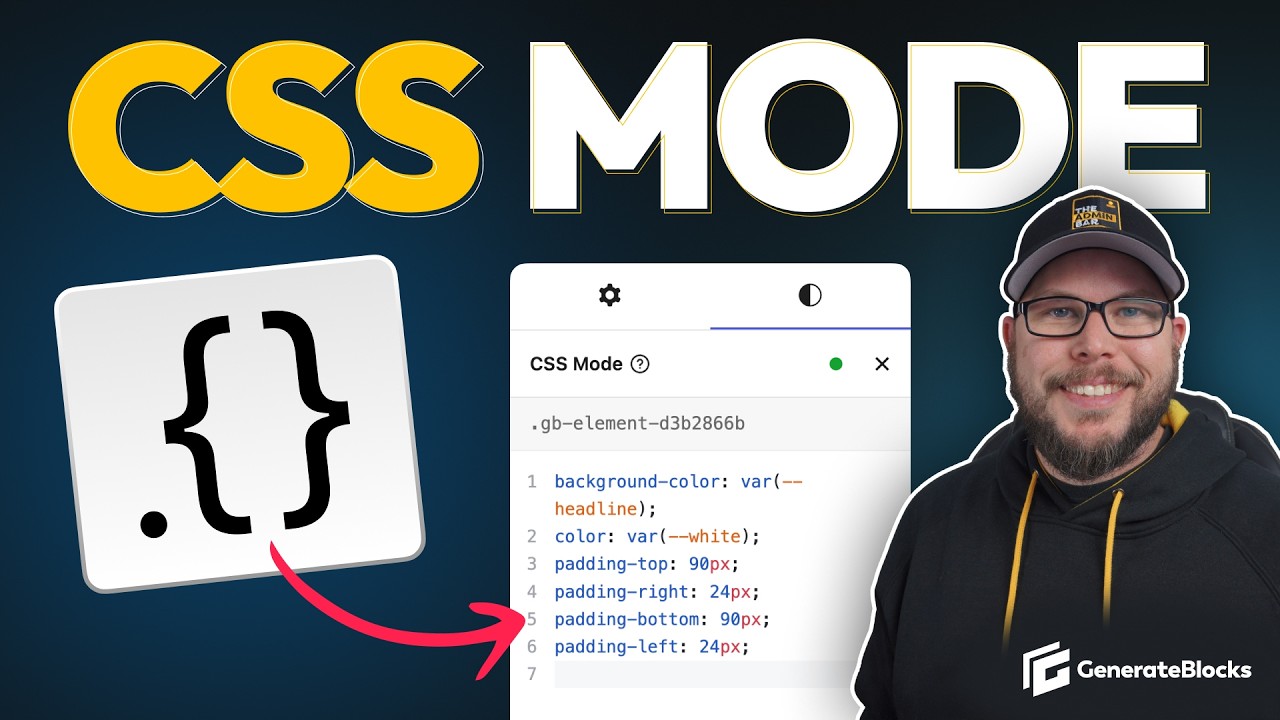
🔗 **Source:** [This Forever Changes How I Build Websites in GenerateBlocks](https://www.youtube.com/watch?v=SCjD_HIHiKY)
> [!note]+ Document Notes
> tags: [generateblocks, css-development, wordpress-blocks]
> author: [MISSING]
> source: [MISSING]
> reference: [https://www.youtube.com/watch?v=SCjD_HIHiKY]
> date created: {{date:YYYY-MM-DD}} {{time:HH:mm}}
>
> # 🏷️ Title: This forever changes how I build websites in GenerateBlocks
>
<!-- deep-read:sections start -->
## 🧭 Table of Contents
- [📝 Summary](#-summary)
- [📖 Main Content](#-main-content)
- [🗒️ Notes](#️-notes)
- [📚 References](#-references)
- [🗣️ Paraphrase](#️-paraphrase)
- [📰 Newsletter](#-newsletter)
- [✅ Action Items](#-action-items)
- [🧪 Hypotheses](#-hypotheses)
- [📊 Methodology](#-methodology)
- [❓ Questions](#-questions)
- [🔮 Future Research](#-future-research)
- [💡 Implications](#-implications)
- [🧠 Learning Styles Assessment](#-learning-styles-assessment)
- [📊 Accessibility Assessment](#-accessibility-assessment)
- [🌍 DEIB Assessment](#-deib-assessment)
- [✅ Logical Validity](#-logical-validity)
- [🛡️ DARVO Analysis](#-darvo-analysis)
- [🎯 Conclusion](#-conclusion)
## 📝 Summary
- GenerateBlocks introduced a new CSS mode feature that allows direct CSS writing in the WordPress block editor
- The initial implementation had usability issues including poor modal interface and no live preview
- Beta 3 significantly improved the workflow with sidebar CSS mode, live preview, and auto-completion
- Both traditional input mode and CSS mode sync together, though with some limitations around CSS shorthand properties
- CSS mode offers productivity benefits for developers comfortable with CSS but isn't suitable for all use cases
## 📖 Main Content
GenerateBlocks has released a significant update to their CSS mode feature, addressing major usability concerns from the initial beta release. The plugin now allows developers to write CSS directly within the WordPress block editor through two distinct workflows: traditional input controls and the new CSS mode.
The demonstration compares building identical styled cards using both approaches. The traditional method involves clicking through various input fields for background color, padding, border radius, and other properties. The CSS mode allows typing these properties directly as CSS code with live preview functionality.
### Key Improvements in Beta 3
The latest release moved CSS mode from a blocking modal interface to an integrated sidebar panel. This change enables live preview of changes and maintains visual context while coding. The editor now includes CSS auto-completion with tab-to-complete functionality similar to traditional IDEs.
### Synchronization Between Modes
Both input and CSS modes sync their values, though with important caveats. CSS shorthand properties (like `background` vs `background-color`) may not always display correctly in input mode. Conversely, input mode generates verbose CSS longhand properties that appear when switching to CSS mode.
### Mode Persistence and Limitations
The editor remembers which mode users prefer and applies it consistently across elements. However, CSS mode has limitations for certain tasks like selecting background images, where the traditional input interface with media library integration proves more efficient.
## 🗒️ Notes
#### ⏱️ [00:02:30](https://www.youtube.com/watch?v=SCjD_HIHiKY&t=150) Initial CSS Mode Problems
- Required multiple clicks to access
- Modal interface blocked screen view
- No live preview functionality
- Made workflow inefficient for developers
#### ⏱️ [00:03:45](https://www.youtube.com/watch?v=SCjD_HIHiKY&t=225) Workflow Comparison Setup
- Created identical card layouts for comparison
- Traditional input method: clicking through background, padding, border radius controls
- CSS mode: direct typing of properties with live preview
#### ⏱️ [00:05:12](https://www.youtube.com/watch?v=SCjD_HIHiKY&t=312) Traditional Input Method Demo
- Background: white
- Padding: var(--wp--space--xs) with linked controls
- Border radius: 12px
- Display: flex, flex-direction: column
- Gap: 1rem for spacing
#### ⏱️ [00:07:20](https://www.youtube.com/watch?v=SCjD_HIHiKY&t=440) CSS Mode Implementation
- Single button toggles CSS mode
- Direct CSS property typing with auto-completion
- Same styling achieved through typed CSS syntax
- Maintains live preview throughout process
#### ⏱️ [00:09:15](https://www.youtube.com/watch?v=SCjD_HIHiKY&t=555) Mode Synchronization Issues
- CSS shorthand properties don't always sync to input fields
- Input mode generates verbose longhand CSS properties
- Red dots indicate custom CSS presence in input mode
- Shorthand vs longhand creates sync inconsistencies
#### ⏱️ [00:11:30](https://www.youtube.com/watch?v=SCjD_HIHiKY&t=690) Auto-completion Features
- Tab completion for CSS properties
- Filters suggestions as you type
- Requires muscle memory development
- Similar to IDE auto-completion workflows
#### ⏱️ [00:13:45](https://www.youtube.com/watch?v=SCjD_HIHiKY&t=825) CSS Mode Limitations
- Background image selection more complex
- Requires manual URL input vs media library picker
- Some tasks better suited for traditional input mode
- Not optimal for all styling scenarios
## 📚 References
- [GenerateBlocks Plugin](https://generateblocks.com/)
- [WordPress Block Editor](https://wordpress.org/gutenberg/)
## 🗣️ Paraphrase
GenerateBlocks has significantly improved their CSS mode feature, transforming it from a problematic modal interface into a streamlined sidebar experience. The update enables developers to write CSS directly in the block editor with live preview and auto-completion. While both input and CSS modes sync together, developers should be aware of limitations around shorthand properties and specific use cases where traditional inputs remain more efficient.
## 📰 Newsletter
🎨 **GenerateBlocks Gets a CSS Mode Makeover!** The latest update transforms how developers style WordPress blocks with direct CSS editing right in the editor. No more modal popups blocking your view—now you get live preview, auto-completion, and seamless switching between visual inputs and code. Perfect for CSS-comfortable developers who want to speed up their workflow. The best part? Input mode and CSS mode sync together, so teams can work however they're most comfortable. Worth checking out if you're building custom block designs!
## ✅ Action Items
#### DevRel
- Create tutorial content comparing GenerateBlocks CSS mode vs traditional inputs
- Develop best practices guide for CSS mode workflow optimization
- Document common sync issues between modes for developer education
#### WordPress
- **Core Performance**: Evaluate impact of live CSS preview on editor performance
- **Community**: Share CSS mode workflow patterns with block development community
- **Training**: Update block development courses to include CSS mode examples
## 🧪 Hypotheses
- CSS mode will increase development speed for experienced CSS developers by reducing interface navigation
- Live preview functionality will reduce development iteration cycles and testing overhead
- Auto-completion features will lower CSS syntax errors and improve code consistency
- Mode synchronization limitations may create confusion for teams switching between workflows
- CSS mode adoption will correlate with developer CSS comfort level and typing speed
### 📊 Methodology
- Time comparison studies between CSS mode and input mode workflows
- User satisfaction surveys comparing beta 2 modal vs beta 3 sidebar implementation
- Error rate analysis for CSS syntax in auto-completion vs manual typing
- Task completion analysis for different styling scenarios (simple vs complex)
### ❓ Questions
- How does CSS mode performance compare at scale with complex nested blocks?
- What percentage of GenerateBlocks users will adopt CSS mode vs stick with inputs?
- Could CSS mode patterns influence core WordPress block editor development?
- How might this affect the learning curve for new WordPress developers?
### 🔮 Future Research
- Integration patterns with other visual page builders
- CSS preprocessing support (Sass, Less) in block editors
- Performance optimization for live preview rendering
- Accessibility implications of dual-mode interfaces
### 💡 Implications
- **Practice**: Changes workflow expectations for WordPress block development teams
- **Education**: Requires updated training materials covering both interface modes
- **Tooling**: May influence other block editor plugins to implement similar CSS modes
- **Performance**: Live preview features need careful optimization to avoid editor lag
### 🧠 Learning Styles Assessment
Reading level estimate: Flesch-Kincaid Grade 10.2 - appropriate for intermediate WordPress developers
#### 👀 Visual learners
- Present: Side-by-side card comparison, live preview demonstration
- Improve: CSS property reference chart, visual workflow diagrams, before/after styling examples
#### 🔊 Aural learners
- Present: Video tutorial with clear narration
- Improve: Audio-only workflow description, keyboard shortcut pronunciation guide
#### 🗣️ Verbal learners
- Present: Step-by-step explanations, property definitions
- Improve: CSS terminology glossary, workflow decision trees
#### 🧩 Kinesthetic learners
- Present: Hands-on demonstrations, interactive CSS mode switching
- Improve: Practice exercises, guided tutorials, sandbox environments
#### 🧠 Logical learners
- Present: Workflow comparison framework, systematic property application
- Improve: Decision matrix for mode selection, performance metrics
#### 🧑🤝🧑 Social learners
- Present: Community feedback incorporation
- Improve: Team workflow discussions, pair programming scenarios
#### 🧘♀️ Solitary learners
- Present: Self-guided video tutorial
- Improve: Written documentation, personal practice challenges
#### 🌿 Naturalistic learners
- Present: Workflow evolution narrative
- Improve: Development ecosystem connections, tool relationships
### 📊 Accessibility Assessment
#### Screen reader semantics
- Present: Clear heading structure, descriptive button labels
- Improve: CSS mode state announcements, property completion feedback
#### Keyboard navigation
- Present: Tab navigation through CSS mode interface
- Improve: Keyboard shortcuts documentation, focus management
#### Contrast and readability
- Present: Standard interface contrast
- Improve: CSS syntax highlighting accessibility, dark mode considerations
#### Text resizing and reflow
- Present: Responsive sidebar interface
- Improve: CSS editor text scaling, mobile CSS mode usability
### 🌍 DEIB Assessment
#### Cultural breadth
- Present: English-language interface
- Improve: CSS property translations, international workflow examples
#### Inclusive language
- Present: Technical but accessible terminology
- Improve: Beginner-friendly explanations, jargon definitions
#### Neurodiversity support
- Present: Multiple workflow options accommodate different thinking styles
- Improve: Interface customization options, cognitive load considerations
#### Representation
- Present: Single demonstrator perspective
- Improve: Diverse developer workflow examples, varied skill level scenarios
### ✅ Logical Validity
#### Strong reasoning
- Demonstrates clear problem identification and solution in beta progression
- Provides concrete examples supporting workflow efficiency claims
- Acknowledges limitations and appropriate use cases for each mode
#### Fallacies
- Potential selection bias: demonstrator clearly prefers CSS mode, may unconsciously favor it
- Hasty generalization: assumes typing speed determines mode preference without considering other factors
#### Tone of voice
- Enthusiastic and educational, clearly excited about the improvements while maintaining objectivity about limitations
### 🛡️ DARVO Analysis
No DARVO patterns detected. The content presents a straightforward technical evaluation with acknowledged limitations and balanced perspective on both workflow approaches.
## 🎯 Conclusion
GenerateBlocks' CSS mode represents a significant improvement in WordPress block styling workflows, particularly for developers comfortable with CSS syntax. The move from modal to sidebar interface with live preview addresses major usability concerns while maintaining flexibility for different skill levels. However, the feature works best as part of a hybrid approach, switching between CSS mode and traditional inputs based on the specific task requirements.
## 🔄 Refactor Appendix — This forever changes how I build websites in GenerateBlocks
### 📚 Literature Atoms (H3)
#### CSS mode eliminates interface navigation overhead for experienced developers
> [!quote] ID:rw_demo_001
> CSS mode allows typing properties directly as CSS code with live preview functionality
**Context & use**:
- Timestamp 07:20 - Direct CSS implementation demonstration
- Reduces clicking through multiple input fields for complex styling
**Tags**: #developer-workflow #css-productivity
**Highlight**: [view highlight](https://www.youtube.com/watch?v=SCjD_HIHiKY&t=440)
<!-- atomicity: 1 idea ✓ -->
#### Mode synchronization creates hybrid workflow possibilities but introduces edge case complexity
> [!quote] ID:rw_demo_002
> CSS shorthand properties don't always sync to input fields while input mode generates verbose longhand CSS
**Context & use**:
- Timestamp 09:15 - Synchronization demonstration and limitations
- Critical for teams using mixed skill approaches
**Tags**: #workflow-integration #technical-limitations
**Highlight**: [view highlight](https://www.youtube.com/watch?v=SCjD_HIHiKY&t=555)
<!-- atomicity: 1 idea ✓ -->
#### Live preview integration transforms CSS mode from unusable to production-ready
> [!quote] ID:rw_demo_003
> Beta 3 moved CSS mode from blocking modal to integrated sidebar with live preview and auto-completion
**Context & use**:
- Comparison between beta versions showing dramatic usability improvement
- Demonstrates importance of iterative UX design in developer tools
**Tags**: #ux-iteration #live-preview #developer-experience
**Highlight**: [view highlight](https://www.youtube.com/watch?v=SCjD_HIHiKY&t=150)
<!-- atomicity: 1 idea ✓ -->
### 🧠 Permanent Candidates (H4)
#### Developer tool adoption depends on cognitive load reduction not just feature completeness
**Claim**: Tools succeed when they eliminate mental overhead rather than simply providing more options.
**Evidence pointer**: [[#CSS mode eliminates interface navigation overhead for experienced developers]]
**Scope & conditions**:
- Holds when users have existing mental models (CSS syntax knowledge)
- Breaks when cognitive switching costs exceed navigation benefits
**Links**:
- [[Developer Experience Principles]] — because extends cognitive load theory
- [[WordPress Block Editor Evolution]] — because applies-in block development context
<!-- atomicity: 1 idea ✓ -->
### ✏️ Fleeting Queue
- Compare other WordPress page builders' CSS implementation approaches #fleeting #research
- Investigate performance impact of live CSS preview on complex page layouts #fleeting #technical
### → Things 3 (max 2 actions)
- [ ] Test GenerateBlocks CSS mode with complex responsive layouts — evaluate performance #things
- [ ] Document CSS mode vs input mode decision framework for team workflows #things
---
## Full Transcript
[00:00] The latest releases of Generate Blocks<br>[00:01] give us the ability to write CSS<br>[00:03] directly in the editor, which is<br>[00:05] something I am very excited about.<br>[00:07] However, the very first implementations<br>[00:09] of this that I showed in my last video<br>[00:12] left a few things to be desired. First<br>[00:14] of all, you had to do a bunch of clicks<br>[00:16] in order to start writing CSS, and then<br>[00:18] once you did, there was no live preview,<br>[00:20] and the modal you were writing the CSS<br>[00:22] in kind of covered up everything on your<br>[00:23] screen, so you couldn't really see what<br>[00:25] you were working on. However, after some<br>[00:27] of that feedback, the Generate Blocks<br>[00:29] team went back to the drawing board and<br>[00:31] came up with a new workflow on how to<br>[00:33] add CSS inside the editor, and it is<br>[00:35] really stinking cool. It's called CSS<br>[00:38] mode, and in this video, I'm going to<br>[00:39] show you exactly how it works and how it<br>[00:41] solves some of those initial problems we<br>[00:43] had. If that sounds interesting to you,<br>[00:45] then stick around and let's get started.<br>[00:47] Now, I think the best way to demonstrate<br>[00:48] this latest release is to take a look at<br>[00:50] the old workflow or the traditional<br>[00:52] workflow and the new workflow using CSS<br>[00:55] mode. Now, this isn't a race, and I'm<br>[00:57] not going to try to prove that one is<br>[00:59] better than the others. I think it's<br>[01:00] going to really depend on what you're<br>[01:02] more comfortable with and where your<br>[01:03] skill set is. I have a feeling that I'm<br>[01:06] going to spend most my time in CSS mode<br>[01:08] because I'm pretty comfortable writing<br>[01:09] CSS, but if you're a slow typer or you<br>[01:12] just haven't written a lot of CSS<br>[01:13] before, I can imagine the inputs are<br>[01:15] still going to be a whole lot quicker<br>[01:17] for you. But it is a bit of a different<br>[01:19] workflow, and I just want to show these<br>[01:20] two side by side so you can get an idea<br>[01:23] of what might make sense for you. So,<br>[01:25] what I've done is set up a card here on<br>[01:27] the left-hand side, the first card in<br>[01:29] the section, that I've just gone ahead<br>[01:30] and styled, and this is what we're going<br>[01:32] to be trying to replicate using both the<br>[01:34] input method and the CSS mode method.<br>[01:37] We've got some color and border radius<br>[01:39] and padding and all those kinds of<br>[01:40] things. It's a pretty simple card, but I<br>[01:42] just wanted to set something up that we<br>[01:43] could go through the process with. So,<br>[01:45] what we're going to try to do is set up<br>[01:47] this middle card using all the inputs<br>[01:49] and make it styled exactly like the card<br>[01:51] on the left, and then the last card over<br>[01:53] here on the right, we're going to use<br>[01:54] the CSS mode to see if we can make it<br>[01:56] look the same as well.<br>[01:58] So, let's go ahead and jump in here to<br>[01:59] our inputs card and we'll go in here and<br>[02:02] start with changing the background to<br>[02:03] white.<br>[02:05] I know that we have some padding on<br>[02:06] here. I'm going to link these together<br>[02:08] and we'll do var space xs. So, I believe<br>[02:11] I used extra small padding on that.<br>[02:14] We also have a border radius. So, I'll<br>[02:15] scroll down here to my border radius and<br>[02:17] give this a 12 pixel border radius. And<br>[02:20] if I remember right, I had to set this<br>[02:21] to a display of flex so I could set up<br>[02:23] my gap in there. We'll change that to<br>[02:26] column and then we'll change this row<br>[02:27] gap to one rem just to kind of space out<br>[02:30] between this image and the text. I think<br>[02:33] that does everything on our card. So,<br>[02:34] let's go ahead and go to our image. By<br>[02:36] default, it's going to have a little bit<br>[02:38] of kind of invisible bottom margin, but<br>[02:40] if you change the display to block or<br>[02:41] flex, you can get rid of that. So, I'll<br>[02:43] go ahead and do that here. We'll go down<br>[02:45] to our border radius and change this to<br>[02:47] a six pixel radius and back up here to<br>[02:50] our sizing controls and we're going to<br>[02:52] change this aspect ratio to 16 by 9.<br>[02:57] Now, we'll go into our title. I'm going<br>[02:59] to change this font size to 1.75<br>[03:02] rem.<br>[03:03] And the container that's wrapping all<br>[03:04] this, I want to go ahead and change this<br>[03:06] padding on the left and right, which is<br>[03:08] our horizontal here, to var space xs.<br>[03:12] Now, that's just going to give a little<br>[03:13] bit of padding on the left and right.<br>[03:16] And with that, our input version is done<br>[03:18] and it looks identical to the one on the<br>[03:20] left. But now, let's see what this<br>[03:22] workflow looks like if we use CSS mode.<br>[03:24] So, I'm going to go ahead and grab my<br>[03:26] last container here and we're going to<br>[03:27] click this button to enable CSS mode.<br>[03:31] So, of course, now instead of having my<br>[03:33] hand on the mouse, I'm going to have my<br>[03:34] hand on the keyboard almost the whole<br>[03:36] time. We'll do a background of var<br>[03:39] white.<br>[03:40] We'll do a border radius of 12 pixels.<br>[03:44] We're going to do padding of var space<br>[03:47] xs.<br>[03:50] We're going to do a display of flex,<br>[03:52] flex direction column, and we'll do a<br>[03:55] gap of one rem.<br>[03:58] Now we can go into our image. Again,<br>[04:00] we'll do a display of block. We'll do an<br>[04:03] aspect ratio of 16 by 9.<br>[04:07] And we'll do our border radius of 6<br>[04:11] pixels.<br>[04:12] Now we can go on to our heading here.<br>[04:14] We'll do font size of 1.75<br>[04:17] rem.<br>[04:19] And the container wrapping around it,<br>[04:21] we'll do padding inline of our space<br>[04:24] excess.<br>[04:26] So now we got the CSS version looking<br>[04:28] identical to the others as well.<br>[04:31] And what I noticed about this is either<br>[04:32] one goes pretty quick. Like I said, I<br>[04:34] wasn't timing it. I think probably the<br>[04:36] CSS version was a little bit quicker for<br>[04:38] me because I didn't have to click<br>[04:39] around, and I didn't make too many<br>[04:41] mistakes while typing. But really, I<br>[04:44] think that time difference is going to<br>[04:45] be so much dependent on the user that's<br>[04:47] using it. I don't think there's really<br>[04:49] one that's faster than the other. Now<br>[04:50] there are a few other things I wanted to<br>[04:52] point out while we're here. The first is<br>[04:54] that both the inputs and the CSS mode<br>[04:57] sync together. So let me show you what I<br>[04:59] mean. We'll go back to our CSS version<br>[05:01] here, where I wrote all this CSS by<br>[05:04] hand. You can see we have background and<br>[05:05] border radius and padding. But if I<br>[05:07] leave CSS mode and go back to the input<br>[05:09] mode, we can see things like in our<br>[05:12] layout, this has been changed to flex<br>[05:14] and a flex direction of column. We've<br>[05:16] added that gap of 1 m. All those things<br>[05:18] have been synced from the CSS mode over<br>[05:21] here to the input mode. Now this is true<br>[05:24] for most things, but not all things. If<br>[05:26] we jump back into CSS mode here, you can<br>[05:29] see for the background, I just typed in<br>[05:31] background and not background color. So<br>[05:33] I'm using the shorthand here because<br>[05:35] it's just easier to type. But if we go<br>[05:37] back in here into our background, we can<br>[05:40] see that there's a red dot indicating<br>[05:42] that I've written some CSS for this. It<br>[05:44] has some local styles. But if we go into<br>[05:46] the background color, there's nothing<br>[05:47] here. Even though it is showing up<br>[05:49] white, it's not showing in the input. If<br>[05:51] I went back in here and change this to<br>[05:53] background-color,<br>[05:55] and we swap back into the regular mode,<br>[05:58] and went into our backgrounds, you can<br>[06:00] see this is now filled in with that<br>[06:02] white. So, the inputs don't use the<br>[06:04] shorthand. So, if you're writing in<br>[06:06] shorthand, it's not always going to show<br>[06:07] up perfectly in the inputs. And the<br>[06:10] same's true when we go the other way.<br>[06:11] So, again, in this inputs one, you can<br>[06:14] see I did a border radius of 12. If I<br>[06:16] open up our CSS mode, you can see all of<br>[06:19] the CSS written in here. Of course, when<br>[06:21] I did it, I just wrote border radius 12<br>[06:23] pixels. Here, it's not using the<br>[06:25] shorthand, so it has border top left<br>[06:27] radius, border top right radius, border<br>[06:29] bottom right radius, and border left<br>[06:31] radius. So, the CSS is a little bit more<br>[06:33] verbose inside of the actual inputs than<br>[06:37] it is if you just type it by hand. So,<br>[06:39] these are just a few little quirks you<br>[06:40] got to work around. Like the example of<br>[06:43] seeing that this has a white background,<br>[06:44] but going into the inputs and not seeing<br>[06:46] the background there if we didn't type<br>[06:48] background color, could get a little bit<br>[06:50] confusing. Now, one thing I really do<br>[06:52] like about this is the editor will<br>[06:54] remember which mode you're working in.<br>[06:57] Right now, I'm working in the input<br>[06:58] mode, or the traditional mode. So, any<br>[07:00] element I click on, whether I style it<br>[07:02] with inputs or style it with CSS, is<br>[07:05] showing me the inputs here. But as soon<br>[07:07] as I switch to CSS mode, now any element<br>[07:10] I click on is showing me the CSS mode.<br>[07:12] So, I don't have to jump in and out of<br>[07:14] it. It's just going to remember<br>[07:15] whichever mode you're working in. And<br>[07:17] you probably noticed me doing something<br>[07:19] a few times inside this demo that I<br>[07:21] didn't really stop to explain, but there<br>[07:23] is autofill when you're writing the CSS.<br>[07:26] For example, let me just go ahead and<br>[07:27] get rid of this border radius here, so<br>[07:29] we can see our card has square corners<br>[07:31] now. If I start typing in border r a,<br>[07:34] you can see this filters our autofill<br>[07:36] down to border radius. Now, I can just<br>[07:38] hit tab on my keyboard. That goes ahead<br>[07:41] and puts a colon at the end of the<br>[07:43] property. It puts a semicolon at the end<br>[07:45] of the line and then puts my cursor<br>[07:47] right where it needs to be. This is<br>[07:49] really handy, but it's new muscle memory<br>[07:51] you have to start to work on. Because if<br>[07:53] I just type in border and hit tab,<br>[07:55] that's going to give me the border<br>[07:56] property. But what I really wanted was<br>[07:58] border radius. So I have to know to type<br>[08:00] in border {hyphen} RA and that will<br>[08:03] filter it down enough to where I just<br>[08:05] get to border radius. If you're used to<br>[08:07] writing in an IDE, this is going to be<br>[08:09] very familiar and it is muscle memory<br>[08:12] you can build up over time in order to<br>[08:14] type these things out a whole lot<br>[08:15] quicker because typing some of this over<br>[08:17] and over again does get a bit<br>[08:18] monotonous. However, the auto fills here<br>[08:21] really can save you some time. As you<br>[08:23] can tell, I'm a huge fan of CSS mode and<br>[08:25] that's probably where you'll see me<br>[08:26] working a lot, but I don't think it's<br>[08:28] the answer for everything. For example,<br>[08:30] if I wanted to put a background image on<br>[08:32] these cards, if I was back in the input<br>[08:35] mode, so we'll go back to our input card<br>[08:37] here. I'm going to go back to input<br>[08:38] mode. I can click this plus button,<br>[08:40] click the select button, and now I can<br>[08:42] select an image right out of my media<br>[08:44] library. Obviously, this one is quite<br>[08:46] ugly and doesn't work well for a<br>[08:47] background image, but it was really easy<br>[08:49] to do.<br>[08:50] However, if I was going to do this in<br>[08:52] CSS mode, I'd have to go in here and<br>[08:54] type background image, which is fine,<br>[08:56] but in order to get the actual image<br>[08:59] URL, I need to type in URL, open my<br>[09:01] parentheses, put my quote marks, and now<br>[09:04] I actually need the relative path of<br>[09:05] that URL. So I'd have to leave the<br>[09:07] context here to go get the URL of the<br>[09:10] image to paste it in because there's no<br>[09:12] UI here to go ahead and grab that image<br>[09:14] from. So definitely when I'm doing<br>[09:16] something like a background image, I'm<br>[09:17] going to go back to input mode because<br>[09:19] CSS mode's just going to make it more<br>[09:21] complex. So this goes to show you that<br>[09:23] one mode isn't going to be the best for<br>[09:25] everything even though I prefer CSS<br>[09:27] mode, I will definitely be jumping out<br>[09:29] of it to do some things like a<br>[09:31] background image and I'm sure there's<br>[09:32] some other things I'll find as well. But<br>[09:34] overall, I'd say this is a huge<br>[09:35] improvement over the first beta release.<br>[09:38] If you remember in that one the CSS mode<br>[09:40] was down here in CSS properties, then<br>[09:43] you had to click and enable CSS mode and<br>[09:45] it actually opened up a modal on your<br>[09:47] screen that kind of blocked your vision<br>[09:49] of what you were working on. It didn't<br>[09:50] have live preview so you couldn't<br>[09:52] actually see the changes you were<br>[09:53] making, but now in this beta 3 release<br>[09:56] they've just added this CSS mode which<br>[09:58] lives over here in the right-hand<br>[09:59] sidebar and kind of takes over the space<br>[10:02] where all the inputs are. So now you<br>[10:04] have the benefit of live preview, being<br>[10:05] able to work on things as you're looking<br>[10:07] at them, and it works a whole lot<br>[10:09] easier. This is a huge improvement over<br>[10:11] that first release. So huge kudos to the<br>[10:13] Generate team for making this update<br>[10:15] because now CSS mode I think is<br>[10:17] something I can really spend a lot of<br>[10:18] time in.<br>[10:20] CSS mode is definitely not going to be<br>[10:21] for everybody. If you're not comfortable<br>[10:23] writing CSS or typing is harder for you,<br>[10:26] I can see you avoiding this mode<br>[10:27] completely. But what I love about this<br>[10:29] implementation is that if you don't want<br>[10:31] to use CSS mode, you never even have to<br>[10:33] touch it. It just lives inside that<br>[10:35] little icon inside the editor. But for<br>[10:37] people like me who think it's a little<br>[10:39] bit easier to just write the CSS than<br>[10:41] hunt through all the inputs, this is<br>[10:43] going to be a huge productivity boost<br>[10:45] for me and my workflow. I would love to<br>[10:47] know down in the comments what you think<br>[10:49] about this update and if you can see<br>[10:50] yourself using the CSS mode or not and<br>[10:53] why you might pick one over the other.<br>[10:55] If you enjoyed today's video, I would<br>[10:56] really appreciate a thumbs up and if you<br>[10:58] want to make sure to catch the next one,<br>[10:59] hit subscribe and we'll see you then.
<!-- deep-read:sections end -->
📄 **Full text:** ![[Full Document Contents/Articles/This Forever Changes How I Build Websites in GenerateBlocks.md|This Forever Changes How I Build Websites in GenerateBlocks by YouTube]]
## Highlights
- once you did, there was no live preview, and the modal you were writing the CSS ([View Highlight](https://read.readwise.io/read/01ktshsb0z3sgyp8ag4405dmdr))
- Note: Live preview integration transforms CSS mode from unusable to production-ready
- Tags: ux-iteration, atom/literature/h2, live-preview, developer-experience
- white. So, the inputs don't use the shorthand. So, if you're writing in shorthand, it's not always going to show ([View Highlight](https://read.readwise.io/read/01ktshs9dmv0dj43ypv6kfx5z2))
- Note: Mode synchronization creates hybrid workflow possibilities but introduces edge case complexity
- Tags: technical-limitations, atom/literature/h2, workflow-integration
- have live preview so you couldn't actually see the changes you were making, but now in this beta 3 release they've just added this CSS mode which ([View Highlight](https://read.readwise.io/read/01ktshs7dtbxry47711m3whbw2))
- Note: CSS mode eliminates interface navigation overhead for experienced developers
- Tags: css-productivity, developer-workflow, atom/literature/h1