12 Little-Known CSS Facts (The Sequel)

## Metadata
- Author: [[Louis Lazaris]]
- Full Title: 12 Little-Known CSS Facts (The Sequel)
- Category: #articles
- Summary: Over a year ago I published the original 12 Little-known CSS Facts and, to this day, it has been one of SitePoint’s most popular articles ever. Since that post was published, I’ve been collecting more little CSS tips and tidbits for a new post.
- URL: https://www.sitepoint.com/12-little-known-css-facts-the-sequel/
Over a year ago I published the original [12 Little-known CSS Facts](https://www.sitepoint.com/12-little-known-css-facts/) and, to this day, it has been one of SitePoint’s most popular articles ever. Since that post was published, I’ve been collecting more little CSS tips and tidbits for a new post. Because we all know that every successful movie should spawn a cheesy sequel, right?
Artwork by SitePoint/Natalia Balska.
So let’s get right into this year’s developer’s dozen. I’m sure many of us will know at least some of these, but you can let me know in the comments how many of these were new to you.
#### 1. The `border-radius` property can use “slash” syntax
This is something I’ve [written about before](https://www.sitepoint.com/setting-css3-border-radius-with-slash-syntax/) more than four years ago on SitePoint, but I still think many beginners and even some experienced developers don’t know this feature exists.
Believe it or not, the following is valid `border-radius` code:
```
.box {
border-radius: 35px 25px 30px 20px / 35px 25px 15px 30px;
}
```
If you’ve never seen that, it might seem a little confusing, so here’s the explanation from the spec:
> If values are given before and after the slash, then the values before the slash set the horizontal radius and the values after the slash set the vertical radius. If there is no slash, then the values set both radii equally.
>
>
The spec also provides the following diagram:
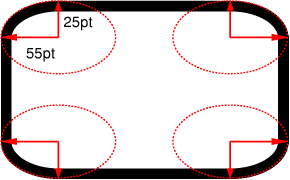
The caption for that image explains: “The two values of `border-top-left-radius: 55pt 25pt` define the curvature of the corner.”
So the use of the slash in the value allows you to create curved corners that are not symmetrical. If you want a more detailed consideration of this, check out my original article linked above, or better yet, try out this [handy little interactive demo from MDN](https://developer.mozilla.org/en-US/docs/Web/CSS/Tools/Border-radius_generator):
Some content could not be imported from the original document. [View content ↗](https://mdn.mozillademos.org/en-US/docs/Web/CSS/Tools/Border-radius_generator%24samples/border-radius-generator?revision=516167)
Most `border-radius` generators do not allow you to set these optional values. The MDN generator is the only one I’ve found that does this.
#### 2. The `font-weight` property accepts relative keywords
Normally when you see the `font-weight` property defined, the value will be either `normal` or `bold`. You might also occasionally see an integer value in hundred increments: `100`, `200`, etc., up to `900`.
The two values that are often forgotten, however, are `bolder` and `lighter`.
According to the spec, these keywords specify a bolder or lighter weight than the inherited value. This comes into play most significantly when you are dealing with a font that has multiple weights that are bolder than just plain “bold” and lighter than just normal text.
In the hundred-based values, “bold” maps to `700` and “normal” maps to `400`. So if you have a font that has a `300` weight, but nothing lower, a value of “lighter” will produce `300` if the inherited value is `400`. If there is no lighter weight (i.e. `400` is the lightest weight) then it will just stay at `400` and thus a value of “lighter” will have no effect.
Look at the following CodePen demo:
#### Using bolder/lighter keywordswith `font-weight`
Box
- Box 2
-- Box 3
--- Box 4
---- Box 5
In this example, I’m using a font called [Exo 2](https://www.google.com/fonts/specimen/Exo+2), which has 18 different styles available. My demo embeds only the non-italic styles, which are enough for each of the hundred-based weights.
Notice that the demo includes 12 nested ‘box’ elements with different `font-weight` values, including “bolder” and “lighter” so you can see how these affect the weight of the text in different inheritance contexts. Below is the CSS from that example. Notice the comments in the code, and remember that each subsequent “box” is nested inside the previous:
```
.box {
font-weight: 100;
}
.box-2 {
font-weight: bolder; /* maps to 400 */
}
.box-3 {
font-weight: bolder; /* maps to 700 */
}
.box-4 {
font-weight: 400;
}
.box-5 {
font-weight: bolder; /* maps to 700 */
}
.box-6 {
font-weight: bolder; /* maps to 900 */
}
.box-7 {
font-weight: 700;
}
.box-8 {
font-weight: bolder; /* maps to 900 */
}
.box-9 {
font-weight: bolder; /* maps to 900 */
}
.box-10 {
font-weight: lighter; /* maps to 700 */
}
.box-11 {
font-weight: lighter; /* maps to 400 */
}
.box-12 {
font-weight: lighter; /* maps to 100 */
}
```
In this case, the “bolder” and “lighter” keywords will map only to the `100`, `400`, `700`, and `900` values. With 9 different styles, these keywords will never map to the `200`, `300`, `500`, `600`, and `800` values.
This happens because you’re telling the browser to choose the next font in the series that is considered either ‘bold’ or ‘light’. So it’s not picking the next boldest or the next lightest, but merely a bold or light font relative to what is inherited. If, however, the lightest font started at `300` (as in the case of [Open Sans](https://www.google.com/fonts/specimen/Open+Sans)), and the inherited value was `400`, then a value of “lighter” would map to `300`.
This might all be a bit confusing at first, but you can fiddle around with the demo to see how these keywords work.
#### 3. There is an `outline-offset` property
The `outline` property is pretty well known due to its ability to help in debugging (it [doesn’t affect page flow](http://www.impressivewebs.com/css-things-that-dont-occupy-space/)). The spec, however, has added an `outline-offset` property, which does exactly what its name suggests — it lets you define how far the outline should be offset from the element.
Some content could not be imported from the original document. [View content ↗](https://codepen.io/SitePoint/embed/VLXyZw?height=412&theme-id=6441&slug-hash=VLXyZw&default-tab=result&user=SitePoint&name=cp_embed_2)
In the demo above, move the range slider left or right to see the outline offset change. The range in this example covers `0px` to `30px`, but you could go as large as you want in the CSS. Take note that although the `outline` property is a shorthand property, it doesn’t include `outline-offset`, so you always have to define `outline-offset` separately.
The only major drawback to the `outline-offset` property is the fact that it’s supported in every browser except Internet Explorer (not even IE11).
#### 4. There is a `table-layout` property
You’re probably thinking, *Old news. I know all about `display: table`, bruh. Easiest way to vertically center!* But that’s not what I’m talking about. Notice I said the `table-layout` property, not the `display` property.
The `table-layout` property isn’t the easiest CSS feature to explain so let’s first go to the spec, and then look at an example. The spec says:
> With this (fast) algorithm, the horizontal layout of the table does not depend on the contents of the cells; it only depends on the table’s width, the width of the columns, and borders or cell spacing.
>
>
That might be the first time in W3C specification history that something is hard to understand. LOL JK.
But seriously, as always, a live example will help. In the following demo, the table has `table-layout: fixed` added in the CSS. Click the toggle button to toggle it off, then on, etc.
Some content could not be imported from the original document. [View content ↗](https://codepen.io/SitePoint/embed/vORpYN?height=382&theme-id=6441&slug-hash=vORpYN&default-tab=result&user=SitePoint&name=cp_embed_3)
You can see in this example the advantage of using `table-layout: fixed`, as opposed to the default of `auto`. This won’t always be the best choice and it won’t always be necessary, but it’s a nice one to keep in mind when dealing with tables that have cells with variable-width data.
Chris Coyier did [a great write-up on this property](https://css-tricks.com/fixing-tables-long-strings/) last year, so if you want a much more comprehensive discussion, that’s your best bet.
#### 5. The `vertical-align` property works differently on table cells vs. other elements
If you’ve been coding websites since the mid-2000s or earlier, or if you’ve done a lot of HTML emails, then you’ve probably at some point assumed the `vertical-align` property was the standard upgrade to the old [HTML4 valign attribute](https://www.w3.org/TR/html401/struct/tables.html#adef-valign), which is now listed as an [obsolete, non-conforming feature in HTML5](https://www.w3.org/TR/html5/obsolete.html#non-conforming-features).
But `vertical-align` in CSS doesn’t really work that way. Except on tables. Which, I think is kind of weird, but I suppose it makes more sense than the property not working at all on tables.
So what’s the difference when this property is applied to regular elements compared to table cells?
When not applied to table cells, the `vertical-align` property follows these basic rules:
* It works only on inline or inline-block elements.
* It has no effect on the contents of an element but instead it changes the alignment of the element itself in relation to other inline or inline-block elements.
* It can be affected by text/font settings like line-height and by the size of adjacent inline or inline-block elements.
Here’s a demo:
Some content could not be imported from the original document. [View content ↗](https://codepen.io/SitePoint/embed/zGWpxy?height=336&theme-id=6441&slug-hash=zGWpxy&default-tab=result&user=SitePoint&name=cp_embed_4)
The `vertical-align` property is defined on the `input` element. By pressing one of the buttons, you’ll change the value to what’s written on the button. You’ll notice that each of the values changes the position of the `input`.
Overall, that demo is a really rudimentary look at this property and its values. For a much deeper look, check out [Christopher Aue’s 2014 post](http://christopheraue.net/2014/03/05/vertical-align/).
When it comes to tables, however, `vertical-align` works very differently. In such a case, you apply the property/value to one or more table cells, and the content of the table cells is affected by the chosen alignment.
Some content could not be imported from the original document. [View content ↗](https://codepen.io/SitePoint/embed/KpoZdo?height=352&theme-id=6441&slug-hash=KpoZdo&default-tab=result&user=SitePoint&name=cp_embed_5)
As shown in the above demo, only four of the values work on table cells, and although there is an effect on the sibling cells with a value of `baseline`, the main effect is on the alignment of content inside the cell on which you’ve applied `vertical-align`.
#### 6. The `::first-letter` pseudo-element is smarter than you think
The `::first-letter` pseudo-element allows you to style the first letter of an element, letting you do a [drop-cap](https://en.wikipedia.org/wiki/Initial) effect which has been common in print for many years.
The good thing about this one is that browsers seem to have a decent standard for what constitutes the “first letter” of an element. I first saw this when [Matt Andrews tweeted about it](https://twitter.com/andrewsmatt/status/497704502167076864), although he seemed to imply that it was a bad thing. You can see his examples in the CodePen below.
Some content could not be imported from the original document. [View content ↗](https://codepen.io/SitePoint/embed/KpoZjE?height=533&theme-id=6441&slug-hash=KpoZjE&default-tab=result&user=SitePoint&name=cp_embed_6)
Looks to me like the four big browsers all handle these the same way, so that’s great because I think this is the correct behavior. It would be a little weird if something like an open parenthesis was treated as a “first letter”. That would be more like “first character”, which I suppose could be a whole new pseudo-class in itself.
#### 7. You can use invalid characters as delimiters in your HTML class lists
This concept was discussed [in 2013 by Ben Everard](http://beneverard.co.uk/blog/using-slashes-within-the-html-class-attribute/), and I think it’s worth expanding on.
Ben’s post was about using the slash (“/”) character to separate his HTML classes into groups, to make his code easier to read or scan. As he points out, although the unescaped slash is an invalid character, browsers don’t choke on it, they simply ignore it.
So you might have an HTML example like this one:
```
<div class="col col-4 col-8 c-list bx bx--rounded bx--transparent">
```
With the slashes, it would become:
```
<div class="col col-4 col-8 / c-list / bx bx--rounded bx--transparent">
```
You can use any characters (invalid or not) to produce the same effect:
```
<div class="col col-4 col-8 ** c-list ** bx bx--rounded bx--transparent">
<div class="col col-4 col-8 || c-list || bx bx--rounded bx--transparent">
<div class="col col-4 col-8 && c-list && bx bx--rounded bx--transparent">
```
All these variations seem to work fine, which you can test in the demo below.
Some content could not be imported from the original document. [View content ↗](https://codepen.io/SitePoint/embed/NqYyNe?height=309&theme-id=6441&slug-hash=NqYyNe&default-tab=result&user=SitePoint&name=cp_embed_7)
Of course, those delimiters cannot be used in your stylesheet as classes, which is what I mean by “invalid”. So the following would be illegal and wouldn’t apply the specified style:
```
./ {
color: blue;
}
```
If you must use these kinds of characters in your HTML classes for the purpose of targeting them in your CSS, you can [insert them escaped using this tool](https://mothereff.in/css-escapes). So the above example would work only if your CSS looked like this:
```
.\/ {
color: blue;
}
```
And taking it even further, Unicode characters don’t have to be escaped at all, so you can do this kind of crazy stuff:
```
<div class="♥ ★"></div>
```
And then have the following in your CSS:
```
.♥ {
color: hotpink;
}
.★ {
color: yellow;
}
```
Alternatively, you can escape these types of characters too, instead of inserting them directly. The following would be equivalent to the previous code block:
```
.\2665 {
color: hotpink;
}
.\2605 {
color: yellow;
}
```
#### 8. Animation iterations can be fractional values
When writing CSS keyframe animations, you probably know that you can use the `animation-iteration-count` property to define the number of times to play the animation:
```
.example {
animation-iteration-count: 3;
}
```
The integer value in that example will tell the animation to run 3 full times. But maybe you didn’t know that you can use fractional values:
```
.example {
animation-iteration-count: .5;
}
```
In this case, the animation will run a half time (that is, it will stop halfway through its first iteration). Let’s look at an example demo that animates two balls on the page. The top ball has an iteration count of “1” while the bottom ball has an iteration count of “.5”.
***Update:** As pointed out in the comments, these demos don’t work correctly in Safari on desktop or mobile. This is because of a bug in relation to the fill mode, [which I’ve filed here](https://bugs.webkit.org/show_bug.cgi?id=146996), and which has since been fixed. It will be corrected in future stable updates.*
Some content could not be imported from the original document. [View content ↗](https://codepen.io/SitePoint/embed/VLXQmM?height=545&theme-id=6441&slug-hash=VLXQmM&default-tab=result&user=SitePoint&name=cp_embed_8)
What’s interesting about this is that the iteration duration is not based on the property/value that’s animating. In other words, if you animate something 100px, the halfway point is not necessarily at 50px. For example, the previous animation uses a timing function of `linear`, so this ensures the second ball stops visually at the halfway point.
Here are the same two animations, this time using a timing function of `ease`:
Some content could not be imported from the original document. [View content ↗](https://codepen.io/SitePoint/embed/PqRxov?height=523&theme-id=6441&slug-hash=PqRxov&default-tab=result&user=SitePoint&name=cp_embed_9)
Notice now the second ball passes the halfway point before it stops. Again, this is because of the different timing function.
If you understand timing functions, then you’ll also realize that a value of `ease-in-out` will position the ball in the same place as `linear`. Fiddle around with fractional values and the timing functions to see the different results.
#### 9. Animation shorthand can break because of the animation’s name
Some developers have discovered this one by accident and there is a warning about it in the spec. Let’s say you have the following animation code:
```
@keyframes reverse {
from {
left: 0;
}
to {
left: 300px;
}
}
.example {
animation: reverse 2s 1s;
}
```
Notice I’m using a name of `reverse` for the animation. This seems fine at first glance, but notice what happens when we use the above code in a live example:
Some content could not be imported from the original document. [View content ↗](https://codepen.io/SitePoint/embed/OVvayK?height=404&theme-id=6441&slug-hash=OVvayK&default-tab=result&user=SitePoint&name=cp_embed_10)
The animation doesn’t work because “reverse” is a valid keyword value for the `animation-direction` property. This will happen for any animation name that matches a valid keyword value that’s used in the shorthand syntax. This will not happen when using longhand.
Animation names that will break the shorthand syntax include any of the [timing function keywords](http://dev.w3.org/csswg/css-transitions-1/#single-transition-timing-function), as well as `infinite`, `alternate`, `running`, `paused`, and so forth.
#### 10. You can select ranges of elements
I don’t know who first used this but I first saw it in [this demo](http://bittersmann.de/samples/08-15) by [Gunnar Bittersmann](https://twitter.com/g16n). Let’s say you have an ordered list of 20 elements and you want to select elements 7 through 14, inclusive. Here’s how you can do it with a single selector:
```
ol li:nth-child(n+7):nth-child(-n+14) {
background: lightpink;
}
```
Some content could not be imported from the original document. [View content ↗](https://codepen.io/SitePoint/embed/wamQGv?height=590&theme-id=6441&slug-hash=wamQGv&default-tab=result&user=SitePoint&name=cp_embed_11)
***Update:** As pointed out in the comments, Safari has a bug that prevents this technique from working. Fortunately, a solution proposed by Matt Pomaski seems to fix it: Simply reverse the chain so it looks like `ol li:nth-child(-n+14):nth-child(n+7)`. WebKit nightly doesn’t have this bug, so eventually you’ll be able to get this working normally in Safari.*
This code uses chained structural pseudo-class expressions. Although the expression itself might be a bit confusing, you can see the range you’re targeting by the numbers used in the expression.
To explain exactly what this is doing: In the first part of the chain, the expression says “select the 7th element, then every element after that”. The second part says “select the 14th element, and every element before that.” But since the selectors are chained, each limits the previous one’s scope. So the second part of the chain doesn’t allow the first part to go past 14 and the first part of the chain doesn’t allow the second part to go back past 7.
For a more detailed discussion of these types of selectors and expressions, you can read [my old post on the subject](http://www.impressivewebs.com/css3-pseudo-class-expressions/).
#### 11. Pseudo-elements can be applied to some void elements
If you’re like me, at some point you’ve probably tried to apply a pseudo-element to an image or a form input. This won’t work because pseudo-elements don’t work on replaced elements. I think many developers have the assumption that void elements (that is, elements that don’t have closing tags) all fall under that category. But that’s not true.
You can apply a pseudo-element to [some void elements](https://www.w3.org/TR/html5/syntax.html#void-elements) that aren’t replaced elements. This includes `hr` elements, as in this demo:
Some content could not be imported from the original document. [View content ↗](https://codepen.io/SitePoint/embed/ZGxmpK?height=251&theme-id=6441&slug-hash=ZGxmpK&default-tab=result&user=SitePoint&name=cp_embed_12)
The colored area in that example is a horizontal rule (`hr` element) and it has both `::before` and `::after` pseudo-elements applied to it. Interestingly, I couldn’t get the same result using a `br` element, which is also a non-replaced void element.
You can also add pseudo-elements to meta tags and `link` elements, if you are crazy enough to convert those to `display: block`, as shown in the demo below.
Some content could not be imported from the original document. [View content ↗](https://codepen.io/SitePoint/embed/KporNg?height=352&theme-id=6441&slug-hash=KporNg&default-tab=result&user=SitePoint&name=cp_embed_13)
#### 12. Some attribute values are case insensitive in selectors
Finally, here is a bit of an obscure one. Let’s say you have the following HTML:
```
<div class="box"></div>
<input type="email">
```
You could style both of those elements using the attribute selector, like this:
```
div[class="box"] {
color: blue;
}
input[type="email"] {
border: solid 1px red;
}
```
That would work fine. But what about this?
```
div[class="BOX"] {
color: blue;
}
input[type="EMAIL"] {
border: solid 1px red;
}
```
Notice both attribute values are now in uppercase. In this case, the `.box` element will not receive the styles, because the `class` attribute is case sensitive. The email field, on the other hand, will apply the styles because the value of the `type` attribute is not case sensitive. Nothing necessarily groundbreaking here, but maybe it’s something you hadn’t realized before.
#### That’s a Wrap, People
Well, the curtain has officially dropped on this hopefully-not-so-cheesy sequel.
It feels like I’m learning unique little CSS tidbits every week and I hope some of this information was new to most of you. What’s your favorite, obscure CSS trick or technique? Is there a property or other feature that you think isn’t very well known, but has good browser support? Let us know in the comments., 12 Little-Known CSS Facts (The Sequel), Louis Lazaris, 01gnmcyvrhddhnh197kbb97hrn.