8 new features in Microsoft OneNote
## Metadata
- Author: [[YouTube]]
- Full Title: 8 new features in Microsoft OneNote
- Category: #articles
- Document Note: ---
tags: [microsoft-onenote, sticky-notes, loop-components]
author: Mike Tholfsen
source: YouTube
reference: https://www.youtube.com/watch?v=1I3qY-_bYcw
date created: 2024-12-19 10:30
---
# 🏷️ Title: 8 new features in Microsoft OneNote
## 🧰 Action Inbox
- [H1] Test new sticky notes app with Windows Alt+S shortcut — 01:32 #onenote
- [H2] Try Loop component collaboration in OneNote — 04:15 #loop
- [H3] Enable ink-to-text pen for handwriting conversion — 11:45 #ink
## 🧭 Table of Contents
- [📝 Summary](#-summary)
- [📖 Main Content](#-main-content)
- [🗒️ Notes](#️-notes)
- [📚 References](#-references)
- [🗣️ Paraphrase](#️-paraphrase)
- [📰 Newsletter](#-newsletter)
- [✅ Action Items](#-action-items)
- [🧪 Hypotheses](#-hypotheses)
- [📊 Methodology](#-methodology)
- [❓ Questions](#-questions)
- [🔮 Future Research](#-future-research)
- [💡 Implications](#-implications)
- [🧠 Learning Styles Assessment](#-learning-styles-assessment)
- [📊 Accessibility Assessment](#-accessibility-assessment)
- [🌍 DEIB Assessment](#-deib-assessment)
- [✅ Logical Validity](#-logical-validity)
- [🛡️ DARVO Analysis](#-darvo-analysis)
- [🎯 Conclusion](#-conclusion)
### 🔗 References
- [Microsoft OneNote](https://www.microsoft.com/en-us/microsoft-365/onenote/digital-note-taking-app)
- [Microsoft Loop](https://loop.microsoft.com/)
## 📝 Summary
- Mike Tholfsen demonstrates 8 new OneNote features including redesigned sticky notes, Loop integration, and ink improvements
- Key updates focus on collaboration, mobile experience, and handwriting recognition capabilities
- Most features are in M365 Insider preview as of March 2024, rolling out to broader audiences
- Teams integration provides automatic notes tabs for channels
- New sticky notes app will eventually replace Windows' built-in sticky notes
## 📖 Main Content
Microsoft OneNote has received significant updates focused on improving collaboration, mobile experience, and handwriting capabilities. The most notable addition is a completely redesigned sticky notes application that integrates directly with OneNote for Windows, featuring automatic source capture, cross-device syncing, and screenshot capabilities.
Loop integration represents a major step forward in real-time collaboration, allowing users to embed and create Loop components directly within OneNote pages. These components sync across Microsoft 365 applications including Teams, Word, and Outlook, enabling seamless collaborative workflows.
The ink experience has been substantially improved with new features like ink-to-text conversion, better selection capabilities, and the ability for handwritten notes to automatically stick to images and PDFs when moved. Mobile users on iPhone receive a redesigned home screen with improved navigation and filtering options.
## 🗒️ Notes
#### ⏱️ [00:00](https://www.youtube.com/watch?v=1I3qY-_bYcw?t=0) — [H1] Introduction to 8 OneNote features
- Key idea: Comprehensive overview of new OneNote capabilities across platforms
- Evidence: "8 new features in one note this includes the all new sticky notes app Loop integration with collaborative components ink updates"
#### ⏱️ [00:30](https://www.youtube.com/watch?v=1I3qY-_bYcw?t=30) — [H1] New Sticky Notes app integration
- Key idea: Brand new sticky notes app launching from OneNote for Windows
- Evidence: "brand new sticky notes app that comes with OneNote for Windows...this is going to long-term replace the existing Windows Sticky Notes app"
#### ⏱️ [01:32](https://www.youtube.com/watch?v=1I3qY-_bYcw?t=92) — [H2] Windows Alt+S keyboard shortcut
- Key idea: Quick access to sticky notes with keyboard shortcut
- Evidence: "quickly access the new sticky notes app and you can launch this with the Windows alt and S together"
#### ⏱️ [02:15](https://www.youtube.com/watch?v=1I3qY-_bYcw?t=135) — [H2] Automatic source capture feature
- Key idea: Sticky notes automatically capture source information from active browser
- Evidence: "automatically pulls in the source of what I'm looking at so I'm looking at this web browser it automatically sourced it"
#### ⏱️ [03:00](https://www.youtube.com/watch?v=1I3qY-_bYcw?t=180) — [H2] Screenshot integration in sticky notes
- Key idea: Built-in screenshot capability with preview and automatic sourcing
- Evidence: "capture from this site it has a little preview image...it automatically sources where I got this from"
#### ⏱️ [04:15](https://www.youtube.com/watch?v=1I3qY-_bYcw?t=255) — [H1] Loop component pasting functionality
- Key idea: Paste Loop component links into OneNote for real-time collaboration
- Evidence: "paste a loop component link into one note and it renders that entire Loop component"
#### ⏱️ [05:30](https://www.youtube.com/watch?v=1I3qY-_bYcw?t=330) — [H2] Real-time collaborative editing demo
- Key idea: Multiple users can simultaneously edit Loop components within OneNote
- Evidence: "there is Emma Gray she's starting to type...you have realtime collaboration right here in OneNote"
#### ⏱️ [06:45](https://www.youtube.com/watch?v=1I3qY-_bYcw?t=405) — [H1] Insert new Loop components
- Key idea: Create new Loop components directly from OneNote insert menu
- Evidence: "insert menu here and there's a loop components option...task list a paragraph a checklist"
#### ⏱️ [08:00](https://www.youtube.com/watch?v=1I3qY-_bYcw?t=480) — [H1] iPhone home screen redesign
- Key idea: New default home screen with improved note organization and filtering
- Evidence: "brand new home screen that's the default I've got a nice list of all my different notes"
#### ⏱️ [09:15](https://www.youtube.com/watch?v=1I3qY-_bYcw?t=555) — [H2] Grid view and filtering options
- Key idea: Multiple view modes and sorting capabilities on mobile
- Evidence: "view as grid now all my notes are in a nice little grid format...filter by one note pages sticky notes"
#### ⏱️ [09:45](https://www.youtube.com/watch?v=1I3qY-_bYcw?t=585) — [H1] Ink sticks to images and PDFs
- Key idea: Handwritten annotations move with images and PDFs automatically
- Evidence: "longtime request you can now have ink stick with pictures and PDFs when you move them around automatically"
#### ⏱️ [11:00](https://www.youtube.com/watch?v=1I3qY-_bYcw?t=660) — [H2] PDF printout ink demonstration
- Key idea: Ink annotations persist when moving printed PDF pages
- Evidence: "this also works with PDFs that you print to the page...the ink sticks on it just like you always wanted"
#### ⏱️ [11:45](https://www.youtube.com/watch?v=1I3qY-_bYcw?t=705) — [H1] Ink-to-text pen type
- Key idea: New pen automatically converts handwriting to typed text
- Evidence: "ink to text pen...write out my name really quick in ink...it gets swooshed right into there"
#### ⏱️ [12:15](https://www.youtube.com/watch?v=1I3qY-_bYcw?t=735) — [H1] Enhanced tap-to-select with ink
- Key idea: Improved selection options with single, double, and triple tap
- Evidence: "tap once on the word...tap twice...select that whole sentence...tap three times...select all the ink in the paragraph"
#### ⏱️ [13:00](https://www.youtube.com/watch?v=1I3qY-_bYcw?t=780) — [H1] Teams channel notes integration
- Key idea: New channels automatically receive OneNote tabs for collaboration
- Evidence: "when you create a new channel it'll automatically add a notes tab that's tied to a one note notebook"
## 📚 References
- [Microsoft OneNote](https://www.microsoft.com/en-us/microsoft-365/onenote/digital-note-taking-app)
- [Microsoft Loop](https://loop.microsoft.com/)
- [Microsoft Teams](https://www.microsoft.com/en-us/microsoft-teams/group-chat-software)
## 🗣️ Paraphrase
- Microsoft has redesigned the sticky notes experience with automatic source capture, cross-device syncing, and direct integration with OneNote for improved research workflows
- Loop component integration enables real-time collaborative editing within OneNote pages, with changes synchronized across all Microsoft 365 applications
- Handwriting recognition and ink management have been significantly improved with automatic text conversion, better selection tools, and persistent annotations that move with images and PDFs
## 📰 Newsletter
OneNote just received its biggest update in years! 🎉 The highlight is a completely redesigned sticky notes app that automatically captures sources from your browser - perfect for research workflows. Plus, new Loop integration brings real-time collaboration directly into your notes, making team projects smoother than ever.
iPhone users get a beautiful new home screen, while everyone benefits from improved handwriting features including automatic ink-to-text conversion. Most exciting? Handwritten notes now stick to images and PDFs when you move them around - a longtime user request finally fulfilled!
Resources: [Learn WordPress](https://learn.wordpress.org/), [Developer Docs](https://developer.wordpress.org/), [WP-CLI](https://wp-cli.org/)
## ✅ Action Items
#### DevRel
- Developer advocacy: Create demo showcasing OneNote API integration with Loop components
- Education: Workshop on collaborative documentation using OneNote and Loop
- Developer experience: Update SDK documentation for new sticky notes integration
- Community management: Gather feedback on OneNote feature adoption rates
#### WordPress
- Core: Evaluate OneNote integration possibilities for WordPress admin
- Documentation: Consider OneNote-style collaborative editing for documentation
- Community: Explore OneNote for WordCamp planning and note-taking
- Training: Develop OneNote lesson plans for content creators
## 🧪 Hypotheses
- Automatic source capture in sticky notes will increase research productivity by reducing manual citation work
- Real-time Loop component collaboration will decrease email-based document iteration cycles
- Ink-to-text conversion will increase handwriting adoption on touch devices
- Teams integration will reduce external note-taking tool usage in organizations
### 📊 Methodology
- A/B testing comparing research efficiency with and without automatic source capture
- Collaboration metrics analysis measuring Loop component usage versus traditional sharing
- Handwriting adoption surveys before and after ink-to-text feature deployment
### ❓ Questions
- How will Loop component versioning work when embedded across multiple OneNote pages?
- What happens to collaborative Loop components when users lose internet connectivity?
- How does the new sticky notes app handle privacy and data retention across devices?
### 🔮 Future Research
- Integration possibilities between OneNote Loop components and external collaboration tools
- Performance impact of real-time collaboration on large OneNote notebooks
- User behavior changes when switching from traditional to source-capturing sticky notes
### 💡 Implications
- Practice: Research workflows become more streamlined with automatic source tracking
- Policy: Organizations may need updated data governance for cross-app Loop collaboration
- Education: Teaching methods can leverage improved handwriting recognition for digital note-taking
- Funding: Reduced need for third-party collaboration tools due to integrated Loop functionality
### 🧠 Learning Styles Assessment
Reading level estimate: 8th Grade
#### 👀 Visual learners
- Present: Multiple screenshots of interfaces, color coding, visual demonstrations
- Improve: Architecture diagrams showing Loop component data flow
#### 🔊 Aural learners
- Present: Video format with narrated demonstrations
- Improve: Audio-only summary version for podcast consumption
#### 🗣️ Verbal learners
- Present: Clear feature definitions, step-by-step explanations
- Improve: Analogies comparing new features to familiar tools
#### 🧩 Kinesthetic learners
- Present: Hands-on demonstrations, interactive features
- Improve: Downloadable practice notebooks with sample Loop components
#### 🧠 Logical learners
- Present: Sequential feature presentation, numbered steps
- Improve: Decision tree for choosing appropriate collaboration tools
#### 🧑🤝🧑 Social learners
- Present: Collaboration-focused features, team scenarios
- Improve: Discussion prompts for team implementation planning
#### 🧘♀️ Solitary learners
- Present: Individual productivity features, personal organization
- Improve: Self-assessment checklist for feature adoption
#### 🌿 Naturalistic learners
- Present: Workflow ecosystem connections
- Improve: Digital workspace sustainability considerations
### 📊 Accessibility Assessment
#### Screen reader semantics
- Present: Clear heading structure in demonstration
- Improve: Alt text descriptions for UI elements shown
#### Keyboard navigation
- Present: Keyboard shortcuts demonstrated (Windows Alt+S)
- Improve: Complete keyboard navigation paths for all features
#### Contrast and readability
- Present: High contrast interface elements
- Improve: Verification of contrast ratios in different themes
#### Text resizing and reflow
- Present: Responsive interface design shown
- Improve: Testing at 200% zoom levels
#### Media and captions
- Present: Video content with clear narration
- Improve: Downloadable transcript, closed captions verification
#### Forms and interactions
- Present: Touch and pen interactions demonstrated
- Improve: Alternative input methods for users without touch capability
### 🌍 DEIB Assessment
#### Cultural breadth
- Present: Generic business examples (TPS reports)
- Improve: Examples from diverse industries and cultural contexts
#### Inclusive language
- Present: Neutral technical terminology
- Improve: Explanation of Microsoft-specific jargon
#### Neurodiversity support
- Present: Multiple interaction methods (touch, pen, keyboard)
- Improve: Consideration of attention differences in feature overload
#### Representation
- Present: Single presenter demonstration
- Improve: Diverse user scenarios and use cases
#### Psychological safety
- Present: Non-judgmental feature presentation
- Improve: Acknowledgment of different comfort levels with new technology
### ✅ Logical Validity
#### Strong reasoning
- Deductive strength: Clear cause-effect relationships between features and productivity benefits
- Inductive strength: Examples support broader claims about collaboration improvement
- Causal reasoning: Direct demonstration of feature functionality
- Analogical strength: Appropriate comparisons to existing familiar tools
#### Fallacies
- None detected: Presentation focuses on factual feature demonstration
#### Tone of voice
- Overall tone: Enthusiastic and informative, appropriate for tutorial content
### 🛡️ DARVO Analysis
- Deny: No defensive patterns present
- Attack: No attacks on competing products or users
- Reverse victim/offender: Not applicable to product demonstration content
- Emotional cues and rhetoric: Positive enthusiasm without manipulation
## 🎯 Conclusion
OneNote's 8 new features represent a significant evolution toward integrated collaboration and improved user experience. The automatic source capture in sticky notes addresses a real research workflow need, while Loop integration positions OneNote as a central hub for real-time collaborative work across Microsoft 365.
For practitioners, the immediate value lies in testing the ink improvements and Teams integration for existing workflows. Organizations should evaluate how Loop component collaboration might reduce their reliance on external tools while improving documentation and project coordination.
## 🧱 Refactor Appendix
### 📚 Literature Split Pad
Purpose: Stage CEE units that become Literature notes.
Split level: H3
### [H1] Sticky notes apps integrate automatic source capture
> [!quote] [8 new features in Microsoft OneNote](https://www.youtube.com/watch?v=1I3qY-_bYcw) by [[Mike Tholfsen]] via [[YouTube]]. Published 2024. Accessed 2024-12-19.
> "automatically pulls in the source of what I'm looking at so I'm looking at this web browser it automatically sourced it"
Demonstrates automated citation workflow improvement for research-heavy tasks.
[view
- Document Tags: [[ink]] [[loop]] [[onenote]]
- Summary: 8 new features in Microsoft OneNote
- URL: https://www.youtube.com/watch?v=1I3qY-_bYcw
I'll be showing eight new features in one note this includes the allnew sticky notes app Loop integration with collaborative components ink updates and a whole lot more so let's get started the first new feature is a brand new sticky notes app that comes with OneNote for Windows right now you can see I've got one note up and there's a sticky notes button right here this is going to long-term replace the existing Windows Sticky Notes app but for now and this is an Insider preview this is the sticky notes app that's brand new and modernized so what I'm going to do is
click this and it's going to launch this new sticky notes app right here if you want to pin it you can rightclick and just choose pin to taskbar I'm signed in with my account and if you sign in these will roam across your windows devices you can see I'm signed in there's some other settings and I'll cover doc to desktop in just a little bit first off you have a couple of nice tips right here use sticky notes on your phone there's a QR code you can capture screenshots I'll show that automatic Source capture I'll show that as well and then quickly access the new sticky notes app and you can launch this with
the Windows alt and S together so I'm going to close this and do Windows alt s and it launches the sticky notes app right away first thing I'll do is just create a new note so let's say that I'm researching on a website here look at that it's the blog about the new sticky notes app and I'm like oh a little Inception I'm going to take a note about the new sticky notes so here's what I'm going to say new sticky notes app is amazing I can go and hit the three dot menu it can change the color maybe I want a nice little pink I can delete it there it also automatically Ally pulls
in the source of what I'm looking at so I'm looking at this web browser it automatically sourced it it's kind of nice I can use bold and italics underline couple other things I could even add a screenshot to this one right now I won't and if you want to pop this out to get a bigger view now it's popped out and I can make it really big or size it in any way that I want I'll close this the other nice thing it has is it has the screenshot command so if I hover here capture from this site it has a little preview image we'll click this
and it adds this new site capture right there I can make this bigger if I want to see the whole thing and a nice big note we'll close this and again it automatically sources where I got this from so it's really easy to be a nice research tool maybe I'm down here and I'm like oo that looks pretty we'll do another screenshot there it captures it what is also nice is you can hit the search button and you can search through all of your notes and there it highlights what I had I had the notes app it highlights the little parts that it found so search is pretty handy as
well and then also what I can do is hit the three dot menu and I can choose dock to desktop so if I click this now it is docked maybe I'm going to go to a new site here's a great one the Microsoft education blog I'm going in here I'm going to take a note about it and again it automatically sources it and I can keep taking my notes as I mentioned this is currently for M365 insiders this is in March of 2024 there's going to be new updates coming to Sticky Notes and ultimately this will replace the existing pre-installed old stick picky Notes app that's in Windows the second
new feature is the ability to paste a loop component link into one note and it renders that entire Loop component for those of you that are not aware Loop is our realtime collaborative components tool as well as a full app and what you can do is create real-time components whether it is in teams or in word or Outlook now you can also put those links into one note and it will render so here I am in a teams group chat and I've started this Loop component I'm just going to go right here and click copy component and now I'm going to switch
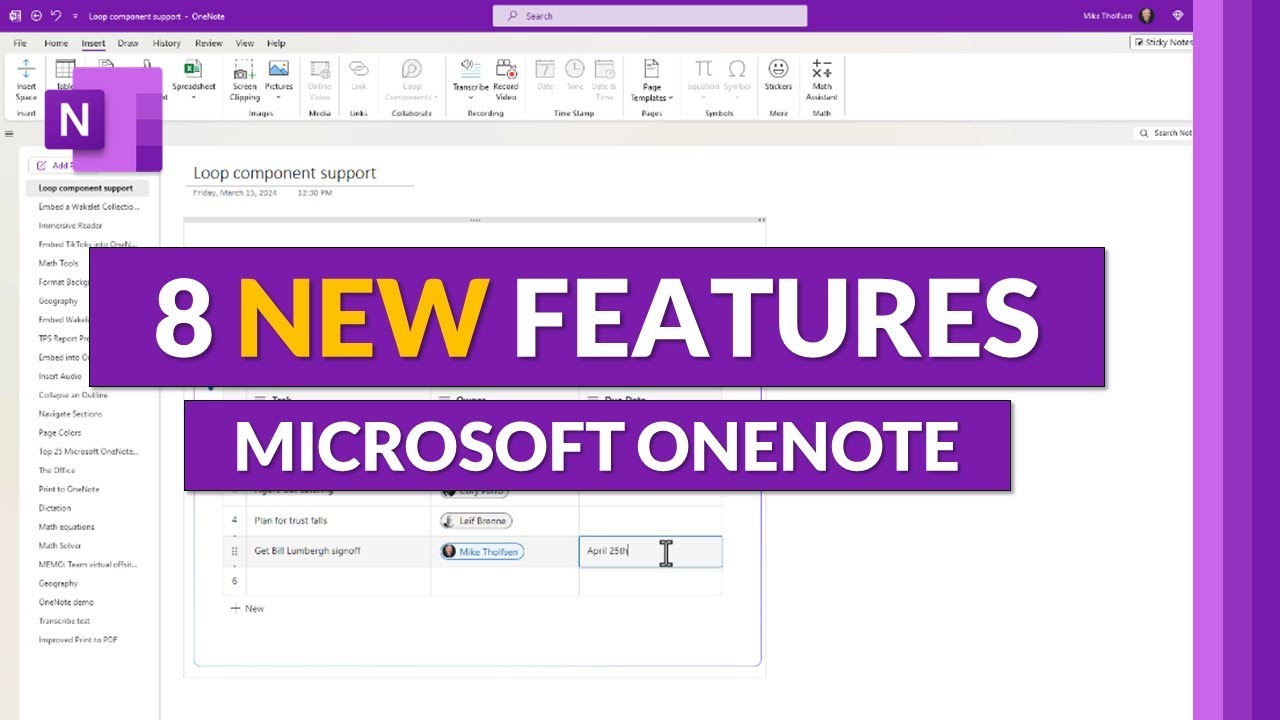
over into one note and paste that okay now I'll just paste that Loop component from teams that I just created and now that's going to start rendering so here it is I have a real time table that I've created and oh look there is Emma Gray she's starting to type in the upper right under due date I'm going to go in here the get Bill Lumberg sign off I'm going to be adding what I need to do okay I'll add the due date mine's going to be April 25th and then it looks like Emma added a little cloud and rain because we know that it's rainy around here on April 14th so you have realtime
collaboration right here in OneNote with any type of loop component now switching over to the loop app you can see the same Loop components if I want to share this in other places like teams or word I just click on the loop component now I've got a link and I can share that in other places and right now this is an M365 Insider public preview it'll be rolling out more broadly in April and May into the monthly channel and then the semi annual channel the third new feature is inserting a loop component so I'm going to go to the insert menu here
and there's a loop components option I'm going to drop this down and I've got a bunch of choices I just showed a table earlier you can do a task list a paragraph a checklist so if I want to do let's say a task list I'll go here and it creates a brand new Loop component and it has a nice table I'm going to make this a little bit wider like this so I can see more of the column headers so I'll give it a title the team task list I can give a task name and again this is fully collaborative I can assign this to different people I can select a date really easily so what's nice is I
can create new Loop components here and I can also paste Loop components like you saw earlier and if I click this link I'll go right into the loop app and here is that Loop component that I just created you can see I'm here in it right there and I can share this out and I can put this component in many other places whether it's in the loop app here or in teams or in word or in Outlook Loop is everywhere and now it's come to one note as well reminder that this is still an inside preview this is about March 20th
but it should roll out fully to all the monthly channel customers very soon and then even more broadly after that the fourth new feature is a new home screen on OneNote for iPhone so I'm going to launch OneNote here and you're going to see a brand new home screen that's the default I've got a nice list of all my different notes I can scroll up and down also like before you can hit the plus button and hold that down and you'll be able to choose new sticky note task list record audio camera or new note that's a nice little little option right there
now in the upper right hit the three dot menu and you can choose view as grid now all my notes are in a nice little grid format tap it again and now I'm going to say select notes and on the right there's little circles I can tap to select different notes if I want I'm not going to select any here tap it again and now I'll choose filter and sort I can filter by one note pages sticky notes we'll just go back to all I can go here and we'll choose title and now it is sorting by numbers at the top but then all the different titles a through z tap it again filter and sort this time
I will choose create date same sorting so this is fully rolled out on iPhone now the fifth new feature is a longtime request you can now have ink stick with pictures and PDFs when you move them around automatically I'm on the draw tab here and I'm going to do a little inking right on top of this TPS report cover sheet so we'll Circle it and I'll just give a little phrase here oh little arrow hey this is awesome I've Inked on this now I'm just going to tap on that
picture and I click and drag with my pen check it out everything sticks I can drag it down it automatically sticks this also works with PDFs that you print to the page so on the insert menu tap file printout I'll select a PDF and hit insert and it's going to print that to the OneNote page if I ink on top of this same thing it will stick with that PDF image which has been a huge request so go to the draw tab click on the red pen and when I to do now is
we're just going to circle right here on that PDF image and we're going to say wow now I will just zoom back out so you can see a little bit better and then what I'll do is I'm just going to tap on that image and then what I'm going to be able to do is drag that PDF image around so I drag it look at that the ink sticks on it just like you always wanted to this is going to be a huge timesaver Zoom back in the six new feature is a new ink to text pen type I will go to
the draw Tab and right there this gray pen is the ink to text pen so I'm going to write out my name really quick in ink mic and watch what happens it gets swooshed right into there and I'm going to write out some more words important words TPS report and that's also going to just convert right into text so that's the ink to text pen the seventh new feature is tap to select with ink Improvement so I can just go here and I'll hit the select ction device the arrow and tap
once on the word here and it's going to select it and also the little context menu pops up right there we'll clear this now the next thing I'm going to do is tap twice on a word and it's going to select that whole sentence kind of nice same thing little context menu pops up and then the last one you can do is tap three times on an ink word and it'll select all the ink in the paragraph and in this case I'm going to choose ink to text right there and hey it just converts it really easily this is also in M365 Insider preview right now the
eighth new feature is a teams integration with one note now when you create a new channel it'll automatically add a notes tab that's tied to a one note notebook behind the scenes so I will hit the three dot menu on this team here and I will choose add Channel let's give it a name and to type and hit create now that channel is added it takes just a second and the notes tab will pop up just at the top here and there it is let's click on notes getting it ready and there we go there's a nice
notes tab right here in my TPS reports Channel I can collapse and expand this and if I want to open it up in the browser I can go right here and say open in browser to get the full experience by the way if you're an educator you already have this capability so this is really something that is new for our commercial and Enterprise customers if you want to keep up with all the latest Microsoft updates and tips and tricks subscribe to my channel and then just ring the bell so you get all the latest videos that I post, 8 new features in Microsoft OneNote, YouTube, 01ka8mns466rd1fm0yc3znkt3b.