Accessible Design Patterns for 2025
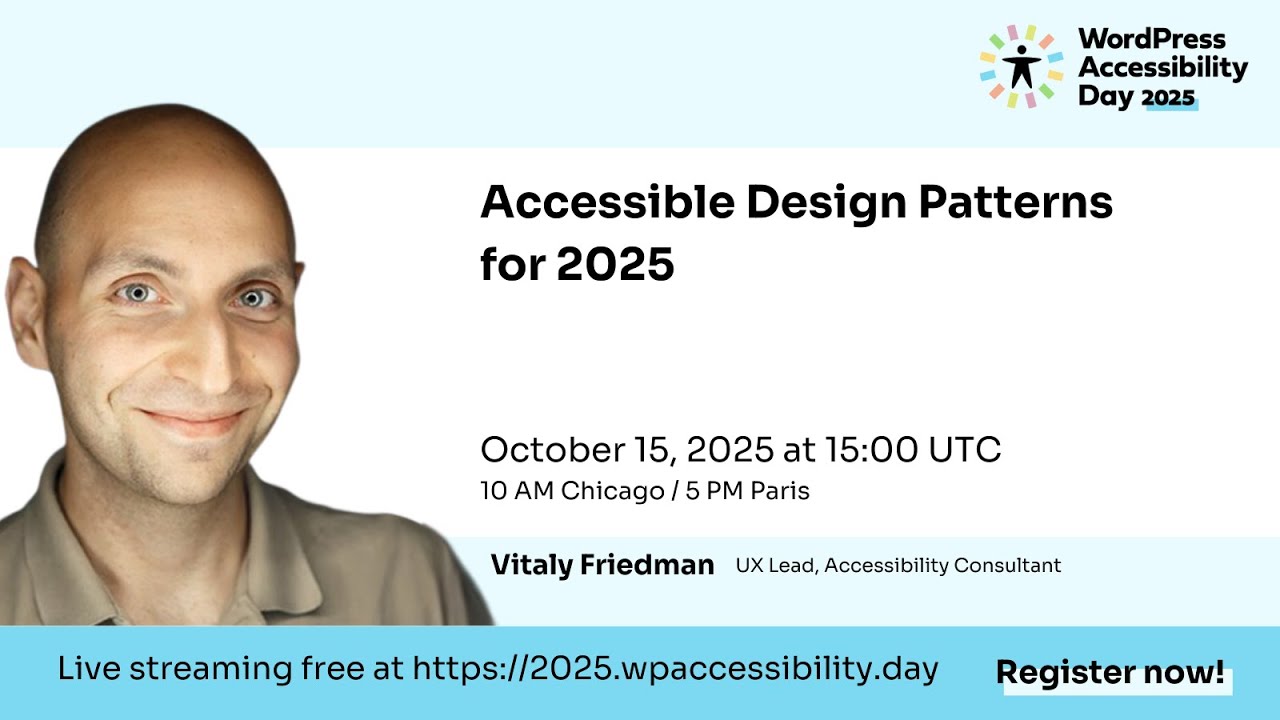
🔗 **Source:** [Accessible Design Patterns for 2025](https://www.youtube.com/watch?v=9vjntLrQ6z0)
> [!note]+ Document Notes
> ---
> tags: [accessibility, inclusive-design, ux-design-patterns, color-accessibility, ui-states]
> author: Vitaly Friedman
> source: WordPress Accessibility Day 2025
> reference: https://www.youtube.com/watch?v=9vjntLrQ6z0
> date created: 2026-09-08
> ---
> > [!info] Generated analysis — not the author's words. Sections below are machine-written
> > from the captured source. Only text inside `> [!quote]` blocks is verbatim from the author.
> > Do not quote or attribute any other line to the named author.
> # 🏷️ Title: Accessible Design Patterns for 2025
> ## 🧭 Table of Contents
> - [📝 Summary](#-summary)
> - [📖 Main Content](#-main-content)
> - [🗒️ Notes](#️-notes)
> - [📚 References](#-references)
> - [🗣️ Paraphrase](#️-paraphrase)
> - [📰 Newsletter](#-newsletter)
> - [✅ Action Items](#-action-items)
> - [🧪 Hypotheses](#-hypotheses)
> - [📊 Methodology](#-methodology)
> - [❓ Questions](#-questions)
> - [🔮 Future Research](#-future-research)
> - [💡 Implications](#-implications)
> - [🧠 Learning Styles Assessment](#-learning-styles-assessment)
> - [📊 Accessibility Assessment](#-accessibility-assessment)
> - [🌍 DEIB Assessment](#-deib-assessment)
> - [✅ Logical Validity](#-logical-validity)
> - [🛡️ DARVO Analysis](#-darvo-analysis)
> - [🎯 Conclusion](#-conclusion)
> ### 🔗 References
> - [whocanuse.com](https://www.whocanuse.com/) — palette contrast/colorblindness simulator Vitaly cites directly.
> - [Viz Palette](https://projects.susielu.com/viz-palette) by Elijah Meeks and Susie Lu — data-viz color tool cited for chart palettes.
> - Carbon Design System (IBM) — cited for shape/outline overlays on colorblind-safe charts.
> - WordPress Accessibility Day — [wpaccessibility.day](https://wpaccessibility.day/) — the event hosting this talk.
> - Smashing Magazine — [smashingmagazine.com](https://www.smashingmagazine.com/) — Vitaly's publication, co-founded 2006.
> ## 📝 Summary
> - **What happened.** Vitaly Friedman, co-founder of Smashing Magazine and UX lead at the European Parliament, delivered a 48-minute keynote at WordPress Accessibility Day 2025, walking through concrete UI patterns for colorblindness, motion sickness, navigation, and component states (disabled/hidden/read-only).
> - **Why it matters.** Friedman argues accessibility gets treated as a compliance checklist tied to laws like the European Accessibility Act, and companies stop once they clear the legal bar rather than building an ongoing practice — his talk supplies specific, shippable patterns instead of another audit checklist.
> - **Key stakeholders.** WordPress Accessibility Day organizers (emcee Jessica Sams of SWCA Environmental Consultants; Joe Dolson, who stepped in as emergency emcee), event sponsors (Gravity Forms, WP Engine, Woo, Ally Web Accessibility, Equalize Digital, GoDaddy, GreenGeeks, Yoast, and ~20 more), and the design-system teams at Visa, Goldman Sachs, IBM, Intercom, and Carbon (IBM) whose work Friedman uses as worked examples.
> - **Risks and tradeoffs.** The session ended without live Q&A — Friedman "was unable to attend for Q&A at the last minute" per Dolson, and the scheduled emcee also dropped out mid-session, so none of the audience's submitted Zoom Q&A questions got answered on record.
> - **Bottom line.** Three specific, non-decorative moves carry most of the weight: (1) treat colorblind-safe charting as a first-class design constraint (blue + orange/red, never same-lightness pairs), (2) respect vestibular/motion-sickness triggers by mapping animation to scroll physics instead of hijacking scroll direction, and (3) stop conflating disabled, hidden, and read-only states — they are not interchangeable and Friedman gives a decision tree for choosing among them.
> ## 📖 Main Content
> Friedman opens by rejecting the "accessibility as compliance checklist" frame: companies do enough to satisfy the European Accessibility Act, then stop, running annual audits instead of building a standing practice. He borrows a line from Scott Jehl — accessibility isn't added at the end, it's something you start with and risk losing with every change — and structures the rest of the talk around Microsoft's Inclusive Design Toolkit, which maps five senses (touch, seeing, hearing, speaking, thinking) against permanent, temporary, and situational impairment. His own example: a one-armed person (permanent), an arm injury (temporary), a new parent holding a baby (situational). He also cites the UK Ministry of Justice's courtroom personas and Gov.uk's dedicated accessibility personas, then reframes the core idea: "disability is not a personal health condition, but it's a mismatched human interaction" — not something that happens to other people.
> From there the talk moves through four concrete pattern clusters:
> **Color and colorblindness.** With ~300 million people affected by some form of color vision deficiency, Friedman recommends blue as the safest hue, pairing blue with orange/red, and avoiding same-lightness red/green/brown, pink/turquoise/gray, or purple/blue combinations. He walks through Nick Desbarats' colorblind-safe dashboard dot-voting technique, the Carbon Design System's shape/outline overlays on line charts, and Visa's product design system, which pairs every chart type with keyboard navigation instructions (entering/exiting bar groups, list-view alternatives) — demoed live on a "Where do cardholders spend more per interaction?" chart.
> **Motion sickness.** Around 30% of people are susceptible to motion sickness from a mismatch between what they see and what their vestibular system expects. Friedman shows a horizontal-scroll slider (Van Gogh Museum site) that visually reads as vertical, and argues the fix isn't zero motion — it's respecting scroll physics, avoiding parallax, offering a way to skip animated sequences, and (his own example) using the iOS feature that counters car-motion mismatch for people reading on a phone in a moving vehicle.
> **Navigation.** Nested mega-dropdowns (he cites a WTO site with three to four stacked levels) cause frequent "wrong boundary" errors. Amazon's early-2000s triangle-pattern hover menu — tracking the cursor's path to the content boundary rather than using a flat delay — solves this, and Friedman shows a hybrid pattern that adds click-to-pin on top of the triangle. He also demos "navigation queries" — City of Düsseldorf's two-dropdown "what do you want to do here?" homepage and ao.com's guided washing-machine finder (type, size, price → 25 relevant products with four filters) — as a faster alternative to search or category browsing. For dense multi-level app navigation he uses Intercom's four-stacked-level sidebar, arguing icon-only navigation should default to pinned labels since people relearn icons quickly but also forget them quickly.
> **Component states.** The most detailed section: disabled, hidden, and read-only states are "not interchangeable." Disabled buttons are "the most expensive buttons out there" because users don't know how to make them enabled — his example is an address-validator that rejects a real 10-year address, risking near-total cart abandonment. He recommends aria-disabled plus explicit messaging over the plain disabled attribute, or keeping buttons enabled and blocking only on click. Hidden removes an option from the UI entirely (used for insufficient permissions or rarely-active features) and always costs discoverability. Read-only is informative but not interactive, focusable, and screen-reader accessible — and should look neither like disabled nor like static text. Friedman closes this section with a decision tree (can the user ever interact with it → hidden if no; mostly informational vs. interactive → read-only vs. disabled) built from a Goldman Sachs progress-bar state model, Scott Hurff's "UI stack" (ideal/error/partial/loading/blank), and Eric Bailey's research cataloging UI states.
> He ends on a list of what user research shows people actually want: fast, legible experiences; large checkboxes and radio buttons that look like checkboxes and radio buttons; visible focus states; simple password rules; predictable tabbing; form input that survives an accidental refresh; dropdowns that open on tap/click, not only hover; easy undo; a predictable Back button; and transparen
(Announcer) Thank you to our sponsors. Platinum Sponsor: Gravity Forms. Build accessible, powerful WordPress forms
with Gravity Forms-Flexible tools for creators, developers,
and teams of all sizes. Platinum Sponsor: WP Engine. WP Engine provides
the most relied-upon and trusted WordPress
products for businesses, brands, and agencies of all sizes. Platinum Sponsor: Woo. WooCommerce is the open-source
ecommerce platform built
on WordPress, helping
merchants worldwide sell, manage, and grow their businesses. Gold Sponsors:
Ally Web Accessibility. Equalize Digital – websites for everyone GoDaddy, GreenGeeks
Web Hosting, Yoast. Silver Sponsors: AAArdvark, CodeGeek, Your Vision, Our Talent One Team. Kinetic Iris, Kinsta,
Pressable, Second Melody.
Bronze Sponsors,
9 Planets Hosting, Engage, Draw Attention, Multidots, NerdPress, Osom Studio, OZeWAI – Australian Web Accessibility
Initiative, Progress Planner, QualityLogic, Sharp, Simply Schedule Appointments,
SiteGround, StellarWP, Termageddon, WebYes.
(Jessica Sams) Well, welcome
to WordPress Accessibility Day 2025. My name is Jessica Sams, and I'm a Virtual Public
Engagement Specialist and UX Designer from SWCA
Environmental Consultants. Thank you for joining us
for Accessible Design Patterns for 2025 with Vitaly Friedman. Vitaly loves beautiful content
and does not give up easily.
He was born in Minsk, Belarus, and he studied computer science
and mathematics in Germany. While writing algebra
proofs, and preparing for software engineering
at night in the kitchen, he simultaneously discovered
a passion for typography, interface design, and writing. After working as a freelance designer and developer for six years, in 2006, he co-founded Smashing Magazine, a leading online magazine
for designers and developers.
Through the years,
his curiosity guided him from interface design, to front-end, to performance optimization,
to accessibility, and back to user experience. Vitaly is the author, co-author,
and editor of Smashing Books, and a curator
of Smashing Conferences. He is the UX lead with the European
Parliament and Smashing Magazine, and he's a front-end/UX
consultant in Europe and abroad,
working with large
and small companies, and organizations like Haufe-Lexware,
Axel-Springer, and others. He also runs Measure UX
and Smart Interface Design Patterns, friendly video courses
on UX and design patterns, along with a live UX training for passionate UX
and product designers. In this session,
Vitaly will take a deep dive into UX and design guidelines, hundreds of real-life
examples, best practices,
and guidelines for truly accessible, inclusive, universal design. Expect to leave
with a toolbox of insights, and practical techniques
to apply to any project. You may add your questions
using Zoom's Q&A button anytime, and we will answer them
at the end of the presentation. Use the Chat button
to connect with other attendees. (Vitaly Friedman) Hello, dear friends, and what a pleasure it is to be
a part of this wonderful community,
and to speak at a wonderful
conference as well. Sending a lot of greetings to you,
so I'm looking forward to this. Now, thinking about accessibility, and thinking about inclusive design, I'm actually really impressed by what we as a community
made over the last 20-25 years. We've been spending a lot of time,
and you find enormous amount of articles
and tools and techniques, and all around accessibility, yet, still it feels
like it's very difficult to make a strong
case for accessibility. It's very difficult
to integrate accessibility. Somehow, it's just challenging.
I want to share some of the insights and some of the things
that I wish I'd known earlier, and things that, uh, are maybe
little tweaks and little changes, but they can have a tremendous impact
on people who need it the most. And that's exactly what this
little session is all about. Accessible design patterns
that I wish I'd known earlier. Now, specifically,
when I think about accessibility, I think about a way
of how we usually perceive it. Now, typically,
I think there is still a lot of accessibility checklists, a lot of accessibility compliance
guides, and things like that.
And I have a problem with that. The problem is that, very often, when I even start speaking about
accessibility, it's often perceived as a compliance check,
compliance mandate. So, what you find is a lot
of companies just do enough to meet the accessibility guidelines, to be complying in terms
of European Accessibility Act, and this is also where they stop, right? It's really rarely that it actually
has an established-- Companies actually have
an established accessibility practice, accessibility research,
or anything related to that. It's actually almost something
that you have to fight for,
have to argue for every single time. It's very often,
at least in my world, where I realize that companies
do just enough to then stop, to then do a big comprehensive
audit maybe a year later, and this goes in these fast
sprints that then end, and then there is silence, but accessibility
doesn't work like this. And I think it's really worth
noting at this point that accessibility
should not be perceived as a compliance checklist. I think that I'm speaking
to the right - to the audience that actually knows
it anyway at this point, right?
It's something that
I always try to emphasize in every single meeting,
in every single conversation, in every single gathering that
I have around accessibility, as well. It's an effort. Accessibility doesn't
happen by accident. It happens intentionally. It must be designed,
it must be shaped, it must be placed forward
in a way in an organization that maybe has reluctance,
or hesitance to do that. Very often, just because
it doesn't understand what accessibility even means, or doesn't understand
how accessibility relates to it,
so we need to keep that in mind. But accessibility is an effort. It's a dedicated effort
to keep a digital experience meaningful and usable
for as many people as possible. And this is how I perceive it. We often speak
about inclusive design, we often speak about accessibility. To me, it's just making sure that whatever it is we're creating,
can and will be used by people who want or need to use it. This is all it is. And I'm also a little bit allergic to this notion of edge
cases or average users. I find that this is just
the wrong perception to look at it.
There is no general user,
there are no average users, there is no high impact user profile,
or anything like that. It's just different people have different [sigh] abilities
and disabilities, right? It's all on a range,
it's all on the spectrum somewhere, so we need to keep in mind
that there are no edge cases. No, people are not edge cases,
they're people. People are not average users
either, they are people, and we need to respect and appreciate
that, and design for it. And so, for me, it's not even
about checklists,
it's about retaining
accessibility from the start. It's obviously much
cheaper if you do this early. And as Scott Jehl said many years ago, "accessibility is not something that we add to the website
when we're done. It's something that we
start with initially, and then risk losing
with every single change. Our task is to retain
it throughout the design process." Now, "how would you do that?" you might ask, and that is a very good question. I would say that we will go in, and we just apply the dimension
at which we are working to the context of a kind
of inclusive design
as we know it, for example,
from Microsoft Design Toolkit. So, in Microsoft Design Toolkit, we break down the entire
accessible experience, or inclusive experience
across five senses. Touching, seeing, hearing,
speaking and thinking. Across them we actually
have different dimensions. On the one hand we have
permanent disabilities, temporary disabilities,
and situational disabilities, but we also might have a domain
that actually applies directly to us. So, here we have touch, and of course, you might have a one arm,
that says permanent disability.
We might have an arm injury,
so it's temporary, or you're a new parent, and you're
holding a baby in your hand, and it's situational,
or you might be traveling, and so as touch applies to you,
it maybe inaccessible flights. Maybe there is an elevator
you cannot touch a button on or anything similar. On the other hand, in seeing
it would be distracted driver, in hearing it would be noisy
train station, in speaking, it could be new country
in different language, and thinking could be stressed
over cancelled flight, or just in a situation
where you have to run to the train, the train is delayed and all of that,
and you can't really make reasonable
or rational decisions. You have to really-- Your cognitive ability to think
is severely limited or constrained. So, this already makes
accessibility more relatable to the product
in which you're working. But, also, this is coming from Justice--the Ministry of Justice in the UK, and the same story
just applied to court. Touching, carrying paperwork,
dark courtroom, as of seeing it,
and a few things like that. In fact, Gov.uk ended up creating a dedicated set
of accessibility personas
that highlight what people
are going through, as they're actually experiencing
different types of disabilities. Some people would say that this is
unnecessary and we need to flag in, instead of creating
new accessibility personas, we need to just extend
existing personas if we have them with some specific
needs that they have. I'm okay with either way. I don't think that we need
to fight about this. This is not about that. But what we should be probably
be aligned about, is that disability
is not a personal health condition, but it's a mismatched
human interaction.
It's important because whenever
we're speaking about disability, it almost has a wrong connotation
to a lot of people. It feels like it doesn't
really apply to them. It applies to other
people, but not them. That's a bit weird,
because whenever we're looking at any kind of invention that's been around for many years,
chances are high that it actually came
from the accessibility world. Be it subtitles, be it SMS,
be it eyeglasses that we're wearing, right? All of them are
accessibility devices, and accessibility features
that we rely on every single day. People just don't realize it.
But maybe people just don't notice it, so I always try to make it
more visible, so to say. Now, that's just the background
of how I come to this, and how I perceive inclusive
design accessibility then as well, right. For me, it's also all
around one single thing. The whole world of accessibility
is for me about preventing blockers for people who need it the most,
but also for everybody around. Because accessibility
is better for everyone. There is no [sigh] dedicated
accessibility effort
that will not have a side benefits which basically relate
to everybody in the room. That's really important
to keep in mind. And, of course, when you
think about blockers, we often think about
the usual suspects. One of them is color blindness. And, of course, color blindness
affects a lot of people. 300 million people have some kind
of color weakness or colorblind. Sometimes you will find a lot of organizations
going a little bit further, and adding some textures and shapes. Sometimes having
something like a shape toggle. You can toggle on and off
the shades, the shapes,
so people can actually
understand those, like, spark lines in the chart,
or in dashboards better. Like, a nice example of this
is, by the way, wonderful work done
by Nick Desbarats on dashboard. In the dashboard,
very often it's very difficult to tell apart what has happened and,
what requires attention, but you can do this with this dot
voting, or votes or dots. You also need a colorblind
version for that. Now, we have,
let's say, stock market, you need to do the same
thing as well. So, probably, green will
be replaced by blue.
You probably might want
to support also a different mode, right, for example, the dark mode as well. Which I think would be very critical to actually cover here as well, right. So, that's another option
of what we could do here. When we look at the examples
of what companies are doing, very often you will find
something like this. This is coming from
the carbon design system. When we're adding
different shapes over here, and maybe adding shapes
on the lines and line charts. Also, we actually introduced
some outlines specifically for different types,
or parts of the chart.
You can go quite far,
and in a lot of detail. But what you also find very often
is that there is some sort of a separate view, like maybe this. Maybe you could view a particular set
of data as a data table, or as a list, or as a summary
or anything of that kind. And one of the wonderful examples
that I found a while back is coming from the Visa product design
system which was released recently. And what I really like about this,
is a close attention to accessibility that the team went
into to make it work, right. Not only do they have a lot
of data visualization principles
and guidelines, accessibility
guidelines as well, and also tools for how to select
the chart and so on. What I find quite important and quite remarkable
is not only the presence, the visual representation of it,
but actually the level of detail that went into designing, and defining accessibility
guidelines for each. So, pretty much every single
chart is accessible, and can be explored via a keyboard. So, we'll look into something
like this here. Where do cardholders
spend more per interaction?
What we'll find is that, of course, we have keyboard
navigation instructions here. So, you can enter and drill
up a level on a bar group. You can exit and navigate
with a keyboard. Then, of course, you can actually
go and dismiss it all together. But, also, what you have here
is a different view. Like a list view through it. Right? You can go ahead and say,
"Okay, I'm interested in this." I can go further and use keyboard to navigate between
the different options right here. So, that's actually really interesting to see this sort
of interactions happening.
So, that's a really nice way of having-- Where we actually could be going. Right? So, in general, I think,
what I always keep in mind is that whenever we're dealing
with colorblindness, we know that blue
is the safest hue for users to perceive colors as we do. You can use any two colors
as long as they vary significantly by lightness. Colorblind users might tell
red and green apart, but not necessarily which is which. Right? Colorblind's safest palette is
the mix of blue with orange and red. We should forget
about pastel colors only.
We should forget about mixing red,
green, and brown. Mixing pink, turquoise, and gray. Mixing purple and blue. We discovered this before. Green and pink,
if we use red and blue. Also, not mixing green
with orange, red, or blue of the same lightness. Again, the same lightness
is usually going to be a problem. And if you're interested more in this, there is a wonderful
session coming right after this about colorblindness
which I highly encourage you to actually explore, as well. A couple of resources
I really found useful for colorblindness is whocanuse.com which takes a color palette,
and then explains to you, highlights to you
how different people
with different types of disabilities or color perception
will actually see it. Right? On the other hand, there is also accessible
color palettes by Venngage, and also accessible color
palettes on Figma Community, which I highly encourage
you to explore. If you're into data visualization,
there is a whole Viz Palette tool by Elijah Meeks and Susie Lu,
which is also a wonderful tool. And if you want to learn more there is an incredible
series on colorblindness and color weakness
as well by Lisa Charlotte Muth,
so that's also very helpful. That's colorblindness, right, and we usually speak about it a lot,
but there is more. One great example is motion sickness. Now, motion sickness
is when we experience a sensory conflict
between what we perceive, and what we feel, and it often
causes this--you know--motion sickness. Around 30% of people
are susceptible to it, and this shows in vestibular
disorder or migraines, and that's usually the case
when we have a mismatch, a mental mismatch
between what we're experiencing and what is actually happening,
or supposed to happen, sorry.
This is just one
of the many websites. Good luck. How would you actually
navigate this slider? You can click on the dot,
you can try to click on the numbers, you can click somewhere
in the vertical line, but no, none of it would work. No. All of it is a wrong choice. In fact, what's expected
here is that you actually swipe. Now, whenever you have
this sort of mismatch of expectations
between you're supposed
to be navigating vertically,
but it happens horizontally, that usually is the cause of trouble. This is an example
from the Van Gogh Museum, and we have a similar story. You scroll down, but actually, you're scrolling
on the right horizontally. Now for some people that's okay, that's not a big deal,
but for some people it could be extremely frustrating
and very annoying. So, if we wanted to fix it,
it doesn't mean that we need to drop away
all the fantastic examples and visual effects
for the sake of being as plain, as boring as we possibly can.
No, that's not about that at all. But what you can do is fix the position of the object that you want
to tell a story about, and then as a user is scrolling,
naturally scrolling, right, you can actually unfold that story, and explain and highlight
what exactly has happened here. Right? This is just one example
of what we could do. We keep our project fixed,
and then we tell the story, or as a user you keep scrolling, right, you can show more or less, you can maybe collapse some areas, you might even have a timeline
or something similar. Right? That also is natural,
you just go from top to bottom.
But, also, on iOS, maybe I think
it was maybe like two years ago now, there was a new update
that was released which I highly encourage
you to turn on if you feel like you might be susceptible
to motion sickness, and that's a really good feature
to have in general. Because the point is,
if you are in the back of a car, and you're typing to somebody,
to a friend or so, and you need to-- The car is turning
suddenly left or right, or accelerates or brakes,
or anything similar, that usually creates
this mental mismatch. So, if we can indicate to people
of what is happening
while they are reading
in one direction or the other, that's actually what really helps
with motion sickness. In general, though, when you think
about accessible motion, very often people think
that accessible motion is no motion. That's not necessarily true. You don't have to remove
and delete all the motion to respect the reduced
motion setting by users. Instead, it could
be just more subtle. It could be maybe
not include that many steps, maybe not include that many looping
animations or anything like that.
It doesn't mean just
removing animation altogether. The safest bet is to respect physics, map the scrolling to animations,
so that means the scrolling behavior that users are having
should be mapped to the animation, and how that works. Any kind of flashing images, especially when people are reading,
are very disturbing. Whenever you have some
interactive features, like maybe, God forbid,
parallax or anything similar, we probably want to ask for consent, or at least give people a way
to control it in some way, to maybe skip it. Maybe it could be individual elements of a story that people could control, and skip over if they wanted to,
and just jump to the end
or something similar. Similar, how we have skip the content, we might also have
skipped to the end. Right? And then, when you have
this animated charts, it could also be very helpful. Then, if you can, please do
avoid parallax scrolling, because most of the time,
movements at different speeds are very frustrating
and very annoying. Now, with this in mind, I think it's worth noting
that very often we feel like we are in control
of our destiny. What I mean by that is,
maybe we're young, maybe we're powerful, maybe we believe we can do whatever
we want with the world.
Now, we need to keep in mind that there are changes
that occur in our life, and in our vision, in our hearing, in our movements,
in our behavior as we grow older. That goes for different areas. And this is a wonderful
overview by Elizabeth Buie, who's actually really
brought it all together. Our senses change,
our movements change, our cognition changes,
our attitude changes, as well. These changes are not something that comes just at a particular age.
It can come at any time,
it can develop at different speeds, it can reach different
levels of severity, and occurs in some, or even most
people, but not in everyone. You just don't know. So, an impairment can appear
sooner or later, or never. Like, for example, in my case, it was when I was 32 and now 40,
and when I was 32, I was in a big Prodigy
concert and it was very loud, and I didn't have any
hearing protection. And so, next day, I realized
that I actually have a problem with the left ear, so I could not hear as much
as I could the night before,
so this just happened when I was 32. So... that can happen at any time. We just need to be very careful,
and very thoughtful about that. What does that mean? When we're looking at these changes
that are unpredictable, we need to design to support people in whatever situation
they might find themselves. This goes from the basics, all
the way to more complicated things. So, let's start with the basics first. There is nothing more basic
than a mega drop-down. This mega drop-down
sometimes can be nested, where you basically open, go ahead,
and you take on a journey,
and you open a nested menu, and then we hover over another items, and then another nested
menu shows up. What a magical, wonderful
moment in life, right? You go in, and off you go,
and within a couple of seconds, you just jump where you need to be. Unless you don't. Most of the time, you do not. Because you do jump
in the nested menu, and then before you know it,
you cross the wrong boundary, and then you have to start
over and over again, perhaps, even multiple times. That's usually very frustrating. That's a very unpleasant experience.
And this is why, by the way,
just as a side note, sometimes you see this big
mega drop-down menu, World Trade Organization
website or so, which had like really three,
four levels of navigation levels. Three, four levels of navigation,
all displayed at once. You hover once, and then you basically see
all these levels at once. Right? Now, that's a lot, and that often
is totally unnecessary, but that's usually a better
solution than having this. Of course, an even better solution would be to go
with the tap or click menu.
However, a lot of companies
are very reluctant to do that for a very simple reason, because they believe
that exposure of people, exposing people to navigation-- Yes, exposing navigation to people, I should rather say,
is really important, especially on e-commerce websites, and so this is why hover
menus are still prevalent, although on mobile, of course,
tap and click menus are more common. And, so, what we find, though, is that whenever you have
an interactive element like a search box,
people type in that search box, and then you have something
like a hover menu appearing around it, whenever it is,
it's usually a cause of trouble.
That's not going to go well. We could say, "Hold on for a moment, we know how to deal with this,
not a big deal. We can just have delays." The problem with delays,
is that sometimes they're too long, sometimes they're too short, and it's
the same problem that we have with mega drop downs on hover,
just even now delayed. It's not really solving anything. Now, the solution
came many years ago, I think maybe it was
in the early 2000s by Amazon. The idea was to use
a triangle pattern, which means whenever your
pointer is, mouse pointer is,
you basically connect it with
the boundaries of the content area where this information
of that section is displayed. Right? As long as somebody
is navigating within this triangle, we keep showing the same
content area, so it persists. It's only when you leave
the triangle, that actual overview
on the right will change. That's the point here. Now, it has been evolving
over the years, and so what we find is that,
every now and again, you will find a situation where
people are trying to be very careful in almost orchestrating
a very careful and thorough
and minimal SVG exit
path areas over here, so whenever people
are moving within this area, it stays visible,
especially for context menus. Now, the reason why we
have that is, because, very often we have something
really important over here, and especially,
if you have very long buttons, very often that triangle
is just way too long, so people are really taking
it quite seriously here. Of course, because
we're living in 2025, at least at the moment
of where I'm recording this,
maybe 30 years from now, you'll be looking at this thinking
how stupid that was, but at the moment, what we try to do,
is to make things responsive. That means that whenever
we're going up and down, obviously, this has to be
recalculated every single time, and so that's quite common. Of course, it shows up
in context menus. We want to avoid this. This is not a great experience. This is a much better experience. So, this could be almost
like a combination of tapping, clicking, hover,
and delays at the same time. And, the way of how this works
is similar to this.
So, we still have a triangle pattern that Amazon has developed,
but if you now click into one of the sections
over here, let's say, you can be actually fixing this area, and navigating there comfortably, especially as long as you're staying
within this triangle. Right? Then, if you're outside
of the triangle, it becomes just a hover menu. Right? But now, you can actually tap
and click and fix if you wanted to, so that's quite a different story. Now, what you also could do, and I think this is really actually
very often forgotten, overlooked, if we
actually try to build up,
we could use navigation queries. This is a way to get people where they want to be faster,
without forcing them to go through search,
or to go through categories, or to go through navigation. A great example of that is the City
of Dusseldorf website. On the very home page,
what they get is just two drop-downs. These drop-downs
are basically saying, "What do you want to do here?" I want to book an appointment. "Okay, for what?" For consultation, and off you go. Here is a button that you can use
to go straight to the right page.
Here's another example from ao.com,
which is an e-commerce website. Here, I have the same story. What do you want to do here? What do you want to buy here? Washing machine. Fine. What kind? Front-loader. Excellent. How big should it be? Big. You define a price range, and then
you get to 25 relevant products, four most commonly used filters,
present and exposed, right away on the front page. So, if you needed to use a navigation, if you need to use search,
if you need to go for categories,
it would have taken much,
much more time, which is usually just not necessary. But sometimes you have a slightly
more complicated navigation than this, because
sometimes you have something like a multi-level app menu,
because then eventually, just a matter of time,
every product reaches a moment when its navigation
is being challenged by the weight of its growth. It's hard to keep up
with the pace of development for pretty much any product. This is a use case from Intercom. On Intercom, we have multiple
levels of navigation. We have a global
navigation over here. We have another level over here,
which basically matches
whatever it is that's
selected over here. Then, whatever is selected over here, is matching then whatever
is presented here, and then it keeps going, so four different levels that are now
stacked almost vertically. And when it comes to these
icons on the left, very often you have too many,
and so you need to reorganize. You need to clean up,
you need to deprioritize, and prioritize what matters, and you need to maybe
put things together. We probably know the drill. What is really significant,
and I think quite helpful, is to have at least an option
to pin--right?-- the menu,
the global menu, so people
can actually perceive and read, and understand those labels. We usually think
that's not necessary, because people learn icons quickly. Yes, people learn icons very quickly. But, at the same time, people also forget
those icons very quickly, as well, especially when they don't use
that product that often. So, what happens very often--right?--even if you go ahead and say, "Okay, I'm going
to bring icons somehow, all unnecessary, or unneeded icons, behind the settings button,"--right?--what happens is,
it becomes a bit
of an issue, because people don't necessarily remember
what each icon represents. In the case of Intercom though, they just reorganized
and restructured, in a way. They introduced this pattern which I've never seen
before, to be honest, where on the one hand
you have the plus, which allows you to add a new
person, add a new company, but you also at the same
time also have right there an accordion that kind of opens
up people and companies and so on. According to them,
it was working actually really well. Maybe that's a safe
way to use as well.
But I would still say
that when we look at the icons, it might be a good idea
to at least give people some sort of a way to read those labels
as well, if you can. On mobile, it might be difficult,
of course, but on desktop it isn't. So, if you have something like this here, it might be just
difficult to understand what a particular icon
represents, and so something like a label is usually always
a good idea to do, if you can afford it,
if you have enough place. This is usually a good investment, and you'll probably see
a lot of people benefiting
from it, most of the time, because you don't have to remember
now what that icon represented, even if you feel like you
have only a few icons there. Some icons are more obvious,
but it's really rare, because most of the time only a few
icons are universally understood. Most of them are ambiguous,
or have to be decoded. There are challenges
between similar areas, like Create versus Edit,
or Save versus Archive. Also, scanning
10 words might be faster and easier than scanning 10 icons,
especially if they're confusing. Right?
Obviously, we want
to ideally avoid relying on powerful explanations,
for example, tooltips. I'm very allergic to tooltips. But if you have something
important to say, or to show, or to explain, you probably
want to just explain it. And if it's, let's say,
a very lengthy explanation, then it might be an inline accordion,
rather than a tooltip. I'm not sure we absolutely need
tooltips at all times. And, also, just as users
learn unlabeled icons, they also often
and very quickly forget them. So, that's some stuff that we want
to keep in mind about navigation.
Now, in drag-and-drop, whenever we start moving
cards around, obviously, this is a very intense procedure,
so to say, that requires precision, depending on what you're
actually moving or dragging. It could be, of course,
columns, it could be cards, but it could also be
resizing a columns, or it could also be moving
columns around, or anything of that kind, so we need to be quite
careful with that, as well. Typically, in the context of cards, which means that we actually
need to enable people to lift something, move something,
and drop something in a new place. Right?
That usually represents itself
again in many different places. This is, like this, for,
let's say, rows. This is for columns,
so you might want to resize or so, or you might want
to copy-paste, maybe even. Here, again, resizing the columns. Right? Here, this is what you would do when you actually
want to move something, like move rows around, or move
columns around, like maybe this. Of course, it requires support
of Tab, Shift, Space, and Arrow keys. And, what it typically means,
is that there must be
a way for people to select something by tabbing through it, and so, focusing on an item
that they want to do something with, then grab that item
with the Spacebar--right here, then drag and move item with Arrow keys up and down,
left and right, if needed. Right? Then, drop that item
with the Spacebar, as well. That also goes for mobile. Mobile, very often, you would have an option as an alternative
to do something else, where you can have,
let's say, a checkbox. Select the checkbox,
and then you can move up
and move down as well,
or you can also have this, sort of, menu, which allows people
to move up and down. This also goes for things
like drag-and-drop files, or anything similar as well. That's actually, then,
of course, quite common. Right? However, I think,
there is one more thing that's really, really consequential, and very often very difficult
for people to get right, and that's how to deal with states, especially hidden states,
disabled state, and read-only state. Now, this is coming
from the Goldman Sachs design system,
and the idea here
is that to indicate, in a progress bar, different states. Complete, active, incomplete,
disabled, error, and warning state. All of them have a different role
to play, and so, very often, you will be thinking about
something like a UI stack, which is something that's been coined
by Scott Hurff a while back. He was mentioning
that most of the time, we are looking
at ideal state, which is, as he called it, the zenith
of your product's potential. But, then, it's error state,
the partial state, the loading state, where things often
really need to be communicated to keep people on the ball.
We can't do much with the blank
state--right?--although, you can, of course, do some offline
caching and stuff like that. It's also helpful,
but this is where experience breaks or makes, or is made, I should say. This is a really crucial part here. And there is a wonderful
research done by Eric Bailey, in which he went in all
the fine details of UI states, and there are plenty of them. It's not like you need
all of them to be designed, but very often, you will need
to consider them, at least, when you're actually designing
some specific components. For example, when it comes
to input fields--right?--it might be hidden,
it might be read-only,
it might be disabled. You're looking to checked
and unchecked state, indeterminate if you have groups,
selected, unselected, dragged, dropped, collapsed,
expanded, and the sky is the limit, because you can also have
a table, have resizing, have a dirty input,
which means it has been changed, but it's not saved yet, saving,
overflowing, scrolling, playing, pause, stopped,
again, when it comes to video player, imported,
and it just keeps going. And I want to focus on three,
because very often, they're a big source of frustration.
Disabled, hidden, read-only. Now, all these variants
indicate the same thing, but do so very differently. They indicate restrictions
and unavailability, but they do so really
quite differently. They are not interchangeable,
and I think I want to emphasize that. They are not interchangeable, and they can apply to both content,
and to actions as well. So, let's go through them
to understand what it means. First of all, when
a component is disabled, it means that people are not,
or users are not allowed to interact with it in some way.
Maybe it's permissions,
maybe it's dependencies, maybe it's requirements, maybe just missing validation
or something like that. And, usually, disabled buttons,
especially disabled buttons, are the most expensive
buttons out there, because a lot of people never know how to actually make
a disabled button enabled. This really shows up
in many different places. Like, for example, probably most of you, and please write in the plus,
in the chat if you can, most of you had experienced
this in the past, where you maybe want to buy an item,
and you add your address
to ship the item to your address, and you've been living
there for 10 years, but the validator tells you,
"No, you are wrong." Right? So, what are you supposed to do? This almost guarantees
100% abandonment, right? And so, this is a situation where people need to be able to understand
how to recover from that. Very often, what I would suggest, let's measure how much
money we're leaving at the table by not allowing
people to proceed, despite their address being wrong,
according to our validator, and how much money we'll be earning if we actually let people
to overwrite our validator,
but can we even do that? And, so, this can have quite a difference. With disabled buttons,
disabled states, they cannot be clicked, selected,
or interacted with by default. They're inaccessible to keyboard
and screen reader users as well. If using just disabled,
that's a problem, so we need to aria-disabled,
and then do quite a bit of work around to actually make it work. Now, this would typically
look like this. You hover on the item,
because you can focus
on it by default, and then
you get this notification. Right? Notification being
just the cursor change. This also goes
for say menus like this. Often, it would be like an experience that would be looking like this. Right? We basically go in and we need
to select something, and then the buttons become enabled, but you can need
to know what you're doing. Sometimes it's obvious,
and sometimes it isn't. But there are some cases
for disableness, right? For example, you might have
temporary unavailable items, which means you may be waiting
for user's action, or you might have dependencies
in the compatibility,
maybe filters mismatch, or you have an action
that's not available yet. Maybe like export
is currently in progress. Maybe again missing permissions
or rights, we need to upgrade. We need to ask administrator, or it might be triggered
by user's action or inaction, where they need
to choose an option first. Also, might be a thing that you actually just want
to prevent multiple clicks, like adding to cart, or double
transactions, or anything similar. And that usually is quite difficult. Because, of course,
it's usually going to have
poor visual contrast,
lack of feedback. At least, at the very
minimum, we need to add a hint or inline warning
to explain it to users. Usually, we'll get something
like 25%-50% opacity, and change cursor
to not-allowed, but if I could, I would just keep
the buttons enabled, and then disable them
only if they're clicked. Let's say maybe something like this. Maybe something like that
to prevent double clicking, so that might be more
reasonable to have. That's disabled state. We also have a hidden state. Now, a component is hidden,
when the user can't locate
it anywhere in the UI, and the user cannot really know
that the option is available at all. That's basically means
we're removing it altogether. Why would you remove it, if somebody will never
be able to use it? Why keep it, right? If you have something
like Edit routes in access, which might be reserved
for administrators, let's say, but you're not an administrator,
but just a user, then you basically will
be hiding this option. Now, there are a few candidates
for hidden as well. The critical one
is insufficient permissions, because it can be used anyway, or the component
is active very rarely.
Like, for example, maybe
you have a video stream once a month, but why would you want to show a video stream
prominently all the time? You just hide it, or the features that isn't accessible,
again, admin buttons, or any kind of overrides
that require some privileges, or irrelevant attributes, or maybe
sensitive data, let's say PIN code. Right? You don't want to hide it,
you will be probably using asterisks
or something like that. You don't make it visible. Again, it might be something
that's just not relevant for the user, or unavailable options. Like, for example,
you cannot bulk edit without selecting the items first. This is what we see
in Gmail and everywhere else as well.
Or it could also be just,
it's done, it's archived, it's deleted, cleaning up mode. Right? Hiding, however,
always has one downside, and that it actually
hurts discoverability. And usually, when we
actually have something that is not available yet, but maybe it's not available
because of the-- Maybe there is a two filters
that cannot work together, it's probably a bad idea
to hide one of them, because people get confused. And we want to show hidden items
near the control that hides it,
or shows it, ideally,
because otherwise you might find it difficult
to discover them. We also might allow users
to opt out, for example, Hide/Show unavailable
options if they really need to. We might want to hide sections with a lot of disabled
functionality, because again, it's probably going to confuse
more people than help, and so when it comes
to bulk experience, not surprising, when we're
selecting, let's say, a couple of options,
it's only then when those items become available,
but by default, they are not.
Then, we have a read-only state. Now, with a read-only state, a user cannot interact
with the component, but they can still read
and review it. It's also accessible
to the screen reader, by the way. It's informative,
but not interactive. Informative, but not interactive. You cannot change it. It also, therefore,
should not suggest any interactivity. Right? Now typically, it could
look like this here, where you basically have
this data right here, but you can't really change it. This is also very common
for something like maybe great, slightly great background, we have a copy-paste link,
or something similar.
That's not very surprising. So, how do we deal with read-only? Disabled, but relevant for the task. If you have something
like auto-generated invoice ID that you shouldn't be able
to change, but you probably need to be able to reference it,
or know that it exists, that's a good idea to have it. If you want to display
pre-populated data that can't be changed, well, ID prefix could be helpful
there, for example. Permissions allow viewing,
but not necessarily editing. In that case, for docs or sheets,
you might have a read-only state, or maybe you have a value
or status that is relevant,
but not really editable. Maybe it has been calculated
with a formula, a VAT or tax, but it's not
up to you to change it. But it should not serve as a replacement
for static information. It should not serve as an alternative
for the disabled state. This is, I think,
is actually quite important, because it really is different, so it will not become
enabled in some way. This is why there is no point
to have a disabled state for it. At the same time,
it should not look like a regular text either, because again,
that needs to communicate
it's actually read-only for a reason. Typically, used for form
text fields, but not buttons. Content is focusable,
accessible to screen readers as well. We probably want to use it instead of disabled state
if it needs to be read. Again, 25%-50% opacity,
but we don't change the cursor to not allowed here. Sometimes it might be
difficult to tell apart. One part of here is enabled,
the other is read-only. Can you tell them apart? This is enabled,
and this is read-only. Of course, it might be very
difficult to tell them apart.
The same goes for here,
another product right here. This one, one of them is read-only,
and one of them is disabled. Which one is which? This one is disabled,
and this one is read-only, but it's really difficult
to tell them apart. How do we deal with that then,
and how do we design for it? Typically, you might
even want to include a badge that depends, of course,
on what you have here. If you have the entire
section being read-only, you might want
to indicate it some way. That's probably a safe bet.
Here indicating that it's disabled, but it's actually
when the design looks exactly the same in both,
that becomes a problem. There was a wonderful
discussion happening on the IBM GitHub repo
around how to design. I actually like this
idea quite a bit. I actually could interact
with the option, which would be explaining
that it's not editable, and it will explain
to you what is going on here. It would be, of course, ideal if you could actually
tap or click into it. This is, you can find it
on Read-Only Form Controls over here. Sometimes you also see
all of these working together
like this, where you cannot change
the credit card number, because it's again
at this point read-only, but then you can change the rest. Of course, it must be
responsive, as well. Now, when we look into all of this,
this is a little decision tree that I've put together
to make it work. This is how I would
make the decision, because I often didn't know
how to answer that question. What should be hidden? What should be disabled? What should be read-only? If a component
is limited in some way, then we probably
need to do something. If it isn't, then we just show
it in default state.
But if it's not useful,
or maybe not allowed, or incompatible, then we need
to do something with it. The question then is, will a user ever be able to interact
with this component, for example, by reading,
by selecting, by copying, by clicking,
or anything similar? If the answer is, "No", then it needs
to be in a hidden state. If the user can never use it,
what's the point? We probably want
to remove it from a toolbar, maybe design how and when to show it,
or anything similar. But if the answer is, "Yes",
then the question is, is it mostly informational,
or mostly interactive?
Now, what does that mean? When we look into
mostly informational, that means that, actually,
it's just for people to be read. Can users edit it on other pages,
but not on the current one? If the answer is, "Yes",
they can edit it somewhere else. Then, on that page we're going
to show it as a read-only state. Also, I want to explain why,
and it shouldn't look interactive. If it's not, then we need
to display static text. It's mostly informational-- Hold on, let's go back. It's mostly informational,
the user will not be able to--
The user will be able to actually
interact with it, so no point of hiding it. That means that it will
be in a static text. But if it's mostly interactive,
or maybe a button, then the question is,
can it stay enabled at all times? Usually, the answer is, "Yes",
so we show it in a default state. Maybe we're showing
errors on tap or on click. If the answer is, "No", is it actually used
to prevent critical mistakes, like double orders, deletion,
or something like that?
If the answer is, "No",
then I would say again default state. It's only if the answer is, "Yes", then we might want
to move to a disabled state by being accessible
and focusable with aria-disabled. Of course, as we know,
this requires quite a bit of work on its own as well. This is at least how
I would make that decision. Just one more thing
that I want to mention about this, is that when it comes
to disabled interfaces, [sigh] it's really difficult
to get them right. Disabled state is an indicator
that something is wrong.
People actually understand
that it's not them that's a problem, that something
is missing in the interface, and that they need to fix it. The issue is that very often
they don't know how to fix it, and then it becomes
an actual problem, and so when you're thinking
about any sort of improvement, probably something like this,
clicking on a button, and being able
to interact with the people, tell the person
what actually has happened, might be a good,
or bad idea at this point. Also, on top of that, what I would highly suggest
is to actually allow people to override validator when you feel
like this might benefit the users,
and also with it your business. With that, now we could keep
going for a while, I think, but what I actually wanted to communicate is that,
when we're looking into some of the issues
that we have here, it seems like the journey that we've been taking on,
in terms of accessibility and inclusive design,
has been a long one. Yet, unfortunately, most of the time, we are not getting the basics right,
which we just could. I'm not trying to be this
grumpy person telling you,
"Hey, I should be doing it this way, I should be doing it that way." I just feel like, very often, you
can gain a lot of wins, quick wins, by doing things
that are just simpler, and maybe slightly more boring. Because when we look at the data,
what people are complaining, and when we look
at the data of what people do, it's always the same story. People like fast
and accessible experiences. People like large and legible text. People like large checkboxes
that look like checkboxes, and like radio buttons
that look like radio buttons.
They even like when input
boxes look like input boxes, but they also like when
you have a proper focus and active state
that they can understand. Simple password requirements, predictable tabbing,
helpful error messages, smart and fast autocomplete,
when user input persists on refresh, when they accidentally hit refresh,
and the data is not lost. The drop-down opens on tap and click,
rather than on hover, or maybe both on tap
and click and on hover. Also, things like easy undos,
edits, and cancellations.
People are afraid
of free things in life. It's usually snakes,
it's usually spiders, and it's usually the Back
button in the browser, so if the Back button
is predictable, meaning, there is a button
in the UI saying "Back" and it works as expected,
that's fantastic. When people can snooze
notifications and return back, or maybe pause
subscription for a while, and bring them back,
and also transparent pricing. This is what people want. Thank you so much for taking
the time, and here are cats, and more cats, and I hope
that some of the insights that I brought together
here today will be useful,
and wishing a wonderful
rest of the conference. I'm looking forward to answer
your question in just a minute. Joe Dolson: Sorry, I was muted. Our emcee for this session
has unexpectedly frozen, so I am spontaneously taking
on closing out this session. I'm sorry to tell you that
our keynote speaker, Vitaly Friedman, was unable to attend
for Q&A at the last minute, and we will not be able
to have Q&A with him.
Fortunately, his talk
was quite exceptional, and covered a lot of ground,
so we are almost out of time as well. We recommend that you visit
his speaker page on the event website to find his social media
contact information, and then I'm supposed to transition into the normal closing script,
which I didn't have open, because I wasn't planning
to be an emcee. In summary, please go to our website to provide feedback on this session, and on all other sessions you get.
That can be found
at wpaccessibility.day, the feedback page. It's in the main
navigation, I believe. I could be wrong. If you're logged in,
it's in the navigation. Please stick around
for our next session, which will be in just
10 more minutes. I am unprepared for this,
so give me some time. The next session
is Being a Colorblind Designer with Matt Roberts.
It'll happen at 16:00 UTC, and join that next session
as soon as it happens. Thank you very much., Accessible Design Patterns for 2025, Vitaly Friedman, 01m21cy8pq9df7yrzm9189zxk0.