An Introduction to Nested Blocks Using InnerBlocks

## Metadata
- Author: [[dlxplugins.com]]
- Full Title: An Introduction to Nested Blocks Using InnerBlocks
- Category: #articles
- Document Tags: [[gutenberg]] [[wordpress]] [[nestedblocks]] [[blockdevelopment]] [[developeradvocacy]]
- Summary: Learn InnerBlocks through this comprehensive tutorial on what InnerBlocks are, how they work, and how to implement them in your blocks.
- URL: https://dlxplugins.com/tutorials/an-introduction-to-nested-blocks-using-innerblocks/?utm_source=convertkit&utm_medium=email&utm_campaign=Within%20WordPress%20%E2%80%93%20WP.org%20AI%20Team,%20Huge%20Etch%20Update,%20Greyd%20Collab%20&%20Performance%20Tips%20-%2017813900
[](https://ebwsd89wku2.exactdn.com/wp-content/uploads/2023/10/nsted-dolls.webp?strip=all&lossy=1&quality=92&webp=92&sharp=1&w=2560&ssl=1)InnerBlocks are Similar to Nested Dolls
[Nested blocks](https://developer.wordpress.org/block-editor/how-to-guides/block-tutorial/nested-blocks-inner-blocks/), also known as InnerBlocks, were a mystery to me for the longest time. I stumbled upon them quite by accident. While using a [deprecated property in a RichText component](https://dlxplugins.com/tutorials/say-goodbye-to-richtext-multiline-how-to-use-innerblocks-instead/), a warning popped up, suggesting I switch to InnerBlocks. The transition was anything but smooth, largely because I was navigating through unfamiliar terminology and concepts.
If you’re confused by InnerBlocks, you’re not alone. Nested blocks are a game changer, and within this tutorial I will explain what InnerBlocks are, why they’re useful, and how to create your own nested blocks.
#### The structure of a block
Let’s quickly go over what the structure of a typical block looks like.
[Pin it](https://ebwsd89wku2.exactdn.com/wp-content/uploads/2023/10/dlxplugins-1696719528322-1x.webp?strip=all&lossy=1&quality=92&webp=92&sharp=1&w=2560&ssl=1)Diagram of a Block’s Overall Structure
A block can be a lot of moving pieces, but for the sake of brevity, the major pieces of blocks are:
* **Properties**: these are [defined in block.json](https://developer.wordpress.org/block-editor/reference-guides/block-api/block-metadata/). These are things like the block’s name, keywords, scripts, etc.
* **Attributes**: also defined in block.json, attributes are like stored option variables for a block.
* **Save Function**: This saves any block or InnerBlocks, and the return type indicates whether it’s a dynamic block.
* **Edit Function**: This declares how the block is rendered in the block editor and the frontend (if not dynamic).
* **Render Callback**: This declares how the block is rendered on the frontend (only if dynamic).
#### How do InnerBlocks factor into the block structure?
Each block can have one set of InnerBlocks. Let’s take an alert block, for example. It has a title, a body, and a call-to-action button.
[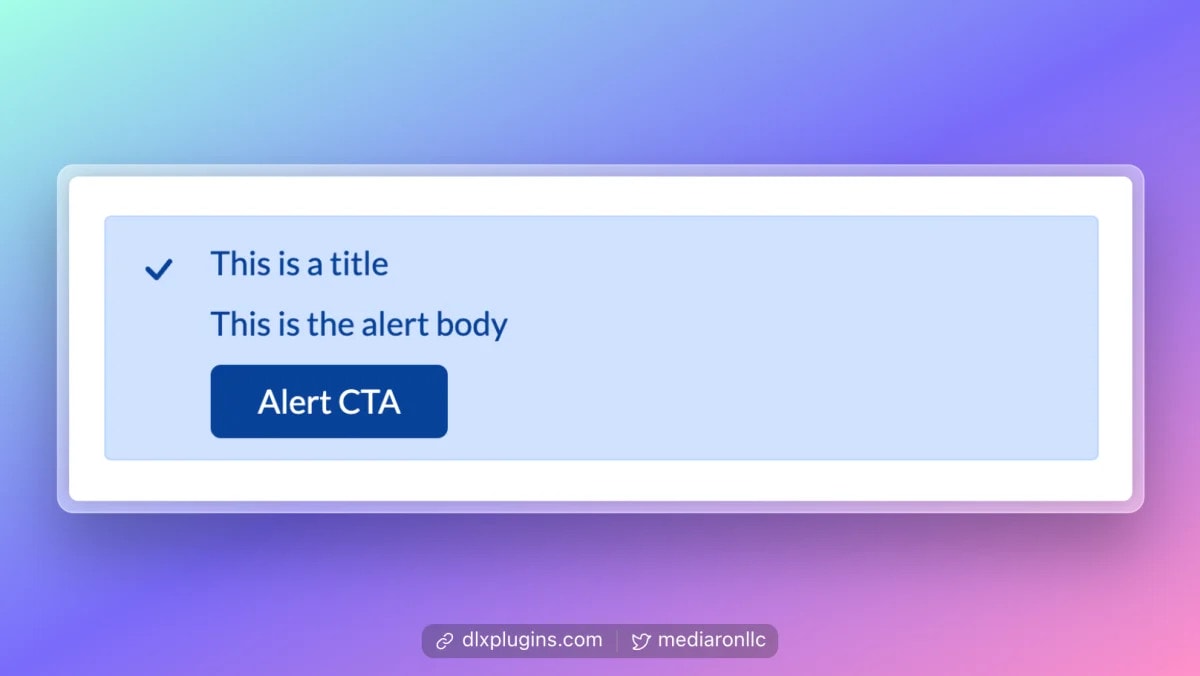Pin it](https://ebwsd89wku2.exactdn.com/wp-content/uploads/2023/11/dlxplugins-1701121147897-1x-1024x577.webp?strip=all&lossy=1&quality=92&webp=92&sharp=1&w=2560&ssl=1)Sample Alert Block
The title and button are built into the block, but the alert body can be InnerBlocks in order to have multiple items as part of the body.
[Pin it](https://ebwsd89wku2.exactdn.com/wp-content/uploads/2023/11/dlxplugins-1701121319661-1x-1024x577.webp?strip=all&lossy=1&quality=92&webp=92&sharp=1&w=2560&ssl=1)Alert Block With Multiple Items
In this case, the InnerBlocks make up the body content. You can see this in the diagram below.
[Pin it](https://ebwsd89wku2.exactdn.com/wp-content/uploads/2023/11/dlxplugins-1701121646924-1x.webp?strip=all&lossy=1&quality=92&webp=92&sharp=1&w=2560&ssl=1)Alert Block Diagram With InnerBlocks
In this scenario, the title and CTA are part of the parent block but have InnerBlocks that make up the body text. The point here is that you can place InnerBlocks anywhere within your block structure.
When you’re working with InnerBlocks, think of it like a family tree. You have a ‘Parent Block,’ which is the main block you start with. Inside this Parent Block, you have a placeholder, also known as InnerBlocks. You can insert new blocks within the InnerBlocks, allowing you to create more complex and interactive blocks.
For this next example, we’ll use a list block. The parent is the `UL` tag, while the InnerBlocks are the `LI` tags.
[Pin it](https://ebwsd89wku2.exactdn.com/wp-content/uploads/2023/10/dlxplugins-1696520365212-1x.webp?strip=all&lossy=1&quality=92&webp=92&sharp=1&w=2560&ssl=1)Parent Blocks Can Contain One Total InnerBlock
The diagram above shows one parent block, which acts like a `UL` tag wrapper. Within the parent block is an InnerBlock, which can create as many instances of the child block (`LI` tags) as you desire.
Here’s a simple animated gif showing how parent and child blocks interact.
[Pin it](https://ebwsd89wku2.exactdn.com/wp-content/uploads/2023/10/innerblocks-list-fade-out.gif?strip=all&lossy=1&quality=92&webp=92&sharp=1&w=2560&ssl=1)Visual Tree View of Adding Nested Blocks
As you can see, the parent has one set of InnerBlocks, but you can have as many items within InnerBlocks as you desire. Adding to the complexity, InnerBlocks can have their own InnerBlocks, so you can do further nesting if required.
InnerBlocks have their own internal lingo and terminology, and it’s important to know the concepts before diving in. Let’s start with React hooks.
A [React hook](https://react.dev/learn#using-hooks) is just a function that returns values and only works in [functional components](https://www.freecodecamp.org/news/react-components-jsx-props-for-beginners/). Hooks can be useful for managing state, network lookups, or keeping tabs on data that might be changing.
For example, [the hook useState](https://react.dev/learn/state-a-components-memory) is extremely useful for setting and updating state within a functional component. Here’s an example of launching a modal in the block editor on a button click.
[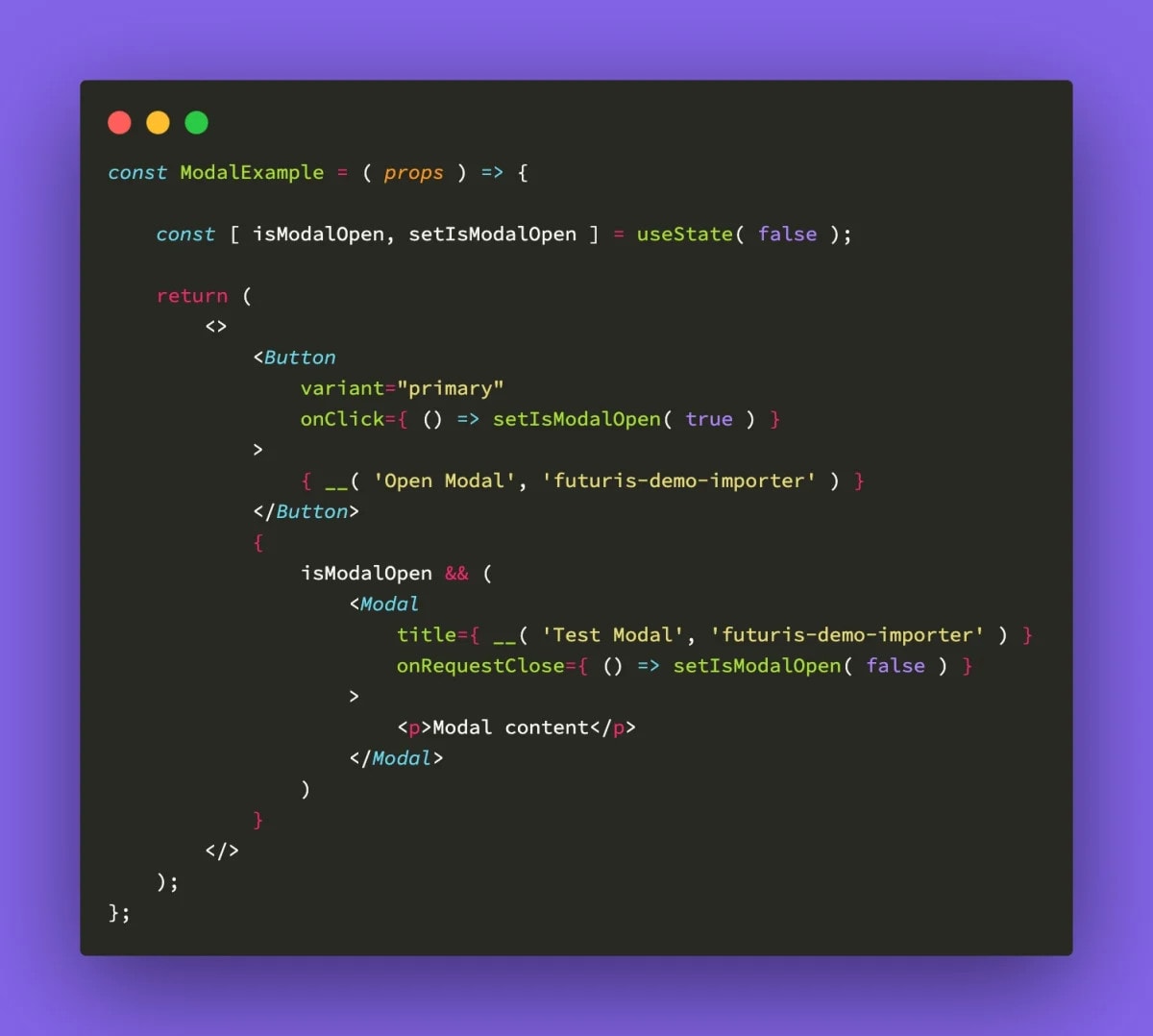Pin it](https://ebwsd89wku2.exactdn.com/wp-content/uploads/2024/01/code-modal-use-state.webp?strip=all&lossy=1&quality=92&webp=92&sharp=1&w=2560&ssl=1)Using Hook useState to Launch a Modal
We can even create our own hooks since they are just functions that return values. Here’s an example of a hook that returns the current post-author ID.
```
const usePostAuthorId = () => {
const authorId = useSelect((select) => {
// Accessing the current post's data
const { getCurrentPost } = select('core/editor');
const post = getCurrentPost();
return post ? post.author : undefined;
});
return authorId;
};
```
Here’s how you would implement the above hook into a functional component.
```
const ShowAuthor = (props) => {
const authorId = usePostAuthorId();
return (
<>
{ `Author ID: ${authorId}` }
</>
);
};
export default ShowAuthor;
```
Whenever the post author is updated for the post, the author ID will change.
Since you can create custom hooks and hooks can return values, they are very useful for sharing functionality and sometimes data amongst different pieces of your component.
Please note that there are [rules of hooks](https://react.dev/warnings/invalid-hook-call-warning) that should be followed, notably:
* React hooks always start with the keyword `use` (e.g., `useState`, `useEffect`).
* Hooks should only be called in functional components.
* Hooks should be called at the top level of a component and not used in any conditions, effects, or loops.
Hooks are extremely useful, and this is just skimming the surface as to what’s possible. For more on React hooks, please learn more [about the built-in hooks](https://react.dev/reference/react/hooks) and [how to create custom ones](https://react.dev/learn/reusing-logic-with-custom-hooks).
Let’s move to the first hook we’ll encounter when dealing with InnerBlocks.
The React hook `useBlockProps` is designed to be applied to a block’s outermost HTML wrapper. This means that when you’re outputting the structure of your block to the screen, [you need to wrap the outermost container](https://developer.wordpress.org/block-editor/reference-guides/block-api/block-edit-save/#block-wrapper-props) with the properties of this hook.
To understand what the hook `useBlockProps` does, we need to understand what it returns. I’ve pruned out most of what is returned by the hook. Please observe the various properties that are returned, which will be applied as HTML attributes to a wrapper element.
```
return {
tabIndex: blockEditingMode === 'disabled' ? -1 : 0,
...wrapperProps,
...props,
ref: mergedRefs,
id: `block-${ clientId }${ htmlSuffix }`,
role: 'document',
'aria-label': blockLabel,
'data-block': clientId,
'data-type': name,
'data-title': blockTitle,
inert: isSubtreeDisabled ? 'true' : undefined,
className: classnames(
'block-editor-block-list__block',
{
// The wp-block className is important for editor styles.
'wp-block': ! isAligned,
'has-block-overlay': hasOverlay,
'is-selected': isSelected,
'is-highlighted': isHighlighted,
'is-multi-selected': isMultiSelected,
'is-partially-selected': isPartiallySelected,
'is-reusable': isReusable,
'is-dragging': isDragging,
'has-child-selected': hasChildSelected,
'remove-outline': removeOutline,
'is-block-moving-mode': isBlockMovingMode,
'can-insert-moving-block': canInsertMovingBlock,
'is-editing-disabled': isEditingDisabled,
'is-content-locked-temporarily-editing-as-blocks':
isTemporarilyEditingAsBlocks,
},
className,
props.className,
wrapperProps.className,
defaultClassName
),
style: { ...wrapperProps.style, ...props.style },
};
```
The return format of `useBlockProps` is an object, and with that, we can assign that object to a variable and use [JavaScript spread syntax](https://developer.mozilla.org/en-US/docs/Web/JavaScript/Reference/Operators/Spread_syntax) (the three dots `...`) to unravel the properties onto the chosen HTML wrapper.
Here’s an example of using `useBlockProps` to wrap a block:
```
/**
* Import block dependencies.
*/
import { useBlockProps } from '@wordpress/block-editor';
import { __ } from '@wordpress/i18n';
const QuotesBlockSample = ( props ) => {
// Get the default prop shortcuts.
const { attributes, setAttributes, isSelected, clientId } = props;
// Set block props.
const blockProps = useBlockProps(
{
className: 'dlx-quotes-block',
}
);
return (
<>
<blockquote { ...blockProps }>
Blockquote content
</blockquote>
</>
);
};
export default QuotesBlockSample;
```
In this particular example, I’m creating a simple quotes block. Since the outermost container will be a `blockquote`, I use spread syntax to distribute all the properties to the `blockquote` element. I’ve highlighted the area where spread syntax is used.
Here’s an example of some of the properties `useBlockProps` adds to a parent element:
```
<blockquote
tabindex="0"
class="block-editor-block-list__block wp-block dlx-quotes-block is-selected wp-block-dlxplugins-dlx-quotes-block-sample"
id="block-2847a027-fe6c-49de-9305-251c490d4229" role="document" aria-label="Block: DLX Quotes Block"
data-block="2847a027-fe6c-49de-9305-251c490d4229" data-type="dlxplugins/dlx-quotes-block-sample"
data-title="DLX Quotes Block">
Blockquote Content
</blockquote>
```
As you can see, there are various block-specific attributes being applied, which would be hard to manage on your own without a hook, especially as a block’s state changes. The additional properties allow the block editor to manage the block internally.
Now that we have a basic block let’s set up the InnerBlocks.
You would use hook `useInnerBlocksProps` to set up your InnerBlocks.
Hooks are simply functions, and `useInnerBlocksProps` takes two arguments:
It’s helpful to know what `useInnerBlocksProps` returns in order to gauge how it works:
```
export function useInnerBlocksProps( props = {}, options = {} ) {
const fallbackRef = useRef();
const { clientId } = useBlockEditContext();
const ref = props.ref || fallbackRef;
const InnerBlocks =
options.value && options.onChange
? ControlledInnerBlocks
: UncontrolledInnerBlocks;
return {
...props,
ref,
children: (
<InnerBlocks
{ ...options }
clientId={ clientId }
wrapperRef={ ref }
/>
),
};
}
```
The hook spreads out any passed props, but returns an object called `children`, which contains an `InnerBlocks` component.
Diving into the `InnerBlocks` component, it returns a block list of child blocks, which suggests this is the main reason why InnerBlocks can only have one parent block.
For the sake of this next example, and to ease things in gradually, we’ll use `useInnerBlocksProps` with just the defaults. With just the defaults, the InnerBlock that will be used is the `core/paragraph` block.
```
/**
* Import CSS.
*/
import './editor.scss';
/**
* Import block dependencies.
*/
import { useBlockProps, useInnerBlocksProps, InnerBlocks } from '@wordpress/block-editor';
import { __ } from '@wordpress/i18n';
const QuotesBlockSample = ( props ) => {
// Get the default prop shortcuts.
const { attributes, setAttributes, isSelected, clientId } = props;
// Set block props.
const blockProps = useBlockProps(
{
className: 'dlx-quotes-block',
}
);
// Set InnerBlock props.
const innerBlocksProps = useInnerBlocksProps();
return (
<>
<blockquote { ...blockProps }>
<div { ...innerBlocksProps } />
</blockquote>
</>
);
};
export default QuotesBlockSample;
```
Just as with `useBlockProps`, you need to use a parent element and spread the return value using spread syntax.
Before we dive into things, I’ll show you a maintenance tip that will save you some time when setting up InnerBlocks.
[Pin it](https://ebwsd89wku2.exactdn.com/wp-content/uploads/2024/01/dlxplugins-1704435042857-1x.webp?strip=all&lossy=1&quality=92&webp=92&sharp=1&w=2560&ssl=1)InnerBlocks and HTML Nesting
The HTML structure is a bit off when setting up the `blockquote`. The structure is currently as follows:
This isn’t ideal, as the paragraph tags should be within the `blockquote` tag and not within any other wrapping element.
In this particular scenario, you can use spread syntax on the `blockquote` tag itself using `useBlockProps` and `useInnerBlocksProps` together.
```
/* Dependencies */
const QuotesBlockSample = ( props ) => {
// Get the default prop shortcuts.
const { attributes, setAttributes, isSelected, clientId } = props;
// Set block props.
const blockProps = useBlockProps(
{
className: 'dlx-quotes-block',
}
);
// Set InnerBlock props.
const innerBlocksProps = useInnerBlocksProps();
return (
<>
<blockquote { ...blockProps } { ...innerBlocksProps } />
</>
);
};
export default QuotesBlockSample;
```
This results in a more semantic HTML structure without any wrapper DIVs.
[Pin it](https://ebwsd89wku2.exactdn.com/wp-content/uploads/2024/01/dlxplugins-1704435565468-1x-1024x577.webp?strip=all&lossy=1&quality=92&webp=92&sharp=1&w=2560&ssl=1)Paragraph Tags Wrapped Directly Beneath the Blockquote Tag
Let’s move to some InnerBlocks terminology that will assist us in managing our InnerBlocks.
With just the defaults, any block is allowed as an InnerBlock. By passing a list of [allowed blocks](https://developer.wordpress.org/block-editor/how-to-guides/block-tutorial/nested-blocks-inner-blocks/#allowed-blocks), you can limit what types of blocks can be inserted. For example, I can set up the `blockquote` to accept a headline and a paragraph block.
Pass in a parameter called `allowedBlocks` as part of the 2nd argument to `useInnerBlocksProps`.
```
const QuotesBlockSample = ( props ) => {
// Get the default prop shortcuts.
const { attributes, setAttributes, isSelected, clientId } = props;
// Set block props.
const blockProps = useBlockProps(
{
className: 'dlx-quotes-block',
}
);
// Set InnerBlock props.
const innerBlocksProps = useInnerBlocksProps(
{},
{
allowedBlocks: [ 'core/heading', 'core/paragraph' ],
}
);
return (
<>
<blockquote { ...blockProps } { ...innerBlocksProps } />
</>
);
};
export default QuotesBlockSample;
```
This will only allow the paragraph and heading blocks when inserting a new InnerBlock.
[Pin it](https://ebwsd89wku2.exactdn.com/wp-content/uploads/2024/01/dlxplugins-1704437663521-1x.webp?strip=all&lossy=1&quality=92&webp=92&sharp=1&w=2560&ssl=1)Paragraph and Heading Blocks Only for InnerBlocks
By default, blocks are a top-down affair. You can change the orientation of how the block behaves in the editor by passing an `orientation` parameter to `useInnerBlocksProps`.
Orientation should only be used if you are applying flex or grid styles to the InnerBlocks container and need the inserter to be horizontal instead of vertical. For example, you may have a social media block that has horizontal icons for the social networks.
Here’s an example of using `orientation`:
```
const innerBlocksProps = useInnerBlocksProps(
{},
{
allowedBlocks: [ 'core/heading', 'core/paragraph' ],
orientation: 'horizontal',
}
);
```
You can specify a template that will auto-insert when adding the parent block. For example, I can insert a headline followed by a paragraph.
```
const innerBlocksProps = useInnerBlocksProps(
{},
{
allowedBlocks: ['core/heading', 'core/paragraph'],
template: [
['core/heading', { placeholder: 'Quote Author', level: 3 }],
['core/paragraph', { placeholder: 'Quote Text' }],
]
}
);
```
When inserting the block, a headline and paragraph will be auto-inserted for us.
[Pin it](https://ebwsd89wku2.exactdn.com/wp-content/uploads/2024/01/inner-block-template-1024x576.gif?strip=all&lossy=1&quality=92&webp=92&sharp=1&w=2560&ssl=1)Example of Auto-Inserted Blocks
You can choose to lock InnerBlocks using the [`templateLock` property](https://github.com/WordPress/gutenberg/blob/3d5434d543874638437ed10a27a51848e8637db1/packages/block-editor/src/components/inner-blocks/README.md#templatelock). This allows you to control how blocks are handled within the InnerBlocks.
The `templateLock` property can accept the following values:
* `contentOnly`: This prevents any actions on the InnerBlocks and is fully locked down.
* `all`: Similar to `contentOnly`, this locks all blocks in place and prevents removing or reordering the blocks.
* `insert`: You can pass this to ensure that no new blocks are added, but reordering still works.
* `false`: This disables all locking of InnerBlocks, even if the parent block is locked.
Here’s an example with the `templateLock` set to `insert`.
```
const innerBlocksProps = useInnerBlocksProps(
{},
{
allowedBlocks: ['core/heading', 'core/paragraph'],
template: [
['core/heading', { placeholder: 'Quote Author', level: 3 }],
['core/paragraph', { placeholder: 'Quote Text' }],
],
templateLock: 'insert',
}
);
```
The result is a locked template, meaning I can’t insert or remove any blocks, but I can reorder them.
[Pin it](https://ebwsd89wku2.exactdn.com/wp-content/uploads/2024/01/dlxplugins-1704485966685-1x-1024x548.webp?strip=all&lossy=1&quality=92&webp=92&sharp=1&w=2560&ssl=1)Locked Template Using templateLock
Now that the bulk of the terminology is out of the way, let’s set up a simple quotes block.
In this next example, I’ll be using [@wordpress/create-block](https://developer.wordpress.org/block-editor/reference-guides/packages/packages-create-block/) to create a simple quotes block. The quote will have a content area, which will be InnerBlocks, and an attribution area, where someone can enter who authored the quote.
Here’s the command I’ve used to create the quotes block:
```
npx @wordpress/create-block@latest --namespace=dlxplugins --title="DLX Quotes" --wp-scripts --variant=dynamic dlx-quotes-inner-blocks
```
[Pin it](https://ebwsd89wku2.exactdn.com/wp-content/uploads/2024/01/npx-create-block.gif?strip=all&lossy=1&quality=92&webp=92&sharp=1&w=2560&ssl=1)Creating a Block using Node
The result is a block plugin that can be activated. Here’s the folder structure of the block plugin:
```
.
└── dlx-quotes-inner-blocks-example/
├── build
├── src/
│ ├── block.json
│ ├── edit.js
│ ├── index.js
│ ├── render.php
│ └── style.scss
└── dlx-quotes-inner-blocks-example.php
```
Let’s do a bit of configuring so we can begin setting up our quote block.
I’ve added an `attributes` section and removed the `viewScript` property as we don’t need any scripts running on the frontend.
```
{
"$schema": "https://schemas.wp.org/trunk/block.json",
"apiVersion": 3,
"name": "dlxplugins/dlx-quotes-inner-blocks-example",
"version": "0.1.0",
"title": "DLX Quotes",
"category": "widgets",
"icon": "smiley",
"description": "Example blockquote with inner blocks.",
"attributes": {
"cite": {
"type": "string",
"default": ""
}
},
"example": {},
"supports": {
"html": false
},
"textdomain": "dlx-quotes-inner-blocks-example",
"editorScript": "file:./index.js",
"editorStyle": "file:./index.css",
"style": "file:./style-index.css",
"render": "file:./render.php"
}
```
At the moment, our `edit.js` file outputs a placeholder.
```
export default function Edit() {
return (
<p { ...useBlockProps() }>
{ __(
'DLX Quotes – hello from the editor!',
'dlx-quotes-inner-blocks'
) }
</p>
);
}
```
[Pin it](https://ebwsd89wku2.exactdn.com/wp-content/uploads/2024/01/dlxplugins-1704491592751-1x-1024x538.webp?strip=all&lossy=1&quality=92&webp=92&sharp=1&w=2560&ssl=1)Placeholder for the Generated Block
Let’s modify `edit.js` to accept our `cite` attribute, and output a blockquote.
We’ll need the RichText component, so we’ll do an import.
Next, I’ll set up the placeholder in the blockquote and add a citation area, which is where the RichText component will be used.
```
export default function Edit( props ) {
const { attributes, setAttributes, isSelected, clientId } = props;
const { cite } = attributes;
return (
<figure>
<blockquote>
Block quote placeholder
</blockquote>
<figcaption>
<RichText
tagName="cite"
placeholder="Enter quote citation"
value={ cite }
allowedFormats={ [ 'core/bold', 'core/italic' ] }
onChange={ ( value ) => setAttributes( { cite: value } ) }
/>
</figcaption>
</figure>
);
}
```
The result is a placeholder and an input for a citation.
[Pin it](https://ebwsd89wku2.exactdn.com/wp-content/uploads/2024/01/dlxplugins-1704492541020-1x-1024x509.webp?strip=all&lossy=1&quality=92&webp=92&sharp=1&w=2560&ssl=1)Blockquote Output Example
Next, let’s set up the InnerBlocks. We’ll need to import `useInnerBlocksProps`.
We’ll then set up a variable for the InnerBlocks.
```
const innerBlocksProps = useInnerBlocksProps(
{},
{
allowedBlocks: ['core/paragraph'],
template: [
['core/paragraph', { placeholder: 'Please enter your Quote Text' }],
]
}
);
```
And finally, add it to the blockquote:
```
return (
<figure {...blockProps}>
<blockquote {...innerBlocksProps} />
<figcaption>
<RichText
tagName="cite"
placeholder="Enter quote citation"
value={ cite }
allowedFormats={ [ 'core/bold', 'core/italic' ] }
onChange={ ( value ) => setAttributes( { cite: value } ) }
/>
</figcaption>
</figure>
);
```
The result is a blockquote with free text entry as long as it is a paragraph.
[Pin it](https://ebwsd89wku2.exactdn.com/wp-content/uploads/2024/01/inner-blocks-blockquote.gif?strip=all&lossy=1&quality=92&webp=92&sharp=1&w=2560&ssl=1)Blockquote With InnerBlocks Enabled
One added bonus you might have noticed is that you can reorder the InnerBlocks, which will save you from having to implement your own drag-and-drop mechanism.
Right now, the only thing saving is the citation. We haven’t yet wired up the InnerBlocks for saving just yet. We’ll need to modify the `index.js` file and add a save feature.
I’ll be demonstrating how to do a dynamic block, as it’s not as straightforward. For a JS only solution, you can follow the [developer documentation on using the useInnerBlocksProps hook](https://developer.wordpress.org/block-editor/how-to-guides/block-tutorial/nested-blocks-inner-blocks/#using-a-react-hook).
First, we’ll need to import InnerBlocks.
Next, we’ll add a `save` callback and return the content of the InnerBlocks.
```
registerBlockType( metadata.name, {
/**
* @see ./edit.js
*/
edit: Edit,
save: () => {
return <InnerBlocks.Content />;
}
} );
```
Now when we enter any content into the block, it’ll be saved.
In `render.php`, we can modify what’s being displayed. We’ll mimic the HTML structure of the block.
There are three variables that are exposed in `render.php`:
* attributes (the block attributes)
* content (the InnerBlocks content)
* block (WP\_Block information about the block)
We’ll be using `$attributes` to get our `cite` value, and `$content` to retrieve our InnerBlocks content.
```
<?php
/**
* @see https://github.com/WordPress/gutenberg/blob/trunk/docs/reference-guides/block-api/block-metadata.md#render
*/
$citation = $attributes['cite'];
?>
<figure class="wp-block-dlx-quotes-inner-blocks-example">
<blockquote>
<?php echo wp_kses_post( $content ); ?>
</blockquote>
<figcaption>
<cite><?php echo wp_kses_post( $citation ); ?></cite>
</figcaption>
</figure>
```
Now we’re able to view the block on the frontend.
[Pin it](https://ebwsd89wku2.exactdn.com/wp-content/uploads/2024/01/dlxplugins-1704495436968-1x.webp?strip=all&lossy=1&quality=92&webp=92&sharp=1&w=2560&ssl=1)Blockquote With InnerBlocks on the Frontend
We have now successfully implemented InnerBlocks, saved the values, and have outputted them to the frontend.
InnerBlocks are definitely a concept that, once understood, can open the possibilities of what blocks are capable of doing.
In this tutorial, I’ve demonstrated how InnerBlocks works, how they interact with the parent block, and how to modify how InnerBlocks works and behaves.
In part 2 of this tutorial, I’ll be going over how to create a nested block. [Please subscribe](https://newsletter.dlxplugins.com/) to be alerted to new tutorials.
* [[Say Goodbye to RichText Multiline: How to Use InnerBlocks Instead](https://dlxplugins.com/tutorials/say-goodbye-to-richtext-multiline-how-to-use-innerblocks-instead/)](https://dlxplugins.com/tutorials/say-goodbye-to-richtext-multiline-how-to-use-innerblocks-instead/)
* [[Block.json Explained for Plugin Developers - A Technical Deep Dive](https://dlxplugins.com/tutorials/block-json-explained-for-plugin-developers/)](https://dlxplugins.com/tutorials/block-json-explained-for-plugin-developers/)
* [[Multisite Plugin Development: Essential Tips for Creating Multisite-Compatible WordPress Plugins](https://dlxplugins.com/tutorials/how-to-make-your-plugin-multisite/)](https://dlxplugins.com/tutorials/how-to-make-your-plugin-multisite/)
#### Like the tutorial you just read? There's more like it., An Introduction to Nested Blocks Using InnerBlocks, dlxplugins.com, 01k9xhe54gvcd6z8v0r0nf4yk4.