Building a Grid Inside a Grid
## Metadata
- Author: [[YouTube]]
- Full Title: Building a Grid Inside a Grid
- Category: #articles
- Document Tags: [[css]] [[h1]] [[mobile]] [[responsive]] [[xref]]
- Summary: Building a Grid Inside a Grid (Brutalist Redesign Series, Lesson 3)
- URL: https://www.youtube.com/watch?v=z9hCawNsLD8
So, if you've been following along in the last couple videos, I went ahead and set up this hero section as well as the second section here, which had this cool little pseudo element trick. This whole series started off of a bit of an experiment I was doing just to get myself out of a bit of a creative rut. Here, I'm just redesigning one of the pages on my agency website using a completely different style that I'm used to. Of course, since I'm designing everything different, I'm also having to build out things that I'm not as familiar with building. So, in the series, I'm going through this entire page, and we're designing it section by
section. We already took care of the first two in previous videos, which I'll make sure to link down in the video description below. And now, we're on to this third section here, which has a few little tricks that we haven't explored yet. If I turn our grid lines back on, we can see that most things are just adhering to the grid. We have this headline here, which starts and stops perfectly on the grid. A little testimonial on the left that spans four of our columns. and then this little section of cars that comes from this grid column here all the way to the end of our website's content width. And we had something similar here before where
we were able to use sub grid to make sure that these elements line up perfectly inside of our grid. But because we have several of these stacked on top of each other, using that same subgrid technique here actually gets a little bit messy. It also gives us the opportunity to explore a different way we can manipulate this grid to make sure that all of our items fall perfectly on the grid, even when they're not direct children. So, let's jump in and take a look at how we could get this built out. Okay, back here inside the editor, I'm just going to go ahead and add another section in here. Now, my section by
default has a medium amount of padding, but I know in this, especially cuz we have the overlapping element, I want to put some more padding in this section. And I already have a class set up to do that. So, we'll just search in here for section XL, which will just give me more padding and more breathing room to work with. Now, our wrapper, just like before, we need to add that grid 12 column class on it. So, I'll go ahead and add that, which just sets up that parent grid. Now, this is getting kind of repetitive, but we got to put a heading in here. This is going to span
five columns. So, we'll go in here to our grid column and type in span five. And then we can add our headline in here, which is an H2. And this is why choose Ogle Web Design. So, that should take care of the intro part of our section. I'll go back in here and we'll add another wrapper in here. This one, since I'm adding manually, I'll have to add the wrapper class and I'll have to add that grid 12 column class. Now, on this one, we have the testimonial on the left and then all the text on the right. So, we'll go ahead and set up that
testimonial first, wrapping it all in a container. And this one actually spans four columns. So, we'll just do span four. Now, if this were an actual client project, I would probably go ahead and set this up as a block quote just to make sure it's more semantically correct. But for now, I'm just going to pop a headline in here. We'll go with a paragraph. And then I'm just going to copy and paste this testimonial from Figma. We'll put it right into our design. Now, this does have quite a bit bigger font. So, we'll just go ahead and use our P large class. Again, that might
not be exactly the way it is in Figma, but I think it gets us close enough. Again, these are bumped up to close to each other. We keep having to do this. So, this would be a good opportunity to add a class that just adds that 80 pixels of row gap. But I'll just do it manually for now. And then we'll add in the by line here, which is Brian Jackson at Perf Matters. So, this takes care of our testimonial. I'll go ahead and rename this. I know it's a little bit easier to keep up with things when they're named over here inside the list view. So, I'll call this testimonial
wrapper. And while we're at it, we can go ahead and call this our wrapper. And this is going to be our headline. Okay. So now inside this wrapper, we need to add the container that's going to hold all of our text content here. So I'll go ahead and add a container. And this one, we actually want it to span from column number six all the way to the end. So we can do that by doing six, which is going to move it over one there. And then we'll do over -1, which will just allow it to span all the way
to the end of our content width. Now, when we did our hero section in the first video in this series, we were actually able to use Sub Grid to set this up. And what we're building now looks really similar. We can see we have this kind of headline on the left with the text on the right, which is really similar to the way we set this up before with the headline on the left and the text on the right. But in this scenario, we only had one set of this. And down here, we want to repeat it three times. Now, we could go ahead and use that same subgrid technique, but it starts to get
a little bit messy because we have to really explicitly put each one of these things on their own grid lines. I tested that out and I think it's just a little too complex. Plus, this is going to give us an opportunity to show how you can line things up on your parent grid even when you need to create a grid that's not a direct child. So, maybe that doesn't make sense yet, but I'll show you how it works here inside the editor. We're going to use this container to hold all of our content and stack the cards on top of each other. So, we need
to put each one of these cards in here. So, we're going to have the first one in here with a headline inside of it. We'll make sure to make this an H3. And this says impeccable standards. Now, just like the section above it, the H3s look more like text. So, I'm going to use that P large class. Again, here, if you were building this out on a client project, you might want to go ahead and style all your H3s to look like this. If this is how they're going to look across the entire website, but I don't have a full design system for this demo. Underneath that, we need some
text. So, I'll go ahead and use a generate blocks text block, and we'll jump into our Figma design and just copy all this text so we can paste it right in. Now, I know we're going to be reusing these cards several times in here, and we're going to have to set a lot of different things at break points, so I do want to go ahead and give all of these classes just to make it a little bit simpler on us going forward. Of course, naming things is always the hardest part since this is a Y choose section. I'm just going to call this our choice hyphen card.
Go ahead and save that class. And inside of it, we'll do our choice heading. choice hyphen heading and inside of this we'll do our choice text. Now all of these have classes so that way we can go on here and we'll go ahead and zero out this spacing at the bottom and make sure that on our choice text that we go ahead and zero out that spacing as well. Now we can take this card and duplicate it twice. I'll
replace the content here in a second, but we want to make sure all these cards stack on top of each other. Of course, they don't have any space between them. So, I'm going to go to this container that's wrapping all of them just to be able to use gap. I'm going to change this to a display of grid. By default, it'll be one column wide. And here, we can just put 60 pixels of gap in between them. I'm going to go ahead and rename these choice card over here inside the list view just so we can keep track of exactly what we're working on as this
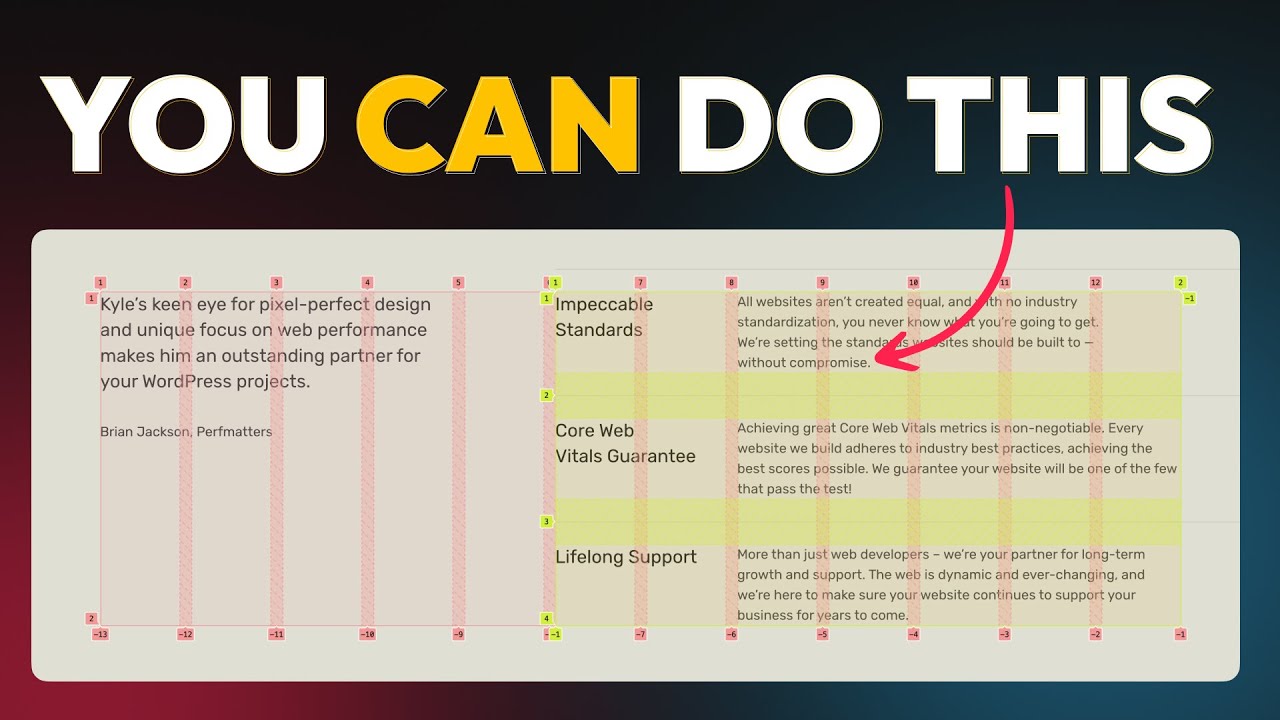
gets a little bit more complex as we're setting up all these nested grids. So what we have here is our choices grid with choice cards inside of each one of them. Our choice grid is a direct child of this wrapper. So we could use sub grid here, but we actually need to place these elements, the heading and text underneath it on specific parts of our grid. And since they're more like grandchildren of this wrapper, we're not going to be able to use subgrid with this layout. However, we can kind of fake the same grid inside of this by
just subdividing out our grid. I think this is going to be a little bit easier to explain inside Figma. So, let me jump in there and we'll take a look. I'll go ahead and turn our grid lines back on. And we can see our 12 column grid that all of our rappers have. But this choices grid inside of it only takes up a portion of that. I'll go ahead and just draw out a box here. We'll get rid of that fill and just give it a nice bright red stroke so we can see exactly what we're working on. Now, because
we've already placed this choices grid on this grid line running all the way to the end, we know that this is going to line up perfectly with our grid. So now we could just kind of subdivide the grid inside this area. If we only count the grid columns inside this red box, we have 1 2 3 4 5 6 7. So, we could set this up as a seven column grid. And as long as we put the same gap in between all of them, this is going to fall perfectly in line with the parent grid. So, let me show you how I would do
that. So, we're going to go in here to our choice card. We'll make sure that we're on the class, so we're affecting all of these that have that same class. And we're going to go in here and give this a display of grid. And then we're going to change this to a seven column grid. Now, our little helpers here only go up to six, but we can manually override that to seven. We need to make sure we also give it that same gap in between the column and row. So, we'll go ahead and set that to 16. Now, everything looks a little bit squished right now, but I want to help you
visualize how we're kind of subdividing that grid. So, we'll go to the front end again here, and I'm going to go ahead and select this wrapper where you can see this 12 column grid we set up. But inside of it, we have this choice card, which also has a grid on it, except it's just set up as a seven column grid. But because we figured out exactly how many columns that fills in inside of our parent grid, and we gave it the same amount of gap in between it, these two grids are lining up perfectly on top of one another. This is going to give us
the ability to place this content exactly on the grid the way we want and make sure it's still adhering to the parent grid here. So, let's go ahead and get these spanning the right amount of columns. We'll go in here to our choice heading and we can go inside the layout and we can say span 2. Then we can go to our text which is this choice text. Again, making sure we use the class so it affects all of them. And here we can say span five. That way each one of
these choice texts are spanning five of our seven available grid items and the headline is just spanning two. Now we can go ahead and save this again. We'll refresh on the front end here and scroll down to our section. And we can see now this grid inside of the grid because we set this up to span the right amount of columns and put the same gap in it. We've just kind of subdivided this 12 column grid with its own seven column grid since we know this is taking up seven columns. I've gone ahead and replaced the content in here so we have
unique content in each one of these. And the last thing we need to do before we start working on the responsive settings is set up that little pseudo element above each one of these cards. Now, I was thinking ahead when we did this hero section, and I actually set up a class for this. If we go back here, we have this line top right class. We can reuse that on our choice cards here. So, I'm just going to go ahead and type in line and we'll use this line top right class on each one of these cards. So, again, I'll add it to our second one. And
again, I'll add it to our third one. Now, if we save those changes, we can refresh everything on the front end, and this section should be all set up and ready to go on desktop. Of course, we know things are going to break on tablet and mobile. So, let's go ahead and scrunch this in. We'll get down to our tablet breakpoint here and see what we want to do. Of course, our headline needs to span a little bit more width. And I don't think this testimonial on the left with the text on the right really works too well inside
here. It just looks a little bit cramped. Now, I don't have a tablet or mobile design already set up. So, we're going to do this on the fly again. We'll just go back here to our wrapper that's holding all this and go down to our tablet breakpoint. I guess we can go ahead and fix this headline first. What we did before was just span 10 that. So, now this is going to take up 10 columns wide, which I think is going to be fine for that headline. But here inside this wrapper, I don't think this is going to work really well for us. I think the testimonial needs to take up its own
column here without anything next to it. So, let's go in here and play around with the grid columns. If we did 1 over -1, that would allow it to span the entire width here. But, I think that takes up just a little bit too much width. What I'm thinking is we do something maybe like 2 over 12, which will just leave one column gap over here on the left and one column gap over here on the right. I think we can maybe try the same thing for this choices grid. So, let's do 2 over 12 for this. And we
can see how that looks on top of it. I think with this headline being kind of offset and then these lines going off on the right, that kind of balances things nicely. So, I kind of like this layout. Of course, we need some kind of gap in between these two. So, here on our wrapper, we'll just go into the layout and change this from the 16 that's default to maybe something more like 80 just to really space these out from one another. Let's go ahead and save those changes and take a look at what it looks like on the front end. We'll scroll down
here again, and I kind of like this design. Now, we do have an overflow issue here, just like we dealt with on all of our other sections. So, we'll go in here to position and we'll change that X overflow to clip. Save those changes and that should clear up any overflow issues. So, I think this looks pretty good for our tablet version, but let's go down to mobile and see if we want to make any changes. So, we have the headline that starts all the way on the left side of our content width and then our testimonial and this
content is just a little bit more narrow. I think this looks okay when we're at 580, but what's it going to look like on a real mobile device? Maybe when we get closer to like the 400 mark. These being on their own columns is just a little bit too squished. So, I think we need to stack these on top of each other once we hit this mobile break point. So, we'll go back in here to our mobile and this is going to be for our choice cards. We'll go in here to our mobile version and scroll down to where we can see it. Right now, this choice
card has our seven column grid we set up. But if we went in here and just set this to be a single column, so 1 fr, that will automatically stack everything on top of one another. That's going to be an easy way to fix this. So let's test it out on the front end. We'll scroll down again. And now we can see each one of these choices are listed right on top of one another. We can go ahead and test out all of our responsive settings. On tablet, those being side by side look good. And then once we get to mobile, everything just kind of stacks. It looks like our overflow issue is not
taken care of here. So, let's see what we did wrong on that. I think we only set it at one of the mobile break points. So, we just need to make sure we're setting that at desktop so it inherits all the way down. I probably just did that on tablet. So, let's go ahead and refresh again. And now we can see everything looks good on desktop. We get down to tablet and it breaks into this single column. And then we get down into mobile. And even the content inside these choice cards stack on top of each other. So, I think we've designed another successful section here. I'm
going to go ahead and wrap this video up here. But before you get out of here, I want to show you what's coming up on the next video, which is going to give us an opportunity to explore even some more things that we haven't touched on yet. In this call to action section, we're going to get to bring back that image overlay that we did in the hero section. We have another overlapping border that goes around this content that's going to go into the dark section below it. And we're going to get to stack some cards over here. Of course, all of this is lining up on the grid. So, we're going to have to figure out whether or not we're going to use subgrid or the trick that we used inside of this video.
Hopefully, you enjoyed today's video. If you did, I would really appreciate a thumbs up. And if you got lost or have any questions, make sure to drop those down in the comments below. And if you hit subscribe, you'll make sure to get notified when my next video drops as we explore this next section in the design. We'll see you then., Building a Grid Inside a Grid, YouTube, 01k9x3pcdsb80jkckc12yv723m.