Claude Cowork + NotebookLM Is Overpowered
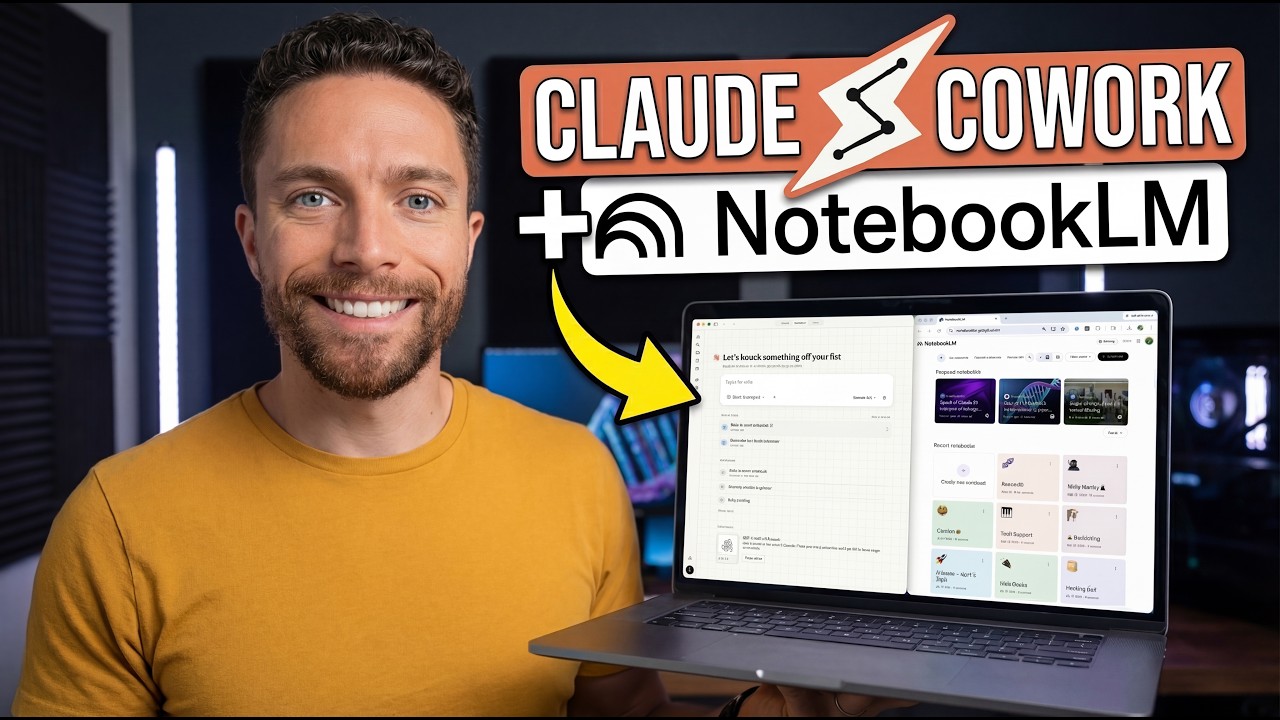
🔗 **Source:** [Claude Cowork + NotebookLM Is Overpowered](https://www.youtube.com/watch?v=BKVa8fO6T_g)
Notebook Alm and Claude are two of the most advanced AI tools available right now. And with this new setup I'm about to show you, you can connect the two of them and unlock one of the most powerful workflows I have ever discovered. I've been using this to automate research into notebooks, generate morning podcast reports for me, and automatically generate slide decks for my YouTube videos. This system takes advantage of the strengths that each of these different tools has. Notebook LM is an incredible place to organize research and build different artifacts like infographics and slide decks, but it
doesn't allow you to automate anything and it doesn't really connect up with the other tools that you love and use. Claude, on the other hand, can do that and it does it exceptionally well. So, this creates a pipeline that connects Notebook LM not only to Claude, but anything that Claude connects to. Now, let's get started building this pipeline out. This method I want to show you is inspired by this opensource project that basically creates an unofficial API connection between Notebook LM and
Claude. It's really really neat and I've been playing around with it for a few days and it's really good but it's not for everyone. You have to set this up inside of Claude Code which I know not everyone is comfortable with. It also does require you to have some things set up inside of terminal, which not everyone knows how to use that. Well, and it's hard to get it to just run on its own without it asking you for permission every single time. Finally, this is not an official API. Google may not like it if they find out about it,
and they can shut it down at any time. So, I wanted to see if I could create my own system to connect Claude to Notebook LM that you can set up and use directly inside of Claude Co-work without ever having to touch Claude code or the terminal and that doesn't run the risk of being closed off. And what I've come up with, I think, is easier to set up for most people. It's fully automated once you get it working, and you only have to give it one very limited permission. To make this as easy as possible, I've put everything into one
skill that I'm making available to you for free. You can find that at the link in the description down below. Then once you're on this page, you can see the skill right here. Click on the top left here to actually download it. Then come over to Claude Co-work and over here on the left, click on customize. Then click on skills. Click on this plus icon and hover over create skill and click on upload a skill. You can now drag in or click here and find the skill that you just downloaded. Here's mine on the
desktop. So, I'll select that and click on open. And then over here on the right, you can see the actual skill itself and how it works. So, you can see that you can trigger it either with a slash command or you can just go into the chat and say do something in Notebook LM and it's going to take action. And the way that this works is it uses browser automation with the clawed Chrome extension. Now, this Chrome extension gets a bad rap. A lot of people say that it uses a lot of tokens and is very inefficient and is
very slow, but I found that if you prompt it well or create a good skill for it, it actually works really well and is very efficient. And I did a lot of testing between my setup and the other one that I was showing you before. And this one, every time I run it, uses about 2% of my usage on the max 100 plan, whereas the original one I showed you uses 1%, but I've had it use as much as 13% because it's gotten stuck. So, you now have the skill added, but we
need to get the Chrome extension added if you haven't done that already in the past. So, just come over to Google and search for Claude Chrome extension. It should be the top result. Go ahead and add it. and it will prompt you to log into your Claude, your Anthropic account. That way, it's connected and it works. Once it is installed and you are logged in, return back to Claude and click on your name on the bottom left and click on settings. Click on the left where it says Claude in Chrome. And you want to make sure that this is all set
up. By default, it's going to say block extension. That basically means that Claude just can't go off and open up your browser and open up any website that it wants. it will only be able to automatically open up the websites that you add down here under allowed sites. So I suggest that you click on add websites and add google.com and notebooklm.google.com. It has to look exactly like that. If you have stuff in the beginning like https where you have a backslash at the end,
it's not going to work. So make sure it looks exactly like this. So let's test it out now with a simple example. I'll click on the left here where it says new task and I'm inside a folder that I've done some research inside of. So there's some files in there with a bunch of links. I will tell Claude Coowwork create a new notebook for me. Add the links in the markdown file in this folder as the sources. Then generate a mindm. Now let's bring up my browser so you can see what it's doing.
So it's opening up notebook LM. Let's actually full screen it and it's creating a new notebook all on its own and it's going through the motions of pasting in the links and then it generated the mind map. So that's all done. It took just under two minutes. So it's really not that long for it to go through this entire process. And before I show you some actual ways that I've been using this system, let's hear from today's sponsor, Imagine Art. Imagine Art is an AI creative suite that lets you generate images, videos, and visual effects from
simple text prompts. It has pretty much every image and video generation tool that you could ever think of. Things like creating images, editing them, inpainting, and upscale. And for video tools, we have of course create videos, lip syncing, video extend, video editing, and motion control. And you get access to all the top models. So for images that means Nano Banana 2 and Nanobanana Pro and for video we have Pixverse Cling and even the long awaited
seance 2.0. But the most powerful tool inside of Imagine Art are workflows. These allow you to build out an entire campaign from a single image. Here for example we started with this single image and then we created a text prompt telling it we wanted to turn that into a piece of cereal which it then did. And from there, you could see we branched out, gave it all these other prompts and turned them into all these other images of the serial. From there, we were able
to make other assets like this one with serial actually coming out of the box. Here we can see more variations on that and even videos as well. And so from a single image, we were able to generate this entire organized campaign. So, if you're looking for an all-in-one suite that gives you access to all the best image and video generation tools, definitely check out Imagin Art. I'll have a link for them in the description down below. And now, let's get back to the video. All right, so let me show you some real ways that I've been using this that are really neat. So, first I
created a new project inside of Claude Co-work called Notebook LM slide decks and gave it these instructions that tell it every time I attach a YouTube script to a task inside of this project, just go out and create the slides for that script using Notebook LM. Now, to make this as efficient as possible, I actually gave it the notebook that I wanted to work inside of the direct link to it. Here it is right here inside of Notebook LM. I created one called slide decks because what I don't want is I
don't want it to create a new notebook every time it generates slide decks because it's just going to get very messy. So instead, it's being told to come in here, delete all the old sources, add the script as a new source, and then open up slide decks and give it instructions on what I want the slides to look like. And all of that is detailed inside of this. And it tells it to use the notebook LM skill that we just created. So now coming into a new task here, I can just add a script as an
attachment and I don't have to say anything else. I just send that along and it knows what to do. So now it opened up this notebook directly. It's deleting the old sources and it will add the new one before generating the slide deck. And the best part is because the instructions inside the project give very specific instructions on what I want these slides to look like, it will always create ones that are really on brand and that match that style exactly. And if we actually click right here where it says more options, we can see the prompt that it used to generate
this. So this was the prompt that Claude gave it. You can see it is quite detailed and really laid out what every single slide should look like, which is why this works so well for the script that I created. Where this really begins to shine though is when you can take advantage of scheduled tasks inside of Claude. This ideally works if you have a computer that you can leave on 247 with clawed co-work open and Chrome open as
well so that it can take advantage of this system and armed with that you can do some pretty remarkable stuff. So for instance inside of notebook LM I have this notebook all about Claude Co-work and I'm going to set up a new schedule task here and tell it check for the latest news about Claude Co-work from the past week. add the URLs as sources inside my notebook LM notebook called Claude Co-work. And I'll have this run every single week, Monday at 9:00 a.m. And so now this notebook will always be
up to date with the latest news about Claude Co-work. And if I want to, I can even have it automatically generate an infographic when it runs. That way, I can just come in here and look at that infographic and see what's been new with Claude Co-work. But probably my favorite use case for this is to have it generate for me a daily morning brief. I have an example of that right here. This is actually set up on my other device that is running 24/7. So, this isn't exactly the way that it looks, but it's close enough. Basically, what I have it do is
go out and do a bunch of research for me on trending topics. It also looks at my Gmail to look for any new messages and looks at my calendar as well. And it creates an entire morning report. I've made videos on that before, but now it will also send that over to a notebook inside of notebook LM, generate an audio overview based on all that information. And so now I can listen to that and get a briefing for my entire day. And it doesn't just throw it in and click on audio overview. It gives it a very
detailed prompt to get it closer to actually feeling like these people are updating me on what's going on in my life. And what makes this really cool, there's this third-party tool, this this Chrome extension called Cortex. This allows you to create these podcast feeds based on your audio overviews. And so like here's one of them is called Paul's second feed. I'm actually subscribed to this on my phone. So automatically anytime an audio overview is generated
inside of Notebook LM, this app will automatically add it to my podcast feed. So then by the time I wake up, it is downloaded inside the podcast app on my phone, ready for me to listen to. I'll give you more information about this Chrome extension later in the video, but this whole setup, this whole workflow is just super cool. Now, I do want to briefly touch on usage limits because I don't want you blowing through all your usage with this system. So what I've done is I've told this skill to not wait
for generations to finish. So, for instance, right here, it is generating an audio overview. And in the past, when I first set up this skill, it was actually waiting for it to finish. And that way, it could let me know that it was done. And I told Claude not to do that. As soon as it clicks on generate, it is done if that's the task that I had it do. And what's nice is that with the Notebook LM app downloaded on your phone, you're going to get a notification when it's finished generating the audio overview or any of
the assets. Anyway, my other recommendation is to use sonnet for all these tasks. Opus will definitely be better, but I think it's a bit overkill in this situation. And then finally, if you find yourself using the skill the same way over and over again, either create a project like I showed you earlier, or create a specialty skill in the description of this video is something you can copy down to use as a template to create one of those skills. All you have to do is paste that into a new task and fill in the details. So
here I gave it a name called Notebook LM slide decks and instead of having it navigate directly to the notebook LM homepage, I gave it a direct link to the notebook that I wanted to use. Then I gave it very specific instructions about what I wanted to do and told it how it knows when it's done with the task. And when I click on let's go, it will start to create this skill for me and add it into Claude. Then anytime I want to generate a slide deck, I can use the Notebook LM slide deck skill that I'm generating or creating right now instead of the more broad one that I gave you at
the start of the video. It will go much faster and it'll be more efficient in terms of usage. So there you go. Claude plus Notebook LM. I've been having so much fun integrating the two of these together with this workflow and building out all of these automations. But what do you think? Let me know in the comments section down below what you're hoping to automate with this simple system. Also, don't forget that in the description of this video are a ton of resources for you like the skill to actually enable this. Then, like I
mentioned before, that Chrome extension I was showing you is really cool. I have a whole video on it right here. It not only automates podcast like I showed you, but it really transforms your entire Notebook LM experience. It is the ultimate Chrome extension for Notebook LM Power users. So, find out all about it right here and I'll see you in that video in one second., Claude Cowork + NotebookLM Is Overpowered, YouTube, 01kp1vkvv4y0cy9jdh5fjbe40y.