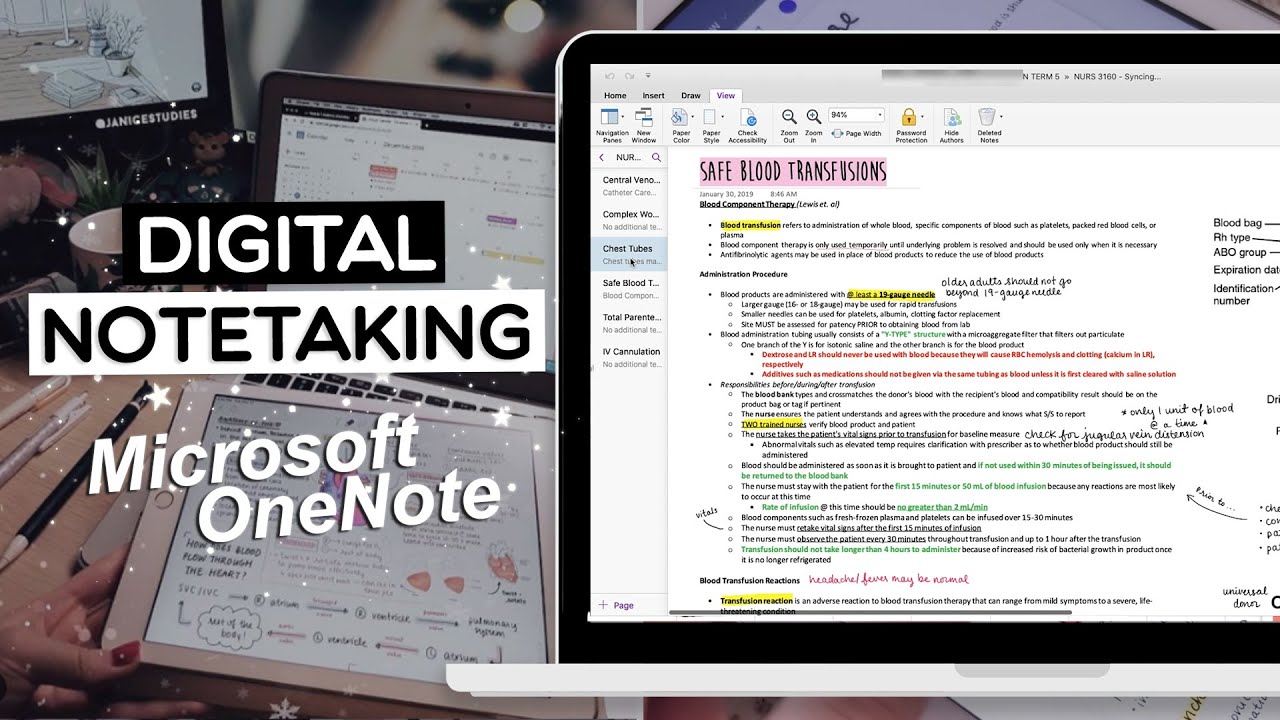
DIGITAL NOTETAKING Pt. 2 | OneNote
## Metadata
- Author: [[YouTube]]
- Full Title: DIGITAL NOTETAKING Pt. 2 | OneNote
- Category: #articles
- Document Note: ---
tags: [digital_notetaking, onenote, productivity]
author: Jonah's Channel
source: YouTube
reference: https://www.youtube.com/watch?v=pH1o3w_mLrw
date created: 2024-12-28 16:30
---
# 🏷️ Title: DIGITAL NOTETAKING Pt. 2 | OneNote
## 🧰 Action Inbox
- [H1] Set up hierarchical notebook organization — degree/semester/course structure — 01:30 #organization
- [H2] Create lecture notes page with sub-pages — capture raw notes first, format later — 03:45 #notetaking
- [H3] Use tags system for questions and test material — question marks and exclamation points — 07:20 #studying
## 🧭 Table of Contents
- [📝 Summary](#-summary)
- [📖 Main Content](#-main-content)
- [🗒️ Notes](#️-notes)
- [📚 References](#-references)
- [🗣️ Paraphrase](#️-paraphrase)
- [📰 Newsletter](#-newsletter)
- [✅ Action Items](#-action-items)
- [🧪 Hypotheses](#-hypotheses)
- [📊 Methodology](#-methodology)
- [❓ Questions](#-questions)
- [🔮 Future Research](#-future-research)
- [💡 Implications](#-implications)
- [🧠 Learning Styles Assessment](#-learning-styles-assessment)
- [📊 Accessibility Assessment](#-accessibility-assessment)
- [🌍 DEIB Assessment](#-deib-assessment)
- [✅ Logical Validity](#-logical-validity)
- [🛡️ DARVO Analysis](#-darvo-analysis)
- [🎯 Conclusion](#-conclusion)
### 🔗 References
- [Microsoft OneNote](https://www.microsoft.com/en-us/microsoft-365/onenote/)
- [Digital Note-Taking Part 1](https://youtube.com/watch?v=pH1o3w_mLrw)
## 📝 Summary
- A nursing student demonstrates effective OneNote organization and workflows
- Why it matters: Provides practical system for managing multiple courses digitally
- Key stakeholders: Students transitioning to digital note-taking systems
- Risks and tradeoffs: Requires discipline to maintain two-step note process
- Bottom line: OneNote's hierarchical structure and syncing make it ideal for academic organization
## 📖 Main Content
The video presents a comprehensive OneNote system designed around a two-phase note-taking approach. The presenter advocates for creating one master notebook per degree program, organized hierarchically with section groups for semesters and sections for individual courses. The core methodology involves first capturing raw "chicken scratch" lecture notes focused on content over formatting, then later rewriting these into polished study notes with proper color coding, headings, and supplemental information. The system leverages OneNote's tagging features to mark unclear concepts and test-relevant material, while the cross-platform syncing enables review on tablets with handwriting capabilities for reinforcement.
## 🗒️ Notes
#### ⏱️ [00:15](https://www.youtube.com/watch?v=pH1o3w_mLrw?t=15) — [H1] OneNote as top digital note-taking choice
- Key idea: OneNote excels due to syncing capabilities and organizational structure
- Evidence: "This is probably one of my top digital note-taking applications this year"
#### ⏱️ [01:30](https://www.youtube.com/watch?v=pH1o3w_mLrw?t=90) — [H2] Hierarchical notebook organization system
- Key idea: Create one notebook per degree with section groups for semesters and sections for courses
- Evidence: "I made a notebook for my entire nursing degree and within this notebook I create section groups based on what semester I'm in"
#### ⏱️ [02:45](https://www.youtube.com/watch?v=pH1o3w_mLrw?t=165) — [H3] Topic-based page naming strategy
- Key idea: Name pages by topic rather than week numbers for easier navigation
- Evidence: "I prefer having the topic name there because then I know which one to click if I forget which week I learned what"
#### ⏱️ [03:45](https://www.youtube.com/watch?v=pH1o3w_mLrw?t=225) — [H2] Two-phase note-taking approach
- Key idea: First capture raw lecture notes, then create formatted study notes separately
- Evidence: "I use it for lecture notes...formatting should not be important here because you are just trying to focus on getting as much information as you can"
#### ⏱️ [04:30](https://www.youtube.com/watch?v=pH1o3w_mLrw?t=270) — [H3] Sub-page organization for lectures
- Key idea: Create sub-pages under main lecture page for each individual lecture
- Evidence: "You can actually make sub pages under this page for each new lecture"
#### ⏱️ [05:15](https://www.youtube.com/watch?v=pH1o3w_mLrw?t=315) — [H3] Side-by-side window workflow
- Key idea: Open lecture notes and study notes in separate windows for efficient rewriting
- Evidence: "You can actually open a new window and put both windows side-by-side so you can refer to your lecture notes while retyping"
#### ⏱️ [05:45](https://www.youtube.com/watch?v=pH1o3w_mLrw?t=345) — [H3] To-do list for topic tracking
- Key idea: Use OneNote's to-do tags to track main topics that need study notes
- Evidence: "You can actually make use of the to-do tag in OneNote to create a to-do list of all the main big topics"
#### ⏱️ [06:30](https://www.youtube.com/watch?v=pH1o3w_mLrw?t=390) — [H2] Study notes formatting and fonts
- Key idea: Transform abbreviations into full sentences with custom fonts and color coding
- Evidence: "When rewriting my study notes I turn my notes into sentences that are actually comprehensible with most abbreviations being re-expanded"
#### ⏱️ [07:20](https://www.youtube.com/watch?v=pH1o3w_mLrw?t=440) — [H2] Strategic tagging system
- Key idea: Use question marks for unclear concepts and exclamation marks for test material
- Evidence: "If there is anything that I just don't understand...I use the question mark tag...if my instructor said something about this being on the test for sure I might put the critical tag"
#### ⏱️ [08:15](https://www.youtube.com/watch?v=pH1o3w_mLrw?t=495) — [H3] Multiple tags per note
- Key idea: Combine different tags on the same note for comprehensive marking
- Evidence: "You can put both the exclamation mark and question mark next to the same note"
#### ⏱️ [08:45](https://www.youtube.com/watch?v=pH1o3w_mLrw?t=525) — [H3] Horizontal section layout
- Key idea: Start new sections horizontally to prevent excessively long pages
- Evidence: "I usually like to start new sections horizontally rather than vertically because I don't want the page to end up being way too long"
#### ⏱️ [09:15](https://www.youtube.com/watch?v=pH1o3w_mLrw?t=555) — [H3] Search functionality
- Key idea: OneNote's search works across notebooks, sections, or individual pages
- Evidence: "There is also a great search function that lets you search across all notebooks certain sections or certain pages"
#### ⏱️ [09:45](https://www.youtube.com/watch?v=pH1o3w_mLrw?t=585) — [H2] Cross-platform syncing setup
- Key idea: Install OneNote on tablet using same Microsoft account for full sync
- Evidence: "You can install OneNote and access this exact same notebook from there just make sure to sign in with the same Microsoft account"
#### ⏱️ [10:30](https://www.youtube.com/watch?v=pH1o3w_mLrw?t=630) — [H3] Tablet-based review and handwriting
- Key idea: Use Apple Pencil to reinforce points and highlight during review
- Evidence: "If I see a point that I really want to reinforce I'll just rewrite it with my Apple pencil right next to the point"
## 📚 References
- [Microsoft OneNote](https://www.microsoft.com/en-us/microsoft-365/onenote/)
- [Agatha Font](https://fonts.google.com/)
- [Digital Note-Taking Part 1](https://youtube.com/playlist)
## 🗣️ Paraphrase
- OneNote works well for students because of its nested organization system that mirrors academic structure, allowing one notebook to contain multiple semesters and courses
- The two-step process separates information capture from formatting, letting students focus on content during lectures then polish notes later for studying
- Built-in tagging and search features help students mark important concepts and quickly locate information across their entire academic notebook system
## 📰 Newsletter
**OneNote for Academic Success: A Student's Proven System**
Looking for a digital note-taking solution that grows with your academic journey? This nursing student's OneNote system offers a practical approach that scales from individual lectures to entire degree programs.
**Key Benefits:**
- Hierarchical organization mirrors academic structure naturally
- Two-phase approach separates capture from formatting
- Cross-platform syncing enables study anywhere
- Built-in tagging system highlights questions and test material
**Getting Started:**
Set up one notebook per degree program, create section groups for semesters, and dedicate sections to individual courses. Focus on capturing content first, then create polished study notes later.
Resources: [Microsoft OneNote](https://www.microsoft.com/en-us/microsoft-365/onenote/), [Student Templates](https://templates.office.com/), [Mobile Apps](https://www.microsoft.com/en-us/microsoft-365/onenote/digital-note-taking-app)
## ✅ Action Items
#### DevRel
- Developer advocacy: Create OneNote API tutorials for education integrations
- Education: Workshop on digital note-taking best practices for students
- Developer experience: Improve OneNote plugin documentation and examples
- Developer marketing: Showcase OneNote customization capabilities in academic settings
- Community management: Moderate student productivity forums and feedback channels
#### Community
- Maintainers: Support for OneNote plugin development and maintenance
- Contributors: First-issue program for OneNote integration projects
- Sponsors: Fund accessibility improvements for student note-taking tools
- Ecosystem: Coordinate with education technology platforms for OneNote integration
#### WordPress
- Training: Lesson plans for content creators using OneNote for blog planning
- Documentation: Style guides for organizing WordPress development notes
- Community: Meetup kits for productivity and organization workshops
- Accessibility: WCAG reviews of note-taking workflows and tools
## 🧪 Hypotheses
- Students using hierarchical digital organization systems achieve better academic outcomes than those with flat file structures
- Two-phase note-taking (capture then format) improves both information retention and study efficiency compared to single-pass methods
- Cross-platform note syncing increases study frequency and engagement compared to device-locked systems
- Visual tagging systems for questions and test material improve exam preparation effectiveness
### 📊 Methodology
- Longitudinal study comparing academic performance across different note-taking organizational systems
- Controlled experiment measuring retention rates between single-phase and two-phase note-taking approaches
- Survey analysis of study habits correlated with sync-enabled versus device-specific note-taking tools
### ❓ Questions
- How does the cognitive load of maintaining two separate note sets affect learning outcomes?
- What organizational depth (sections, sub-sections, pages) provides optimal navigation without overwhelming users?
- Do handwritten reinforcements on digital notes provide measurable retention benefits over purely digital workflows?
### 🔮 Future Research
- Integration possibilities between OneNote and learning management systems for automated organization
- Voice-to-text capabilities for lecture note capture in noisy classroom environments
- AI-powered tagging systems that automatically identify key concepts and test-relevant material
### 💡 Implications
- Practice: Students need systematic approaches to digital organization before tool adoption
- Policy: Academic institutions should provide digital literacy training focused on organizational systems
- Security: Cross-platform syncing requires robust privacy controls for sensitive academic information
- Education: Note-taking instruction should emphasize process design over tool features
- Funding: Investment in digital organization skills may yield greater returns than hardware purchases alone
### 🧠 Learning Styles Assessment
Reading level estimate: 8th Grade (Flesch-Kincaid)
#### 👀 Visual learners
- Present: Screenshots of OneNote interface, hierarchical structure diagrams
- Improve: Workflow flowcharts, before/after note examples, color-coding guides
#### 🔊 Aural learners
- Present: Spoken explanation of workflows and organization principles
- Improve: Audio summary of key organizational strategies, podcast-style tips
#### 🗣️ Verbal learners
- Present: Clear definitions of sections, pages, and organizational terminology
- Improve: Analogies comparing digital organization to physical filing systems
#### 🧩 Kinesthetic learners
- Present: Step-by-step setup instructions, hands-on demonstration of features
- Improve: Interactive checklist, guided practice exercises, sandbox environment
#### 🧠 Logical learners
- Present: Clear organizational hierarchy, systematic two-phase process
- Improve: Decision trees for organization choices, metrics for measuring effectiveness
#### 🧑🤝🧑 Social learners
- Present: Student perspective and shared experience
- Improve: Peer collaboration features, shared notebook templates, study group integration
#### 🧘♀️ Solitary learners
- Present: Individual workflow focus, self-directed organization system
- Improve: Personal reflection prompts, customization worksheets, progress tracking
#### 🌿 Naturalistic learners
- Present: Organic growth from simple to complex organization systems
- Improve: Ecosystem thinking about information flow, sustainable organizational practices
### 📊 Accessibility Assessment
#### Screen reader semantics
- Present: Clear heading structure in demonstration, logical navigation flow
- Improve: Alt text for screenshots, ARIA labels for OneNote interface elements
#### Keyboard navigation
- Present: Focus on organizational structure over mouse-dependent features
- Improve: Keyboard shortcut demonstrations, tab order explanations
#### Contrast and readability
- Present: High contrast in note examples, clear font choices
- Improve: Contrast checking for color-coding systems, readability guidelines
#### Text resizing and reflow
- Present: Scalable interface elements in OneNote
- Improve: Guidance for users with vision impairments on optimal sizing
#### Media and captions
- Present: Spoken narration of visual demonstrations
- Improve: Detailed captions describing interface interactions, transcript availability
#### Forms and interactions
- Present: Clear labeling of organizational elements
- Improve: Error prevention guidance, accessible tagging workflows
#### Standards reference
- Map to WCAG 2.2 AA success criteria for educational content accessibility
### 🌍 DEIB Assessment
#### Cultural breadth
- Present: Academic context applicable across educational systems
- Improve: Examples from diverse academic disciplines, international student perspectives
#### Inclusive language
- Present: Gender-neutral terms, accessible academic vocabulary
- Improve: Plain language alternatives for technical terms, multilingual considerations
#### Neurodiversity support
- Present: Structured approach accommodates different cognitive processing styles
- Improve: Explicit accommodation suggestions, sensory considerations for digital interfaces
#### Representation
- Present: Student perspective from healthcare field
- Improve: Diverse academic disciplines, varied learning contexts and constraints
#### Psychological safety
- Present: Non-judgmental approach to different organizational preferences
- Improve: Acknowledgment of learning difficulties, alternative approach suggestions
### ✅ Logical Validity
#### Strong reasoning
- Deductive strength: Clear hierarchical organization principles logically support academic structure mirroring
- Inductive strength: Personal experience generalizes reasonably to similar student contexts
- Causal reasoning: Two-phase process claims supported by cognitive load theory
- Analogical strength: Digital organization compared effectively to physical filing systems
#### Fallacies
- Survivorship bias: Success with OneNote doesn't address users who struggled with the system
- False dichotomy: Presents formatting vs. content as either/or rather than balanced approach
#### Tone of voice
- Overall tone: Encouraging and practical, balances enthusiasm with realistic implementation advice
### 🛡️ DARVO Analysis
- Deny: No concerning denial patterns identified
- Attack: No attacks on alternative approaches or critics
- Reverse victim/offender: No victim/offender dynamics present
- Emotional cues and rhetoric: Positive, supportive
- Document Tags: [[studying]] [[notetaking]] [[organization]]
- Summary: DIGITAL NOTETAKING Pt. 2 | OneNote
- URL: https://www.youtube.com/watch?v=pH1o3w_mLrw
[Music]hey guys is Jonah's welcome back to mychannel if you're watching this videothen you've probably seen my previousvideo on getting started with digitalnote-taking if not I'll link it heresomewhere on the screen today I'm gonnabe showing you how to effectively useMicrosoft OneNote to make it digitalnotes this is probably one of my topdigital note-taking applications thisyear I just find myself coming back toit because of the syncing capabilitiesand it's organization system I like the
idea of having a notebook and having aseveral more sections within it and moresections and pages under those sectionsand they're all easily accessible fromthe navigation panel which you can alsohide if you want it out of your way soall in all OneNote does have a reallygood organization system that a lot ofstudents can take advantage of by theway not all of my notes are listed herebecause the list would be way too longso I moved them out temporarily anywayshere is how I've organized my OneNotenotebook so I have one notebook for my
entire degree I suggest making onenotebook for all of your courses so youdon't have to sync as many and alsobecause their page organization systemis really great for keeping each of yourcourses a separate so as you can see Imade a notebook for my entire nursingdegree and within this notebook I createwhat they call section groups based onwhat semester I'm in and under thesesemesters I create actual sections foreach individual course you can alsocustomize the colors for each one ofthem to your liking of course this isjust one way to organize your notebook
other ways you can do it is to make anotebook for your current semester makesection groups for each course andsections for lectures of study notes andassignments alternatively you could alsomake a new book for just your schoolyear make a section groups for eachsemester of the school year and listyour courses under each semester now foreach course in my notebook I make newpages based on the topic that is beingcovered that week alternatively you canname it week one week two week three all
the way to whichever week your course orsemester ends I just prefer having thetopic name there because then I knowwhich one to click if I forget whichweek I learned what which does happenquite a lot especially if you'rejuggling a lot of courses at oncenow there are a couple ways that I useOneNote for making digital notes firstlyI use it for lecture notes wherepowerpoints aren't available forannotation if there are powerpoints Ilike to use a hen writing applica notesnow for this I typically start a blankpage under the course and name itlecture notes and you can actually make
sub pages under this page for each newlecture and in these pages you just jotdown chicken scratch bullet points withno real format other than maybe someheadings to indicate which topic you'retaking notes on and the date of theselecture notes formatting should not beimportant here because you are justtrying to focus on getting as muchinformation as you can from yourlectures the formatting and polishingcan be done after when you are reviewingand studying to make a sub page youwould just insert a new page as regularand then drag it under like this
the main lecture page can also be usefulfor jotting down housekeeping stuff likein-class reminders or midterm exam datesquiz dates assignment due dates and anytips that your instructor might giveabout them if you like you can alsocreate a to-do list based on these datesOneNote has a variety of useful tagsthat you can use and I'm going to showyou how I integrate them into my studynotes in just a bit secondly I reformatand retype these lecture notes on toanother page under the Korus and I callthese study notes so first I do lecture
notes and second I do study notes Ireview from these study notes becausethey are organized and nicely polishedwith a color coding system in placewhat's great on OneNote is that you canactually open a new window and put bothwindows side-by-side so you can refer toyour lecture notes while retyping yourstudy notes now one thing that I want tobring your attention to and making yourstudy notes is that you can actuallymake use of the to-do tag in OneNote tocreate a to-do list of all the main bigtopics that you'll have to cover in yourstudy notes which you can then check off
as you finish writing notes on eachtopic you can scroll down your lecturenotes quickly to get an idea of what themain topics will be and these are theones that will be in your to-do listthis will keep you organized with classcontent and also keep you actively awareof your note-taking progress so yes thisis an example of the study notes thatthese lecture notes have turned intowith the main heading you can easilyplay around with fonts to make it standout the one that I'm using here iscalled Agatha I'll put a link in thedescription box below I'd you encourage
you to play around with fonts becausethat's how you can have a little morefun with digital studying so justputting my lecture notes a new studynotes side-by-side I can start makingheading is based on the main topics ofthe lecture that I put in the to-do listand highlight them in a color dedicatedto headings as with handwritten notesit's just as important for you to havean effective color coding system whenmaking digital notes when rewriting mystudy notes I turn my notes intosentences that are actuallycomprehensible with most abbreviationsbeing re-expanded into their actual
words at this point you can alsosupplement your notes with informationfrom any text books you use but for me atextbook wasn't necessary in this classso I did not have to do that now OneNotehas these little tags that are superhelpful that you can add to your notesthere is anything that I just don'tunderstand or need more clarificationwith like if I'm asking why I want tomake that apparent so I use the questionmarket tag beside that note maybe thisis something I will consult my textbookabout or ask my friends or instructorabout the point here is to not type down
everything like you know it but alsodetermine what information you aren'treally understanding if in class myinstructor said something about thisbeing on the test for sure I might putthe critical tag next to it which is anexclamation mark the great thing is thatyou can actually put multiple tags and Xto the note so if it's something thatwill be on the test for sure but you'realso not super sure that you understandit you can put both the exclamation markand question mark next to the same notewith that said you can also quickly makea separate to-do list anywhere on thepage next to your notes to indicate that
you need to clarify several points youcan easily drag it in pictures ordiagrams and put them wherever you findappropriate and wherever you think willhelp you with understanding your notesif I know I'm coming to the end ofrewriting my lecture notes I usuallylike to start new sections horizontallyrather than vertically because I don'twant the page to end up being way toolong the thing that I love about OneNoteis that you can play around a lot withwhere you want your notes because youcan start anywhere on the page there isalso a great search function that lets
you search where it's across allnotebooks certain sections or certainpages so if in any case you want tosearch up a term quickly to remindyourself of what it is you can type thatin and OneNote will find that for youof course if you're using an iPad ortablet as well you can install OneNoteand access at this exact same notebookfrom there just make sure when you openthe app to sign in with the sameMicrosoft account that was used whencreating this notebook and choose tosync all your notesthis will require Wi-Fi any changes thatyou make to the notebook on your tablet
can also be synced so that if you openit again on your computer it will havethe most recent changes that you madenow if I'm viewing my notebook on aniPad I'm usually just reviewing it andnot so much adding new content ifanything I like to jot down notes withmy Apple pencil using their drawfunction to reinforce certain pointsbecause as you know writing things downcan help you remember a little bitbetter so if I'm going down the page andI see a point that I really want toreinforce on my head I'll just rewriteit with my Apple pencil right next to
the point I might also want to takeadvantage of the highlighting tool andjust highlight extra points that I thinkare important as I said it you can alsouse your tablet to annotate any diagramsor pictures that you put into yournotebook I find this a lot easier thanlabeling it on the computer so that ispretty much how I've been using OneNoteI'm obviously not an expert at it but Iam trying to get better at using it soif you're a beginner with digital notesI hope this video gave you some usefultips and tricks with getting started onOneNote I'd love to hear how you guys
are using it so please leave yourexperiences in the comments below so Ihope you guys enjoy this video pleasegive it a thumbs up leave a comment anddon't forget to subscribe to my channelthanks for watching see you guys in mynext video, DIGITAL NOTETAKING Pt. 2 | OneNote, YouTube, 01ka8mv4devwa4f57eep8azv6e.