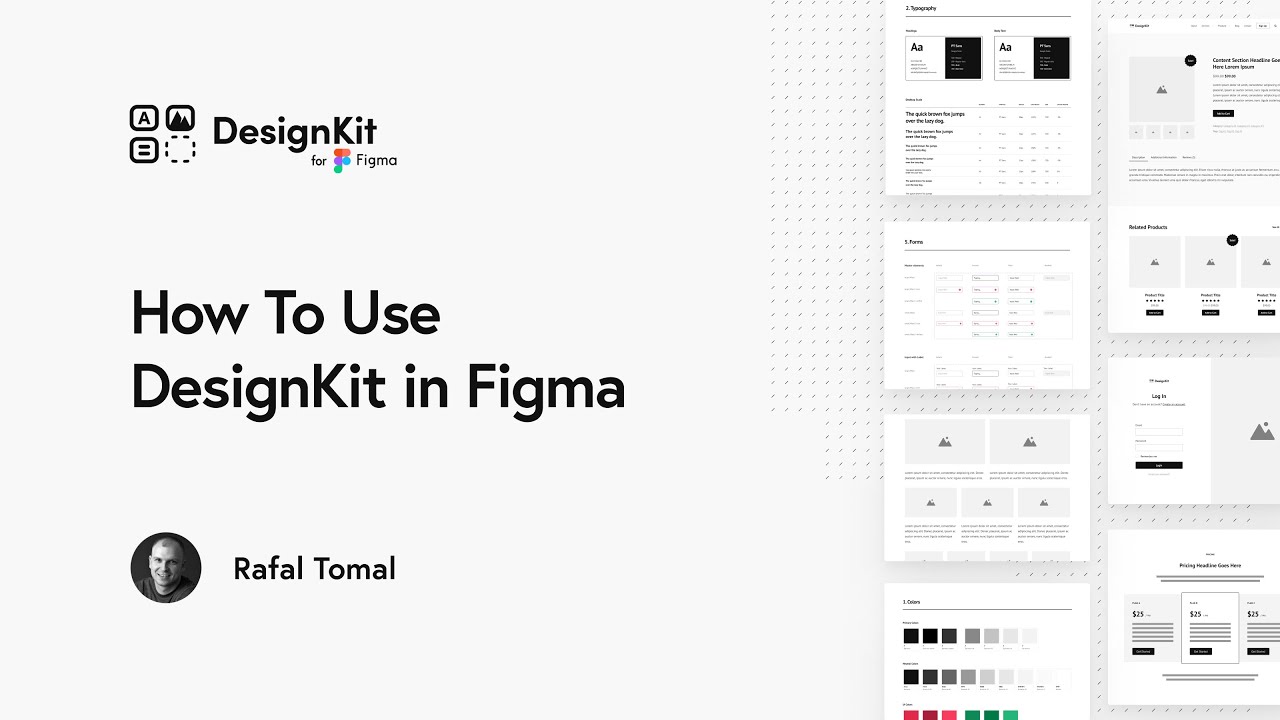
DesignKit 1.1 - Figma Tutorial
## Metadata
- Author: [[YouTube]]
- Full Title: DesignKit 1.1 - Figma Tutorial
- Category: #articles
- Document Note: ---
tags: [figma, design-kit, wireframing]
author: DesignKit Tutorial
source: YouTube
reference: https://www.youtube.com/watch?v=BCkKKSShks0
date created: 2024-12-19 11:30
---
# 🏷️ Title: DesignKit 1.1 - Figma Tutorial
## 🧰 Action Inbox
- [H1] Install DesignKit by dragging file into Figma drafts — 00:32 #installation
- [H2] Create wireframes using drag-and-drop sections — 06:42 #wireframing
- [H3] Convert wireframes to final mockups by duplicating file — 15:39 #design-process
## 🧭 Table of Contents
- [📝 Summary](#-summary)
- [📖 Main Content](#-main-content)
- [🗒️ Notes](#️-notes)
- [📚 References](#-references)
- [🗣️ Paraphrase](#️-paraphrase)
- [📰 Newsletter](#-newsletter)
- [✅ Action Items](#-action-items)
- [🧪 Hypotheses](#-hypotheses)
- [📊 Methodology](#-methodology)
- [❓ Questions](#-questions)
- [🔮 Future Research](#-future-research)
- [💡 Implications](#-implications)
- [🧠 Learning Styles Assessment](#-learning-styles-assessment)
- [📊 Accessibility Assessment](#-accessibility-assessment)
- [🌍 DEIB Assessment](#-deib-assessment)
- [✅ Logical Validity](#-logical-validity)
- [🛡️ DARVO Analysis](#-darvo-analysis)
- [🎯 Conclusion](#-conclusion)
### 🔗 References
- [DesignKit 1.1 Tutorial](https://www.youtube.com/watch?v=BCkKKSShks0)
- [Figma Documentation](https://help.figma.com/)
## 📝 Summary
- Tutorial demonstrates how to install and use DesignKit 1.1 in Figma for creating wireframes and mockups
- Shows complete workflow from installation through wireframing to final design execution
- Covers component system, style guide management, and WordPress block integration
- Emphasizes efficiency through reusable components and global style updates
- Provides systematic approach to converting wireframes into polished designs
## 📖 Main Content
DesignKit 1.1 is a comprehensive Figma resource that streamlines the design process from wireframing to final mockups. The tutorial covers installation via drag-and-drop into Figma drafts, followed by exploration of the kit's six main pages: instructions, samples, style guide, modules, WordPress blocks, sections, mockups, and trash.
The workflow emphasizes component-based design where users can drag and drop pre-built sections to create wireframes quickly. Each component includes variants for different layouts and can be customized through Figma's auto layout system. The kit supports both traditional web design and WordPress-specific block layouts.
A key feature is the global style system - changes to colors and typography in the style guide automatically update across all components and pages. The tutorial recommends duplicating the file when transitioning from wireframes to mockups to preserve the original wireframe structure while allowing design iteration.
## 🗒️ Notes
#### ⏱️ [00:32](https://www.youtube.com/watch?v=BCkKKSShks0&t=32) — [H1] Installation Process
- Key idea: Install by dragging file directly into Figma drafts folder
- Evidence: "Drag your file and drop it into drafts in your figma app"
#### ⏱️ [01:15](https://www.youtube.com/watch?v=BCkKKSShks0&t=75) — [H2] File Structure Overview
- Key idea: Six main pages organize different aspects of the design system
- Evidence: "How to use, samples, style guide, modules, wordpress blogs, sections"
#### ⏱️ [02:30](https://www.youtube.com/watch?v=BCkKKSShks0&t=150) — [H2] Sample Designs Available
- Key idea: Pre-built examples demonstrate possible layouts and applications
- Evidence: "Sample personal page mockups wireframes simple product pages portfolio podcast blog"
#### ⏱️ [03:45](https://www.youtube.com/watch?v=BCkKKSShks0&t=225) — [H2] Style Guide Components
- Key idea: Centralized system for colors, typography, and UI elements
- Evidence: "Color styles text styles brand assets buttons form input fields and other ui elements"
#### ⏱️ [04:20](https://www.youtube.com/watch?v=BCkKKSShks0&t=260) — [H2] WordPress Block Integration
- Key idea: Specialized components match WordPress Gutenberg blocks
- Evidence: "Common wordpress blog elements that can be used in editor like headings paragraphs columns"
#### ⏱️ [05:15](https://www.youtube.com/watch?v=BCkKKSShks0&t=315) — [H2] Categorized Sections Library
- Key idea: Sections organized by function for efficient page building
- Evidence: "Headers and footers, landing page sections, content sections, forms, e-commerce sections"
#### ⏱️ [06:42](https://www.youtube.com/watch?v=BCkKKSShks0&t=402) — [H1] Creating First Wireframe
- Key idea: Drag and drop sections from assets panel to build pages
- Evidence: "I can drag it and drop right in here and you can see my header is right here"
#### ⏱️ [08:30](https://www.youtube.com/watch?v=BCkKKSShks0&t=510) — [H2] Component Variants System
- Key idea: Each section offers multiple layout options through variants
- Evidence: "You can change the number of columns from two to three small or three large"
#### ⏱️ [09:45](https://www.youtube.com/watch?v=BCkKKSShks0&t=585) — [H2] Component Customization
- Key idea: Detach instances to make advanced modifications to sections
- Evidence: "Command option b you will release that from being a part of a component"
#### ⏱️ [11:20](https://www.youtube.com/watch?v=BCkKKSShks0&t=680) — [H2] Auto Layout Benefits
- Key idea: Figma's auto layout enables easy spacing and orientation changes
- Evidence: "All the layers are using auto layout so that's super easy to modify spacing"
#### ⏱️ [13:15](https://www.youtube.com/watch?v=BCkKKSShks0&t=795) — [H2] Color Customization
- Key idea: Section colors can be changed directly in the properties panel
- Evidence: "You can choose the fill color and change it to any color you want"
#### ⏱️ [15:39](https://www.youtube.com/watch?v=BCkKKSShks0&t=939) — [H1] Wireframe to Mockup Workflow
- Key idea: Duplicate file to preserve wireframes while creating final designs
- Evidence: "I go back to my projects and duplicate that file first and call the duplicated file wireframes"
#### ⏱️ [16:45](https://www.youtube.com/watch?v=BCkKKSShks0&t=1005) — [H1] Global Style Updates
- Key idea: Style guide changes automatically propagate to all components
- Evidence: "Everything you change here will affect globally all the sections all the modules"
#### ⏱️ [18:30](https://www.youtube.com/watch?v=BCkKKSShks0&t=1110) — [H2] Typography System Management
- Key idea: Text styles can be globally updated through the style guide
- Evidence: "You can click edit style icon and change this font to merryweather"
#### ⏱️ [20:15](https://www.youtube.com/watch?v=BCkKKSShks0&t=1215) — [H3] Batch Style Updates
- Key idea: Plugins like Batch Styler enable bulk typography changes
- Evidence: "Select multiple text styles at once and change the font and click update styles"
## 📚 References
- [DesignKit 1.1 Figma Tutorial](https://www.youtube.com/watch?v=BCkKKSShks0)
- [Figma Auto Layout Documentation](https://help.figma.com/hc/en-us/articles/360040451373)
- [Figma Components Guide](https://help.figma.com/hc/en-us/articles/360038662654)
## 🗣️ Paraphrase
- DesignKit 1.1 provides a structured approach to Figma-based design workflows through pre-built components and systematic organization
- The tool bridges wireframing and final design phases by offering both rapid prototyping capabilities and detailed customization options
- Global style management ensures design consistency while allowing for easy theme and brand modifications across entire projects
## 📰 Newsletter
**Streamline Your Design Workflow with DesignKit 1.1**
Looking to accelerate your design process from wireframes to final mockups? DesignKit 1.1 offers a comprehensive Figma solution that combines rapid prototyping with systematic design management.
The kit's component-based approach lets you drag and drop pre-built sections to create wireframes in minutes, while the global style system ensures consistency across your entire project. Whether you're designing traditional websites or WordPress-specific layouts, the organized library of headers, content sections, and e-commerce components has you covered.
**Key Benefits:**
- Rapid wireframing through drag-and-drop sections
- Global style updates that cascade across all components
- WordPress Gutenberg block compatibility
- Systematic workflow from wireframes to final designs
Perfect for design teams looking to standardize their process while maintaining creative flexibility.
Resources: [Figma Help Center](https://help.figma.com/), [Design Systems Guide](https://www.figma.com/resources/learn-design-systems/), [Component Best Practices](https://help.figma.com/hc/en-us/articles/360038662654)
## ✅ Action Items
#### DevRel
- Developer advocacy: Create tutorial content demonstrating DesignKit integration with development workflows
- Education: Develop workshops on design-to-development handoff using component systems
- Developer experience: Document component naming conventions and export specifications
- Developer marketing: Showcase design system efficiency in development timelines
- Community management: Gather feedback on designer-developer collaboration pain points
#### OSPO
- Policy & Governance: Establish guidelines for design asset licensing and distribution
- License Compliance: Review DesignKit licensing terms for enterprise use
- Software Inventory: Catalog design system dependencies and versioning
- Developer Support: Provide training on design system implementation
- Community Engagement: Support open source design system initiatives
- Strategic Alignment: Align design system KPIs with development velocity metrics
#### Community
- Maintainers: Create governance templates for design system maintenance
- Contributors: Establish contribution guidelines for design component libraries
- Sponsors: Develop transparent budgets for design system tooling
- Ecosystem: Coordinate cross-team design system adoption
#### WordPress
- Core: Integrate design components with WordPress admin interface standards
- Core Performance: Optimize design system for WordPress loading performance
- Core AI: Develop AI-assisted design component generation for WordPress
- Community: Create meetup kits for design system workshops
- Training: Develop learning paths for WordPress design workflows
- Design: Audit existing WordPress components against DesignKit patterns
- Documentation: Update design documentation with component usage examples
- Themes: Review theme requirements against design system capabilities
- Plugins: Establish design standards for plugin interfaces
## 🧪 Hypotheses
- Component-based design systems reduce wireframing time by 60% compared to custom creation
- Global style management decreases design iteration cycles and improves consistency metrics
- WordPress-specific design components improve designer-developer handoff efficiency
- Systematic design workflows correlate with higher client satisfaction and project success rates
### 📊 Methodology
- Time-tracking study comparing DesignKit workflows to traditional design processes
- Survey analysis of designer satisfaction and efficiency metrics
- A/B testing of design handoff quality with and without component systems
- Case study analysis of project timelines using systematic design approaches
### ❓ Questions
- How does component-based design impact creative exploration versus efficiency?
- What metrics best measure the ROI of design system implementation?
- How can design systems better integrate with development deployment workflows?
### 🔮 Future Research
- AI integration opportunities for automated design component generation
- Cross-platform compatibility for design system components
- Integration patterns between design systems and headless CMS architectures
### 💡 Implications
- Practice: Shifts design work from creation to curation and customization of components
- Policy: Requires new governance models for design asset management and versioning
- Security: Design systems need secure distribution and version control mechanisms
- Education: Training programs must adapt to component-based design methodologies
- Funding: Investment in design systems infrastructure becomes critical for team efficiency
### 🧠 Learning Styles Assessment
Reading level estimate: 8th Grade (Flesch-Kincaid)
#### 👀 Visual learners
- Present: Screen recordings, component previews, before/after comparisons
- Improve: Workflow diagrams, component relationship maps, visual process flowcharts
#### 🔊 Aural learners
- Present: Video tutorial with clear narration and step-by-step instructions
- Improve: Audio-only version for accessibility, podcast format discussion
#### 🗣️ Verbal learners
- Present: Clear terminology definitions, analogies to traditional design processes
- Improve: Glossary of terms, comparison charts with familiar concepts
#### 🧩 Kinesthetic learners
- Present: Hands-on tutorial with actionable steps, drag-and-drop interactions
- Improve: Practice exercises, downloadable starter templates, interactive challenges
#### 🧠 Logical learners
- Present: Systematic workflow progression, categorized component organization
- Improve: Decision trees for component selection, efficiency metrics, time comparisons
#### 🧑🤝🧑 Social learners
- Present: Tutorial format suitable for team sharing and discussion
- Improve: Collaboration exercises, team review checklists, peer feedback templates
#### 🧘♀️ Solitary learners
- Present: Self-paced video tutorial with pause-friendly segments
- Improve: Written companion guide, self-assessment questions, reflection prompts
#### 🌿 Naturalistic learners
- Present: Organic workflow that builds from simple to complex concepts
- Improve: Real-world project examples, ecosystem thinking about design systems
### 📊 Accessibility Assessment
#### Screen reader semantics
- Present: Video has spoken narration describing visual actions
- Improve: Detailed alt text for UI elements, structured heading navigation
#### Keyboard navigation
- Present: Figma interface supports keyboard navigation
- Improve: Document keyboard shortcuts, provide navigation alternatives
#### Contrast and readability
- Present: High contrast in Figma interface demonstrations
- Improve: Verify all color examples meet WCAG standards, provide contrast ratios
#### Text resizing and reflow
- Present: Video content scalable across devices
- Improve: Responsive tutorial layout, text-based alternatives
#### Media and captions
- Present: Audio narration available throughout video
- Improve: Closed captions, downloadable transcript, chapter markers
#### Forms and interactions
- Present: Clear demonstration of interactive elements
- Improve: Alternative interaction methods, error handling examples
### 🌍 DEIB Assessment
#### Cultural breadth
- Present: English language tutorial with universal design principles
- Improve: Multi-language versions, culturally diverse design examples
#### Inclusive language
- Present: Gender-neutral language, technical terms explained
- Improve: Plain language summaries, avoid design jargon assumptions
#### Neurodiversity support
- Present: Structured presentation, consistent pacing
- Improve: Chapter breaks, summary sections, reduced cognitive load
#### Representation
- Present: Focus on technical content rather than human representation
- Improve: Diverse example content, inclusive imagery in design samples
#### Psychological safety
- Present: Encouraging tone, beginner-friendly approach
- Improve: Explicitly welcome different skill levels, provide multiple learning paths
### ✅ Logical Validity
#### Strong reasoning
- Deductive strength: Strong - premises about component efficiency lead logically to workflow benefits
- Inductive strength: Moderate - examples support general claims about design system value
- Causal reasoning: Strong - clear cause-effect relationships between tool features and outcomes
- Analogical strength: Moderate - comparisons to traditional design methods are relevant
#### Fallacies
- False dichotomy: Implies choice between slow custom design an
- Document Tags: [[design]] [[wireframing]] [[installation]]
- Summary: DesignKit 1.1 - Figma Tutorial
- URL: https://www.youtube.com/watch?v=BCkKKSShks0
hey everyone in this tutorial i'm going to show you how to install design kit and how to use it to create your own wireframes and then turn them into final design mockups so let's get started first thing you want to do is to install design kit in your figma so all you have to do is to drag your file and drop it into drafts in your figma app so this is going to import the file it's going to take a while and then
after it's imported you click done and you can open up the file now let me give you a quick um tour what you can find in this design kit figma file so the first thing you will see is how to use design kit instructions so here is a it's a summary of everything i would tell you in this video tutorial but you
can come back here at any time and find some quick tips and shortcuts on uh how to add some of those sections into your file into your mac backup pages how to change uh layers how to change the variants and how to update the star guide so this is the first page how to and as you can see there are more pages here so the second page is samples here you'll find some sample designs i
created so you can look at them you can see how they are created and you can see they are all made out of sections all made out of elements that are you can find in design kit so there are some sample personal page mockups wireframes simple product pages portfolio podcast blog and e-commerce pages then um the next page is style guide so this is where you can find
all those basic elements like color styles text styles brand assets buttons form input fields and other ui elements like tables accordion tabs menus and other next we have modules here you can find all the basic elements that the main sections are made of like images placeholder content titles features some content columns
black posts and many others so you can use them to even create your own sections now next let's see uh wordpress blogs this is where you can find all the common wordpress blog elements that can be used in editor like headings paragraphs columns media gallery and cover blocks and you can use them to design your own page markups that are made of those blocks you can also style them so developers know how those blogs should be styled and
designed in the final wordpress theme now let's see sections so here we can find all the main page sections that you can use to build your own wireframes and page markups and those page sections are categorized by the type so here you can find headers and footers here we have some landing page sections that can be used to build home pages service pages and any other custom pages then we have more content sections like
blog posts podcast episodes and faqs um here you can find some forms like contact forms login forms registration forms you can use modify and customize to your own needs then finally we have e-commerce sections like product archive pages single product pages cards and even checkout and the last page you can find in this file is mockups
this is where you can start creating your own wireframes and pages that are just blank templates placeholder templates ready for for you to start placing here on the sections i will show in a moment how all of that works uh just all you need to know at this point is those are empty pages with a grid so when you press ctrl g you can turn off the grid and you can see this is a 12 columns grid layout
and a mobile markup has a three column grid layout the final page in the file is trash this is where i usually put all those unused mock-ups unused ideas but i don't want to delete them completely even though you have you always have access to your previous steps in figma by looking to version history it's still nice to have it like i mean there are some mock-ups that you didn't use put them you can copy and put them in here and trash and you can always have
access to them at any point while you are working on new concepts all right so now let me show you how to start putting together your first page markup page wireframe so i'm going to uh to my mock-ups page this is where i have my blank template ready for me now i can go to assets in the left-hand sidebar and here you can see all the sections all the star guide elements that you can use to build your pages
so i'm going to choose the header first so i can click here and see all different header options so i'm going to choose the header left in the beginning so i can drag it and drop right in here and you can see my header is right here now you can choose another section let's say i'm going to choose content this content on the side with image on the on the other side and this content with the sender image you don't have to
worry about the orientation because you can change that later using variations so i'm going to choose this content on the side and image on the right side i'm going to drag it and drop right here on the lower side of this first element so when i release the button on my mouse another element will drop right after the first one and you can see the page extends automatically when you add more sections so i can add some features sections here
as well now let me add some maybe call to action here and some testimonials slider and we'll end that with the footer i'm gonna choose this footer all right so that's how easy it was to put together your first uh page wireframe just by dragging and dropping all those sections here now let me show you how to work with
those sections here on the page so the first thing you can go back to layers you can see you have all of your sections as separate components and now you can click on any of those sections and use arrows to change the order so you can move up and down you want to change you can also change the style of the the variance of the sections when you click on a section you can see here in the right hand sidebar some of the sections have some
variations so like the features one you can change the number of columns from two to three small with a small icon or three large with a larger image or you can change to four columns so that gives you two rows or four columns uh same for like this content section you can change layout from right to left so so if you duplicate this content section and you want to change now orientation
you can just change this one to right and now you have like left right uh layout now if you want to make some more advanced changes to your sections let's say i want to remove the second row of items so first you need to unlock this uh section from being a a component so you can see it's in this purple color because it's a component so when you press command option b you will release that from that from being a part of a component
you can also right click on a section and click detach instance and i will detach that instance with a component for the master component so now i can fully edit this section here so i'm going to double click here this is my grid double click again this is my columns row and i can by pressing delete i can delete that one on the row of columns you want to add you can
duplicate that columns layer you can add as many rows as you need and as you can see all the layers are using uh of the layout in figma so that's super easy to modify spacing and change the order so let's say i want to change the spacing between those features all you have to do is click here on the layer and now in auto layout settings you can change the 60 pixels
spacing between items you can change it to let's say uh 20 pixels or you can expand it to more so that depends on how you want to lay this out you can also change orientation like here is the horizontal order and you can change that to vertical direction so let's say i'm going to create a mobile version of this section in my future steps you can just click here
on this section here on the columns and change the direction to vertical and now all of your features are in a vertical vertical direction automatically and it all works the same way on different sections like let's say i want to change the spacing of this big section here and so i can click here on the layer and here on the layout if you see this new auto layout version available message is because figma has recently
updated of the layout feature so you can just click update button it won't break anything and it will change those settings the new version so now as you can see i have some options here you want to change the spacing the top and bottom spacing here at the top you can click this icon here and now you can see this 160 pixels top 160 pixels at the bottom i can change that to let's say i'm going to turn it to 120
and 120 here and i'll reduce the spacing uh the vertical spacing in that section you can also change the spacing here on the left and right but right now it's uh it matches your this 145 pixels is the spacing from the margin of the page uh to the content area even like let's say make this full width page for some reason you can change it to zero here and here and now the whole content inside this
section will expand from side to side now as you can see in some of those sections there are placeholder content instead of real text if you want to change that and bring the real text instead of having those lines in place you can um just go and double click on the text make sure you have selected the frame uh the layer uh you want to change and you will see here in the options that some of them have placeholder
uh check uh check button so you can uncheck this one and we'll bring the real text in here and you can do the same for let's say for our features you want to bring the real text in the future i've selected my feature layer and check text placeholder now let me show you how easy it is to change some colors in the sections so i'm going to turn off the grid for
now and let's say i want to make this call to action more prominent so it's actually contrasting um in the side so you can click on the section here in the right right hand side bar you can choose the fill color and change it to any color you want so i'm going to change that to let's say black and as you can see the whole section is black now and now we can change the color inside and i'm going to change the text to
[Music] i'm using my uh color from my color palette the predefined colors so i'm going to use white here and the highlighting color white as well and that's all you need to do to change the colors here you want to change the button color you can also change the selections here to white now you can see it change the text color so i can change that to black and this is what you can do for every
section let's say i want to take change the footer to make this light gray you can quickly change that as well and my hero section i can change that to light gray and now let me show you how to work with some of the wordpress blocks sections so i can create now a page template using just the wordpress blocks and i'm going to leave this mobile
backup from here and so i can duplicate the my homepage layout and i'm going to remove some of those sections from here so i will adjust the header footer and my page title and now you can go back to wordpress blogs page and i'm going to copy this whole entry content element and i can go back to mockups and paste it here so that's that could be my page where i have my page title here i can reduce the spacing so it's more
it looks more like page title and here i can use any uh blocks that and put together a page that can be easily recreated uh using wordpress gutenberg so i can remove some of those uh sections from here but these are like default uh sections that every page every wordpress site needs to have and when you go to assets you can go to your forward blocks components if you need to
add any of those elements same like with the sections you can just drag it and drop it on the page and it will add the component inside and you can see the component already has some spacing top and bottom so we'll foot anywhere and you can using arrows you can move it around you can also drag it and drop it wherever you need it to there are also some other options here like this cover
element has layout the center full width and when you click the full width you also need to uh center it in the middle so to change this one to the middle now you can also change to wide so so it's always in the middle of the page and you can also resize it change the size of it and we'll uh match the page if you want to make this layout full width you can also click
here on the entry content element and change the spacing from 335 to 145 same like it was on our sections uh right and left and now you can see it matches our content area perfectly now let's say you have finished your wireframes and they are approved and you're ready to move and create some page markups some final page design mockups so what i usually do
is i go back to my projects and i'll duplicate that file first and i'll call the duplicated file wireframes and the new one is going to be my mockups so that way you can always save your wireframes and just in case you need to go back to
them and whatever you do in your markups when you start changing your style guide typography colors you want to affect the wireframes the original wireframes you created so now you can open up the new file design kit with mockups and now you can style start editing your style guide so the style guide is based on the color styles and text styles so everything you change here will affect globally all the sections all the modules all the
page markups you created so let's say i'm going to change the primary color so right now my primary color is blue so you want to change that you need to click by holding command to select that blue layer and now you can go here into primary default in the right hand sidebar click edit and your properties you can change the color from blue to any other color you you want so let's
say i'm going to make that uh green so you can see the difference in the markup now if you go back to your markups you will see that all the buttons that have primary color assigned now are green and in the sections you will see that all the sections whenever there was a primary color aside now you will see green everywhere so it's that simple you don't have to go back and edit section by section it's all automatically updated now let's say
i'm going to it's saying work same with natural neutral colors so you're going to change the black to something um let's say it's going to be more like a so there's a little purple uh shade in here so you can change your black to that one uh and i will change this color as well so you can see the difference and make it a little lighter now if you go back to your mock-ups you will see that
everywhere the black color was used and you can check that here by seeing what colors when you select the layer and here in the right hand side you can see what color is used so that was the default color and you can see that it's all changed now to our new color scheme all right now let's change some typography as well and also as you may notice uh all those colors
i use here in a style guide so as i change my black to a purple dark purple my style guide has changed as well so you can see this dark purple here here so all of your style guide even matches the new colors now i will show you how to change the start the typography style guide so these are all of my default styles created already set up in in design kit
and you want to change this h1 style like you can by holding command you can select the text and now you can see the desktop h1 is assigned to this text you can click here edit style icon and i can change this font to let's say i'm going to change this to merryweather so you can see a difference so now there's a beautiful server font and you can change the font size you can change the line height height and you can see when you change that
this target automatically resizes so you have to manually adjust that so i'm going to make some changes here and i'll make some changes to h2 as well i'll change that one to merryweather and i will give it some more line height so it looks better and now when i go to mockups you can see that all the fonts i updated have changed to my new font my weather and you can also see
that in sections so you can so all the sections have updated as well now if you want to quickly change all the textiles so you don't have to do this one by one you can use a plugin called batch styler so this will help you to select multiple text styles at once and you can change the font
and click update styles which will quickly change the font for all those text styles once you are done with your changes to that style guide all you have to do is go back here and update all that information both the font sizes line height letter spacing as well as color hex codes don't those don't automatically update you have to go back and edit them next we have some brand assets so that your
your logo is also saved as a component you can replace that image inside the logo default and i will that will replace the logo in all the headers whatever that component is used then we have some buttons so buttons work the same way those are the compo master components so if you change make some changes to the first element it will affect other elements as well so let's say i want to change the spacing of the button here
so you can click on the primary large and i'm going here to auto layout and change this alignment um say i'm going to make this button much bigger so i'll change the 35 at the top 35 from the bottom you can see the button expanded here and i will change this this spacing as well i'll make this even 50 and 50.
and now we can see all those buttons have automatically updated changed even my secondary buttons because those are way too big so they expanded here but when you go to mockups you also see that my primary buttons have changed here as well so and those layouts are using auto layout so they automatically resize to match so whatever the size of your button is it will always match here
now let's see the forms input field elements so you can also edit and change them you want you can change the font you can change the spacing and that will that will automatically update across all of those uh sections and mockups all right i think that's all you need to know at this point and you can play around in design kit start using those components start using those sections and create even create your own variations and see
how it all works and let me know if you have any more questions you can always email me and i'll be happy to help, DesignKit 1.1 - Figma Tutorial, YouTube, 01ka7hh7yp0gxqxz9ebb8sy08f.