Everything New in Obsidian! October 2025
## Metadata
- Author: [[Linking Your Thinking with Nick Milo]]
- Full Title: Everything New in Obsidian! October 2025
- Category: #articles
- Document Note: ---
tags: [obsidian, knowledge-management, product-update]
author: [Linking Your Thinking with Nick Milo]
source: [YouTube]
reference: [https://www.youtube.com/watch?v=v3phAgaFs2M]
date created: {{date:YYYY-MM-DD}} {{time:HH:mm}}
---
# 🏷️ Title: Everything New in Obsidian! October 2025 (Groups, Summaries, List View)
## 🧰 Action Inbox
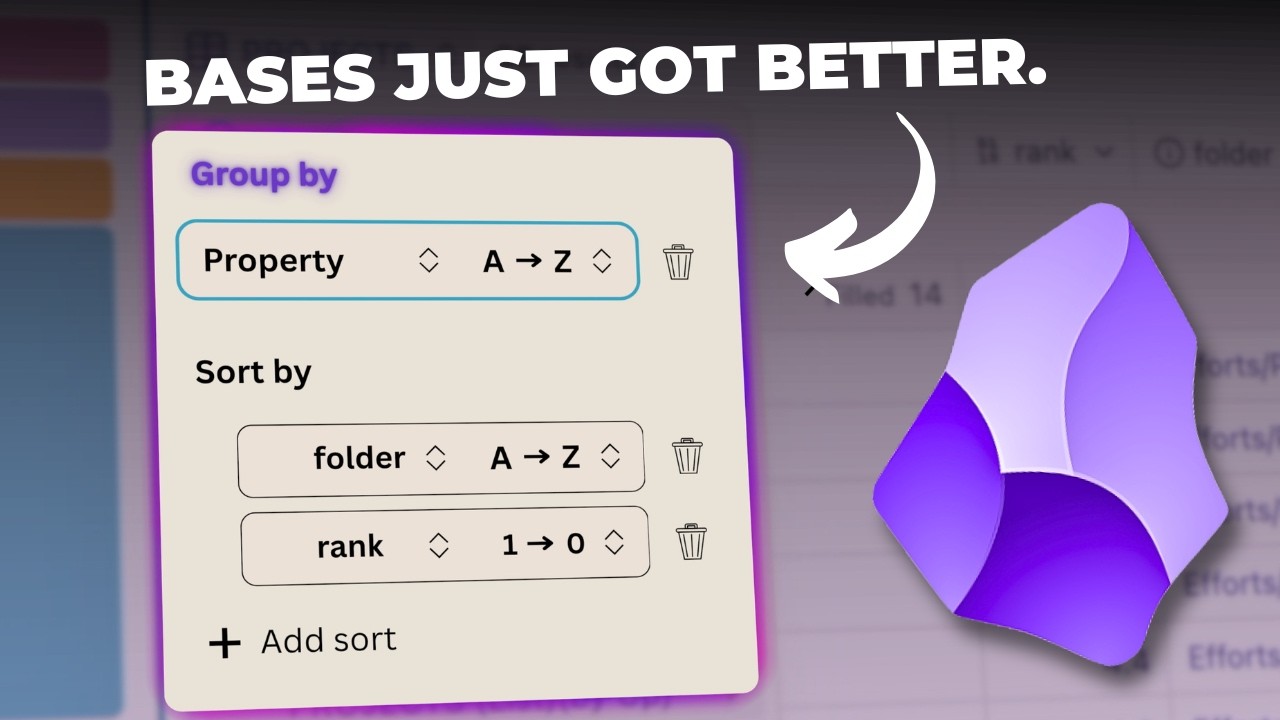
- [H1] Draft short explainer on Bases “Group by” — video/00:02 (https://www.youtube.com/watch?v=v3phAgaFs2M&t=2) #articleseed
- [H2] Add “Summaries” examples to docs repo — video/01:29 (https://www.youtube.com/watch?v=v3phAgaFs2M&t=89) #xref
- [H3] Ship a demo vault with List view presets — video/05:52 (https://www.youtube.com/watch?v=v3phAgaFs2M&t=352) #articleseed
- [H4] Record GIF showing per-group stats in Bases — video/02:57 (https://www.youtube.com/watch?v=v3phAgaFs2M&t=177) #share
- [H5] Template “duplicate and pin views” workflow — video/04:32 (https://www.youtube.com/watch?v=v3phAgaFs2M&t=272) #xref
- [H6] Create “file links” quick audit checklist — video/07:12 (https://www.youtube.com/watch?v=v3phAgaFs2M&t=432) #articleseed
- [H7] Compare Obsidian vs Notion grouping behavior — changelog (https://obsidian.md/changelog/2025-10-01-desktop-v1.10.0/) #addendum
- [H8] Share release notes with The WPCC maintainers — roadmap (https://obsidian.md/roadmap/) #share
## 🧭 Table of Contents
- [📝 Summary](#-summary)
- [📖 Main Content](#-main-content)
- [🗒️ Notes](#️-notes)
- [📚 References](#-references)
- [🗣️ Paraphrase](#️-paraphrase)
- [📰 Newsletter](#-newsletter)
- [✅ Action Items](#-action-items)
- [🧪 Hypotheses](#-hypotheses)
- [📊 Methodology](#-methodology)
- [❓ Questions](#-questions)
- [🔮 Future Research](#-future-research)
- [💡 Implications](#-implications)
- [🧠 Learning Styles Assessment](#-learning-styles-assessment)
- [📊 Accessibility Assessment](#-accessibility-assessment)
- [🌍 DEIB Assessment](#-deib-assessment)
- [✅ Logical Validity](#-logical-validity)
- [🛡️ DARVO Analysis](#-darvo-analysis)
- [🎯 Conclusion](#-conclusion)
### 🔗 References
- Obsidian v1.10.0 changelog: Group by, Summaries, List view. (https://obsidian.md/changelog/2025-10-01-desktop-v1.10.0/) :contentReference[oaicite:0]{index=0}
- Obsidian roadmap: Bases grouping and new view types. (https://obsidian.md/roadmap/) :contentReference[oaicite:1]{index=1}
- Obsidian October 2025 announcement. (https://obsidian.md/blog/2025-obsidian-october/) :contentReference[oaicite:2]{index=2}
- Video: Everything New in Obsidian! October 2025. (https://www.youtube.com/watch?v=v3phAgaFs2M)
- Community roundup noting features and Bases API. (https://www.pkmweekly.com/p/pkm-weekly-2025-10-04) :contentReference[oaicite:3]{index=3}
## 📝 Summary
- Obsidian adds Group by, Summaries, and List view in Bases. :contentReference[oaicite:4]{index=4}
- The video demonstrates practical use across projects and folders.
- Creators can save custom views for repeatable analysis.
- Risks include misconfigured properties and noisy file links.
- Bottom line: the update improves triage, planning, and context. :contentReference[oaicite:5]{index=5}
## 📖 Main Content
- Group by organizes records by any property in Bases. It streamlines scanning. :contentReference[oaicite:6]{index=6}
- Summaries compute stats per column and per group. Options include mean and median. :contentReference[oaicite:7]{index=7}
- List view renders files as bullets or numbers. It supports nested properties. :contentReference[oaicite:8]{index=8}
- The presenter shows saving a filtered, grouped “by folder” view. That reduces confusion.
- File links in List view reveal related notes quickly. Use them, but prune noise.
- Obsidian confirms more view types on the roadmap. Expect kanban and API-driven views. :contentReference[oaicite:9]{index=9}
- Community posts reinforce the feature set and early API changes. :contentReference[oaicite:10]{index=10}
- Uncertainties: exact release date for more views and plugin APIs. Timelines may slip. :contentReference[oaicite:11]{index=11}
### 🗒️ Notes
#### ⏱️ [00:02](https://www.youtube.com/watch?v=v3phAgaFs2M&t=2) Overview and scope
- [H1] Obsidian adds Bases “Group by”.
> [!quote] [Everything New in Obsidian! October 2025](https://www.youtube.com/watch?v=v3phAgaFs2M) by [[Linking Your Thinking with Nick Milo]] via [[YouTube]]. Published [MISSING]. Accessed {{date:YYYY-MM-DD}}.
> “By the time you watch this, you'll likely have access to the new features.”
- Context: Introduces Bases improvements and focus on projects base.
#### ⏱️ [01:29](https://www.youtube.com/watch?v=v3phAgaFs2M&t=89) Summaries
- [H2] Table summaries compute quick statistics.
> [!quote] [Everything New in Obsidian! October 2025](https://www.youtube.com/watch?v=v3phAgaFs2M)
> “If I rightclick on rank, you'll see a new summarize field.”
- Explanation: Choose mean, median, count, or unique. Matches changelog. :contentReference[oaicite:12]{index=12}
#### ⏱️ [02:57](https://www.youtube.com/watch?v=v3phAgaFs2M&t=177) Group by + summaries
- [H3] Per-group summaries aid triage.
> [!quote] [Everything New in Obsidian! October 2025](https://www.youtube.com/watch?v=v3phAgaFs2M)
> “That's where we can hit sort and then group by.”
- Note: Groups show local counts and table totals. Verified in notes. :contentReference[oaicite:13]{index=13}
#### ⏱️ [04:32](https://www.youtube.com/watch?v=v3phAgaFs2M&t=272) Saving views
- [H4] Duplicate and save custom views.
> [!quote] [Everything New in Obsidian! October 2025](https://www.youtube.com/watch?v=v3phAgaFs2M)
> “Click on the three dots and duplicate the view.”
- Use: Pin “By folder” or “Nested list” as presets.
#### ⏱️ [05:52](https://www.youtube.com/watch?v=v3phAgaFs2M&t=352) List view
- [H5] List view shows bullet or numbered items.
> [!quote] [Everything New in Obsidian! October 2025](https://www.youtube.com/watch?v=v3phAgaFs2M)
> “Now, there's a new list view.”
- Benefit: Faster project audit with minimal columns. Matches changelog. :contentReference[oaicite:14]{index=14}
#### ⏱️ [07:12](https://www.youtube.com/watch?v=v3phAgaFs2M&t=432) File links property
- [H6] File links surface related context.
> [!quote] [Everything New in Obsidian! October 2025](https://www.youtube.com/watch?v=v3phAgaFs2M)
> “Under properties we have displaying file links.”
- Caution: Turn off if noise overwhelms signal.
#### ⏱️ [08:37](https://www.youtube.com/watch?v=v3phAgaFs2M&t=517) Nested list pattern
- [H7] Nested lists expose critical properties neatly.
> [!quote] [Everything New in Obsidian! October 2025](https://www.youtube.com/watch?v=v3phAgaFs2M)
> “Each project is on its own bulleted line.”
- Use: Indent rank, folder, and “up” links beneath.
#### ⏱️ [10:09](https://www.youtube.com/watch?v=v3phAgaFs2M&t=609) Recap
- [H8] Release centers on three core features.
> [!quote] [Everything New in Obsidian! October 2025](https://www.youtube.com/watch?v=v3phAgaFs2M)
> “This new release has three features that you should be really aware of.”
- Cross-check with changelog and roadmap. :contentReference[oaicite:15]{index=15}
## 📚 References
- Obsidian changelog v1.10.0 — Bases updates. (https://obsidian.md/changelog/2025-10-01-desktop-v1.10.0/) :contentReference[oaicite:16]{index=16}
- Obsidian roadmap — grouping and view types. (https://obsidian.md/roadmap/) :contentReference[oaicite:17]{index=17}
- Obsidian October 2025 — community push. (https://obsidian.md/blog/2025-obsidian-october/) :contentReference[oaicite:18]{index=18}
- PKM Weekly summary referencing features. (https://www.pkmweekly.com/p/pkm-weekly-2025-10-04) :contentReference[oaicite:19]{index=19}
- Video: Everything New in Obsidian! October 2025. (https://www.youtube.com/watch?v=v3phAgaFs2M)
## 🗣️ Paraphrase
- The update adds grouping, column summaries, and a list rendering mode for Bases. The video demonstrates practical setups using projects.
- Saved views reduce friction. List view and file links give context fast. The official changelog and roadmap confirm the changes. :contentReference[oaicite:20]{index=20}
## 📰 Newsletter
- Obsidian’s Bases grew stronger this month. Group by, Summaries, and List view improve triage and planning. :contentReference[oaicite:21]{index=21}
- Try grouping by folder for
- Summary: Get the extended cut (22 minute deep-dive): https://youtu.be/RBvaL5NEoPE
#obsidian just got better.
This video is part of a new series where I walk you through the latest Obsidian updates and releases! In this video we are going over the 1.10.0 update is a game changer you don't want to miss out on. It's currently available for Catalyst Obsidian subscribers, and will be available to everyone very soon!
Be sure to check out our membership to get access to all of our extended cuts!
Get the extended cut (22 minute deep-dive): https://youtu.be/RBvaL5NEoPE
See all updates here: https://obsidian.md/roadmap/
Setup the Soft Paper theme: https://www.youtube.com/watch?v=lUZjpIhYOEw
Obsidian Bases Update Video: https://www.youtube.com/watch?v=9Yt52zJIIG0
Obsidian Bases Deep Dive: https://www.youtube.com/watch?v=VMMCGohQkm4
00:00 - Whats New?
00:52 - Summaries
02:45 - Groups
06:19 - List View
09:25 - Organization Tips
10:49 - Bases Deep Dive
🌌 GET IDEAVERSE OBSIDIAN TEMPLATE: https://www.linkingyourthinking.com/join/ideaverse-lite?utm_source=youtube&utm_medium=social&utm_campaign=whats_new_in_obsidian
🚀 GET OBSIDIAN FLIGHT SCHOOL:
https://www.linkingyourthinking.com/obsidian-flight-school?utm_source=youtube&utm_medium=social&utm_campaign=whats_new_in_obsidian
🏛️ JOIN THE MOST EPIC WORKSHOP:
https://www.linkingyourthinking.com/workshop?utm_source=youtube&utm_medium=social&utm_campaign=whats_new_in_obsidian
📚 LEARN "HOW TO WORK A BOOK"
https://www.linkingyourthinking.com/how-to-work-a-book?utm_source=youtube&utm_medium=social&utm_campaign=whats_new_in_obsidian
🔆 GET WEEKLY INSIGHTS:
https://www.linkingyourthinking.com/newsletter/yt?utm_source=youtube&utm_medium=social&utm_campaign=whats_new_in_obsidian
💥 SUBSCRIBE TO THIS CHANNEL: https://www.youtube.com/channel/UC85D7ERwhke7wVqskV_DZUA?sub_confirmation=1
🐦 TWEET: https://twitter.com/NickMilo
📖 READ: https://medium.com/@nickmilo22/my-pkm-story-3763985b7a3e
🎬 LEARN OBSIDIAN: https://youtu.be/QgbLb6QCK88
🗿 DOWNLOAD...
- URL: https://www.youtube.com/watch?v=v3phAgaFs2M
By the time you watch this, you'll likely have access to the new features I'm covering in this video, which is mainly about Obsidian bases. As you know, in the couple previous videos, I've covered bases in depth. Today is just about what's new. Three big things. The group by feature where we can group our data by a given property. And I'll show you three examples in three different bases here. The next we have adding table summaries. I'll show you what that looks like. It's pretty cool. And then also a new view. So instead of just table or cards, we now have list
view. Let's explore when we might actually want to use that. A random but nice change is that we can now toggle the theme with a single hotkey. So the theme that I have on here is called soft paper. It's based off of the Anna Puchin theme and there'll be a link to it over here if you want to explore it more. There are two other really important things that I'll cover near the end of this video. But let's get into it. So let's begin with the project's base. So what is happening in this space to begin with? Just so you know, we're filtering out everything unless it's part of this
folder structure of efforts and projects. And we can see that over here. So efforts, projects, and then I have some active projects, simmering, and sleeping projects. So that's what we're seeing over in this base. It looks like there are 98 of these projects. What we're going to do now though is explore the new features. So, one thing that you might have noticed already is at the bottom there are the summaries. So, if I rightclick on rank, you'll see a new summarize field. Now, each different
type of property in Obsidian will give you different options. Since this is a number field, we can average out all the different ranks. We can have a number for the empty fields. We can have a number for all the fields that are filled out. the max, the median, the min, the range, standard deviation, sum, or if they have just how many unique values do we have? Nothing's really standing out to me as something that I'd find useful other than maybe filled. And now we can see at the bottom
we have filled 64. Now I can look at it over here and then just change whatever the active summary is. So that works for all these different columns including it looks like the file name column, but here it's just you have empty, filled, and unique. I could choose filled and that just gives me the tally of all 98 projects. What's interesting is once we apply a group by feature and we have table summaries, we get something pretty cool. Every group has its own summary right here. So we can see that there are 14 filled. But if we go to the bottom of
this column, we can see for the entire table there are 64 filled. So that's a pretty great one-two punch between the group by feature and the table summaries feature. It's really clear to me why Obsidian grouped those two features together in the same release. What if I want to group all of my projects by their folder? You can see that I tend to be using four projects, a folder structure, whether a project is active, whether it's simmering, it's like in the back of my mind, it's kind of just on
the back stove, it's just boiling just a little bit, or it's sleeping. So, what if I just want to view things this way? That's where we can hit sort and then group by. and we can choose a bunch of different properties. In this case, let's see what happens when I click folder. This is pretty cool. So now we get a sense that I can just scroll through these and immediately see what folder that they're actively a part of. I like the visual separation when we can use the group by feature. Immediately I
know that these are my active projects just by looking at them here. And I can see them in context to the simmering projects. Now we're getting at something pretty useful. Now before I did this, if I get rid of this group by, we just had a mess. Now this is not that useful. It's still useful in that I can organize by rank and see what I should be focusing on. But sometimes there's a simmering project that also has a high rank. So
that might get a little confusing. We can see a previous big project writing original works. It still has a rank of five, but it's in the simmering folder. That might confuse me. So this is just an area where if I add a little group by folder, now I'm getting higher quality results that make more sense in less time. Now you're looking at projects group by folder. How might you use the group by feature? I'm very curious. How might you group your information? Is it by something else? Is it by time, file
extension? What properties are you excited to group by or that you've already experimented in group by? Let us know in the comments. Let's learn from everybody. So, if you have an idea or something, I definitely want to hear about it in the comments. So, what I like to do though, if I find a good grouping or something, I want to save that and I don't want to rely on my memory that I can spin this back up in the future. So, let me go ahead and show you how you could then duplicate this as a view for the future. So, if you like this view and it's different than your standard view, you can go over to the views area, click on this right arrow,
and then what I'm going to do is click on the three dots and duplicate the view. And then I'll say something like um by folder. And it turns out I've already done this. So, I'll just add an extra parenthesis. And now, if we click, we can see we have the new by folder. Now, if you want to move these up and down, go to where the icon is at and then move it into the appropriate place. Or if you want to remove a view, which I want to do right now, I'm going to click that right
arrow, the three dots, and then delete that view. You can see I've also done a few different views right here, and we're about to walk through them all. So, we've already covered summarizing a little bit, and we've already covered grouping a little bit. I'm about to cover what the list views look like and when I found them to be useful so far. For this video, we're just going to stick with my projects base, but if you join our membership, which is a new experiment that we're trying, that's where we'll have the extended cut of
this video. And I'm going to go over all of my notes and how I might organize them. And you'll see I have a few things built out for us to look through. And then also when there are notes that I want to garden, usually it's I want to plant or link them to other notes. I want to cultivate them and we'll go through a few different views in the extended cut. So, moving forward, let's check out the new list view. Now, I have a few I'm about to show you, but let's pretend we're starting from scratch. So, again, what I want to do is click on view, the right arrow, and then change
the layout. And we used to only have table and cards. Now, there's a new list view. And I would not be surprised if there are a few more views on the way shortly. But for now, let's click on list view and see what happens. Oh, wow. Okay. So, this is interesting. Let's unpack what's happening here. It looks like each project is on its own bulleted line. I'm still sorting by folder, which it it'd be a lot messier if I wasn't sorting by folder. So, if I stop sorting by folder, then we just have these bullets and where is this all coming
from? So, let's unpack this together. But, let's go ahead and put the folder group by back in so we can just kind of focus on the active projects. And so what's happening is under properties we have displaying file links. It's showing the files that are linked to the existing file. So if we remove that, we'll notice it's going to clean up the list dramatically. This looks more manageable. It's making a bit more sense. In each bullet is a project and then it's currently commaepparated with
different bits of information. So if we look at finances in the fall 2025, comma, it's a rank of 4.8, comma, it's in this folder, comma, and if you look at the one above, it points up to this bigger area of effort. And do we have anything else? And if there are other related notes, so if we look at ideaverse pro 2.5, it points up to this area of effort called ideaverse, it's also related to this other project. I hope that makes sense as we're going
through it. One thing that we can do now is play around with the different markers. Currently, we're on bullet, but we could also choose a numbered list. So, now I could say to myself, I have what looks like 14 active projects. Is that too many? I'd like to get it down under 10. I'm not going to force myself to, though, if I just want to keep a few things nearby. But really, if I just want to keep a few things in the back of my mind, maybe they need to go into simmering. So, as I'm looking at taxes 2025, that's probably actually doesn't
need to be an active project for me right now. It's something I'd put in simmering. Looking at things this way, it's easy for me to understand that and then make the move. So, how am I using the list? Well, let's go back into the views and look at projects list and it says nested. This is something I haven't showed you yet. Now, we can see that each project is on its own bulleted line and the important properties are now indented below. So, that's pretty useful. And in fact, it's so useful that in this view, I turned back on file links. Remember file links? They were really messy with our initial views when
we were trying the list view out. So I can turn that off. If I turn it back on, why this is kind of cool is because in any project, in this case, the linking or thinking workshop 16, I can see immediately the things that I'm already linking this project note to or that has linked to it. I think that's a pretty powerful thing just at a glance to soak up all that context regarding whatever project or effort you might be working on. One other view that I think is sort of cool is if you list projects by up.
So basically what I do in my notes is for every new note I have three property fields up related created. I explain why in different videos in different places but the up field is the most important. It's basically what is the thing that would just be above this particular note. And this is really valuable when you start to have multiple projects but above all those projects are the same area of effort. So a great example of this as I'm scrolling through is to look
at my idea verse area of effort. Now this just started out as a project but over time there was idea verse 1.0 there was idea verse 2.0 2.5 ideaverse 3 that's coming up. So all these can then just point up to the same area of effort which is the idea verse. Now I get to see them all in context right here. So this is probably the most powerful list view that I've yet discovered when it comes to the project space. Okay. How are you going to use lists? Please let
me know. I'm very curious. Type in that comment the description what's going on here. I will definitely try it out and then if it's really amazing, I'd love to share it with everybody over here as well. We'll explore a few different list views in the garden base in the extended cut of this video for members only. If you're curious about watching that video, the link will be in the description below. So, in a nutshell, this new release has three features that you should be really aware of. One is the group by feature in bases, two are the table summaries, and three is the new list view. If you found this video valuable, please give it a like,
subscribe, thumbs up, comment below. It's all really appreciated and lets me know what's resonating with you in these videos. Should I do more of these videos, these what's new videos in Obsidian? It's really up to you. And if you want more of that lovely bases action, rest assured I have two huge videos on bases already. We'll link to one right here. And until next time, stay connected., Everything New in Obsidian! October 2025, Linking Your Thinking with Nick Milo, 01k8bxpsj5c6fdcsxaqvt5sst7.