Full OpenClaw Setup Tutorial: Step-by-Step Walkthrough
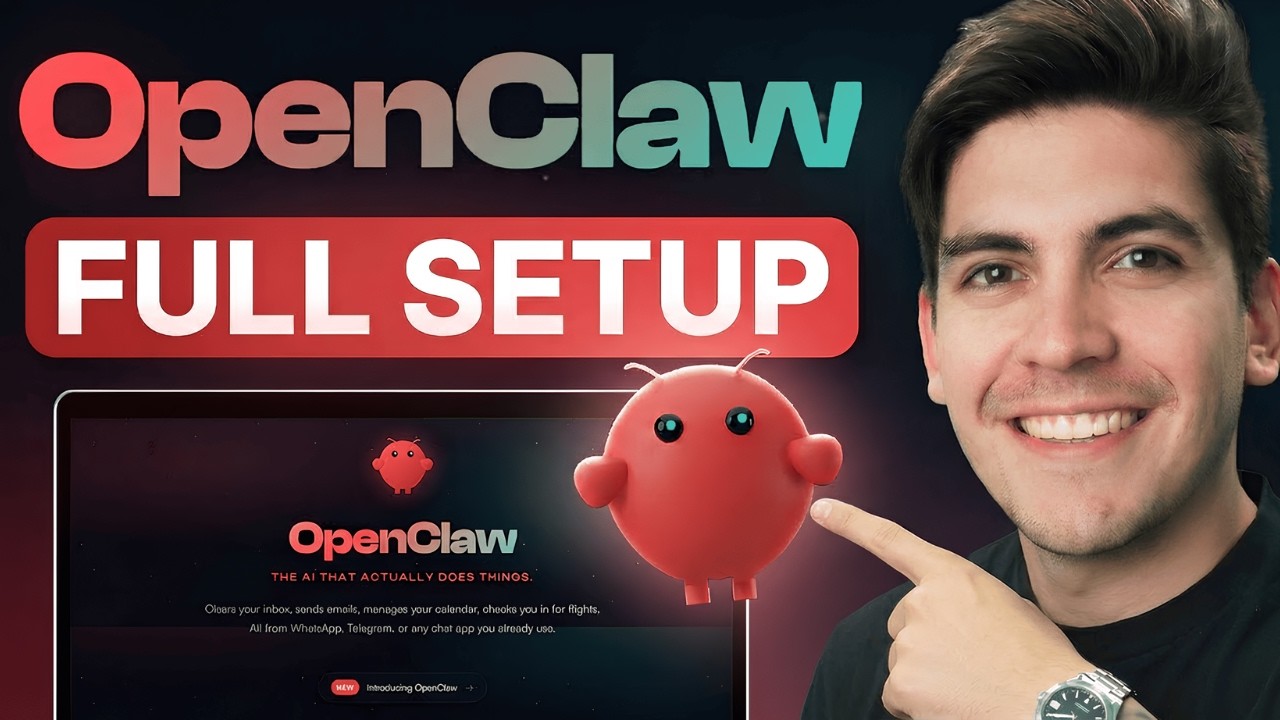
What's up party people? Today in this video, I'll walk you through how to deploy OpenClaw on a VPS step by step. Running OpenClaw on a VPS is simple and safe. This allows you to work on OpenClaw and experiment with the bots without it affecting files or sensitive information on your computer. In this video, I'll walk you through step by step on how to select a VPS. Next, I'll walk you through how to deploy OpenClaw using a one-click deployer. Plus, I'll show you some of the best preset configuration options in order to make OpenClaw work for you. So, let's get started and set up our VPS. Now, there
is a link in the video description. This will take you directly to Hostinger's website to purchase a VPS to deploy OpenClaw. So, once you click on that link in the video description, it'll take you to Hostinger's website in order to install Open Call. So, when you get to this page, you'll click on get started. Now, their plans and their pages typically change over time. So, you'll just want to make sure that you select the OpenClaw and then select an OpenClaw plan. Now, here we have two plans. We have the managed and we have the self-managed. I recommend selecting the managed. This will make it so you can deploy OpenClaw using their one-click deployer. So, under the manage
OpenClaw, you'll click on choose plan. The next page is the car page. Now, you want to adjust the period. So, on the period selection, you can select 1 month, 12 months, or 24 months. I recommend doing the 12 months. This will grant you a large discount. And there is also a 30-day money back guarantee for any reason whatsoever. Now, there's one box I want you to uncheck, and this is the readytouse AI. Now, me and my developers have used OpenCloud with many different models, and we've discovered that uh when you combine Nexus with other AIs, it typically conflicts. So, I do recommend to take that off. I'll
explain more about this later in the video. Now, on the right side, we have a coupon code. We have a discount code that will give you a discount on your OpenClaw hosting. If you enter the coupon code daryl 10 and click on apply, you'll get an additional 10% off any of the plans at Hostinger. So click on apply and then you'll see you'll just pay $100 for the entire year to run open call. So go ahead and click on continue. On the next page you'll register with Hostinger and make an account. So you'll put your email and a password and then you'll click on register. Now I already
have an account so I'll log in. On the next page you'll enter in your billing information. So you'll put in your first name, your last name and then your address. Then you'll click on continue. On the next section, you'll input your credit card info and then you'll submit a payment and then you'll be redirected to deploy OpenClaw. So, I'll put in my credit card information and then I'll submit the payment. Cool. On the next page, you'll click on get started. All right, cool. Now, on the next page, we're going to configure the API. Now, this right here is your OpenClaw API token. You can reveal this and then copy
and paste it somewhere safe. You can always access this later in the hosting or dashboard, so don't worry about it too much. Now, we do need to add an API key in order to configure OpenClaw. There's a variety of different APIs you can add. You can add anthropic open AI, which is chatgbt, and also Gemini. I'm going to add the Gemini API. So, I'm going to go to Google AI Studio. Now, this is the Google AI Studio. So, you'll go ahead and make a free account, and then you can access the Google Gemini API for free. Here on the bottom left, you'll see get API key. And here's a
list of APIs. Now, at the top right, I'll click on create API key. And then I'll give my API key a name. So I'll put open claw and then I'll click on create key. Okay. So here is my API. So on the right side I'll just click on copy API key and go back to hostinger and then I'll paste in the Gemini API key. Now another key you can add is anthropic and this is actually native to Claude. Now if you want to use the Claude API, all you got to do is go to claw.ai. Make
sure you make an account. Go to the bottom right. and under learn more you'll click on API console. This will bring you to the platform where you can now access the API. Now in order to get your API key here at the bottom you'll see API keys. You'll click on API keys and then just click on create key and for the key I'll put open claw click on add and then you'll copy this and then you can paste this over at hostinger. So under the anthropic API I'll just go
ahead and rightclick and paste it. You can also do this for open AI and X as well, but I'm not going to go through and add too many of these because obviously, you know, one is enough. So, once you add in your API key for any model you want to use, you'll scroll to the bottom and click on deploy. Okay, so as of right now, your VPS is being deployed. Now, this process might take about 5 minutes. Now, once your VPS is done setting up, to access OpenClaw, you'll click on open, and this is where you'll paste your OpenClaw gateway token. Now, in case you forgot it or you
misplaced it, you can always access it right here by clicking on gateway token, going back to OpenClaw, and then paste it. Then you'll click on login. And just like that, we're now logged into OpenClaw. Now, there are some instances where the actual server gets stuck. Let me go back over here to the Docker Manager really quick. Now, just in case you're at a loading screen where it was frozen, all you got to do is go to these three dots right here and click on restart and then try to relog in again. That is actually a common error that I've seen with hosting or servers. So
just note sometimes that happens. So now we're at open clause. Now the very first thing I want to show you all is first how to change your model. On the left side, let's click on agents. Here you'll have an overview of your agents. Now typically this is the model that OpenClaw is going to use. So right here under primary model, if we click on this, we can select a variety of models. Now just remember that you must have the API added in order to use this specific model. So for example, we use the uh Gemini model. So, I'm going to select the Gemini 3.1 and then click on save. Cool. Once
that's done, let's go back to the chat. And then we'll go ahead and type a message. And then we got a response. So now we know that the API is connected with OpenClaw. And here you'll get confirmation and it lets you know which exact model you're using when you're using OpenClaw. So as of right now, OpenClaw is now connected and ready to go. Now, if you're brand new to OpenClaw, there are some things that I want to just go over really quick. the left tab over here under agents. Again, this is where you can go ahead and switch between any model. I personally think Claude is really good when it
comes to more like developer type work. Gemini is okay for like I guess like the average person. Chat GBT I don't think is that great at all to be honest. And that is pretty much it on how to install OpenClaw. Next, let's set up Telegram so we can message our bot from any location. So here I'll type in let's set up Telegram. Now it's giving us instructions on how to set up BotFather. Now, real quick, depending on the AI model that you're using, you could get different responses. So, that's just something to consider. Now, I know I'm showing you the step-by-step video, but the AI may
respond different just because, you know, it's AI. So, I'll go ahead and open up my Telegram. So, this is the Bot Father user for Telegram, and this essentially is where you can create new bots. So, here I'll put new bot. Now, obviously, you can see I've made tons of bots before. Here, I'll go ahead and give my bot a name. Next, it'll ask us to create a username. name. So, I'll just put Daryl Wilson\_bot. Cool. So, now we have the API token. So, I'll go ahead and just copy this
and then let them know this is the API token. Okay, there's the API token. I'll go ahead and send this message. All right. Next, you'll see that Open Claw might have kicked you out. Now, this is a very common thing. You're going to see this a lot. This happens when OpenClaw configures your config file. Anytime OpenClaw adjusts your config file, it will close automatically. OpenClaw may fix that in the future, but that's how it is for right now. So, you'll have to
reopen OpenClaw. So, to do that, I'll just click on open and then we'll paste in our gateway token. Then, I'll click on login. Okay. So, once we come back, you'll see that uh it was successfully applied. And again, this happens because whenever there is a configuration change, uh OpenClaw will reset. So, let's go back to our Telegram bot. Next, it'll let us know it's not configured. Now, what I do recommend here is just to copy and paste this entire message and give it to OpenClaw. So, I'm going to copy this and then we're going to go back to OpenClaw and then we're just going to
tell it that this is the response. So, I put this is the response from Telegram and I just pasted that same message right here. So, I'll just go ahead and run this message and just like that, the bot is now connected. Now, in order to actually test this out, we're just going to write a message. So, I'll put hello and let's see if it responds to me. And just like that, the bot is now connected and we can send messages directly to OpenClaw from Telegram. So, at this point, OpenClaw is now set up
and ready to go. You have any questions, let me know in the comments below., Full OpenClaw Setup Tutorial: Step-by-Step Walkthrough, YouTube, 01kmv7hj2srv8yh95fj56dpv1c.