Getting Started With WordPress Studio
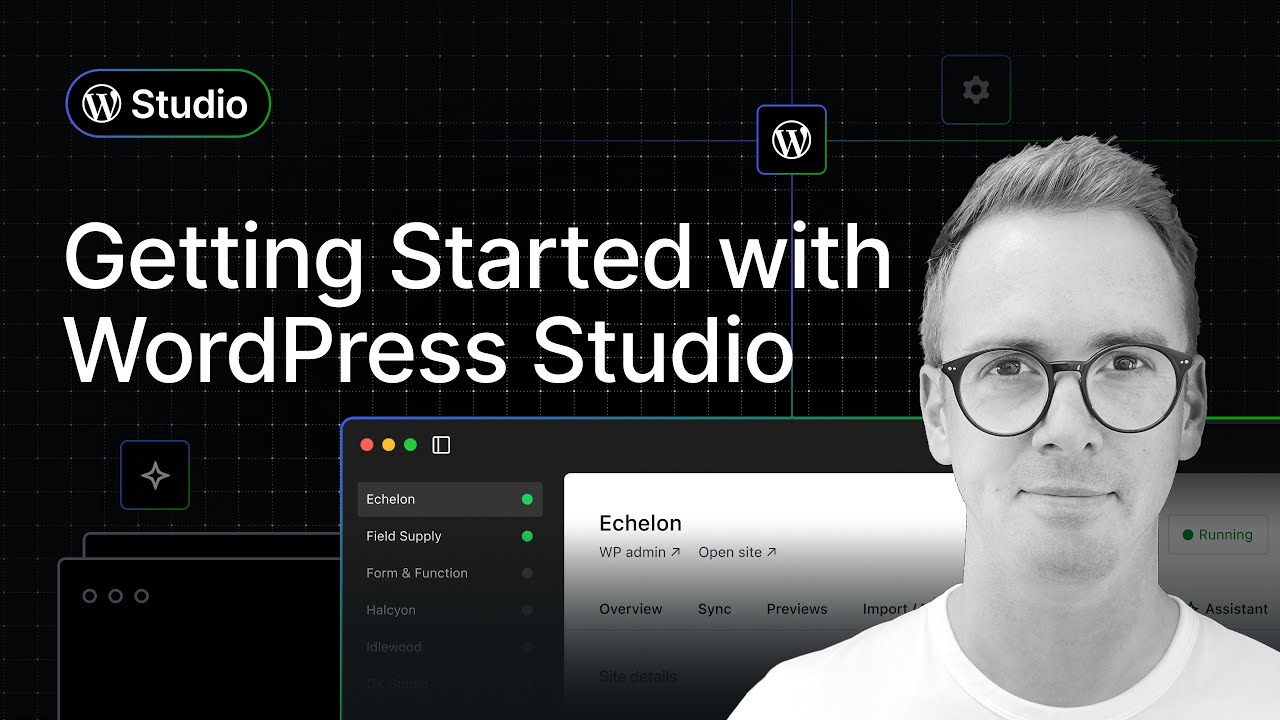
🔗 **Source:** [Getting Started With WordPress Studio](https://www.youtube.com/watch?v=wxBXWmo2oV0)
> [!note]+ Document Notes
> ---
> tags: [wordpress-studio, local-development, wordpress-tooling, webassembly, developer-tools, ai-assistant]
> author: Nick Diego
> source: WordPress.com
> reference: https://www.youtube.com/watch?v=wxBXWmo2oV0
> date created: {{date:YYYY-MM-DD}} {{time:HH:mm}}
> ---
> # 🏷️ Title: Getting Started with WordPress Studio
> ## 🧭 Table of Contents
> - [📝 Summary](#-summary)
> - [📖 Main Content](#-main-content)
> - [🗒️ Notes](#️-notes)
> - [📚 References](#-references)
> - [🗣️ Paraphrase](#️-paraphrase)
> - [📰 Newsletter](#-newsletter)
> - [✅ Action Items](#-action-items)
> - [🧪 Hypotheses](#-hypotheses)
> - [📊 Methodology](#-methodology)
> - [❓ Questions](#-questions)
> - [🔮 Future Research](#-future-research)
> - [💡 Implications](#-implications)
> - [🧠 Learning Styles Assessment](#-learning-styles-assessment)
> - [📊 Accessibility Assessment](#-accessibility-assessment)
> - [🌍 DEIB Assessment](#-deib-assessment)
> - [✅ Logical Validity](#-logical-validity)
> - [🛡️ DARVO Analysis](#-darvo-analysis)
> - [🎯 Conclusion](#-conclusion)
> ### 🔗 References
> - [WordPress Studio download](https://wordpress.studio)
> - [WordPress Studio GitHub repository](https://github.com/Automattic/studio)
> - WordPress.com and Pressable sync documentation (linked in video description)
> ## 📝 Summary
> - A product tour walks you through WordPress Studio, the free, open source local development app from WordPress.com, covering site creation, configuration, syncing, previews, and the built-in AI Assistant.
> - It matters because Studio lowers the barrier to spinning up local WordPress sites — no manual stack setup — and ties local work to staging/production on WordPress.com and Pressable.
> - Key stakeholders: plugin and theme developers, agencies maintaining client sites, WordPress.com and Pressable customers, and Automattic (the vendor).
> - Risks and tradeoffs: the most valuable sync feature is gated behind a WordPress.com Business or Commerce plan; preview sites expire after seven days; the AI Assistant caps at 200 prompts per month. Vendor framing presents paid tiers as natural upgrades.
> - Bottom line: Studio is a genuinely useful free local dev tool, with the strongest workflow features acting as a funnel into WordPress.com and Pressable paid hosting.
> ## 📖 Main Content
> - WordPress Studio is a free, open source desktop app for Mac and Windows that creates local WordPress sites built on WebAssembly (the same tech underpinning WordPress Playground), so sites spin up fast with no manual server, PHP, or database configuration.
> - The core, no-account workflow: open the app, click Add Site, pick a blank site (or a Blueprint "recipe," backup import, or pull from WordPress.com/Pressable), name it, optionally set local path, PHP version, WordPress version, or a custom domain, then create. The site runs on a localhost URL and you're auto-logged into WP Admin.
> - The Overview tab gives shortcut buttons to the Site Editor, Styles, and Navigation, plus "Open in…" buttons for Finder, terminal, and a code editor. The presenter wires these to Cursor and Terminal in Preferences.
> - Connecting a free WordPress.com account unlocks three add-ons: Studio Sync (pull/push between local and staging/production), shareable live Previews, and the Studio Assistant (AI).
> - Studio Sync only works with WordPress.com sites on a Business or Commerce plan; lower tiers see an upgrade prompt. Pressable sites need the Jetpack plugin activated and connected with the same WordPress.com account. You can pull or push everything, or drill into specific files and folders.
> - Previews need only a free WordPress.com account: up to 10 live preview sites at once, each expiring seven days after its last update, powered by WordPress.com, with credentials in the Settings tab. Updates are manual — you trigger them from an actions menu.
> - The Studio Assistant gives every logged-in account 200 prompts per month. It's positioned not to replace Cursor but to make changes directly to the Studio site, often by generating and running a WP-CLI command (the demo changes an admin display name).
> - Contested/uncertain framing: the video repeatedly says AI capabilities "will continue to evolve" and "get better over time," which sets expectations without committing to specifics. The open source claim is real (codebase on GitHub), but the headline workflows depend on Automattic's hosting products.
> ### 🗒️ Notes
> #### ⏱️ [00:00:00](https://www.youtube.com/watch?v=wxBXWmo2oV0?t=0) Intro — what Studio is
> - Nick introduces Studio as a free, open source app for local WordPress development, good for plugins, themes, and full sites.
> - Built on WebAssembly, described as fast and lightweight for modern workflows.
> - Roadmap for the video: create a site, configure it, sync WordPress.com/Pressable sites, create shareable previews, use the AI Assistant.
> #### ⏱️ [00:01:00](https://www.youtube.com/watch?v=wxBXWmo2oV0?t=60) Dashboard and creating a blank site
> - Mac and Windows supported; download at WordPress.studio with docs linked.
> - Left sidebar lists local sites; right panel is the site overview.
> - Add Site offers blank, Blueprint (a "recipe"), backup import, or pull from WordPress.com/Pressable. Demo names a fictitious site "The Captain's Cup."
> - Advanced settings: local path, PHP version, WordPress version (latest or beta), custom domain. Demo keeps defaults and disables custom domain → site runs on localhost, auto-login to WP Admin with the latest 2025 theme.
> #### ⏱️ [00:03:30](https://www.youtube.com/watch?v=wxBXWmo2oV0?t=210) Settings, Overview, and Preferences
> - Settings → Edit Site lets you change PHP/WordPress version or add a custom domain after creation.
> - Overview tab has shortcut buttons (Site Editor, Styles, Navigation) and "Open in…" Finder/Terminal/editor. Presenter uses Cursor + Terminal.
> - Gear icon → Preferences sets language, code editor, terminal app; mentions a Studio CLI (not covered).
> #### ⏱️ [00:06:00](https://www.youtube.com/watch?v=wxBXWmo2oV0?t=360) Account-gated features overview
> - Core features work with a fresh install, no account; full codebase is on GitHub.
> - A free WordPress.com account unlocks live shareable previews, sync to staging/production on WordPress.com or Pressable, and the AI Assistant.
> #### ⏱️ [00:06:40](https://www.youtube.com/watch?v=wxBXWmo2oV0?t=400) Studio Sync
> - Sync tab prompts WordPress.com login → Approve → Allow.
> - Connect site opens a modal listing available sites. Sync requires a Business or Commerce plan; lower tiers show an upgrade prompt.
> - Pressable sites need Jetpack activated and connected with the same WordPress.com account.
> - Pull or push everything, or select specific files/folders. Demo pulls a full production site into the local "The Captain's Cup."
> - Simpler path: Add Site → Pull an existing site does the connect-and-pull in one step.
> #### ⏱️ [00:10:30](https://www.youtube.com/watch?v=wxBXWmo2oV0?t=630) Previews
> - Needs only a free WordPress.com account. Up to 10 preview sites at once, across all Studio sites.
> - Sites expire seven days after last update; powered by WordPress.com under the hood.
> - Unique URL based on WordPress.com username (e.g., "ndiego…studio"). Login credentials in Settings tab.
> - Updates are manual — trigger from an actions menu; updating the local site is not the same as updating the preview.
> #### ⏱️ [00:13:30](https://www.youtube.com/watch?v=wxBXWmo2oV0?t=810) Studio Assistant (AI)
> - Every logged-in WordPress.com account gets 200 prompts per month.
> - Positioned to complement, not replace, Cursor; designed to make changes directly to the Studio site, create content, and answer WordPress questions.
> - Demo asks it to change the admin display name; it returns a WP-CLI command, runs it, reports success.
> - Feedback buttons help the team; capabilities "will continue to evolve."
> #### ⏱️ [00:15:00](https://www.youtube.com/watch?v=wxBXWmo2oV0?t=900) Wrap-up
> - Recap: local site setup, sync to production, live previews, built-in AI. Free and open source; GitHub link and WordPress.studio download in description. Like and subscribe call to action.
> ## 📚 References
> - [WordPress Studio](https://wordpress.studio) — official download and documentation
> - [Studio on GitHub](https://github.com/Automattic/studio) — full open s
Hi there, my name is Nick, and in this video we're going to do a deep dive into WordPress Studio, which is a free and open source application for local WordPress development. It's great for building plugins and themes and even entire WordPress websites. It's also fast and lightweight, built on cutting edge Web Assembly technology, and design specifically for modern development workflows. Now in the next few minutes, you're going to learn how to create a new local WordPress site using Studio, configure Studio based on your own development preferences.
Sync existing WordPress.com and Pressable sites to Studio so you can work on them locally. Create publicly accessible preview copies of your sites to share with colleagues and clients and learn how to use the AI Assistant in Studio. So let's dive in and check it out. Alright, let's go ahead and open the Studio application.
As you can see, I've already have it installed on my Mac Studio. Supports both Mac Os and Windows. If you want to follow along and don't have Studio installed yet, head on over to WordPress.studio to download it for your operating system. There's also links there to documentation.
I've dropped the link in the video description below. Alright, so this is the main dashboard. If you used other local development tools in the past, this layout should feel fairly familiar. On the left, you'll see any local sites that I have already created.
You can see I have one for my own personal site. And on the right you're going to see a site overview of whichever site you've selected. Again, this is my personal site. We'll explore this site overview panel a little bit later.
But for now, let's walk through creating a brand new local WordPress site. And to do that, you're going to head on over here and click on the Add Site button. This is going to open up a new panel and you have a bunch of options here. For this video, we're just going to focus on creating a blank site, but you also have the option to create a site from a Blueprint, which is like a recipe.
You can also import an existing backup site or pull a site from WordPress.com or Pressable. More information about these three options is available in the documentation. And we'll also talk about pulling sites from WordPress.com, Pressable later in this video. But for now, let's just click create site and you're going to be presented with an option to set the site name.
In this case, I'm going to call it The Captain's Cup. This is going to be a fictitious coffee shop that's on the seaside. And then you'll notice that we have a whole bunch of advanced settings here that you can toggle and configure based on your own needs. So for example, you could set the local path, you could also set the PHP version or the WordPress version.
We're just going to stick to latest. But you could also do beta releases. You can also set a custom domain. Now again, I'm just going to keep this simple.
So we'll disable custom domain, but this option's available if you'd like to use it. The next step is just click add site and your new site will start being created. And just like that, the new site is all set up and running. No complex configuration or anything like that.
Now you can start and stop a site at any time using this button up here or using the button in the sidebar here. Now let's head on over to the WP Admin and you're automatically logged in and you can see that we have a blank WordPress website running the latest 2025 theme. Notice the URL, it's going to be using the localhost, and this is because we did not set a custom domain. Now let's go back to Studio and you can see that our site is running.
Now, once your site has been created, you can always go back and adjust the settings. Maybe you want to choose a different WordPress version or PHP version. All you need to do is click on that Settings tab and then you can click on Edit Site and you can make the changes that you want. You could also even add a custom domain after the fact, but we'll stick with the options that we have and head on over to the Overview tab.
Here you'll find several buttons that allow you to quickly navigate to various areas of your site, such as the Site Editor, Styles, Navigation, that sort of thing. Let's try the Site Editor. And there we go. The fewer mouse clicks the better.
Now you also see a few buttons below for Open in... This makes it easy to open the site folder at either in your Finder or different the terminal application or your editor of choice. You can see that I have custom set this to Cursor and I also like to use the Terminal app on my machine. So if we click on Terminal for example, it's going to open up the Terminal and if we do ls, we can see all the files and folders on our site.
And then if we click on Cursor, it's going to open up Cursor, which is an AI powered code editing tool. Again, the one that I use all the time. Now you can configure these two buttons in the Studio settings. So if we come up here to the Gear icon, you're going to load up the Preferences.
And here you can set your language, but you also can set your code editor in terminal application. So here I have VS code and Cursor installed on my machine. So that's why I can select both of them. I'm going to stick with Cursor.
And again, the same with your terminal application. I just use Terminal. So that's what I have here. Now you'll see some other options here.
We have the Studio CLI, I'm not going to get into that in this video, but as the want to app continues to be developed, you'll find more preferences here. On the Accounts tab you can log in, we'll talk about this in a bit. Okay, so that was a quick overview of the core Studio features, the stuff you get right out of the box without needing a WordPress.com account. As I mentioned earlier, Studio is completely open source and you can grab the full codebase on GitHub and everything I just showed you is available as is with a fresh install.
That said, if you choose to connect a free WordPress.com account, and you might already have one if you're a WordPress.com customer, you'll unlock some powerful additional tools. These include live preview sites that you can share the ability to sync local sites to staging and production environments on WordPress.com or Pressable, And the AI Assistant built right into the app to help you code even faster. So let's take a look at those features. Alright, let's start with one of Studio's most powerful features, especially if you're a WordPress.com or Pressable customer.
And that's the Studio sync, which you'll find underneath the sync tab of each site. Since I'm not yet logged into my WordPress.com account, I'm going to be prompted to sign in, click Log in to WordPress.com. If you don't already have an account, you can create one for free using this link. And if you're a Pressable customer, you'll still want a WordPress.com account because that's what you'll use to connect your sites to Studio.
So let's go ahead and click Log in to WordPress.com. I'm going to be brought to this authorization page where I can click Approve and then click Allow. And now you can see that I am connected. The next step is to click Connect site.
A modal will open with all the sites that you have available to pull into Studio. So I have three here, The Captain's Cup, The Captain's Cup staging the staging site for that site. And then I have another one here. This was a test site and you'll notice that it asked me to upgrade the plan.
It's important to note that Studio Sync only works with WordPress.com sites on a Business or Commerce plan. If your site is on a lower tiered plan, you'll see an upgrade prompt like we see here with this test site. For Pressable sites, you just need to ensure that you have the Jetpack plugin activated and connected using the same WordPress.com account that you're using in Studio. Links to WordPress.com and Pressable documentation are available in the video description.
All right, let's go ahead. We're going to select the production site here and we're going to click Connect. But before I do it, one last thing. If you don't see any sites here, you can always create a new WordPress.com site using this link at the bottom.
Alright, let's click Connect. Now that the connection has been established, what I can do is I can pull down the entire production site into my local, The Captain's Cup. I can also push up changes, but for now, let's click pull. This will open up a modal where you have some options.
You can pull down everything, which is what we're going to do in this demo. But note that you can also choose specific files and folders so you can really drill down into what you want to pull down into Studio. And you have the same functionality whenever you're pushing content back up. This enables a lot of interesting workflows, especially for plugin and theme development and maintaining client sites.
Again, we're going to choose all in Click Pull. Depending on the size of your site, this process might take a little while. For the sake of the video, I'm going to speed things up and there we go. The pull is complete, and if we go to the site, we're going to see that it's no longer just a blank WordPress site.
And we have the content that was on our original production site. So now we can start working locally. Now we, before we move on to the next feature, I do want to show you that this workflow that we just did where we created a blank site and then we synced content in that is a perfectly viable workflow. But there's a simpler way to do this.
If you know that what you want to do is pull down an existing WordPress.com or Pressable site. So if we go back to the Add Site menu, you can click Pull an existing site, click this, and again, you can see the same options, but now you can see that The Captain's Cup is already connected to this specific site. I can now pull down The Captain's Cup stagin site if I want, or upgrade the plan for this test site. So I just wanted to show you that there's another way of doing this that's a little bit more straightforward depending on your workflow.
For now, let's move on to the next feature, which is Previews. This functionality allows you to create and share live copies of your Studio sites. And you don't need to be a WordPress.com or Pressable customer. To use this feature, you just need to have a free WordPress.com account.
As you can see here, you can have up to 10 free preview sites at any one time. Sites expire after seven days since their last update, and under the hood, they're powered by WordPress.com. They're an excellent way to share previews of the work that you're doing locally with colleagues or clients. So let's create one based on our The Captain's Cup, similar to Studio Sync, this process does take a little bit of time depending on the size of your site.
So I'm going to speed things up a bit. Alright, now that the site has been created, it will have a unique URL based on your WordPress.com username. Mine is "ndiego", so you can see that here. And it's going to be separated by some unique letters.
And then "studio", let's click the link and there's a live preview of The Captain's Cup and you can see it looks just like it did locally in Studio. This is a fully live site that you can log into using the credentials that are listed in the settings tab within Studio. So if you come over here to Settings, you'll see admin and then password. We can just copy and paste and then we'll go back to the preview site, paste in the password and login.
Again, these previews are deleted after seven days of the last update, but you can update sites as often as you like. So if you make changes locally, such as updating the design or changing a feature, just remember to update Anyone you share the link with will be able to see the changes live. So let's go back to Studio. To update a site, there's a little actions menu here.
All you need to do is click Update and this will trigger an update. It's not the same thing as simply updating the content of the site. You actually have to manually update your local preview site. And again, you can have up to 10 of these, and that's across all Studio sites.
So you can have 10 previous sites at any one time. Alright, the last feature that I want to show you is the Studio Assistant, which we can access using this tab here. Like most AI tools, the capabilities will continue to evolve over time, but let's take a look at how it works today. First, every WordPress.com account, that's logged into Studio, gets 200 prompts per month.
The assistant isn't meant to replace tools like Cursor or other AI-powered dev environments. Instead, it's designed to help you make changes directly to your Studio site. It also can do things like create content and provide information about WordPress. All right, let's do something simple.
I want to ask it to change the display name of the admin user to my own name, Nick Diego. Obviously, this is something that we could do from the settings, but it's just easier to get the AI to do it. And very often it's going to give you a WP-CLI command that it can run. So let's run this command, and now it says success.
So let's head on over to WP Admin and see if our name has changed. And sure enough, now it says Nick Diego. Now, there are a ton of ways that you can use the assistant, such as installing plugins, generating code, managing other aspects of your site. So it's worth experimenting with different prompts to see what it can do.
And as always, the tool will be continually getting better and more capable over time. If you do try it, please share your feedback using these buttons here. It helps the team immensely. So that's a full tour of WordPress Studio from setting up your first local site to syncing with production, to sharing live previews, and even using the built-in AI Assistant Whether you're building a theme, developing a plugin or managing client sites, Studio gives you a fast and flexible development environment that fits right into your own workflow.
And of course, it's completely free and open source. The link to the GitHub repository is included in the video description below. If you haven't tried out Studio yet, you can head on over to WordPress.Studio to download the app and start exploring. You'll also find links to the documentation.
As always, if you found this video helpful, we'd love it if you'd like and subscribe to the channel. Thanks so much for watching, and I'll see you in the next one., Getting Started With WordPress Studio, WordPress.com, 01kw2mf7sdqgag5ana4tkfg3yd.