How to Host WordPress on DigitalOcean

## Metadata
- Author: [[Create > Droplets]]
- Full Title: How to Host WordPress on DigitalOcean
- Category: #articles
- Summary: WordPress hosted on a DigitalOcean server is a great match because WordPress itself is one of the best CMSs out there and DigitalOcean provides an incredible cloud hosting solution. But insert Cloudways in the middle, and a great match turns into a match made in heaven.
- URL: https://www.cloudways.com/blog/host-wordpress-on-digitalocean/
WordPress hosted on a [DigitalOcean](https://www.cloudways.com/blog/what-is-digital-ocean/) server is already a great match; WordPress is one of the best CMSes out there, and DigitalOcean is known for being the industry’s best as well. But add [Cloudways](https://www.cloudways.com/en/digital-ocean-cloud-hosting.php) to the mix, and a great match turns into a match made in heaven.
So you’re in the right direction when you ask, ***“how to host WordPress on a DigitalOcean cloud server?”*** I will highlight exactly that in this piece: how to install WordPress on a [DigitalOcean Droplet](https://www.cloudways.com/blog/announcing-digitalocean-premium-droplets/) (native DO), and then how to install WordPress on a Cloudways managed DigitalOcean server.
Installing WordPress directly on a DigitalOcean Droplet is a very technical process. I will run various commands to install a LEMP (Linux, [NGINX](https://www.cloudways.com/blog/wordpress-nginx-with-apache/), MariaDB, PHP) stack and then a WordPress application.
However, in the second method, via [Cloudways](https://www.cloudways.com/en/), you can instantly deploy your server and install a WordPress application in a few clicks.
#### Why DigitalOcean?
Before heading to the installation process, though, it would serve you well to know why DigitalOcean is such a good choice for your WordPress hosting needs and how Cloudways can enhance that experience.
If you are a blogger, designer, or someone with mission-critical hosting requirements, you can’t put your faith in cheap and/or unreliable web hosting providers. You need to make sure that your hard work doesn’t go to waste and that you have the [best cloud hosting for WordPress](https://www.cloudways.com/en/wordpress-hosting.php) so you can grow limitlessly.
DigitalOcean is a cloud hosting provider headquartered in New York City with data centers across the globe. Its seamless connectivity allows users to deploy and scale multiple web applications without lag. DigitalOcean offers private virtual Linux OS-powered machines called ‘droplets.’
#### Pros & Cons of WordPress on DigitalOcean
As great as WordPress and DigitalOcean work together, whether you should directly host your WP site on DigitalOcean depends on your own requirements and technical prowess. Let’s take a look at the pros and cons of this:
| | |
| --- | --- |
| **Pros** | **Cons** |
| Affordable pricing | Complicated installation |
| Easy to set up, well-documented FAQ and tutorials | Pre-built server options only |
| User-friendly interface and management panel | Security-related technicalities |
| Reliable connectivity | |
| Multiple data center options | |
| Dependable and consistent uptime | |
DigitalOcean is one of the fastest-growing cloud infrastructure providers because it is affordable and gives WordPress users a chance to exercise their development muscles. However, managing a DO server can get a bit complicated for an inexperienced individual who lacks technical expertise.
#### Want to learn more about securing your WordPress website?
Learn how to manage the security of your WordPress website with the Cloudways webinar
##### Why Use DigitalOcean With Cloudways?
Cloud hosting is great, but it also demands setting up, managing, and securing your cloud servers. It’s great if you know how to do it, but if you lack the technical expertise required to set up a cloud infrastructure for your website, you’ll have to hire a managed service provider to do all the hard work for you.
Cloudways offers a managed cloud hosting solution that takes care of server management and ensures [faster WordPress hosting](https://www.cloudways.com/blog/fastest-wordpress-hosting/) on the cloud server. It offers one-click WordPress installation and many other useful [features](https://www.cloudways.com/en/features.php). You can leverage the power of cloud hosting without worrying about the technicalities of server configuration and security.
#### A Brief Look at the Types of DigitalOcean Droplets
DigitalOcean offers numerous types of droplets that you can choose based on your website’s needs. DO refers to virtual machines/cloud servers as droplets.
DigitalOcean offers five droplet plans, each designed for a specific purpose. So, before considering the best droplet for your WordPress site, it’s good to understand its purpose and primary function.
Following are the five Droplet types:
##### Basic Droplet
These droplets are specially designed for low to medium-workload websites. Their primary purpose is to service blogs and CMSes at a lower cost. WordPress doesn’t require high server resources compared to other enterprise applications, so you only need a performance-oriented stack on your basic DO droplet.
There are two versions of basic droplets, regular and premium, with slight differences in prices, performance, and hardware technology. We have already covered in detail the performance benchmarks of the regular and premium droplets in our [DO premium announcement post](https://www.cloudways.com/blog/announcing-digitalocean-premium-droplets/).
##### General Purpose Droplet
General Purpose droplets are referred to as balance (CPU and Memory) virtual machines that offer great computing power for standard workload applications like SaaS, medium-large scale companies, and more. These droplets are priced higher than the basic ones as they come with dedicated CPUs.
##### CPU Optimised Droplet
CPU-optimized droplets are a good fit for high-processing workloads like machine learning, CI/CD, and video encoding. These servers provide high computing power through many CPUs with low disk memory.
##### Memory Optimised Droplet
Unlike CPU-optimized droplets, memory-optimized machines focus more on the server memory than the number of CPUs. These servers are a good fit for large data processing and big databases.
##### Storage Optimised Droplet
Storage-optimized droplets use the latest memory technology, SSD (NVMe), which is much more advanced than the regular SSD. These servers are ideal solutions for big database applications and data warehouses.
Cloudways offers basic DO droplets (Regular and Premium) on a managed cloud platform with a performance-oriented stack, several security firewalls, and more to deliver a hassle-free WordPress hosting experience.
#### How to Install WordPress on a DigitalOcean Droplet
I will deploy the LEMP stack and install WordPress on a native DigitalOcean cloud server. Therefore, first, you need to sign up and create an account on DO – it’s a simple process where you’ll be required to verify your account by adding the credit card number.
##### Create and Launch DigitalOcean Droplet
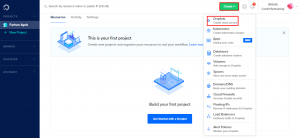
After signing up for the account, create a new droplet by clicking **Create > Droplets**.
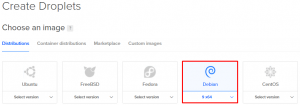
You can select and configure the server specs and other settings on the Create Droplets setup screen. The first section is the distribution selection. **Choose an image**. I will go with Debian 9. It’s the Linux OS flavor you will install on your server.
Next, choose a plan section, where I will go with **Basic**.

Next, in the process, choose the server specs for your DO droplet. For this tutorial, I’m selecting the lowest plan i.e., $5/month.
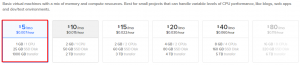
Then, leave the **Add block** storage section and **choose a data center region** for your DO droplet. It is always recommended to choose the location nearest to your target audience.

Next, leave the **VPC Network** and **Select additional options** sections. Click SSH keys under the **Authentication** section. If you already have an SSH key generated, you can choose that, or else you need to create a new one.
Here, I’ll create a new SSH key, and you will be required to PuTTY. (If you don’t already have it, download it from [download PuTTY](https://www.putty.org/)).
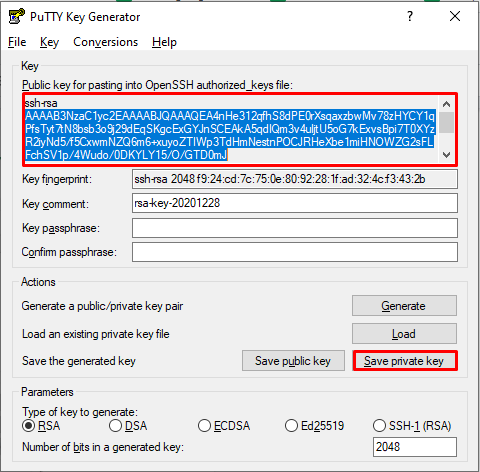
Now, open **PuTTYgen** and click **Generate** to create an SSH key.
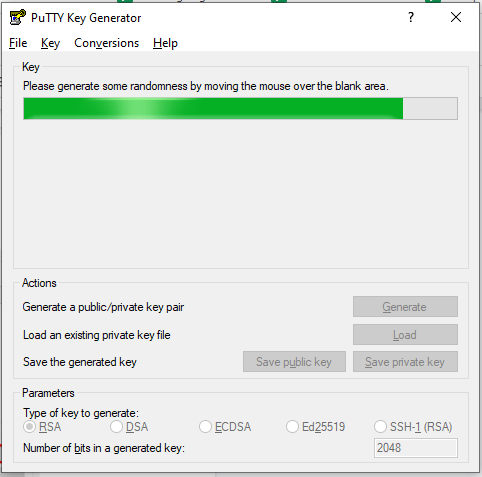
Copy the whole text from the public key section and click the **Save private key** to save your SSH key to your desktop.
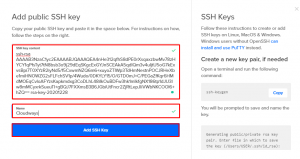
Next, return to your DO server setup and click **New SSH Key**. After that, paste the copied text to the SSH **key content** section, give it a name (I opted for Cloudways), and click **Add SSH Key**.
Next, choose a hostname for your droplet. I’m naming it FarhanWordPress.

Now, leave all the sections because the server setup is completed and all you need to do is **Create Droplet**.
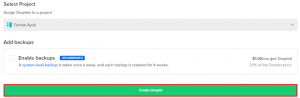
It will take a few minutes to create your new droplet.
##### **Deploy the LEMP STACK**
To deploy the LEMP stack. First, you need to open PuTTY and paste your server IP.
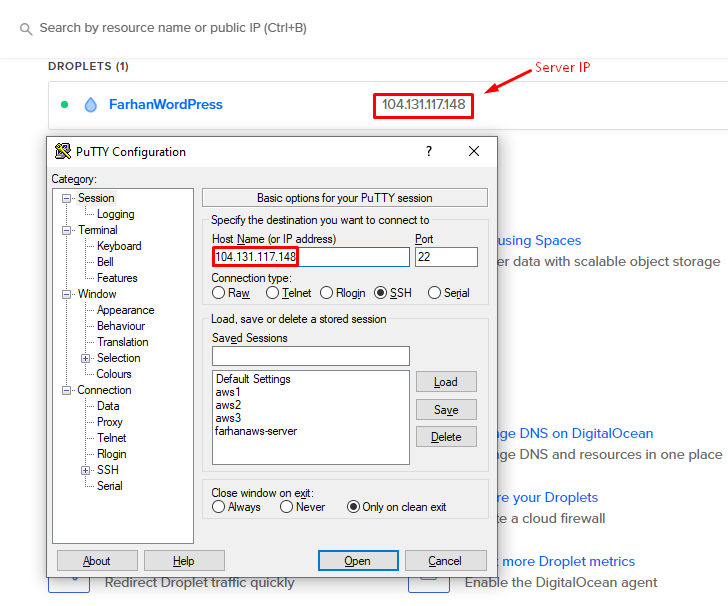
Next, navigate to **Connection > SSH > Auth, browse,** and select the **PPK file** you recently downloaded from **PuTTYgen**.
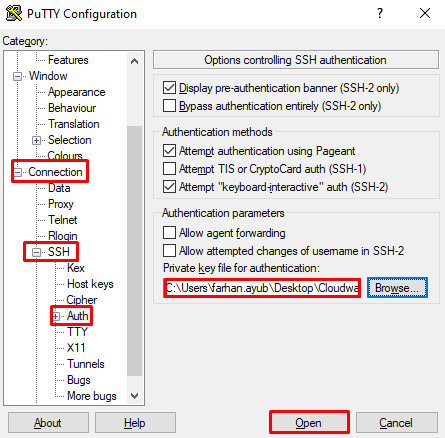
Click **Open** to access your newly created DO server and type root.
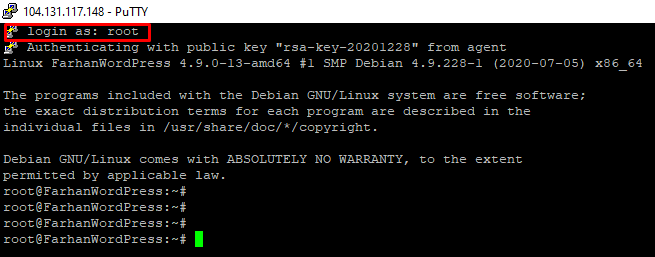
Run the following command to install the LEMP stack.
```
cd ..
```
Change directory.

```
apt update
```
Update the package lists.

```
apt install nginx
```
To install the NGINX web server.

```
apt install mariadb-server
```
To install the MariaDB database.

```
mysql_secure_installation
```
To secure your MariaDB installation
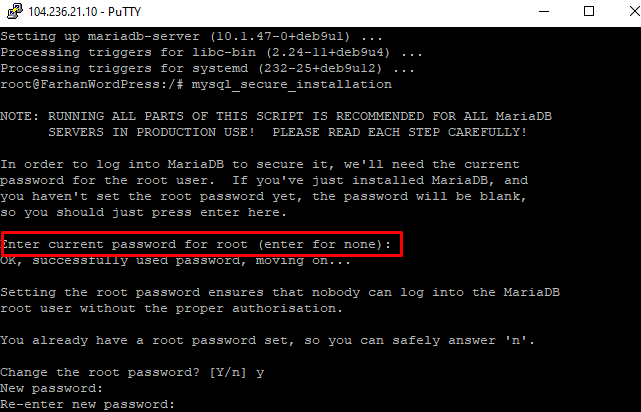
**Note:** At first, it will ask for the root password, and you just have to press “Enter” (there’s no root password by default.)
If you want to set the root password for your database, press “y” and simply update it.
```
apt install php-fpm php-mysql
```
To install PHP FPM and MySQL.

```
nano /etc/nginx/sites-available/default
```
To edit the default file.
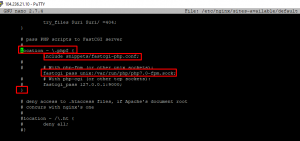
Then add index.php to that line as we are using PHP.
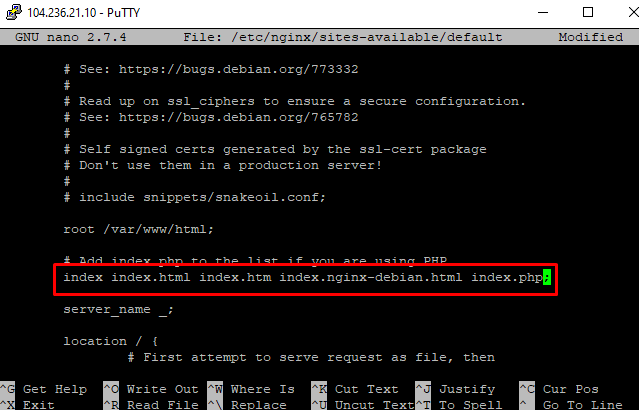
Uncomment the four lines by removing “#” as shown in the following image, and save the file by pressing “**ctrl + x**.”
```
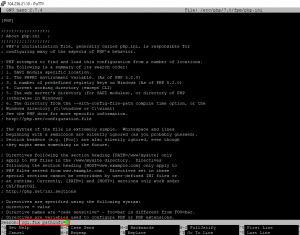
nano /etc/php/7.0/fpm/php.ini
```
To edit the php.ini file.

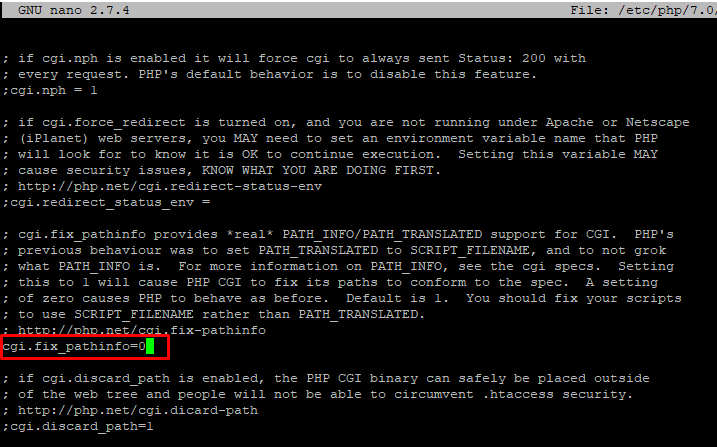
Then, press “ctrl+w” and paste “cgi.fix\_pathinfo=” with a right click.
Then, uncomment that line (by removing “;”) and set value “0” like this: cgi.fix\_pathinfo= 0;
Then, exit by pressing “ctrl+x” and save the changes you’ve made.
Now it’s time to check whether the configuration is running or not. I will create a PHP file and name it farhan.php.
```
nano /var/www/html/farhan.php
```

Paste the following code into the PHP file and save the changes.
1. ```
<?php
for ($count=1; $count<=9; $count++)
{
echo " $count times 9 is ". $count*9;
echo "<br>";
}
?>
```
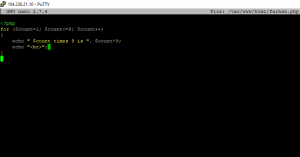
Before running the newly created PHP file in the browser, you need to restart NGINX by using the following commands.
```
systemctl restart nginx
```

After running the above script, check the PHP file in the browser “http://yourIPaddress/farhan.php”.
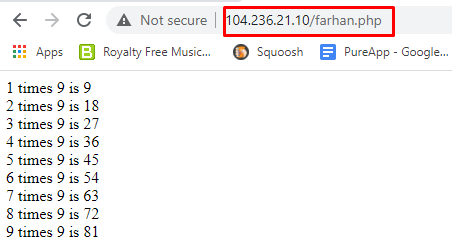
You’ve successfully installed the LEMP stack if the newly created PHP file starts executing.
##### **Install WordPress Application**
Now, you will have to install your WordPress application on your DigitalOcean Droplet. To install a WP application, just run the below commands.
```
apt install php7.0-common php7.0-mbstring php7.0-xmlrpc php7.0-soap php7.0-gd php7.0-xml php7.0-intl php7.0-ldap php7.0-zip php7.0-curl
```
To install important PHP modules and packages:

```
mysql -u root -p
```
To access the DB root, run the above command and use the password we previously set up during the MariaDB installation.

```
CREATE DATABASE CWdb;
```
Create a new database.

```
GRANT ALL PRIVILEGES on CWdb.* TO 'farhanuser'@'localhost' IDENTIFIED BY 'password123';
```
Grants full control and permission to a user.

```
FLUSH PRIVILEGES;
```
Changes to take effect without restarting the DB service.

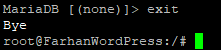
Then run the exit command.
```
cd /var/www/html/
```
After that, change the directory to html folder.

```
wget https://wordpress.org/latest.tar.gz
```
Download the latest WordPress version.

```
tar xzvf latest.tar.gz
```
Extract the archive file.

```
chown -R www-data:www-data /var/www/html/wordpress/
```
Assign ownership.

```
chmod 755 -R /var/www/html/wordpress/
```
Set file permission.

```
systemctl restart nginx
```
Restart NGINX.

Open the WordPress file( essentially the WordPress website) in the browser “[http://yourIPaddress/wordpress](http://youripaddress/wordpress)”.
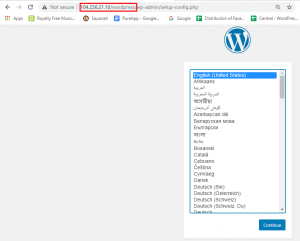
Choose the language and continue the installation process.
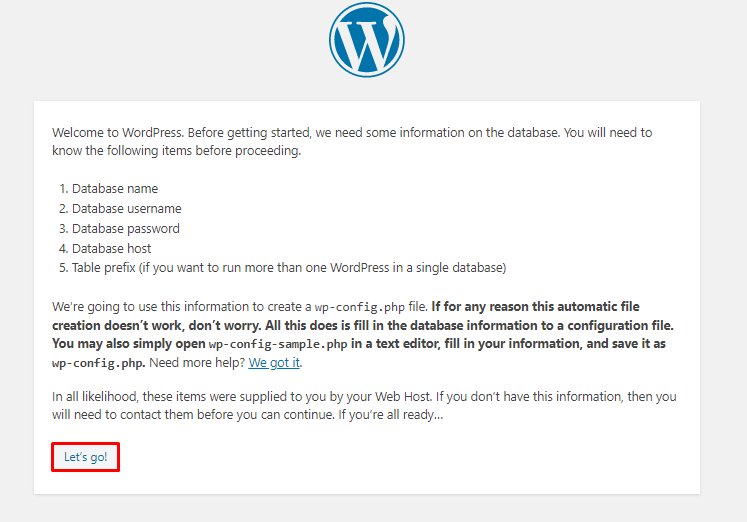
You will require some information on the database. So, click **Let’s go!**
Change the value of the Database Name, Username, and Password (that we have previously created) and click **Submit** to connect the database with the WP application.
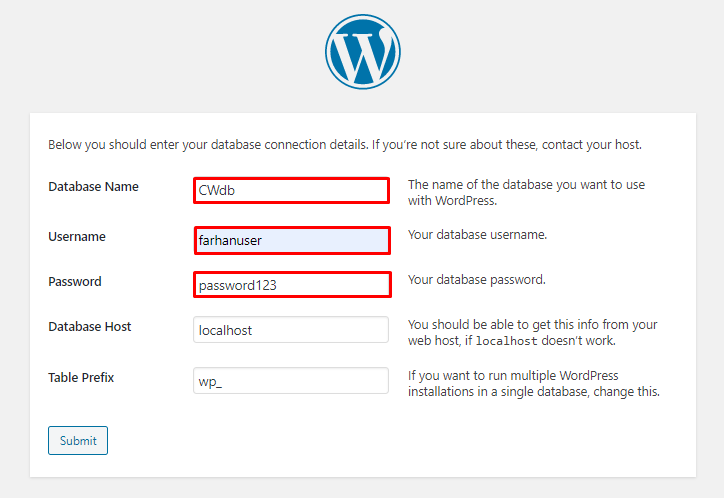
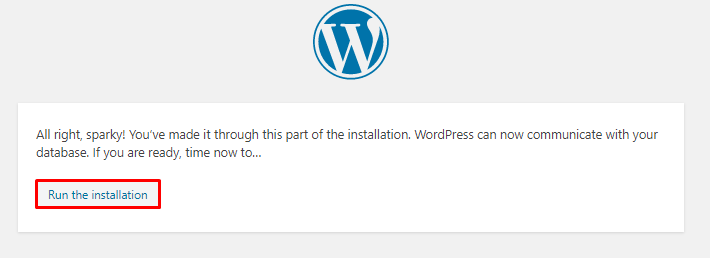
Finally, run the installation.
After running the installation, you will see the basic WordPress setup screen where you must enter the information about the website you are creating.
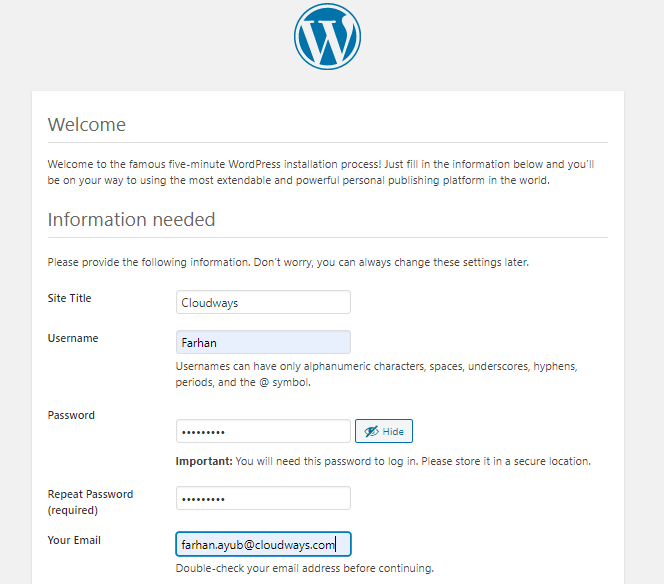
Click Install WordPress and log in to the WordPress dashboard.
#### Sure Your Hosting Provider Isn’t Charging Extra?
Use the Web Hosting Savings Calculator for FREE to instantly find out the ideal host that fits your requirements best.
#### Install WordPress on Cloudways Managed DigitalOcean Server
This process requires you to [sign up with Cloudways](https://platform.cloudways.com/signup) by completing a simple form and clicking the Start Free button. If you have already signed up, [log in to your account](https://platform.cloudways.com/login).
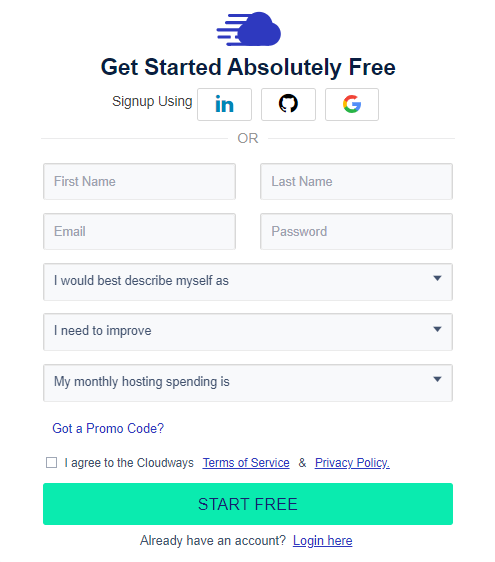
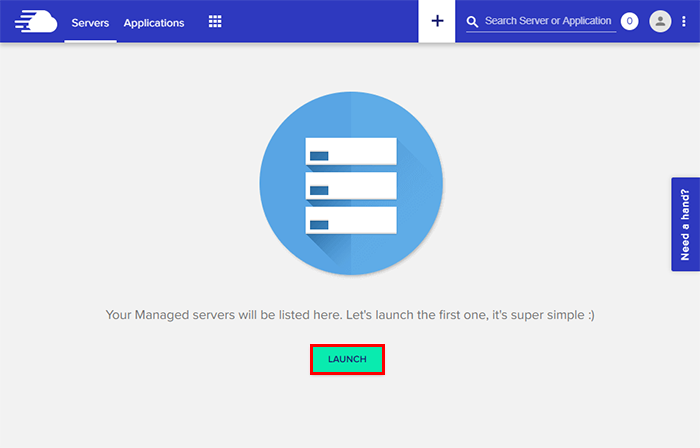
The next step in installing WordPress on DigitalOcean is to verify your email address to complete the signup process on Cloudways. After verifying your email address, click the Launch button and initiate the simple server launch process.
#### Server and Application Details
##### **Application**
Select WordPress from the list of applications, name your **Application** and **Server**, and **Select Your Project**.

**Note:** You have the choice of launching Cloudways Optimized WordPress, WordPress with WooCommerce, [WordPress Multisite](https://www.cloudways.com/blog/wordpress-multisite/), and WordPress without any optimization. Feel free to select what best suits your needs.
##### **Cloud Infrastructure**
Select DigitalOcean from the list of cloud hosting providers.

##### **Server Size**
Select your **Server Size** based on your expected monthly traffic. Don’t worry about frequent traffic spikes; you can always [scale your server](https://support.cloudways.com/how-to-scale-server-size-digitalocean/) using a simple slider.
##### **Server Location**
Now select your desired **location** keeping the latency factor in mind.

After entering the Server and Application details, click the **Launch Now** button.

Now, wait for a few minutes until the server is ready!
Once the server is ready, click **Applications** in the top-left menu.

Click your **WordPress** application.
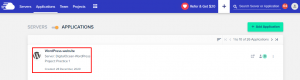
Go to **Access Details → Admin Panel**. You will see the default login credentials and the temporary [staging URL](https://www.cloudways.com/blog/wordpress-staging-environment/) of the WordPress website. Click the URL and use the credentials to log in to the WordPress Dashboard.
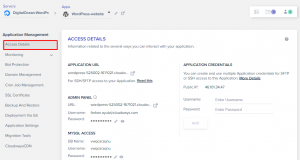
Great! We have successfully installed WordPress on the DigitalOcean server using Cloudways.
#### Exploring the Cloudways Platform
##### **Server Management Dashboard**
After installing WordPress on DigitalOcean, head over to Server Management. Although it is easy to navigate through the Cloudways platform, I will still give you a hint of some of its highlighted features.
Inside the **Server Management** dashboard, you can find some useful tabs:
**Master Credentials**
This tab contains your server’s public IP, username, and password. On the left side of the window, you can create public SSH keys for SSH and SFTP connections and a button to launch an integrated SSH terminal.

**Server Monitoring**
Here, you can monitor the resources of your server. This is further broken down into **Summary** and **Details** for graphical representation and third-party application monitoring tool [New Relic](https://www.cloudways.com/blog/new-relic-application-monitoring-tool-wordpress/).
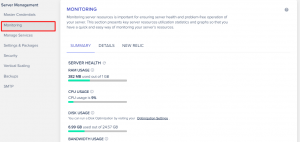
This gives real-time data on your server’s health and shows useful stats like disk space, memory, and bandwidth over the course of time.
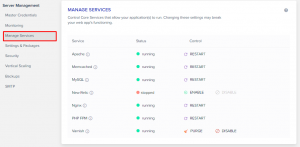
**Manage Services**
The **Manage Services** tab lets you enable and disable various services such as [Apache and NGINX](https://www.cloudways.com/blog/wordpress-nginx-with-apache/) web servers, Memcached, Nginx, and Varnish. It also shows the current status of each service and lets you restart it when needed.
**Security**
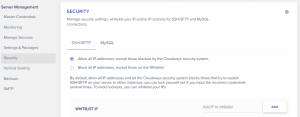
The **Security** tab lets you whitelist the IP addresses you want to allow SFTP/SSH connections. The second tab is dedicated to MySQL connections, as Cloudways lets its users remotely access the MySQL database.
##### Application Management Dashboard
Just like Server Management, the Application Management dashboard also contains useful tabs. Let’s look at some of them.
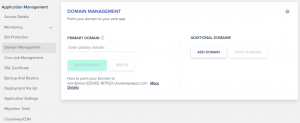
**Domain Management**
As the name suggests, this tab allows Cloudways users to point their primary domain to their WordPress site. The additional domains can also be added in the case of a WordPress Multisite.
**SSL Certificates**
Having an [SSL certificate on a WordPress site](https://www.cloudways.com/blog/wordpress-ssl/) is crucial as it secures the connection between the browser and the server.
SSL encrypts this communication and prevents possible data theft. And since Cloudways is recognized for its [secure wordpress hosting](https://www.cloudways.com/en/secure-wordpress-hosting.php), it provides Free SSL via Let’s Encrypt to its customers.
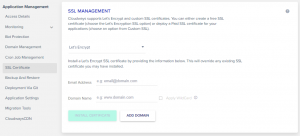
This certificate can easily be added from this tab, and in the case of sub-domains, users can also use the wildcard feature, which allows them to use the same certificate on all their sub-domains.
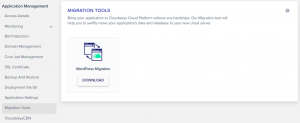
**Migration Tools**
Cloudways customers who wish to bring their existing site from their old server to a fast and reliable Cloudways DigitalOcean server can use this tab for hassle-free [cloud migrations](https://www.cloudways.com/blog/cloud-migration-benefits/).
#### Taking the Website Live
Taking your new WordPress site live is as easy as launching a server on Cloudways. All you need to do is to head over to your **Application Management** dashboard and, inside the **Domain Management** tab, add your domain name.
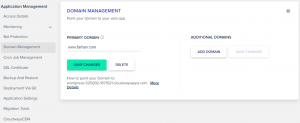
According to your domain registrar, create a new CNAME and wait for it to propagate.
And that’s all, folks. Congratulations! You have successfully installed WordPress on the DigitalOcean cloud server on Cloudways. If you need to understand what Cloudways offers, here is a [walk-through](https://www.cloudways.com/blog/ultimate-platform-for-wordpress-woocommerce-hosting/) for a better understanding.
Also, here is a short video that shows how easy it is to host a WordPress website on a DigitalOcean cloud server with the assistance of Cloudways.
#### **Summary**
DigitalOcean is changing the face of cloud hosting – one droplet at a time. It is one of the best cloud hosting providers for WordPress websites. Its developer-friendly cloud infrastructure provides everything you need to scale your website easily. With extensive documentation comprising a dedicated page for WordPress, you will enjoy an intuitive design, user-centric guides, and robust features.
As far as technicalities are concerned, Cloudways ensures a smooth web experience for users with tons of powerful features. There’s also a dedicated team of experts available for support 24/7.
I hope that you now know how to host WordPress on DigitalOcean. If you still have any queries, please ask me via the comment section below.
##### Q: Is DigitalOcean good for WordPress hosting?
Yes, DigitalOcean is, in fact, one of the best WordPress cloud hosting providers, thanks to its developer-friendliness and easy scalability, among many other features.
##### Q: How much does it cost to host WordPress on DigitalOcean?
You can host WordPress on DigitalOcean for as low as $10/month on Cloudways, which offers 1GB RAM, 1TB Bandwidth, 1 Core Processor, and 25GB Storage. Moreover, you can upgrade your plan to get added benefits and get FREE Object Cache Pro worth $95 on all DigitalOcean plans on Cloudways that offer 2GB RAM or above.
##### Q: What is DigitalOcean Good for?
DigitalOcean is a developer-friendly cloud hosting provider that helps developers monitor and manage their droplets and do easy scaling via DigitalOcean application deployment without affecting performance.
Customer Review at 
###### “Beautifully optimized hosting for WordPress and Magento”
Arda Burak [Agency Owner]
Farhan is a community manager at Cloudways. He loves to work with WordPress and has a passion for web development. Mostly, he spends his time interacting with the people in the WordPress community. Apart from his work life, Farhan spends his time gaming and playing sports. Feel free to contact him at [[email protected]](/cdn-cgi/l/email-protection), How to Host WordPress on DigitalOcean, Create > Droplets, 01gnmcyct89f64by012fsa0vxe.