How to Publish Your Replit App
🔗 **Source:** [How to Publish Your Replit App](https://www.youtube.com/watch?v=ski8_MUYO4M)
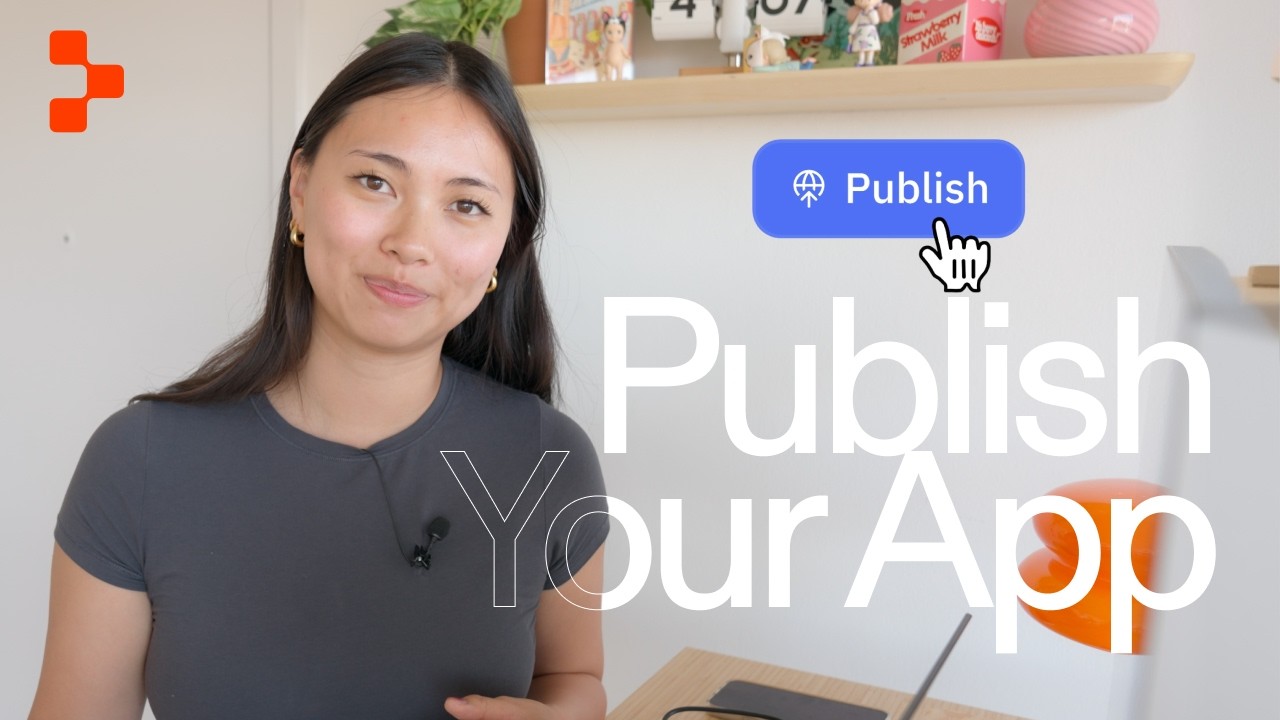
All right, in the last video we designed this travel app. So [music] now it's time to publish it. Because right now the app only works when you have it open. The second you close your browser, it's gone. Hi, I'm Sarah, the developer relations at Replit, and today I'm going to show you how to publish your app [music] so anyone can use it anytime. Think of it like this. The Replit workspace is like your kitchen. You may be working, cooking, breaking things. Publishing [music] is when you plate your dish and send it out. Once you hit publish, your app gets its own live URL, something like this. And this URL stays running even when you're not here or
when the browser tab isn't open. All right, let's publish this app. So up here in the top right, you're [music] going to hit this blue publish button. This panel is going to open up and this is the publishing tab. First, you have your domain name. I don't really like this one, so I'm going to change it to [music] Wanderlist. Once you see that available check mark, you're good to go. Now let's see who can access your app. I'm going to leave this as public so [music] that anyone with the link can try it. Now you've got a couple extras. There's this feedback widget, which adds a little button to your app so that users can send [music] feedback. Agent
can turn this feedback into fixes or new features. It's super useful when you're first testing [music] out your app. Then there's a made by Replit badge. If people sign up through your app, you can earn credits. Then in this adjust setting section, [music] you can see some more options. You'll see a security scan step here, which you can turn on or off. When it's on, Replit checks for any major vulnerabilities before your app goes live. If anything critical comes up, it will block your publish [music] until it's fixed. And this is super helpful, especially when you're starting out. And now this is the big moment. We're going to hit this
publish button. Replit is [music] packaging everything up and putting it live. And now you'll see this screen pop up. What is happening [music] here is Replit is taking your app and getting it ready to be run on the internet. You'll see a few steps go by. There's the provision step, which is setting up the environment your app will run in. The security scan, which is making sure everything is safe. [music] Build, compiling your app. Bundle, packaging everything together. And [music] then promote, which is actually when your app goes live. This usually takes a minute or two, so you don't have to worry if it's not instant. And that's it. [music]
It's officially live. You can copy this link and send it to your friends. And the best part is you can keep iterating on it and improving your app. And nothing will change the live version until you hit publish again. So now you've gone from idea to design to a live app [music] on the internet. In the next video, we'll take it even further, so stay tuned for that and make sure you subscribe. See you there., How to Publish Your Replit App, YouTube, 01kq2nm0z97t6wdnfwj9tnqdqw.