How to edit Live Photos on Mac
## Metadata
- Author: [[Cella Lao Rousseau]]
- Full Title: How to edit Live Photos on Mac
- Category: #articles
- Summary: How do you edit Live Photos on your Mac? With the built-in Photos app! Taking Live photos on your iPhone is a really great way to relive a moment without watching a minute-long video or going through dozens of images.
- URL: http://www.imore.com/how-edit-live-photos-mac
Whether you're cropping your photos, importing them into Photoshop, or adjusting your color and saturation, there are tons of different ways that you can successfully edit pictures and videos in [Photos for Mac](https://www.imore.com/photos-mac). Photos for Mac has everything you need to make your pictures look exactly how you want, and what's more, all the edits are non-destructive, so if you don't get something perfect the first time, you can change it again whenever you like or even go right back to the original.
Combine that with the large screen, and editing photos on the Mac isn't just easy; it's accessible to everyone. Here's how to use it!
#### How to adjust brightness with Photos for Mac
1. Launch the **Photos app** on your Mac.
2. Find the **photo** in your photo library that you'd like to edit and **double-click** on it.
3. Click on the **Edit** button in the top navigation panel.
4. Drag the **Light** slider left or right to adjust the brilliance in the photo.
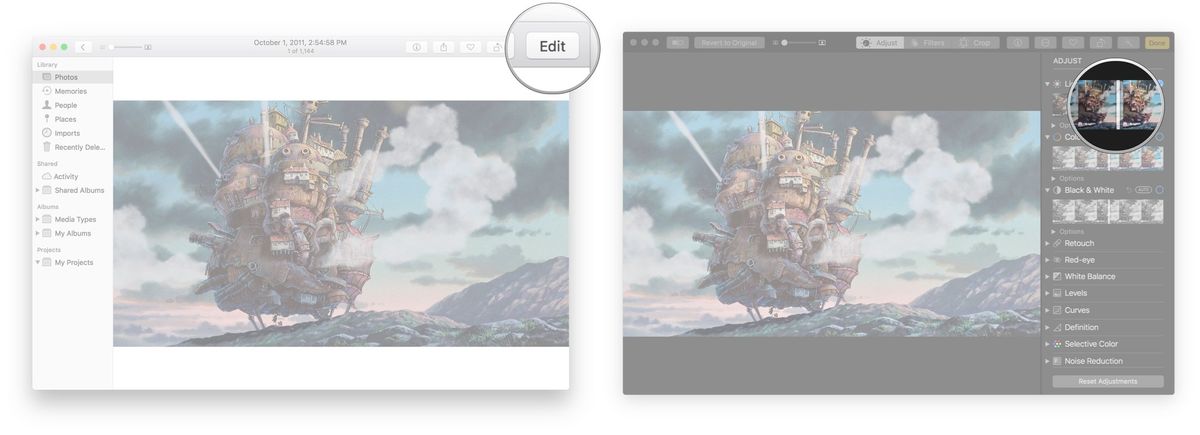Click Done on the top right of the Photos window.
#### How to adjust color saturation in Photos for Mac
1. Launch the **Photos app** on your Mac.
2. Find the **photo** in your photo library that you'd like to edit and **double-click** on it.
3. Click on the **Edit** button in the top navigation panel.
4. Drag the **Color** slider left or right to adjust the brilliance in the photo.
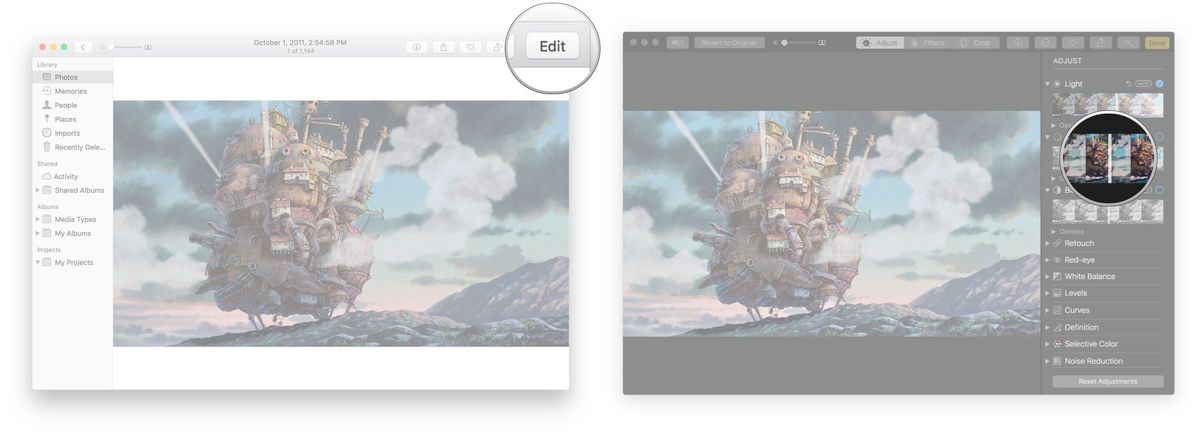Click Done on the top right of the Photos window.
#### How to convert an image to black and white with Photos for Mac
1. Launch the **Photos app** on your Mac.
2. Find the **photo** in your photo library that you'd like to edit and double-click on it.
3. Click on the **Edit** button in the top navigation panel.
4. Drag the **Black & White** slider left and right to activate and adjust the photo's black and white intensity. You can also adjust a photo's black and white **Neutrals**, **Tone**, and **Grain**.
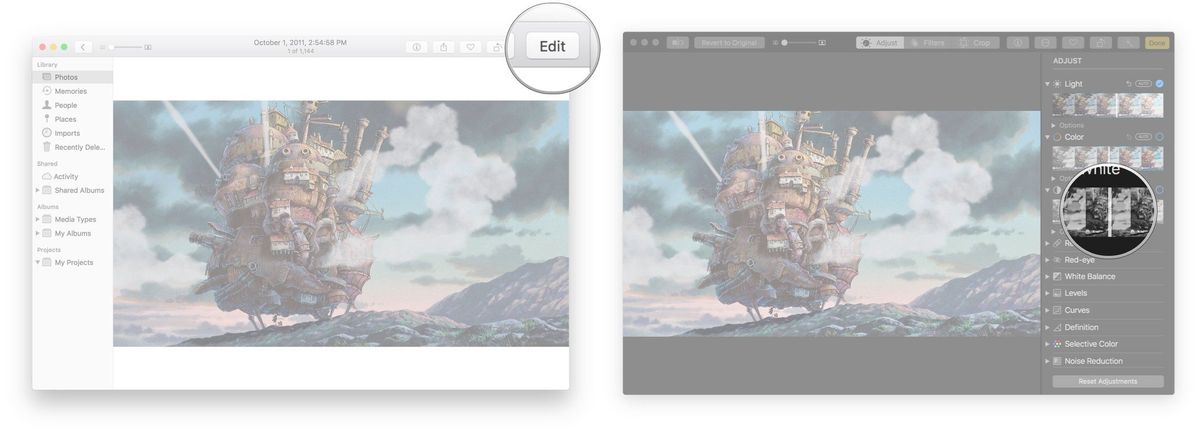Click Done on the top right of the Photos window.
#### How to access white balance, noise reduction, and more in Photos for Mac
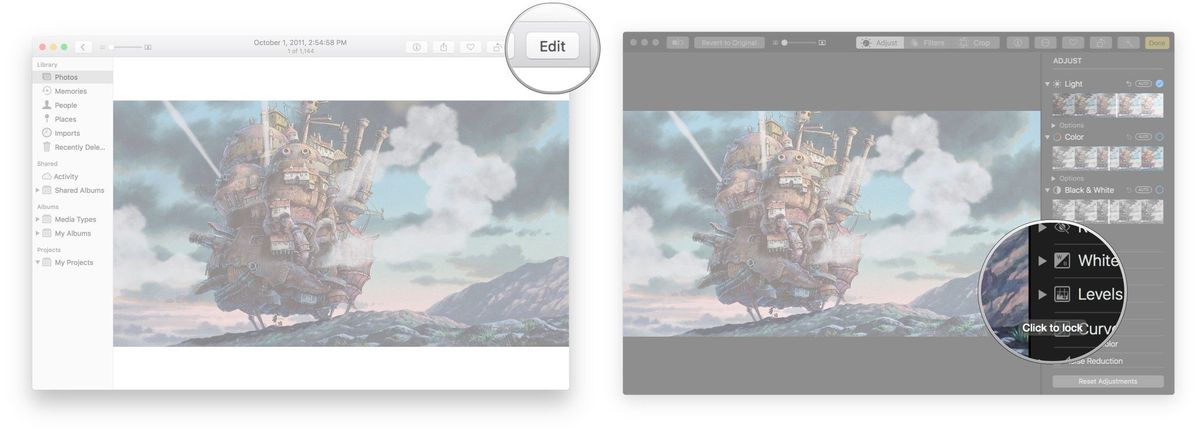
Histogram, sharpen, definition, noise reduction, vignette, white balance, and levels can all be added to your photo adjustment options; that elevates Photos for Mac from a basic photo editing tool to something more advanced.
The histogram, for example, lets you see the distribution of light and dark, as well as red, blue, and green pixels within your image. Sharpen and definition can help make the blurry aspects clearer. Vignette darkens images around the edges, and white balance and levels let you change casts, crush blacks, and more. All you have to do is turn them on!
1. Launch the **Photos app** on your Mac.
2. Find the **photo** in your photo library that you'd like to edit and double-click on it.
3. Click on the **Edit** button in the top navigation panel.
4. Click the **arrow** next to any adjustment you'd like to expand on the right. There's everything from Retouch to Vignette.
5. Click **Done** on the top right of the Photos window.
#### How to adjust Sharpness with Photos for Mac
1. Launch the **Photos app** on your Mac.
2. Find the **photo** in your photo library that you'd like to edit and double-click on it.
3. Click on the **Edit** button in the top navigation panel.
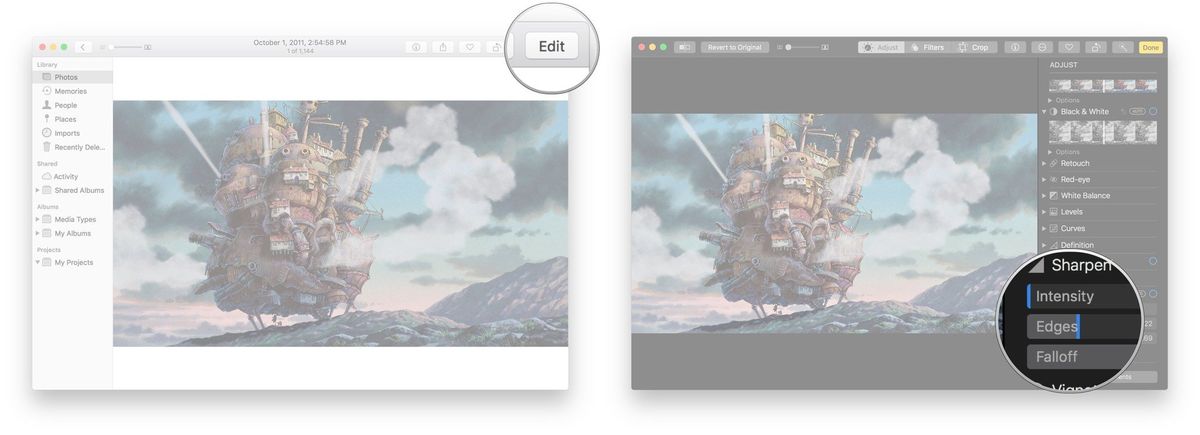
4. Click the **arrow** next to **Sharpen** on the right.
5. Drag the **sliders** left and right to adjust your photo's sharpness. You can optionally click **Auto** to let Photos automatically sharpen the image for you.
6. Click **Done** on the top right of the Photos window.
#### How to adjust Definition with Photos for Mac
1. Launch the **Photos app** on your Mac.
2. Find the **photo** in your photo library that you'd like to edit and double-click on it.
3. Click on the **Edit** button in the top navigation panel.
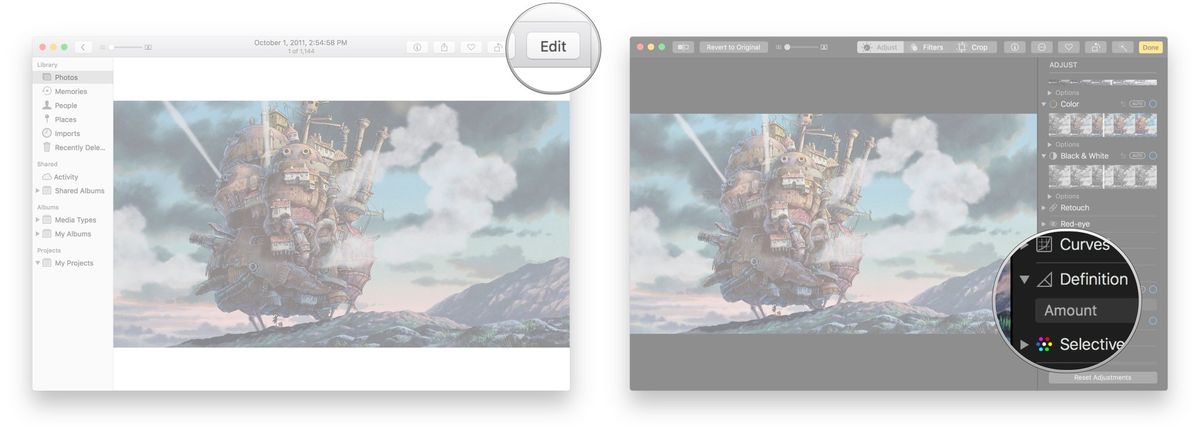
4. Click the **arrow** next to **Definition**.
5. Drag the **slider** left and right to adjust your photo's definition. You can optionally click **Auto** to have it done automatically.
6. Click **Done** on the top right of the Photos window.
#### How to adjust Noise Reduction with Photos for Mac
1. Launch the **Photos app** on your Mac.
2. Find the **photo** in your photo library that you'd like to edit and double-click on it.
3. Click on the **Edit** button in the top navigation panel.
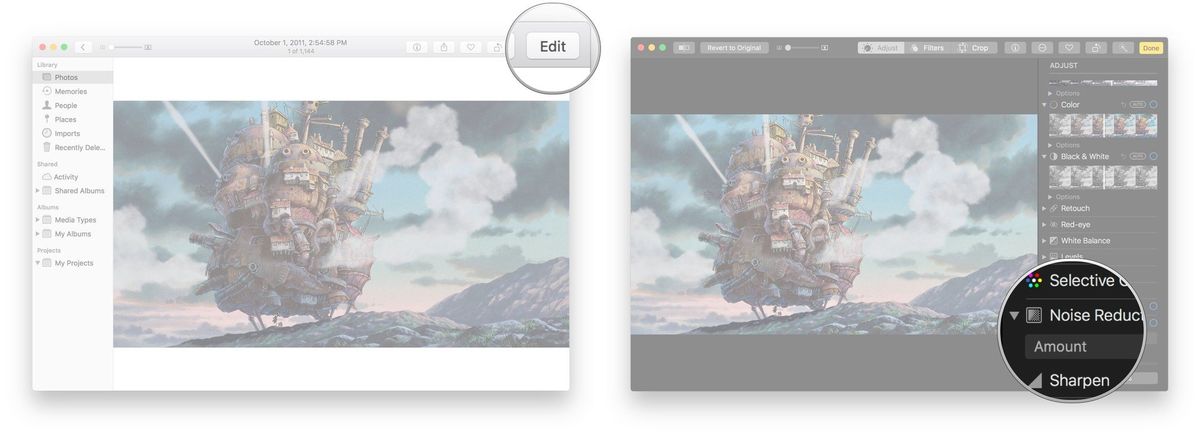
4. Click on the **arrow** next to **Noise Reduction**.
5. Drag the **slider** left and right to adjust your photo's noise reduction. You can optionally click **Auto** if you want it done automatically.
6. Click **Done** on the top right of the Photos window.
#### How to adjust Vignette with Photos for Mac
1. Launch the **Photos app** on your Mac.
2. Find the **photo** in your photo library that you'd like to edit and double-click on it.
3. Click on the **Edit** button in the top navigation panel.
4. Click on the **arrow** next to **Vignette**.
5. Drag the **sliders** left and right to adjust your photo's vignette. You can optionally click **Auto** if you want it done automatically.
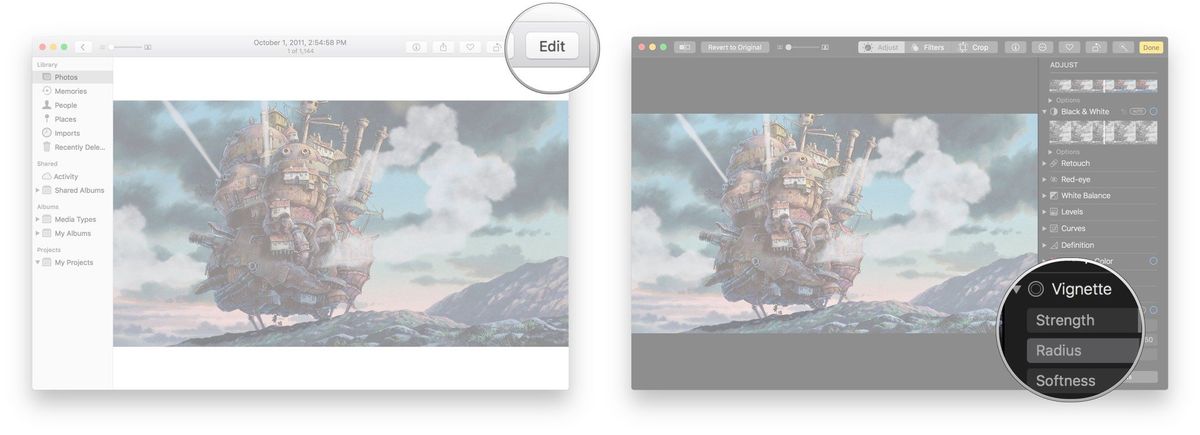
6. Click **Done** on the top right of the Photos window.
#### How to use Selective Color in Photos for Mac
Selective Color allows you to adjust the Hue, Saturation, Luminance, and Range of certain colors, meaning you can choose how the colors look and how prominent they are compared to the other colors in the photo.
1. Launch the **Photos** app on your Mac.
2. Double-click the **photo** you want to edit.
3. Click **Edit**.
4. Click on **Selective Color** in the sidebar.
5. Adjust the **sliders** to your liking.
6. Click **Done** on the top right of the Photos window.
#### How to quickly retouch an image in the Photos app on your Mac
Ah, the controversial act of retouching a photo, but let's face it: we've all done it. Luckily, retouching a photo is a lot easier than going and retaking it!
Photos for Mac offers a retouch tool that lets you quickly remove small imperfections such as skin blemishes or even a small object that wasn't supposed to be in the image to begin with. It may not be as powerful as spot healing tools in software editing programs like Photoshop, but in a pinch, it gets the job done!
1. Launch the **Photos app** on your Mac.
2. Find the **photo** in your photo library that you'd like to edit and double-click on it.
3. Click on the **Edit** button in the top navigation panel.
4. Click on the **arrow** next to **Retouch** on the right.
5. Drag the **slider** to adjust the **size** of the retouch tool in the right hand menu if you need to before clicking on the area that you need to retouch.
6. Click and drag on the **photo** to retouch the areas that need it.
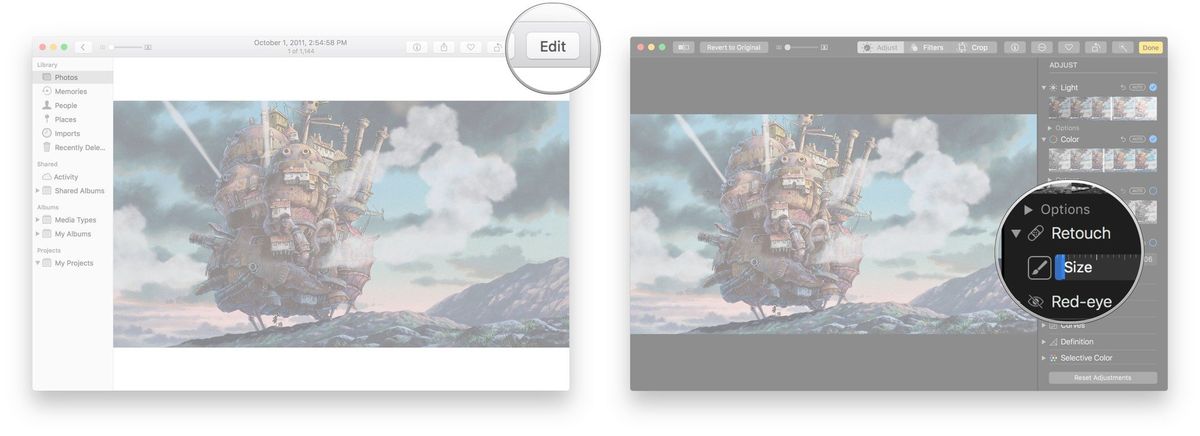
7. When you're happy with the results, click **Done** in the upper right corner.
You also have the option of holding down the **option key** on your keyboard and clicking to select a pattern. If you ever need to **Undo** a retouch, just hit **Command-Z** on your keyboard to step back.
#### How to correct Red-Eye in Photos for Mac
1. Launch the **Photos** app on your Mac.
2. Double-click the **photo** you want to edit.
3. Click**Edit**.
4. Click **Red-eye** in the sidebar.
5. Adjust the **size** of the brush with the slider.
6. Click the **brush**.
7. Click on the **eye** you want to fix.
8. Click **Done** on the top right of the Photos window.
#### How to add a filter to a picture in Photos for Mac
Photos for Mac brings the same kind of damage control to the Mac. Whether it's by adding a color overlay, boosting or flattening contrast, it lets you take pictures that look wrong and make them look artistic instead.
They're the same subtle filters Apple introduced for the iPhone and iPad, while they may not have the same punch as some others, they're consistent and even more importantly — they're non-destructive. That means you can change your mind and even revert to normal at any time.
1. Launch the **Photos** app on your Mac.
2. Find the **photo** you'd like to add a filter to and double-click on it to open it.
3. Click on the **Edit button** in the upper right corner.
4. Click on **Filters** in the top navigation.
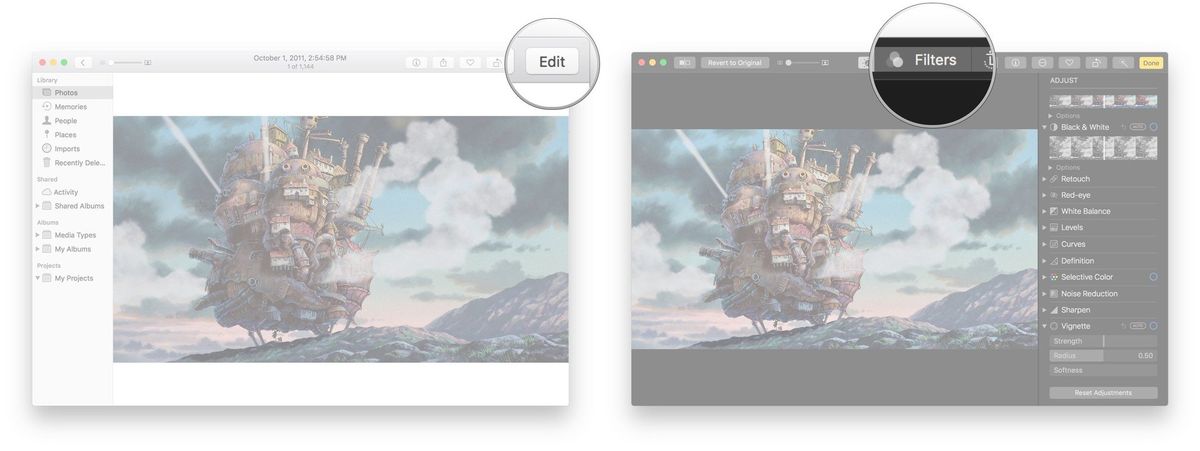
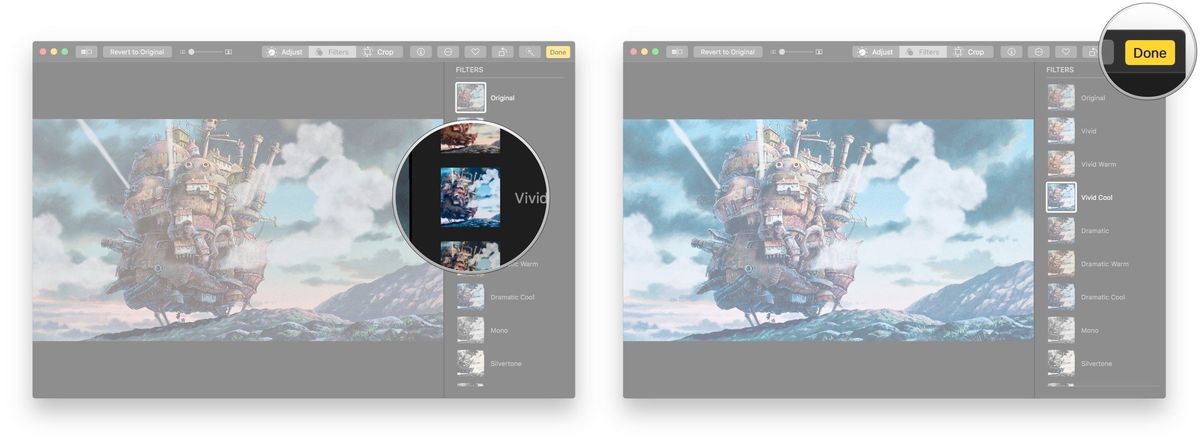
5. Click the **filter** you'd like to apply by clicking on it.
6. When you find one you like, click on **Done** in the upper right corner.
#### How to automatically crop and straighten in Photos for Mac
Whether the horizon or a building looks oddly angled, or extra people or space are stealing focus from your subjects, Photos for Mac has just exactly the tools to help you line up what you want and cut out what you don't so that even if you didn't frame the perfect photo, you can still end up with it.
Also, if you need to rotate or flip a picture, you can do that too!
1. Launch the **Photos** app on your Mac.
2. Find the **photo** in your photo library that you'd like to edit and double-click on it.
3. Click on the **Edit** button in the top navigation panel.
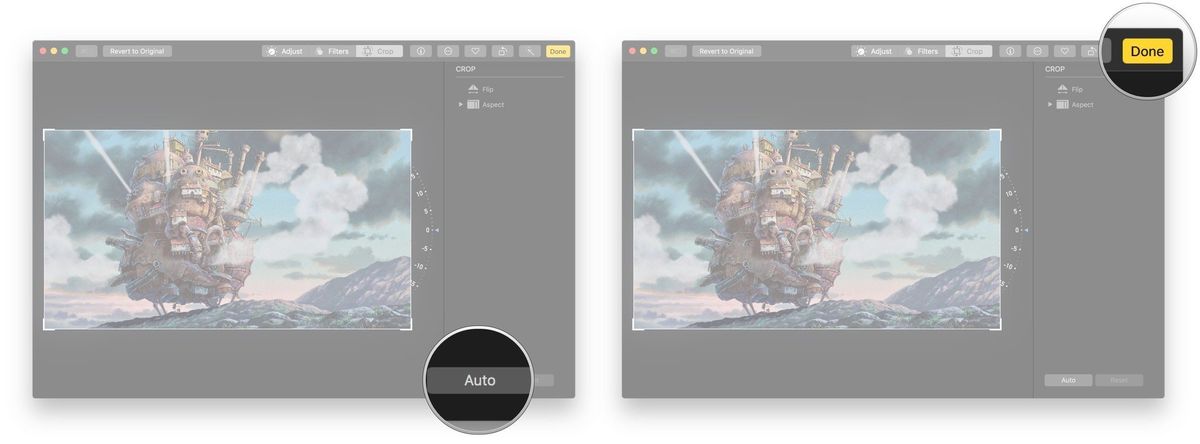
4. Click on **Crop** in the top navigation.
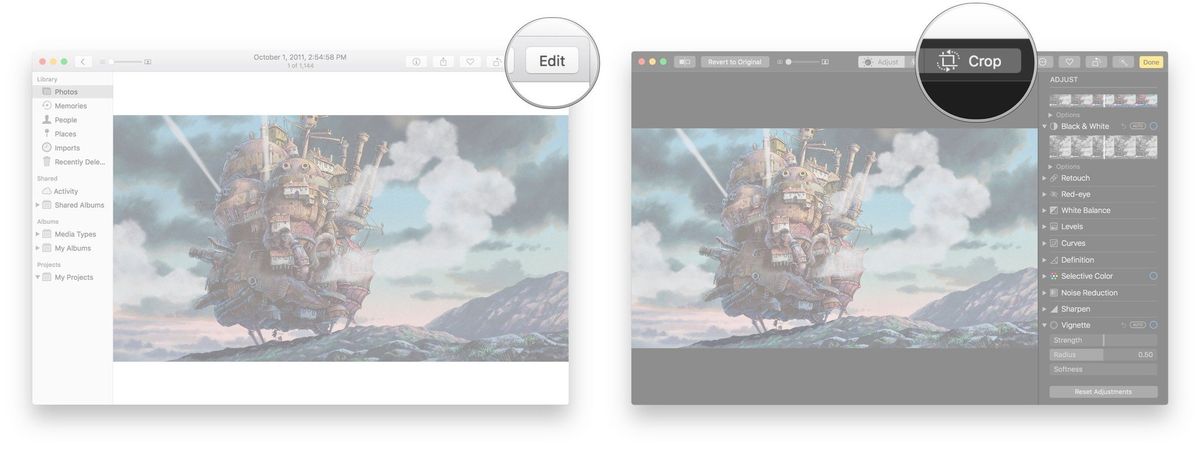
5. Click on **Auto** towards the bottom right of the screen.
6. Click on **Done** in the upper right corner.
#### How to manually crop in Photos for Mac
1. Launch the **Photos** app on your Mac.
2. Find the **photo** in your photo library that you'd like to edit and double-click on it.
3. Click on the **Edit** button in the top navigation panel.
4. Click on **Crop** in the top navigation.
5. Click on the **arrow** next to **Aspect** on the right.
6. Choose the **aspect ratio** you'd like. Alternatively, you can grab the **corners** of each photo and free crop if you'd like or click **Custom** to create a custom aspect ratio.
7. When you're happy with the crop, click on **Done** in the upper right corner.
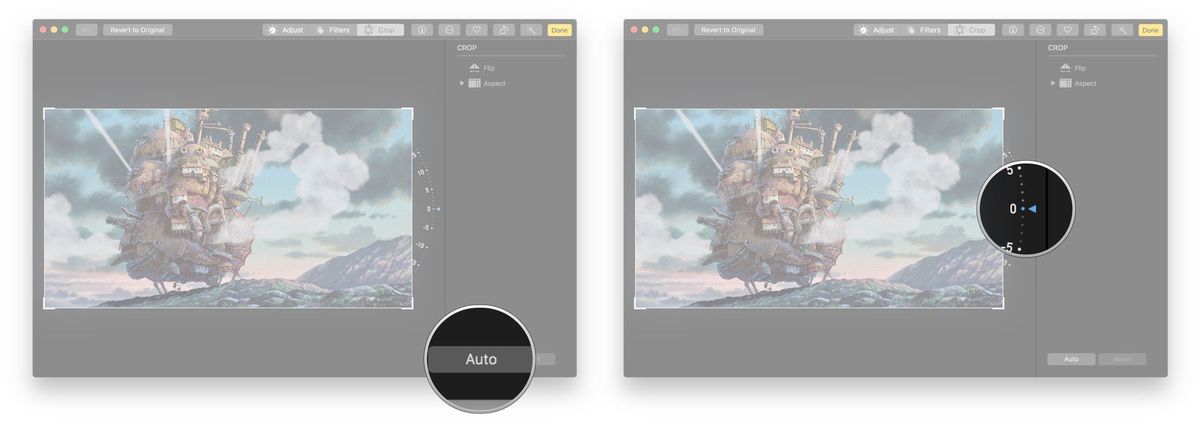
#### How to manually straighten in Photos for Mac
1. Launch the **Photos** app on your Mac.
2. Find the **photo** in your photo library that you'd like to edit and double-click on it.
3. Click on the **Edit** button in the top navigation.
4. Click on **Crop** in the right navigation.
5. Click the **dial** and drag up and down to adjust it.
6. Click **Done** in the upper right corner when you're finished editing.
#### How to rotate in Photos for Mac
1. Launch the **Photos** app on your Mac.
2. Find the **photo** you'd like to straighten and open it.
3. Click **Image** in the menu bar.
4. Click **Rotate Counterclockwise** (or Clockwise) to turn it 90 degrees.
5. Repeat to turn another 90 degrees, for a total of 180 degrees.
You can also use the keyboard shortcuts **Command-R** for counterclockwise or **Option-Command-R** for clockwise.
#### How to flip (mirror) in Photos forMac
1. Launch the **Photos** app on your Mac.
2. Find the **photo** you'd like to straighten and open it.
3. Click **Image**.
4. Click **Flip Horizontal** (or Vertical) from the menu to mirror.
#### How to trim a video in Photos for Mac
Whether you synced them from your iPhone or iPad using [iCloud Photo Library](https://www.imore.com/icloud-photo-library) or imported them manually, all your movie moments are right there alongside your images. Editing, however, is a different story.
While you can trim videos in Photos for Mac, that's about all the editing you can do. For more, including titles, traditions, and other effects, you have to escalate to iMovie #sadtrombone.
If you started or stopped recording a little too early or late, it's easy to remove the excess from the beginning or ending of your video. Here's how!
1. Launch **Photos** on your Mac.
2. Find a **video** you want to edit.
3. Double-click on the **video** to make it fill the Photos app.
4. Hover your mouse over the video to reveal the **control overlay**.
5. Click on the **gear icon** to show options.
6. Click on **Trim**.
7. Drag the **yellow handles** on either side to trim from the beginning or end of the video.
8. Click **Trim** to confirm the change.
#### How to reset the trim on a video in Photos for Mac
If you trim a video and later regret it, don't worry, the edit is non-destructive, and the original video can easily be restored.
1. Launch **Photos** on your Mac.
2. Find the **video** you want to revert.
3. Double-click on the **video** to make it fill the Photos app.
4. Hover your mouse over the video to reveal the **control overlay**.
5. Click on the **gear icon** to show options.
6. Click on **Reset Trim**.
#### How to edit a video from Photos for Mac
If you want to add transitions, titles, or other effects to your video, or if you want to cut or mix it up with other videos, you'll need to use iMovie.
1. Launch **iMovie** on your Mac.
2. Click **Create New** and select **Movie**.
3. Click on **Photos Library** in the sidebar.
4. Find the **video** you want to edit.
5. Click on the **video** to select it.
6. Click on the **+** icon to add it to the clips in the current movie.
Then start editing away!
Once you're done, you can share the video right from iMovie or save it out and drag it back into Photos for Mac for syncing and safekeeping.
#### How to move an image out of Photos and into Photoshop, Pixelmator, Acorn, or other external editor
1. Launch **Photos** from the dock or Finder.
2. Click on the **photo** you want to edit.
3. Click on **File**.
4. Click on **Export**
5. Click on **Export Unmodified Original**.
6. Click **Export** after you fill out the photo information and choose where you would like to save it.
7. From your desktop, drag the photo into your favorite image editor. (Or **control-right-click** the icon and choose **"Open with..."** and then your favorite image editor.)
#### How to bring an edited image back into Photos for Mac
1. **Save** or **Export** the edited image back to your desktop from the photo editing app.
2. From your desktop, drag the **image** back into Photos for Mac (or choose the **File > Import** menu item and then select the image to import.)
#### Questions?
Let us know in the comments below!
**Updated March 2019:** Updated for macOS Mojave.
#### iMore Newsletter
Get the best of iMore in in your inbox, every day!
By submitting your information you agree to the [Terms & Conditions](http://www.futureplc.com/terms-conditions/) and [Privacy Policy](http://www.futureplc.com/privacy-policy/) and are aged 16 or over.
Mick is a staff writer who's as frugal as they come, so he always does extensive research (much to the exhaustion of his wife) before making a purchase. If it's not worth the price, Mick ain't buying., How to edit Live Photos on Mac, Cella Lao Rousseau, 01gnmcxr690zzy8rp48k2kmwf7.