How to use Google: search operators

## Metadata
- Author: [[Michiel Heijmans]]
- Full Title: How to use Google: search operators
- Category: #articles
- Summary: Yes, you want to rank first in Google. And yes, you think you have optimized a site for that. But have you ever been playing with Google to see how your site is doing? Probably not, but let’s do that right now.
- URL: https://yoast.com/search-operators/
Drive **more traffic** to your site. **Save time** on doing SEO tasks. Reduce your site’s **carbon footprint**. And get **24/7** **support**.
Yes, you want to rank first in Google. And yes, you think you have optimized a site for that. But have you ever been playing with Google to see how your site is doing? Probably not, but let’s do that right now.
Have you ever used *search operators* in your Google queries? Search operators are parameters to narrow down your search results. It’s an ‘extra’ to add to your search query. Let me illustrate that by giving you some examples of search operators we frequently use while analyzing a website.
#### The *site:* search operator
“I’m using your plugin, but my site still isn’t indexed in Google.” If only we got a penny for every support email that starts like that. You can easily check if your site is in Google or not, by using this search operator:
[`site:yoast.com`](https://www.google.com/search?q=site:yoast.com)
Yes, our website is indexed. Now there are a number of reasons why you are not *ranking* very well, but your site definitely is in Google. Now let’s take that to the next level and see if the right page is ranking for that keyword we want to rank for:
[`site:yoast.com WordPress SEO plugin`](https://www.google.com/search?q=site:yoast.com%20WordPress%20SEO%20plugin)
The result:
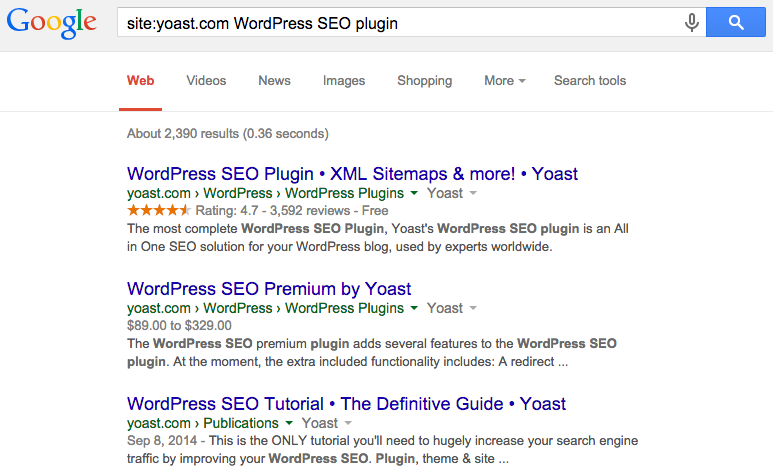Using a search operator to find the best ranking page
Nailed it. What do you need to look for in these search results?
* Is your homepage ranking first? Unless you searched for your brand name, you probably want to set up a [cornerstone](https://yoast.com/cornerstone-content-rank/) page for the keyword and make that one rank first.
* Is the page you expected to rank first *not* ranking first? Compare that page to the page that *is* ranking first. What does the WordPress SEO Page Analysis tell you? Perhaps you’ll also find that the other page has a lot more backlinks. That might be a reason to further optimize the currently ranking page instead, for instance.
* Is a taxonomy page ranking first? That could make sense, with all the post linking to that category or tag page. But is that page optimized? Do you think it qualifies as the main page for the topic? Does it have a nice introduction or just the post excerpts? If not, please read [WordPress Archive Pages: the tutorial](https://yoast.com/wordpress-archive-pages/).
#### The *intitle:* search operator
I like this search operator. You can check just about anything with it. Let’s start with open directories. I always really dislike ending up on an Explorer-like folder overview. These pages shouldn’t be indexed in the first place. A simple check for your own website is:
`intitle:"Index of"`
I used the double quotes just to make sure the exact phrase is found. If you want to take that a step further, you could even make it `intitle:"Index of" Last Modified`, which searches for Last Modified on any page that has Index of in the title.
If we combine both search operators, we can narrow this down to our own site:
[`site:yoast.com intitle:"Index of /" Last Modified`](https://www.google.com/search?q=site:yoast.com%20intitle:%22Index%20of%22%20Last%20Modified)
Pfiew, no open directories indexed.
#### The *inurl:* search operator
Have you ever wondered what these WordPress [attachment pages](https://codex.wordpress.org/Using_Image_and_File_Attachments) are for? It’s a bit like automatically generated thin content for your website. We advise against using these and even have an [option to prevent these in our WordPress SEO plugin](https://yoast.com/features/redirect-attachment-urls/). Just go to SEO › Advanced › Permalink (tab) and check “Redirect attachment URL’s to parent post URL.” This will make sure that any visitor that ends on a specific attachment page, is redirected to the page where the (f.i.) image is used. Just make sure all images are attached/uploaded to a certain page or post. That can be easily checked by visiting your media library and enabling the *Uploaded to* column at Screen options.
Back to the inurl search operator. That one comes in handy when you want to check if any of these attachment pages are indexed. The thing is, that every attachment page URL has ‘attachment\_id’ in it. The search query we are looking for is obviously:
[`inurl:attachement_id`](https://www.google.com/search?q=inurl:attachment_id#q=inurl:attachment_id&start=10)
Note that I skipped a number of results, as the first results on that query are WordPress.org pages telling us we have these pages and what they do. Not much :) Find these on your site using a combination with the site: search operator and make sure to redirect them to the parent posts and pages they are used on.
#### Your turn
That’s just three of [a number of search operators that are available](https://ahrefs.com/blog/google-advanced-search-operators/). Use these to your advantage. Looking forward to any creative uses you have found for these search operators. Please share them in our comments!
Michiel was one of our very first employees and used to be a partner at Yoast. Kick start your site optimization with his articles!
#### Coming up next!, How to use Google: search operators, Michiel Heijmans, 01gnmcz6rzkdyxba34ypyketh9.