Introducing YouTube Channel Visualizer
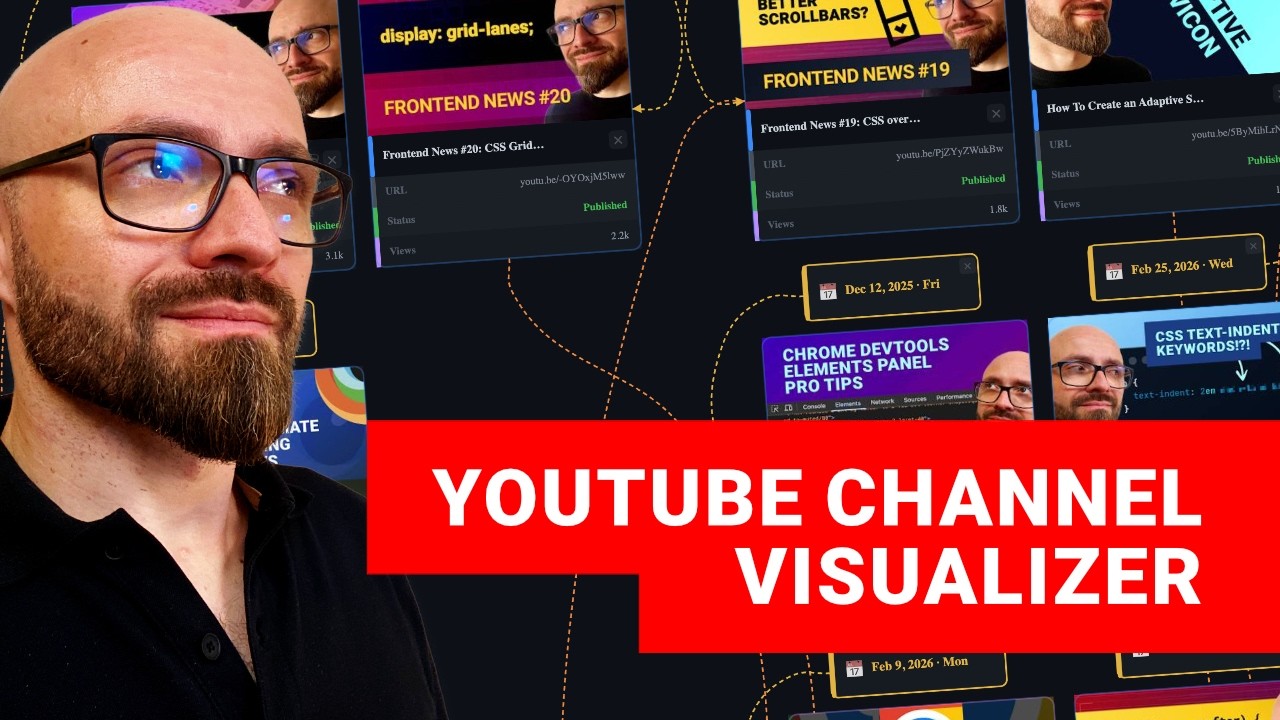
🔗 **Source:** [Introducing YouTube Channel Visualizer](https://www.youtube.com/watch?v=TypepS0ZSoQ)
I published a lot of videos on this channel,
and I always wanted a tool that would actually allow me to visualize those videos somehow. Well,
I'm a developer, so I built that tool. Actually, I vibe coded it. Stick around, and I'll show
you how you can visualize your own YouTube channel in this tool, or even better, how you can
build your own tool like this one very easily. The link is in the description,
so check it out yourself. And this tool essentially visualizes the
latest 20 videos from the CSS Weekly YouTube channel. Let me quickly
show you what you can do with it. On this main canvas, you can zoom in
and zoom out, and also, all nodes here,
all elements are interactive. So you can drag and
drop them, adjust them, arrange them any way you like. And you also have a number of options to
visualize things differently. The first options here are lines, which are connections between
those elements. So if you change the lines, you're going to see different connection types
between years, dates, and tags. The options available are Direct, Manhattan, and Metro. And
you can have a different style of those lines, Rounded or Curve. So this allows you to
actually visualize the connections between
different elements of your YouTube channel
easily. Direct and Rounded is something that you would see in the standard diagram, but if you
want something a little bit nicer and smoother, then you can go with the Curve and play
around with either Manhattan or Metro. I think this looks really interesting, and it
just gives you an idea about how much work goes over time into a simple YouTube channel
that publishes a couple of videos per month.
Another cool thing is that you can visualize
the videos on your channel in the timeline view, as we have here, or alternatively by tags,
views, and grid. I'm going to switch to tag, and this will group the videos by tags that
are available. The most videos are tagged with “Tutorial,” then we have “News,” which is actually
Fronted News series. And the last group is “Quick Tip,” with only two videos. I've used just a
couple of main groups to visualize my channel, but you can do anything you want, of course, with
it. If you open the Tags view in the sidebar, you can drag any number of other tags and connect
your videos to those tags like this. Or you can
even add new tags here. Just add a name, “My
tag,” and if you want to have a nice icon, you can just add an emoji, and you're going
to have the exact tag for your channel. I'm just going to delete those two because I
don't think they're really necessary here. Everything here is interactive because this
is powered by JointJS library. I actually vibe-coded this tool using the Claude Code
Playground plugin, and I've enhanced it with
JointJS library. I'm going to talk about
this in a bit, so you can see exactly how to build a tool like this yourself. But first,
I still want to show you how it actually works. Another view that we have here is Views, which
is really cool because it allows you to see which videos are performing well on your channel. For
example, in my use case, most of the videos are going to fall into the category between 1,000
and 2,000 views. There are a few outliers here, specifically those two. My funny take on
Claude Code source code leak and a guide
on calc-size() function. So, this gives me an
idea that maybe I should create more videos in this style if I want to get more views on my
channel. Pretty cool. The last view is Grid, which essentially groups the videos in this
nice grid. The filter group here allows you to visualize videos by the type — I have
only short and long videos, I don't have live streams on my channel, so I'm not going
to see anything here. But if I turn on videos, I should see all my videos. And if I
turn shorts, I should see my shorts. And now I actually see that one of the videos
is not properly tagged. So I'm just going to
tweak it right here. There we go. So now this
is properly tagged, and I have my short exactly where it is. Of course, I mentioned it before,
you can drag those around any way you like, and the connections are going to still work
exactly as you expect. And of course, you can add new connections here. Maybe you want to tag
this video as News as well. And this is going to, well, create a connection between this video and
this tag. One thing that I want to mention here is
that everything in this app is actually stored
in `localStorage`. So if you refresh the page, anything you change will be preserved.
So you can play around, tweak things, and when you return to the app, you're going
to get exactly the state that you had before; localStorage is not 100% persistent, but you can
export the entire state of the app. If you open the second sidebar, you have the export available
as JSON, Markdown, and State, so you can just copy the JSON, paste it into a file, save it, and later
on if you're going to move to a different browser,
to a different machine, or if you just delete
entire cache of your browser, then you can simply import that JSON into the app and you're going to
continue exactly where you left off. The upside of this is, of course, that you don't have to
create an account to use it properly. Another cool feature that I really like is Export PNG, which
actually exports the PNG of the current state. So, if you do that, you're going to get a really nice
image, this visual representation of your channel that you can then share on your social media.
I really like this because it clearly shows how much work goes into a single YouTube channel and
how much work creators are doing to actually give
you the content that you're watching. So,
this diagram is actually the default view, but you also have two different views: a Calendar
view that allows you to visualize your channel on a simple calendar grid. I didn't do enough
work in April on my channel, nor in March, but February was much better. And the last view
here is Stats view. And this one will just surface some of the important things about your channel.
For example, these are the best-performing videos
on my channel. I can clearly see what the
difference is between the first and the second one. And there are some other stats here that you
can dig into to learn more about your own channel. Of course, this tool wouldn't be useful if you
couldn't actually import your own channel into it. And you can very easily do that because there's
an API section in the sidebar here that you can open. Just enter your channel handle and API key.
Link to get the key is right here, so just hit it; once you do that, you can specify how many videos
you want to import. JointJS, the diagramming
library that handles all of this, is actually
pretty robust and really great at performance, so you can actually push it to limits. As you've
seen, 100 videos were fetched through my channel, which is quite a lot, as you can clearly see,
and the diagram is really smooth and works really great. There are no issues whatsoever
here. So, if you have a bigger channel, you can visualize it here as well. Let's
arrange the diagram by views. And again,
I can see which videos are doing well and which
videos might not be doing that well. You can also use this as a planning tool for your channel. So,
for example, if you're planning a new video, well, let's say I'm recording this video right now, so
I'm going to switch to Timeline view. And let's just go all the way to the end. There are a lot
of videos here, but luckily, I can zoom in quite far out. So, I will add another card for the
video that I'm just recording. This is going to be a YouTube Visualizer video. The type is
going to be video. I don't have a link yet. I
don't have the image URL because I didn't create
it yet, and there are no views currently. So, this is going to be enough for starters. The status is
Planned. I can switch it to Recording, and that is the current status because I am recording this
video right now. I know that this will be released in April, but I don't know exactly at which
date, so I'm just going to connect it like this. So I actually can use this tool not only as a
YouTube channel visualizer, but as a YouTube channel planner that allows me to visualize what
type of content I am going to create next. Well,
let's do a short video here. I don't know what
the title will be here, so let's just say TBD. And yeah, now I can see exactly that I have
one video in the recording state and one in the Planning state. Of course, in the stats view,
I can see that I do have one planned video and one video currently in the state of recording,
this video that you're watching. In any case, I want to mention again here that this tool
is just 100% local. It's a single HTML file,
and the API key that you're going to save here
will not be sent anywhere. It's just locally on your browser. So, you can play around with
it and visualize your own channel, export it, share it on social media. If you do use it, if
you do create a nice screenshot for your channel, tag me in the post because I'd really love to
see it. And now, let me quickly show you how I actually built this tool. I'll jump into Visual
Studio Code. And this is exactly the file that we're talking about here. It's a single HTML file.
It's quite large, and it was 100% vibecoded. Okay,
to be honest, I did jump into the code and
tweak some things myself because I think it's a little bit faster and easier to do so if
you know what you're doing. But essentially, I did vibe code this entirely using the Claude
Code Playground plugin. If you're not familiar with the Claude Code Playground plugin, well,
then you should check it out because I think it's really cool. It allows you to build
simple tools that are essentially one-page HTML apps that you can share and tweak any way
you like. As I was testing it out, I realized
that there are quite a lot of downsides if you
want to do something like this, a nice, visual, interactive representation on a diagram. So I
actually plugged in a JointJS diagramming library, which is a proper library that is running all of
this that you see here, and for that, I actually also built another Claude Code Playground plugin
that comes with JointJS built in. So if you want to build a tool like this, where you can just
visualize something on a graph or a diagram, then you should try the custom version of Claude Code
Playgrounds. This JointJS-enhanced version of the
plugin is available on GitHub. Link is going to be
in the description, so check it out yourself. And essentially, you just install the plugin through
the third-party marketplace. Installation instructions are right here. You need to run two
commands in your Claude Code. I'll just copy this command here, I’ll jump into my terminal, I'll
enter Claude, and I'll just paste in this command. This will add the marketplace through which the
plugin is available. If I go into plugins now, I can see this new marketplace that I've added,
`jointjs`, and if I open it, then I can just
browse its plugins directly, or I can just
copy the second command, paste it into Claude, and this will install this third-party plugin.
When I install it, I need to exit and enter Claude again for this plugin to be actually available.
And you can see all skills that are available in this plugin under `/jointjs` because this is
the namespace under which the plugin is created, and JointJS is the library that the plugin
actually uses. I actually created a YouTube video about this on JointJS YouTube channel, so
check it out there. The link is going to be in
the description as well. But all in all, what you
need to know is that you can build any visual tool using this plugin. If you want to build a codemap,
you can just specify `/codemap react`, and this is then going to build a codemap for React. But you
can just also interact with Claude Code as you normally do: “build me a jointjs visual tool for a
YouTube” or whatever it is that you want to build. It took me about 20 or something prompts to build
this YouTube Visualizer, I did tweak some code
manually, but essentially, this is vibe-coded
using exactly the plugin that I've shown you. So if you want to build a tool like this one that
utilizes a proper diagramming library, well then you should check out JointJS Claude Playground
plugin that I built specifically to be able to create tools like this one very easily. So check
out the plugin; if you do create something with it, please share it with me. I'd love to see it,
and I love to feature it in CSS Weekly as well.
Just as well if you use this tool to visualize
your YouTube channel, share the results with me, I would really, really love to see it. Thank
you so much for your attention. My name is Zoran Jambor. I will see and hear you in a different
YouTube visualizer. Or rather, in the next video., Introducing YouTube Channel Visualizer, YouTube, 01kptkvhft4ktrtw3eafs1avm6.