Mastering Hover Effects in GenerateBlocks
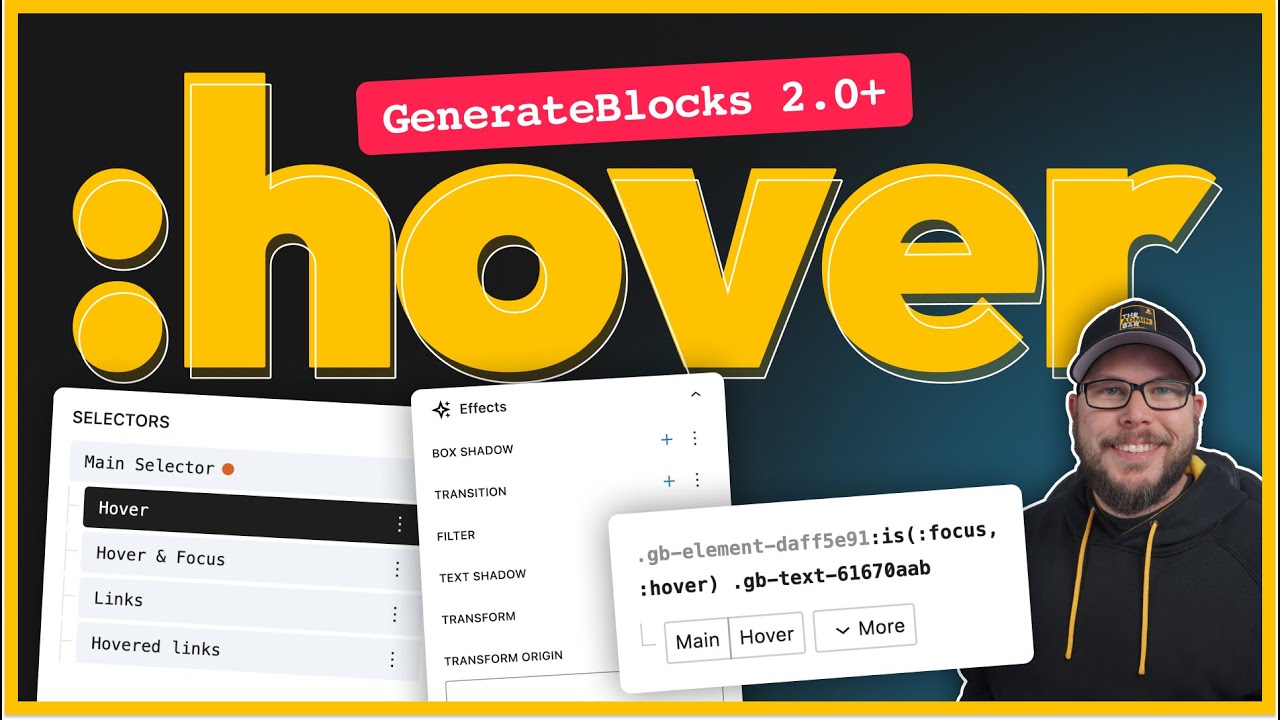
## Metadata
- Author: [[The Admin Bar]]
- Full Title: Mastering Hover Effects in GenerateBlocks
- Category: #articles
- Document Note: ---
tags:
- #generateblocks
- #hovereffects
- #webdesign
Author: Simon Wheatley (video creator)
Source: YouTube Video Transcript - Mastering Hover Effects in GenerateBlocks
Reference: https://www.youtube.com/watch?v=d8ELYaQOUrA
date created: 2025-06-11 19:50
---
# Title: 🎨 Mastering Hover Effects in GenerateBlocks 2.0
## Table of Contents:
- 📝 Summary
- 📖 Main Content
- 🗒️ Notes
- 📖 References
- 🗣️ Paraphrase
- 📰 Newsletter
- ✅ Action Items
- 🧪 Hypotheses
- 📊 Methodology
- ❓ Questions
- 🔮 Future Research
- 💡 Implications
- 🧠 Learning Styles Assessment
- 📊 Accessibility Assessment
- 🌍 DEIB Assessment
- ✅ Logical Validity
- 🔍 DARVO Analysis
- 🔍 SEO Evaluation
- 🎯 Conclusion
---
## 📝 Summary:
This tutorial video transcript explains how to create and master smooth, customizable hover effects using the new selectors panel in GenerateBlocks 2.0. It covers setting hover and focus selectors, applying background color changes, box shadows, movement transforms, and smooth CSS transitions for interactive UI elements like containers and cards.
---
## 📖 Main Content:
Simon Wheatley walks through practical examples showing how to utilize the updated GenerateBlocks 2.0 features to enhance web design interactivity. He begins with a simple background color change on hover, explains the use of the selector panel for targeting hover and focus states, and introduces transition properties to create smooth animations. The tutorial advances into more complex hover effects including box shadows and vertical transform movement. He demonstrates how to control transition durations independently for different properties and how to apply hover effects to child elements (like headlines) when hovering on parent containers. The tutorial emphasizes the near one-to-one mapping between GenerateBlocks controls and underlying CSS, empowering developers with granular control over styling.
---
### 🗒️ Notes
- **Initial Setup & Background Color Hover**
- GenerateBlocks 2.0 changes how hover states are applied: must use selector panel.
- Select container, set background color for normal and hover states separately.
- Hover selector includes `:hover` and `:hover:focus` for accessibility (keyboard navigation).
- Without transition, changes happen instantly on hover.
- **Adding Smooth Transitions**
- Add transition on main selector (not hover state) under effects panel.
- Configure duration (e.g., 350ms) and easing (`ease-in-out`) for smooth effect.
- **Box Shadow & Movement on Cards**
- Hover/focus selector applied to cards (especially links).
- Add box shadow on hover for subtle elevation effect.
- Adjust opacity/transparency to enhance visibility of shadows.
- Add transform effect: translateY to move card up by 5-10px on hover.
- **Transition Timing Control**
- Multiple transitions can be stacked with different durations.
- E.g., box shadow quick (0.25s), transform slower (1s or longer).
- Customize transition property explicitly (e.g., `box-shadow`, `transform`).
- **Targeting Child Elements on Parent Hover**
- Create compound selector using `:is(:hover, :focus)` and child class.
- Example: change headline color when parent card is hovered or focused.
- Add matching transitions to child elements for smooth color changes.
- **CSS Control & Encouragement**
- GenerateBlocks 2.0 maps directly to CSS properties.
- Encouraged to learn CSS to unlock full customization potential.
---
## 📖 References:
- GenerateBlocks Official Documentation
- CSS Transition and Transform References (MDN)
- YouTube Video: Mastering Hover Effects in GenerateBlocks https://www.youtube.com/watch?v=d8ELYaQOUrA
---
## 🗣️ Paraphrase:
**Original:**
“If you take your mouse and hover over the element you can see it changes the background color instantly but adding a transition effect will make that change smooth and visually appealing.”
**Paraphrased:**
Moving your mouse over the element causes an immediate background color shift, but implementing a transition smooths out this effect, enhancing the visual experience.
---
**Original:**
“To change the color of a headline inside the card when the card is hovered or focused, create a compound selector combining the hover and focus pseudo-classes, then target the headline class within it.”
**Paraphrased:**
You can make a headline’s color change when its parent card is hovered or focused by setting up a combined hover/focus selector that points specifically to the headline’s CSS class.
---
## 📰 Newsletter:
🎨 Want to elevate your WordPress design skills? The new GenerateBlocks 2.0 update gives you powerful control over hover effects — from smooth background color shifts to subtle shadows and movement. This tutorial breaks down how to use the selectors panel for hover and focus states, stack multiple transitions with precise timing, and even trigger child element animations on parent hover. Whether you're a CSS newbie or a pro, these tips will make your interactive UI pop! Dive into the full guide here: [Master Hover Effects](https://www.youtube.com/watch?v=d8ELYaQOUrA) 🚀✨
---
## ✅ Action Items:
- Incorporate GenerateBlocks 2.0 hover/focus selector tutorials into workshops for WordPress developers.
- Encourage CSS education alongside block editor use to empower contributors.
- Highlight accessibility best practices by including keyboard focus styling in examples.
- Advocate for community sharing of creative hover effects to inspire diverse UI improvements.
- Create teaching materials that connect visual styling with underlying CSS logic for transparency and sustainability in open-source projects.
---
## 🧪 Hypotheses:
- Mastery of GenerateBlocks 2.0 selectors panel increases developer productivity in styling interactive elements.
- Use of compound selectors combining hover and focus states improves accessibility compliance.
- Detailed control over CSS transitions enhances user engagement and satisfaction on WordPress sites.
---
### 📊 Methodology:
- Survey developers before and after training on GenerateBlocks 2.0 hover features regarding ease and confidence.
- Perform A/B testing on sites using basic hover vs. advanced hover/focus and transition setups measuring user interaction metrics.
- Analyze community forums and GitHub issues for feedback trends related to styling capabilities.
---
### ❓ Questions:
- How does granular control over hover transitions impact site performance and user experience?
- What are the common accessibility pitfalls developers face when implementing hover and focus styles?
- How can GenerateBlocks evolve to simplify complex CSS control while maintaining power?
---
### 🔮 Future Research:
- Exploration of user behavior changes with different hover animation speeds and effects.
- Accessibility impact assessments of hover and focus styling across device types and user groups.
- Development of UI/UX guidelines tailored for block-based editors incorporating advanced CSS features.
---
### 💡 Implications:
Improved understanding and adoption of hover/focus styling in block editors can raise the overall quality and inclusivity of WordPress sites. It encourages deeper CSS literacy, fostering a stronger developer community aligned with modern web standards.
---
### 🧠 Learning Styles Assessment:
- **Visual:** Present with clear sectioning but no images or diagrams; add visuals showing hover state changes and transition timing for clarity.
- **Aural:** No audio content; adding an audio summary or podcast episode would benefit auditory learners.
- **Verbal:** Rich with explanations and terminology; including more storytelling or real-world examples could boost engagement.
- **Physical:** Interactive demos or exercises for hands-on practice would enhance kinesthetic learning.
- **Logical:** Strong logical progression and CSS property mapping supports analytical learners well.
- **Social:** Encourages community sharing but lacks direct collaboration prompts; adding links to forums could help.
- **Solitary:** Offers reflection on CSS
- Summary: The GenerateBlocks 2.0 update introduced a new, powerful way to handle hover effects using the Selectors panel—but if you’re not already familiar with CSS, the changes might feel a little confusing at first.
In this video, I’ll walk you through how to design and implement hover effects like background changes, box shadows, transforms, and even styling nested elements—all using the new visual system in GenerateBlocks 2.0+. Whether you’re building interactive cards, refining your UI animations, or looking to clean up your web design workflows, this video shows you how to do it all without writing custom CSS by hand.
🎯 What You’ll Learn:
How hover and focus states work in GenerateBlocks 2.0
How to add smooth transitions for background colors and box shadows
How to animate transforms (like subtle card lifts) on hover
How to target inner elements (like headlines and descriptions) when their parent is hovered
How to combine multiple effects and keep your layout performance-friendly
This is more than just a GenerateBlocks tutorial—it’s a hands-on CSS design lesson using a visual builder. If you're designing modern websites and want to get the most out of GenerateBlocks (without needing a developer), this video is for you.
👍 Enjoyed the video? Give it a like.
📥 Want more web design tutorials like this? Hit subscribe and stay tuned.
💻 Visit Our Website: https://theadmin.bar/yt-tab
🗨 Join Our Free Community: https://theadmin.bar/yt-community
📨 Get the Best of The Admin Bar Delivered: https://theadmin.bar/yt-tfc
🔁 Sell More Care Plans: https://theadmin.bar/yt-wom
🧮 Use My Website Price Calculator: https://theadmin.bar/yt-calculator
📜 Get My Proposal Template: https://theadmin.bar/yt-proposal
☑️ Get More Done with My Checklists: https://theadmin.bar/yt-checklists
🔴 Live Event Schedule: https://theadmin.bar/yt-events
🔧 The Tools I Use: https://theadmin.bar/yt-tools
⚡ My Agency, OGAL Web Design: https://theadmin.bar/yt-agency
- URL: https://www.youtube.com/watch?v=d8ELYaQOUrA
the Generate Blocks 2.0 release has really changed
the way some of the things inside the editor work one thing that I've seen people comment about
struggling with is the way to achieve hover effects now if you're not super familiar with
the way CSS works these changes might not be completely obvious but once you have your mind
wrapped around it you'll see just how much more powerful the new system is compared to the old
system so in today's video I thought we'd walk through a few different common hover effects
and show you how to set these up using the new selectors panel inside Generate Blocks 2.0 0 and
above if that sounds interesting to you then stick
around and let's get started so I think we'll
start off with a pretty simple example here all I put in so far is just my section and my inner
container or what I call a wrapper in here and I'm just going to add a container inside of it now
we're just going to need this to be a little bit bigger so we can see what's going on so I'm going
to go ahead and give this a minimum height of 400 pixels now we can see our container is taking up
a good amount of space so let's just say we want to give this a background color and then when
we hover on top of it we want to change that background color so here with this container
selected I'm going to go into backgrounds and
I'm going to change this background color to
something in my palette like this lime green color now in old versions of generate blocks some
of these colors would have a color swatch next to it for hover but inside generate blocks 2.0 and
above you need to use the selector panel in order to target the hover states so if we go into our
drop-own menu here in the selector for more we can see some selectors already kind of built out
for us as a helper now in here we have hover and
we also have hover and focus in this case I think
hover is going to be fine because this isn't a focusable element anyways but a lot of times you
actually do want to use hover and focus especially if what you're targeting is some kind of link that
way if somebody's keyboard navigating through your website this effect happens when they tab onto the
element but like I said here we're just doing a background color so I'm just going to go ahead and
use the hover selector now you can see my selector changed up here this is the default one generate
blocks gave us for this element so just kind of
a random string of numbers here but at the end
you'll see it has a colon and then the word hover so this means now any changes we make to this
style panel will only affect this container when it's being hovered so like I said I want to change
the background color here so I'm going to go into my background color and change this to my black
color now because we're only styling what happens on hover we didn't see anything change on the page
because we're not hovering this element right now but if I take my mouse and hover over the element
you can see it changes that background to black
now because we didn't set any kind of transition
this is happening instantly and I think it would probably look better if we had some kind of smooth
transition between the two so we need to set up a transition effect now we don't want to do this
on the hover state we want to do it just on the container itself so to do that I'm going to click
this main button here which will just take me back to the main selector now under the effects panel
I can go down and find transition we'll go ahead and add a new transition by default it's set to
half a second let's speed that up by doing maybe
35 and I'm going to change the timing function to
ease in out now when I hover over this container you can see it smoothly transitions from that
green background to the black background once I'm hovered on top now a more practical example of
where you might want to use something like this is here when you have some kind of card that's a
link when people hover over it maybe you want some kind of box shadow or maybe you want the
card to slightly move up we can do all of that using the same principles we just learned on the
last example so here you can see I've added a card
inside that is a card image and then all of my
card content so I think the first thing I want to do is add a box shadow anytime we hover on top of
this card now because this card is a link I also want to target that focus state as well so I'm
going to go down to my more dropdown and I'm going to make sure that I select hover and focus this
way it will happen anytime I hover over the box or if I keyboard navigate and get focus on the box
so what I'm going to do is scroll down here until
we get to our effects panel i'm going to go to
box shadow and I'll go ahead and just start with this default one you can see when I hover over
it now I'm getting that shadow now I'm going to slightly change this maybe zero offset we'll make
the blur pretty big and I'm going to change this spread to zero now when I hover over it we have
a subtle box shadow it might be kind of hard to see on the screen here so I'm going to go ahead
and bring that transparency up just to make it a little bit easier to see on this demo now whenever
we hover over this box we get this nice box shadow
now it's a little jumpy and I want to make sure
that this has a smooth transition so just like before I'm going to go back to our main selector
here and we'll go down to our effects panel and we're going to go ahead and give this a transition
maybe we'll do 0.25 seconds again and we'll do ease in out and now when I hover over it you
can see that animation is nice and subtle we go from not having a box shadow at all to when
we hover over the element we get this nice box shadow effect but we can stack multiple effects
on this card as well let's say we wanted it to
move up slightly whenever we hover on top of it so
we'll just go back up here to our selectors into our more drop down and into hover and focus and
we'll just collapse these panels here so we can get right to our effects panel and here we already
have the box shadow effect but what I want to do is add a second effect here for our transform so
I'm going to go ahead and click on transform it defaults to translate which is exactly what we
want and what we want to do in this case is move
this box up by maybe 5 pixels so to do that we're
going to go on the translate Y and we're going to do -5 px for pixels now when we hover over this
you can see it's moving slightly up as we hover over it just to exaggerate that I'll change it
to maybe 10 pixels and you can see it moves 10 pixels up anytime we hover over it now because
on our main selector here under our transition we did this as transition all it's going ahead
and applying that same transition to each one
of these effects however if you wanted to have
a different transition on the box shadow and the translate of this you could accomplish that here
inside generate blocks what we'd want to do is if we want to preserve that 0.25 ease in out for our
box shadow we can change this transition property to box shadow you'll just need to type that in
the box here and you can see now it's immediately jumping up and the box shadow is actually
transitioning smoothly of course we're going
to want to add a transition to that translate as
well so what we'll do is just click on add new transition here and maybe we do a really slow move
so we'll change this to 1 second and we'll change this transition property to transform and now
we'll go ahead and hit our check mark and we can see the box shadow should happen in 0.25 seconds
but that transform should take a full second to complete so now when we hover over the box we
should see the box shadow relatively quickly but the transform is going to take a full second
to complete its move to 10 pixels higher so we
can see the box shadow came in really quickly but
the transform happened over a full second we could definitely exaggerate that if we wanted to and
maybe make this 5 seconds we'll go ahead and save that and now we can see the box shadow comes in
and the card is slowly moving up those 10 pixels it's going to take a full 5 seconds for that to
happen now by default the transition property is going to be set to all when you add a new
transition but if you just want to transition a specific property you can always type it directly
into this box now this is a cool effect on its own
but what's really nice is when you can affect
an element inside your card when you hover on the card itself so let me show you an example of
how you could set that up using the same system so what we're going to try to accomplish now
is changing the color of this headline whenever we hover anywhere on top of this card so to do
that the first thing I need to do is take note of whatever class this headline has now I'm just
using the default classes that generate blocks gives us in production you're probably going to
want to give all of these their own unique class
but for now we're just going to use the default
classes i'm going to go ahead and highlight this class and copy it to my clipboard because
we're going to need that here in a second i'll go back here and select my card and now
we're going to need to create our own custom selector essentially what we want to do is select
the headline only when the card is either hovered or focused so to do that we're going to click this
more dropdown and we're going to click the new button here to create our own selector in this
case we do want to use a compound selector and
here I want to use the same format that generate
blocks uses for the hover or focus to do that we type in colon is we open our parenthesis and type
in colon focus comma colon hover and now we can close our parenthesis now after that because
I'm actually wanting to select the headline within it I'm going to type in a space here and
then I'm going to paste in that selector for our headline that we copied to our clipboard so if
I go ahead and hit create now we can take a look
at our selector what we have is this card element
here when it is hovered or focused and then we're selecting the headline within it so we'll go in
here and we'll just change this color i'm just going to give us a bright red color here and now
whenever we hover or focus on this card it should change the headline to red so here you can see the
headline changed to red as soon as we hovered or focused on this card of course we're not getting
that smooth transition that we have for our box
shadow and for our transform that is taking ages
now to complete because the thing that's changing in this is that headline itself we actually need
to add a transition to the headline so I'm going to go ahead and select our headline here we
just want this default class not the hover or focus state and we'll go down to our effects
panel here and we'll go under transition maybe we'll do this similar to the box shadow which
was 0.25 seconds ease in out now when we hover over a box we have a nice smooth transition
of that headline that goes from the default
black color to the red color which is just another
visual indicator that we're hovering over this box now I went kind of fast through that so let's
do it again for the text underneath it we'll change it to red as well not a very practical
example but just to get some practice doing this i'm going to go ahead and select the class here
for our description we'll go back into our card and we'll go ahead and build out that selector
again we'll click the more dropdown we'll click new we're going to turn on our compound selector
and type in is hover focus a space and then we'll
paste in that selector for our description and
hit create now we'll go down into our typography and we'll change this to red now we can see when
we hover over our card it does change that text to red immediately which is great but we need
to go back to our description text here and add that same transition so we'll go into effects
transition 0.25 seconds ease in out and now the headline and the description text underneath
it should both change to red at the same pace if
you're used to writing a lot of CSS by hand
then all of this should seem really familiar the way generate blocks works now is basically
everything maps one to one to the CSS property itself this gives us a whole lot of control that
we didn't have before when we were really just limited to the options generate blocks gave us
now we have full control over the CSS and can write anything we want i would really encourage
you to keep learning more and more about CSS because it's going to unlock your potential and
give you the ability to create things that just
weren't possible inside the old editor if this
was helpful I'd really appreciate a thumbs up and if you want to make sure to catch the
next one hit subscribe and we'll see you, Mastering Hover Effects in GenerateBlocks, The Admin Bar, 01jxgbtvq4pxzmv0kyanwdydea.