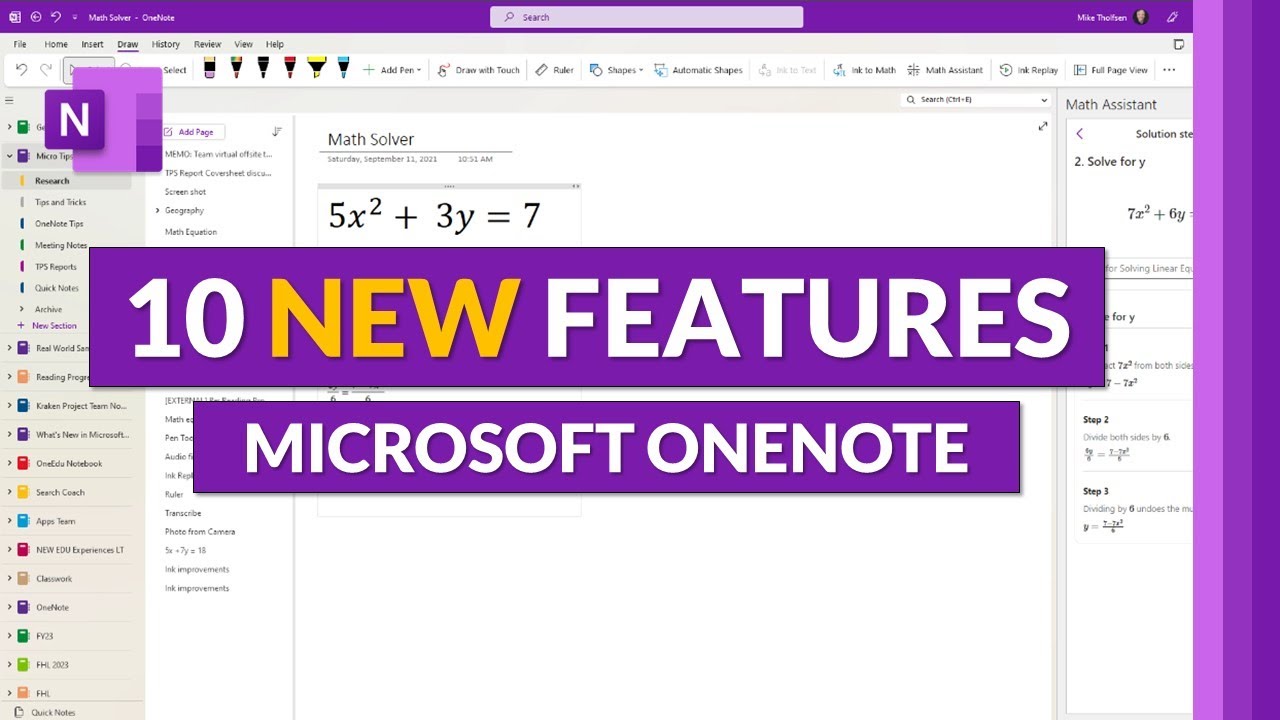
Microsoft OneNote - 10 New Features
## Metadata
- Author: [[YouTube]]
- Full Title: Microsoft OneNote - 10 New Features
- Category: #articles
- Document Note: ---
tags: [OneNote, Microsoft, productivity-tools]
author: ExcelIsFun
source: YouTube
reference: https://www.youtube.com/watch?v=ADOZ65-WhyU
date created: 2024-12-20 04:20
---
# 🏷️ Title: Microsoft OneNote - 10 New Features
## 🧰 Action Inbox
- [H1] Test vertical tabs layout for cross-platform consistency — 00:46 #onenote
- [H2] Try shape auto-conversion with drawing tools — 03:17 #drawing
- [H3] Explore math practice quiz for educational content — 07:42 #education
## 🧭 Table of Contents
- [📝 Summary](#-summary)
- [📖 Main Content](#-main-content)
- [🗒️ Notes](#️-notes)
- [📚 References](#-references)
- [🗣️ Paraphrase](#️-paraphrase)
- [📰 Newsletter](#-newsletter)
- [✅ Action Items](#-action-items)
- [🧪 Hypotheses](#-hypotheses)
- [📊 Methodology](#-methodology)
- [❓ Questions](#-questions)
- [🔮 Future Research](#-future-research)
- [💡 Implications](#-implications)
- [🧠 Learning Styles Assessment](#-learning-styles-assessment)
- [📊 Accessibility Assessment](#-accessibility-assessment)
- [🌍 DEIB Assessment](#-deib-assessment)
- [✅ Logical Validity](#-logical-validity)
- [🛡️ DARVO Analysis](#-darvo-analysis)
- [🎯 Conclusion](#-conclusion)
### 🔗 References
- [Microsoft OneNote](https://www.microsoft.com/en-us/microsoft-365/onenote)
- [OneNote Learning Resources](https://support.microsoft.com/en-us/office/onenote-help-learning-10d30b7e-5d9e-42e6-bf5c-d2d5e3b68b36)
## 📝 Summary
- Microsoft OneNote has released 10 major new features including vertical tabs, improved inking tools, math practice quizzes, and enhanced PDF support
- The vertical tabs feature addresses a long-standing request to make OneNote consistent across all platforms (web, Mac, iPad, desktop)
- New drawing and shape tools include auto-conversion, rotation capabilities, and straight line shortcuts
- Math assistant now includes practice quizzes and immersive reader support for accessibility
- Updates span across Windows desktop, Mac, and web versions with improved file handling and dictation support
## 📖 Main Content
Microsoft OneNote's latest update introduces significant improvements across interface design, drawing tools, mathematical features, and accessibility. The most notable change is the vertical tabs layout, which standardizes OneNote's appearance across all platforms after years of user requests, particularly from educational institutions.
The drawing and inking improvements focus on making shape creation more intuitive through automatic conversion and manipulation tools. Users can now draw rough shapes that automatically convert to perfect geometric forms, with added rotation and resizing capabilities.
Educational features have been enhanced with math practice quizzes that generate similar problems for student practice, integrated with an immersive reader for accessibility support. The system can read equations aloud, provide visual aids, and translate content into 116 languages.
Platform-specific improvements include native dictation support for Mac users and enhanced PDF handling across all versions, with reduced file sizes and improved sync performance.
## 🗒️ Notes
#### ⏱️ [00:00](https://www.youtube.com/watch?v=ADOZ65-WhyU&t=0) — [H1] Introduction to 10 New OneNote Features
- Key idea: Overview of major updates including vertical tabs, inking improvements, and math features
- Evidence: "10 new features in OneNote this includes the much requested vertical tabs option inking improvements math updates"
#### ⏱️ [00:46](https://www.youtube.com/watch?v=ADOZ65-WhyU&t=46) — [H1] Vertical Tabs Layout Implementation
- Key idea: New vertical tab layout creates consistency across all OneNote platforms
- Evidence: "many folks have said I want my OneNote to look the same across all platforms web Mac iPad Etc"
#### ⏱️ [02:15](https://www.youtube.com/watch?v=ADOZ65-WhyU&t=135) — [H1] Simplified Ribbon Mode
- Key idea: Single line mode and simplified ribbon makes desktop app resemble web version
- Evidence: "choose simplified ribbon now it really looks a lot like the web as well as the Windows 10 app"
#### ⏱️ [02:45](https://www.youtube.com/watch?v=ADOZ65-WhyU&t=165) — [H2] Shape Auto-Conversion Feature
- Key idea: Drawing tools now automatically convert rough shapes into perfect geometric forms
- Evidence: "if you hold right on the corner it converts it into a nice Square same thing with a triangle"
#### ⏱️ [03:17](https://www.youtube.com/watch?v=ADOZ65-WhyU&t=197) — [H2] Straight Line Shortcut
- Key idea: Shift key creates instant straight lines while drawing
- Evidence: "if you hold down the shift key and just draw like this it makes a straight line"
#### ⏱️ [03:45](https://www.youtube.com/watch?v=ADOZ65-WhyU&t=225) — [H2] Shape Rotation and Resizing
- Key idea: Shapes can be rotated and resized directly after auto-conversion
- Evidence: "with my mouse button down I can start dragging that square and rotating it"
#### ⏱️ [04:30](https://www.youtube.com/watch?v=ADOZ65-WhyU&t=270) — [H3] 0.35mm Pen Size Return
- Key idea: Popular intermediate pen size has been restored by user request
- Evidence: "this is the 0.35 millimeter right here... this is one that we had removed but now it's back"
#### ⏱️ [05:15](https://www.youtube.com/watch?v=ADOZ65-WhyU&t=315) — [H1] Math Assistant Practice Quiz
- Key idea: Math solver now includes practice problems with similar equations
- Evidence: "practice with similar equations now imagine you're a student you're working on math"
#### ⏱️ [06:45](https://www.youtube.com/watch?v=ADOZ65-WhyU&t=405) — [H1] Solution Steps and Learning
- Key idea: Practice problems include detailed solution steps for learning
- Evidence: "the solution steps are right here so if I click solution steps it's going to show me all the different solution steps"
#### ⏱️ [07:42](https://www.youtube.com/watch?v=ADOZ65-WhyU&t=462) — [H1] Immersive Reader Integration
- Key idea: Immersive reader helps users with reading difficulties access math content
- Evidence: "help people who might need extra assistance reading the math steps might be visual crowding could be dyslexia"
#### ⏱️ [08:30](https://www.youtube.com/watch?v=ADOZ65-WhyU&t=510) — [H1] Audio and Visual Learning Tools
- Key idea: Math equations can be read aloud and enhanced with visual dictionaries
- Evidence: "I can click on a word here and have a picture so for picture dictionary subtract and I can read that out loud"
#### ⏱️ [09:15](https://www.youtube.com/watch?v=ADOZ65-WhyU&t=555) — [H1] Multi-Language Translation Support
- Key idea: Math solutions can be translated into 116 different languages
- Evidence: "I can also translate into 116 different languages so in this case maybe I'm to translate these steps into Spanish"
#### ⏱️ [10:00](https://www.youtube.com/watch?v=ADOZ65-WhyU&t=600) — [H2] Mac Dictation Support
- Key idea: OneNote for Mac now includes native dictation in over 50 languages
- Evidence: "we now support dictate in one for Mac... we support many different languages over 50 languages actually"
#### ⏱️ [10:30](https://www.youtube.com/watch?v=ADOZ65-WhyU&t=630) — [H2] Improved PDF Printing
- Key idea: Native PDF printing reduces file sizes and improves sync performance
- Evidence: "behind the scenes it's Slimmer and there's less megabytes being stored in OneNote which makes your OneNote smaller and syncing faster"
#### ⏱️ [11:15](https://www.youtube.com/watch?v=ADOZ65-WhyU&t=675) — [H3] Large File Attachment Support
- Key idea: OneNote web now supports file attachments greater than 19MB
- Evidence: "one up for the web now supports inserting attachments that are greater than 19 megabytes"
## 📚 References
- [OneNote - 10 New Features Video](https://www.youtube.com/watch?v=ADOZ65-WhyU)
- [Microsoft OneNote Official Site](https://www.microsoft.com/en-us/microsoft-365/onenote)
- [OneNote Support Documentation](https://support.microsoft.com/en-us/office/onenote-help-learning-10d30b7e-5d9e-42e6-bf5c-d2d5e3b68b36)
## 🗣️ Paraphrase
- OneNote now offers a vertical tabs layout that unifies the interface across all platforms, addressing a major user request especially from educational institutions
- Enhanced drawing tools automatically convert rough sketches into perfect shapes, with added capabilities for rotation, resizing, and straight line creation using keyboard shortcuts
- The math assistant has evolved beyond problem-solving to include practice quizzes with similar problems, complete with solution steps and accessibility features through the immersive reader
## 📰 Newsletter
OneNote users have much to celebrate with Microsoft's latest feature rollout! The most game-changing update is the vertical tabs layout - finally bringing visual consistency across desktop, web, and mobile versions. This is especially exciting for educational institutions who've been requesting this standardization.
For content creators and note-takers, the enhanced drawing tools are a productivity boost. Your rough sketches now automatically convert to perfect shapes, and you can easily rotate and resize them. The shift-key shortcut for straight lines is surprisingly handy for quick diagrams and layouts.
Students and educators will love the new math practice features. Beyond solving equations, OneNote now generates similar practice problems with step-by-step solutions, all accessible through the immersive reader with multi-language support.
The technical improvements - native PDF printing, larger file support, and Mac dictation - show Microsoft's commitment to making OneNote a robust, cross-platform solution for modern productivity workflows.
Resources: [OneNote Learning](https://support.microsoft.com/en-us/office/onenote-help-learning-10d30b7e-5d9e-42e6-bf5c-d2d5e3b68b36), [Microsoft 365 Training](https://support.microsoft.com/en-us/training), [OneNote Community](https://techcommunity.microsoft.com/t5/onenote/ct-p/OneNote)
## ✅ Action Items
#### DevRel
- Developer advocacy: Create OneNote API demos showcasing new features for third-party integrations
- Education: Develop workshops on OneNote's educational features, particularly math tools and accessibility
- Developer experience: Document API changes related to PDF handling and file attachment improvements
- Developer marketing: Promote OneNote extensibility opportunities through new feature capabilities
- Community management: Gather feedback on cross-platform consistency achievements and remaining gaps
#### Community
- Maintainers: Support OneNote power users in migrating workflows to vertical tabs layout
- Contributors: Create community guides for new drawing and math features
- Ecosystem: Coordinate with educational technology partners on OneNote integration opportunities
#### WordPress
- Documentation: Compare OneNote's cross-platform consistency approach with WordPress editor parity goals
- Design: Study OneNote's simplified ribbon approach for WordPress admin interface improvements
- Accessibility: Learn from OneNote's immersive reader implementation for WordPress content accessibility
## 🧪 Hypotheses
- Cross-platform interface consistency increases user adoption and reduces support burden across different devices
- Auto-conversion drawing tools significantly reduce time spent on diagram creation and improve visual note quality
- Integrated practice problems with accessibility features improve learning outcomes for students using digital math tools
- Native PDF handling with reduced file sizes improves application performance and user satisfaction
### 📊 Methodology
- A/B test vertical vs horizontal tabs with education users measuring task completion and preference
- Time-motion studies comparing manual shape drawing vs auto-conversion for common diagramming tasks
- Learning outcome assessments comparing traditional math practice vs integrated digital practice tools
### ❓ Questions
- How does cross-platform consistency impact user workflow efficiency across different contexts?
- What drawing and annotation features are most valuable for knowledge workers beyond basic shape conversion?
- How can accessibility features be seamlessly integrated without compromising core user experience?
### 🔮 Future Research
- Investigation into optimal interface standardization strategies across platform constraints
- Study of AI-powered shape recognition and conversion accuracy improvements
- Analysis of immersive reading technology effectiveness across different learning disabilities
### 💡 Implications
- Practice: OneNote becomes more viable for cross-platform teams requiring consistent collaboration tools
- Education: Enhanced math and accessibility features position OneNote as comprehensive educational technology
- Security: Improved PDF handling may reduce third-party plugin dependencies and associated security risks
- Funding: Microsoft's significant investment in accessibility demonstrates business case for inclusive design
### 🧠 Learning Styles Assessment
Reading level estimate: 8.5 Flesch-Kincaid Grade Level
#### 👀 Visual learners
- Present: Video demonstrations, screenshot comparisons, interface mockups
- Improve: Side-by-side platform comparison charts, feature workflow diagrams
#### 🔊 Aural learners
- Present: Video narration with clear explanations and feature demonstrations
- Improve: Audio-only summary highlighting key feature benefits and use cases
#### 🗣️ Verbal learners
- Present: Step-by-step explanations, feature comparisons, use case examples
- Improve: Glossary of technical terms, analogies for complex features
#### 🧩 Kinesthetic learners
- Present: Hands-on demonstrations, interactive feature trials
- Improve: Practice exercises for each new feature, guided setup checklists
#### 🧠 Logical learners
- Present: Sequential feature presentation, cause-and-effect relationships
- Improve: Feature comparison matrices, implementation timeline analysis
#### 🧑🤝🧑 Social learners
- Present: Implicit collaboration context, educational use cases
- Improve: Community feedback examples, team workflow scenarios
#### 🧘♀️ Solitary learners
- Present: Individual feature exploration, personal productivity benefits
- Improve: Self-assessment rubrics, personal workflow customization guides
#### 🌿 Naturalistic learners
- Present: Real-world application examples in educational contexts
- Improve: Ecosystem thinking about OneNote's role in larger productivity workflows
### 📊 Accessibility Assessment
#### Screen reader semantics
- Present: Video includes spoken descriptions of visual interface changes
- Improve: Text transcription with detailed interface state descriptions
#### Keyboard navigation
- Present: Demonstrates keyboard shortcuts for new features
- Improve: Complete keyboard navigation guide for vertical tabs layout
#### Contrast and readability
- Present: Video shows clear interface elements and contrasts
- Improve: Static screenshots with accessibility annotations
#### Text resizing and reflow
- Present: Interface changes appear to maintain readability
- Improve: Testing documentation for various zoom levels and screen sizes
#### Media and captions
- Present: Clear audio narration throughout demonstration
- Improve: Closed captions and full transcript availability
#### Forms and interactions
- Present: Shows form interactions in math assistant and settings
- Improve: Accessibility testing documentation for new interactive elements
### 🌍 DEIB Assessment
#### Cultural breadth
- Present: Multi-language translation support (116 languages) in immersive reader
- Improve: Examples from non-Western educational contexts and workflows
#### Inclusive language
- Present: Uses clear, professional terminology without exclusionary jargon
- Improve: Define technical terms for users less familiar with productivity software
#### Neurodiversity support
- Present: Explicitly addresses dyslexia, visual processing challenges through immersive reader
- Improve: Discuss broader neurodiversity benefits of organization and visual clarity features
#### Representation
- Present: Focuses on functional benefits rather than specific user demographics
- Improve: Include diverse use case examples across different roles and contexts
#### Psychological safety
- Present: Encouraging tone about learning and making mistakes in math practice
- Improve: Emphasize growth mindset and learning from errors in educational contexts
###
- Document Tags: [[drawing]] [[onenote]] [[education]]
- Summary: Microsoft OneNote - 10 New Features
- URL: https://www.youtube.com/watch?v=ADOZ65-WhyU
I'll be showing 10 new features in OneNote. This includes the much-requested vertical tabs option, inking improvements, math updates, and a whole lot more. So let's get started. The first new feature is the long-awaited vertical tab layout in OneNote desktop.
I'm here in my OneNote Windows app on the desktop, and typically the right-hand side is where the pages are and tabs across the top. These sections are horizontal, and then you have notebooks over here on the left. You can expand that and pin it. The new update allows you to go to the View tab. Now, many folks have said, "I want my OneNote to look the same across all platforms: web, Mac, iPad," etc. The desktop app has always been a little different, especially in education.
This has been a top request, so I'll go to the tabs layout here on the View tab and I'm going to choose vertical tabs. And look what happens! Now the pages are on the left; the notebooks and sections are on the left as well, all aligned vertically. I've expanded a notebook here, and now the sections look just like they do in the web and the one for Windows 10 app and on iPad. This keeps everything aligned on the left-hand side.
If I want to collapse the notebooks on the left, I can just click on the three line hamburger menu and everything collapses, so I get more space and click again to expand that.
As a bonus, you can go into single line mode right here, drop this down and choose simplified ribbon. Now it really looks a lot like the web as well as the Windows 10 app, so now all of your OneNotes can look the same.
If you go back on tabs layout here, you can go back to horizontal tabs and we're back. The second new feature is improvements to inking and drawing shapes easily.
I'm going to click on the draw menu and I'm going to click on a pen. This works with a mouse, a stylus, or just your finger. So first, I'm going to draw a square with my mouse. It's kind of ugly. I can't draw it very well and if you hold right on the corner, it converts it into a nice square. Same thing with a triangle.
I'm going to draw a triangle with my mouse and hold the top; it makes it into a triangle. It works with the circle as well. That's a really ugly circle, and hey, that's looking good. That lets you make really nice shapes easily.
It also works with lines if I'm kind of Drawing a line, and I hold here.
It makes it into a straight line. The third new feature is a shortcut key for drawing straight lines. If you hold down the shift key and just draw like this, it makes a straight line. So I can hold down shift and draw horizontal and straight lines. If I want to move it, I hold my mouse, and now I can click and then just drag that all around. So I can drag just like that's really handy to make lines quickly and straight.
The fourth new feature is another ink improvement, and it's similar to the last one. First, I'm going to draw a square, and then I'm going to hold my mouse right here. When it makes a nice square, now if I want to rotate that with my mouse button down, I can start dragging that square and rotating it. Again, this works with your finger as well as a stylus, so really easy. This is kind of fun, a little mesmerizing to click and drag and rotate a shape. So if I do it with a triangle, same thing; draw the triangle, hold it, and then just start dragging it. You can even size it, so I'm sizing it bigger or smaller really easily. So spin it around, make it bigger or smaller.
The fifth new feature is that we've added back the 0.35 millimeter pen size. So I'm going to click on a pen here. If you click the arrow again to drop it down, you'll see the different thickness sizes. So right here, you've got a really big thick size. This is the 0.35 millimeter. Right here, I'm going to click that, and this is one that we had removed, but now it's back. This is a nice in between size to get just the right pen you need. The sixth feature is a map feature, and we've added the practice quiz right back here into the desktop app. So I have a math equation right here that I've added. I'm going to select this. If you go to the insert menu, you're going to see way over on the right, there's a math assistant, and actually, it's also on the draw tab. So if you're going to draw, we also have the math assistant there. You can find it in either place. I'll click on math assistant.
Now, this automatically recognizes my equation, and I'm going to solve for y. This is the math solver that we've already had, but I'll click here to show this. Now, there's this practice with similar equations. Now, imagine you're a student, you're working on math, and you I have this equation.
I'd like to practice with similar equations to solve, so I'll click here. For math practice, it generates a problem. So it says, "Solve for y," and here's the equation. I'm just going to take a guess here. We'll click right here and I can say "Check." Oh, it looks like I got that one wrong. This is the right answer, and the solution steps are right here. So if I click "Solution Steps," it's going to show me all the different solution steps so I can understand how that problem was solved. Now I can hit back, and I can go and try another problem. So I'll hit next. Here's a similar but different problem. I'm going to guess again. I'll just click right here. We'll say "Check." Hey, I got that one right. I can even check the solution steps as well on this.
The seventh new feature is that we've added the immersive reader to help people who might need extra assistance. Reading the math steps might be visual crowding, could be dyslexia, or maybe they don't speak the native language. So if I want to take these solution steps here and pull them into the immersive reader, I just click on this immersive reader.
The immersive reader reduces distractions, and it lets you do many other things. For example, I can click on a word here and have a picture, so for the picture dictionary, I can read that out loud. I can click on a specific equation, like right here, and hit play, and it'll read it: 6y equals 7 minus 7x squared. Step two, divide both sides by... I can hear that read out loud. I can change the background color, so I have a bunch of different options. I can go here and maybe choose line focus, and that will help my eyes focus. I can navigate; this is like a reading ruler overlay. It gives me a little extra focus and attention. I'll turn that off. I can also translate into 116 different languages. So in this case, maybe I want to translate these steps into Spanish, and I'll choose to translate the entire document. Now I can read that out loud in Spanish.
So all of this is built right into the immersive reader in the math assistant over here on the right-hand pane. As usual, if I want to insert these right onto the page, I can click over on OneNote and go here, and now I have these steps right on the page.
The eighth new feature is that we now support dictation in OneNote for Mac. I don't have a Mac to demo this, but if you go to the dictate button on the Home tab in Mac OneNote, there is now built-in dictation, which you can launch, and we support many different languages—over 50 languages actually, and you can even tune it around filtering sensitive phrases or auto punctuation. So, dictation is now rolled out in OneNote for the Mac.
The ninth new feature is improved printing to PDF. We are recently rolling out to insiders the ability to have PDF printing natively part of OneNote, so you no longer have to have that PDF Adobe add-in. In addition, when you print a PDF, you no longer will have as big of storage requirements and syncing requirements in OneNote. So, we've made it slimmer, easier, and faster.
I'll briefly show how that works. I'll go to the insert menu, and I'm going to choose file printout. I'll choose my learning tools research study. It's printing now. The entire PDF study is printed as a PDF, but behind the scenes, it's slimmer and there are fewer megabytes being stored in OneNote, which makes your OneNote smaller and syncing faster. The tenth new feature Is that one up for the web now supports inserting attachments that are greater than 19 megabytes. There used to be a hard-coded rule that you could not do that. That's recently been changed, so now I can go to the insert menu and choose file and insert a file attachment, and I can put files greater than 19 megabytes onto the page. Now, if you want to keep up with all the latest Microsoft updates and tips and tricks, subscribe to my channel and then just ring the bell so you get all the latest videos that I post., Microsoft OneNote - 10 New Features, YouTube, 01ka8cv9842ap4rg4nryc4g7ve.