Obsidian - Extended Graph - 7 Examples
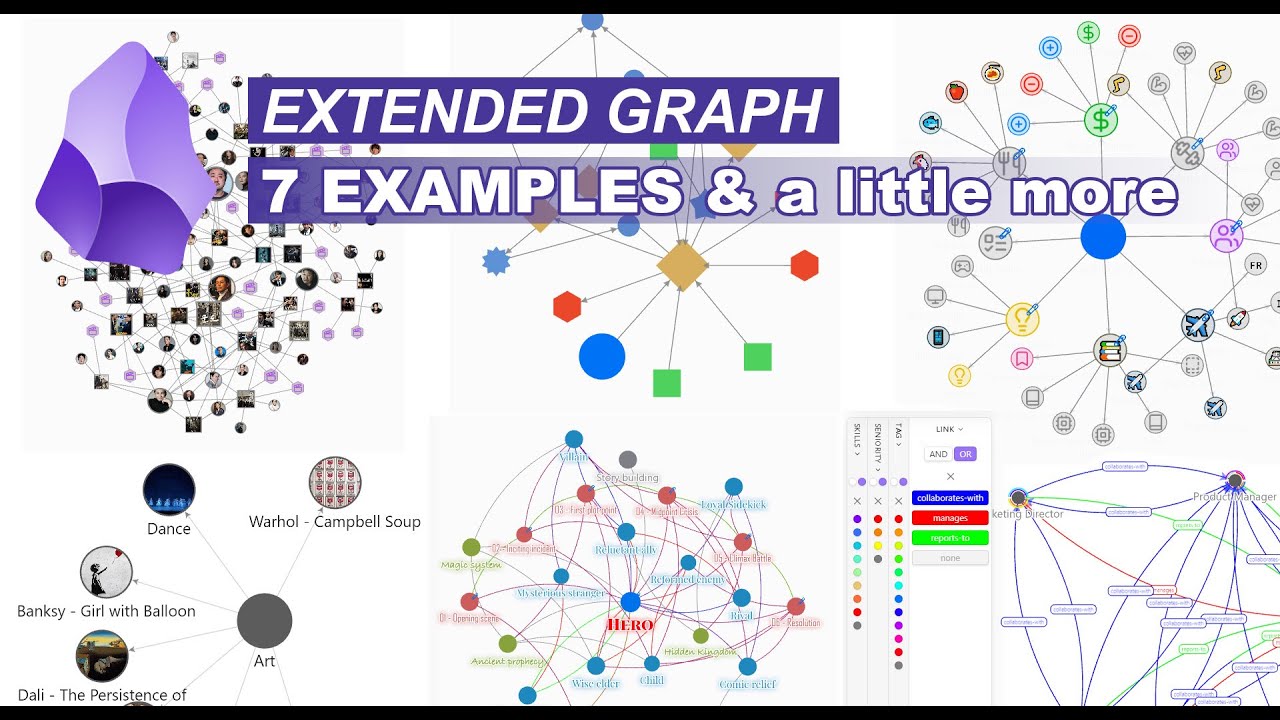
## Metadata
- Author: [[Kapirklaa]]
- Full Title: Obsidian - Extended Graph - 7 Examples
- Category: #articles
- Document Note: ---
tags:
- #obsidian
- #extendedgraph
- #pkm
Author: Unknown (creator name not provided in transcript)
Source: YouTube — “Obsidian - Extended Graph - 7 Examples”
Reference: https://www.youtube.com/watch?v=4xcEc4_qxJs
date created: {{date:YYYY-MM-DD}} {{time:HH:mm}}
---
# Obsidian Extended Graph — 7 Examples (Transcript Notes)
## 🧭 Table of Contents
- [📝 Summary](#-summary)
- [📖 Main Content](#-main-content)
- [🖼️ Art Project: Images & Video Thumbnails](#️-art-project-images--video-thumbnails)
- [📊 Dashboard: Icons, Emojis, and Pinned Hubs](#-dashboard-icons-emojis-and-pinned-hubs)
- [🎓 PhD Graph: Titles, Attachments, and External Links](#-phd-graph-titles-attachments-and-external-links)
- [🏢 Startup Map: Relationship Types and Filters](#-startup-map-relationship-types-and-filters)
- [🎨 CSS Styling: Per-Graph Custom Labeling](#-css-styling-per-graph-custom-labeling)
- [✍️ Story Building: Folder-Scoped CSS & Roles](#️-story-building-folder-scoped-css--roles)
- [🧩 System Architecture: Shapes & Arrows](#-system-architecture-shapes--arrows)
- [🎬 Global Graph: Movies, Actors, Directors, Stats](#-global-graph-movies-actors-directors-stats)
- [🔎 Focus, Search, and Depth Cues](#-focus-search-and-depth-cues)
- [📚 References](#-references)
- [🗒️ Notes](#️-notes)
- [🗣️ Paraphrase](#️-paraphrase)
- [📰 Newsletter](#-newsletter)
- [✅ Action Items](#-action-items)
- [🧪 Hypotheses](#-hypotheses)
- [📊 Methodology](#-methodology)
- [❓ Questions](#-questions)
- [🔮 Future Research](#-future-research)
- [💡 Implications](#-implications)
- [🧠 Learning Styles Assessment](#-learning-styles-assessment)
- [📊 Accessibility Assessment](#-accessibility-assessment)
- [🌍 DEIB Assessment](#-deib-assessment)
- [🧷 Logical Validity & Tone Analysis](#-logical-validity--tone-analysis)
- [🔍 SEO Evaluation](#-seo-evaluation)
- [🎯 Conclusion](#-conclusion)
### 📚 References: Include a list of sources consulted and cited in the article.
- YouTube: Obsidian — “Extended Graph — 7 Examples” (video + description) — https://www.youtube.com/watch?v=4xcEc4_qxJs
---
## 📝 Summary
- **What it is:** Extended Graph is an Obsidian plugin that upgrades Graph View with images, icons, shapes, filtering, and graph metrics. [0:01](https://www.youtube.com/watch?v=4xcEc4_qxJs&t=1)
- **Why it matters:** You can model worlds, teams, research, or systems and then **see** relationships, not just read them.
- **Seven demos:** Art gallery, personal dashboard, academic graph, startup org map, CSS styling, story building, system architecture, and a global graph of Korean films with statistics.
---
## 📖 Main Content
### 🖼️ Art Project: Images & Video Thumbnails
- **Feature:** Load images into nodes; supports video previews but heavy files slow rendering. [1:00](https://www.youtube.com/watch?v=4xcEc4_qxJs&t=60) · [1:20](https://www.youtube.com/watch?v=4xcEc4_qxJs&t=80) · [1:34](https://www.youtube.com/watch?v=4xcEc4_qxJs&t=94) · [1:47](https://www.youtube.com/watch?v=4xcEc4_qxJs&t=107)
- **Options:** Show images in global/local graphs; pull from frontmatter `image`, embeds, or online sources. [2:13](https://www.youtube.com/watch?v=4xcEc4_qxJs&t=133)–[2:36](https://www.youtube.com/watch?v=4xcEc4_qxJs&t=156)
- **Why it matters:** Visual anchors help you navigate dense knowledge faster.
### 📊 Dashboard: Icons, Emojis, and Pinned Hubs
- **Feature:** Use emojis or plugin-friendly icons (Iconic/Iconize) for folders and notes; inherit icons from parents or set per-note with `icon`. [3:40](https://www.youtube.com/watch?v=4xcEc4_qxJs&t=220) · [4:58](https://www.youtube.com/watch?v=4xcEc4_qxJs&t=298)
- **Styling:** Toggle borders/backgrounds; use emoji average color; pin key nodes to hold structure. [5:44](https://www.youtube.com/watch?v=4xcEc4_qxJs&t=344)–[6:16](https://www.youtube.com/watch?v=4xcEc4_qxJs&t=376)
- **Why it matters:** A visual “home screen” for your vault accelerates context switching.
### 🎓 PhD Graph: Titles, Attachments, and External Links
- **Readable labels:** Truncate displayed titles; show full on hover. [7:14](https://www.youtube.com/watch?v=4xcEc4_qxJs&t=434)–[7:45](https://www.youtube.com/watch?v=4xcEc4_qxJs&t=465)
- **Neighborhood names:** Show labels for hovered node **and** neighbors. [8:11](https://www.youtube.com/watch?v=4xcEc4_qxJs&t=491)
- **Attachments:** Color code attachments; display just filename (hide long paths). [8:27](https://www.youtube.com/watch?v=4xcEc4_qxJs&t=507)–[8:53](https://www.youtube.com/watch?v=4xcEc4_qxJs&t=533)
- **External links:** Surface `url` links as domain nodes and truncate to last segment. [9:01](https://www.youtube.com/watch?v=4xcEc4_qxJs&t=541)–[10:15](https://www.youtube.com/watch?v=4xcEc4_qxJs&t=615)
- **Why it matters:** Academic references get human-friendly labels without renaming files.
### 🏢 Startup Map: Relationship Types and Filters
- **Link types:** Define edges like `collaborates_with`, `manages`, `reports_to`; use curved lines to show bidirectionality. [11:13](https://www.youtube.com/watch?v=4xcEc4_qxJs&t=673)–[12:11](https://www.youtube.com/watch?v=4xcEc4_qxJs&t=731)
- **Filtering:** Show only org structure; hide non-essential links. [12:21](https://www.youtube.com/watch?v=4xcEc4_qxJs&t=741)
- **Tag/prop filters:** Combine with AND/OR; e.g., staff with “JavaScript” **and** “networking,” exclude juniors. [13:06](https://www.youtube.com/watch?v=4xcEc4_qxJs&t=786)–[14:19](https://www.youtube.com/watch?v=4xcEc4_qxJs&t=859)
- **Why it matters:** Turn your team graph into a staffing and skills dashboard.
### 🎨 CSS Styling: Per-Graph Custom Labeling
- **Scoped CSS:** Target specific graphs with `.graph-local/.graph-global` and `data-focus-file`. [15:09](https://www.youtube.com/watch?v=4xcEc4_qxJs&t=909)
- **Readable labels:** Change font, weight, stroke, padding; improve overlap contrast. [16:29](https://www.youtube.com/watch?v=4xcEc4_qxJs&t=989)–[17:16](https://www.youtube.com/watch?v=4xcEc4_qxJs&t=1036)
- **Why it matters:** Typography choices can make a busy graph legible.
### ✍️ Story Building: Folder-Scoped CSS & Roles
- **Folder scoping:** Apply CSS when path includes `Story Building/`. [17:56](https://www.youtube.com/watch?v=4xcEc4_qxJs&t=1076)–[18:24](https://www.youtube.com/watch?v=4xcEc4_qxJs&t=1104)
- **Role styling:** Characters red serif, worldbuilding green handwritten, protagonist big small-caps. [19:22](https://www.youtube.com/watch?v=4xcEc4_qxJs&t=1162)–[20:19](https://www.youtube.com/watch?v=4xcEc4_qxJs&t=1219)
- **Why it matters:** Visual roles make narrative relationships pop.
### 🧩 System Architecture: Shapes & Arrows
- **Shapes:** Squares for frontend, diamonds for APIs, hexagons for security, star-like for analytics. [21:12](https://www.youtube.com/watch?v=4xcEc4_qxJs&t=1272)–[22:04](https://www.youtube.com/watch?v=4xcEc4_qxJs&t=1324)
- **Arrows:** Pick styles, invert, set opacity, scale, and fixed size for zoom consistency. [22:37](https://www.youtube.com/watch?v=4xcEc4_qxJs&t=1357)–[24:17](https://www.youtube.com/watch?v=4xcEc4_qxJs&t=1457)
- **Why it matters:** Architecture graphs benefit from conventional shapes and clear flow.
### 🎬 Global Graph: Movies, Actors, Directors, Stats
- **Scoping state:** Filter the global graph to a folder (e.g., `movies/`). [25:02](https://www.youtube.com/watch?v=4xcEc4_qxJs&t=1502)–[25:35](https://www.youtube.com/watch?v=4xcEc4_qxJs&t=1535)
- **Visual types:** Posters for films, profile images for actors, clapper icon for directors; distinct shapes. [25:42](https://www.youtube.com/watch?v=4xcEc4_qxJs&t=1542)–[26:17](https://www.youtube.com/watch?v=4xcEc4_qxJs&t=1577)
- **Metrics:** Size/color by centrality (betweenness, degree, closeness); choose directed/undirected for correctness. [26:38](https://www.youtube.com/watch?v=4xcEc4_qxJs&t=1598)–[30:32](https://www.youtube.com/watch?v=4xcEc4_qxJs&t=1832)
- **Why it matters:** Statistics reveal hubs, bridges, and outliers at a glance.
### 🔎 Focus, Search, and Depth Cues
- **Focus highlight:** The active note grows in size in a global graph; opened notes show thicker borders. [35:22](https://www.youtube.com/watch?v=4xcEc4_qxJs&t=2122)–[35:38](https://www.youtube.com/watch?v=4xcEc4_qxJs&t=2138)
- **Sear
- Summary: This video demonstrates the Extended Graph plugin's capabilities through small practical examples:
1. Art gallery: display images and video frames
2. Dashboard: use icons (with or without Iconic or Iconize plugins), pin nodes
3. PhD and academic litterature: change node names, add external links
4. Startup: use curved links, display link types, filter links, combine tags and properties filters
5. Story building: use CSS with precise selectors
6. System architecture: changes nodes shapes based on multiple metadata, modify arrows visuals
7. Movies: use images, change nodes shapes, use graph analysis to color and resize nodes
Links:
Plugin Repository: https://github.com/ElsaTam/obsidian-extended-graph
Complete Documentation: https://github.com/ElsaTam/obsidian-extended-graph/wiki
Download Obsidian: https://obsidian.md/download
Install plugin: https://obsidian.md/plugins?id=extended-graph
Theme & plugins featured/mentioned:
Velocity (theme): https://github.com/Gonzalo-D-Sales/obsidian-velocity
Iconic (plugin): https://github.com/gfxholo/iconic
Iconize (plugin): https://github.com/FlorianWoelki/obsidian-iconize
Custom node size (plugin): https://github.com/jackvonhouse/custom-node-size
Chapters:
0:00 Introduction
01:00 Art gallery
02:45 Dashboard
06:24 PhD and academic litterature
11:00 Startup company
17:25 Story building
21:12 System architecture
25:02 Movies
33:00 Folders
33:47 Focusing nodes
36:37 Local graph
- URL: https://youtube.com/watch?v=4xcEc4_qxJs&si=Glhn0ZIjpuCancPV
Hi. The Extended Graph plugin supercharges Obsidian's
Graph View with advanced visualization and filtering capabilities. You can add images, you
can add icons to the nodes, you can color-code connections by link types, you can filter by
tags or by properties or by links. You can use metrics like statistical graph analysis to
change the size or the color of the nodes. So whether you're managing
complex world building project,
or like organizing organizing
research documentation, or maybe just you want a simple understanding
of the relationships in your vault, I hope that this plugin will give you more tools to do that.
And today I will try to walk you through several small examples that I made in order
to demonstrate the breadth, ... the (fails again), like everything that is
possible with the Extended Graph plugin.
So first off, I will start with the Art project.
You see I have just a small gallery of multiple images or videos in the case of the dance one
is the Tchaïkovski Nutcracker Royal Ballet. And if I open the local graph, I can
enable the plugin, go to the Art state, and it should load all of the images. The reason
it's very slow right now, it's because I have
this one that is the ballet is about two hours
long, so it has to parse everything in order to get the middle frame. But it does support
video, but it takes time. So if you have video, maybe just don't put them in a way that it
could be loaded for the graph view here. So that's as simple as that. If you want
to look at the options that are available,
you can use... No, let me just first import
the actual options that I'm using right now. Yes. So you can choose to display images in
the global or in the local graph. You can set them from some properties, right
now, I'm using the property image. It could also be loaded directly from the
images that are directly embed inside your notes. If you show the attachments
on the Graph View, you could do that
too. You could load online images and stuff
like that. So that's quite a basic example. Now I will switch to the Dashboard. The
dashboard... Yes, let's go to the dashboard state. So as you can see, you can use icons, for
example here to display subjects. So I have my
workout. I have everything that is related to
money and budget tracking. Everything that is related to the food and the meal that I'm planning
to eat. My daily tasks, the project ideas that I can have. Maybe I'm working on a mobile app, or a
game development project. Everything that I want to read or that I have read before in the past,
the travel plans and maybe things related to my colleagues at work. So yeah, you can like have a
kind of a dashboard. It's not the best plugin to
do a dashboard but maybe that's the way you want
to visualize your notes. So that's an example. Here, what you can see is, first
of all it supports both emojis and icons. It will work with Iconic and Iconized
plugins. So if I open the dashboard here you will see that my "Budget Tracking/", my
"Meal Planning/", my "Meeting Notes/" have
the folder icons. And the notes themselves will
either take the icon from a parent - if that's what you want, there is an option to disable
that - or the icon from the file if it exists. If the icon from the file or the folder has
a color you can choose to use this one or you can choose to just use the default color too, so
it would all be gray for example. And for emojis you can see that this apple is a red-ish here.
So it takes like the average color of the emoji.
Another thing that you can see is... Yes,
so I have for example all my meal planning here. They are not set neither on the folder
nor on the file. So it also works without the Iconic or Iconize plugins. So you can just go
here and see that I have a property that is called icon. And if I put here an emoji or an
identifier, like an ID, of a Lucid icon which
are supported within Obsidian (like the same
icons that you see everywhere in the app or in the callouts for example), it will also work. So
you don't need a plugin to have the icon feature. And I have pinned all of
my main subject in circles. Now, for the icons themselves, you can customize
them a little bit more. So let's import to see
the options that I'm actually using right
now. And if I go in the icons section, you will see that I can remove completely the
background, use the icon color or the not color like I said, and maybe I want a thicker
or absolutely no border for example. So that's also possible. I could remove this, remove
this. Let's save the settings to the dashboard.
And if I reload, you see there is no longer
any background and border, it's just the icons. So yes that's for icons and a
little bit about pinning nodes. Next up is the PhD dashboard.
Here let's switch to this PhD state.
What I want to show here is the name. Let's focus
on the name. You can see that my PhD node that I'm currently focused on is linking to some weird
names. It's like the reference, so first letters are the first letter of the authors and then
you have the two last numbers of the year that the article was published in. So this is a unique
itemifier that I'm used to and it sorts everything
in alphabetical order. But that's not what I want
to see in my graph view because it's actually not very useful, I don't know what is exactly behind
especially if I have hundreds of references. So each of the nodes here has a title. And I'm
actually using this this title to show the name and you can see that the title is way longer than
what is actually displayed. It's because I have
used an option that is showing only the 15 first
characters of the name. You could do less, you could do more, whatever. And when you hover the
mouse over the node, you will see the full title. Another thing that you can see is if I zoom
out, you will notice that it will show the name that is currently displayed and it will also
show the name of the neighboring nodes. This is not by default. By default, it only shows
the name. If I just disable the graph here,
zoom out, you see that I see only the name of
the node that I'm hovering. But if I enable with the state I'm using for the PhD, you will see that
every connected node are also displaying the name. Another thing here is the attachments. So the
yellow nodes, for example this one the PDF, is the attachment. So this one right here is the
PDF that I have embed here. And there is a full
path. By default it will show the full path so
like the folder names that are before. And I don't want to do that, it is very long, it might be be
even longer than that. So I just used an option to display only the filename and the extension.
You can also remove the extension if you want. And finally I have added external links. So you
see everywhere I have a property that is called
URL. It doesn't have to be inside a property, it
will just add any external links that it finds, either in the frontmatter properties, or inside
the file itself. And it will show the full link... like the href... I don't know how to
pronounce that, but like yeah the full address.
And it will also show the domain. You can decide
to add notes for the full address, for the domain, for both of them, or only one of them. It doesn't
matter. You have the choice on that. And if you show both of them, any address that is using the
same domain will link directly to the domain and the node itself will link to the address. So
it kind of acts like tags, you know when you're putting the same tag, every node will link to
the tag. So here every address will link to
the same domain. And because I have the option to
reduce the length without showing the path before, well the address is truncated to the last segment.
So yes that's how you can change the names that are displayed. You don't have to show everything
if you're not interested in everything. You don't
have to show the actual name of the file.
If the file doesn't have a property "title", for example it's thecase for the PhD file here,
it will use by default the name that is used. So yes, that is for example if you're
working with Academic paper that can be very long and you want to organize your names
without using the title in your organization.
And now let's go to the Startup. So the startup
is a very very simple example of what can be done and if you want to manage for example people in
your startup, you have a small team. And if I switch to the startup one... I will just show you
the links first. You can see that each link has a type. So for example, if I switch to the CEO,
the CEO collaborates with the product manager
and the sales representative, which means that
it has the type collaborates\_with on the link, that links from the CEO to the product manager
for example. Now so each of them can have a type. I also decided to show bidirectional
relationships by enabling the curved links. This make it easier to see for example they
both collaborate together and stuff like that,
because you can see both directions, they are
not merged inside a single straight line. And if for example I want to see only the internal
structure of the company, I can remove who is working with whom, but actually focus on who is
managing who and who is reporting to whom. So I have all of my links that are displayed like this.
I also remove the "none" type just because I'm
using the startup note as a central note
to show the local graph. But if I add it, it is actually connected to everything. I just
moved it outside of the things I actually want to see because I pinned it. There is a pin icon.
So yeah you can filter out links, you can add
them back, the forces will adapt. And you
can also for example let's say I want to filter by tag or properties. So every arc is a
value from one of those columns. So for example, here, the red one here is very likely client...
hum, might be tech. Yes, this is a tech. And the green one is the leadership I guess, because it's
a CTO. And once I've disabled all of the tags,
like all of the arcs of one ring, the
node will be removed. I can add it back. And now for a concrete example, let's say there is
like for example an event that is taking place and it's about the latest JavaScript technology. So
I know I want to send some people that are good at JavaScript and at networking at the same time.
So I'm going to switch to "AND", remove everything and just click "networking" and "JavaScript".
Okay. Well, I only have my CTO available. Okay,
maybe let's say I want to look at who is good
at JavaScript or networking. So maybe I can send multiple people and just like two people: one
that is good at JavaScript and one that who is good at networking. And I don't want to send the
junior people because it's a big event, I want people with experience to attend. So I will just
remove anyone that is junior. And it gives me,
yeah, I have the choice with four people to
send. So that's a way you can filter and see maybe relationships between your data,
and who is doing what, for example. You see that when I switch to CEO, the labels
don't look the same. It's because I used CSS to style the labels. And the CSS isn't
actually connected to the state itself
or to the node it's connected to. You can
see it here. So this class is the same as the class that is supported in the native graph
view. You can use ".graph-view" and a very very small amount of other classes and variables
to change some colors. Only colors I think, in the graph view. But here I added some
attributes. So this means that... if the attribute
"data-focus-file" exists, it means it's a local
graph. You have also the class ".graph-local" I think, and ".graph-global", to make the difference
between both of them that you can use in order to use CSS to target different graphs. And the
"data-focus-file" will have the full path of the node that you are currently on. So I am currently
looking at the local graph of the startup file, which means that every CSS that is here will be
used. If I switch to another note, this CSS won't
be loaded. And then I can customize a link text,
so I made them smaller, I made them a little bit thinner, I added border and a radius, and I added
some padding inline because it was too close for my taste. And then for the node and the link
texts, I used a different font family, I added a stroke color. So this shows here, for example,
you see the red link you don't see behind the C.
It's because... yeah, you don't really see... it
kind of shows because it's a thin stroke color, because I've added a stroke of three pixels. And
because it's transparent, it will take the color of the background. There is a full documentation
online. If you're watching this video a few days after I've published it, it should be alright. If
you're watching it in one or two months, it might
change because, I'm still trying to figure out
how to convert the CSS to the Graph View - which isn't using CSS, it's all like, I made a bridge
to fill the gap. So it's not a one-one match, I have to use some tricks sometimes. So yes, you
can use CSS and target very, very specific data. Now for the Story Building, let's switch to
hero and let's use the story building example.
So this is a very good example of a full CSS. This
is probably the only thing I need to show here. I can use the links to see what are the relationship
between my characters and events who is an enemy, who knows who, and stuff like that.
But let's focus on the CSS part. Make it a little bit bigger here. You see that
I'm using "data-focus-file" again because I don't
want this CSS that is always loaded, I don't want
it to be applied to every single graph that I'm seeing. I want to only see this CSS applied when
I'm focusing on a file that is inside the story building folder. Because it's the full pass you
can use data-attributes like this. That says "as long as the Story Building/ folder is inside the
path, it will use the CSS". You don't have to use
only a name like I showed just before. Then I'm
doing something for the note text. So I'm adding a shadow, like a drop shadow, I'm using the
current color. I'm doing some transparent white stroke too. And then everything that is inside
the Characters/ folder, I'm using a different font family and the red color. So this is because
in my groups, I have used exactly the same color.
It doesn't... you don't have a way - yet, maybe
I will add it - to use the color of the node. And then for the World Building/, I decided to put
everything in a handwritten, it's the green ones, a handwritten font. I made it a little bit bolder.
For the Story/, it's in a different font, a little bit thinner. And for the hero who is the main
character of the story, I decided to use a very
very large font, put it very bold. I used small
caps because the note itself is called "Hero", you can see there isn't any upper cases here, but i
decided to add them. And put it in red. One thing to note here is that you cannot use variables
that that you use in the CSS from the theme
or from Obsidian default. Because it's like in a
independent document. So I haven't made the bridge yet to fill the gap between the existing variables
and this CSS. Everything is explained in the wiki. So yeah, that's about it. I think there is also a
way to focus the current node, so it will always
adapt to which node is a currently shown. If
you want to, let's say, switch to the "Villain "character and it will be the "Villain"
that is displayed with the big red letters, there is a class for that I think. And finally,
you could also, if I added link names here, I could also focus individual link names based
on the path of the source and/or the path of the target. There is like the "data-path-target"
and "data-path-source" that exists.
So yeah, that's what the CSS can
do. I really love this feature. Then let's move to the System Architecture and use
the system architecture. So you see the CSS isn't loaded anymore. Now one thing that you will notice
are the shapes that I'm using. I have multiple available shapes that you can use to change
the shape of the node from the regular circles
to something else. So for example here everything
that is related to the API is a diamond. Anything that is a security service is an hexagon. I used
square for the front end because like displays are I usually rectangles. Anything that is analytics
or processing is rather like a star thing. And
I've also modified the shape of the arrows because
I think this visual here fits more accurately the vibe of the geometric shapes. You don't have to
do that, it's an option and also made them opaque and a little bit bigger than the usual size.
Just to show you the available shapes and how
it works quickly. Let's switch to the system
architecture. Let's go to shapes. And you will see here that if the property component is
equal to frontend, I'm using the square. If the property component is equal to API, I am using the
diamond shape. The other thing that you can do is you can target nodes based on the tags that
are used on the links, on the properties that
they have. The "File" is only the file name, the
"Folder" is only the direct parent, the "Folder and subfolders" is a list of different folders
and the "Path" is the full path string. And you can add more rules. You can mix them either
they need to validate every rule that you've set up or at least one of them. And then you can
say that it needs to contain at least the value,
it needs not contain the value that you're stating
here, like to exclude an option, to be exactly that or to be exactly not that. You can use Regex
with the same idea, and you can use empty or not emply. It's more for lists. Like "Folder and
subfolders" is empty would be everything that is at the root, at the first level, not inside
a folder, and it doesn't match anything because
I don't have anything here. "is not empty"
should match all of my nodes that are inside. Yes, so that's for the shapes. Let's look
at just quickly the arrows. You can see that you can invert arrows. You can use the triangle
shape. I decided to put them opaque as I said and to scale them up a little bit. The fixed size,
yeah, it's also because when I zoom in, the size
of the arrow will stay the same size relatively
to the node. Like if I disable the plugin and enable the arrows, you will see that it becomes
smaller and it becomes bigger at least relatively to the nodes and the zooming level. So yes, that's
what it is for the system architecture example.
And finally the last one that I want to show
is not a local graph but it's the global graph because I made a different set up for that. I
have a lot of Korean movies and the reason I'm not using a local graph it's because there's a
graph that I made for Korean movies is too big so I just had a state, this. And you can see here
that I'm using a filter that has to be inside the movies folder. So that's how I'm targeting
with this state only the Korean movies that
I'm currently interested in. What I want to show
here is, well, first, like it's a combination of different things. Every movie has an image, like
a poster image, every actor has a profile picture. I've displayed all of that inside the graph. For
the directors, I haven't looked for images, but I'm using a icon that is a movie clapper, I guess,
something like that. And I changed also the shape
of each of them. So movies are in squares, circles
are for actors and directors are in hexagons. And then finally there is also the shapes
sizes. No sorry the nodes sizes. This is because I'm using statistics for that. So I'm
using statistical metrics. So let's import the
Korean movies. Let's switch to... (tu, tulu pulu)
stats. And here the betweeness centrality, the one I'm using right now. You can use other centrality,
you can use based on the number of links, the number of backlinks. And you can also decide
to use the undirected graph. This is the one
I'm using because I didn't put, like an actor is
connected to a movie, a movie is connected to an actore but I made the link in only one direction.
So I don't really have the undirected... I didn't make the links that would be sufficient for what
I want to do. So I decided to use the undirected graph for the metrics computation. It won't work
with every matrix since, for example, if you want
to count the number of backlinks, you have to
use a directed graph. So sometimes the undirected option will not have any effect. Or you can use
to reversed a graph because maybe your note taking is working differently that what Obsidian is
expecting, regaring backlinks and forward links. So let's switch for example, I'm gonna just remove
this automation process so that the option that
I'm setting doesn't change with changing the
state. And now let's look at, for example, the eccentricity in the connection graph. I still
want to filter this. So I want to remove all of the movies... nope, I want to actually use that
and not the opposite. So yes, the size of the
nodes they have changed. They have changed because
I'm not using the same metric so it doesn't show the same idea. Like that betweeness metric that I
was was using before is not showing the same data, not saying the same thing about the graph that
the eccentricity metric does. You can also see that I'm using different metric for the coloring
of the node. So this one here is blue, those one
are white. This is like, I think it's the degrees
centralitu, We can check that just after. But yeah, if it's the degrees centrality, the more
a node has connected nodes, connected links, the darker it will be because I'm going from white
to dark blue. So for example, Ma Dong-seok has a lot of connected notes, so it's quite dark,
the color around it. And this actress is only
connected to one movie, so this is white. Let's go
to the stats, and yes, you see degree centrality. And for example, I was using betweeness just
before, let's use closeness. Let's reset, let's add again only the path of the movies. Just
so you know, you can obviously save this to be
always the one by default. So for example if I do
that now the state has been saved and if I reset I won't have all of the other nodes that I'm not
interested in. I can disable that and enable it again, and because by default I asked for this
filter here to be to be active it will load it.
So yes the closeness centrality is saying
something else again. You can have information about all of those metrics online. The topological
propagation it has to be a directed graph to work correctly otherwise it will give something that
doesn't really have sense. But it's the idea of, you take one node and the more you go... like the
leaves are always the smallest size, like the one
that are not connected to anything else after,
that are at the end of a chain. And the one that are that are rather at the beginning of a chain,
they are bigger so you see that there are a lot of things that are connected to Ma Dong-seok. Not
sure I'm pronouncing it right, sorry about that. So yes, that's what you can do with statistics.
You can also I haven't used it here, but you can
use a property. So for example if I had
a property that was called "node-size", I could decide to give a certain node a value of
40 and it would replace every other computation. That would make it very small because the
default is 100. If I want to make it bigger, I could use 200 for example. I plan to later maybe
add multiplications and you can maybe like do you
own your own formula to decide the size or the
color of a node and create your own functions based on the properties. So yes, maybe later
I will do something like that. Not yet though. So that's about it for the for the showcase
of what you can do with the plugin. I think it covers almost everything. There is a beta feature
that is called Layer but since it's still in beta,
it will probably have its own video
but later once it's stable enough. Once again everything that is here should be -
if I'm doing my job right and keeping everything updated - should be in the wiki. So you can
always have a written guide for everything. There are a few things that I didn't mention,
like you can use folders, for example. Yes, this
would make sense with this one. I can show the
folders and for example everything that is inside will show all of the actors. This will show all
of the directors and this will show all of the actual movies. It's not really useful
yet because it doesn't like repulse
nodes that are not inside the folder. So because
everything right now is a little bit altogether, it doesn't make sense. But yes, you can show that.
Other options that I didn't show.. The focus is in case you have a big graph and it's not the local
graph, but you are always switching... oh maybe I can show you that. You are always switching
between nodes and you have the global graph on the
side. I will though disable the node statistics
in order to show you that the node that will be focused should be bigger than the other ones.
And now let's switch for example this one. See, Ma Dong-seok is bigger. If I'm going to see
Asura: The city of madness, it is bigger here. I'm
switching to Ju Ji-hoon. So yes, it will show you
the node that you are actually currently focused on. This is useful if you have a big vault and you
are searching for the node that you are focusing.
You can also highlight the nodes that are
opened and the search results. So let's reset. So nodes that are opened because this specific
theme is using the default gray color for everything that is accented inside the graph,
it doesn't show well, but it's grey. You see
that the border around this node and this node are
thicker. It's because they are currently opened. So this additional border can be of the color of
the of the accent color. By default in the default time it should work like that. And finally if
you're searching, for example... See I have searched for "lee sun", so everything that has
the name "lee sun" or at least is a result of the
search for "lee sun", is highlighted in yellow.
Zooming a note is the same idea. If bring that, and I want to zoom on the note that is called "Cha
Tae-hyun" - sorry about the name's pronounciation - it will focus this on. If I want to target
for example this person, he's here. So yes you
can target, like focus, and find nodes easily.
Local graph is a few options that you have to change the shape of the current node in your
local graph. You can also decide to color the nodes based on the depth and use, for example
direct neighbor would be purple-blue, then they would be blue-green, then green, then yellow, then
orange-red. The more far away they are from the
current node. You can change the color of the
active node, and you can change its size too. Yes, I think that's all. Thank you so much
for sticking till the end if you did. I hope it helped to see what this plugin is about and can
do. The examples that I've shown are very simple, but hopefully you can relate to maybe one
of them and get inspiration from that. And I will probably do more video to go deeper into
each of the options that are available. Bye!, Obsidian - Extended Graph - 7 Examples, Kapirklaa, 01k56j3cjcdytdqw2cedvjhgpp.