Obsidian Daily Notes Template

## Metadata
- Author: [[Prakash Joshi Pax]]
- Full Title: Obsidian Daily Notes Template
- Category: #articles
- Document Note: ---
tags:
- #obsidian
- #productivity
- #taskmanagement
- #notetaking
- #pkm
- #workflows
- #dataview
- #templater
- #wordpress
- #opensource
Author: Prakash Joshi Pax
Source: Obsidian Ninja (Article/Website)
Reference: https://obsidianninja.com/obsidian-daily-notes-template/
date created: {{date:YYYY-MM-DD}} {{time:HH:mm}}
---
# Title: Obsidian Daily Notes Template (Task Edition)
## Table of Contents:
- [📝 Summary](#-summary)
- [📖 Main Content](#-main-content)
- [🗒️ Notes](#-notes)
- [📖 References](#-references)
- [🗣️ Paraphrase](#-paraphrase)
- [📰 Newsletter](#-newsletter)
- [✅ Action Items](#-action-items)
- [🧪 Hypotheses](#-hypotheses)
- [📊 Methodology](#-methodology)
- [❓ Questions](#-questions)
- [🔮 Future Research](#-future-research)
- [💡 Implications](#-implications)
- [🧠 Learning Styles Assessment](#-learning-styles-assessment)
- [📊 Accessibility Assessment](#-accessibility-assessment)
- [🌍 DEIB (Diversity, Equity, Inclusion, and Belonging) Assessment](#-deib-diversity-equity-inclusion-and-belonging-assessment)
- [✅ Logical validity](#-logical-validity)
- [🔍 DARVO Analysis Prompt](#-darvo-analysis-prompt)
- [🔍 SEO Evaluation](#-seo-evaluation)
- [🎯 Conclusion](#-conclusion)
### References: Include a list of sources consulted and cited in the article.
- Obsidian Ninja: Obsidian Daily Notes Template (Task Edition) — https://obsidianninja.com/obsidian-daily-notes-template/
- Obsidian Tasks plugin documentation — https://publish.obsidian.md/tasks/Getting+Started
- Obsidian Dataview plugin — https://blacksmithgu.github.io/obsidian-dataview/
- Obsidian Templater plugin — https://silentvoid13.github.io/Templater/
- Obsidian Calendar plugin — https://github.com/liamcain/obsidian-calendar-plugin
- Obsidian Memo plugin — https://github.com/Quorafind/Obsidian-Memos
## 📝 Summary:
The article presents a “Task Edition” of an Obsidian Daily Notes template designed to centralize task management and habit tracking in your daily note workflow. It outlines the required plugins (Daily Notes, Calendar, Templater, Tasks, Dataview, Memo), shows how to configure each, and provides ready-to-use Templater snippets and Tasks queries for overdue, today’s, unscheduled, and completed tasks. It also demonstrates using Dataview to build a 7-day emoji-based habit tracker from inline metadata and offers a custom CSS snippet to arrange the daily note into a multi-column dashboard. Finally, it recommends quick capture via Memo under a dedicated “New Tasks” heading and suggests blending this Task Edition with a Journal Edition if desired.
## 📖 Main Content:
- Purpose and scope
- Focuses on using Daily Notes as the command center for tasks and habit tracking.
- Complements a prior Journal Edition by concentrating on actionable items and visualization.
- Required plugins and roles
- Daily Note + Calendar: structure and navigation.
- Templater: automation of headers, dates, and dynamic queries.
- Tasks: task querying, sorting, and display.
- Dataview: rendering habit dashboards from metadata.
- Memo: frictionless quick capture to a predefined section.
- Setup workflow
- Create a Templates folder and a “daily note” template.
- Configure Templater to trigger on new file creation.
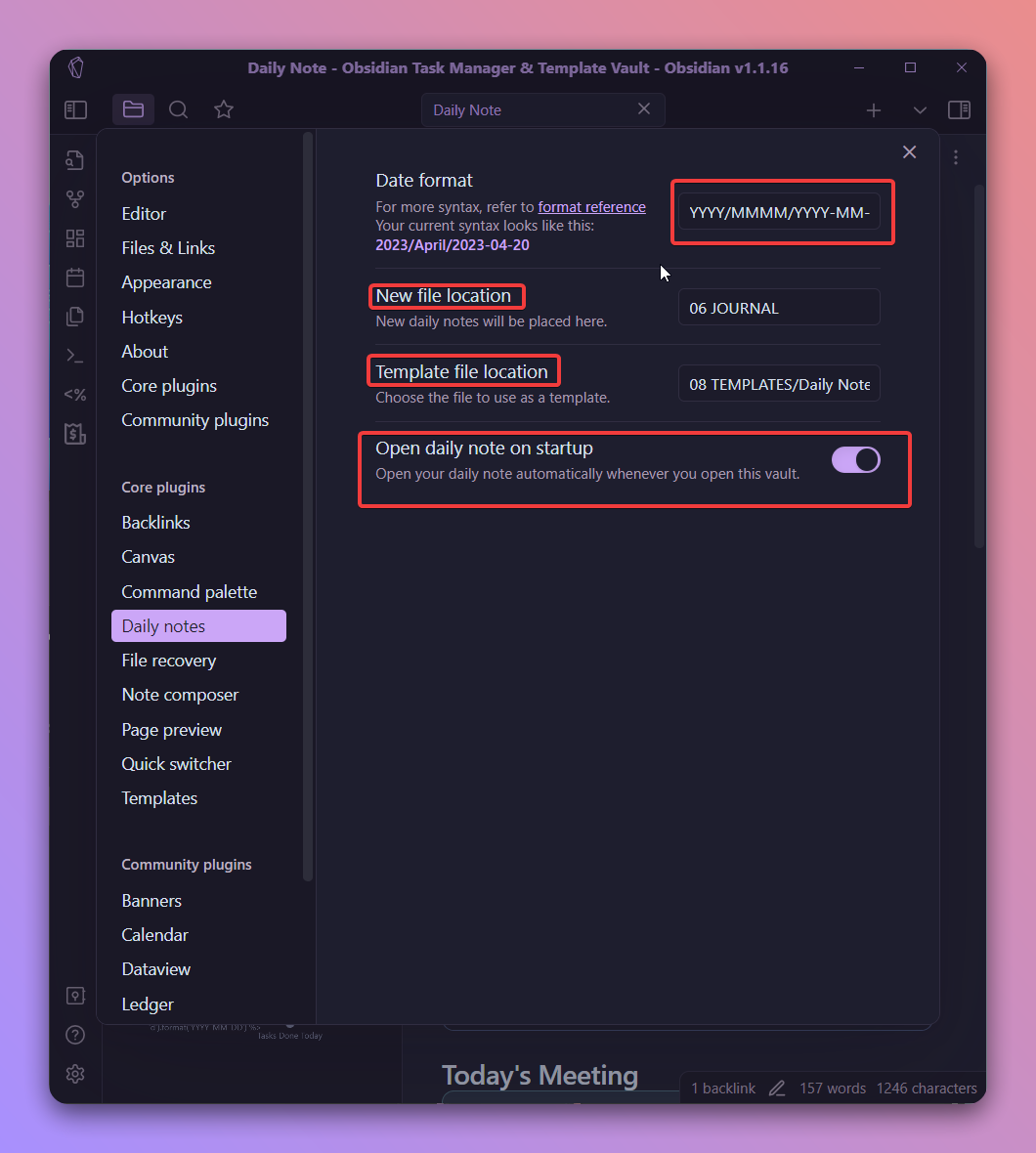
- Configure Daily Notes to save by year/month hierarchy using YYYY/MMMM/YYYY-MM-DD and open on startup.
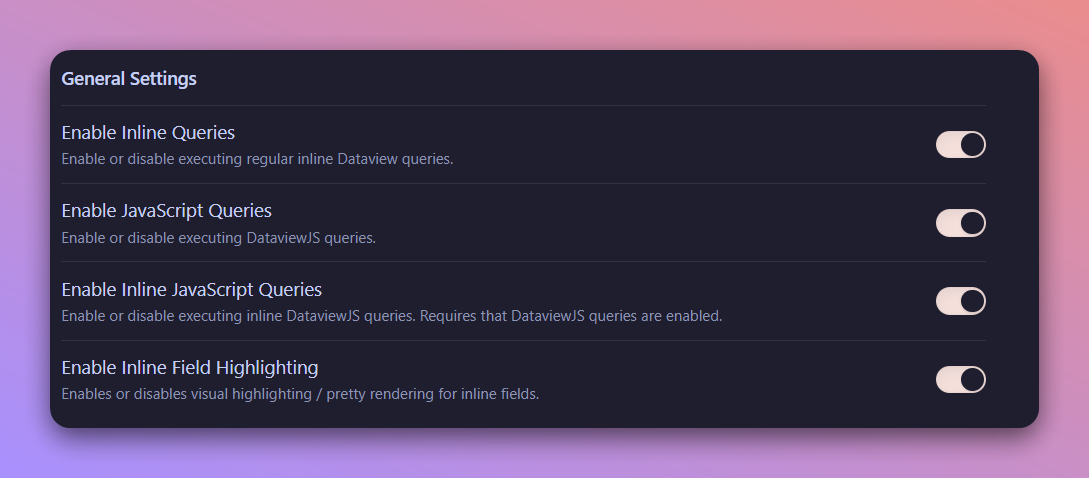
- Enable Dataview options and prepare habit metadata in callouts.
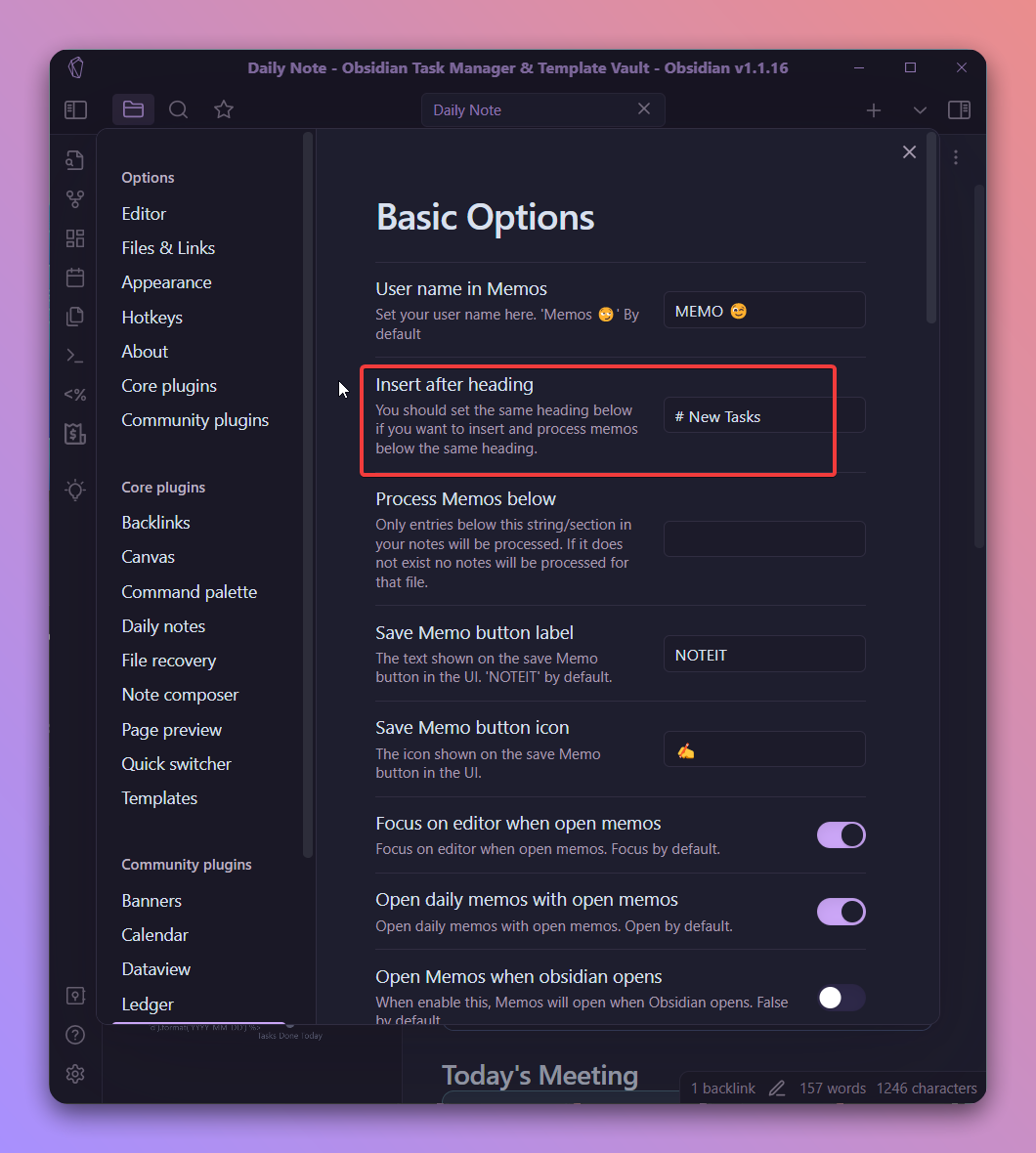
- Configure Memo to insert after the “## New Tasks” heading.
- Install Calendar and Tasks plugins.
- Template features
- Title: uses moment in Templater to render a human-readable date title.
- Navigation: “Yesterday | Tomorrow” links based on file title date math.
- Task queries (in callouts) for:
- Overdue tasks (due before today, limited, sorted).
- Today’s tasks (due today, prioritized).
- Unscheduled tasks (no due date).
- Completed today (done date equals today).
- Habit tracking:
- Inline metadata (Sleep, Reading, Exercise, Meditation, Writing) with numerical values.
- Dataview table with emoji indicators signaling goal attainment over the last 7 days.
- UI/UX enhancements
- CSS snippet (dashboard++) to format daily notes into multiple columns and styled headers.
- Operational guidance
- Capture tasks through Memo; enrich with due dates/priority during review.
- Optionally blend Task and Journal editions for reflection plus execution.
### 🗒️ Notes
- Getting started
- Create “daily note” template and enable auto-trigger in Templater.
- Use daily notes folder structure by year/month for neat archives.
- Templater snippets
- Title formatting: “dddd Do MMMM YYYY” derived from file name (YYYY-MM-DD).
- Navigation: dynamic links to yesterday/tomorrow using moment date math.
- Tasks queries (all inside callouts)
- Overdue
- Filter: not done; due before today’s date (templated).
- Sorted by due date, hides due/backlinks, limit 5 for focus.
- Today’s
- Filter: not done; due today.
- Sort by priority, hides due/backlinks, limit 5.
- Unscheduled
- Filter: not done; no due date.
- Encourages triage/processing.
- Completed today
- Filter: done today; hides due/backlinks.
- Encourages daily wins review.
- Habit tracker (Dataview)
- Inline metadata keys: Sleep, Exercise, Reading, Meditation, Writing.
- Thresholds:
- Sleep > 7 hours, Exercise > 30 minutes, Reading > 30 minutes, Meditation > 10 minutes, Writing > 750 words.
- Dataview query
- Table without ID; Date column is file.link.
- Choice() functions render emoji (green/red squares).
- Filters last 7 days with WHERE file.day <= date(now) AND file.day >= date(now) - dur(7days).
- SORT ascending by day.
- Memo plugin integration
- Insert after the heading “## New Tasks” to collect quick entries.
- End-of-day processing adds due dates and priorities.
- CSS dashboard
- Snippet stored in .obsidian/snippets/dashboard with styling for multi-column layout, title styling, and list layout.
- Adjust width to device for good wrapping.
## 📖 References:
- Primary article: https://obsidianninja.com/obsidian-daily-notes-template/
- Tasks documentation: https://publish.obsidian.md/tasks/Getting+Started
- Dataview docs: https://blacksmithgu.github.io/obsidian-dataview/
- Templater docs: https://silentvoid13.github.io/Templater/
- Calendar plugin: https://github.com/liamcain/obsidian-calendar-plugin
- Memo plugin: https://github.com/Quorafind/Obsidian-Memos
## 🗣️ Paraphrase:
- Original idea: Using Templater to set the daily title and navigation
- Paraphrase: Each new daily note auto-populates with a human-readable title derived from its file name date, and includes quick links to the previous and next days. This is handled by Templater’s moment-based functions so you never hand-edit headers or adjacent-note links.
- Original idea: Dataview habit table with thresholds
- Paraphrase: By storing numeric values for habits directly in daily notes (e.g., minutes meditated or words written), Dataview can produce a rolling weekly table. It displays a green square when you pass your target, or a red square otherwise, making progress easy to spot at a glance.
## 📰 Newsletter:
Want your Daily Notes to moonlight as a productivity command center? This week we’re diving into an Obsidian “Task Edition” workflow that turns notes into a dashboard: auto-dated headers with Templater, navigable days with Calendar, and laser-focused task queries using the Tasks plugin. You’ll triage overdue items, spotlight today’s priorities, surface unscheduled tasks, and celebrate wins with a “Done Today” view—no duct tape required.
Habit nerds, rejoice: a Dataview-powered, emoji-driven tracker pulls Sleep, Reading, Exercise, Meditation, and Writing from inline metadata and shows a tidy 7-day rollup. Add the CSS “dashboard++” trick for a clean, multi-column layout that feels like a lightweight OS inside your vault. Quick capture is covered too—drop tasks under “New Tasks” via Memo and polish with due dates and priorities at day’s end.
Links to explore:
- Obsidian Tasks overview: https://publish.obsidian.md/tasks/Getting+Started
- Dataview docs: https://blacksmithgu.github.io/
- Document Tags: [[obisidian]] [[obsidian]]
- Summary: The Obsidian Daily Notes Template(Task Edition) provides a detailed guide on setting up a task-focused daily notes template using plugins like Daily Note, Calendar, Templater, Tasks, Dataview, and Obsidian Memo. It includes instructions on configuring these plugins to automate daily note creation, task management, habit tracking, and creating a habit tracker. The template also covers adding custom CSS for styling, simplifying task entries using the Memo plugin, and suggests blending Task and Journal editions for a comprehensive approach to daily note-taking. Overall, the template aims to streamline task organization, habit tracking, and reflective journaling within the Obsidian platform.
- URL: https://obsidianninja.com/obsidian-daily-notes-template/

This is the second version of the daily notes template. Previously, I created a [Journal edition of daily notes](https://beingpax.medium.com/obsidian-daily-notes-template-journal-edition-749500917c03) that allows you to plan your day, reflect and track your habits.
This is another edition that will primarily focus on task management. It shows how you can use your daily notes for task management.
Here are the plugins we need to create a task edition of daily notes.
* **Daily Note:** Creates daily notes
* **Calendar:** Makes it easier to visualize and navigate between daily notes
* **Templater:** Automate the daily note
* **Tasks:** Create, query, and manage tasks
* **Dataview:** Track habits
* **Obsidian Memo:** Quick capture tasks
Let’s create the template.
##### Configuring Templater Plugin
Create a template file called ‘daily note’ in your vault under a folder named Templates.
Now install the templater plugin from the plugin library and add the template folder location. Also, enable the ‘Trigger templater on new file creation’.

##### Configuring Daily Notes Plugin
First, create a folder where you want all of your daily notes to be saved. Then, configure the daily notes plugin.
Add the date format as:
```
YYYY/MMMM/YYYY-MM-DD
```
This will group your daily notes into year and month folders.
Set the **new file location** as well as the **template file location**. Also, enable the option to open the daily note on startup.
##### Configuring Dataview Plugin
We’ll be using Dataview to track habits from daily notes. The process is exactly the same as that we created in the Journal edition
Once you have installed Dataview plugin, enable the following options:
##### Configuring Memo Plugin
We’ll be using the Memo plugin to quickly capture tasks in our daily notes. For that create a heading in your daily notes template called ## New Tasks.
In the plugins option, add the heading syntax in Insert after the heading section.
What this will do is, whenever you add new task entries using memo plugin from the sidebar, they will be added under the heading New Tasks.
##### Install Calendar & Tasks Plugin
The next two plugins we need are [Calendar](https://github.com/liamcain/obsidian-calendar-plugin) by Liam Cian and [Tasks](https://github.com/obsidian-tasks-group/obsidian-tasks).
That’s all. We’re done with the first part of creating a task edition of the daily note.
Let’s create the template now.
##### Creating Daily Note Template
###### Adding a YAML front matter
Let’s start by adding YAML frontmatter.
```
---
tag: dailies
---
```
##### Add Today’s date as title
We’ll use the templater plugin in order to automate these tasks. The date function will automatically add the title to our daily note. As we have enabled the option, **“Trigger templater on new file creation”**, templater function will be executed every time a new file is created.
Add the following templater function.
```
## Invalid date
```
##### Link To Other Daily Notes
This function creates a link to your yesterday’s note and tomorrow’s note.
```
<< [[Invalid date|Yesterday]] | [[Invalid date|Tomorrow]] >>
```
##### Task Queries
We use obsidian tasks for managing our tasks inside obsidian. You can visit the [**documentation**](https://obsidian-tasks-group.github.io/obsidian-tasks/) if you want more details on the plugin and the different features it offers.
In this article, we will only talk about the queries that be useful in our daily notes vault.
**Overdue Tasks:**
This will search through your vault for those tasks whose due date is before today. All of the task queries will be written inside a callout for easy organization.
```
> [!warning]+ OverDue
> ```tasks
> not done
> sort by due date
> due before 2025-12-10
> hide due date
> hide backlink
> limit 5
> ```
```
The queries will be executed with the help of tasks and the templater plugin. The templater function will automatically add the due before today’s date when you create a new daily note.
**Today’s Tasks**
This will query tasks whose due date is today.
```
> [!todo]+ Today's Tasks
> ```tasks
> not done
> due 2025-12-10
> sort by priority
> hide due date
> hide backlink
> limit 5
> ```
```
**Unscheduled Task**
This will query tasks that have not been processed i.e. they don’t have an assigned due date.
```
- > [!Warning]+ Unscheduled Tasks
> ```tasks
> not done
> no due date
```
**Completed Tasks**
This will query the tasks completed today. This can be used to see your wins and accomplishments for the day.
```
> [!success]+ Tasks Done Today
> ```tasks
> done 2025-12-10
> hide due date
> hide backlink
```
###### Habit Tracking
We’ll use dataview in order to track our habits. For this, we use our habits as metadata. We can do that either in the YAML frontmatter or we can add inline metadata in our notes with ‘::’. Here’s a simple Habit tracker metadata.
```
> [!tip]+ Habit Tracker
> Sleep:: 0
> Reading:: 0
> Exercise:: 0
> Meditation:: 0
> Writing:: 0
```
These metadata are all placed inside callouts.
In your daily notes, you can add habits of your choice and start tracking them. You can use numbers for tracking.
For example, how many minutes you read? or how many pages? How many minutes did you exercise? How many words did you write? What are your daily goals for these habits?
Based on your daily goals and your daily achievement, we’ll create a habit tracker.
We’ll create a new note called habit tracker and add the following dataview query:
```
```dataview
TABLE WITHOUT ID
file.link as Date,
choice(Sleep > 7, "🟩", "🟥") as 🛌,
choice(Exercise > 30, "🟩", "🟥") as 🏃,
choice(Reading > 30, "🟩", "🟥") as 📚,
choice(Meditation > 10, "🟩", "🟥") as 🧘,
choice(Writing > 750, "🟩", "🟥") as ✍️
FROM #dailies
WHERE file.day <= date(now) AND file.day >= date(now) - dur(7days)
SORT file.day ASC
```
```
This will show your habits for the past 7 days. You can change that by adding different duration times in the query.
Here’s what’s happening in the data view query.
A dataview table is created from the notes with the #dailies note. Let’s take an example of Writing query.
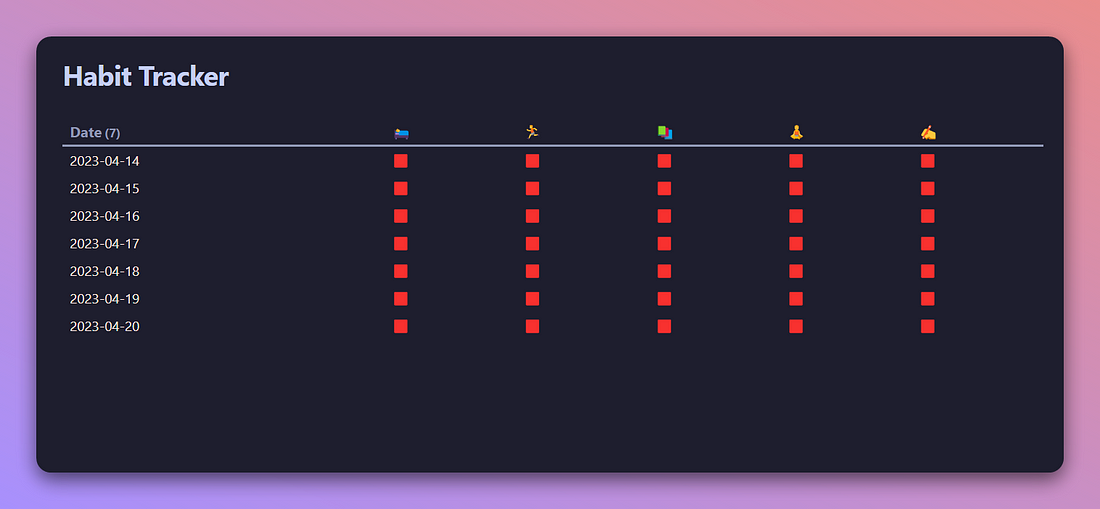
Suppose your goal is to write 750 words every day. If your writing data in your daily note is less than 750, the dataview table will show as a red box(not done). If it’s higher than that, you completed your habit.
You can similarly add other habits as well as use different data for setting goals for these habits based on your personal preferences.
Here’s what the habit tracker looks like. No data is added currently. That’s why all habits have a red box.
##### Adding a Custom CSS
This is a CSS trick by [TfThacker](https://twitter.com/TfTHacker) where he created a [dashboard++](https://github.com/TfTHacker/DashboardPlusPlus) using custom CSS. We’ll slightly modify that in order to make customize our daily notes into multiple columns.
Copy the CSS code below and add it inside **.obsidian>snippets** and name it dashboard.
Set up the width based on your device’s display to make work properly.
```
.dashboard {
padding-left: 25px !important;
padding-right: 25px !important;
padding-top: 20px !important;
}
.dashboard .markdown-preview-section {
max-width: 100%;
}
/* Title at top of the document */
.dashboard .markdown-preview-section .title {
top: 60px;
position: absolute;
font-size: 26pt !important;
font-weight: bolder;
letter-spacing: 8px;
}
.dashboard h1 {
border-bottom-style: dotted !important;
border-width: 1px !important;
padding-bottom: 3px !important;
}
.dashboard div > ul {
list-style: none;
display: flex;
column-gap: 50px;
flex-flow: row wrap;
}
.dashboard div > ul > li {
width: 650px;
}
```
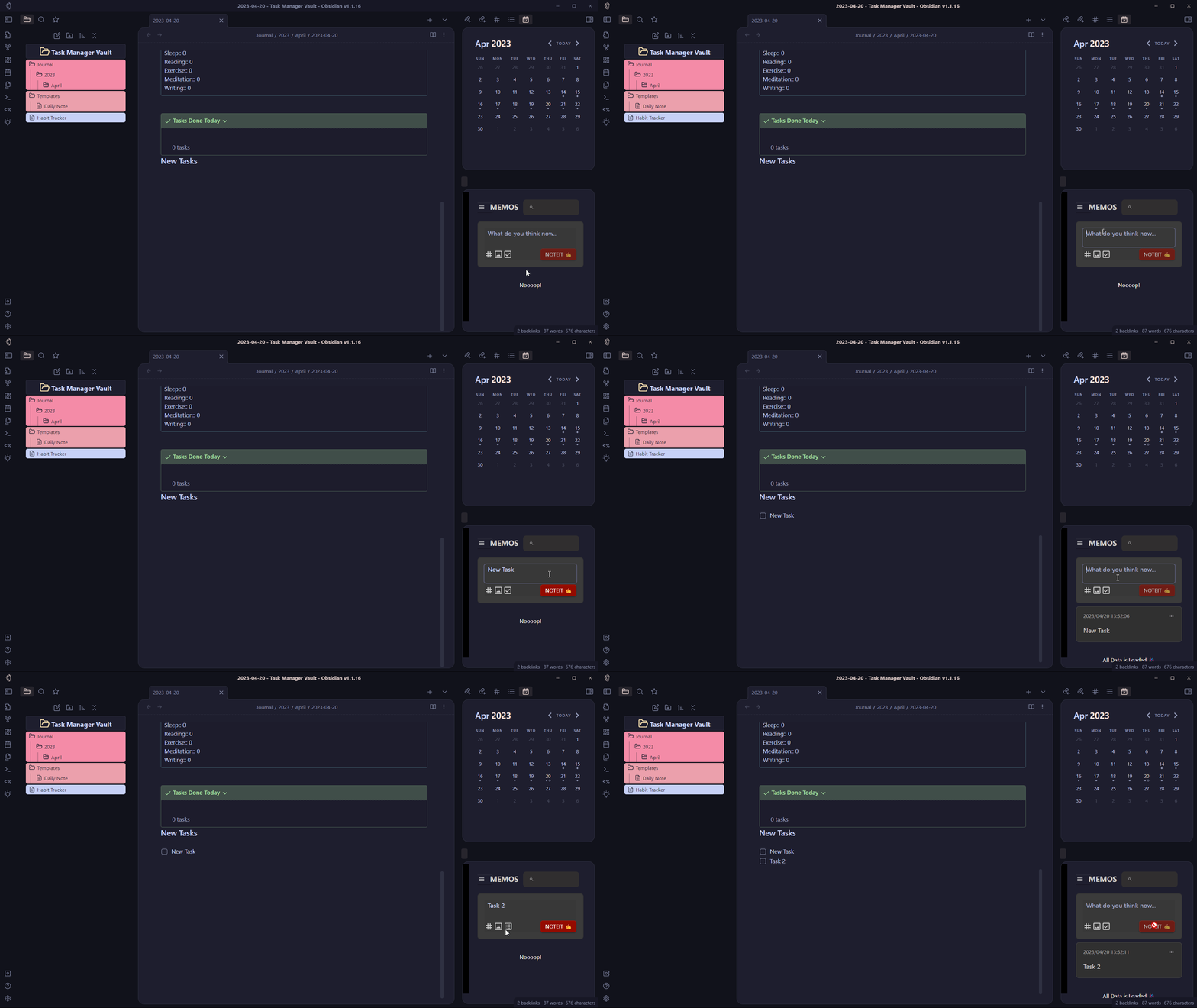
##### Adding Tasks Made Easy
We created a heading in our daily note template called ## New Task at the beginning of this tutorial. Now we can use the memo plugin to quickly capture our tasks below that heading.
Review those tasks and add more info like the due date and priority at the end of the day.
Adding Tasks with Memo
Reflecting on your day is equally important. If you want to get inspiration, you can check out the [Journal edition of the Daily Note](https://beingpax.medium.com/obsidian-daily-notes-template-journal-edition-749500917c03).
You can create a blend of Task & Journal editions as well based on your preferences and needs.
###### Daily Notes Task Edition Vault
If you don’t want to do all the hassle yourself, I’ve created a vault for this edition which you get either from [**Gumroad**](https://beingpax.gumroad.com/l/obsidiandailynote-tasks) or [**Buy Me a Coffee**](https://www.buymeacoffee.com/beingpax/e/132094), Obsidian Daily Notes Template, Prakash Joshi Pax, 01gz6pbcxhc3jpj2nssh3ttph3.