Remotion - Creating Video Through Web Tech
🔗 **Source:** [Remotion - Creating Video Through Web Tech](https://www.youtube.com/watch?v=UBvrPGMtK5g)
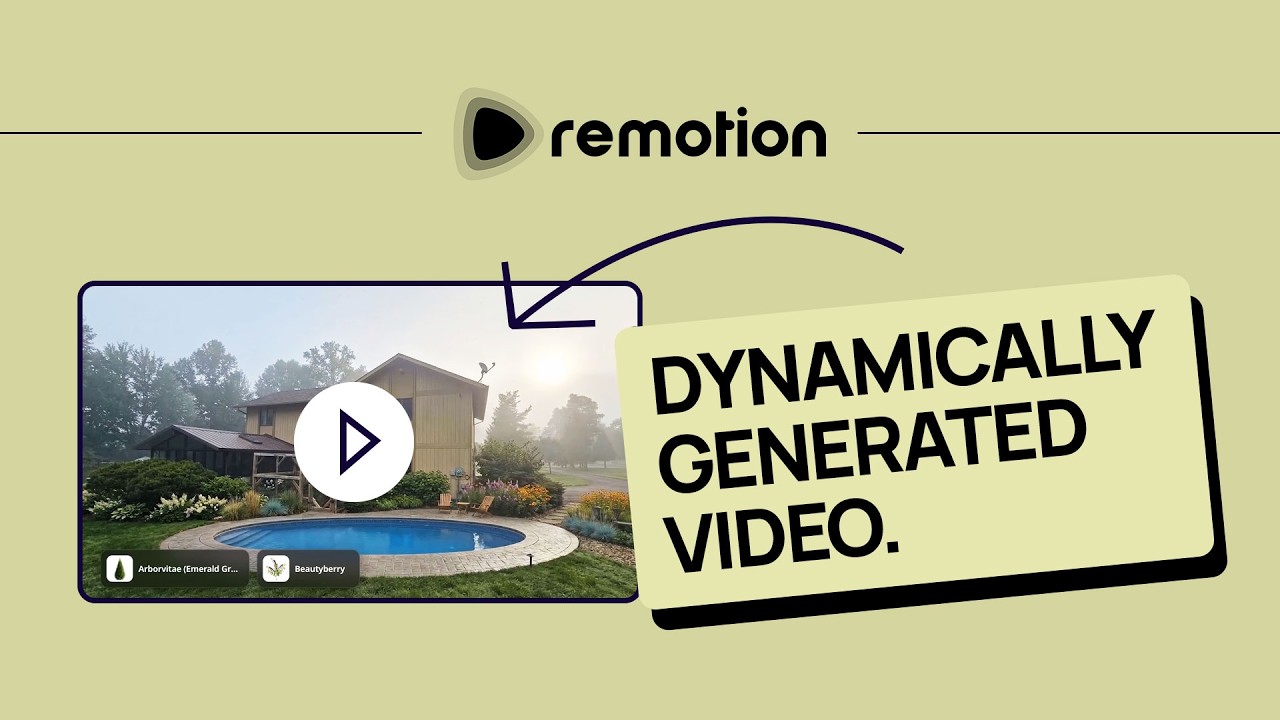
Okay, so check out this video right here. You can see that there is some different text that's overlaid. Um and then if you look at the end here in a second, you'll see that there's also like these info panels with like this vegetation and stuff and it's like a layout. So, I'm going to show you how to use Remotion to do something exactly like that. So, Remotion allows you to use web technology like web UIs, HTML, CSS to generate actual video. All right, so let me show you in the context of this project that I'm working on, which
is a part of a course that you could take now where we build a landscaping AI service. So, right here you're seeing a video time lapse. This only took me like 10 minutes um of like what I envision part of the video to look like. So, when a person attaches, you know, any of the assets that's used for a landscape like different bushes and plants and flowers, it's going to give like an informative sort of uh overview of all the assets. And this can be sent to a potential client for a proposal. And so, here it is here in Figma and I've done two
different variations because videos can be in portrait mode or landscape. And you know, this is this responsive web design essentially except we're here we're here in Figma. And so, looking at this, another thing you want to make sure uh is that you use auto layout everywhere so that it knows kind of how to modify the layout based on the size. Um and then same thing here. I just replicated that, changed the auto layout settings to vertical and everything stacked, made some slight adjustments, but you know, this is pretty much how it should end up looking. So, we're just
going to start with this one first. Let's say for instance, you already have your Figma design here. And again, you don't have to use Figma by the way. Uh you can ask, you know, like your your AI coding agent like Claude or whatever. Uh you can ask it to do the UI for you. You know, this is for people like who are designers and specifically want to control exactly what things look like. Okay. So, the first thing to do is once you're ready is come over here and right click and copy as or copy link to selection all right there. All right.
And then when you do that, you will paste that into context into, you know, I'm using the Claude code CLI. Let me show you um what the prompt will look like. Okay, so first off, with this project, I already have Remotion integrated and I'm not going to tell you how to install it because that would be stupid. You know, we have coding agents these days. You could just say, "Hey, integrate Remotion into this project for me." Okay. Um I'm not going to read the entire thing, but you can pause and read this through at, you know, if you wish. But basically, I've linked the Figma um
link to that selection and you have to make sure you have access and you've been integrated the Figma MCP server. And so, to to check that here in the same project MCP, you should see right there plugin uh Figma MCP. If you don't, ask uh you know, your AI agent to to integrate or help set up the Figma MCP server. Very simple. And all I've [clears throat] done here in this part, again, it's not it's isn't like a big wall of text. I just kind of told it how I want this thing to work. So,
landscapers can specify assets to include as a part of their video proposal and any of the those assets will have its own dedicated page in that UI that I've linked that will animate text into place uh from like a clipping mask position as well as the actual asset thumbnail. And it should just basically go through each one depending on how many they have specified. So, what we end up with here is kind of like a dynamic video generation powered by Remotion, which is really freaking cool.
And so, it's going to extract all that information from the database, include it in the context of our UI, animate it based on our preferences and what we specified, and in the end we get an MP4 video that uh has everything included. So, let's give this a test. I'm going to go ahead and send this and we'll see uh what the next steps are and give it a test. Now, while that is working, I'm going to show you um you know, in case you're not familiar with this project. I already done a few videos on it. Um what the UI looks like
here. So, right here uh this is like an open canvas that we've created. Um this is the original picture of the back of my house that I uploaded. And then using our system here, I I created this like just better landscaping. We added a swimming pool, yada yada. Now, one of the cool features of this app as well is um if we select both, we can choose video and we can create a I kind of like a a transition between the video. Uh and
that's what this is. Or between the actual two frames that you saw here. You can see it's just combining those two frames in video format over 8 seconds. All right. So, let's say like for instance, a landscaper likes this. Uh they can click here and choose finalize video. And this is where Remotion comes into play. By the way, this design right here, this modal, I did not design. I'll be redesigning it here soon. This is all vibe designed. Uh and you can see right here assets. We can choose to add these assets that are a part of, you know, whatever the plan
is for landscaping, right? So, they can choose, you know, there's like over 500. There's hardscaping elements and vegetation and all that stuff. And that's what we want to create for this Remotion thing like a a separate slide at the end for each one. Uh so, if I click here, we can click add to design. There we go. It's now added and I can add as many as I want and then specify stuff like the property address, closing notes, um and any branding. So, that's already integrated via Remotion into this video pipeline, but we're going to be adding this new feature so I can show you how
cool this is. Okay, it's done. Let's go ahead and give this one a test. So, I'm going to go to finalize video here and I'm going to go ahead and add a few assets. All right, so I have two of them added. I'm just going to go ahead and put uh this old address and blah blah blah. Render final video. Let's see what it comes up with. Maybe it's going to error. I'm not sure. Oh, here's the video. Let's uh I get this large screen. So, you can see down here where it says 3174, that's what I already entered. That's That is
already a part of Remotion and it has like this glass morphism like darker background behind it, which you can ask it to do fully. So, let's continue on. There'll be another thing that pops up. Now, it's showing two of the assets as you can see that were already generated. Again, that's something from a previous time I already did. That's not this video yet. You can see it's 25 seconds, which means it did work. It added something at the end. I'm excited to see what it actually produced. Yep, here's
the card for the uh the the person's logo. I put Claude logo cuz it was on my desktop, but you can imagine this being like, you know, somebody's uh actual, you know, landscaping logo or something like that. All right. And here in a second. Now, this dead space right here I kind of want to remove because there's no motion at the at the moment, but let's see if it integrated the final two Ooh. Okay, where we don't have this. There's no image.
But that's that's working pretty well. It's a little janky with those these uh I how kind of pops up, but that's okay. But there's no image. That is super cool though. So, let's get the image stuff working. Okay, so it ran and I've hit play, we can see All right, here is the actual bush. Here's another one that I added. I hate how it's a little bit jagged there when those uh these rows come in. We can fix that later. Um so, let's go ahead and hit render
final video. All right, so it's ready. Download MP4. Let's check this out. Here we go. It is playing. All righty. Here's the slow part. I definitely want to fix that. Um Now, let's see if the actual these things come. There we go. Ooh. Looks like the colors got messed up. Again, that's something that I can get I can fix. It looks like there's like a a
mid gray. Didn't quite get the divider perfectly in there, but there you go. What's super cool about this is the fact that it is dynamic. Uh if somebody specifies like four different assets, maybe four different plants that are a part of this, you know, composition, it's going to do four of them and it's going to pull them all from the database. And there you go. You have video motion video that's based on web technology. This is so freaking cool. So, this is one of those things that, you know, if video makes
sense in the context of your app, um it 100% makes sense to do this, especially for YouTubers like me. Like if I wanted to start integrating like just random facts or something about tech that I mentioned, I can have a pipeline with agents that will first like extract my YouTube dialogue as well as with, you know, Gemini is very good at this um analyzing individual frames as well inside a video. And you can have a whole pipeline where you have multiple agents that um you know, extracts the
dialogue, determines when it makes sense to maybe have like an overlay blip of like some piece of tech or something that I'm talking about. Maybe it's just an information modal and it can integrate those into my YouTube video. So, that's there's so many different use cases for this. I just kind of wanted to share what I'm doing with this project. If you really want to follow along to see, you know, exactly how to set all that stuff up, definitely check out the course that I'm building now on that project that you see. Um link in the description. Enough spam. I will see you
all very soon. I will see you. Goodbye., Remotion - Creating Video Through Web Tech, YouTube, 01ksmzg3r2y4pxnxtym5c9qfxj.