See Your Site as Googlebot Mobile Does
## Metadata
- Author: [[Ben Goodsell]]
- Full Title: See Your Site as Googlebot Mobile Does
- Category: #articles
- Summary: With the Google’s Mobile Update coming in hot, are you sure you’re auditing the mobile content Googlebot is seeing? Not just content, but directives and annotations can change depending on the user-agent or device being used to request a page of a website.
- URL: https://searchenginewatch.com/sew/how-to/2404462/see-your-site-as-googlebot-mobile-does
With the Google’s Mobile Update coming in hot, are you sure you’re auditing the mobile content [Googlebot](https://www.searchenginewatch.com/2019/03/12/robots-txt-best-practice-guide-and-examples/) is seeing? Not just content, but directives and annotations can change depending on the user-agent or device being used to request a page of a website. This article walks through ***one quick way*** to leverage free browser tools to ensure you’re looking at sites through the eyes of Googlebot Mobile.
**Tools Used:**
* [Chrome](https://www.google.com/chrome/browser/desktop/) Web Browser DevTools – Also known as *Inspect Element* in Chrome to disable cache, emulate iPhone, switch user-agent, and to view complete webpage (post JavaScript execution).
#### Download Web Developer Extension and Disable Cookies
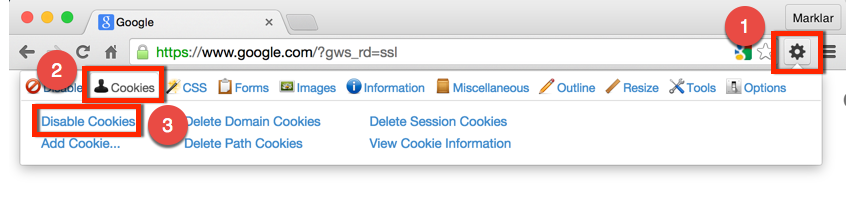
Googlebot does not accept cookies, so in order to ensure we’re seeing the same thing we’ll need to disable them in our browser. One way to do this is to download the [Web Developer](https://chrome.google.com/webstore/detail/web-developer/bfbameneiokkgbdmiekhjnmfkcnldhhm?hl=en-US) Extension for Chrome. Once installed, a gear icon will appear to the right of the address bar. As seen below, click the gear icon (1), then click the *Cookies* tab (2), then finally *Disable Cookies* (3). ***Note: This will sign you out of any logged-in accounts, so be sure to re-enable cookies when done. Consider downloading and using [Chrome Canary](https://www.google.com/chrome/browser/canary.html) for troubleshooting to avoid this issue.***
#### Use Chrome DevTools to Disable Cache, Set User-Agent, and Emulate iPhone
##### Find and Copy Googlebot Smartphone User-Agent
Next navigate to the [documentation Google maintains](https://developers.google.com/webmasters/mobile-sites/references/googlebot) (click this link or [Google](https://searchenginewatch.com/2019/07/12/how-to-get-featured-snippets-no-link-building/) search [googlebot smartphone user-agent]) for the most up-to-date Googlebot Smartphone user-agent string. Also find below. Highlight and copy, we’ll need this later in the tutorial.
Mozilla/5.0 (iPhone; CPU iPhone OS 6\_0 like Mac OS X) AppleWebKit/536.26 (KHTML, like Gecko) Version/6.0 Mobile/10A5376e Safari/8536.25 (compatible; Googlebot/2.1; +http://www.[google](https://searchenginewatch.com/2019/06/17/local-seo-guide/).com/bot.html)
##### Open Developer Tools in Chrome
Now open *Developer Tools* in Chrome by clicking *View -> Developer -> Developer Tools*.

##### Disable Cache in Developer Tools in Chrome
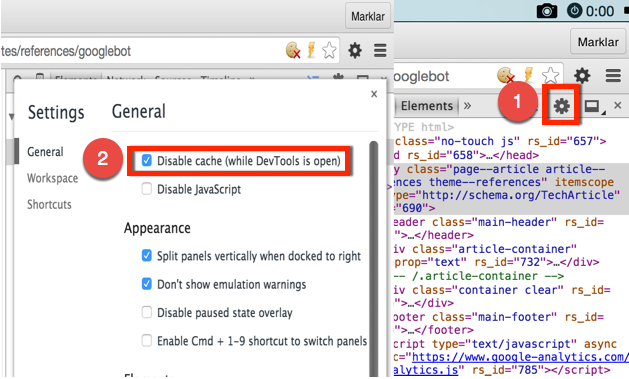
Once Developer Tools is open disable cache by clicking the clicking the gear icon (1), and checking the box Disable cache (*while DevTools is open*) (2), as shown below.
##### Emulate iPhone Using Developer Tools in Chrome
Finally, click the little iPhone icon in DevTools (1), set *Device to Apple iPhone 5 UA* box (3), and refresh the page (4).
##### Resources
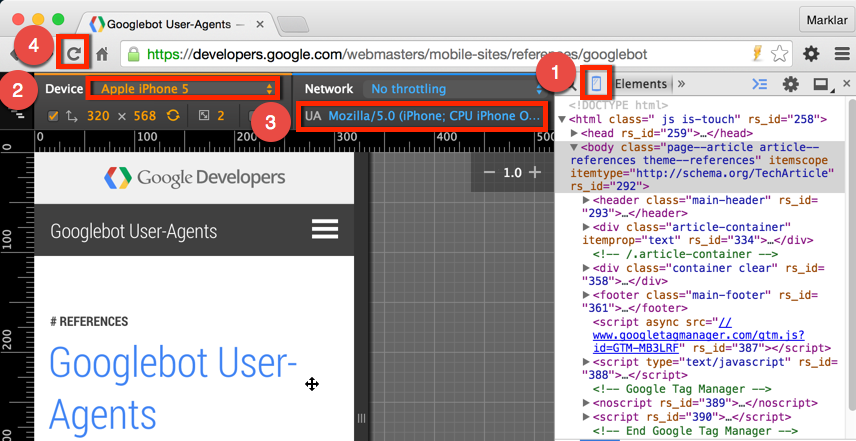
Congratulations you’re now seeing the page Googlebot is seeing for Mobile devices!! To review, the main points to consider here are:
1. Disable cache and cookies.
2. Set latest Googlebot Smartphone user-agent string.
3. Emulate iPhone.
#### Take This and Run!
Now that [Google](https://searchenginewatch.com/2019/06/20/easy-seo-strategies/) is crawling JavaScript, be sure to look for and audit content, directives, and annotations ***within DevTools***. Again, website can now be configured to change content based on many factors. To see what Bing sees, simply right click the page and *View Source*. This incomplete view, is also what most SEO crawlers, like Screaming Frog are currently looking at.
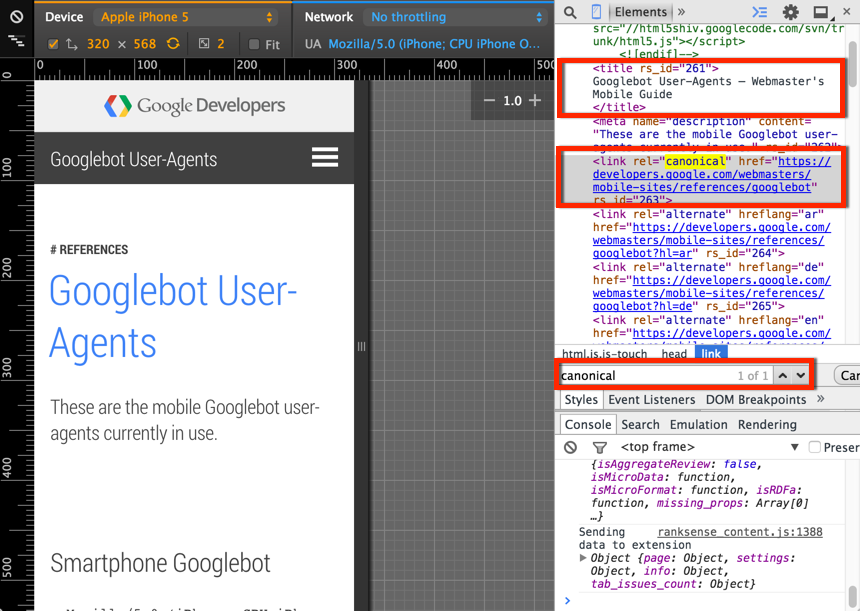
A couple other fun advanced options to consider:
* For international sites, use an [Web proxy](https://chrome.google.com/webstore/detail/hide-my-ass-web-proxy/cmgnmcnlncejehjlnhaglpnoolgbflbd?hl=en) to request pages from the IPs of different countries and/or set browser to a [different language](https://support.google.com/webmasters/answer/6144055?hl=en) to see if a site is configured to render different content, directives, or annotations.
Some content could not be imported from the original document. [View content ↗](https://accounts.google.com/o/oauth2/iframe#origin=https%3A%2F%2Fdisqus.com&rpcToken=878496082.7958173&clearCache=1), See Your Site as Googlebot Mobile Does, Ben Goodsell, 01gnmcz56ympmb47wav94gkh1n.