Session Replay | Debugging Next.js Applications With Sentry
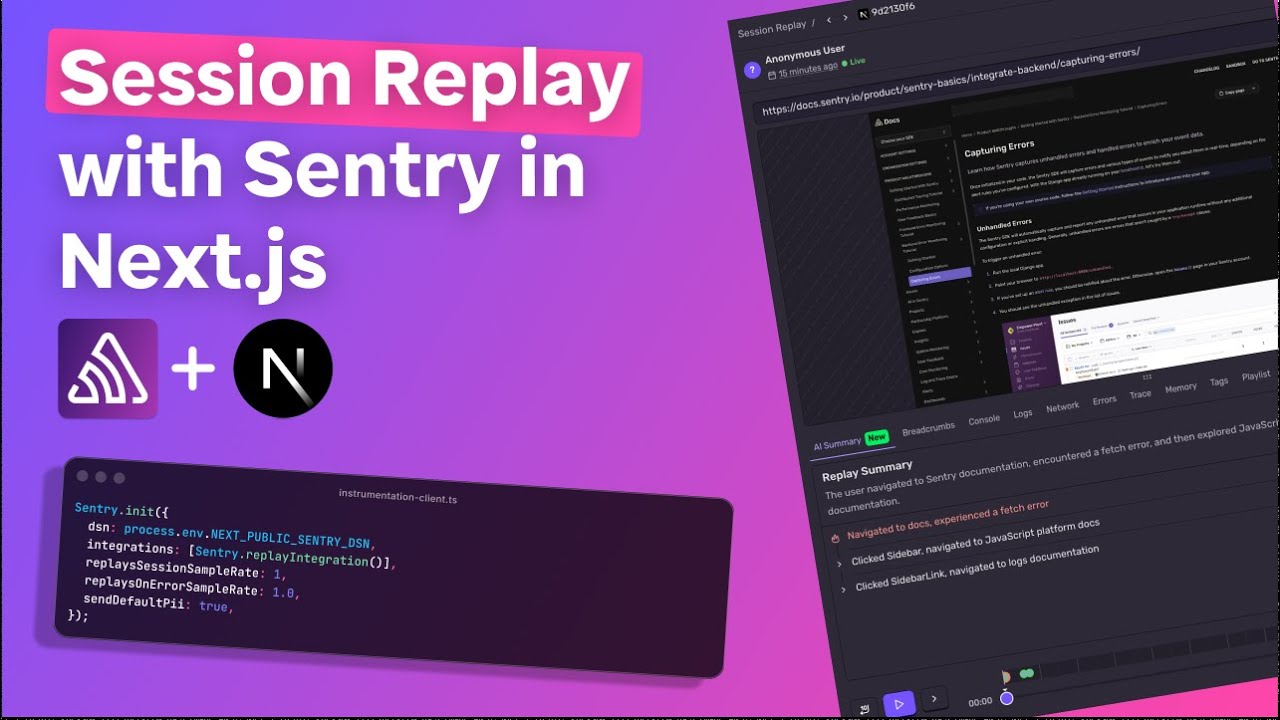
What's up y'all? Serge here. I'm a developer experience engineer
at Sentry, and in this video
we're going to be talking about session replay, how to instrument it inside
your Next.js application configuration and sampling options,
and what it looks like in Sentry. Session Replay is a video
like reproduction of all the interaction that user is taking on your application. It has minimal impact
on your front end performance, and it's a really good way to understand
what a user did to get that error, or just to observe how they're interacting
with your applications. We use an open source technology
called RR web as well as some custom
mutation observers for interactions
like clicks and scrolls. Let's take a look
at what it looks like in code, because session replay is client side
only, the only configuration that you need to
update is your instrumentation
clients file inside your integrations. Make sure you have a session
replay integration and two sample rates one for session replay sample rate
and one for replays on error sample rate. Let me quickly show you how this works. So on every single session we first check
for the session sample rate.
If the sample rate is greater than zero,
we check session sampling and if it's not sampled,
we fall back to the error sample rate. If it is sampled, we start the recording
and then we flash it to sentry. Now if you don't have a sample rate set,
we fall back to the error sample rate. And if it's greater than zero,
we start buffering. We wait for the error. If it happens, we check the sample rate and if it's sampled, we flush it
and we kind of restart this whole process. In development,
you can keep these at 100%, but keep an eye out on your quota
to make sure that you're not missing
important context for how your users
are interacting with your application. With replay setup, let's take a look
at what it looks like in essentially. First, we're going to start a new session
by opening up a new browser and going to a local host century
example page. We'll go ahead and throw a sample error and and the session to view replays. Inside central, you're going to head over
to explore and go to replays. Here you'll see a list of all the replays
that are happening in your application. Make sure you have the right application
and the right time frame set up
so you can see them. Here's a replay from the session
that just happened. The live indicator is there because we want to make sure that we're
keeping track of the whole session. So if I reopen that tab
and go ahead and interact with it, it's actually going
to be part of the same session because we're using session storage. You can learn more about user sessions
in our documentation. Now if I go ahead and click it, you'll see a video like reproduction
of all the things that were happening. So you can scrub through it. You'll get an AI summary
of all of the actions and all the things that happened
within this session.
You can take a look at the console
logs, network requests, and other things as you build up more context
about this user's interaction. Now notice how it says anonymous user, as well as all of the content on
this page is masked. We take privacy really seriously
and so by default we mask everything This is where we can extend
the configuration. So if we go back to our instrumentation
we can add options like unmask
and we can pass it any CSS selector. So in this case it's a data attribute.
That's data sentry unmask. And then we can also enable default
PII to be able to see IP addresses. Now set that to true. We're
going to go back to the example page. And on
the button I'm going to add a unmask. And another thing we can do is
we can actually pass it a data centric component attribute
which will show up in replays. And then you'll be able to filter down
by specific components that you want to track. If you are using Webpack,
there's an option called React Component Annotation that you can enable.
And then components
will be auto instrumented for you. With Turbo Pack,
we don't have access to it, but you can still annotate components
that are most important to you. One more thing I'd like to mention is if you have an application
that has user authentication. One more thing we can do is add sentry dot
set user API to give even more context to your replays. In order to do that anywhere on the client
that you keep track of your user sessions. In my case,
it'll be the, authentication provider. You can import sentry,
and anytime you have a user session, use
the Sentry.setUser API
and pass it all the details for that user. Now, if we load up our application
one more time and I have basic cookie authentication
here, but we're going to log in and we're going to head back to the example page. And we're going to throw a simple error. We're going to close this window
and take a look at sentry. Now you have a replay that is identified
by that user that was using it. And it helps understand
which users are facing which errors.
And because we've set up the masking
configuration, you can see that at that part
where we are on the sentry example page, the sample error rate button actually shows the text
as well as looking at the breadcrumbs. You can see the user click interaction. And here it shows that react component
name that we gave it when we were annotating it. This way it's really easy
to add it to your search filter and track any components that are part of
critical experiences in your application,
and see how users are
experiencing those errors. Session replay also works inside canvases. Just keep in mind that there is no PII
scrubbing inside those, and if you're building a 3D game
or using WebGL or web GPU, you can also get a sense of how users
are interacting with your application. Check out our dogs
for any additional configuration and let us know
if you have any questions. Thanks. Bye., Session Replay | Debugging Next.js Applications With Sentry, YouTube, 01kg2afnd47xf2bd0b618vsaec.