Setting Up Form Notification Emails
## Metadata
- Author: [[WPForms]]
- Full Title: Setting Up Form Notification Emails
- Category: #articles
- Summary: Want to send out emails when someone fills out a form? We'll show you how to easily setup form automatic notification emails in WPForms.
- URL: https://wpforms.com/send-users-confirmation-emails-from-wordpress-forms/
Would you like to automatically send out emails when your form is submitted? WPForms makes it super easy to set up notifications and email them as soon as a user submits a form on your site.
In this tutorial, we’ll discuss all the options for notification emails in WPForms.
Before getting started, you’ll first need to make sure WPForms is [installed and activated](https://wpforms.com/docs/install-wpforms-plugin/) on your WordPress site and that you’ve [verified your license](https://wpforms.com/docs/verify-wpforms-license/). Then you can [create a new form](https://wpforms.com/docs/creating-first-form/) or edit an existing one to access the form builder.
##### Setting Up a Notification Email
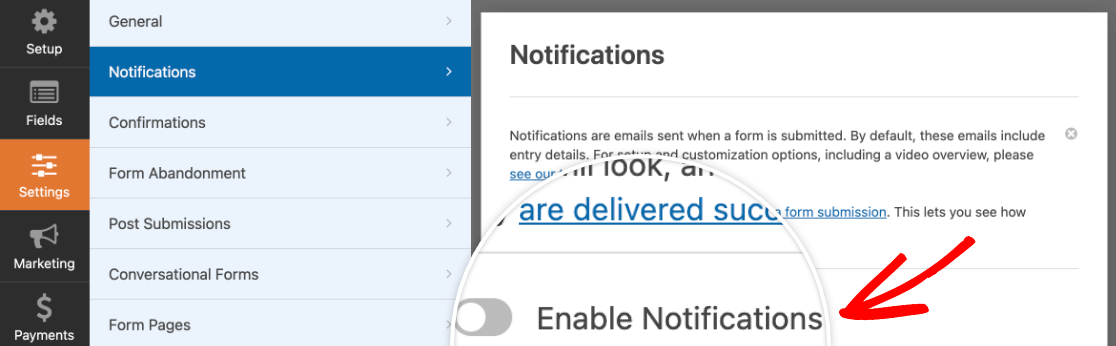
After opening the form builder, go to **Settings » Notifications** to access all of the notification options for your form.
By default, notifications will be enabled for your form. To disable them, toggle the **Enable Notifications** option to the off position.
disable-notifications - WPForms
Or, leave it toggled on to set up your first notification email. You can then customize the default notification provided.
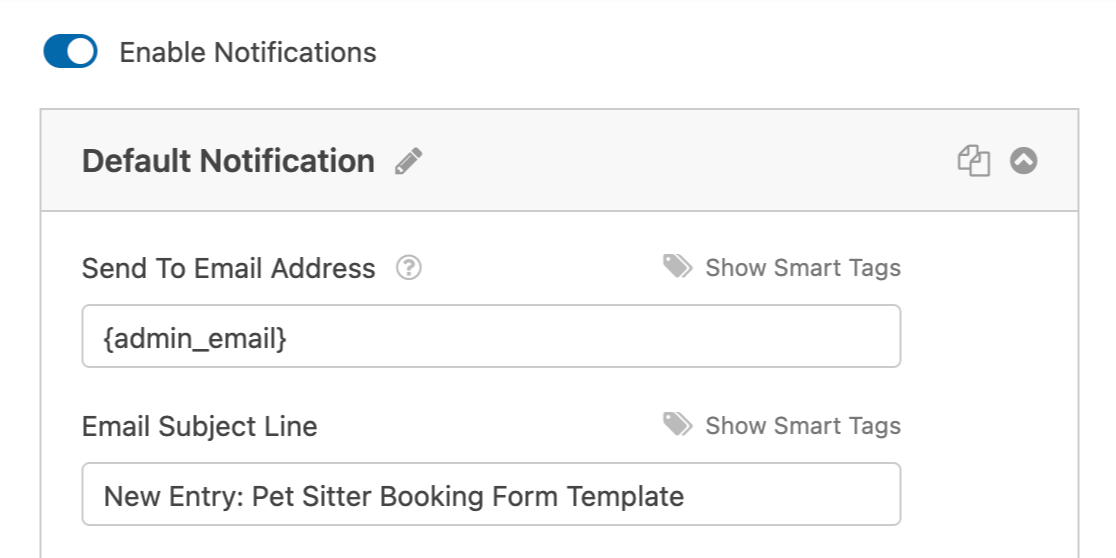default-email-notification - WPForms
First, if you would like to change the name of this notification, you can do so by clicking on the pencil icon.
edit-notification-name - WPForms
Then there are several fields you’ll need to fill out to set up your notification email. We’ll explain each in detail below.
###### Send To Email Address
In this field, you can add one or more email addresses as recipients of this email notification. By default, the **Send To Email Address** will be set to the [`{admin_email}` Smart Tag](https://wpforms.com/docs/how-to-use-smart-tags-in-wpforms/#email), which pulls the administrator email from your WordPress settings.
However, you can change the default recipient, or add additional emails.
**Note:** Not sure what your site’s administrator email is? WPBeginner’s guide to [changing this WordPress setting](https://www.wpbeginner.com/beginners-guide/how-to-change-the-wordpress-admin-email/) will help you find it.
If you’re adding more than one recipient email address, be sure to place a comma in between each email.
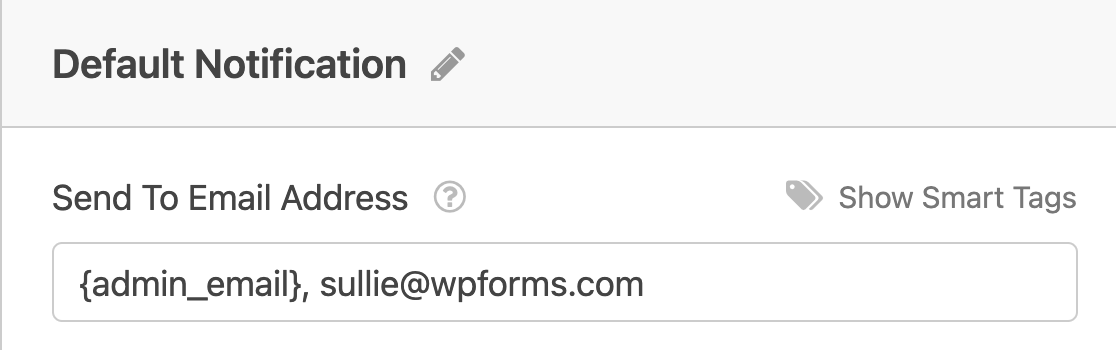adding-multiple-send-to-emails - WPForms
**Note:** Each of the addresses in the Send To Email Address field will receive a completely separate email, so recipients won’t be able to see each other’s email addresses.
If you’d like recipients to be able to see one another’s emails, see the [CC field](https://wpforms.com/docs/setup-form-notification-wpforms/#reply-all) described later in this tutorial.
To learn how to send emails to different recipients based on users’ form selections, be sure to check out our tutorial on [conditional form notifications](https://wpforms.com/docs/how-to-create-conditional-form-notifications-in-wpforms/).
You can also learn how to send email notifications to anyone who fills out your form. [Check the instructions below](https://wpforms.com/docs/setup-form-notification-wpforms/#thank-you) for details.
###### Email Subject Line
When you create a new form, the default Email Subject Line will read “New Entry” followed by the name of the form.
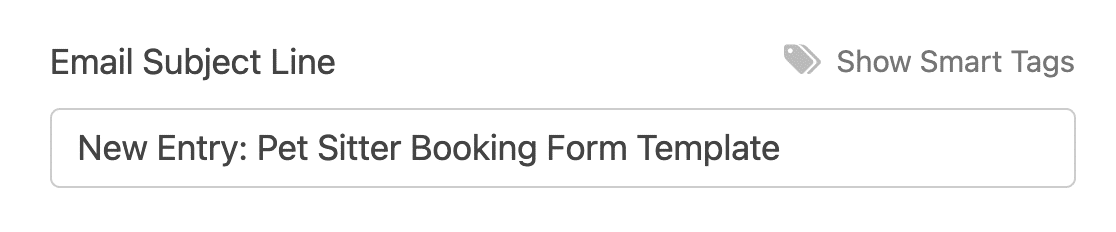default-notification-email-subject - WPForms
If you’d like to change this, you can add text as well as [Smart Tags](https://wpforms.com/docs/how-to-use-smart-tags-in-wpforms/). Just click on **Show Smart Tags** to see different user and site data you can pull into your notification email’s subject line.
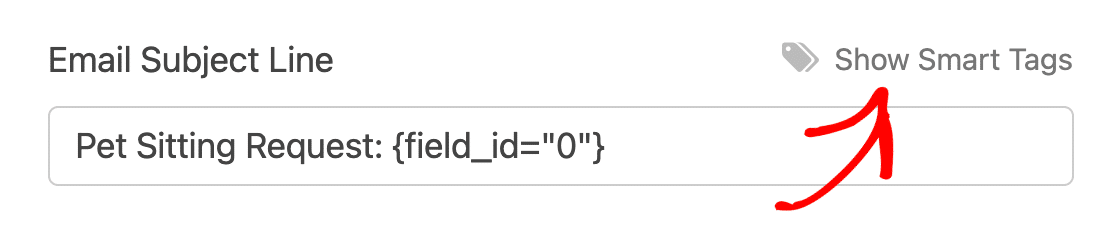notificiation-email-subject-smart-tags - WPForms
###### From Name
In most forms, the From Name field will be set by default to a Smart Tag that pulls the Name field from the form entry.
However, if you’re creating a notification to [send as a confirmation to the person who filled out the form](https://wpforms.com/docs/setup-form-notification-wpforms/#thank-you), you may wish to change this to your company’s name. That way, users won’t receive email notifications that appear to be from themselves, which may be confusing.
###### From Email
If there is a different address you would like to use as the sender’s email, you can simply enter it in this field.
**Note:** If you’re using an SMTP plugin to ensure email delivery, make sure your From Email follows your mailer’s requirements. Some SMTP mailers require your notifications’ From Email to match the email address you used in your SMTP settings. Others require a domain-specific email address.
[WP Mail SMTP](https://wpmailsmtp.com/) users can see the From Email requirements for each of our supported mailers in our tutorial on [fixing email delivery issues](https://wpforms.com/docs/how-to-fix-wordpress-contact-form-not-sending-email-with-smtp/). If you’re using a different SMTP plugin, check its documentation or contact its support team for help finding your mailer’s requirements.
###### Reply-To Email Address
The email address entered into this field will be used as the recipient of any replies to the notification email that’s sent.
For example, if you’ve set the From Email to your own email address, it may be useful to set the **Reply-To Email Address** field to a Smart Tag that pulls the user’s email from the entry.
That way, if you have questions about a users’ form, you can simply reply to the notification email to get in touch with them.
Or, if you’re sending a notification email to your users, you could make the reply-to email your own email address so that they easily can reach out to you.
If left empty, the Reply-To Email Address will default to the From Email.
**Note:** There can only be one Reply-To Email Address. If you’d like to use reply-all functionality to reply to multiple email addresses, be sure to [add a CC field](https://wpforms.com/docs/setup-form-notification-wpforms/#reply-all).
###### Email Message
The last step is to set up your notification’s message, or body text. By default, the Email Message field will contain the `{all_fields}` Smart Tag, which displays all user-entered fields (plus [Hidden Fields](https://wpforms.com/docs/how-to-choose-the-right-form-field-for-your-forms/#hidden-field)) and their labels.
If you’d like to customize the notification email’s content further, you can add additional text, [Smart Tags](https://wpforms.com/docs/how-to-use-smart-tags-in-wpforms/), and even add HTML or inline CSS directly into the **Email Message** field.
In the example below, we’ll use the `{field_id="#"}` Smart Tag. This Smart Tag pulls the value that a user has added to or selected from a specific field in your form. In this case, we’ll use `{field_id="0"}` to pull the value from our Name field, which has an ID of ‘0’.
**Note:** For more information on the `{field_id="#"}`, check out [our tutorial on Smart Tags](https://wpforms.com/docs/how-to-use-smart-tags-in-wpforms/#fieldid).
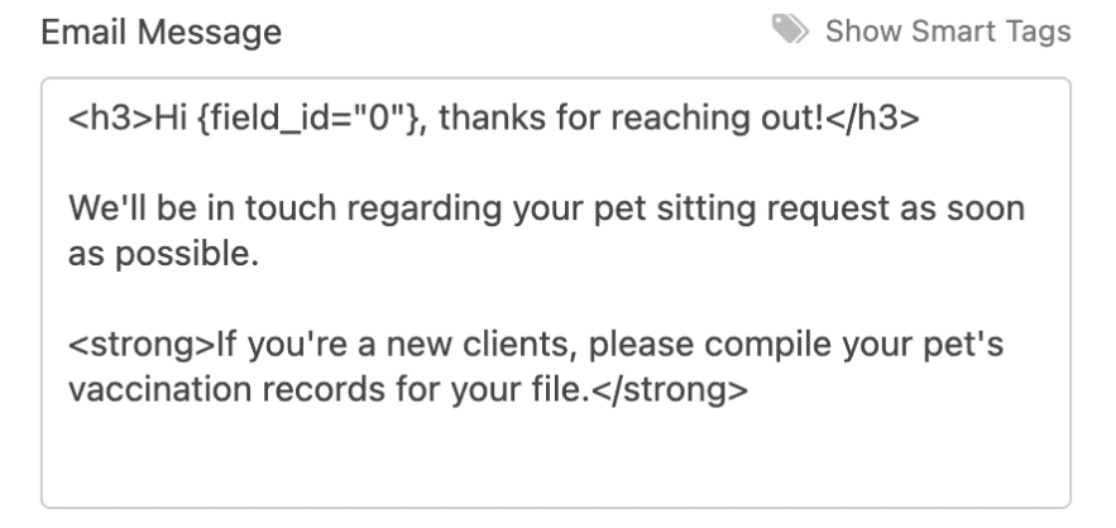
Here is an example of how the email notification might look once it’s received:
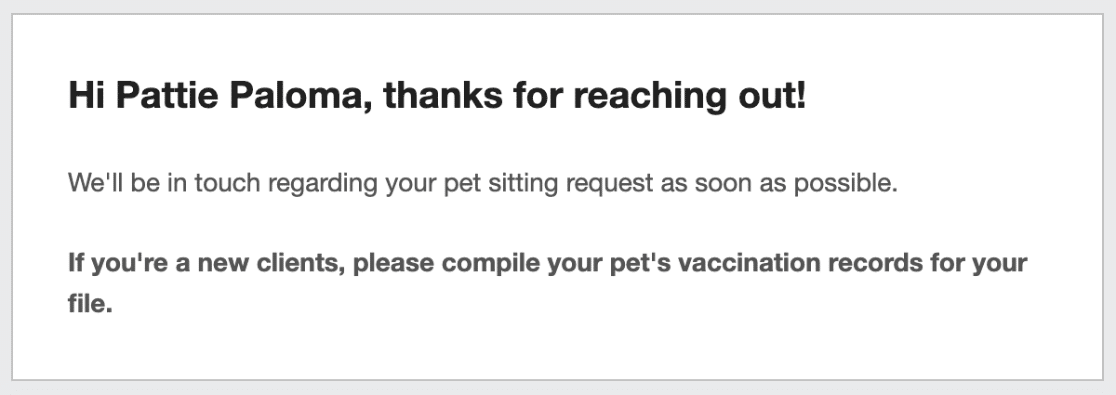
**Note:** If you’d like more details on how to customize your email notifications (including changing the background or link text color), be sure to check out our [developer documentation](https://wpforms.com/developers/how-to-customize-the-styles-on-the-email-template/).
##### Enabling Entry CSV Attachments
Enabling entry CSV attachments allows you to attach a downloadable CSV file to your notification email that contains the information users submit through your form. Additionally, you can include other information in the attachment, such as the form name, entry ID, user’s IP address, and more.
To enable this feature, first scroll to the bottom of the notification settings and click **Advanced**.
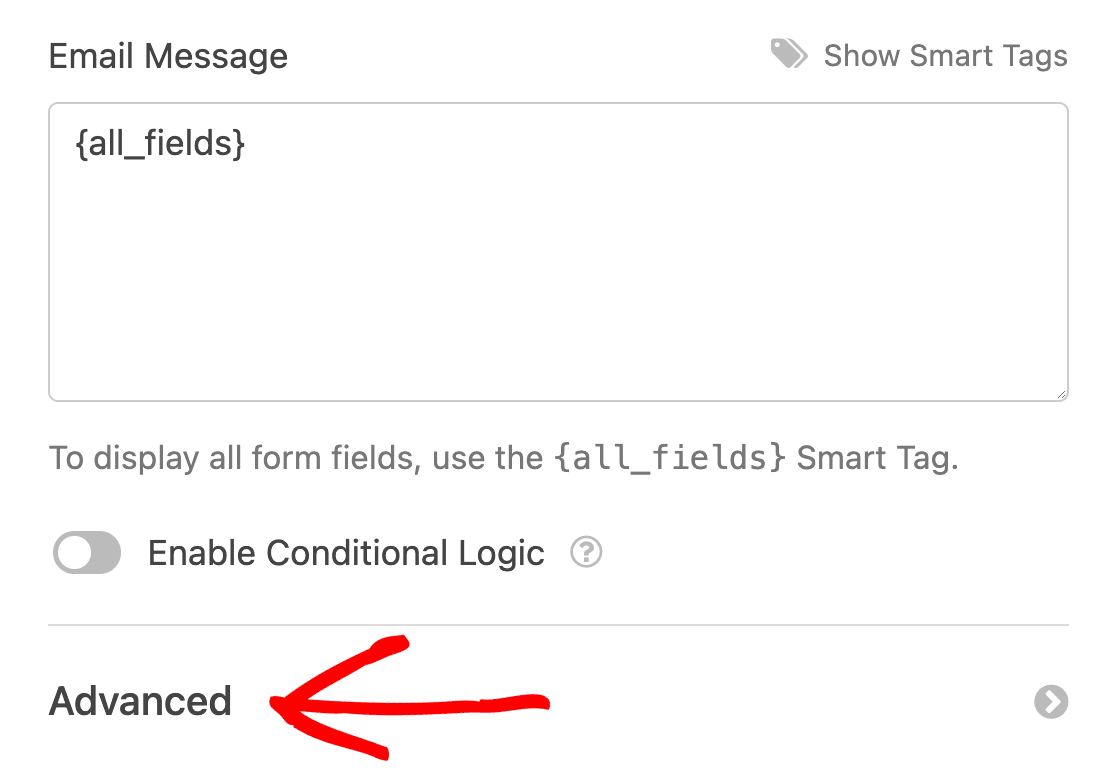
Then, toggle on the **Enable Entry CSV Attachment** option.
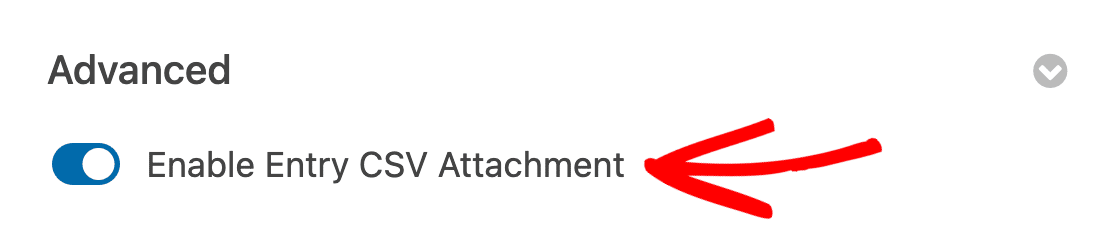
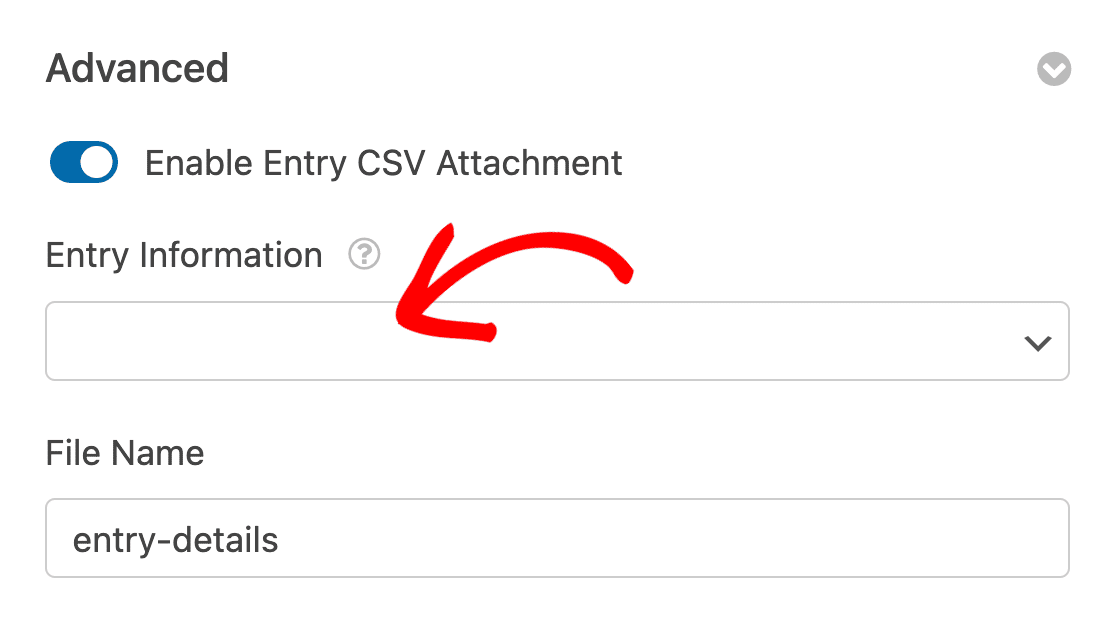
You’ll then see more settings appear for the CSV attachment. Go ahead and click the **Entry Information** field to reveal the available items you can include in the CSV file.
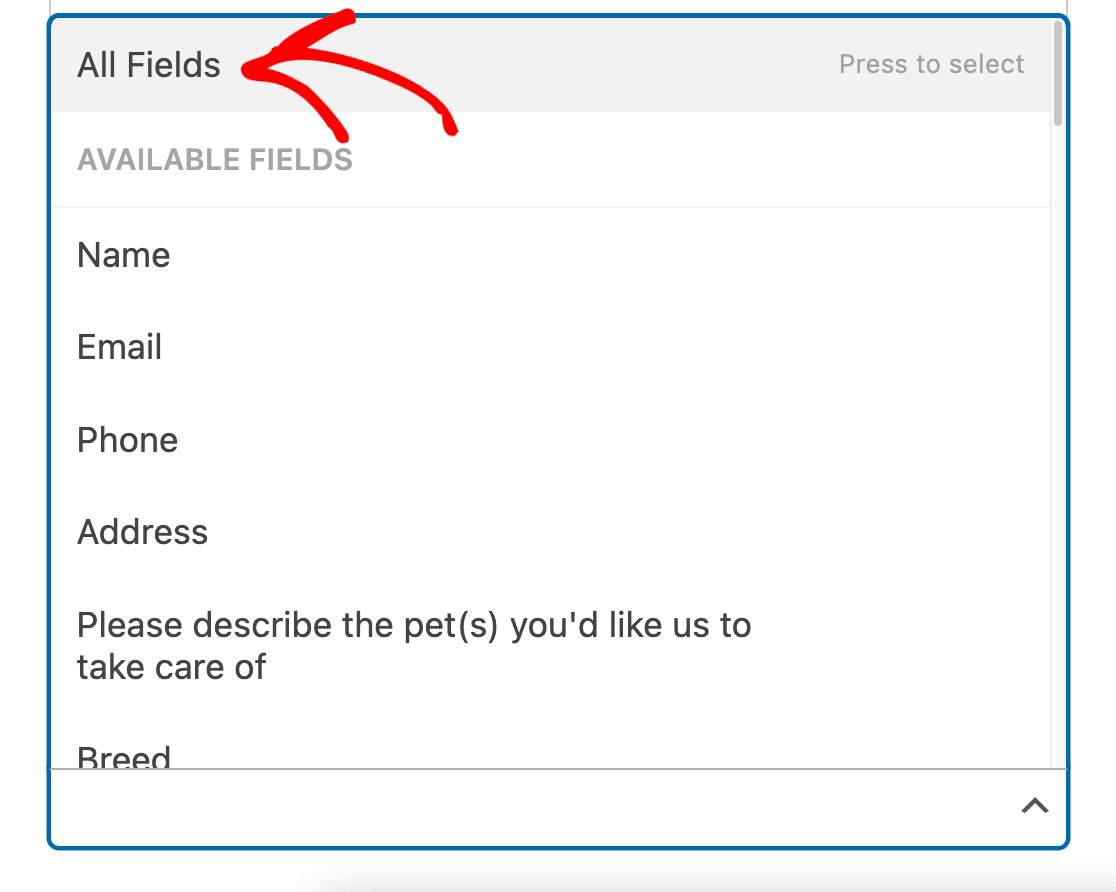
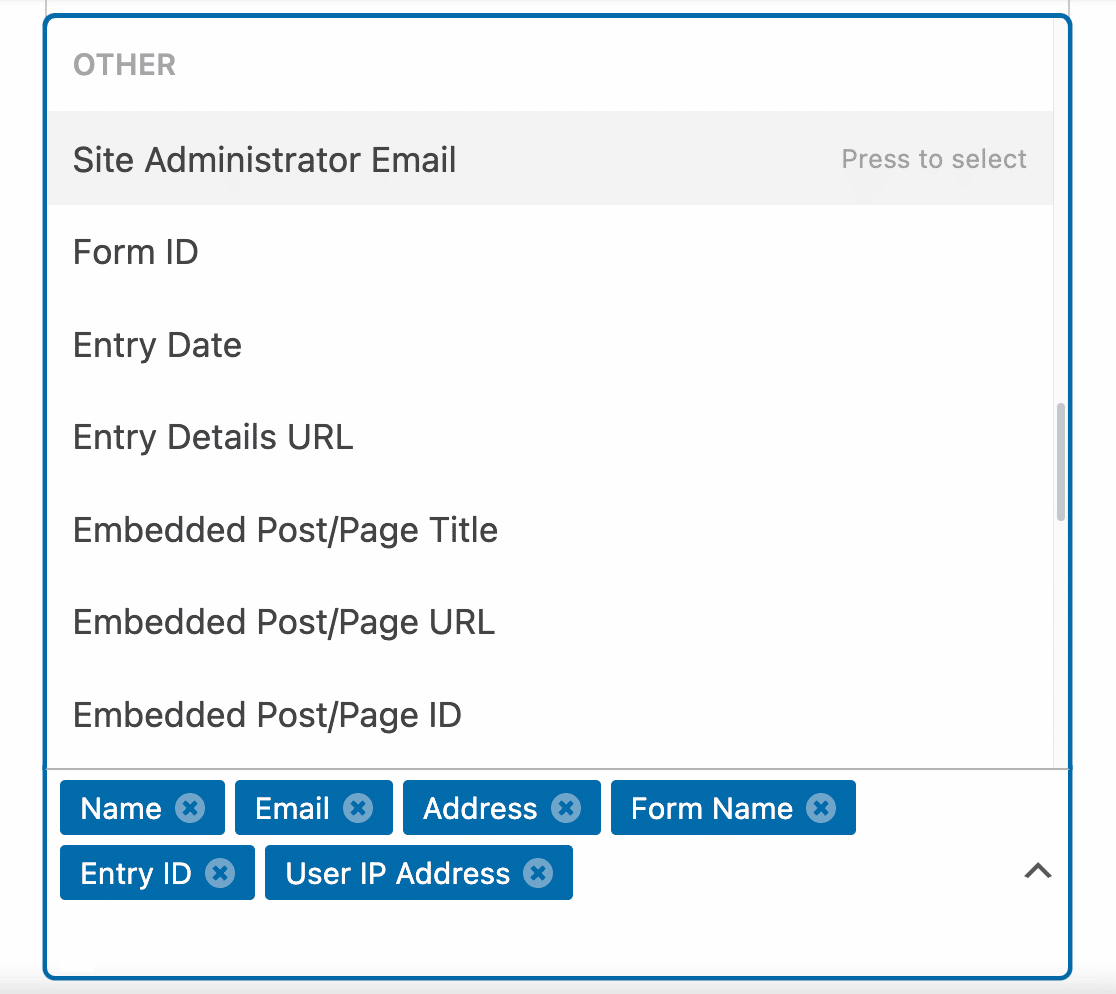
Next, you’ll need to select the form fields you’d like to include in the CSV attachment. If you’d like to include all fields, simply click the **All Fields** option.
Or, you can select individual fields by clicking on each one you’d like to include.
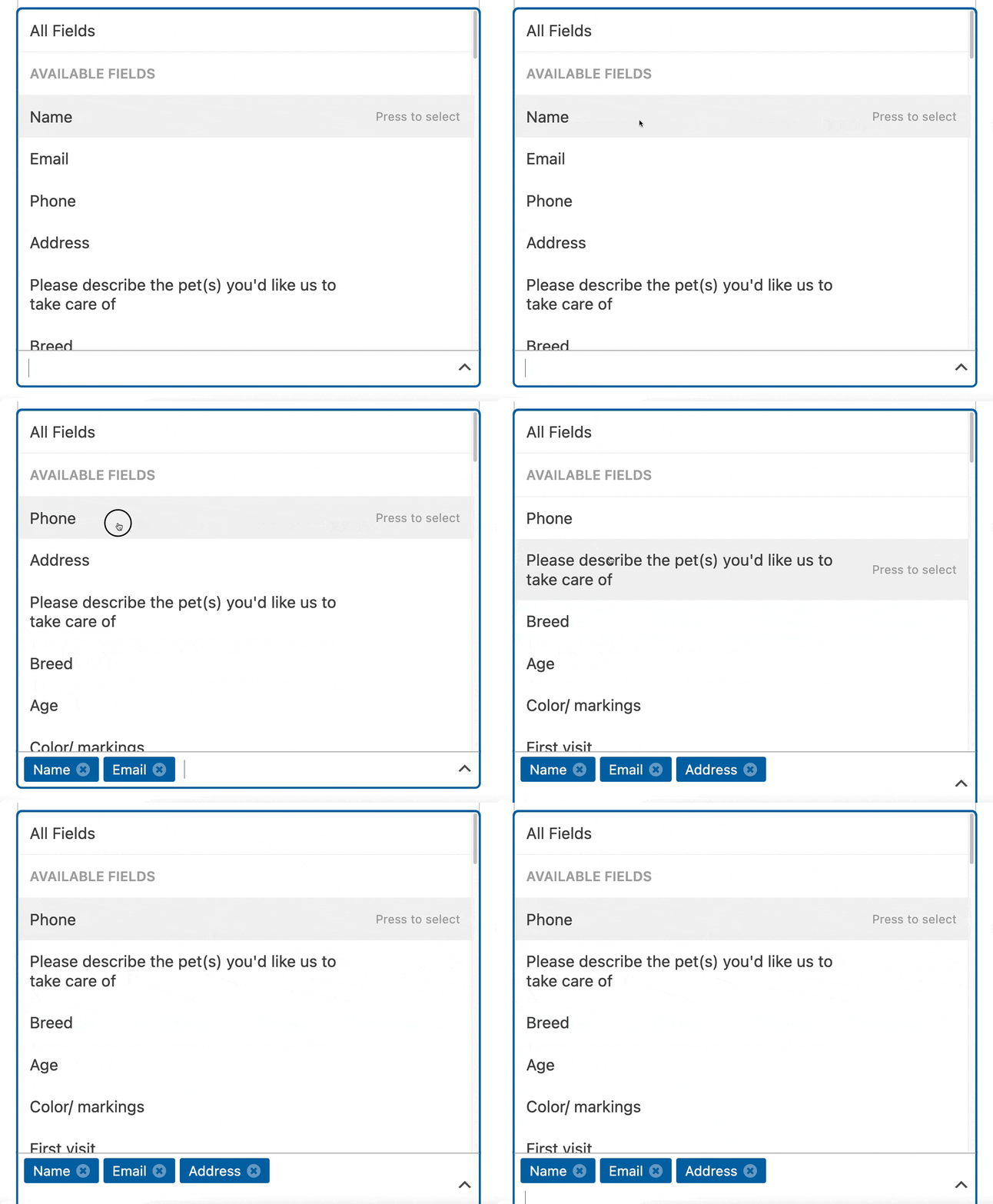
**Note:** You’ll need to include at least one item from the **Entry Information** dropdown to attach a CSV file to the email notification.
To include more entry details beyond the information the user submits through your form, scroll to the **OTHER** section of the dropdown and click on each item you’d like to include.
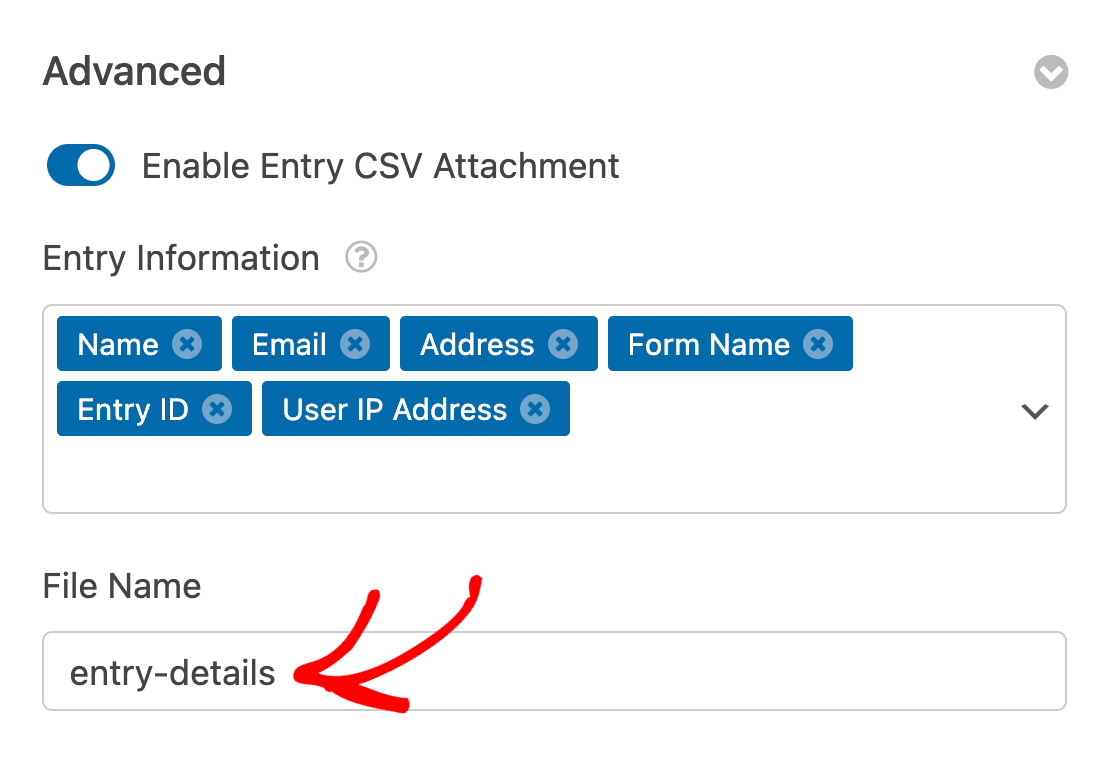
Next, go ahead and add a name for your file in the **File Name** field. You’ll see that the File Name is set to “entry-details” by default, but feel free to change the name to whatever you’d like.
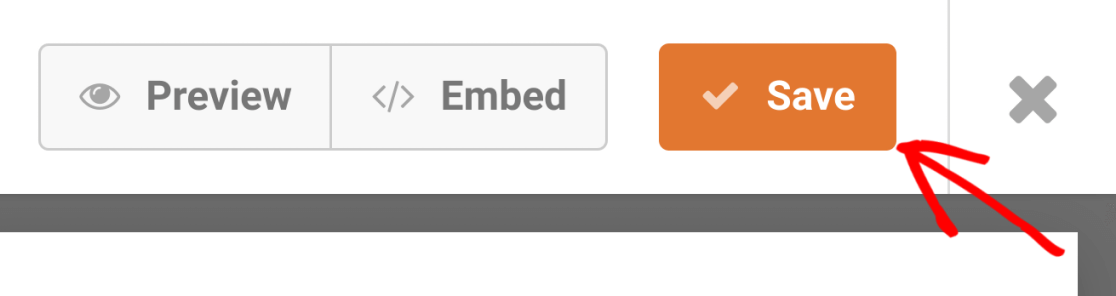
When you’re finished, be sure to click the **Save** button to save your settings.
Now the [recipient of the email notification](https://wpforms.com/docs/setup-form-notification-wpforms/#send-to-email-address) will receive a CSV attachment with the entry information you’ve included.
##### Adding Multiple Form Notifications
WPForms makes it easy to create multiple email notifications for a form. Whether you’d like to send out unique emails to different recipients or [set up conditional notifications based on users’ entry selections](https://wpforms.com/docs/how-to-create-conditional-form-notifications-in-wpforms/), multiple form notifications are a great way to make your emails feel more personalized.
To add an additional notification email, make sure you’re still on the **Settings** » **Notifications** page. Then, click the **Add New Notification** button.
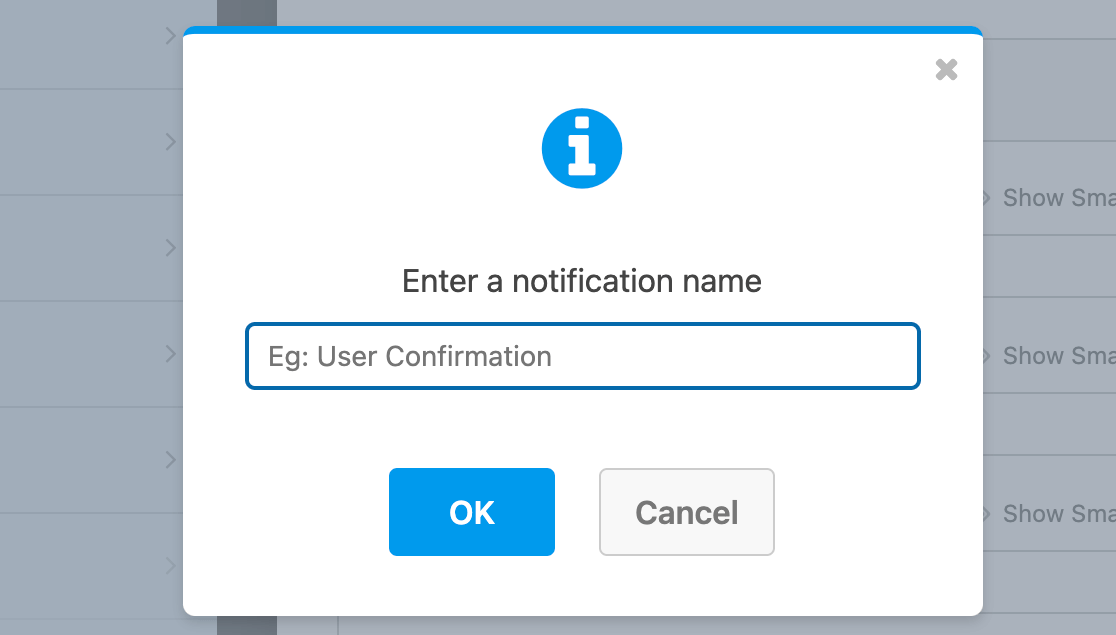
An overlay will then appear where you can name your new notification. Your users won’t see this name, so it can be anything you like. It’s meant to simply help you keep your notifications organized.
name-new-notification - WPForms
If you decide later that you’d like to rename or delete a notification, you can do that by clicking the appropriate icon to the right of the notification name.
If you’d like to duplicate a notification, click the clipboard icon.
Additionally, you can use the **caret (^)** to collapse the settings for a notification.
You can configure your new notification following the same steps as above. When you’re finished, click **Save** to store your changes.
##### Creating a Reply-All Notification with a CC Field
By default, email notification recipients are not able to use their email provider’s reply-all feature. If you would like to enable recipients to reply to multiple people from your email notifications, you’ll need to use WPForms’ Carbon Copy (CC) email option.
To add a CC field, you first have to navigate to **WPForms » Settings** and click on the **Email** tab.
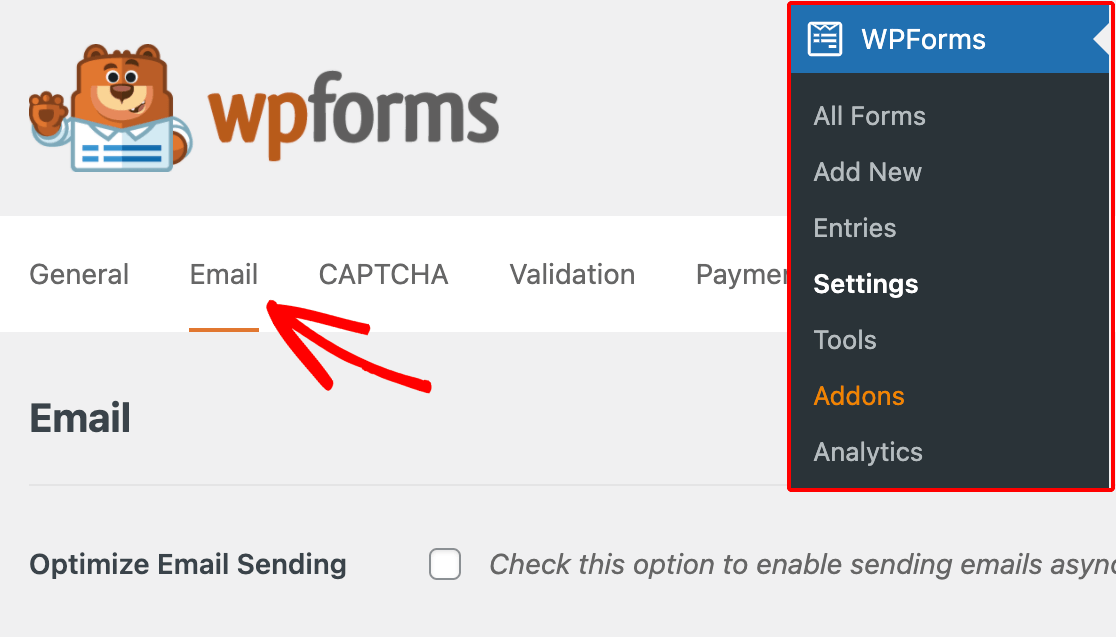WPForms-email-settings - WPForms
If you scroll to the bottom of this page, you can check the box next to **Carbon Copy** to enable the CC field.
After saving these settings, return to the form builder. You should see a new CC field in your notifications settings where you can enter additional email addresses.
If you enter multiple email addresses in this field, be sure to separate them with commas.
**Note:** When using the CC field, please be sure to only include one email in the **Send To Email Address** field. Otherwise, each additional email address you enter will result in an extra copy of the notification sent to each address in the CC field.
##### Sending an Email Notification to the Person Who Filled Out the Form
Sending an email to the user who submitted the form is a great way to quickly acknowledge that you’ve received their entry.
To set this up, you need the Send To Email Address to pull the user’s email from their entry. You can do this using a Smart Tag.
In your notifications settings, look to the right of the Send To Email Address field and click **Show Smart Tags**.
This will open a list of available Smart Tags. Under the **Available Fields** section, select the **Email** field.
The appropriate Smart Tag will automatically be added to the Send To Email Address field for you.
When the email notification is sent, this Smart Tag will automatically pull the email address that the user entered into your form.
You can manually enter the`{field_id="#"}` Smart Tag to pull in additional addresses. You’ll need the field’s ID to add it to the Smart Tag. It is found in the **Field Options** panel for the relevant field.
You can then use `{field_id="#"}` in the **Send To Email Address** field.
**Note:** If you’d like to delay notifications from going to your users until after their payments have been successfully processed, be sure to check out our tutorials on integrating your forms with [PayPal](https://wpforms.com/docs/install-use-paypal-addon-wpforms/#notification-logic), [Stripe](https://wpforms.com/docs/how-to-install-and-use-the-stripe-addon-with-wpforms/#notification-logic), and [Authorize.Net](https://wpforms.com/docs/how-to-install-and-use-the-authorize-net-addon-with-wpforms/#notification-logic).
##### Customizing Your Notifications
There are lots of ways to customize your email notifications, such as including your own branding and content. We’ll outline some of the most popular options below.
**Note:** The settings in the following section apply to all WPForms notification emails for your site, not just those for an individual form.
###### Switching to Plain Text Emails
By default, all emails are in HTML format as this allows for styling and images.
If you’d prefer to switch to plain text notifications, you’ll need to go to **WPForms » Settings** and select the **Email** tab.
From the Email page, scroll down to **Templates** and select **Plain Text**. Then save your settings.
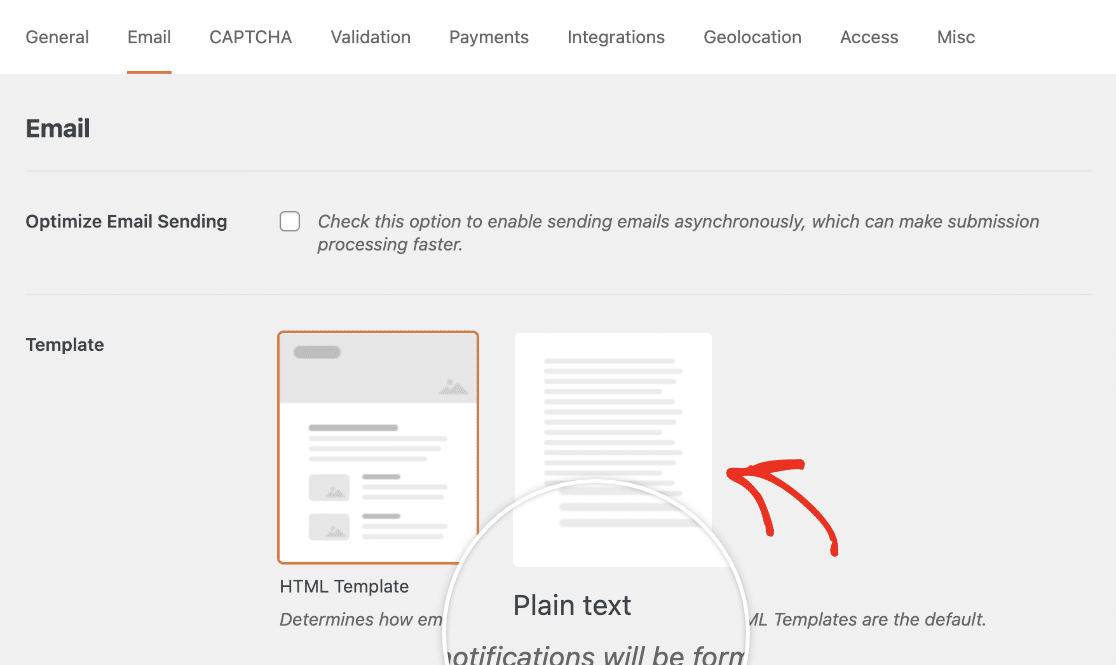select-plain-text-emails - WPForms
Here’s an example of how a plain text email would look.
###### Setting an Email Header Image
If you’d like to add a header image or logo to your notification emails, you’ll need to go to **WPForms » Settings** and open the **Email** tab.
Scroll to the **Header Image** section, then click **Upload Image** to select your header image file.
For the best viewing experience on all screen sizes, we recommend using an image that’s 300 pixels wide and 100 pixels tall, or smaller.
After saving your settings, this image will be added to all future notification emails for your forms.
For more details, check out our tutorial on [adding a header image to emails](https://wpforms.com/docs/how-to-add-custom-header-image-in-your-wpforms-email-template/).
###### Changing Email Background Color
By default, all form emails have a light grey background color.
If you’d like to change this, you can go to **WPForms » Settings** and open the **Email** tab. Here, you’ll see an option labeled **Background Color**. You can click on this field to open the color picker and select a background color, or enter any HEX value.
Remember to save any changes to your settings before leaving this page.
##### Testing Notification Emails
Once your notifications settings are configured, we recommend trying them out. Testing your forms is super useful because it allows you to share in the user experience. It also provides an opportunity to make sure everything looks and works exactly as you’d like.
For all the details on testing notification emails, as well as other aspects of your forms, please check out our [pre-launch checklist and form testing tutorial](https://wpforms.com/docs/how-to-properly-test-your-wordpress-forms-before-launching-checklist/#email-delivery).
##### Frequently Asked Questions
Here, we’ll discuss some of the most common questions we receive about email notifications in WPForms.
###### Why am I not receiving my notification emails?
If you’re not receiving notification emails, first be sure that all of your [notifications settings are configured correctly](https://wpforms.com/docs/setup-form-notification-wpforms/#basic-setup).
If your settings look correct, the issue is likely because emails sent from WordPress are not authenticated by default, unlike emails sent from dedicated email service providers. As a result, they are often filtered out by the receiving mail server and not delivered.
To resolve email delivery issues like this, you can [configure an SMTP plugin](https://wpforms.com/docs/how-to-fix-wordpress-contact-form-not-sending-email-with-smtp) on your site so that emails are sent as authenticated.
###### Can I configure my notifications to send only if certain conditions are met?
Absolutely! With any paid license, you can set up conditional notifications for your forms. For more details on how to do this, be sure to check out our guide on [how to create conditional form notifications](https://wpforms.com/docs/how-to-create-conditional-form-notifications-in-wpforms/).
That’s it! Now you can set up and customize notification emails for all of your forms.
Would you also like to see some examples of custom notification emails? Be sure to check out our blog posts on [out-of-office email template ideas](https://wpforms.com/best-office-closed-for-holiday-message-templates/) and [personalized email examples](https://wpforms.com/email-personalization-examples/).
[](https://www.facebook.com/groups/wpformsvip/)[WPForms VIP Circle Banner - WPForms](https://www.facebook.com/groups/wpformsvip/), Setting Up Form Notification Emails, WPForms, 01gnmcxyda99tj9qpp388y6err.