Simulate Preferences in the Browser
## Metadata
- Author: [[Bernhard]]
- Full Title: Simulate Preferences in the Browser
- Category: #articles
- Document Note: ---
tags: [#webdevelopment, #browser, #accessibility, #css, #simulation]
- #webdevelopment
- #browser
- #accessibility
- #css
- #simulation
Author: Marcel Bootsman
Source: [KAU-Boys](https://kau-boys.com/3873/web-development/simulate-preferences-in-the-browser)
Reference: [Simulate Preferences in the Browser, 2024-05-09]
date created: 2025-05-16 23:58
---
# Title: 🕹️ Simulate Preferences in the Browser
## Table of Contents:
- [📝 Summary](#-summary)
- [📖 Main Content](#-main-content)
- [🗒️ Notes](#️-notes)
- [🕵️ [00:01] Introduction to User Preferences](#001-introduction-to-user-preferences)
- [🎛️ [00:02] Why Simulate Preferences?](#002-why-simulate-preferences)
- [⚙️ [00:03] Simulating Preferences via DevTools](#003-simulating-preferences-via-devtools)
- [🌗 [00:04] Media Queries: Examples and Use Cases](#004-media-queries-examples-and-use-cases)
- [💡 [00:05] Limitations & Practical Tips](#005-limitations--practical-tips)
- [📖 References](#-references)
- [🗣️ Paraphrase](#-paraphrase)
- [📰 Newsletter](#-newsletter)
- [✅ Action Items](#-action-items)
- [🧪 Hypotheses](#-hypotheses)
- [📊 Methodology](#-methodology)
- [❓ Questions](#-questions)
- [🔮 Future Research](#-future-research)
- [💡 Implications](#-implications)
- [🧠 Learning Styles Assessment](#-learning-styles-assessment)
- [📊 Accessibility Assessment](#-accessibility-assessment)
- [🌍 DEIB (Diversity, Equity, Inclusion, and Belonging) Assessment](#-deib-diversity-equity-inclusion-and-belonging-assessment)
- [✅ Logical Validity](#-logical-validity)
- [🔍 DARVO Analysis](#-darvo-analysis)
- [🔍 SEO Evaluation](#-seo-evaluation)
- [🎯 Conclusion](#-conclusion)
### References:
- [KAU-Boys: Simulate Preferences in the Browser](https://kau-boys.com/3873/web-development/simulate-preferences-in-the-browser)
## 📝 Summary:
Marcel Bootsman’s article introduces web developers to simulating user preferences in browsers using built-in DevTools, focusing on accessibility features like dark mode, reduced motion, and contrast settings. The piece explains why and how to test these preferences, details media query examples, and encourages developers to prioritize accessible design by previewing real user experiences.
## 📖 Main Content:
The article begins by highlighting the importance of respecting user preferences for accessibility and comfort—dark mode, reduced motion, and color schemes being prime examples. Bootsman explains why it’s essential for web developers to simulate these settings, noting they influence how users experience and interact with sites, especially those with disabilities or specific needs.
DevTools in modern browsers (notably Chrome and Firefox) allow developers to mimic user preference settings without changing their OS settings. The author then walks through practical steps: accessing DevTools, activating preference simulations, and testing the effects of different media queries. Media query samples show how developers can make their CSS adapt to these user settings.
Bootsman also points out some limitations, such as imperfect simulations or the lack of support for some features in certain browsers. The article ends with practical advice: always test accessibility settings, understand the boundaries of simulation, and integrate feedback from real users.
### 🗒️ Notes
#### 🕵️ [00:01] [Introduction to User Preferences](https://kau-boys.com/3873/web-development/simulate-preferences-in-the-browser)
- User preferences shape the web experience (e.g., prefers-color-scheme, prefers-reduced-motion).
- Accessibility is a core motivator for respecting these settings.
- Browsers and OSs allow users to set preferences, but testing as a developer can be tricky without simulation tools.
#### 🎛️ [00:02] [Why Simulate Preferences?](https://kau-boys.com/3873/web-development/simulate-preferences-in-the-browser#why)
- Testing preferences helps developers design accessible, user-centric sites.
- Simulating preferences is quicker than changing OS settings repeatedly.
- Simulated settings offer a way to see sites through diverse users' eyes.
- Accessibility compliance (WCAG) may depend on how these settings are handled.
#### ⚙️ [00:03] [Simulating Preferences via DevTools](https://kau-boys.com/3873/web-development/simulate-preferences-in-the-browser#devtools)
- Chrome and Firefox DevTools support preference simulation.
- Developers can toggle prefers-color-scheme, prefers-reduced-motion, and contrast.
- Steps: Open DevTools → Rendering panel → Emulate CSS media features.
- No OS changes needed—safe for all workflows.
#### 🌗 [00:04] [Media Queries: Examples and Use Cases](https://kau-boys.com/3873/web-development/simulate-preferences-in-the-browser#mediaqueries)
- CSS media queries power adaptive design.
- Examples: `@media (prefers-color-scheme: dark)`, `@media (prefers-reduced-motion: reduce)`
- Use cases: Dark mode, reduced motion for sensitive users, high-contrast views.
- Simulations help debug theme switching and accessibility features.
#### 💡 [00:05] [Limitations & Practical Tips](https://kau-boys.com/3873/web-development/simulate-preferences-in-the-browser#limitations)
- Not all preferences are perfectly simulated (some bugs, not all browsers support all features).
- Always test with real OS/user settings when possible.
- Document what’s covered by simulation and what requires live testing.
- Stay current—browser DevTools keep improving.
## 📖 References:
- Bootsman, Marcel. "Simulate Preferences in the Browser." [KAU-Boys](https://kau-boys.com/3873/web-development/simulate-preferences-in-the-browser), 2024-05-09.
## 🗣️ Paraphrase:
1. **Original:** "Simulating user preferences allows developers to test their designs for various accessibility needs without altering their own system settings."
- **Paraphrase:** By emulating different user preferences within DevTools, developers can preview how sites respond to accessibility features, eliminating the need to change their computer's configuration.
2. **Original:** "Media queries like prefers-color-scheme or prefers-reduced-motion help websites adapt visually to users’ needs and device settings."
- **Paraphrase:** CSS media queries such as prefers-color-scheme and prefers-reduced-motion enable websites to visually align with user preferences and device accessibility settings.
## 📰 Newsletter:
🕹️ **Accessibility Hack: Simulate Preferences in Your Browser!**
This week, Marcel Bootsman walks us through a power move for devs: simulating user preferences in Chrome and Firefox DevTools. Skip the tedious OS setting toggles and instantly preview your site in dark mode, with reduced motion, or high contrast. Essential reading for anyone serious about accessibility or wanting to see their site from all user perspectives. Check out the full how-to at [KAU-Boys](https://kau-boys.com/3873/web-development/simulate-preferences-in-the-browser) and start testing inclusively today!
## ✅ Action Items:
- Integrate preference simulations into QA and theme/plugin testing workflows.
- Use DevTools for accessibility compliance checks (color scheme, motion, contrast).
- Document simulation steps in developer onboarding materials.
- Encourage team to validate designs with both simulated and real OS/user settings.
- Advocate for broader browser support of preference simulations, aligning with open-source values.
- Highlight these methods in contributor education, promoting accessibility-first development.
## 🧪 Hypotheses:
- Simulating user preferences with DevTools reduces accessibility bugs in production.
- Documented simulation processes improve new contributor onboarding in open source projects.
- Broader adoption of preference simulation correlates with better WCAG compliance in WordPress themes/plugins.
### 📊 Methodology:
- Run accessibility audits pre- and post-simulation integration across multiple projects.
- Survey contributors on onboarding effectiveness after using simulation tools.
- Track WCAG compliance before/after simulating user preferences in workflows.
### ❓ Questions:
- What preferences are most often overlooked by WordPress developers?
- Which browser offers the most rob
- Summary: Before we get into some topics in the advent calendar, we need to learn about a browser feature. Therefore, I have changed the order of my planned topics on debugging a bit to have this one earlier. In some of … Read more →
- URL: https://kau-boys.com/3873/web-development/simulate-preferences-in-the-browser
Before we get into some topics in the advent calendar, we need to learn about a browser feature. Therefore, I have changed the order of my planned topics on debugging a bit to have this one earlier.
In some of my next blog posts, I will talk about some CSS features, that can benefit certain people using your website. Almost 5 years ago, I had a blog post on how to “[Recude motion on a website for better accessibility](https://kau-boys.com/2371/web-development/recude-motion-on-a-website-for-better-accessibility)“. In this blog post, I’ve explained how you can change the settings in Windows 10 or Android 9, to simulate the reduced motion preference. But you might use a different operating system (like I use Manjaro Linux for work), where there is no quick setting, or you want to quickly toggle the setting. Fortunately, some browsers have such a toggle for you.
#### Setting preferences in Chrome
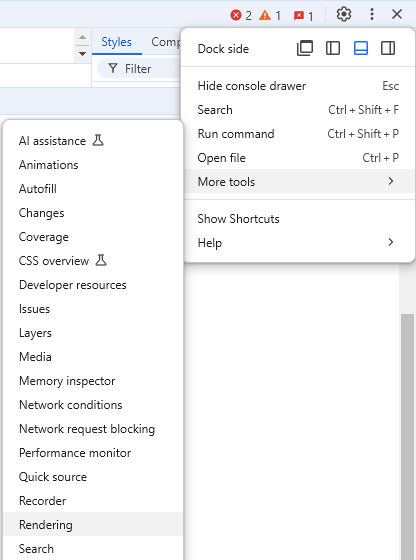
In Chrome (and other browsers based on the Chromium project like Edge) you can find most settings by clicking on the three vertical dots in the top right, then you choose “More tools” and open the “Rendering” tools:

This opens up another panel in the development tools. If you scroll down a bit, you will find these settings, you can use to simulate different preferences. In this example, I am setting `prefers-reduced-motion` to `reduce`:
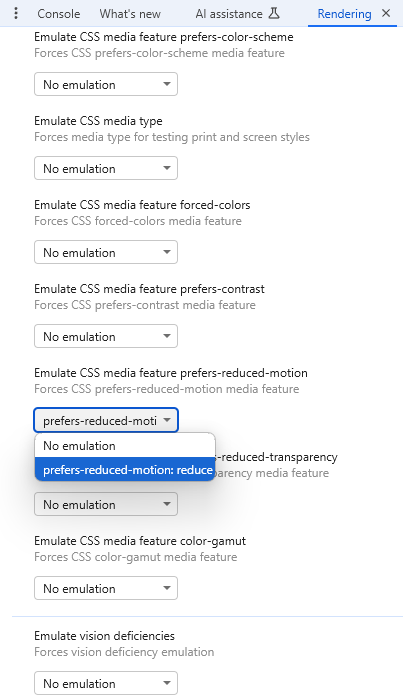
The only downside with this setting: as soon as you close the developer tool, the setting would reset to its default value. If you want to test a site with more vertical space available (since the two panels use a lot of height), I would suggest detaching the developer tools from the browser window.
We will need these settings in upcoming topics. But there are more options to simulate settings that will change the behavior and look of your site. If you want to quickly display your site with a dark color scheme, you don’t have to change your operating system to a dark color scheme or open up the rendering settings. Instead, you will find a nice toggle in the “Styles” section. Click on the “paint brush” icon and switch to the color scheme you want to test.
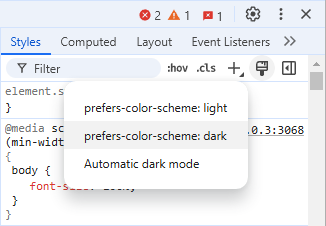
Unfortuantey, just as with the rendering panel, the color scheme will switch back to the default value, as soon as you close the development tools.
#### Setting preferences in Edge
Even though Edge is based on Chromium and many development tool look exactly the same, you will not find the “More tools > Rendering” panel in Edge. Instead, you open up the dev tools first. On panels like “Elements” you will see the “Console” and “Issues” int the lower part. Here, you click on the “+” icon and choose the “Rendering Quick View”. It looks very similar to Chrome once opened.
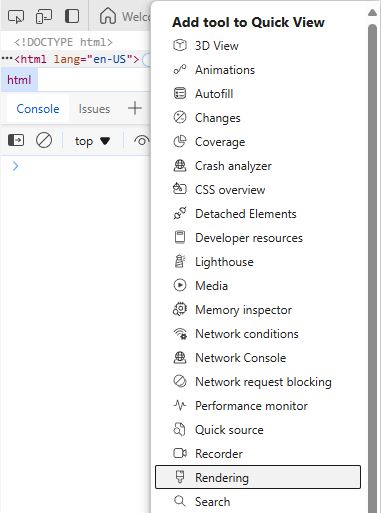
You also have a quick toggle for the colors scheme in Edge with a “paint brush” icon, just as in Chrome.
#### Setting preferences in Firefox
In Firefox, the settings are not easily available. They are also located in different places. If you want to set the `prefers-reduced-motion`, you have to navigate to the URL `about:config`, then search for `ui.prefersReducedMotion`, add a boolean value and set it to `false`. For `prefers-reduced-transparency` however, you would search for `layout.css.prefers-reduced-transparency.enabled` and set this to `true`. That’s all very inconsistent and annoyingly not all in one place.
If we want to toggle the color scheme, we are more lucky. Firefox offers two buttons. With the “sun icon”, you can enforce the light color mode and with the “waxing crescent moon icon”, you can enforce the dark color mode.
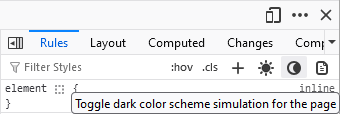
Toggling one of them disables the other one. If you disable both, the default will be taken.
#### Bonus: faster toggle of preferences in Chromium browsers
I can’t tell you how to change the preferences in Safari, since I don’t use a Mac (or a simulates Safari often enough). But I have a nice little bonus tip for you. If you want to quickly change one of these preferences, you can use the “Run command” feature in Chromium browsers.
While the dev tools are open, hit “CTRL + SHIFT + P” (or “Command + Shift + P” on a Mac) and then search for a preference to toggle:
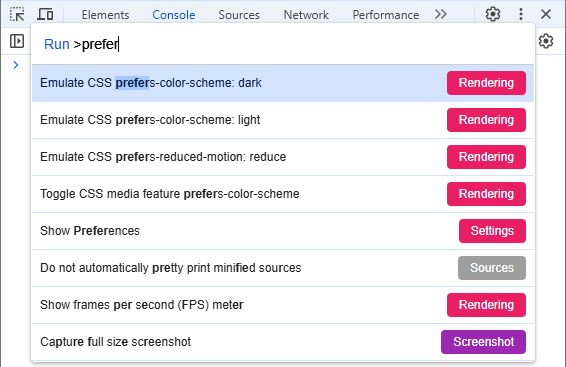
I haven’t found an equivalent feature in Firefox, but maybe one of you know it?
#### Conclusion
When developing a website that behaves or renders differently, depending on preferences set in the operating system, you should always test this. But you don’t have to change the settings of your operating system. Browser usually have options to emulate those.
If any of you knows better options for these settings in Firefox or an extension that would allow you to switch those more easily, please share your tips in the comments., Simulate Preferences in the Browser, Bernhard, 01jf1227v4necb1y2symbmh0jr.