The ULTIMATE Second Brain Setup in Notion
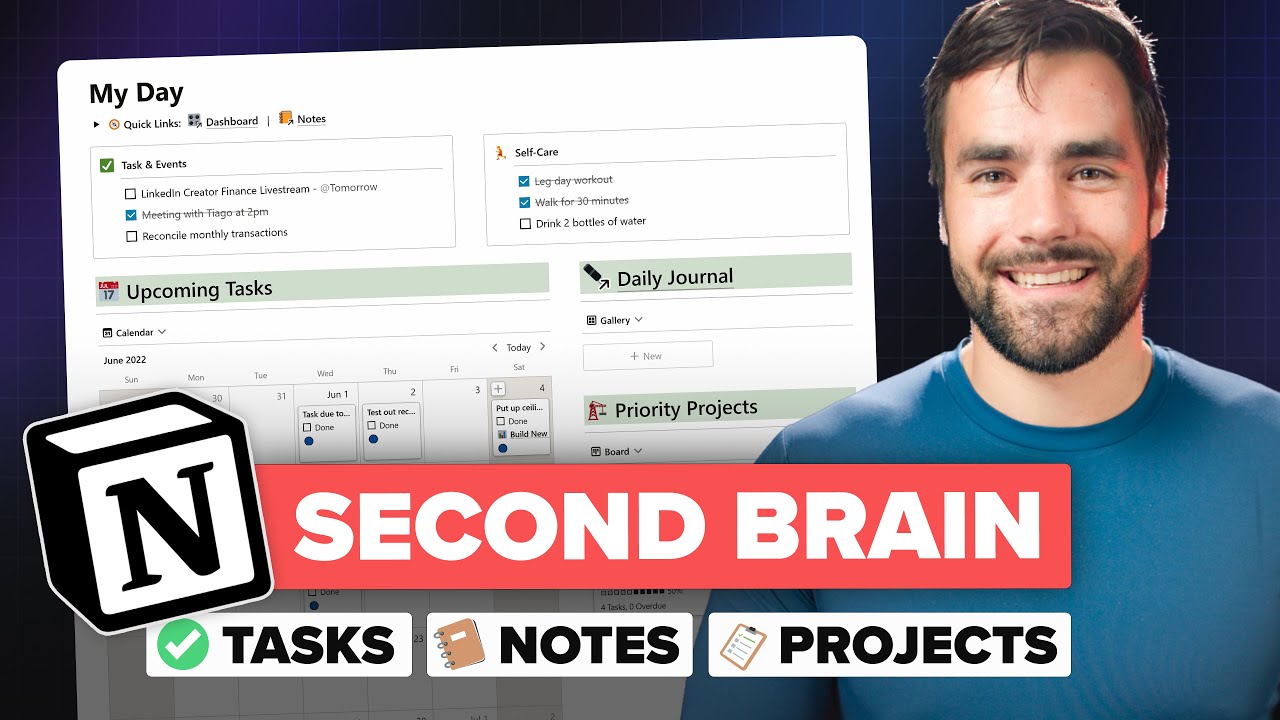
## Metadata
- Author: [[YouTube]]
- Full Title: The ULTIMATE Second Brain Setup in Notion
- Category: #articles
- Document Note: ---
tags: [notion, second-brain, productivity]
author: Thomas Frank
source: YouTube
reference: https://www.youtube.com/watch?v=vs8WQh2k-Ow
date created: 2024-12-19 10:30
---
# 🏷️ Title: The ULTIMATE Second Brain Setup in Notion
## 🧰 Action Inbox
- [H1] Set up quick capture dashboard with task and note inboxes — 24-hour filter system #setup
- [H2] Implement PARA organization structure for life management — areas, resources, projects #organization
- [H3] Create GTD processing workflow for inbox management — 6-list system #workflow
## 🧭 Table of Contents
- [📝 Summary](#-summary)
- [📖 Main Content](#-main-content)
- [🗒️ Notes](#️-notes)
- [📚 References](#-references)
- [🗣️ Paraphrase](#️-paraphrase)
- [📰 Newsletter](#-newsletter)
- [✅ Action Items](#-action-items)
- [🧪 Hypotheses](#-hypotheses)
- [📊 Methodology](#-methodology)
- [❓ Questions](#-questions)
- [🔮 Future Research](#-future-research)
- [💡 Implications](#-implications)
- [🧠 Learning Styles Assessment](#-learning-styles-assessment)
- [📊 Accessibility Assessment](#-accessibility-assessment)
- [🌍 DEIB Assessment](#-deib-assessment)
- [✅ Logical Validity](#-logical-validity)
- [🛡️ DARVO Analysis](#-darvo-analysis)
- [🎯 Conclusion](#-conclusion)
### 🔗 References
- [Ultimate Brain Template](https://thomasjfrank.com/brain)
- [PARA Method Article](https://fortelabs.co/blog/para/)
## 📝 Summary
- Thomas Frank demonstrates a comprehensive second brain system built in Notion called "Ultimate Brain"
- System integrates tasks, projects, notes, and goals using PARA organization and GTD workflow
- Template provides complete productivity solution replacing multiple separate apps
- Features quick capture, daily planning, life organization, and automated processing
- Available as commercial template with extensive tutorials and support
## 📖 Main Content
Thomas Frank presents his complete second brain system in Notion, addressing the long-standing challenge of having an all-in-one productivity tool. The system combines Tiago Forte's PARA methodology (Projects, Areas, Resources, Archive) with David Allen's Getting Things Done (GTD) workflow, creating a comprehensive life organization system.
The system solves the common problem of juggling multiple apps for different productivity needs by providing integrated task management, note-taking, project planning, and goal tracking within Notion's flexible database structure. Unlike rigid folder hierarchies, Notion's relational databases allow for more flexible organization where items can exist independently or within larger structures.
## 🗒️ Notes
#### ⏱️ [00:00](https://www.youtube.com/watch?v=vs8WQh2k-Ow&t=0) — [H1] System Overview and Promise
- Key idea: Complete second brain system that tracks tasks, projects, notes, and goals in one place
- Evidence: "Finally, I have a complete system where I can capture all of my notes, ideas, my tasks"
#### ⏱️ [03:12](https://www.youtube.com/watch?v=vs8WQh2k-Ow&t=192) — [H2] Quick Capture System Design
- Key idea: Frictionless capture is essential for second brain functionality
- Evidence: "For that second brain to work well, we need to be able to quickly capture tasks and ideas"
#### ⏱️ [05:45](https://www.youtube.com/watch?v=vs8WQh2k-Ow&t=345) — [H2] 24-Hour Filter Innovation
- Key idea: Quick capture page automatically cleans itself using time-based filters
- Evidence: "There is a filter that will ensure that anything I add here only stays here for 24 hours"
#### ⏱️ [07:30](https://www.youtube.com/watch?v=vs8WQh2k-Ow&t=450) — [H2] Web Clipper Integration
- Key idea: Browser extensions enable seamless web content capture into organized system
- Evidence: "Saved to Notion extension that will let us actually clip web highlights and web clips"
#### ⏱️ [11:23](https://www.youtube.com/watch?v=vs8WQh2k-Ow&t=683) — [H2] Daily Planning Philosophy
- Key idea: Virtual whiteboard approach for focused daily planning separate from full system view
- Evidence: "Acts as a virtual whiteboard where I can just write down my plan for the day"
#### ⏱️ [15:18](https://www.youtube.com/watch?v=vs8WQh2k-Ow&t=918) — [H1] PARA Method Explanation
- Key idea: Four-category system for organizing all life information and activities
- Evidence: "Projects, areas, resources, and archive organizational methodology for doing total life organization"
#### ⏱️ [18:45](https://www.youtube.com/watch?v=vs8WQh2k-Ow&t=1125) — [H2] Notion's PARA Flexibility Advantage
- Key idea: Database relations allow more flexible organization than rigid folder hierarchies
- Evidence: "In Notion we can get a bit more flexible because we're using databases instead of rigid directories"
#### ⏱️ [22:30](https://www.youtube.com/watch?v=vs8WQh2k-Ow&t=1350) — [H2] Area Dashboard Functionality
- Key idea: Each life area becomes a comprehensive dashboard with projects, resources, and goals
- Evidence: "Basically this dashboard for this entire part of my life"
#### ⏱️ [26:15](https://www.youtube.com/watch?v=vs8WQh2k-Ow&t=1575) — [H2] Project Resource Pulling Feature
- Key idea: Projects can pull in existing notes and resources as reference materials
- Evidence: "I can pull an entire resource into this project, if that would be helpful"
#### ⏱️ [30:42](https://www.youtube.com/watch?v=vs8WQh2k-Ow&t=1842) — [H2] Cold Tasks Innovation
- Key idea: Overdue tasks automatically move to separate view to maintain clean active lists
- Evidence: "Cold tasks are tasks that are more than two weeks overdue and not high priority"
#### ⏱️ [33:20](https://www.youtube.com/watch?v=vs8WQh2k-Ow&t=2000) — [H1] GTD Processing Workflow
- Key idea: Complete Getting Things Done methodology implemented in single dashboard
- Evidence: "Complete Getting Things Done or GTD style processing dashboard"
#### ⏱️ [38:55](https://www.youtube.com/watch?v=vs8WQh2k-Ow&t=2335) — [H2] Six GTD Lists Implementation
- Key idea: All GTD actionable items go into six specific lists with clear workflows
- Evidence: "Going to be on one of six specific lists: inbox, do next, delegated, snooze, someday, or calendar"
#### ⏱️ [42:10](https://www.youtube.com/watch?v=vs8WQh2k-Ow&t=2530) — [H2] Notes Dashboard with Favorites and Recents
- Key idea: Recreates traditional note app functionality with quick access patterns
- Evidence: "Essentially all of the main lists that I had back on Evernote"
#### ⏱️ [45:35](https://www.youtube.com/watch?v=vs8WQh2k-Ow&t=2735) — [H2] Fleeting Notes Auto-Archive
- Key idea: Temporary notes automatically archive after one month of inactivity
- Evidence: "If you add a note and do not change it for a month, it's going to auto archive itself"
#### ⏱️ [48:20](https://www.youtube.com/watch?v=vs8WQh2k-Ow&t=2900) — [H2] Goals vs Projects Distinction
- Key idea: Goals contain non-actionable milestones while projects contain actionable tasks
- Evidence: "A goal is almost like a higher level project that has milestones which might not always be actionable"
## 📚 References
- [Ultimate Brain Template](https://thomasjfrank.com/brain)
- [PARA Method by Tiago Forte](https://fortelabs.co/blog/para/)
- [Getting Things Done by David Allen](https://gettingthingsdone.com/)
- [Saved to Notion Extension](https://chrome.google.com/webstore)
## 🗣️ Paraphrase
- Thomas Frank has created a comprehensive productivity system in Notion that combines task management, note-taking, project planning, and goal tracking in one integrated platform
- The system uses PARA organization (Projects, Areas, Resources, Archive) as a flexible framework that works better in Notion than traditional folder-based tools
- A complete GTD processing workflow handles all incoming items through six specific lists, ensuring nothing falls through cracks while maintaining clean active views
## 📰 Newsletter
**Revolutionary Second Brain System Streamlines Notion Productivity**
Thomas Frank has cracked the code on creating a truly all-in-one productivity system within Notion. His "Ultimate Brain" template combines the best of PARA organization and GTD methodology, solving the age-old problem of juggling multiple apps for different productivity needs.
The standout feature is the intelligent automation - from 24-hour quick capture cleanup to auto-archiving fleeting notes to cold task management. This isn't just another Notion template; it's a complete life organization philosophy implemented with thoughtful user experience design.
For WordPress professionals managing client projects, content calendars, and personal development, this system offers a compelling alternative to tool switching fatigue.
Resources: [Ultimate Brain Template](https://thomasjfrank.com/brain), [PARA Method](https://fortelabs.co/blog/para/), [GTD Methodology](https://gettingthingsdone.com/)
## ✅ Action Items
#### WordPress
- Core: Evaluate second brain approach for documentation and feature planning
- Community: Create template sharing system for common productivity workflows
- Training: Develop courses on productivity system design for content creators
- Documentation: Implement GTD-style processing for community feedback and bug reports
- Marketing: Study integrated approach for campaign planning and content organization
#### Community
- Maintainers: Share productivity templates and workflows across projects
- Contributors: Create onboarding templates using PARA methodology
- Sponsors: Develop transparent reporting templates using integrated systems
## 🧪 Hypotheses
- Integrated productivity systems reduce cognitive load compared to multi-app workflows
- Database flexibility in Notion enables more sustainable organization than hierarchical folder systems
- Automated cleanup features prevent system decay that plagues traditional productivity setups
- PARA methodology works better in relational database environments than file-based systems
### 📊 Methodology
- A/B testing integrated vs. separated productivity workflows over 90-day periods
- User experience studies comparing Notion database organization to traditional folder structures
- Long-term sustainability analysis of automated vs. manual system maintenance
### ❓ Questions
- How does the cognitive load of learning a comprehensive system compare to using specialized tools?
- What are the breaking points where an all-in-one system becomes less efficient than specialized tools?
- How do team collaboration patterns change when using integrated individual productivity systems?
### 🔮 Future Research
- Integration patterns between personal productivity systems and team collaboration tools
- Automation opportunities for cross-platform productivity system synchronization
- Long-term user behavior analysis in comprehensive vs. modular productivity approaches
### 💡 Implications
- Practice: Significant upfront investment in system setup may yield long-term efficiency gains
- Policy: Organizations should consider supporting comprehensive productivity system training
- Education: Productivity education should focus on system thinking rather than tool-specific training
- Funding: Investment in automation features pays dividends in system sustainability
### 🧠 Learning Styles Assessment
Reading level estimate: 12th grade
#### 👀 Visual learners
- Present: Extensive screenshots, dashboard views, flowcharts, system diagrams
- Improve: More video annotations, visual process flows
#### 🔊 Aural learners
- Present: Comprehensive video explanation with detailed narration
- Improve: Audio-only version for commuting, podcast format
#### 🧩 Kinesthetic learners
- Present: Step-by-step template building, hands-on demonstrations
- Improve: Interactive tutorial checklist, practice exercises
#### 🧠 Logical learners
- Present: Clear system architecture, decision trees, methodical approach
- Improve: Comparison matrices with alternative approaches
### 📊 Accessibility Assessment
#### Screen reader semantics
- Present: Video has spoken content describing visual elements
- Improve: Detailed alt text for template screenshots, structured headings
#### Keyboard navigation
- Present: Notion template supports keyboard shortcuts
- Improve: Accessibility audit of custom database views
#### Media and captions
- Present: Video content with clear narration
- Improve: Closed captions, transcript with timestamps
### 🌍 DEIB Assessment
#### Cultural breadth
- Present: Productivity concepts applicable across cultures
- Improve: Examples from diverse work environments and life situations
#### Inclusive language
- Present: Generally accessible terminology with definitions
- Improve: Consider alternatives to "brain" metaphor for neurodivergent users
### ✅ Logical Validity
#### Strong reasoning
- Deductive strength: Clear logical progression from problem (tool juggling) to solution (integrated system)
- Inductive strength: Uses specific examples to build case for general productivity principles
- Analogical strength: Effectively compares Notion databases to traditional folder systems
#### Tone of voice
- Overall tone: Enthusiastic and educational, assumes some productivity system familiarity
### 🛡️ DARVO Analysis
- No concerning patterns detected
- Presenter acknowledges limitations and learning curves
- Balanced presentation of benefits and complexity tradeoffs
## 🎯 Conclusion
Thomas Frank's "Ultimate Brain" represents a sophisticated approach to personal productivity that leverages Notion's unique database capabilities. The system addresses real pain points in productivity tool management while introducing thoughtful automation and organization principles.
For practitioners, the key takeaway is the power of integrated systems over fragmented tool ecosystems, though this comes with significant setup complexity. The template provides a compelling starting point for those ready to invest in comprehensive life organization.
The broader implication is that the future of productivity tools lies in flexible, database-driven platforms that can adapt to individual workflows rather than forcing users into rigid structures.
## 🧱 Refactor Appendix
### 📚 Literature Split Pad
### [H1] Integrated productivity systems reduce tool switching overhead
> [!quote] [The ULTIMATE Second Brain Setup in Notion](https://www.youtube.com/watch?v=vs8WQh2k-Ow) by [[Thomas Frank]] via [[YouTube]]. Published 2022-05-09. Accessed 2024-12-19.
> "For most of my life, I have had to juggle multiple apps to achieve this balance, but now I can do it all inside of Notion."
Demonstrates the cognitive and workflow benefits of consolidating productivity tools into single platform rather than managing separate specialized applications.
[view highlight](https://www.youtube.com/watch?v=vs8WQh2k-Ow&t=192#H1) #productivity #integration ID:rw_001
### [H2] Database relations enable more flexible organization than hierarchical folders
> [!quote] [The ULTIMATE Second Brain Setup in Notion](https://www.youtube.com/watch?v=vs8WQh2k-Ow)
> "In Notion we can get a bit more flexible because we're using databases instead of rigid directories."
Explains how relational database structure allows for optional connections and multiple organizational views compared to fixed folder hierarchies.
[view highlight](https://www.youtube.com/watch?v=vs8WQh2k-Ow&t=1125#H2) #database-design #organization ID:rw_002
---
### 🔖 Atomic Split Pad (Zettel Candidates)
#### [Z1] Quick capture systems require automated cleanup mechanisms
- Applies to any inbox system that accepts rapid input without immediate processing
- Referenced at 05:45 timestamp with 24-hour filter example
- Links: [[Inbox-Management]] [[Automation-Design]]
#### [Z2] Cold task filtering prevents overdue items from cluttering active views
- Relevant when task systems accumulate long-overdue items that aren't truly priorities
- Referenced at 30:42 with two-week threshold and priority exception
- Links: [[Task-Management]] [[System-Maintenance
- Document Tags: [[h1]] [[setup]] [[workflow]] [[organization]] [[productivity]]
- Summary: The ULTIMATE Second Brain Setup in Notion
- URL: https://www.youtube.com/watch?v=vs8WQh2k-Ow
- Hey, what is going on friends?Welcome back to "Thomas Frank Explains."In this video, I'll be giving
you an in depth look atmy complete second brain
system inside of Notion.This is, at long last, an
all-in-one system that tracksall of my tasks, my
projects, my notes, my goals,and basically organizes my entire life.And this is what I have
wanted inside of Notionfor the entire time I've
been using this app,ever since 2018 when I discovered it.And they had that promise
of an all-in-one toolright on the homepage.Finally, I have a complete systemwhere I can capture all of
my notes, ideas, my tasks.
I can track my projects
with both notes and tasksinside of those projects.I can organize my entire lifeusing Tiago Forte's PARA
organization system.There's even a full GTD or
Getting Things Done workflowinside of the system.So in this video, I'm gonna
give you an in-depth look atevery single part of this systemfrom an action-oriented standpoint,which means we're gonna look
at it from the perspective ofthe actions we would want to take,including quickly capturing items.We're on the go organizing our lives
and actually getting things done.For most of my life,I have had to juggle multiple
apps to achieve this balance,but now I can do it all inside of Notion.Now this will be a bit of a longer video,so you might wanna check
out the table of contentseither right there or in
the description down below.So you can skip around
to what interests youor go back and review things as needed.And before we dive in,
I will also mention thatI've turned this entire
system into a template,so if you want a complete
done-for-you second brain systemthat you can simply add
to your Notion workspaceand start using right away,you can actually get it over
at thomasjfrank.com/brain.
The template is called "Ultimate Brain"and I'll note right now, there
is a promo code you can usewhich I'll put on screen
right now, it is UBLAUNCH,to get a full 50% off the list price.I'll have more information about thatat the end of the video,but for now, let's actually dive inbecause I'm gonna show you
every single part of this systemso in case you wanna build it yourself,you can using what you
see here as inspiration.So let's get this show on the roadand dig into this template.Once again, it is called "Ultimate Brain"and on the homepage, there are
several different areas here
split into three different columns.So I've got some smart dashboards.One's just called dashboard,it is a very general purpose dashboard.There's also an area
for planning your day,a quick capture dashboard,
and a page called process,which is our GTD or Getting
Things Done style dashboard.And finally, one for planning your future.We also have some more
traditional productivity views,like a task manager,
project hub, a notes area,and areas and resources page,
which uses Tiago Forte's PARA,or projects, areas, resources, and archiveorganizational methodology
for doing total life organization.And I'll actually have a
mini lesson on how that workswithin this video.One for goals, and archive,
and then some special views,a book tracker, a recipe
book, a quick links area.And we're gonna get through
all of these in this video.But like I said in the intro,I want to take an
action-oriented approach tohow we go through this system.So I first want to start out
with actually capturing ideas.See, a second brain is an externaleither combination of tools or single toolthat allows you to get
ideas or tasks or events,
anything that you're
holding up in your brain,into that external systemso you can go back to
thinking and being creativeand actually getting your work done.And for that second brain to work well,we need to be able to quickly
capture tasks and ideasand everything else with as
little friction as possible.So inside of "Ultimate Brain,"I created a page called quick capture,and this is a one stop
destination for capturingboth tasks and notes into various inboxes.This is the kind of page that
you could add as a favoriteto your Notion sidebar just like this.And you could also add it as a widget
on your iOS or your Android home screen.So you could immediately open
it and then capture somethingwhen it comes into your life.So here we have two different views.There is a task inbox and a note inbox,and one of the design patterns that I usethroughout the entire
template, but also hereis these links to other dedicated pages.So here I see a linked
view of my task inboxand a linked view of my note inbox,but I can also go over
to the task inbox itself,and I can go over to the
note inbox itself as well.And an inbox is simply
a default destination
for something that isn't yet organized.So in the case of a note,
it would be something thathasn't been yet given
a resource or an area,which is like a folder.Again, I'll have a whole PARA
tutorial later in this video.And in the case of tasks,it would be anything that
hasn't yet been given a project.So if I want to capture a taskand I'll switch over to my table view,I could just call this "inbox task"and it's gonna remain in the
inbox until I assign a project,which is exactly how things
work in other task managerslike Todoist or Asanaor pretty much anything
you've used in the past.Now there is one additional
little feature here
on the quick capture page.There is a filter that will ensure thatanything I add here,
be it a task or a note,only stays here for 24 hours.And that ensures that
the quick capture page isalways nice and clean.To give you a very quick look athow this works in the filters,I have a special filter called
"quick capture" is checked,and there's a formula in
there that basically just saysif this is older than 24 hours,
it's not gonna be checked.So it's gonna go away from
this quick capture pageand keep the page nice and clean.
However, it's always
gonna stay in the inboxuntil I physically process itand put it somewhere
else or actually do it.And one of the really nice
things about using inboxesis that there are extensions we can uselike Notion's official web clipper,and the Saved to Notion extensionthat will let us actually clip
web highlights and web clipsinto our Notion template here.So I wanna show you an
example of how that would workusing the Saved to Notion extension.The official Notion web
clipper is really nice as well,but I love the Saved to
Notion extension because it'llactually allow us to choose
some specific property settings
when we're clipping a webpage.And we can also clip specific
highlights from that webpage.So I have the Save to Notion extensioninstalled in my browser already.If you don't, you would just add itto Chrome or Microsoft edge.And here I'm on this article
about front squat variations.So I can open up the Save to Notion buttonin my little bar here.I have some pre-setup forms.This one will add a note
directly to my inboxand this one will actually
make the note bypass the inboxand go directly to my
fitness resource, which is
essentially a folder of
fitness-related articles and notes.So I'll show you how
both of those work here.First, I'm gonna add it
directly to the inbox.I'll just click that and hit add new pageand then when I go back
to Notion, I will see"Front Squat Variations for
Lifts at Every Experience Level"right in my note inbox.From there, I could come
in here and I could give itan area or resource, again,
that's kind of like a folder,but I'm actually gonna
show you how it would workif I added it directly
to that area or resource.So I'll go ahead and delete it right nowand I'll re-add it using the fitness form.
And if I go into this
form, you can see thatI'm simply adding this
area resource of fitnessto my web clip.So if I hit add new page,
I can go back to Notionand it's not going to be
in my inbox because, again,the inbox is a default destination.If I add it to a resource,
it's not gonna be in the inbox,it will disappear.So I'll go over to my notes dashboard.This gives you a bit of a preview ofhow the notes dashboard works,and I can see it in my recents.So if you're coming from
a tool like Evernote
or anything that has a recents folder,you can see it like that.But I can also go over
to my fitness resourceand I've got a special web
clips section where I can seeboom, my "Front Squat
Variations for Liftersat Every Experience Level."I've also created a special
view of the web clips sectioncalled "by site"and this will actually group
my web clips by their base URLso I can see everything from Barbend here,I can see everything from
Body Recomposition right here,very great resource if
you wanna learn about
biomechanics and things
like that, by the way.And if I open this up by
default, I'm gonna see nothing,but this actually will allow me to startcreating some highlights.And I've got a whole video
planned on how this worksand how to leverage it.But just to give you a
bit of a example here,if I highlight this
and hit "add highlight"it is highlighted on the webpage for now,but I can also go back and
see that highlight instantlyin my second brain system.So this extension is
actually a very good wayto do highlighting and note
capture within webpages
that you're doing research on,and then have them sync
over to your second brain.So that covers quick capture for now.We've got a lot more cool
things coming down the pipelinefor quick capture, includingan automatic speech to
text to Notion workflowthat I'm very excited to
share in the very near future,but for now we're gonna move on tothe next portion of the template,which is going to be planning your day.I think this is really, really important.You want to have a way of capturing tasks,giving them due dates,
giving them projects,capturing notes,but it's also very important to sit down
either at the end of each day
or the beginning of a new dayand plan out what you think
you're going to accomplishon that day.So I wanted to have a dedicated
page for that purpose.And this page essentially acts asa virtual whiteboard of sortswhere I can just write
down my plan for the dayand just get a view only of
what I'm planning to accomplishinstead of seeing everything
else in my system.And the point of the my day
page that I've built hereis to facilitate that planning processand then give me this
little virtual whiteboard.
So the first thing I have here isa couple of little callouts, very simple,not database driven, but they
are inside of a synced blockso they can follow me around
my second brain as well,so I'll see them on the my day page,but if I also went over to
the general purpose dashboard,I have this toggle where I
see the exact same content.And if I were on, say, the task manager,or maybe even one of the time-based views,like my today view,I've got the same toggle.So if I'm looking at
tasks that are due todayand I wanna plan to do one,I can just open up my
toggle and I can add it to
this exact same synced block.But on the my day page specificallyI have this little virtual whiteboardbut I also have some useful
sections that I can refer towhen I'm actually planning my day.The first one is upcoming tasks.So I have a calendar of tasks
that actually have due dates.And there's also a view called do next.So within the Getting
Things Done methodologythat David Allen created a long time ago,he has this idea of tasks thatdon't have a specific due
date, but that are priorities.
The ones that you are planning
on doing as soon as possible,those go on your next actions list,or as I call it here, a do next list.So these are tasks which are
grouped by their context,like high energy or errand or home,that haven't been assigned
a specific due date,but I do want to do them soon.So when I'm planning my day,I can refer to these do next
tasks in their contexts.I can refer to my actual calendarwith tasks that have to be
done on a specific date.And I can plan out my day just like that.I also wanted to add a
specific self-care area
and this was more for me
than for the template,but I think other people
will find it useful as well.I find that as an entrepreneurwho has a lot of goals and a lot of tasks,it's very easy to deprioritize workoutsand drinking enough water and eating wellwhen I have so much work to dobecause the work is very
visible, it's very tangible.It's on my task manager.So it's very easy to be like,"I'm too busy, I can't work out today."And that is why I actually
wanna put self-care itemson this virtual whiteboard
right next to my tasks
so I can mentally prioritize themjust as highly as my work tasks.Finally, there is a daily journal areaand a priority projects area.There is a priority
check box for projects,and I wanted that becauseover the years of using
different task management appslike Asana and Todoist,I eventually would have a ton
of different projects in listsand it would be hard to prioritizewhich ones I wanted to actually work on,which one's really important.So here I can only see projectsin my project management system
that have been marked as a priority.If I open up this Build
New Set project here,which I've actually been
working on for quite a while,hopefully you like the set,I can see that priority is checked hereand that is going to enable
me to see that project hereon the my day page, along
with set up mini garage gym,and this song that I'm working on.Now, let's go back to
the journal for a secondbecause a lot of people love to journaland I wanted to add this as
a feature to the template.If I add a page right here,this is actually just a page
within the notes database,
but it has a special template
that I can generate fromcalled Daily Note.So if I generate from the Daily Note,I might give it just a date name.So I'm just gonna go with 5 9
2022, which is today's date.And this template actually gives mea useful little dashboard that
I can use as a daily journaland as a place to plan
my day, if I want to.So if you're really into journaling,you might want to use this
instead of a static my day page.I've got the my day
synced block right there,I've got my next seven
days, I've got do next,
all that good stuff.But I also have dedicated areasto do like morning page writingif I want to get into a writing habit,I have a daily review area, and over time,if you're using this journal template,you're gonna have a whole journal
that you can look back on.In fact, if we go to the notes page,there is a daily journal
heading right here,and this will actually show youall of your past journals over time.So it could be pretty useful
if you do like journaling.So that's gonna cover
it for daily planningin this overview video.Now I wanna go into life organizationand the life organization
methodology that I've chosen
to build into my systemis actually the PARA method
that Tiago forte came up within his "Building a Second Brain" course.He has this great article,it's public on his website and free,on the PARA method.So I will link to that in
description down below.And he basically explains the
entire thing, but I'm alsogoing to briefly explain
how it works in this videoand also show how, using Notion,we can improve on it, in my opinion,because PARA was actually
developed to be tool agnostic,which means it has certain limitations
based on older school toolsthat Tiago has been using for a long time.So to properly do this
section of the video,I'm gonna have to break
out the whiteboard.So like I said before, Tiago's
methodology is called PARA,which stands for projects,
areas, resources, and archive,and this forms a top level frameworkfor organizing the entirety of your life.Now, I think Tiago would
agree with me when I say thatPARA isn't a rigid systemthat you have to stick to for everything,but it's more like a
top level starting point
so you can create projects, you
can create areas, resources,you can have an archivefor dumping things that
are no longer relevant.And then within maybe a
certain area or resource,you can start customizing things.And this is where Notion gets
really, really useful becauseit's a tool that allows
us to build our own tools.But to explain PARAfrom a non-Notion, more
app agnostic standpoint,each of these letters in the PARA acronymare specific and separate lists.There is a list of
projects, a list of areas,
a list of resources, and then an archivewhich contains lots of stuff
that no longer matters.So to define these, a project
is an ongoing series of tasksthat has an end goal.You probably know what a project is.An area he calls, "A sphere of activitywith a standard to be
maintained over time."So I see that as what I
love to call "life buckets"or the sort of slices of your identity,maybe health, your business,if you're a musician like I am,
the music part of your life,these are large pieces of your lifethat might have tasks to be
done on a maintenance basis.
But might also have resourcesand things that you're collecting,information, notes, that kind of thing.A resource is a bit less
actionable than an area.It doesn't have a
standard to be maintained.It's more a topic of ongoing interest.Something that you're
simply interested in,like biomechanics or
guitar, something like that.And then the archive
is just a holding areafor anything that is no
longer relevant to youbut that you don't wanna fully delete.An archive is a great way to make sureyou can access things in
the future if you need to
but that those things are out of your wayon a day to day basis.So within PARA, these
really are separate lists.And the reason for that
is this is a methodologythat can be applied to basically any tool,so if you're using a separate note takerlike Evernote or Bear,you can have a projects
folder, an areas folder,a resources folder, and an archive.If you're using your
computer's file systemfor file management,you can have a projects
folder, an areas folder, so on,and you can do the same
thing with task management.
So in projects you might have
garage gym, things like that.And in areas, you might
have a health area.In resources, you might have biomechanics.And in the archive, you
might just have stuff thatyou have gotten rid of that
no longer matters to you.The cool thing though is that in Notionwe can get a bit more flexiblethan what we're looking at right here,because with Notion we're
actually using databasesinstead of rigid directories
in a hierarchical structure.
So let me show you a bit of a diagramthat I've created for this.This is "Ultimate Brain"'s PARA structure,and you can see here thatwe have a bit more flexibility going on.Areas can actually contain goals,they can contain projects, and
they can contain resources.So when Tiago says an area
is a sphere of activitywith a standard to be
maintained over time.To me, that means it's
a big part of your life,which may contain specific projects.And it also may contain more
specific and topical resources.
So why wouldn't you have
them within an area?In a tool like Evernote,
Tiago doesn't like doing thatbecause you have to scroll
through all of your areasbefore getting to a resource.But in Notion, we can
get a lot more flexible.Same can be said for things like goals.I think a lot of times goals don't haveactionable tasks associated with them.So we may actually wanna have
them as their own data type,which can, again, contain projects,and then projects of course contain tasks,but that can also contain notes,
which can be really useful,
and then resources contain notes as well.But the big thing,which I put on this little
sticky note right here,is that pretty much any of these piecesof your organizational systemdo not have to be contained by other ones.Projects can exist outside of
an area, same for resources.Tasks can stay in your inbox
and not be assigned a project.You have a lot of flexibility
when you use databasesin a tool like Notion,because Notion is simply allowing
you to relate informationfrom one database to
information in another database
and you get to choose
whether or not you do that.So let me show you what
that actually looks likeinside of my second brain system.So here we have an areas
and resources main page,and this collects all of
the areas in our life.And you can see how these are
the big pieces of my life,college info geek, health, music,but also the resources,
the more topical interests,things like interior design, productivity,business, finance, all this kind of stuff.And if I go into one of these pages,like the health page right here,I can see that there's
basically this dashboard
for this entire part of my life.I might have projects like
setting up this mini garage gym,and I've got a progress barand I can see if there
are any overdue tasks,how many tasks I have,I have resources like fitness
or nutrition, I've got goals,and I can also favorite notes.So this Barbell Academy notes pagewhere I was taking notes on a course,I have it favorited
inside of my health area.I have all of the notes
across any of these resourcesor not in the resource, just in the arearight here in area notes,
by updated, alphabetically,
or I can even look at
them in a matrix viewwhere I can give them types.So this Barbell Academy notes,which you can see exists
in the fitness resource,has actually been given a lecture type.And with these types, I can
create even more organizationif I'm say taking a very complex classwith lecture notes and book notesand all kinds of other things going on.So this gives me a bird's eye view ofeverything in my life
related to my health.I can also go into one of these resources.
So if I go into fitness
and I open that up,I have my Barbell Academy notes.I can open that up, I can
take all the notes I need to,and this is a pretty darn long notebecause I had the entire
course's notes inside of this.And I can also, like I showed you before,collect web clips that are
related to this resource.So this gives me, again,
a top level base frameworkfor organizing every part of my life.I have my health dashboard,
I have the fitness resource,which is very good for organizing
everything related to fitness in terms ofinformation that I'm saving
or notes that I'm taking.And I also have projects.So going back to my health area,I have a setup mini garage gym project.And what I've always wanted
in basically any tool isa robust note taking systemand a robust task management system.And from what I've experimented with,there wasn't really a tool out therethat offered both to me until Notion.So inside my project template,
I now have an area for tasks,but I also have an area for notes.
I can take any notes I
need to on this project.And another cool thing,
if I wanna pull notesfrom somewhere else in my
second brain into this project,so I have like a
reference for the project,I can actually do that.I created a little property,if I open up the more
properties area here,called "pulled resources"
and "pulled notes."So using this one, it's a
simple relation property,I can pull an entire
resource into this project,if that would be helpful.And with this one, I can
get a bit more specific
and I can pull specific notes
into this project as well.They are not notes that are
directly related to the project,but I'm pulling them inas if I'm gathering all the
resources I already haverelevant to this project
into one useful dashboard.So let me show you how I
do that in pulled notes.I'm simply going to search formy front squat variations article.And now if I come over to my notes area,you'll see that it's still
blank because the default viewonly shows me notes that I've
added directly to the project.I would want to see those,
but I can also go over to
this pulls view and see nowmy front squat variationsare showing inside of this project.So again, it's about creating a dashboardthat is perfect for the given context.And there's gonna be
times in my life whereI am in project planning
mode for a specific project,in this case for the set up
a mini garage gym project,and I wanna see all my
tasks, but I also wanna seeany information within my second brain,whether I take it directly
from here or I pull it in,that's gonna help me with this project.
If I pulled an entire resource,so let's just say pulled resources,let's add in fitness entirely,that will bring in everything
from that resource.So now I'm gonna have the entire
resource showing down hereand I can easily access it.And I'm gonna see every single web clipand all of my notes from that resourcein the pulls area as well.Again, I have this one stop
shop dashboard for this project,but like I said earlier,we are not restricted
to the rigid PARA model.
And if I want to have somethingthat doesn't exist inside of an area,or if I wanna have a
resource that's on its own,I can do that.Because again, we're using databaseswhere our relations are optional.So if I go back to the areas
and resources main page here,you can see that some of these
resources, which are againbasically just little topical bucketsfor things I'm interested in,some of them are contained within areas.I've got guitar, music
production, and singinginside of music.So if I open up my music dashboard,I'm gonna see all of those there.And I can also see all of my notes
related to all these resourcesinside the area notes.Pretty useful.But there are certain
resources in my life,certain little topical interests
that aren't really relatedto any overarching identity that I have,like as a musician or as an athlete.For example, interior design
doesn't really go in an area.Or maybe if I had a house
area, it could go there,but if I don't have a house area,or if I just want to have a resource,I need to create one quick and dirty.I can just do it in no root areaand now I have this perfect
little interior design resource
where I can clip "21 Mid-Century
Modern Chair Designs,"that kind of thing.So we have a lot of flexibility here,and this allows us to use
Tiago's PARA methodologyas a starting point, and then to createreally useful customizations
from that starting point.To give you an example of
that, I have this Notion areain my actual copy of this template,which I'm keeping private,I'm using a demo for most of this video,but I've got this little
Notion Tools note,which normally would
just be filled with text,
that's normally what you
do with notes in Notion,but this is actually far better served bya custom database with
some custom properties.So within this note,
I've created a databaseand that allows me to use this
in a far more useful contextthan if it were just a bullet
list full of just random text.So we've talked about PARA
organization, life organization.We've talked a lot about
project management, actually.I will show you the
project hub really quick.This just shows us our
projects by their status,
which is very useful, and then
groups them by their areasso I can see anything that
is currently going on,I can see projects that have been planned,which I don't have any yet.I have ongoing projectsand this is actually really
good for recurring tasks,which I will cover a little
bit later in the video.Tasks that have to be done again and againon an ongoing basisI collect in these ongoing
area task projects.I have done projects here,and then I can also set projects
as on hold if I need to.So that's a pretty useful hub.But now I actually wanna move on totask management inside of Notion
and specifically inside
of "Ultimate Brain."So I have this whole little
task manager dashboard here,and this will show me,
number one, a calendar.So anything that has actually
been given a due date,I can see at a glance right here.But then I have lots of very useful viewsso I can see projects and
tasks in their proper context.First, I've got my inbox
where I can simply dump tasksthat haven't been processed yet.I've got time based views,
so this view would show meany task that is due tomorrow or before.I've got three right here.
I could go to my monthand I could see anything that
is due within the next month.Today will show me anything
due just today or before.Those are really useful.And then there are these process views,which I will talk about in just a bit,because they are related to
the Getting Things Done method.I do have a special
views little header here,which will show completed tasks,cold tasks, which are
pretty useful actually.Cold tasks are essentially tasks that aremore than two weeks overdue
and not high priority.And the reason I added this is because
using Todoist and Wonderlist before that,"remember the milk" back in the daywhen I was a high schooler,I would often have tasks,
I was very busy in my life,I would often have tasks
that were very far overdueand they would just gunk
up my due today list.And I would either have to go throughand process them automatically,or just have a mess of a task manager.And despite my best efforts,sometimes in my life, this happens.So when I started using
Notion for task management,I thought, "Couldn't
I just create a filterthat would get these really overdue tasksout of my hair and into a special place?"
And that is what cold tasks is.It basically just checks off
a cold check box property.If the task is more than two weeks overdueand it is not marked as high priority,it's gonna get itself
out of my today view,my next seven days, and
go to this cold area.And the whole philosophy here
is if you have a task that ismore than two weeks overdueand you didn't physically
mark it as high priorityand you didn't come and
update its due date or do it,it wasn't really that important
anyway, it probably wasn't.So again, we're not getting rid of it.
We're not deleting it.We are getting it out of your
more important views whereyou should only be seeing tasks
that are actually importantand actually a priority.Going back to our task
manager, we have once againa high priority project list,and then we have these process views.So the process page, which is, again,it's own page inside of this template,is a complete Getting
Things Done or GTD styleprocessing dashboard.So this would be for anybody
who actually uses David Allen'sGTD method.And it basically lets you
use that entire method
in one page,there are also specific pages
for each of the GTD lists,but you can also just use it
on the process page itself.Now I'm gonna explain GTD
a little bit in this video,but I also have a full video
plan that will go in depth onwhat GTD is, how to actually use it,and whether or not it's gonna be useful,but to just show you the
workflow of how to process itemsthat come into your life.I'll come over to this little
whimsical board right here,and we'll take a look at this flow chart.So essentially Getting
Things Done is a methodology
for processing anything
that comes into your lifeand figuring out where to put it.And in fact, Tiago has
mentioned that PARA isalmost an add on to GTD.It sort of tells you
where to put those things,if they're projects or areas or resources,but the GTD processing methodology isreally what we can use to
go through the actions ofprocessing things that
come into our lives.So this starts with an inbox.Everything comes into an inbox,which in my case is either a
note inbox or a task inbox.And then we start asking questions.
First and foremost, is it actionable?If not, we either delete it
if it's totally irrelevant,we'll add it to our reference
materials in this case,it would be a resource or maybe an area.We'll add it to a someday listor we can add it to a snooze list,which has also been called a tickler file.Essentially it's like snoozing
an email in your email inbox.It'll come back into the
inbox a little bit later on,or at least get a reminder about it.So if it's not actionable, you
do one of those four things.But if it is actionable,
you keep moving on.The next question is, is the
next action clear and obvious?
So if you have something
very big in your inbox,like write an entire
paper, if you're a student,or make an entire video, if you're me,then next physical action is
not very obvious in that case.Make a video is not obvious becauseI have a lot of different
subtasks in that process.I need to script the video or outline it.I need to turn all lights on in the set.There's a whole lot to do.So if your next action is not obvious,you're actually looking at a project,you would create a project out of that.
You'd break that project downinto smaller tasks that are obvious.And from there you can
go onto the next step.The next question is,can you do it now in under two minutes?If yes, then simply do it.Don't worry about getting
it into your systemor processing itbecause it would take
less time to just do it.If you can't, or you need to
put it off for some reason,can you delegate it?If yes, add to a delegated listand maybe add yourself a reminder tocheck in with the person
that you delegated it to.Finally, if you cannot delegate it,you ask, "Does it have a
hard, specific deadline?"If it does, you add it to your calendar,
and if it doesn't, you add
it to your do next listor your next actions list.And these colored boxes here indicatethe different lists we
actually have inside of GTDor the actions we'll take.So for anything actionable in your system,if it's not done within GTD,it is going to be on one
of six specific lists:your inbox, your do next list,
or your next actions list,your delegated list, your
snooze list, your someday list,or the calendar itself.And inside of my little
second brain process page
here in Notion, we have a viewacross this little tab bar hereof each of those lists.So we have our task intake,
which I just called intaketo differentiate it from
the classic task inbox,which does not use GTD rules,and it's gonna stay here until I move itto one of the other lists.I could either move it to do next,so here I'll give it a do
next smart list option,and that'll actually
move it over to do next.
And I could give it a context as well.So if it's a high energy
or a low energy task,I could give it an energy context.If it is a errand, I could
give it that context.And these contexts would allow me tolook at my do next list at
specific times of the dayand see which tasks
are gonna be useful forthe context that I'm actually in.So I can identify what's
truly actionable right now.I can also look at my next month list,and this is exactly
like the next month listin the task manager.This shows only tasks that
have a specific due date.We also have a delegated list
where I can add a wait date
and this will just be the date
that I actually delegated itso I can see how long
things have been delegatedand if they're done or not.I can add a note like
"delegated to Anna" right here.And then we have a snoozed list.So this is again like snoozing
an item in your email.I could basically just say,"I wanna snooze this until
May 1st or April 15th."These were snoozed quite a while ago.And I will go and look
at them maybe each weekwhen I'm processing my system.So it comes back into my lifewhen it's actually relevant again.
And finally there is
a list called someday,and this is just for things
that you don't wanna forgetthat you might wanna do someday,but you're not actually
sure if you're gonna do it.So put it on the someday list.So this gives me an entire GTD workflowfor all tasks and for
all notes and web clips.Here I've got a clip from the Technium,"103 Bits of Advice I Wish I Had Known,"really good article actually.And from this processing dashboard,I could go ahead and give
that an area or a resource.I'll probably just add that
to college info geek for now,and it gets out of my inbox.
So that's the GTD style
processing workflowand using this or simply
using the regular old inboxyou could process your
tasks, give them projects,give them context, if you
want, give them due dates.And then every single day,
when you're planning your day,you can look at what's due today,or you can go ahead maybe
a day or next seven daysor a month and view what's coming upand plan your day accordingly.Here I'll also mention that this templatecompletely supports recurring tasks,and I won't get too much
into how those work,but I will call out that
we have an entire video on
how to create automated
recurring tasks inside of Notion.This template has all of
the Notion-specific stuffyou need to run recurring tasks.So it does pretty much like
75 or 80% of the work for you.And there's also a full
blog post that showsexactly how to set this
up in a written form.So if that's more your speed,
you can check that out.I'll have those links in
the description down below,along with everything
else that I mentioned.So let's now talk about note takinginside of your second brain and Notion.And this is actually what
I've been doing inside Notionfor quite a few years now.I think I moved over from
Evernote to Notion for note taking
about two years ago fully,and partially about three years ago,but there were some things from Evernotethat I really, really missedand wanted to recreate inside of Notion.So the notes dashboard that I createdinside of this template
essentially does that.And you can see here, we have basicallyall of the main lists that
I had back on Evernote,or that you'd have in a more
traditional note taking applike Bear on Mac or Ulysses,and that consists of,
number one, an inbox.
So again, this is a default
place to just drop a noteso you can process it later,but maybe more importantly,we have a favorites
area and a recent area.So in many cases, I am lazy, which meansI don't wanna go navigating
through areas and resourcesto find a specific note,especially if I used it really recently.So this recent area basically justsorts all of the notes in my
system by their updated date.And it gets rid of anything
that has been archived,which means I can just
come right to recentson the notes dashboard,or I can come to the
specific recents page.
I might favorite that on my
sidebar and I can quickly get toany note that I've worked
on really recently.But if I wanna make sure thata note is always gonna be
available on that dashboard,and even if it's not
recent, it's gonna be there.I can simply come and
favorite it right here,and I'm gonna see it on my
favorites bar right here.So this is an area to generally
manage all of your notes.And then if you want to
get more detail from there,you can add things to
resources or areas if you want.
One of the really cool part
of the notes dashboard here isthis fleeting notes toggle right here.In this area, if you add a noteand then you do not change
it or update it for a month,it's actually going to
auto archive itself.And I really wanted a feature like thisbecause sometimes I'm
taking notes that arenot gonna be useful a week
from now or a month from now,like a meeting note aboutsomething we're gonna do right now.So I wanna be able to
capture that into my system,but I don't want it in this recents area,
I don't want it floating aroundafter its useful life has expired.So I now have a specific
fleeting notes area.And once again, this is just
driven by a simple formulawith a checkbox and a filter.Essentially, if the last edited date ismore than a month in the past,it's gonna auto archive
itself and get outta here.I can actually show you
that filter right now.It's pretty simple, where
updated is after one month ago.In fact, this doesn't even need a formula.It's literally just updated
is after one month ago.And after our note leaves
this fleeting notes area,
it's not going to delete itself.It's actually gonna go to the archiveand it'll be safe and snugin this old fleeting notes section.So this follows the PARA
philosophy of not deleting things,but instead sending them to an archivewhen they are no longer relevant,just in case you need them.That way, you're gonna be
able to come into the archiveand actually access them,but they're out of your hairwhen you're looking at
your notes dashboard oranything else that is important
on a day to day basis.So let's now talk about goalsand more future planning for your life.
Originally, I just had a project hubin my second brain here,but I realized that a lot of
the goals I have in my life,like the one I just hit recently,hitting a hundred thousand
dollars in template sales,or one I'm getting close to,hitting a 1200 pound power lifting total,these have milestones,which are just like
small wins along the waythat aren't very actionable.So if I come in here,I can show you an example
of some of these milestones,hitting a 500 pound deadlift
or a 405 pound squat.These are things I will
eventually do one day butthey're not actionable right now.
I can't just go to the gymand pick up 500 pounds
or squat 405 pounds.Maybe I could do it, but
it's not something thatI'm confident I could do right now.It's more something that
I'm working towards.So within my second brain system,I created a separate database called goalswhere I could track these milestones.I could do journal logs for
specific goals if I want to,and I can have projects
within those goals.So the way I see it is
that a goal is almost likea higher level project that has milestones
which might not always be actionable.So we might wanna actually
track projects within that goal.And here you can see I have
"set up a mini garage gym"as a project that will get
me a bit further towardsthis goal of hitting 1200 pounds
for my power lifting total.So you can plan out your goals hereand you can add milestones to them.And then there is a page that
I created called "plan" whereI can see all the goals and
all the projects that have beengiven a target deadline
within the current quarter.
And this will update
with the current quarter.You don't have to use any filters.It'll basically just
update using a formula,which means whatever quarter it is,you can simply look here and see"This is what is going on in
my life for the next 90 days,"which is pretty useful.And then you can look ahead,
so if you have things thatyou've planned out for Q3 of this year,you can see it in this Q3 toggle,whether it's a goal or a project.You can do the same for Q4,and years ahead on this one as well.This is totally dynamic.So as the years go by, you
don't have to change filters,which is really important to me.
I also added this little priorities area,and this is reminiscent of my now page.I have this page, thomasjfrank.com/nowinspired by Derek Sievers,who actually came up with this idea,And it's essentially
just a public declarationor at least an on paper
or on digital paperdeclaration of what's going
on in your life right nowand what your priorities are.So I added an area within my second brainwhere I could write that downand just see in a very specific list,this is what is going
on in my life right now.
And if there's something
that would come into my lifeand distract me from theseor cause me not to get these done,I should reject that thing
or table it for a later date.So we've talked a lot aboutmost of the features in the template.I am gonna get to these special
views like the book trackerand the recipe book really quickly.But I want to briefly talk
about archiving for a second.We talked about the
PARA methodology earlierand why it's useful to archive things.I just wanna show you quickly
how I would actually do thatin my system.So if I have a note that
is no longer useful to melike this inbox note, for example,
that I favorited for some reason,I can simply check archive
and that is gonna cause it todisappear from everywhere,
favorites, recents.But again, it's gonna go to my archiveunderneath archived notes.The same thing can happen withgoals, projects, areas, and resources.If I have, say, a resource that isno longer relevant to my life,I don't want to see it
in my area dashboard,I can simply archive it like thisand it's gonna disappear from everywhereand show up in my archive
just in case I want to
get it back someday.So that is how I would archive things.This archive also shows
me all my completed tasksand this basically just
gives me a complete dashboardif I need to delve into the stacks,the musty dark hallways
of the library of my mindand find something to bring
it back to the surface.So now let's talk about
these special viewshere within this template.I included a book tracker
and a recipe book,and I thought that these would be useful,but they're more here as
examples of what you could do
given the flexibility
of Notions databases.So both the book tracker
and the recipe bookare actually using the
master all notes databasethat is within this template.So all of these notes here
on the notes dashboard,they use the all notes database.And so do the book tracker
and the recipe tracker.They are basically just special notesthat have a specific type given to them,and then they have a
nice, useful template.So for example, this book
here, "The Deadline Effect,"
this is a great place for me
to take notes on this book,maybe give it a rating and a book status,and all I need to do to add
a new book just like this onewill be to go to the book
tracker, add a new book,which is automatically going to give ita type of book like this, due
to the filters in this view.And then I could generate from
the book notes template here.So maybe I want to add
"The Power of Habit,"which is a book that
I've already read before.Now I have that there,
I can enter an author,which is going to be Charles Duhigg,
and just like with all the other books,I could add my overall
thoughts, takeaways,and book notes as I read the book,and over time, I'm gonna
get this nice bookshelfwith all my book statuses and ratings.And I also have a nice little viewwhere I can see everything,
and a table view.I can add date started, date finished,and recreate Good Reads for myselfinside of my own Notion system,where I can easily access my book notes.Same thing with the recipe book.If I wanna add a new recipe
to my recipes database,I can simply create a new note hereand then choose the recipe template,which is gonna bring
in some useful columns,
like the ingredients and the recipe.And I'll just show you an example of thatwith this top tier French toast recipe.Seriously, this is top tier French toast,and this recipe comes with a template.Also I'll just put it on screen nowso you can screenshot it.This French toast is amazing,
you should definitely make it.But I've got my ingredients
here, I've got a recipe here,and I even have a view of the inboxso I can add some ingredients that I needdirectly from this recipe page,which is I think a pretty useful additionto this little template here.
So I think I showed everything
in the template so far,except for the actual dashboard itself.Again, this is a very general
purpose home base areafor the template.So this will be a great candidate foradding to the favorites pageand actually another great
candidate for that isthe quick links page, which I
designed specifically becausein my own workspace, I often havea ton of pages that I add to favorites.Well, one cool trick
you can actually do isinstead of directly adding
a page to favorites,you can add it as a page linkto a page you already have in favorites.
So for example, let me go
over to our book trackerand let's just go to
"Children of Ruin" here.Great sci-fi novel, by the way.I'm gonna use control
L, command L on a Mac,to grab the URL, go over to quick links,and I'm going to actually
paste it and link to the page.Not mentioned, but link.And in doing that, I'm
actually gonna see itunderneath my quick links
here in the sidebar.So this is actually a
cool little trick foradding lots and lots of pages
to your favorites sidebar
if you access them frequently,but not having them make
a super duper long listthat you always have to sift throughto find what you're looking for.So that hopefully is a
comprehensive overview ofmy entire second brain
system here in Notion.This is a complete productivity system,and now I can do pretty
much everything related toplanning my life inside
of one Notion system.Now, like I said at the
beginning of this video,I've also turned this into a template.So if you want a complete
done-for-you second brainthat you can just add to your
workspace and start using,you can get it.It's called "Ultimate Brain".
You can get it over at
thomasjfrank.com/brainand there's even a promo
going on right now.Right now you can use the code UBLAUNCHto get a full 50% off the
template's list price.So I think it's a pretty fair
price, and for that price,you get more than just
the template itself.You also get, in my opinion,world class beginners
guides, onboarding tutorials,and actual honest to goodness
support if you have questions,and with our beginners tutorials,we have put a ton of
effort into making themas comprehensive and
as useful as possible.
If you thought this was a
comprehensive overview video,the playlist of video tutorials
for "Ultimate Brain" itselfis over six hours long,ranging from very beginner
focused stuff that's very quickto more advanced tutorials on how toactually change and customize
the template for yourself.We have a full tutorial on
how to integrate Readwise,integrate your own databases,
all kinds of useful stuff.So once again, if you wanna geta complete second brain system
done for you in your Notionready to use right away, go
over to thomasfrank.com/brain
and use UBLAUNCH at
checkout to get 50% off.Thank you so much for watching.If you have questions,I'll be down to the
comment section down belowto answer them.And I will be back very
soon with a new video.See you there.(rhythmic electronic music), The ULTIMATE Second Brain Setup in Notion, YouTube, 01ka86cf7d5e53w1gb4dwx49dm.