The Best Linux Screenshot Tool - Gradia
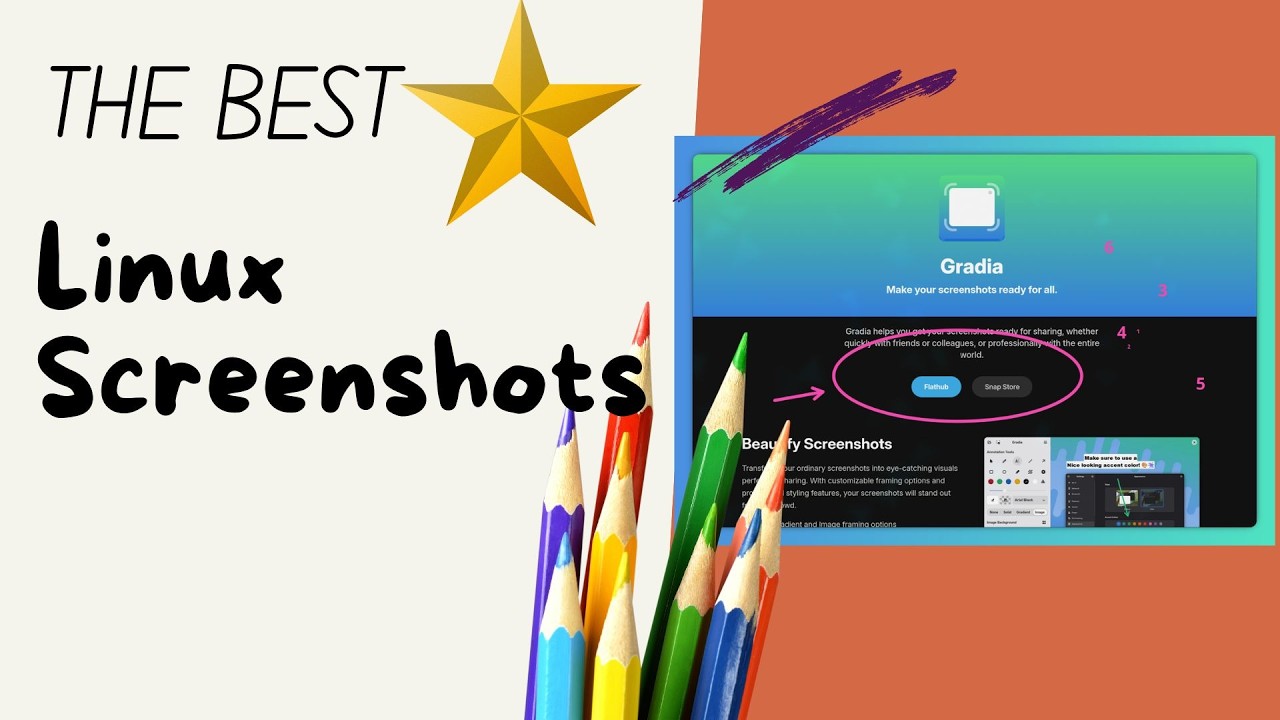
Welcome. Today we're going to look at screenshots on Linux. Specifically, uh I've tried a few things. Uh right now I have via Hyperland I have super P lined up with uh what is it? Slurp and Grim. Uh and it works because that it takes a screenshot, but then I'm just left pasting the said screenshot into uh Dolphin into my file manager and like annotation has just not been there. Uh I've looked at I've looked it's just way too heavy. Lots of other options. And what I came from was, let's take a look at it so we can see it. This
is Gradia, which we'll talk about in a second. Uh, CleanShot X. This is what I came from, uh, on Mac OS, which was excellent because you could take a screenshot and you can see like there's arrows and notations and like you could scroll and you could capture them. You can record gifts as it says in the video there. Uh, it was excellent. I used it to mark up screenshots all the time for customers to say, "Hey, step one, do this and put a number one. Step two, do this. Put a number two." Um and everything I had tried. So I had tried um was it
Flameshot? Uh and that worked fine under KDE or no. Uh but it did not work in Hyperland at all. Like I couldn't even get it to start up. I don't know why it didn't start up. I didn't when it didn't work I was like you know I don't have time for this. Um but recently I heard on Linux unplugged uh that about Gradia. So that's what we're going to take a look at now. And to do that let's start by going to the site which is Gradia Gradia. alexandervanhe.be available on flatub or the snap store. I'm in nyx and there is a current nyx
package for the current release version and it does essentially just what um cleanot x does. Uh doesn't have quite all the same features but has plenty. So you can get beautiful screenshots, right? Annotations. It has I never could Okay, I'm trying to spend like 40 minutes trying to figure out how to showcase your code. I can't figure out how to get this source snippet thing working. So I don't know. Um, you can extract text with OCR. Uh, you can have native native integration. It says great for Gnome, but honestly, I'm on Hyperland. It works great. I'm on Hyperland with Whand. It works great.
So, let's take this and let's do this first by just opening Gradia pretty. And we can let's move this off to shift 8 nine. We'll go back to super eight. And we'll take us We'll go back to nine. Actually, we'll take a screenshot. That's the first thing. take a screenshot. I can switch to eight. And I can select the area I want to go. That's going to bring gradient right back over. I'm gonna move it. I moved it back over
to my ninth workspace on my laptop. And then we have our annotation tools, right? I can choose a lot of times I'll use circles to say, hey, this thing right here is what you're supposed to be looking at for users for my use. This right here, right? Or I'd use a number. I picked the hot pink. This is not the standard one. You can just click and get one or two. Don't love the size of that. Bring the sizes up. Yep. Three, four, five, six. Great. Um, we can also change
the background here, right? I can say it's solid. See, right back here, it's solid. Gradient. Gradient is fine. I'll just leave it like that. Or an image. Uh, and I can select my own custom image if I want. I'm just going to leave it as gradient. I think that what this allows me to do and have beautiful screenshots already is a far and above worrying about what image specifically is in the background. Right? We can change our padding on the image minus leave a five is great. We can change the border radius right right here.
Two is also great. We can change the shadow. We can change the autobalance aspect ratio. Uh again, I would leave everything kind of how it is, right? We can change the name of it and we can save it out to a file, right? save image. It's going to open up. We can save it wherever we want or we can copy it directly to our clipboard. And honestly, this is exactly what I have been needing uh in a screenshot tool. So, if you are looking for a good screenshot tool on Linux uh that lets you do markup because I honestly I want to mark up an image probably three times a week and I just haven't been doing it.
I keep being what about I fired a flameshot didn't work. Uh try try uh color paint I think I have on here as well and none of it worked. But Gradia, Gradia is the one. That's what I'm going to keep using. That's what I would recommend at this point. If you have any questions, whatever things I miss, maybe you know how Flameshot should work. I'm not going to try it anymore, but you can tell me below. Uh or if you other other Linux tools you think I should do that are going to enhance my experience because Gradia, perfect. Love it. I'd love to know more good tools. Have an
awesome day., The Best Linux Screenshot Tool - Gradia, YouTube, 01khp9g8p34qpdh16m88zz88nq.