This Nav Broke My Brain
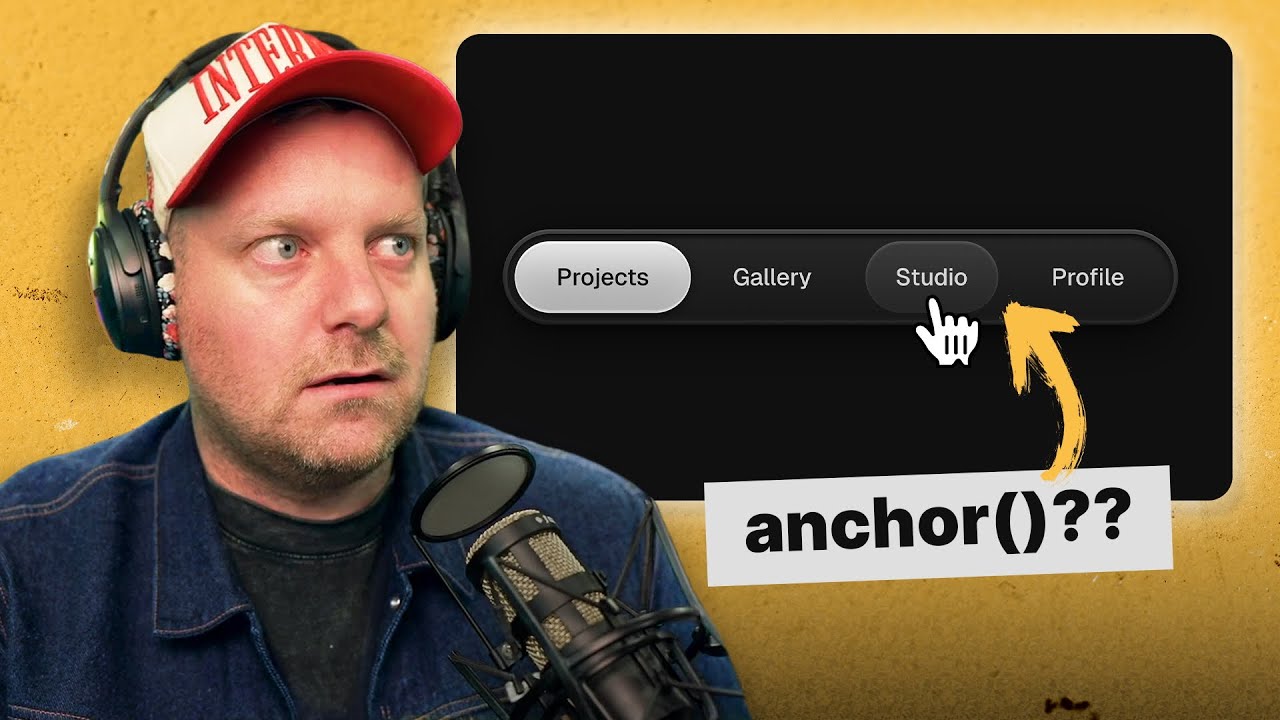
Speedrun CSS edition. Are you ready? I'm going to recreate this navigation from Raul Drunk. He posted this on Twitter the other day and it's got a couple neat things in it. You can hover over top of your item and the little bubble will follow it around. The currently active item will bubble over to it and then it's got a really a lot of really neat gradients and subtleties to it. So, he said I could recreate it. I think I can do it in entirely in CSS and I think I can do it in 26 minutes and 32 seconds. Ready and go. So, I have some base HTML here, which is up top. I have his a
screenshot from his video. And then I've got a nav with four links inside of it. That's it. Some base styling just to get it black and whatever. But that's all we have. So, what I'm going to do, I've turned off my co-pilot autocomplete in here. So, I'm going in by myself. So, I'm going to say width is going to be fit content. Um, and then the border is 1px solid gray. And that will do it. So the width of fifth content will still maintain its blockiness um without
having to be inline and that allows me to use margin zero auto and still be as wide as it needs. Okay, so that's pretty good. Let's grab the links inside of that. So we'll say a padding probably 20 px 40px. Uh we'll say background let's give it a background white. Okay. Display inline block 20. Probably a little bit more here. 50. All right. That looks pretty good. And then the color is going to be white. Text
decoration none. All right, that's close enough for me for now. Um, what I want to do is put a border radius on this thing. Something crazy. Okay, so what I want to do now is work on the actual like these little following things. And I think we can do that with CSS anchor because the idea is that we're going to have two elements here that sort of follow it around. And you can do this with before and after, but I'm just going to add explicit elements. So I'm going to add a bubble with the class of
active. And then I'm going to have a second bubble with the class of hover as well. Now these bubbles are going to follow around either the active link or the hovered link. And if nothing is being hovered, it's going to just stretch to fit the actual nav itself. So what we want to do is we'll take our anchor link. Let's take the anchor link that is has a class of active and we'll say anchor name is d-active.
Then we'll go down here and we'll start styling those bubbles. So we'll say bubble and we want to position the bubble based off of the active link. So we say position anchor active and then we say top is going to be based on the anchor top and then right bottom left. Can get fancy with this. Right, bottom left. Um I think anchor positioning doesn't work unless you're absolute or
fixed. And there we go. So now when I click a link, the class of active is changing itself. And then this active hover here is simply just changing its top right, bottom left values. And then if we put a transition on this, um, you're not supposed to do all, but this is a speed contest, so whatever. Then it should There we go. Doop. It's just following itself around. So, what we want to do now is let's put
a var gray on that. And then we'll send it back a little bit. There we go. So, now it's going behind all the elements. That's the active one. No, you know what we'll do is we'll give it white. And then the active link is going to have a color of black. There we go. Okay. So, that's the first one. Now the second one is going to be the what is it
the hover one. So actually what we'll do is we'll say when the bubble has a class of active then we give it a position anchor. Okay. But then when we have a class of hover by default we're going to anchor it based on the nav. So we'll go back up to our nav here and we'll give this a position anchor of nav. And then we'll change it when it's hovered. Why is it not stretching to fit? Is it our fit content? Oh, there we go. If I click
on this, the anchor is not clicking through to it. If I click on this active one, it actually clicks through to the thing. Oh, it's not position anchor. It's anchor name. There we go. All right. So, the hover one is going to be background gray. There we go. So, now it's on there. But here's the trick. When you hover an element, we want that item
to be anchored on nav. Oh, is this this is going to be tricky. Okay, so we'll say when a link is hovered, can we give it a anchor name of hover here? But then we also will probably have to unset it. Oh, we don't. Ah, we don't have to care. It just it takes over. I guess two things have the same name. We'll follow it around. That needs to go behind the other one. So maybe we'll Z-index that one. -2.
Let's work on getting the styling for all of this stuff dialed in. Now, what do I want to do? Let's go to our nav here. And if we add some padding of 20px. Oh, that's not what we want. We want to push everything in a little bit. So, we have our nav here. Oh, the links are because I inline block them. I inline block them. Watch this. If I make
these block, that doesn't fix it. No. Oh, it it does. It does. Okay. So, we want our links to be block. But then we want our nav to be display flex. There we go. Oh, but this is a problem when it's snapping to the nav. Shoot. We don't want it to be that big. New plan. Let's go back to what we had. We're going to do a border of 10px solid
transparent to push everything off. No, that's not going to work. Oh boy. Oh boy. This is a part where I would normally just pause and think of a reasonable solution to this, but I'm panicking cuz I told you I get it done in 26 minutes. and 36 seconds. We could offset the anchor amount by however much we need to to match that up. I just think it'd be easier to add another element here. I think maybe that's the move. Let's just add a second element
instead of trying to do all these tricks. So, let's remove that. Then we'll go here and we'll call it a nav wrap. And then we'll go up and give this a nav wrap. We'll put the border on this sucker here. Okay. And then width is also going to be fit content. And then we'll move the margin zero up and the border radius up. Okay. Beautiful, beautiful, beautiful. Now, let's go back
down to our bubbles here. Oh, no. Oh, no. No, no. I think what we can do now is we go to our nav and say margin like 20 px. Yes. And that pushes everything off that amount. And then we go down to our bubbles and give them a border radius of I don't know, something crazy again just to get it. Baby, it's working. So, let's look at his video again for a little bit. Zoom.
So, zoom zoom. Oh. Oh. Oh, that's going to be a problem when you're hovering. I think that's a problem for the feature. When you hover one, the anchor is going to be both. And is that a problem? That probably is, but whatever. We'll do that later. Oh, I like this a lot. Let's focus on something more fun and let's try to get the actual look and feel of this done cuz if you look at it, there is a lot of subtleties to all of this. Let's work
our out in. So, we'll go to our nav wrap and the background is going to be a linear gradient. And the linear gradient is going to be far black to far gray. How do you even do a linear gradient? I'm so used to just it autocompleting me. I turned it off. Um, CSS gradient.io degrees color.
gray. Okay, we don't want 90°. That gray needs to be tweaked a little bit. See, even work. You know, that's another thing about these videos stressing out. I don't have time to think about what the stacking index is. So, what we want the stacking index of this to be, we want to pop a position relative on this. Okay. And then on our links, we want a z-index of let's give it 10. And then
our bubble. Oh no. Oh no. I'm so used to nesting these things. The problem is that we want these bubbles to go over top of the nav wrap background but then in between this one right here. However, these are siblings. So how are we going to do that with with z-index? Right. That's a tricky problem to solve. Oh, we can just move these inside the nav wrap. Okay,
now that those are inside the nav wrap, they should just stack on top by default. And what if we put them before the nav. So, we just have source order. All right, we're back in business. We're back in business. That wasn't so bad. Sometimes in life, things seem awful and you think it's end of the world, but then that you just just chill for a minute. We got what, 10 minutes left to finish this. We're good. We got that. Let's do the nav. Should have a box shadow. Oh no, it's this one. Let's do
box shadow inset zero 10px zero black. Oo, baby. Baby. That's not nearly as good as what they had, but it's spend my whole day fussing with these box shadows. Good enough. Good enough. Okay, now the outside. Oh boy, this background probably should go on the nav. Oh no. Oh no. I want this like
cool background. If I look at it, it's also a gradient. So we can probably stick an after element and let's do content display block position absolute top zero right zero bottom zero. Oh, we can just do inset negative 5px background red. There we go. Zindex -1. If we do inset zero, that just covers
the entire thing. We want it to go out. So, insert -10. Why does it just go down? T R E L. Why isn't it going up? All right, we don't have time to debug. We don't have time to debug. So, what we'll do is we'll pop a transform translate y -5px. What the hell? Oh, there's a comma. Okay. Wait, why does it keep getting cut
off? Oh, it's cuz this image is in the way. Oh my gosh. So, there was nothing wrong with my implementation. It's just that the image was in the way. So, should we pop like a z-index on that? All of my problems are z-index. How does zindex even work? Does anybody know how Zindex works? All right. You know what? Take this transform off. Let's just go isolation isolate. No, that's not what we want. That creates a new stacking context. Can
we just do this? We go to the target position relative index negative one. Yes. Okay. So, what we're going to do is this is not even a problem with my nav. This is just the fact that I'm trying to show you the solution. But let's grab the target, pop a pause real on there, and put a z-index negative one on there. Okay. What were we doing? Oh, yeah. We're working on the background after. So, border radius 500 px. Okay, that
inset is a bit too much. So, five. Okay. And then the background is going to be a much lighter linear gradient. So, let's grab that linear gradient from before. Just pop that on here. Get rid of the red, but then this linear gradient is really going to be like gray. It's opposite. Okay, that bottom one looks good. Obviously, the top one not very good. Was it the after element? This gray. Wait, can we cheat and just use
the color picker? Ploop. Oh, that didn't work. 3F 3F 3F. Oh, I have a freaking variable with that one in var dash gray. Pretty good. Okay, that this padding is too much. Let's go back to our nav here. This is probably just a 10 pixel. Maybe even less. Like a 7 67. >> How do you do, fellow kids? >> That's the right amount. Okay. Um, next, let's get these pills working.
I don't want to do any more Z-index problems, but I'm going to have to, right? Let's battle their dragons. Oh, that wasn't so bad. Sometimes your dragons in life are not so bad. Just battle your dragons. Look them straight on. Don't keep thinking I'll do it later. Um, okay. So, the bubble that is the what what is it? This one. The hover bubble is also another linear gradient.
This whole thing is linear gradients, which these designers were got way better eye than I do. But let's try to match it as as well as we can. Oh, that looks awesome. That's the same gradient as the outline. Okay. Um, and then there is a box shadow inset X zero. Y 5px blur 3px white boom. That's way too much. RGBA 255. You know
what we'll do? You know what we'll do? We'll use our dev tools to just match it. So go to our hover bubble and let's just do Mr. Slidy slide. Okay, it needs to be up a little bit more. My blur value is needs to be more, but the walk needs to be less. Ah, that's it. That's it. That's it. I'm so good at this.Ooploop
projects. Okay, let's do the other one. Um, the project background is going to be a very light gray to also a very light gray. So, what we'll do here is we'll grab the active bubble. It's going to be like that to You know what I could also do? I could just use Mr. Picker here. Boom. That looks pretty good to me. And then the box shadow is also going to be the same amount, I bet, but it's going to be
pure white. That looks good. Okay. Um the text, there's no no drop shadow on that. Beautiful. Ah, my buttons don't look as good as this. Okay. The inset. Oh no. There's a problem right there. When you hover over top of one of these and also it just jumps. So that's our big problem right now. Let's focus on that. So when you click on one of these elements and when you hover over the active one, the anchor is changing. So the anchor needs
to be both. How do we do that? Let's look at our code here. Okay, so the anchor is the nav by default. When you hover over the currently active item is anchor active. When you hover over a link, we change the reference of the anchor from the nav to this anchor link. However, that overwrites the anchor name of active. What if we wrap every single
link in like a before or after and then use that as the anchor link? Oh yeah. Okay. So, what we did here is we created a before pseudo element that overlaps every single one. And really what we'll do is we'll just say opacity 0.2 just so we can see it. Okay. So, you can see they're overlapping. So, what I'm thinking is when you hover a link, grab the before element and make that the
anchor nav. yes. Oh, it worked. Okay, so we can't have the same thing being two anchors at once, but you can make another element wrap around that and use that as the anchor. Beautiful. West future here. I just had a moment of clarity on this. You cannot give the same link two anchor names, but you can position two different elements relative to the same anchor. So another approach I could have taken here is not to wrap everyone in a
in an after element. I could have simply just changed the fact that this bubble of hover just changed the position anchor name to active. I would have had to do some weird like has like if the nav has an active link that is currently hovering then select the bubble and change the position anchor but that would have been another approach to it rather than creating a secondary element. I think we're done here. You can comment below. Am I ruining your baby here? Uh-oh. It's totally gone now.
What did I do? That looks like now. Good. You know what? I'm going to call it. That was a really fun one. The CSS anchor stuff is so cool that you can just follow around any element and just snap its inset values or top right, bottom left to any other element. Props to our rule for actually designing this thing. This is so cool. I know people don't like it when designers do really hard stuff cuz like how am I going to implement it? But I love it because they are always coming up with neat ideas
that I totally would not have thought of and like it's so fun to figure out how to make it work with CSS. So what do you think? Was that a decent implementation? How did I do time-wise? Leave in the comments., This Nav Broke My Brain, YouTube, 01kf4c4f3z0a5k1513rtk1e2ea.