Unit Tests for WordPress Plugins

## Metadata
- Author: [[Pippins Plugins]]
- Full Title: Unit Tests for WordPress Plugins
- Category: #articles
- Summary: In part one of this tutorial series we briefly looked at what unit tests are and we walked through a couple of simple examples to illustrate how we can use them to help ensure our code is working properly. Now it is time to actually setup our testing suite and run our first unit test.
- URL: https://pippinsplugins.com/unit-tests-wordpress-plugins-setting-up-testing-suite/

In part one of this tutorial series we briefly looked at what unit tests are and we walked through a couple of simple examples to illustrate how we can use them to help ensure our code is working properly. Now it is time to actually setup our testing suite and run our first unit test.
There are quite a few different ways to setup unit tests in your WordPress plugins, but by far the easiest is through [WP-CLI](http://wp-cli.org/), a command line interface for WordPress. Due to its simplicity, we will use WP-CLI to setup our unit tests in this tutorial.
If you are not familiar with or comfortable with the command line, you might be tempted to walk away from unit tests now and maybe come back another day. I am going to try and keep this as simple as possible, so I’d encourage you to stick with me as you will quickly find that the command line is not nearly as scary or difficult as some make it out to be.
**Note:** WP-CLI requires a unix-based operating system like Mac OS X or Linux. Once our testing suite is setup, everything will be almost identical for all users, but only Linux and Mac OS X users can utilize the WP-CLI tool.
##### What is a testing suite?
The phrase “testing suite” simply refers to our collection of unit tests and our configuration for those unit tests. When we say that we are going to setup the testing suite, we mean that we are going to install PHPUnit (or similar), we are going to create our configuration file, and we are going to write our initial unit tests.
Watch the video below for a quick example of what running our unit tests looks like:
Some content could not be imported from the original document. [View content ↗](https://www.youtube.com/embed/Di_PPSWUp0E?feature=oembed)
Once we are done with the steps below, we should be able to run the *phpunit* command from our plugin’s directory and have our unit tests run.
For this tutorial series, we are going to write unit tests for my [Restrict Content Pro](https://pippinsplugins.com/restrict-content-pro-premium-content-plugin/) plugin.
##### 1. Install PHPUnit
The first thing we need to do is install PHPUnit. The [readme file in the Github repository for PHPUnit](https://github.com/sebastianbergmann/phpunit#installation) has the instructions on how to do this.
Simply follow the installation instructions on the Github page and then proceed to the next step below.
If you run into any issues installing PHPUnit, leave a comment below and I will do my best to help you.
##### 2. Install WP-CLI
WP-CLI is also exceptionally simple to install, and you can find the install [instructions here](http://wp-cli.org/#install).
If you run into any issues installing WP-CLI, leave a comment below and I will do my best to help you.
##### 3. Use WP-CLI to setup our plugin’s unit tests
Now we are almost ready to really get into the fun part of unit tests: actually seeing our unit tests run. Before we do that, however, we need to utilize WP-CLI to create our initial unit tests configuration.
Since I’m doing this along with you for my Restrict Content Pro plugin, I will continually refer to Restrict Content Pro (or RCP). Anytime I do, just substitute in your own plugin’s name.
WP-CLI includes a [step-by-step guide](https://github.com/wp-cli/wp-cli/wiki/Plugin-Unit-Tests) of how to setup unit tests in your plugin, but I’m going to walk through it here as well.
First, we need to open the command line and navigate to our WordPress install’s main directory. Your exact file path will be different than mine, so be sure to adjust for where you have WordPress installed.
```
cd sites/wordpress/
```
Second, we need to instruct WP-CLI to create the initial unit test files for us:
```
wp scaffold plugin-tests restrict-content-pro
```
This will generate all of the files needed for our unit tests. If you now navigate to your plugin’s folder and type *ls -l*, you will see several new files and folders added.
```
cd wp-content/plugins/restrict-content-pro
ls -l
```
Before:
[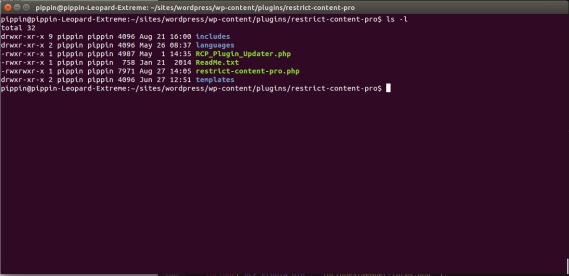](https://pippinsplugins.com/wp-content/uploads/2014/09/Screenshot-from-2014-09-01-131655.png)
After:
[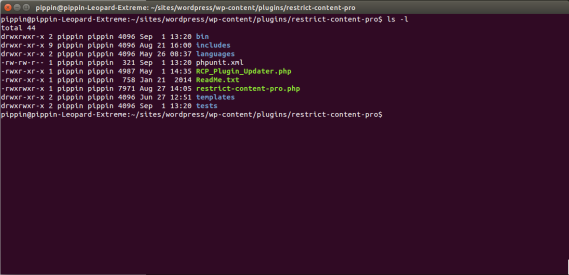](https://pippinsplugins.com/wp-content/uploads/2014/09/Screenshot-from-2014-09-01-132116.png)
The new folders / files created:
* bin/
+ install-wp-tests.sh
* tests/
+ bootstrap.php
+ test-sample.php
* phpunit.xml
* .travis.yml
These files are the foundation of our plugin’s test suite.
Now, run this command:
```
bash bin/install-wp-tests.sh wordpress_test root '' localhost latest
```
Replace “root” with the username of your database and replace ” with the database password. Also replace “localhost” with the hostname of your database. You can find all three of these values in your wp-config.php file.
You can now type *phpunit* into the command line and the unit tests will run:
```
phpunit
```
[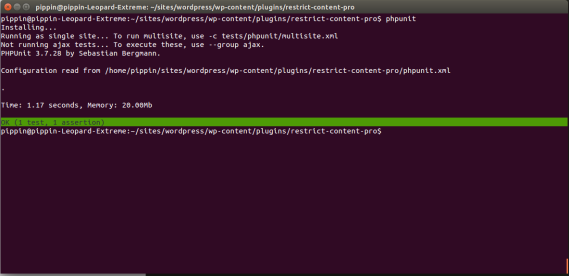](https://pippinsplugins.com/wp-content/uploads/2014/09/Screenshot-from-2014-09-01-132451.png)
The testing suite that WP-CLI sets up for us includes one sample unit test, which you can see was run successfully. Let’s take a look at the sample test. It is located in *tests/test-sample.php:*
If you look at what this test does, you will probably notice that it isn’t really testing anything useful. It simple checks if *true* is equal to *true*, which we know it is, but it provides a nice example that is easy to follow.
Now our testing suite is setup and we are ready to begin writing our own tests.
##### 4. Writing your first test
Before we jump into writing an actual unit test, let’s first look how PHPUnit knows what to execute as unit tests. The *phpunit.xml* file is the main configuration file that instructs PHPUnit on what to do. By default, it looks like this:
```
<phpunit
bootstrap="tests/bootstrap.php"
backupGlobals="false"
colors="true"
convertErrorsToExceptions="true"
convertNoticesToExceptions="true"
convertWarningsToExceptions="true"
>
<testsuites>
<testsuite>
<directory prefix="test-" suffix=".php"d>./tests/</directory>
</testsuite>
</testsuites>
</phpunitd>
```
This tells PHPUnit where to look for the PHP file that gets everything running (tests/bootstrap.php), defines a few options, and then also tells PHPUnit where the actual unit tests live. In this case, the unit tests live in the *tests* directory and are all of the .php files prefixed with *test-*. This means that any file we place in the *tests* directory and name *test-something.php* will be considered unit tests. This allows us to easily organize our unit tests into groups, which we will discuss more later.
**Note:** only methods prefixed with “test” will be considered a unit test. All other methods will be skipped.
Let’s write a quick sample test now to help get a better grasp of what we’re doing. This test won’t do much meaningful, beyond providing a nice example.
To write a new test, all we need to do is create a new method inside the *SampleTest* class, like this:
This does nothing more than setup a variable called *$string*, set its value to “Unit tests are sweet”, and then checks that “Unit tests are sweet” is indeed equal to the *$string* variable. If we now run PHPUnit, we will see that we have two tests and both are passing successfully:
[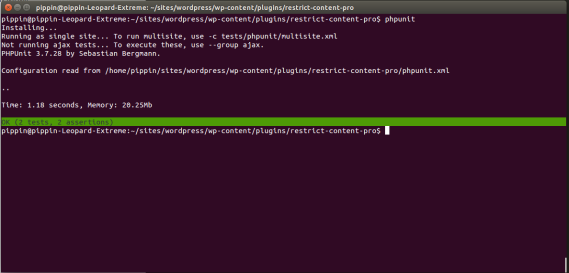](https://pippinsplugins.com/wp-content/uploads/2014/09/Screenshot-from-2014-09-01-133855.png)
Awesome! We have now written a successful unit test. That’s awesome and you are now a heck of a lot further along on your journey to understanding and utilizing unit tests than a huge number of developers.
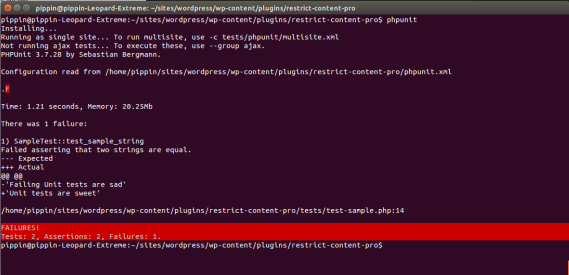
Let’s now do another quick demonstration. Change our *test\_sample\_string()* test to this:
And now run *phpunit* again:
[](https://pippinsplugins.com/wp-content/uploads/2014/09/Screenshot-from-2014-09-01-134136.png)
Our simple unit test now fails because we are trying to assert that two very-non-equal strings are equal to each other. Since the two strings are not the same, our test fails, and PHPUnit tells us that, including why it failed and the exact line number that failed.
When writing unit tests, there are two main terms we often use to describe what we are doing: “tests” and “assertions”. A “test” is a collection of assertions and an assertion is one check within a test. Each test must contain at least one assertion but a test may also contain many assertions. The sample test we wrote above contains one assertion.
We will learn more about writing tests and assertions in the next part of this series., Unit Tests for WordPress Plugins, Pippins Plugins, 01gnmd09mp6md4x0pc00drscx3.