What’s New in Reminders?
## Metadata
- Author: [[Peter Akkies]]
- Full Title: What’s New in Reminders?
- Category: #articles
- Document Note: ---
tags:
- #apple
- #reminders
- #productivity
- #ios26
- #ipados26
- #macos26
- #appleintelligence
- #accessibility
- #seo
- #wordPress
Author: Peter Akkies
Source: YouTube
Reference: https://youtube.com/watch?v=5amd76yFdAU
date created: 2025-08-20 00:00
---
# Title: What’s new in Reminders? (iOS + iPadOS + macOS 26)
## Table of Contents:
- [📝 Summary](#-summary)
- [📖 Main Content](#-main-content)
- [🗒️ Notes](#-notes)
- [📖 References](#-references)
- [🗣️ Paraphrase](#-paraphrase)
- [📰 Newsletter](#-newsletter)
- [✅ Action Items (DevRel/OSPO Alignment)](#-action-items)
- [🧪 Hypotheses](#-hypotheses)
- [📊 Methodology](#-methodology)
- [❓ Questions](#-questions)
- [🔮 Future Research](#-future-research)
- [💡 Implications](#-implications)
- [🧠 Learning Styles Assessment](#-learning-styles-assessment)
- [📊 Accessibility Assessment](#-accessibility-assessment)
- [🌍 DEIB Assessment](#-deib-assessment)
- [✅ Logical validity](#-logical-validity)
- [🔍 DARVO Analysis](#-darvo-analysis)
- [🔍 SEO Evaluation](#-seo-evaluation)
- [🎯 Conclusion](#-conclusion)
### References: Include a list of sources consulted and cited in the article.
- Apple Reminders and iOS/iPadOS/macOS feature references are derived from the video’s demonstrations and narration.
- Related Apple features referenced include Control Center “Controls,” Quick Note, Apple Calendar integration, and Apple Intelligence suggestions.
## 📝 Summary:
Peter Akkies walks through new Apple Reminders features arriving with iOS 26, iPadOS 26, and macOS 26. Highlights include Quick Reminders from the lock screen via the Action Button or Control Center; a new “Controls” system to trigger quick actions (including third-party apps like Fantastical); suggested reminders from Apple Notes using Apple Intelligence; auto-categorization within lists; time-zone-aware reminders with manual time zone selection; iPad menu bar additions with file menus and Reminders templates; and deeper Reminders–Calendar integration. He also notes gaps, like the inability to auto-attach the current page URL when creating a Quick Reminder, and teases upcoming features such as suggestions from emails. He recommends using an “Inbox” list as the default capture bucket and links his free Reminders cheat sheet.
Direct time-linked moments:
- Quick Reminders from Action Button [0:10–0:39](https://youtube.com/watch?v=5amd76yFdAU&t=10s)
- What “Quick Reminders” are [0:39–0:41](https://youtube.com/watch?v=5amd76yFdAU&t=39s)
- Setup via Action Button settings [0:41–1:05](https://youtube.com/watch?v=5amd76yFdAU&t=41s)
- Setup via Control Center “Controls” [1:05–1:54](https://youtube.com/watch?v=5amd76yFdAU&t=65s)
- Using Quick Reminders on lock screen [1:54–2:20](https://youtube.com/watch?v=5amd76yFdAU&t=114s)
- Mapping Controls to other apps (Notes/Fantastical) [2:20–3:08](https://youtube.com/watch?v=5amd76yFdAU&t=140s)
- iPad Quick Reminders demo [3:08–3:45](https://youtube.com/watch?v=5amd76yFdAU&t=188s)
- Quick Note auto-link vs Reminders missing URL capture [3:45–4:40](https://youtube.com/watch?v=5amd76yFdAU&t=225s)
- Suggested reminders from Notes via Apple Intelligence [4:40–5:37](https://youtube.com/watch?v=5amd76yFdAU&t=280s)
- “Inbox” as default capture list tip [5:37–6:15](https://youtube.com/watch?v=5amd76yFdAU&t=337s)
- Auto-categorize lists [6:15–7:11](https://youtube.com/watch?v=5amd76yFdAU&t=375s)
- iPad menu bar + Reminders templates [7:11–8:20](https://youtube.com/watch?v=5amd76yFdAU&t=431s)
- Calendar integration view on macOS [8:20–9:05](https://youtube.com/watch?v=5amd76yFdAU&t=500s)
- Manual time zone setting for reminders [9:05–10:25](https://youtube.com/watch?v=5amd76yFdAU&t=545s)
- Early reminder offset [10:25–10:45](https://youtube.com/watch?v=5amd76yFdAU&t=625s)
- Upcoming: suggestions from email [10:45–11:10](https://youtube.com/watch?v=5amd76yFdAU&t=645s)
- Free cheat sheet CTA [11:10–end](https://youtube.com/watch?v=5amd76yFdAU&t=670s)
## 📖 Main Content:
The video focuses on speed, capture, organization, and context in Apple Reminders across Apple platforms.
- Quick capture everywhere:
- Action Button on iPhone can be mapped to a “New Reminder” Control, enabling lock-screen capture with the Quick Reminders overlay. This minimizes distraction and speeds up getting thoughts out of your head.
- Control Center also supports adding the “New Reminder” Control for devices without an Action Button, functioning even from the lock screen.
- Ecosystem-wide Controls:
- The same Controls system works with Notes (Quick Note) and third-party apps (e.g., Fantastical), centralizing “quick actions” across the OS.
- Context linking gap:
- Quick Note can auto-attach the current page URL; Quick Reminders currently cannot. You can manually paste the URL into a Reminder’s URL field after creating it. This is a notable missed opportunity for context-rich tasks during browsing or research.
- Apple Intelligence assist:
- From an Apple Note, sharing to Reminders can trigger suggested to-dos extracted from the note’s content. You can include or exclude suggestions before saving. This hints at Apple’s longer-term AI roadmap to automate task creation from emails, notes, and more, with privacy emphasis.
- List organization:
- Auto-categorize analyzes a list and creates sections (e.g., subscriptions/cancellations). It’s imperfect but helpful for large lists.
- Naming the default list “Inbox” supports a GTD-like capture-first approach before sorting.
- iPad enhancements:
- iPad apps gain a menu bar with File/Edit/View, surfacing features like column view and Reminders templates. Templates enable reusable lists (e.g., packing lists) and quick instantiation.
- Time zone intelligence:
- macOS Reminders now allows manual time zone assignment per reminder. This shows local equivalents (e.g., London noon equals 1 p.m. Amsterdam; 7 a.m. New York) and supports early alerts.
- Calendar integration:
- Reminders appear within Apple Calendar’s schedule when “Scheduled Reminders” is enabled, providing a unified time-based planning view.
Personal insights:
- The Controls framework is a meaningful unification layer for “capture” across Apple platforms and apps; extending Quick Reminders to auto-attach context (URLs, app deep links, screenshots) would close a key loop.
- Auto-categorize plus templates indicates Apple’s push toward scalable list hygiene: automate grouping, standardize recurring workflows.
- The time zone feature is a practical upgrade for remote teams and travelers; combining with calendar overlays reduces missed cross-border deadlines.
### 🗒️ Notes
- Quick Reminders overlay
- Invoke via Action Button mapping to “New Reminder” Control [0:41–1:05].
- Invoke via Control Center “Controls” on any device [1:05–1:54].
- Works on lock screen; reduces distraction during conversations [1:54–2:20].
- Controls ecosystem
- Map Controls to Notes (Quick Note) and Fantastical [2:20–3:08].
- Third-party support broadens capture flows beyond Reminders.
- Quick Note vs Quick Reminders
- Quick Note can auto-attach current page link [3:45–4:20].
- Quick Reminders lacks one-tap URL attach; manual paste into URL field is possible [4:20–4:40].
- Improvement opportunity: parity with Quick Note linking.
- Apple Intelligence suggestions
- Share a Note to Reminders; suggested tasks appear with toggles [4:40–5:37].
- Preview of AI task extraction; broader email-based suggestions “coming” [10:45–11:10].
- List best practices
- Rename default list to “Inbox” for capture-first workflows [5:37–6:15].
- Auto-categorize creates sections like “Subscriptions/Cancellations” [6:15–7:11].
- iPad menu bar + templates
- File/Edit/View menus surface advanced options (e.g., column view) [7:11–7:45].
- Templates: create/edit, then generate lists from templates (packing list example) [7:45–8:20].
- Calendar integration
- Show reminders alongside events; enable “Scheduled Reminders” in sidebar [8:20–9:05].
- Time zone–aware reminders
- Enable “Set time zone manually”; assign per-reminder time zone [9:05–10:25].
- Shows conversions across regions; set early reminders [10:25–10:45].
- Roadmap hints
- Email-der
- Summary: Grab my FREE Apple Reminders cheat sheet: https://www.peterakkies.net/apple-reminders-cheat-sheet
Watch me next:
https://youtu.be/nywKyvoLNPY
https://youtu.be/cje3EfEbN44
https://youtu.be/-R75zz7Cj-o
- URL: https://youtube.com/watch?v=5amd76yFdAU&si=oNRQpXEjX5vI3r1f
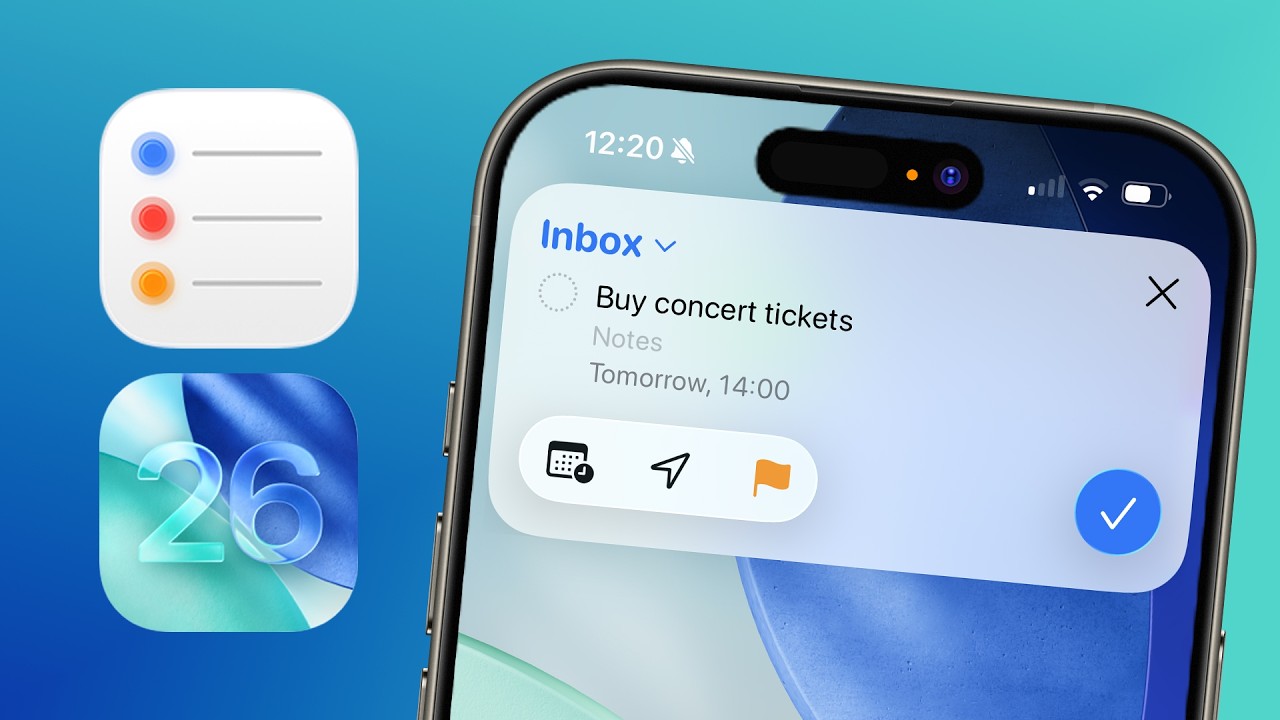
Apple just announced iOS, iPadOS, andmacOS 26. And the reminders app isgetting fantastic new features that aregoing to help you remember everything.By far, my favorite new feature is this:I can grab my locked iPhone and longpress the action button on the side andimmediately start writing down somethingthat I need to do, like pay my watersupply bill. I can tap inbox at the topover here and just assign that to alist. I can tap this button and sayremind me tomorrow and tap. And now thisis saved. Now this is actually acombination of two new features. Thatoverlay at the top is called quick
reminders. And the other thing we'reusing is a control. And even if youdon't have an iPhone with that actionbutton, you can still do this. I'll showyou how. And I'll also show you all theother handy new features coming toreminders soon. To set up the quickreminder feature with the action button,I'm going to go into the settings appand then just find action button. Andnow I just need to swipe to the rightuntil I see controls. And then I justhave to tap choose a control. And I'mgoing to search for the reminders app.
Over here. And I’m going to tap newreminder. And by the way, this onlyworks for now on the beta software,right? But if you’re not on the betasoftware, this is coming to your phonein a few months. Now, what I can do islike I showed you before, long pressthat action button and it pops up thisquick reminder overlay and I can capturea to-do really quickly. Now, another wayto do this if you don’t have the actionbutton on your iPhone is to open controlcenter. So, I’m just swiping down fromthe top or swiping in from the topright. And this is control center. Andyou’ll see it’s got this new liquid
glass aesthetic, which I haveopinions on, but you know, we’ll see howit turns out. I’m just going to now tapnear the bottom and long press until yousee this. Then I’m going to tap add acontrol. And I can find that samecontrol. Just type reminder, see newreminder. And now this control sits overhere. Let me move it over there. And sonow what I can do is even with my iPhonelocked, right? I can tap it and pop opencontrol center. Tap that button and Ican start typing. For example, buy newslippers and go like that.
Open the Reminders app in the inbox.This to-do is sitting right here, and Ican assign it a time and so on. So thisis such an easy and fast way to capturesomething that you need to do. And ifI'm in conversation with someone, maybeI love being able to pull out my phonevery quickly and write something down,especially from the lock screen, so Idon't see all kinds of notifications, soI don't get distracted and just continueto stay present in the moment.
By the way, in iOS 26, you will also beable to map this action button on theside of your iPhone, as well as thiscontrol I just showed you in the controlcenter to different apps, not just tothe Reminders app. So, you can chooseany control here. For example, if yousearch for Notes, you can create a new quicknote in the Notes app. I'll make aseparate video about how that works andhow convenient that is.
It works with third-party apps, too. Like with myfavorite calendar app, Fantastical, forexample. I can create some event inFantastical. Now, if I long press thatbutton, it's like this, and I can startadding my event. The Fantastical app, byThe Reminders app. So, you'll see thatall the things that I've got on my platetoday are here in Fantastical. Andthat's coming from my Reminders app,which I'll show you a little bit moreabout later in the video. The quickreminder feature is also coming to iPad.
Let me show you what it looks likethere. I'll just open Safari. And hereI'm looking at an article from TheVerge. And maybe I want to set areminder. I'm just going to open controlcenter. And I've set up that same quickreminder control right here. So I'm justgoing to tap that. And now I can saywatch the interview with Craig Federighi.And I can set that to a particular listlike, for example, my learning list. And Ican set that to remind me in one hour orwhatever I might want and just savethat. Now while this is really handy, Ido feel like Apple missed an opportunityhere. Let me show you what I mean. If Igo to control center and I press thisbutton over here, it's the quick notebutton. This is for the Notes app. Thequick note button lets you take a noteabout something you're looking at onyour iPad or on your iPhone or on yourMac, by the way. And I can say, forFor example, this, uh, interviewer Joanna isreally sharp. But what I can do is I cansee where it says "add link." I can press"add link," and it automatically attaches
the link to what I'm looking at. In thiscase, the link to this web page, thisarticle from the Verge, to my note. Andthen when I go to the notes app, I cango find the note, and you'll see that itsits right here with a link back to thearticle. But unfortunately, when I usequick reminders,that doesn't work yet. There is nobutton to quickly add the URL or thelink to the reminder, which is a shamebecause if I just actually go ahead andcopy this link and I go into the actualreminders app, and I go ahead and findthis particular reminder, there is a URLfield that I could actually paste thatlink into, and you'll see that now thelink is attached to the reminder. Sohopefully that bit is coming later, andmaybe you didn't know about QuickNoteyet. So now you know, and now you canstart using that in the notes app. Now,another feature that does already existand that you're probably going to findquite handy is suggested reminders.
Here, I'm looking at a note in AppleNotes. And I'll just collapse thesidebar, make this full screen foreasier viewing. Now, what I can do overhere is I can actually share thisparticular note using the share buttonover here at the top right. And I canshare these meeting notes. Let's say Imet with a mortgage advisor. I want tobuy a home, right? I can share this toReminders. And now what you're going tosee is this Apple Intelligencesuggestions here at the bottom. So Appleintelligence is actually suggesting someof the to-dos that might come out ofthese meeting notes. And I can just tapinclude all or as you saw I couldinclude some of them but not others. AndI'll just delete this top one. And I'llput this, uh, let's save this to theinbox for now. And as you'd expect, now I
can go to the Reminders app and I can goto my inbox and I can see theseparticular to-dos. So, we're starting tosee here the promise of Appleintelligence. What Apple promised lastyear, but now is apparently not cominguntil next year, where there is the useof AI to create your personalproductivity system that's as automatedas possible where Apple intelligence isReading your emails and your notes,you know, maybe listening to your calls,but all in a private way on your deviceor as much on your device as possible,and making your to-do list for you basedon what it knows about you. Hopefully,that's going to be amazing. I think it'scoming, but we have to wait a littlewhile longer. And in the meantime, wecan see these little sneak peeks of it.
And by the way, you'll see that my mainreminders list is called Inbox. This issomething I always recommend thateveryone does. By default, it's calledReminders, but you can just long pressit on iPad or iPhone or right-click onthe Mac and just go show list info, andyou can just change the name here. Ilike to think of it as the Inbox, whichis where my tasks, my to-dos, myreminders go before I sort them intodifferent buckets.
Another Appleintelligence feature in Reminders that'smaybe going to be quite neat, especiallyif you have long lists of reminders, isautocategorize. I'll head over to myadmin and finances list over here. AndI'm going to tap the ellipses at thetop. And I'm showing you this on iPad,by the way, but it also does work oniPhone. I'm just finding it a little biteasier to see right here. I'll tap theellipses. And see where it saysautocategorize? I'm going to tap that.
It's going to take a second, but it'sgoing to actually create sections withinthis list to neatly organize my to-dosthat are related, which I find reallyhandy. Now, is this perfect? No, it'snot perfect, but it can be prettyuseful. For example, there's a sectionfor my subscriptions and cancellations.So, I like to keep track when I sign upfor something new that I'm going to getcharged after a free trial in 30 days ormaybe I'm just going to get recharged. Ilike to put in a reminder to cancel sothat if I don't use the service verymuch, I save myself some money. By theway, a cool new feature comingspecifically to iPad is that apps nowhave a menu bar and file menus. So, I'm
using my iPad over here with my magickeyboard. And if I move the mouse cursorall the way up, I'm going to see thismenu bar right here. So, there's anactual file menu and an edit menu and aview. And this is great for getting tofeatures and apps that you may not haveA column view, for example. But it'salso just great for getting to featuresthat otherwise take a lot of tapping orclicking. And here's one that you maynot have known about yet. If you go toFile, you can see View Templates. So,did you know that the Reminders appactually lets you create templates? Forexample, I have a template packing list.
If I click into it, I can click EditTemplate. It looks like this, and I canvery easily create a new list based offthis template. So the way that you dothat is just going to Edit Template andclicking the ellipses over here and sayCreate List from Template. And then Ican start working through this list asI'm getting ready for a trip. Andspeaking of traveling, the next newfeature is really handy for travelersand also for people who just work withdifferent time zones. I’ll demonstrateon the Mac so that I can also show youwhat Apple Reminders, with the new liquidglass aesthetic looks like on the Mac.So here's the main screen, and what youcan see is I'm looking at my Today view,and let me actually tell you a littlebit about that. I’ve just organized myday into morning, afternoon, and evening.
Or tonight, you can do that as well andset up some reminders. So, the Iactually ran the laundry already, so Ican check that off. I am currentlyshowing you the awesome newreminders features, and these are somethings I'm going to do this afternoonand this evening. Now, last year, Appleintegrated the reminders app with thecalendar app. So, I can also see theseto-dos on my calendar alongside mycalendar events. And here's what thatlooks like. This is just the Applecalendar app. You can see that myreminders, such as showing you all theawesome new features in the remindersapp, are on here. Some of the thingsthat I need to do later this afternoonare also listed on my calendar. Ifyou don't see this, what you can do isopen this side panel overhere and just make sure that scheduledreminders are checked, and then yourreminders are also going to show up.Super helpful. Okay, let me show youthis time zone feature I was talkingabout. Now, first of all, I'm over herein Safari, and I want to book sometickets to an operetta called HMSPinafore that’s going to be on at the
English National Opera in London laterthis year, and tickets will go on salesoon. I want to make sure I snap up aticket, so I want to set a reminder todo that. This is just in Safari, andwhat I can do is share this webpage to the Reminders app. I'm justgoing to do that like so. I'm goingto choose a list and setthis to my Fun and Trips list. ThenI'll just click Add. Now I'm going tohead back to the Reminders app. You'llsee that in the Fun and Tripslist, I've got this item over here. So,I'll call it "Book HMS Pinaphor tickets."Then I'm going to go to the settingsof the Reminders app, and I'm going toturn on this new setting that says "Settime zone manually." You'll see thisthing appear here at the top. I canchange the time zone, but we'll hold offon that for a second. I'm just going toclick the "i" icon to access the settingsfor this particular reminder. I'mgoing to set a date. Let's say thatticket sales start in two days. Atime, let's say they start at noon,but not noon in Amsterdam, but noon inLondon. I'll just click okay.
Now what that's going to do, right, isIt's actually going to show me, hey,it's at noon GMT plus 1, but that is 100p.m. my time. And I can also see here,for example, you know, what time is thatin New York? It'd be 7 a.m. if I wasgoing to be in New York. So, very handyif you're working with different timezones. And you've got to make sure thatyou're doing something on time. Now, onething that I'm going to do that's extraover here is I'm going to set an earlyreminder 15 minutes ahead of time sothat I can get myself ready to bookthese tickets right on time. There arealso a few other new reminders featuresthat Apple mentioned or alluded to thatare coming. Like right here, reminders
is going to be able to suggest tasks andfollow-ups based on emails. I haven'tseen this be available yet, so I haven'tbeen able to test it, but when it doesbecome available, I'll make sure to showyou how it works. However, in themeantime, you can already superchargeyour productivity with the reminders appwith the features that are alreadyavailable right now by downloading myfree Apple reminders cheat sheet. Thelink is in the video description. So, goahead and grab that and I'll see you inThe next video. Ciao. And I'm going tocall it, um,fantastic, man. Fantastic. Can't type., What’s New in Reminders?, Peter Akkies, 01k1b2e2nsasqvrcxak1gz6gv1.