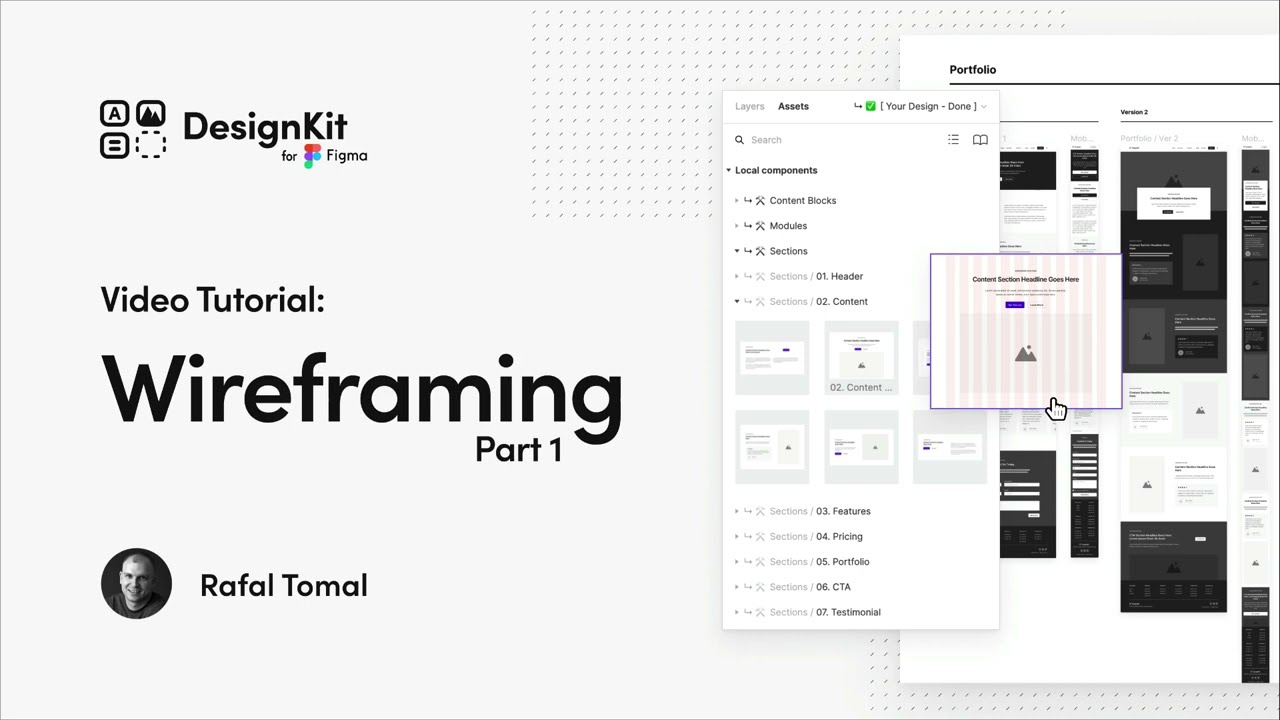
Wireframing with DesignKit in Figma Part 1
## Metadata
- Author: [[YouTube]]
- Full Title: Wireframing with DesignKit in Figma Part 1
- Category: #articles
- Document Note: ---
tags: [figma, wireframing, designkit]
author: DesignKit
source: YouTube
reference: https://www.youtube.com/watch?v=3e1QqCn6acI
date created: 2024-12-19 10:30
---
# 🏷️ Title: Wireframing with DesignKit in Figma Part 1
## 🧰 Action Inbox
- [H1] Set up wireframe workspace with DesignKit template — 00:00 #setup
- [H2] Configure primary color from purple to black/white — 02:15 #customization
- [H3] Practice detaching components for custom layouts — 06:45 #workflow
## 🧭 Table of Contents
- [📝 Summary](#-summary)
- [📖 Main Content](#-main-content)
- [🗒️ Notes](#️-notes)
- [📚 References](#-references)
- [🗣️ Paraphrase](#️-paraphrase)
- [📰 Newsletter](#-newsletter)
- [✅ Action Items](#-action-items)
- [🧪 Hypotheses](#-hypotheses)
- [📊 Methodology](#-methodology)
- [❓ Questions](#-questions)
- [🔮 Future Research](#-future-research)
- [💡 Implications](#-implications)
- [🧠 Learning Styles Assessment](#-learning-styles-assessment)
- [📊 Accessibility Assessment](#-accessibility-assessment)
- [🌍 DEIB Assessment](#-deib-assessment)
- [✅ Logical Validity](#-logical-validity)
- [🛡️ DARVO Analysis](#-darvo-analysis)
- [🎯 Conclusion](#-conclusion)
### 🔗 References
- [DesignKit Figma Tutorial](https://www.youtube.com/watch?v=3e1QqCn6acI)
- [Figma Auto Layout Documentation](https://help.figma.com/hc/en-us/articles/360040451373-Create-dynamic-designs-with-auto-layout)
## 📝 Summary
- What happened: Tutorial demonstrating DesignKit wireframing workflow in Figma
- Why it matters: Shows efficient wireframing process using pre-built components and variants
- Key stakeholders: UX/UI designers, product teams, wireframing beginners
- Risks and tradeoffs: Speed vs. customization when detaching from master components
- Bottom line: DesignKit enables rapid wireframe creation with flexible component system
## 📖 Main Content
This tutorial demonstrates how to use DesignKit in Figma to create website wireframes efficiently. The workflow emphasizes using pre-built sections with auto layout, customizing variants without detaching, and converting desktop wireframes to mobile versions. Key concepts include maintaining component connections for flexibility, strategic detaching for custom layouts, and leveraging the modular system for rapid iteration.
## 🗒️ Notes
#### ⏱️ [00:00](https://www.youtube.com/watch?v=3e1QqCn6acI?t=0) — [H1] Introduction to DesignKit Wireframing
- Key idea: DesignKit provides ready-to-use wireframe templates in Figma
- Evidence: "empty desktop screen size page template that is ready to fill out"
#### ⏱️ [00:30](https://www.youtube.com/watch?v=3e1QqCn6acI?t=30) — [H2] Drag and Drop Section Workflow
- Key idea: Auto layout enables simple stacking of wireframe sections
- Evidence: "sections will stack up against one after another when you drop them into the frame"
#### ⏱️ [01:15](https://www.youtube.com/watch?v=3e1QqCn6acI?t=75) — [H2] Section Categories and Organization
- Key idea: Sections are organized by function for easy discovery
- Evidence: "organized in categories like header footer content features pricing forms"
#### ⏱️ [02:15](https://www.youtube.com/watch?v=3e1QqCn6acI?t=135) — [H2] Customizing Primary Colors
- Key idea: Change default purple to black/white for neutral wireframes
- Evidence: "i usually change it back to black white wireframing as i don't want to suggest any color palettes yet"
#### ⏱️ [03:00](https://www.youtube.com/watch?v=3e1QqCn6acI?t=180) — [H2] Using Component Variants
- Key idea: Sections offer multiple layout options through variants
- Evidence: "you can change the layout from left to right or the style from grid to list"
#### ⏱️ [04:00](https://www.youtube.com/watch?v=3e1QqCn6acI?t=240) — [H3] Dark Mode and Background Variants
- Key idea: Some sections include dark mode and background color options
- Evidence: "you can easily change it to the dark mode to make it more prominent"
#### ⏱️ [04:45](https://www.youtube.com/watch?v=3e1QqCn6acI?t=285) — [H3] Internal Component Variations
- Key idea: Components within sections have their own variant options
- Evidence: "section title is very common module and when you select it you will find some extra options"
#### ⏱️ [05:30](https://www.youtube.com/watch?v=3e1QqCn6acI?t=330) — [H2] Editing Text Content
- Key idea: Double-click with command to edit placeholder text
- Evidence: "to edit the default tags in your sections all you have to do is double click on the text layer by holding command button"
#### ⏱️ [06:15](https://www.youtube.com/watch?v=3e1QqCn6acI?t=375) — [H2] Button Component Variants
- Key idea: Buttons have extensive customization options through variants
- Evidence: "i can switch from hollow button to dark or to just text i can add a left or right icon"
#### ⏱️ [06:45](https://www.youtube.com/watch?v=3e1QqCn6acI?t=405) — [H1] Strategic Component Detaching
- Key idea: Detach components only when significant structural changes are needed
- Evidence: "when you do it you won't be able to choose different variants anymore for that section"
#### ⏱️ [07:30](https://www.youtube.com/watch?v=3e1QqCn6acI?t=450) — [H2] Auto Layout Benefits After Detaching
- Key idea: Even detached components maintain spacing and alignment
- Evidence: "everything falls in place and it keeps the even spacing which can save you so much time"
#### ⏱️ [08:15](https://www.youtube.com/watch?v=3e1QqCn6acI?t=495) — [H3] Custom Section Creation
- Key idea: Use individual modules to build completely custom sections
- Evidence: "i can actually pick internal modules instead of entire sections"
#### ⏱️ [10:30](https://www.youtube.com/watch?v=3e1QqCn6acI?t=630) — [H2] Desktop to Mobile Conversion
- Key idea: Attached components can easily switch to mobile variants
- Evidence: "you can simply copy and paste it to the mobile template and check mobile in the variants"
#### ⏱️ [11:15](https://www.youtube.com/watch?v=3e1QqCn6acI?t=675) — [H3] Mobile Layout Adjustments
- Key idea: Convert multi-column layouts to single column for mobile
- Evidence: "i'm changing the orientation to vertical and changing all those elements inside with to fill container"
## 📚 References
- [DesignKit Tutorial Video](https://www.youtube.com/watch?v=3e1QqCn6acI)
- [Figma Auto Layout Guide](https://help.figma.com/hc/en-us/articles/360040451373)
- [Figma Component Variants](https://help.figma.com/hc/en-us/articles/360055471353)
## 🗣️ Paraphrase
- DesignKit provides a comprehensive wireframing system in Figma with pre-built, categorized sections that use auto layout for easy assembly
- Components offer extensive customization through variants while maintaining master component benefits, with strategic detaching available for major modifications
- The system supports efficient responsive design conversion from desktop to mobile through variant switching and layout orientation changes
## 📰 Newsletter
**Streamline Your Wireframing Process with DesignKit in Figma**
Looking to speed up your wireframing workflow? This tutorial showcases DesignKit's powerful component system that turns wireframe creation from hours into minutes. The drag-and-drop sections with auto layout eliminate tedious spacing work, while the extensive variant system lets you explore different layouts without starting over.
Key benefits include organized section categories, built-in responsive variants, and smart component nesting that maintains design integrity. Whether you're prototyping a new feature or planning a complete site redesign, this systematic approach helps you focus on information architecture rather than pixel-pushing.
**Resources:** [DesignKit Tutorial](https://www.youtube.com/watch?v=3e1QqCn6acI), [Figma Auto Layout](https://help.figma.com/hc/en-us/articles/360040451373), [Component Variants](https://help.figma.com/hc/en-us/articles/360055471353)
## ✅ Action Items
#### DevRel
- Education: Create workshops on systematic wireframing approaches using component libraries
- Developer experience: Document integration patterns between wireframes and development handoffs
- Community management: Survey designers on wireframing pain points and tooling needs
#### WordPress
- Design: Evaluate DesignKit patterns for WordPress block editor wireframing templates
- Documentation: Create wireframing guidelines for WordPress theme and plugin designers
- Community: Develop wireframing resources for WordPress meetups and WordCamps
#### Community
- Contributors: Create wireframing templates for open source project planning and feature proposals
- Maintainers: Establish wireframing standards for UI/UX contributions and design reviews
## 🧪 Hypotheses
- Component-based wireframing systems reduce initial design time by 60-80% compared to building from scratch
- Maintaining component connections during early design phases increases design consistency and reduces revision cycles
- Teams using systematic wireframing approaches have higher stakeholder approval rates for initial concepts
- Mobile-first wireframing with desktop variants produces more responsive-friendly final designs than desktop-first approaches
### 📊 Methodology
- Time studies comparing DesignKit workflow versus traditional wireframing methods across different project types
- Analysis of design revision frequency in teams using component systems versus custom wireframing
- Stakeholder feedback surveys on wireframe clarity and completeness using systematic versus ad-hoc approaches
### ❓ Questions
- How does component-based wireframing affect creative exploration and unique design solutions?
- What level of component customization provides optimal balance between speed and design flexibility?
- How do systematic wireframing approaches impact collaboration between designers and developers?
### 🔮 Future Research
- Integration patterns between wireframing components and design system components
- AI-assisted component selection and layout optimization for wireframing
- Version control and collaborative editing workflows for component-based wireframes
### 💡 Implications
- Practice: Teams should evaluate component libraries for wireframing efficiency gains
- Education: Design curricula should include systematic wireframing methodologies alongside creative processes
- Tooling: Design tools increasingly need robust component and variant systems for workflow efficiency
- Collaboration: Wireframing standards improve handoffs between design and development teams
### 🧠 Learning Styles Assessment
Reading level estimate: 8th Grade
#### 👀 Visual learners
- Present: Screen recordings showing drag-and-drop workflows, component variants, layout changes
- Improve: Static diagrams showing component hierarchy and relationship structures
#### 🔊 Aural learners
- Present: Narrated tutorial with step-by-step explanations
- Improve: Audio-only summary covering key workflow concepts
#### 🗣️ Verbal learners
- Present: Clear terminology definitions, analogies to building blocks
- Improve: Glossary of Figma and wireframing terms
#### 🧩 Kinesthetic learners
- Present: Hands-on demonstration with specific click-and-drag actions
- Improve: Practice exercises with downloadable templates
#### 🧠 Logical learners
- Present: Sequential workflow from setup through mobile conversion
- Improve: Decision flowchart for when to detach components vs. use variants
#### 🧑🤝🧑 Social learners
- Present: Tutorial format that could be followed in groups
- Improve: Discussion prompts about team wireframing workflows
#### 🧘♀️ Solitary learners
- Present: Self-paced video tutorial with pause-friendly segments
- Improve: Written checklist for independent practice
#### 🌿 Naturalistic learners
- Present: Systematic categorization of components by function
- Improve: Connections to information architecture and content hierarchy
### 📊 Accessibility Assessment
#### Screen reader semantics
- Present: Video has narration describing visual actions
- Improve: Transcript with detailed descriptions of UI interactions and component locations
#### Keyboard navigation
- Present: Figma interface supports keyboard shortcuts
- Improve: Tutorial segment on keyboard-only wireframing workflows
#### Contrast and readability
- Present: Tutorial uses high contrast black and white wireframes
- Improve: Discussion of accessible color choices in wireframing
#### Text resizing and reflow
- Present: Figma components support responsive scaling
- Improve: Demonstration of accessibility considerations in wireframe layouts
#### Media and captions
- Present: YouTube auto-captions available
- Improve: Professional captions with design terminology accuracy
#### Forms and interactions
- Present: Shows form wireframing with proper labeling
- Improve: Accessibility checklist for wireframe form components
### 🌍 DEIB Assessment
#### Cultural breadth
- Present: Generic wireframing approach applicable across contexts
- Improve: Examples showing international layout patterns and reading directions
#### Inclusive language
- Present: Clear, jargon-light explanations of technical concepts
- Improve: Glossary for non-native English speakers, avoid idioms
#### Neurodiversity support
- Present: Structured, step-by-step approach with clear segments
- Improve: Chapter markers for easier navigation, consistent pacing
#### Representation
- Present: Neutral wireframing content without demographic assumptions
- Improve: Examples showing inclusive content planning in wireframes
#### Psychological safety
- Present: Encouraging tone about experimentation and iteration
- Improve: Explicit permission to make mistakes and learn iteratively
### ✅ Logical Validity
#### Strong reasoning
- Deductive strength: Component systems reduce repetitive work → DesignKit uses components → Therefore DesignKit reduces repetitive work
- Inductive strength: Multiple examples show variant flexibility supporting the claim of system adaptability
- Causal reasoning: Clear cause-effect relationships between using variants vs. detaching components
- Analogical strength: Building block metaphor effectively explains component relationships
#### Fallacies
- Appeal to convenience: Assumes speed is always preferable without discussing creative trade-offs
- False dichotomy: Presents attached vs. detached components as binary choice rather than spectrum
#### Tone of voice
- Overall tone: Instructional and encouraging, with practical focus on efficiency and best practices
### 🛡️ DARVO Analysis
- Deny: No denial patterns present
- Attack: No attacks on alternative methods or tools
- Reverse victim/offender: No victim/offender dynamics present
- Emotional cues and rhetoric: Positive, solution-focused language encouraging experimentation
## 🎯 Conclusion
DesignKit provides a systematic approach to wireframing that balances speed with flexibility through its component-based system. The key insight is strategic use of variants versus detaching - maintaining component connections when possible for maximum adaptability, and detaching only when significant structural changes are required. This methodology can significantly accelerate the wireframing phase while maintaining design quality and consistency, making it particularly valuable for teams working on multiple projects or iterating rapidly on design concepts.
## 🧱 Refactor Appendix
### 📚 Literature Split Pad
### [H1] Component systems accelerate wireframing workflows
> [!quote] [Wireframing with DesignKit in Figma Part 1](https://www.youtube.com/watch?v=3e1QqCn6acI) by DesignKit via YouTube. Published 2024. Accessed 2024-12-19.
> "we created a pretty simple homepage desktop and mobile wireframe in just a few minutes"
Demonstrates efficiency gains from systematic component-
- Document Tags: [[setup]] [[workflow]] [[customization]]
- Summary: Wireframing with DesignKit in Figma Part 1
- URL: https://www.youtube.com/watch?v=3e1QqCn6acI
[Music] welcome back everyone in another design kit video tutorial in this video i will show you how to create very simple website wireframes using design kit in figma so let's start by opening the working progress page under the wireframe section and here you can find an empty desktop screen size page template that is ready to fill out with your design now the easiest way to start building your
page wireframes is by simply dragging and dropping sections from the assets into your page template the whole page template has auto layout turned on so the sections will stack up against one after another when you drop them into the frame so i'm adding a couple of different sections here and you can see that they are all organized in categories like header footer content features pricing forms so it's much easier to find the one you need
and most of these sections have different variants available too so even if you don't see the exact layout you need in the preview here you'll see later that you can switch the entire layout from left to right or from three to four items in a row you can always go back to the sections page under the wireframe kit to see all of those variations okay now that i have my sections in place i will show you how to start customizing each one of them i'm going to start with colors because
the design kit has this purple color selected as the primary color by default i usually change it back to black white wireframing as i don't want to suggest any color palettes yet at this stage so i will edit this primary 500 color and change it to one one one okay that's much better for now and now this new primary color will be used across all those wireframe sections
okay now that i still have all of my sections attached to the master components i will show you how you can easily change the variants so first i'm duplicating this features section now you can change the layout from left to right or the style from grid to list it's that simple some sections like the call to action have a different color scheme too so you can easily change it to the dark mode to make it more prominent in other sections you can easily change
the background color to light gray or to white just by changing the fill properly also as you can see the call to action section actually has more variance because you can change the button to email form or change the layout from left to right or to center okay now i think that part of my wireframe looks pretty good and i can go back up and make some customizations at the top
so this is my hero section and as you can see it comes with some variants too so you can switch to left right center and even in some of these sections you may find other internal components that also have their own variations for example section title is very common module and when you select it you will find some extra options like alignment turning on off the placeholder boxes or showing the buttons it can really help to quickly modify these elements without detaching them
from the master components here is another internal component that has its own variants you can change the size and turn on placeholder blocks too and to speed up the work you can even select multiple components of the same kind and change those options for all now to edit the default tags in your sections all you have to do is double click on the text layer by holding command button and now you can type in
your own copy okay now let's say i want to add some buttons to this section and because it is a section title component i can easily turn on buttons in variants then i can select one of them and hide it and now i can select the other one and change its properties buttons just like sections come with their own variations so i can switch from hollow button to dark or to just text
i can add a left or right icon it's super simple okay and everything i've been doing so far was on attached components only so it means that i can't make any significant changes let's say i wanted to move a button below the features or add some other elements into this section if you want to do that i need to first detach it from the master component and remember that when you do it you won't be able to choose different variants anymore for that section
so i'm detaching this whole section from the master component and also detaching the section title and as you can see i can now move the button without the list and you will notice that everything falls in place and it keeps the even spacing which can save you so much time consider these pre-made components just as your starting templates and modify them as you want it's actually totally fine to detach from the master component
make your changes and i'm going to actually duplicate this whole section and completely redo it to show you how easy it is first let's say i want to display these elements in one column i can change the outer layout orientation from horizontal to vertical and remember to set the width to fill the container and height to hot contents
so everything falls in place i can also switch the image to video and when i do that i want to reset its size so it keeps 16 by 9 proportions let's also center align the elements inside this group and i feel like this content component doesn't really fit here now
so i want to replace it with some features in three columns so i'm opening up my assets and wireframe modules and now i can actually pick internal modules instead of entire sections so i'm going to look for the feature module and i can drag it and drop into this section i want here three features i'm going to duplicate it then group it together
and set the horizontal outer layout and of course i need to set a fill container for both the main group and internal components now i can adjust the gaps as well between the grids which is 36 pixels i can also further adjust the section spacing just by editing auto layout paddings it's 120 on all size by default but i can change it to 223 just the left and right
so it's aligned to 10 column grid instead of 12 like the rest of the design finally i can add some space between the video and the features and my custom sections ready okay now let me show you how to convert your desktop wireframe into a mobile design if you have your components still attached to the master component you can simply copy and paste it to the mobile template and check mobile in the variants it's a little harder when you detach your section
but let me show you a few tricks that can help you speed up the process so let's copy my custom section to the mobile screen first and you want to adjust the spacing so you can always set 24 pixels left and right in the outer layout settings and i'm going to reduce the top and bottom to 40 pixels so as you can see it already starts looking much better next i'm going to adjust the video size to my grid
and now i can adjust the spacing inside the group and i'm going to change my three columns features into one column so i'm changing the orientation to vertical and changing all those elements inside with to fill container and height to hug contents everything falls in place just right finally i'm going to switch my features variations to small alright and that will be all for this
video and as you can see we created a pretty simple homepage desktop and mobile wireframe in just a few minutes and in the next part of wireframe tutorial we'll take it a little further and i will show you how to wireframe sample content pages use input fields and finally add some annotations for your clients [Music], Wireframing with DesignKit in Figma Part 1, YouTube, 01ka7hkszfv2hrgkm7twxfnw6k.