YouTube Video alDbgBoVjMA
## Metadata
- Author: [[YouTube]]
- Full Title: YouTube Video alDbgBoVjMA
- Category: #articles
- Document Tags: [[domain]] [[hosting]] [[maintenance]]
- Summary: YouTube Video alDbgBoVjMA
- URL: https://www.youtube.com/watch?v=alDbgBoVjMA
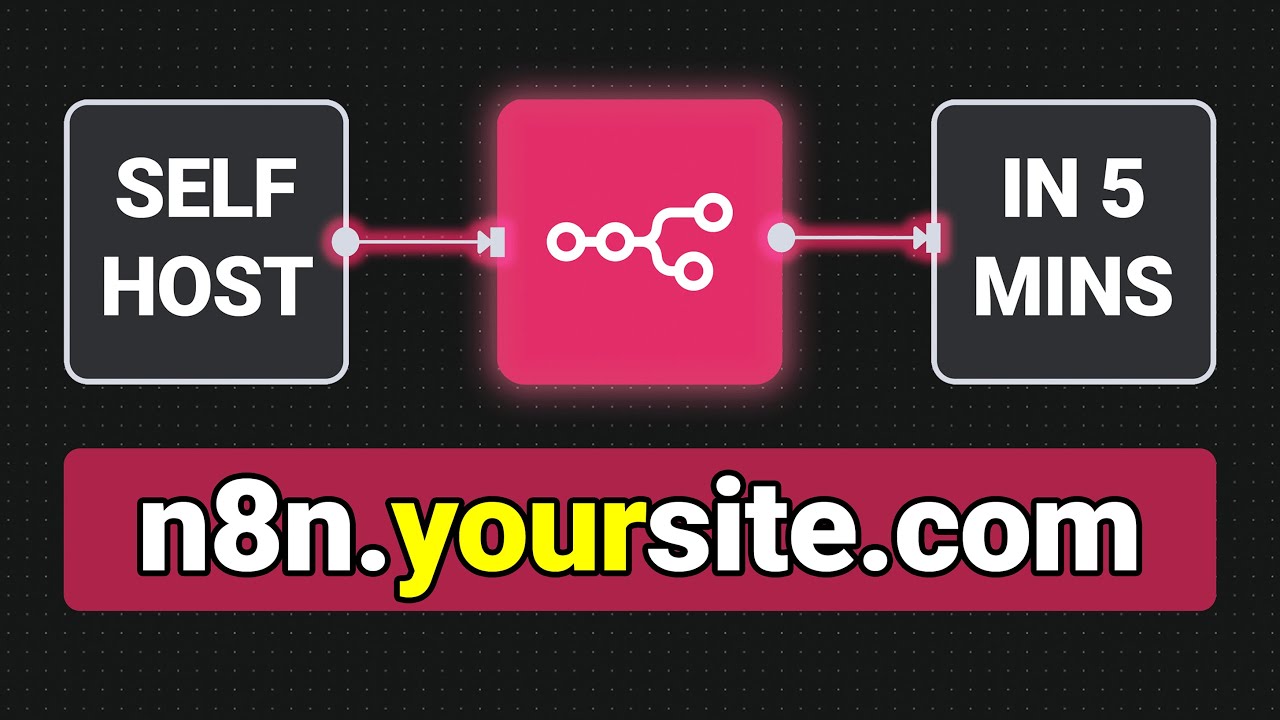
I'm going to show you how to install NA10 on your own domain name just like this. All it takes is just three easy steps. And what's cool is that you won't have any usage fees or execution limits because you'll be hosting it yourself on your own server. It's also much cheaper and it's super easy to set up. So, let's get started with step one, getting your own server. Now, NA10 offers these plans, but the software itself is public and it's free to use, which means you can install it on your own server for
much cheaper. That's what people refer to as self-hosting, and it's by far the best way to use NA10. So, to host NA10 yourself, all you need is a VPS or virtual private server. We are going to get it from Hostinger because they are the best right now for hosting NA10. They have the best reviews and a great money back guarantee. Just scroll down and I recommend choosing one of the first two plans. The first one will do fine, but NA10 likes to use a bunch of RAM, so I'll choose the second one. Then I like to go for 12 months because that
also gives you a free domain name that you can claim later. For the coupon code, make sure that you put in maker. This code gives you the biggest discount they ever offer. Then just log in with your Google account, choose a password, and that's it. NA10 is now installing and we're only paying about $7 per month or five per month if you went for the cheaper plan. That's about 80% less than NA10 starter plan which has very strict limits and we have no limits. So I'll give this about 2 minutes and we can see
that the NA10 app is already installed. We can simply click manage app. It's going to ask to create your username for NA10. So just fill this in and boom, you're in. This is now your own private and cozy NAT dashboard. But what I don't like is that I have this ugly domain name. There's no way I'm going to remember this and I want to use my own domain name instead. So, let's move on to step two. It's super easy to set your own domain. You can claim your free domain name from Hostinger if you want,
but I already have another domain that I want to use. So, I'm going to save this free domain name for later. And I'm going to go to Cloudflare because this is where I have my existing domain. You will need to go to your own domain company like GoDaddy or Hostinger or wherever you've registered your own domain. Find your DNS records and I'm going to add a new subdomain. So my domain name is replyrumble.com and I'm going to write n10 right here. Then I'll go back to Hostinger and I'm going to copy the IP of my server. Then I'm going to paste it over inside Cloudflare. If
you also use Cloudflare, you're going to want to disable this orange cloud. Then just save it. So now n10.rely replyrumble.com will correspond to my hostingervp. Cool. But for it to work, we will also need to tell our VPS that we want to use this subdomain. So over here, go to managevps. Then just click this button that says terminal. And you can just type in the same commands as me. The first command is nano.env. Press enter and it will open up this
settings file. And then use your arrow keys to change the domain name. Over here, I will put in replayrumble.com because that's my main domain name. Then for subdomain, I want n10.rely.com. You might need to change this to something else if you used something elseite.com. You can also leave it empty if you're using the domain itself instead of a subdomain. I'll just leave it like it was. And then I want to exit. So, press Ctrl X. Then down here, it asks if you
want to save the file and you do. So press the Y key on your keyboard, then just press enter to confirm. Next, we need to restart NA10 for the new changes to apply. So first type in docker compose down. This command will shut down NA10. And after it's done, type in docker compose up-d like this. This will start n10 back up. Now we can close this and we can try to visit n10.rely rumble.com. And nice, it works. And if you get any security errors, make sure
to just restart your browser. Your browser cache will refresh and the errors will go away. So now just login with your email and password that you created at step one, and everything works. Perfect. There's one last thing you need to know, and that's how to update NA10 because down here it's telling me that I'm six versions behind. I want to get all of the newest features. So let's update to the latest version. To do that, just go back to the terminal in your browser and type in docker compose pull. Then give it about
a minute to download and install your updates. And once it's done, you just need to restart n. So run docker compose down. This will stop n10. Then run docker compos-d which starts n10 back up. Now go back to your website and refresh. Then down here we can see the new features that we've got and we are now zero versions behind. So we are on the latest version which was released just 2 days ago. Perfect. So now you've got anything on your own domain and you truly own it. Over here
you can even give access to other people if you want and so much more. Next you should create your first workflow. You can find some amazing workflows on my channel like this one that turns a still image into a 360deree product video or any of my other workflows. I'm giving them away for free on this channel. Don't forget to like and subscribe. Thanks for watching., YouTube Video alDbgBoVjMA, YouTube, 01kah5xw18kvvysvcznwpc4n15.