Your OpenClaw Needs Agent-Grade Web Access
So you have your open claw instance running and you're able to chat with your own AI assistant finally. But now of course we want to make it actually useful. So this is the next stage in your open claw journey. So let's talk about how we can actually set it up so that it can do useful things. So in previous videos we talked about how to set up openclaw and how it is structured. So we created this diagram here. So basically you can send a message from let's say telegram and it goes to a so-called gateway. this is what you're hosting somewhere, right?
So, I'm hosting this on a VPS. This gateway ultimately will pass along that message to the AI model that you connected. That AI model may respond saying, hey, I want to use a tool, right? So, there is an agent basically running here, right? So, it may decide to invoke the read tool because maybe it wants to read something from that workspace folder, right? There's memory in there and it's stored in in files. It's all just a bunch of files. And an AI model can use the read tool to see what's in memory. So then the agent will run that tool. It will get some results,
send it back to the AI model again which may decide to invoke another tool, right? So you have like a tool calling loop and at some point that is finished and there is a final result that's may get sent back to you. Right? So if I say hi, what is 2 plus2? Now I have a response here and and so that was approximately the flow here. In this case, it probably didn't invoke any tools. It didn't need to. But there are quite a few useful tasks that you may want to do for which it actually does need to invoke a tool like web fetch to fetch data on some website or search the
web or even use a browser. Right? So maybe you're collecting data and you want to enrich some data on uh some leads that you may have. So I could give this uh task to my AI assistant. Right? So here from Telegram. Now to actually get the data for this it probably has to go out there on the internet. Right? So this data about company sizes and their products and other data, it may live on some other website or multiple different websites and maybe it needs to interact with that website before it actually can
see the data. Even more problematic, maybe that website has some protections in place so it can detect if you're trying to do that programmatically or in some uh systematic manner and it may block you actually. And a lot of people are using it to get like a a brief on a periodic basis. So, I like to get one every morning on some tech topics, let's say. And if you make this a little bit more sophisticated, you may actually ask it to site a bunch of sources and you want to get it in a particular format, maybe for some further processing. Um,
basically, you're starting to create a brief in a more systematic manner, you may run into the same issues as here, where the websites are not that easy to programmatically access with the built-in tools. Or maybe you actually have some kind of scraping type of task. Maybe you want to do that on a periodic basis, right? So we can do, right? So a lot of this is a chron job, right? Also, this brief is typically going to be a chron job. So it runs on a periodic basis. So maybe you want to crawl some data source and you want to extract certain types of data. So maybe you don't need all the data. You just need a
subset of that and you want to do something with it after, right? Or maybe you have a so-called heartbeat that checks for your competitor's pricing or landing page changes. you know these competitors they don't want you to programmatically analyze their pages so they may actually block or they may have other ways to make it difficult for you but you often have some kind of monitoring use case as well and typically it's meant typically this is implemented as a so-called heartbeat so by default there is like a API call every uh 30 minutes to your model it it
will send along this uh prompt essentially and then if there is actually a change it may decide to reach out to you otherwise it will remain quiet so monitoring is very common and now very often you're just looking for some data on an e-commerce website, let's say, and you just want to get a structured output. Uh same with researching, right? So maybe you actually want to research on a weekly basis about a particular topic and again you want to get some kind of structured report. You want to get the newest items in search results, right? So a bunch of tasks here that you may want to do and this is where the real value of openclaw
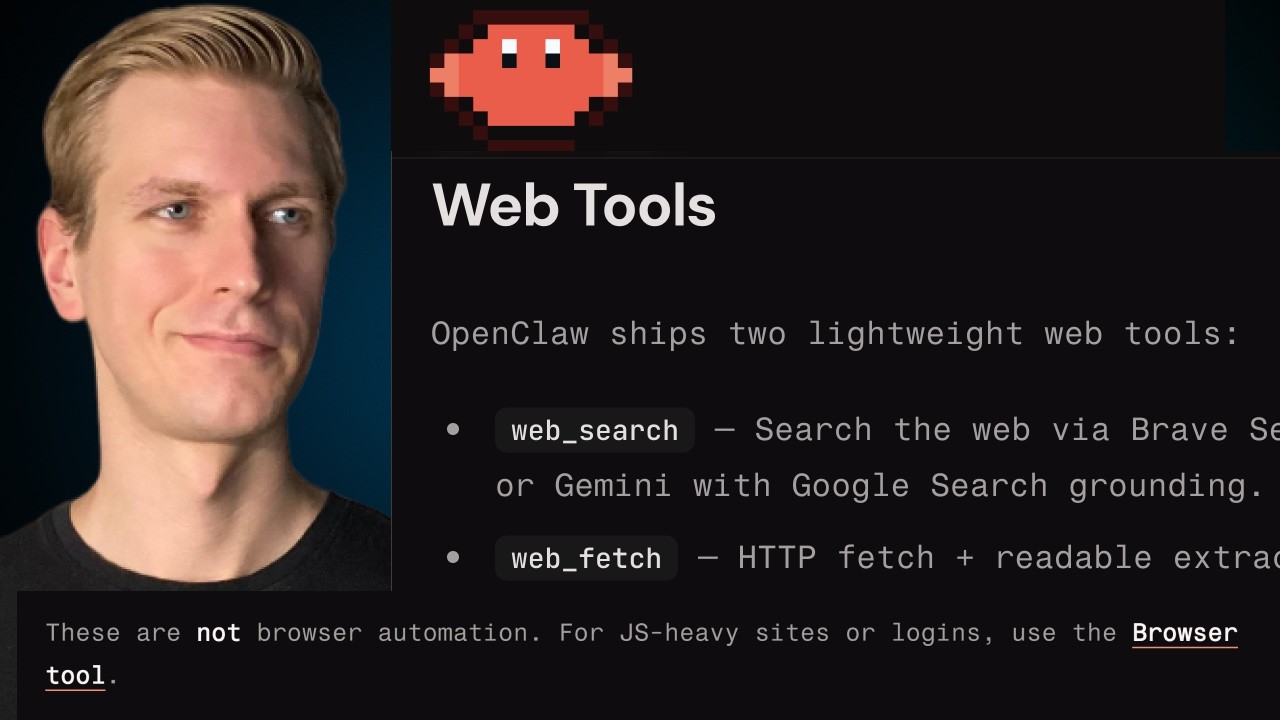
is because it makes it very easy to set up these tasks. But in order for that to work, it needs access to the internet. So by default we actually get some web tools out of the box when you start with open claw. So the simplest of them is actually this web fetch tool. So when I say something like uh list the courses on some particular page it can make an actual fetch call to this URL. Right? So if you're familiar programming it can basically just do a fetch and it will
just pass along that URL and it will get some result and we should then get a response here. And we can also see that here by the way. So here inside the open claw dashboard there's also an option for chat here. So this is a chat just like what we saw here but it actually gives you some more information including the tool calls that it makes. So here you can see I set list of courses on this and now you can see it made this web fetch tool call and if we scroll down and it has some output and then it actually tries to use another tool the browser tool. We'll talk about it in a second but it's not possible
because we haven't set it up. So it has an error. it actually tries web fetch again. Okay, so it gets another result here and ultimately from that result it can produce a nice clean answer for us. Right? So courses it has it's listing all the courses and so this is like the easiest tool that you get out of the box. The nice thing is that you don't have to really configure anything. It's just it just works right. So if we go to agents here and here this is the one agent I have here under tools we can see all the tools that it has access to. So for files, it can read files, it can
create, it can write files, can edit files, right? And they're all enabled here. And here we actually have one for web, right? So web search is one of the core tools and it is enabled by default. Now this web fetch actually just does a plain HTTP get request and just extracts some readable content. It does not execute JavaScript. So if you if you're trying to get data from a website that's running JavaScript, which is a lot of them, uh this is this is not going to work well. Also, if you're trying to do it in some systematic manner like for
some of these tasks that we did here, well, to get it properly set up would be quite hard because it always needs some URL. So, if you if you need to do it in some kind of loop or it needs to be a broader set of URLs, it's not really a robust setup, but also you may get blocked in that case, right? So this does not have some sophisticated unblocking capability and you're basically just getting some HTML back and it may do some processing on that but this is not sophisticated structured output that you're getting back but to be fair it is a simple tool that does
what you expect it to do. This is fine for basic use cases or for the occasional internet access. There's also this web search tool and you can configure some third party provider for this and it's actually a little bit unclear with what exactly you get with this. From my understanding, it's depending on the provider that you configured, you either get a list of search results or you get some kind of AI uh synthesized message back that may contain some uh citations. So, I guess it depends a bit on which which provider
you configure, but it's unclear to me at least what exactly you get and whether you get the full uh spectrum of functionalities that you need to run tasks like this smoothly. So for example, can it actually render JavaScript heavy websites? Can it unblock access to certain data on the internet? Can it actually fetch a full page by itself? Or do we need another web fetch for that? But to me, it seems like there's still a bunch of limitations for doing these tasks here.
There's actually also a browser tool. So you can actually give OpenClaw the power to control a browser, even a tab on your own uh computer. Now, from what I've seen around is that it is unfortunately a bit hard to get this working robustly because you you're dealing with a Chrome instance and so on a on a VPS for example, you may need to have Chrome running on that VPS. So, I think it's going to be a bit tricky to get this running uh robustly. Also, just because you have a browser running does not mean
that you can get around blocks that certain websites may have. But in all fairness to these tools here, I think they have certain use cases and for some specific tasks, that may be all you need. But what if you really want to take it to the next level and really give your open claw instance agent great access to the internet? Well, I found an option. It's called the Bright Data MCP server. Yes, Bright Data is of course today's sponsor, but I actually had a great time using this also before. And this MCP server can provide tools that
we can use very similarly to the built-in tools. And an MCP server basically provides tools. So if we use this MCP server, we will get our agent will get access to tools that it can use very similarly to how it can use the built-in tools. And so by using this MCP server, which has a free tier by the way, and as of recording, this is the free tier that they offer. So it's so it's 5,000 MCP requests every month. And so with just one MCP server, we basically solve this problem of giving
our AI agent proper access to the web. Right? So this is an all-in-one tool for seamlessly searching the web. So we can search, we can navigate websites, we can take actions and retrieve actual data without getting blocked. One of the biggest problems when you try to for example collect data at scale or do other automation type of tasks on other websites is you're going to get blocked, right? So we can search retrieve real-time results from these search engines. Another one great one is actually particular geographies but it
needs to come from a specific area. Okay. And then if you want to crawl we can crawl and extract complete websites not just single pages output data in LLM ready formats. And we can scale that up. So it's not just like a basic uh scraping uh script that we're putting together here. You can actually scale that up to more large and complex workloads. Right? So it has that access and it can navigate on dynamic and interactive sites and even power remote browser sessions. And so one of the tools here is scrape batch. So you can
scrape not just one by one, you can actually turn it more into a real data pipeline, more robust data pipeline and scale it up by batching together a bunch of web pages into one request. And when we extract data, we often want to get it in a particular format. So we want it structured. So you can get structured JSONs. So you have like a neat set of data with like let's say for e-commerce pricing and title and description which you can then use in further processing maybe you want to store it somewhere and then later do something else with that
and you get a bunch of browser related tools here as well. So it can capture a snapshot and then later for example if you want to click on something it can use a reference based on that right. So my openclaw agent gets to control a remote browser. So pretty compelling MCP server I think. If you already want to if you're already enthusiastic you want to try it out check out the link in description and make sure to use my promo code which is biteg grat all lowercase. Right. So with this one solution we can take that web access to
the next level so we can do a bunch of these tasks in a very robust manner. So let's actually take a look and see how we can enable an MCP server so that we get access to even more tools besides just the built-in ones. So let's talk about how we can add this MCP server to our open claw setup. And maybe you have some other MCP servers that you also want to connect. So uh it's good to know how that would work anyway. Uh but in my experience, there's not that many MCP servers that are really worth it. But I would say for this one with bright data,
you know, web access, it's such a core thing that your agent will need. So it makes more sense here. Now, of course, all of this is new, so you want to be a little bit careful with what you do. Now by default actually to make this work we can use something called MC porter. This is part of this is actually part of openclaw creator account as well and this allows you to connect to sort of connect an external MCP for our agent to know how to work with that there is a skill available as well which actually comes uh here. So if we go to so actually here in the open cloud
dashboard if we go to skills there are 51 built-in skills. So for a bunch of these services there there are some uh skills that you can enable. And if we scroll down to M here, we see MC porter, but by default this is not installed. So I can do install. It's also on claw hub by the way. So you can find it here as well. All right. So now it's installed. Now we need to go to bright data here. So they have a free tier as of recording. Uh very generous here. So so if you're interested in that, check out
the link in the description. Use my promo code bite grat all lowercase. And here if you in the dashboard, you can go to MCP, right? All right. So, they actually have a lot of tools and you can decide which ones you want to enable. So, if you want to do something with search, uh you can enable that or if you want to do something with e-commerce or maybe you want to do some browser automation. Now, some of them may not be included in the free tier. So, if you want uh you can always upgrade. If you just want to try it out, I would just recommend sticking to the free tier. So, let me just use that here in the video. But ultimately, you have picked the
tools that you want. And now we get uh basically a string here with a token. So make sure you don't show it to other people. And this will allow us to send requests to bright data. So if you make it if you make it visible, I get a placeholder API token. So if we use this string, you still need an API token. If we go to account settings here under API keys, we can create an API key and you can try using that in that string. So I will do that and I will complete the string myself. So now I could go back to
my AI assistant and actually as of and actually during recording uh I have a morning brief uh set up and it wasn't able to generate it because I haven't connected a way for the agent to access the internet. That's what we're doing right now. So now I have that string. Now technically what you could do is not is ask the AI assistant, hey here is a here's the string. Can you set up MCorter with this uh bright data string? Uh configure it that way. The downside is you start to pass your sort of API
key that's how you can think of it to an AI model and also it may be persisted in these session transcripts. I think there's a safer way and that's that is to do it yourself manually. So this is the easiest way but not the safest. The safer way in my view is to do it manually. So there will be an MC porter config file and you want to be we can just uh go in there and just manually edit the file and add the bright data URL. Also be a little bit careful with adding it to the workspace folder because this is typically recommended to
back up. So if you're going to add API keys here and you back up that folder and then you push it to GitHub or some other place, you also start to pass around your API keys to different places. So typically you want to keep your API keys in the the root uh openclaw folder and not back this up typically, right? So this also goes for other types of API keys, right? So for example, I connected uh open AI, right? So I connected uh this AI model that's you need an API key for that. I that's not put in workspace that's put in this
folder. All right. So next thing is to manually edit uh that MC porter config file to add that string. All right. So I logged into my VPS and I have an admin user there. And we talked about this in other videos and there's different ways of setting up your VPS, but ultimately I'm in my users directory here and I can check if MCorter is installed. You can see it is here indeed. All right. So with this command, we can add the URL to that MCorter config. So I got it to work
like this. And then if you do mcporter list and specifically for bright data as well, it's going to try to discover it. And now you can see it has listed one server here, one healthy. This is the bright data server and it has found six tools. So after configuring it, I do find that you need to restart the gateway. So you can do something like gateway stop and then you can simply run the gateway again. So now if we say something like um let's say we want to use that scrape as HTML tool, use the scrape as HTML tool from bright data mcp
get uh the raw HTML from bitegrad.com. let's say and let's see if it can do that. So behind the scenes if you want to see the tool calling that it does. All right. So now we can try saying something like use the bright data MCP with mcporter to grab data from some website. I'm saying biteg.com on my own website. Now I'm being a little bit specific here with what how it needs to do it. I do find that you uh have to specify basically uh that you want to
use it otherwise it may not always use the tool that you want. As of recording, we still need to coax it a little bit into actually using it, but that's fine. Um, so let's see if it can uh do something with that. All right, there we go. It pulled content from Bitegrat using the bright data MCP via MCorter. It's scraped and it put it in markdown or text. It asks us what specifically we want to grab fromgrat.com. But the point here is that now my agent has access to the internet through bright data MCP. We
can try using many of the other tools that you see here. So we can try some other tool as well. So we can try scrape as markdown. Use the scrape as markdown tool for the courses page. All right. So pretty fast answer here. And if we take a look under the hood by the way here in the uh dashboard you can see the tool calls as well. So here we can see uh the chat as well. But you can also see the results of the tool calls. So here you can see it executed a command with MCorter and it called that bright
data.crape scrape as markdown tool for a particular URL, right? So, here we see the tool output for that and ultimately it sends us a response. So, how cool is that? So, not only do you have access to the built-in tools, it is technically also possible to add other tools. So, now we can make our workflows much more sophisticated and give our agent proper access to the internet. So, I would say check out bright data. You can find a link in description. Use promo code bitegret all lowercase. Hope this helps you out. Let me know what you think. In
any case, thank you for watching and I hope to see you in the next one., Your OpenClaw Needs Agent-Grade Web Access, YouTube, 01kjne1ax103vdbkbshyes381w.