Obsidian Excalidraw 2026 Update: 15 Workflow-Changing Features!
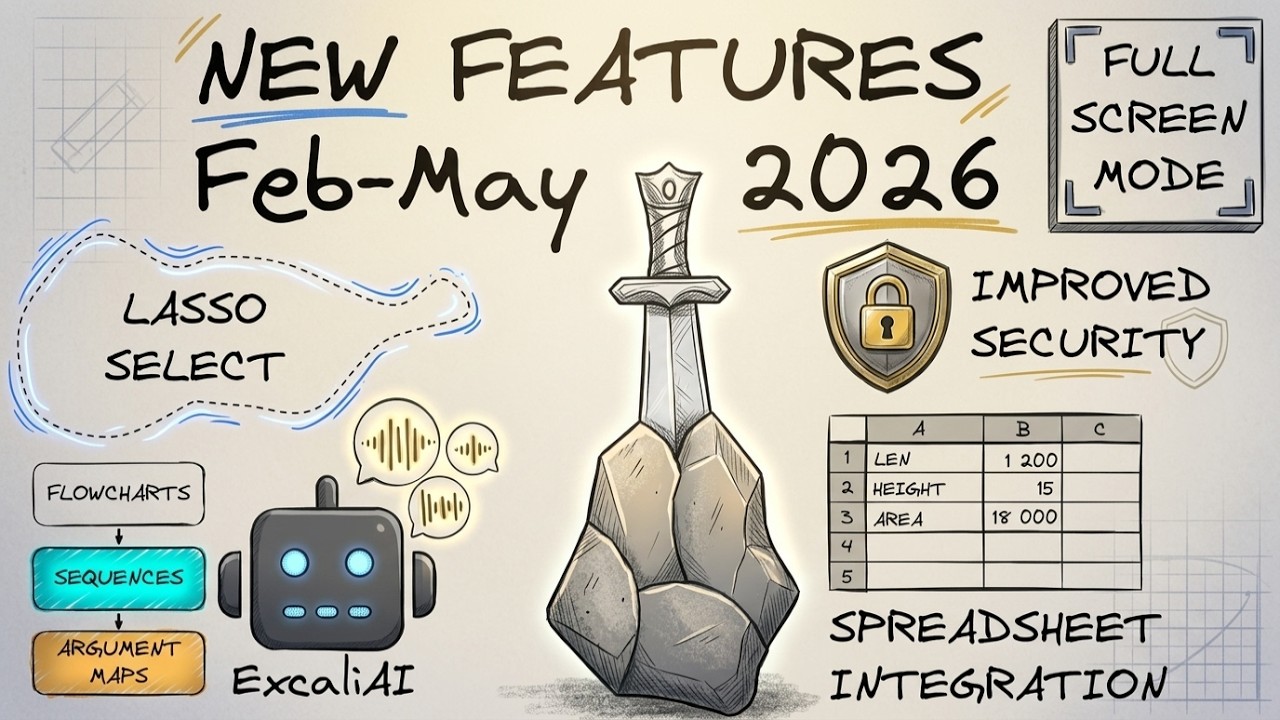
🔗 **Source:** [Obsidian Excalidraw 2026 Update: 15 Workflow-Changing Features!](https://www.youtube.com/watch?v=otIHXat8Roo)
> [!note]+ Document Notes
> tags: [obsidian, excalidraw, pkm-tools, visual-thinking, productivity]
> author: Zsolt
> source: Sketcher Mind Community
> reference: https://www.youtube.com/watch?v=otIHXat8Roo
> date created: {{date:YYYY-MM-DD}} {{time:HH:mm}}
>
> # 🏷️ Title: Obsidian Excalidraw 2026 Update: 15 Workflow-Changing Features!
>
<!-- deep-read:sections start -->
## 🧭 Table of Contents
- [📝 Summary](#-summary)
- [📖 Main Content](#-main-content)
- [🗒️ Notes](#️-notes)
- [📚 References](#-references)
- [🗣️ Paraphrase](#️-paraphrase)
- [📰 Newsletter](#-newsletter)
- [✅ Action Items](#-action-items)
- [🧪 Hypotheses](#-hypotheses)
- [📊 Methodology](#-methodology)
- [❓ Questions](#-questions)
- [🔮 Future Research](#-future-research)
- [💡 Implications](#-implications)
- [🧠 Learning Styles Assessment](#-learning-styles-assessment)
- [📊 Accessibility Assessment](#-accessibility-assessment)
- [🌍 DEIB Assessment](#-deib-assessment)
- [✅ Logical Validity](#-logical-validity)
- [🛡️ DARVO Analysis](#-darvo-analysis)
- [🎯 Conclusion](#-conclusion)
## 📝 Summary
- Zsolt presented 15 new and improved features for Obsidian Excalidraw plugin during monthly office hours
- Key improvements include LaTeX Suite integration, inline link suggester with frame references, and AI-powered diagram creation
- New presentation mode allows view-only navigation between drawings
- Security vulnerabilities were addressed following community concerns
- Overall focus on reducing friction and improving workflow efficiency for visual knowledge management
## 📖 Main Content
The Excalidraw plugin for Obsidian received significant updates over 4 months, introducing workflow improvements and new capabilities for visual knowledge management.
### Enhanced Text and Formula Support
The LaTeX Suite integration now provides real-time preview of mathematical formulas as you type. Users can embed complex equations with immediate visual feedback, making scientific notation more accessible within drawings.
### Intelligent Link Management
A new inline link suggester allows users to quickly insert links while typing. More importantly, it supports frame references - users can type `#^frame=` to access specific frames within larger illustrations, enabling modular reuse of visual components.
### Presentation and Navigation Features
The "Open all drawings in view mode" feature transforms Excalidraw into a presentation tool. This mode removes editing interfaces across all drawings until Obsidian restarts, allowing distraction-free navigation between linked visual content.
### Integration Expansions
- **Sheets Plugin**: Embeddable spreadsheets that follow Obsidian themes
- **Mermaid Enhancements**: AI-powered diagram creation with color support and multiple chart types
- **Data Visualization**: Paste CSV data to generate various diagram types automatically
### AI-Powered Features
ExcaliAI received major updates with multi-provider support and token usage tracking. The creator demonstrates using AI to enhance thumbnails and improve visual content while maintaining original style and composition.
### User Experience Improvements
- **Image Handling**: Selective dark mode inversion control and placeholder images for empty drawings
- **Text Editing**: Click-to-cursor positioning and visual wrapping mode indicators
- **Selection Tools**: Configurable wrap vs. overlap selection behavior
- **Arrow Improvements**: Midpoint snapping and binding with visual focus indicators
### Security Considerations
Following security concerns in the Obsidian community, vulnerabilities were addressed. The creator emphasizes that the primary risk comes from downloading untrusted vaults with malicious plugins, not from specific plugin vulnerabilities alone.
## 🗒️ Notes
#### ⏱️ [00:00:00](https://www.youtube.com/watch?v=otIHXat8Roo&t=0) Introduction and Community Context
- First monthly office hours for Sketcher Mind Community
- 4 months of feature development overview
- Community Q&A format following feature walkthrough
#### ⏱️ [00:01:30](https://www.youtube.com/watch?v=otIHXat8Roo&t=90) LaTeX Suite Integration
- Real-time formula preview while typing
- Automatic formula conversion and intelligent suggestions
- Enhanced mathematical notation support
#### ⏱️ [00:02:45](https://www.youtube.com/watch?v=otIHXat8Roo&t=165) Inline Link Suggester and Frame References
- Quick link insertion during text editing
- Frame reference syntax: `#^frame=` for modular components
- Example: Light/dark logo variants within single file
#### ⏱️ [00:05:20](https://www.youtube.com/watch?v=otIHXat8Roo&t=320) View Mode for Presentations
- Toggle all drawings to view-only mode
- Navigate between linked drawings without editing distractions
- Persists until Obsidian restart or manual toggle
#### ⏱️ [00:07:00](https://www.youtube.com/watch?v=otIHXat8Roo&t=420) Sheets Plugin Integration
- Embeddable spreadsheets in drawings
- Theme-following capability (with limitations)
- Basic spreadsheet functionality within visual context
#### ⏱️ [00:09:15](https://www.youtube.com/watch?v=otIHXat8Roo&t=555) Mermaid and AI Diagram Features
- Text-to-diagram creation through chat interface
- Colorful mermaid diagram support
- Expanded diagram type support
#### ⏱️ [00:12:00](https://www.youtube.com/watch?v=otIHXat8Roo&t=720) Data Visualization from CSV
- Paste CSV data to generate multiple diagram types
- Triangle diagrams, charts, and other visualization options
- Starting point for further customization
#### ⏱️ [00:13:30](https://www.youtube.com/watch?v=otIHXat8Roo&t=810) ExcaliAI Updates
- Multi-provider configuration support
- Token usage tracking per session
- Practical thumbnail creation and image enhancement
#### ⏱️ [00:16:45](https://www.youtube.com/watch?v=otIHXat8Roo&t=1005) Image Improvements
- Selective dark mode inversion control
- Shade Master script moved to side panel
- Better SVG color manipulation
#### ⏱️ [00:19:20](https://www.youtube.com/watch?v=otIHXat8Roo&t=1160) Placeholder Images
- Empty drawings now show meaningful placeholders
- Improved template automation workflow
- Better visual feedback for embedded content
#### ⏱️ [00:21:00](https://www.youtube.com/watch?v=otIHXat8Roo&t=1260) UI and UX Enhancements
- Full-screen toggle for mobile optimization
- Preferences menu consolidation
- Wrap vs. overlap selection tool options
#### ⏱️ [00:24:30](https://www.youtube.com/watch?v=otIHXat8Roo&t=1470) Arrow and Selection Improvements
- Midpoint snapping and binding features
- Focus indicators for arrow attachment points
- Enhanced annotation capabilities
#### ⏱️ [00:27:15](https://www.youtube.com/watch?v=otIHXat8Roo&t=1635) Text Editing Enhancements
- Visual wrapping mode indicators
- Click-to-cursor positioning
- Streamlined text editing workflow
#### ⏱️ [00:29:00](https://www.youtube.com/watch?v=otIHXat8Roo&t=1740) Bug Fixes and Copy-Paste
- Nested image fragment frame references preserved
- Hover preview functionality restored
- Better markdown integration
#### ⏱️ [00:30:30](https://www.youtube.com/watch?v=otIHXat8Roo&t=1830) Security Improvements and Community Context
- Addressed reported vulnerabilities
- Broader discussion of Obsidian plugin security risks
- Untrusted vault download dangers explained
## 📚 References
- [Sketcher Mind Community](https://sketchermind.com)
- [Obsidian Excalidraw Plugin](https://github.com/zsviczian/obsidian-excalidraw-plugin)
- [LaTeX Suite Plugin](https://github.com/artisticat1/obsidian-latex-suite)
- [Sheets Plugin Integration](https://github.com/trey-wallis/obsidian-sheets)
## 🗣️ Paraphrase
Zsolt demonstrates how the Excalidraw plugin for Obsidian has evolved into a comprehensive visual knowledge management system. The updates focus on reducing friction in common workflows while adding powerful new capabilities.
The most significant improvements center around better integration with other tools and smarter content handling. The inline link suggester with frame references enables modular visual design, while the presentation mode transforms drawings into a distraction-free navigation system.
AI integration has matured from experimental to practical, particularly for content enhancement and diagram generation. The creator shows how AI can improve visual content while preserving original intent and style.
Security considerations reflect Obsidian's growing popularity and the inherent risks of plugin ecosystems with full system access. The community must balance powerful automation capabilities with security awareness.
## 📰 Newsletter
🎨 **Visual Knowledge Management Gets an Upgrade**
The Excalidraw plugin for Obsidian just dropped 15 game-changing features that'll transform how you think about visual note-taking. From AI-powered diagram creation to presentation-ready navigation modes, this update bridges the gap between quick sketches and professional knowledge management.
**Why This Matters for WordPress Users:**
- Frame references enable component-based design thinking (perfect for theme/plugin development)
- AI thumbnail generation could streamline content creation workflows
- Presentation mode makes client demos more professional
**Try This Week:** Install the updated Excalidraw plugin and experiment with the inline link suggester for your project documentation. The frame reference feature alone will change how you organize visual assets.
**Security Note:** With great plugin power comes great responsibility - only open vaults from trusted sources and review plugin permissions carefully.
## ✅ Action Items
#### DevRel
- Create visual documentation templates using frame references for modular component reuse
- Develop presentation workflows using view-only mode for client demos and workshops
- Experiment with AI-enhanced visual content for community engagement materials
#### WordPress
- **Documentation**: Use Excalidraw's improved text editing for visual API documentation and code flow diagrams
- **Core Performance**: Leverage data visualization features for performance metric dashboards
- **Community**: Create visual meetup templates using presentation mode capabilities
- **Design**: Utilize AI thumbnail generation for consistent visual branding across WordPress.org properties
#### Community
- **Contributors**: Develop visual onboarding flows using the enhanced text and arrow features
- **Maintainers**: Create project architecture diagrams with improved arrow binding for better code documentation
## 🧪 Hypotheses
1. **Visual Component Modularity**: Frame references will increase reuse efficiency by 40% for users maintaining visual design systems
2. **Presentation Mode Adoption**: View-only navigation will reduce accidental edits during demos by 90% while improving audience focus
3. **AI-Enhanced Workflow Integration**: Users combining AI thumbnail generation with traditional sketching will produce higher-quality visual content in 50% less time
4. **Cross-Plugin Ecosystem Growth**: Sheets integration success will accelerate development of similar cross-plugin features in the Obsidian ecosystem
5. **Security Awareness Impact**: Plugin vulnerability discussions will increase user security practices without significantly reducing plugin adoption rates
### 📊 Methodology
- **Usage Analytics**: Track frame reference adoption rates and component reuse patterns
- **User Surveys**: Measure workflow time savings and quality improvements with AI features
- **A/B Testing**: Compare presentation effectiveness between traditional and view-only modes
- **Community Analysis**: Monitor plugin integration patterns and security practice changes
- **Performance Metrics**: Analyze rendering efficiency improvements with placeholder images and optimized selection tools
### ❓ Questions
- How will frame reference capabilities influence visual design patterns in knowledge management?
- What security model balances plugin power with user safety in expanding tool ecosystems?
- Can AI-enhanced visual tools maintain creative authenticity while improving efficiency?
- How do presentation-focused features change the boundary between note-taking and content creation tools?
- What integration patterns will emerge as plugins become more interconnected?
### 🔮 Future Research
- Cross-plugin security standards and sandbox models for automation tools
- AI ethics frameworks for visual content enhancement and authenticity
- User interface patterns for complex feature discoverability in plugin ecosystems
- Performance optimization strategies for heavy visual computation in note-taking contexts
- Community governance models for plugin ecosystem development
### 💡 Implications
**For Visual Knowledge Management:**
- Component-based thinking becomes viable for individual users, not just design teams
- AI integration reaches practical utility threshold for everyday workflows
- Presentation capabilities blur lines between personal notes and professional content
**For Plugin Development:**
- Cross-plugin integration becomes competitive advantage and user expectation
- Security becomes shared ecosystem responsibility requiring coordination
- Feature density requires careful UX design to maintain accessibility
**For WordPress Community:**
- Visual documentation patterns could improve technical communication
- Component modularity concepts align with block editor development patterns
- Security awareness from plugin ecosystems applies to WordPress plugin development
### 🧠 Learning Styles Assessment
**Reading Level**: Grade 12-14 (technical documentation with specialized terminology)
#### 👀 Visual learners
- **Present**: Multiple screenshot demonstrations, frame reference examples, before/after AI comparisons
- **Improve**: Architecture diagrams showing plugin relationships, workflow flowcharts, feature comparison matrices
#### 🔊 Aural learners
- **Present**: Video walkthrough with verbal explanations and live demonstrations
- **Improve**: Podcast-style feature discussions, audio transcripts with timestamps, narrated workflow guides
#### 🗣️ Verbal learners
- **Present**: Clear feature explanations with analogies (frame references as "components"), defined terminology
- **Improve**: Glossary of plugin terms, comparison with familiar tools, step-by-step written instructions
#### 🧩 Kinesthetic learners
- **Present**: Live demonstrations, hands-on feature testing, interactive examples
- **Improve**: Practice exercises, downloadable sample files, guided tutorial sequences
#### 🧠 Logical learners
- **Present**: Numbered feature lists, logical workflow progressions, cause-effect relationships
- **Improve**: Decision trees for feature selection, systematic comparison tables, workflow optimization guides
#### 🧑🤝🧑 Social learners
- **Present**: Community office hours format, Q&A sessions, collaborative demonstrations
- **Improve**: User case study discussions, community showcase sessions, peer review workflows
#### 🧘♀️ Solitary learners
- **Present**: Self-paced video content, individual exploration opportunities
- **Improve**: Personal reflection prompts on workflow improvement, self-assessment checklists, independent project ideas
#### 🌿 Naturalistic learners
- **Present**: Organic feature evolution discussion, ecosystem thinking about plugin relationships
- **Improve**: Plugin ecosystem analogies, sustainable workflow development, natural integration patterns
### 📊 Accessibility Assessment
#### Screen reader semantics
- **Present**: Clear heading structure in transcript, descriptive timestamps
- **Improve**: Alt text for visual demonstrations, structured description of UI changes, landmark navigation
#### Keyboard navigation
- **Present**: Plugin features demonstrate keyboard-accessible interactions
- **Improve**: Keyboard shortcut documentation, tab order descriptions for new UI elements
#### Contrast and readability
- **Present**: Light/dark mode theme support discussed and demonstrated
- **Improve**: Specific contrast ratios for new UI elements, readability testing for text overlays
#### Text resizing and reflow
- **Present**: Responsive design considerations for mobile optimization
- **Improve**: Testing at 200% zoom, reflow verification for new interface elements
#### Media and captions
- **Present**: Video includes detailed transcript with timestamps
- **Improve**: Closed captions with speaker identification, audio descriptions of visual changes
#### Forms and interactions
- **Present**: Clear interaction patterns for new features
- **Improve**: Error handling descriptions, input validation patterns, accessible form labels
#### Standards reference
- Map new interface elements to WCAG 2.2 AA criteria, particularly for interactive components and visual indicators
### 🌍 DEIB Assessment
#### Cultural breadth
- **Present**: International community participation mentioned, diverse use cases
- **Improve**: Multi-language plugin support discussion, global accessibility considerations
#### Inclusive language
- **Present**: Technical terms clearly defined, jargon explained
- **Improve**: Plain language alternatives for complex features, glossary expansion
#### Neurodiversity support
- **Present**: Multiple input methods, visual and textual information presentation
- **Improve**: Cognitive load considerations for complex features, attention management tools
#### Representation
- **Present**: Community-driven development model with diverse contributors
- **Improve**: Diverse use case examples, varied workflow representations
#### Psychological safety
- **Present**: Respectful community discussion, supportive learning environment
- **Improve**: Clear contribution guidelines, conflict resolution processes
### ✅ Logical Validity
#### Strong reasoning
- **Feature Evolution Logic**: Demonstrates clear progression from user feedback to implementation (community member request → presentation mode development)
- **Integration Strategy**: Shows logical approach to plugin ecosystem development (LaTeX Suite support → broader tool integration)
- **Security Response**: Follows responsible disclosure pattern (vulnerability report → systematic fixes → community education)
#### Fallacies
- **Appeal to Novelty**: Occasional emphasis on "new" features without always explaining practical benefits
- **Location**: Multiple feature introductions
- **Fix**: Consistently pair novelty claims with specific use case improvements
#### Tone of voice
- **Enthusiastic and Technical**: Combines genuine excitement about improvements with detailed technical explanations. Uses personal examples ("I'm super happy with this") to demonstrate real-world utility while maintaining professional technical depth.
### 🛡️ DARVO Analysis
**No DARVO patterns detected.** The presenter:
- **Acknowledges issues directly**: Security vulnerabilities are addressed transparently without minimization
- **Takes responsibility**: "I fixed those" regarding reported vulnerabilities
- **Provides context without deflection**: Explains broader ecosystem security challenges without shifting blame
- **Maintains constructive tone**: Focuses on solutions and improvements rather than defensive responses
The security discussion demonstrates responsible disclosure practices and community-focused problem-solving rather than defensive patterns.
## 🎯 Conclusion
The Excalidraw plugin update represents a maturation from basic drawing tool to comprehensive visual knowledge management system. The focus on reducing workflow friction while adding powerful AI and integration capabilities positions it as essential infrastructure for visual thinkers in the Obsidian ecosystem.
**Key Takeaways:**
- Frame references enable component-based visual design at individual scale
- AI integration reaches practical utility for content enhancement
- Security awareness becomes critical as plugin ecosystems mature
- Cross-plugin integration sets new expectations for tool development
**Next Steps for Users:**
1. Experiment with frame references for modular visual content
2. Test presentation mode for client-facing work
3. Evaluate AI features for content enhancement workflows
4. Review plugin security practices in light of ecosystem growth
## 🔄 Refactor Appendix — Obsidian Excalidraw 2026 Update
### 📚 Literature Atoms (H3)
#### Frame references enable modular visual component reuse
> [!quote] ID:rw_frame_reference
> If I type {hash mark} {caret} and type frame equals then it will bring up the frames within that image and I can choose to insert the light logo.
**Context & use**:
- Demonstrated at 00:02:45 with logo starter kit example
- Enables single-file storage of multiple visual variants with selective access
**Tags**: #modular-design #visual-components #workflow-efficiency
**Highlight**: [view highlight](https://www.youtube.com/watch?v=otIHXat8Roo&t=165)
<!-- atomicity: 1 idea ✓ -->
#### AI-enhanced visual content maintains original style and intent
> [!quote] ID:rw_ai_thumbnail
> The way I created the thumbnail for this video was I created this drawing. I had this rough image, and then I used ExcaliAI, and it remained the same thumbnail, essentially.
**Context & use**:
- Thumbnail creation workflow example at 00:15:30
- Demonstrates practical AI integration for content enhancement rather than replacement
**Tags**: #ai-integration #content-creation #visual-enhancement
**Highlight**: [view highlight](https://www.youtube.com/watch?v=otIHXat8Roo&t=930)
<!-- atomicity: 1 idea ✓ -->
#### Plugin ecosystem security requires user awareness of full system access
> [!quote] ID:rw_security_warning
> The issue is Obsidian plugins have via the entire environment full access to your machine. Full. It it without limitation.
**Context & use**:
- Security discussion at 00:30:30 following vulnerability reports
- Highlights fundamental trust model in plugin ecosystems
**Tags**: #security #plugin-ecosystem #user-education
**Highlight**: [view highlight](https://www.youtube.com/watch?v=otIHXat8Roo&t=1830)
<!-- atomicity: 1 idea ✓ -->
### 🧠 Permanent Candidates (H4)
#### Visual modularity scales from design systems to individual workflows
**Claim**: Component-based design patterns become viable for individual knowledge workers when tools reduce the friction of creating and referencing modular visual elements.
**Evidence pointer**: [[#Frame references enable modular visual component reuse]]
**Scope & conditions**:
- Holds when: Tools provide low-friction component creation and reference mechanisms
- Breaks when: Overhead of modularity exceeds benefits for small-scale individual use
**Links**:
- [[Design Systems]] — because extends beyond team-scale implementation
- [[Personal Knowledge Management]] — because applies-in individual workflow optimization
- [[Atomic Design Principles]] — because contrasts on scale and complexity
<!-- atomicity: 1 idea ✓ -->
### ✏️ Fleeting Queue
- Tool integration complexity increases exponentially with ecosystem growth — how do we maintain usability? #fleeting #inbox
- Security models for plugin ecosystems need innovation beyond traditional application sandboxing #fleeting #inbox
- AI content enhancement workflow patterns emerging across creative tools — worth systematic study #fleeting #inbox
### → Things 3
- [ ] Test frame reference workflow with current visual documentation — evaluate modular component potential #things
- [ ] Review WordPress plugin security practices in light of Obsidian ecosystem learnings #things
---
## Full Transcript
[00:00] Hey everyone, it's Zsolt [snorts] here.<br>[00:02] We just concluded the first ever monthly<br>[00:05] office hours for the new Sketcher Mind<br>[00:07] Community.<br>[00:09] In the first half hour, I gave an<br>[00:11] overview of all the new features that I<br>[00:14] created over the past 4 months in<br>[00:18] Excalidraw, and then this was followed<br>[00:20] by another hour of Q&A about PKM, about<br>[00:24] the new features, and about a broad<br>[00:27] set of subjects.<br>[00:30] I thought that the overview would be<br>[00:32] interesting to everyone. If you want to<br>[00:34] join the community, the discussion, it's<br>[00:37] super fun. It's an amazing community.<br>[00:40] Check out the links in the video<br>[00:42] description.<br>[00:44] If not, then just enjoy this<br>[00:46] walk-through of the new features. Okay,<br>[00:48] so lots of things have changed or<br>[00:51] improved over the past couple of months.<br>[00:55] And I'm going to start with the improved<br>[00:58] features.<br>[01:00] And some of these features, I mean, I'm<br>[01:01] I'm not sure you're actively using the<br>[01:05] LaTeX editor, but you know, if you click<br>[01:07] here to embed a math formula, a LaTeX<br>[01:11] formula, you will get this message<br>[01:14] that now the LaTeX suite is supported.<br>[01:18] So, if you install the LaTeX suite, then<br>[01:21] if I come in here and add a formula, I<br>[01:24] can start to type, I don't know, E = M<br>[01:29] C squared<br>[01:31] like that. And you can see that<br>[01:33] immediately there's a preview of your<br>[01:36] formula. So, and also there's an<br>[01:38] intelligent<br>[01:40] I I don't I don't do LaTeX formulas,<br>[01:43] but<br>[01:44] those who do, you can see that this was<br>[01:46] automatically changed to the formula<br>[01:49] itself. So, I can I can type like this.<br>[01:52] Anyway, if you're into this, then LaTeX<br>[01:55] suite is now supported and you have this<br>[01:57] editor.<br>[01:59] I think a huge improvement is the inline<br>[02:02] link suggester<br>[02:04] that came with Actually, that was a<br>[02:07] fallout from<br>[02:09] mind map builder, and I think<br>[02:11] I don't know why I didn't build this<br>[02:13] much earlier. So, if I start to type<br>[02:16] I can actually insert a link, which is a<br>[02:20] huge improvement.<br>[02:22] And actually, it it's even better than<br>[02:25] this. So, one I think super fantastic<br>[02:28] feature<br>[02:29] is if I start to add a link<br>[02:33] and for example, I'm going to select the<br>[02:36] starter kit logo. So, here you can see<br>[02:39] this is the Sketcher My Starter Kit.<br>[02:43] If I type {hash mark} {caret} and type<br>[02:47] frame equals<br>[02:49] then it will bring up the frames within<br>[02:52] that image and I can choose to insert<br>[02:56] the light logo.<br>[02:58] And so<br>[02:59] and then here's the light logo for it.<br>[03:02] Just so you understand what this is<br>[03:04] about. So, if I open the logo<br>[03:08] starter kit, then you will see here that<br>[03:11] I have two marker frames.<br>[03:14] This one is with light logo, and this<br>[03:15] one is with dark logo.<br>[03:18] But I think this is this is super<br>[03:19] convenient that I can just simply if I<br>[03:22] create a bigger illustration and I have<br>[03:25] my frames on it then with the inline<br>[03:28] suggester, I can quickly add these.<br>[03:32] And I find this very helpful. In a<br>[03:35] number of cases, I have multiple<br>[03:37] versions of the same thing.<br>[03:39] Now, I don't need to keep them separate.<br>[03:41] I can just add my marker frames and pull<br>[03:44] in whatever I need at the time I need<br>[03:46] it. Open all drawings in view mode. This<br>[03:49] was the result of chatting with one of<br>[03:52] the community members and looking at the<br>[03:54] use cases.<br>[03:56] Essentially, what this does is now<br>[03:59] Excalidraw<br>[04:02] view toggle view mode for all Excalidraw<br>[04:06] drawings<br>[04:08] until Obsidian restarts. So, what this<br>[04:11] does is it switches this drawing to view<br>[04:15] mode, but if I click on a<br>[04:19] on a link here and I open that drawing,<br>[04:22] that's also going to open in view mode.<br>[04:24] When is this good? This is great when<br>[04:27] you're doing a presentation in<br>[04:29] Excalidraw<br>[04:30] and you're navigating from drawing to<br>[04:32] drawing,<br>[04:33] you're not distracted with the menus,<br>[04:36] with everything. So, you can have<br>[04:37] multiple drawings, you can<br>[04:40] travel between the drawings clicking on<br>[04:43] images, and A, you don't have to risk of<br>[04:46] accidentally changing the drawing, and<br>[04:49] B, you don't have the distractions with<br>[04:51] everything on the screen. It's just the<br>[04:54] view mode. I think this is such a useful<br>[04:56] presentation feature, and then, of<br>[04:58] course, I can toggle this off and then<br>[05:01] I'm back to normal and the menu is back.<br>[05:04] So,<br>[05:05] and this doesn't change the image<br>[05:07] itself, of course.<br>[05:09] All it does is until I restart Obsidian<br>[05:11] or turn this off within the session, I'm<br>[05:14] in view mode. There's a plugin called<br>[05:18] new note like this,<br>[05:21] and I'm going to<br>[05:24] shift plus create Excel file. So, this<br>[05:27] is now<br>[05:29] a a table here that was created. This is<br>[05:33] pretty much a spreadsheet. So, A B C,<br>[05:37] and I'm just now going to do this super<br>[05:41] dumb table, but you it's a pretty<br>[05:43] functional table here. I'm going to<br>[05:46] rename this now<br>[05:48] to<br>[05:50] my table<br>[05:52] just so I can remember it.<br>[05:54] And now if I come here<br>[05:57] and I select insert any file<br>[06:01] and I insert my table<br>[06:03] then I can insert this as an embeddable<br>[06:07] and it will load sheets and it's<br>[06:09] actually going to follow my theme. So<br>[06:12] now you can if you install the sheets<br>[06:15] plugin<br>[06:17] then it is integrated with Excalidraw<br>[06:20] such that you can actually embed it in<br>[06:23] your drawing.<br>[06:24] It will follow the theme not immediately<br>[06:27] so it's it's not 100% full safe so if I<br>[06:30] change the theme like this<br>[06:33] it's not going to change but if I<br>[06:36] switch back and forth then it should<br>[06:38] actually so the when I open it so the<br>[06:41] I I didn't go as far as to<br>[06:44] actually that would require more<br>[06:46] conversation with the sheets developer<br>[06:49] but for me I said good enough is good<br>[06:51] enough so for now the time being I'm<br>[06:53] super happy I can have a table in my<br>[06:57] scene.<br>[06:58] And so that's the new sheets<br>[07:00] integration.<br>[07:02] Let me turn this back to light mode.<br>[07:05] Mermaid you might have<br>[07:08] noticed so if you come here there's the<br>[07:11] text to diagram feature.<br>[07:14] And what's cool about text to diagram<br>[07:18] is you can now create a diagram<br>[07:22] diagram by chatting so<br>[07:24] create a flow chart of buying a car<br>[07:30] and so then you will<br>[07:33] get a flow chart and and of course so<br>[07:36] this is now a silly example but you can<br>[07:39] have a proper chat here and there you go<br>[07:43] And then you can continue the chat. So,<br>[07:45] and that's a new feature in terms of<br>[07:47] mermaid that make this colorful, for<br>[07:51] example. So, now the mermaid color<br>[07:53] styling is also supported by Excalidraw.<br>[07:57] So, once the colors are added, we should<br>[08:00] see, hopefully, yes, a colorful mermaid.<br>[08:04] And of course, I mean, if you want to<br>[08:06] edit this, then you can come over here,<br>[08:09] and you can start to edit it. And so,<br>[08:11] this just gives you<br>[08:13] If you have a mermaid, even if it's a<br>[08:15] colored mermaid, you can bring it in.<br>[08:17] And there are different type of charts.<br>[08:20] So, I could also say<br>[08:22] convert this to a sequence diagram. And<br>[08:26] then I'm going to get a different type<br>[08:28] of diagram. The the list of diagrams was<br>[08:32] expanded. So,<br>[08:34] I think, overall, mermaid is a pretty<br>[08:37] powerful component.<br>[08:40] This now becomes a buyer, car<br>[08:41] dealership, financing institution. And<br>[08:44] you see this<br>[08:45] sequence diagram. I think these are just<br>[08:48] nice additional features here. Pasting<br>[08:51] diagrams, that's a cool feature that was<br>[08:54] and still is more or less an Easter egg<br>[08:57] in Excalidraw. So, the way it works is<br>[09:00] if I just open So, here I have this<br>[09:04] table. This is a very simple table.<br>[09:07] Uh you can see this here. Couple of<br>[09:10] columns. So, this is a comma-separated<br>[09:13] file.<br>[09:14] If I now copy this on the clipboard, if<br>[09:17] I now paste this, then I get these<br>[09:20] options. I can choose from different<br>[09:23] type of diagrams. And now it actually<br>[09:25] supports multiple data points. And so,<br>[09:28] for example, I can insert this triangle<br>[09:31] diagram here. But you saw the different<br>[09:33] options. It's nice. If you need a simple<br>[09:36] diagram for an illustration. This is a<br>[09:38] great starting point, and of course,<br>[09:40] this is a drawing, so<br>[09:42] then I can modify it. I can, of course,<br>[09:46] color it if I want to in whatever way,<br>[09:49] etc. So, I have all of the options that<br>[09:52] come with<br>[09:53] Excalidraw. I think this is a a neat<br>[09:56] feature here.<br>[09:58] ExcaliAI went through some significant<br>[10:01] updates, and I have a separate video on<br>[10:04] it, so I won't go into significant<br>[10:07] details.<br>[10:08] I do want to show you, however, that if<br>[10:11] I come here to AI settings, and now you<br>[10:14] can configure your different providers,<br>[10:18] and you can include models.<br>[10:21] There is a change that now you have an<br>[10:24] AI usage within the current session. So,<br>[10:28] in this case, I can see that I sent 898<br>[10:32] tokens and received 700 tokens in<br>[10:35] response in the current session, and<br>[10:38] it's going to track your different<br>[10:40] models like this. I think that's pretty<br>[10:43] cool. Also, some of the image editing<br>[10:46] features are super cool. I've been using<br>[10:49] this. Just to show you one example, so<br>[10:52] 05<br>[10:55] future, and I need the thumbnail. So, I<br>[10:58] just want to show you that the way I<br>[11:00] created the thumbnail<br>[11:03] for this video<br>[11:06] was I I created this drawing. I had this<br>[11:09] image here, which was not super good. I<br>[11:12] had this rough image, and then I used<br>[11:15] ExcaliAI, and I asked it just to improve<br>[11:18] on my thumbnail, and it remained the<br>[11:21] same thumbnail, essentially. So, it does<br>[11:24] it is based on what I did,<br>[11:27] but<br>[11:28] but it was simply with ExcaliAI<br>[11:32] a single short prompt, and I got this<br>[11:35] improved image and and everything else.<br>[11:38] So, I'm I'm pretty happy. Or, just to<br>[11:41] show you another thumbnail. In this<br>[11:43] case, the This was my Which one was it?<br>[11:47] This was my original input. So, this is<br>[11:50] what I put together as the thumbnail.<br>[11:53] And this is the one I published. Again,<br>[11:57] uh it it looks a bit ugly because it's<br>[11:59] in dark mode, but if I switch it like<br>[12:01] this, then you can see. You see, it it<br>[12:04] remained the same.<br>[12:07] But there's a change. Uh this one was by<br>[12:11] Gemini. No, actually this one was by<br>[12:14] GPT-5, I think. This is what Gemini did.<br>[12:18] But mind you, in this case, I didn't<br>[12:20] tell it to maintain the the handwritten<br>[12:23] style or hand-sketched style. But<br>[12:27] essentially,<br>[12:28] Excalidraw AI<br>[12:30] has or and is becoming something that is<br>[12:33] actually practical and useful. For me,<br>[12:36] this is a huge help. I can do my<br>[12:39] creative work here, and I can spice it<br>[12:42] up a little, and then I have my<br>[12:45] thumbnail. I'm super happy with this.<br>[12:48] There are some nice improvement with<br>[12:51] images.<br>[12:52] I I I I think one of the the<br>[12:55] huge improvements is this do not invert<br>[12:59] option. So, the way it works<br>[13:02] is if I have this image here, I'm I'm<br>[13:05] going to toggle this to dark mode, then<br>[13:09] this image was inverted. But there are<br>[13:12] situations,<br>[13:14] and maybe let's bring in here an icon,<br>[13:17] maybe maybe this one right here.<br>[13:20] Okay. So, this is the icon I brought in<br>[13:23] here. It's slightly big.<br>[13:26] Um but yeah, so this doesn't really look<br>[13:28] good inverted and also shouldn't be<br>[13:31] inverted. So now you can selectively<br>[13:33] right click an image<br>[13:36] and you can<br>[13:38] not you can avoid inverting it in dark<br>[13:41] mode.<br>[13:41] And so now this is not inverted. And if<br>[13:45] you're not happy with the eyelashes<br>[13:47] being black, etc., of course you have<br>[13:51] the additional thing which is by the the<br>[13:54] another new feature that Shade Master<br>[13:57] the Shade Master script now opens in the<br>[14:00] side panel, so that's an update.<br>[14:02] And of course here I can just simply uh,<br>[14:06] maybe change uh, this color to a gray<br>[14:10] and then I have this inserted not<br>[14:13] inverted and I can just change the<br>[14:15] single color. This only works with SVGs,<br>[14:18] but I think overall this is a very<br>[14:20] useful feature because not every icon<br>[14:23] looks nice when it's inverted and so<br>[14:26] this just helps with that. Back to light<br>[14:30] mode. Yeah, the other thing I did is<br>[14:33] let's just create an empty placeholder<br>[14:36] image here. So I'm just creating a new<br>[14:38] drawing. Yeah, so this is a blank new<br>[14:41] drawing and you know when you embed a<br>[14:43] blank drawing, so I'm going to blank<br>[14:47] sample. So this is just my blank sample<br>[14:50] here. So I when I embed a blank drawing<br>[14:54] then in the past nothing was embedded.<br>[14:57] So it was just a big nothing, which is<br>[14:59] not very helpful either in Excalidraw or<br>[15:03] in markdown, but now if I insert the<br>[15:05] blank sample<br>[15:07] then you get a placeholder in place,<br>[15:10] which is just helpful because you know<br>[15:13] it's there. Also if I embed it in the<br>[15:18] in the scene itself, it's it's to<br>[15:21] work the same way. So, if I come here<br>[15:24] and embed this, then it's the<br>[15:26] placeholder.<br>[15:28] And it has a meaningful size, you know<br>[15:31] it's there, and you can fill it.<br>[15:34] Especially when you have automated<br>[15:36] templates that create drawings,<br>[15:39] this can be an issue that it creates the<br>[15:41] empty drawing, and then<br>[15:43] it's a miniature on your screen. So,<br>[15:46] typically what happened in the past was<br>[15:49] you got this infinitely small dot that<br>[15:52] was the inserted image, and then you had<br>[15:54] to resize it. So, I think I'm pretty<br>[15:56] happy<br>[15:58] uh with this image feature.<br>[16:00] And then I already showed you Shade<br>[16:02] Master moved to the side panel, so<br>[16:05] that's done. The other is the<br>[16:07] Deconstruct Selected Elements<br>[16:10] script.<br>[16:12] So, that's the pizza slicer.<br>[16:14] You can now<br>[16:16] select the folder separately from the<br>[16:19] file name, and indeed the folder<br>[16:22] is<br>[16:23] a suggester. So, you can actually browse<br>[16:27] the folder where you want to place your<br>[16:29] deconstructed image. I think super<br>[16:31] helpful because often<br>[16:34] I have I'm a a folders guy. So, I like<br>[16:37] my folders. I use them as my primary<br>[16:40] name space for my files. But anyway, so<br>[16:44] the<br>[16:45] deconstruct script now supports that.<br>[16:48] So, those are the new features in terms<br>[16:50] of big features,<br>[16:52] there are some UI improvements here. So,<br>[16:56] there's a toggle full screen button,<br>[16:58] which essentially removes the menus,<br>[17:02] etc. This is especially helpful on<br>[17:04] mobile devices when you want to get rid<br>[17:06] of the Obsidian toolbar at the bottom,<br>[17:09] etc. And it's just easily accessible<br>[17:12] here. There's a new preference menu,<br>[17:15] which is actually pretty nice. So, here<br>[17:17] in the hamburger menu<br>[17:20] you find this preferences button.<br>[17:23] And that you can set whole bunch of<br>[17:25] preferences for your scene here. Many of<br>[17:28] these were available on the context<br>[17:30] menu, but this not. And there's this the<br>[17:34] select feature should it be wrap or<br>[17:37] overlap. So, let me show you what that<br>[17:39] means. So, currently it's in wrap, which<br>[17:42] means that if I select items are only<br>[17:45] selected when the select box completely<br>[17:49] wraps over them, right? So, you can see<br>[17:52] that.<br>[17:53] If I change this as my default overlap,<br>[17:58] then the select tool becomes like the<br>[18:01] lasso tool. Whatever I touch<br>[18:04] with the select box gets selected. Now,<br>[18:08] there you go. Now, of course,<br>[18:10] I<br>[18:12] I have a different preference. You can<br>[18:13] set this, that's great,<br>[18:16] to but just to let you know, so if you<br>[18:19] have the wrap feature,<br>[18:22] and if you start to drag and you hold<br>[18:24] down the alt or option key, then your<br>[18:28] select tool anyway automatically changes<br>[18:31] to the lasso select. So, that's<br>[18:34] that that feature has been there already<br>[18:36] for a year or so, but now with the<br>[18:39] select tool that you can choose the way<br>[18:42] it selects, I I think it's just reminder<br>[18:45] that if you press alt or option when you<br>[18:47] select, then you can actually do the<br>[18:50] lasso select. On a mobile device, I<br>[18:52] think lasso select is the default, and<br>[18:55] and also it's available here from<br>[18:59] the more tools menu, but the easiest is<br>[19:02] the alt option key. New context menu<br>[19:05] options, I think those are pretty cool.<br>[19:08] So, here you have arrow binding and snap<br>[19:12] to midpoints as two arrow features that<br>[19:16] are now available. So, what does this<br>[19:18] mean? If I have these two boxes here,<br>[19:22] and now it's snap to midpoint, and you<br>[19:25] can see if I hover this, you see the<br>[19:27] midpoint. And if I<br>[19:29] draw an arrow, it's going to snap to the<br>[19:32] midpoint like that.<br>[19:35] But if I disable snap to midpoints, not<br>[19:38] a big surprise, then<br>[19:40] you no longer have the snap to midpoint.<br>[19:43] And this happened already last year, but<br>[19:46] it's super cool that now you can attach<br>[19:49] an arrow to any point on your object.<br>[19:52] And so, if you move it around, it stays<br>[19:54] attached. This is extremely helpful when<br>[19:56] you want to annotate an image.<br>[19:59] So, imagine you have a picture and you<br>[20:01] have these<br>[20:03] arrows saying that this is the eye, and<br>[20:06] that's the whatever, and then it will<br>[20:09] Okay, so I didn't<br>[20:10] didn't attach this here.<br>[20:13] Then it will continue to point to that<br>[20:15] element as you move the the items<br>[20:18] around. I think it's when you're<br>[20:20] annotating images, this is very helpful.<br>[20:23] New arrow focus indicators, that's<br>[20:26] that's actually you saw it in action<br>[20:28] here, that as I bring my arrow in Oh,<br>[20:32] there you go. That's the focus<br>[20:34] indicator. Can you see that dashed line<br>[20:36] there?<br>[20:37] I can So, the arrow touches the side of<br>[20:41] the So, it's because an arrow can bind<br>[20:44] to the the boundary or can bind to the<br>[20:47] internals.<br>[20:49] If the arrow binds to the boundary,<br>[20:52] then this<br>[20:54] line here, the focus indicator, shows<br>[20:57] you where the<br>[21:00] the binding point is that's not visible.<br>[21:04] So, if you want to bind something to the<br>[21:06] center,<br>[21:07] because I bind it here, then as I move<br>[21:10] it around, it will try to continue to<br>[21:13] bind to that point. But if I bind this<br>[21:17] to the center, then as I move it, it<br>[21:19] will move such that it stays around the<br>[21:22] center. So, that's a very helpful small<br>[21:25] feature.<br>[21:27] And yeah, there are some<br>[21:28] text editing improvements, which I'm I'm<br>[21:31] super happy with because this was a bit<br>[21:34] of a tedious thing. So, you know that if<br>[21:36] you have a text element, you can resize<br>[21:40] it like this, and then text starts to<br>[21:42] wrap. The new thing is this line there.<br>[21:46] Hopefully, you can see that.<br>[21:49] If that's there, it means that this is<br>[21:51] now in wrapping mode. If I click on<br>[21:53] this,<br>[21:54] then it exits that wrapping mode. Until<br>[21:57] now, you had to click here,<br>[22:01] and you had to<br>[22:03] select enable text auto resizing.<br>[22:07] I mean, it was doable, but frankly, I<br>[22:10] think this is such a good feature. It's<br>[22:13] a single click,<br>[22:15] and it's it's good. The other feature is<br>[22:17] if I click on a text element to edit,<br>[22:21] it will immediately place my cursor to<br>[22:24] the point where I clicked. So, it's just<br>[22:27] quicker. So, if I double click, then I<br>[22:29] select everything, but if I click,<br>[22:33] if my text element is selected and I<br>[22:35] click anywhere, then that's going to be<br>[22:38] immediately highlighted. So, if you want<br>[22:40] to edit text quickly, that could be<br>[22:43] a useful<br>[22:45] feature.<br>[22:46] And then, just as last,<br>[22:49] there are some things here that are<br>[22:52] interesting in terms of fixes. So, the<br>[22:56] one that I'm happiest with is the<br>[22:59] copy-paste of a nested image fragment.<br>[23:02] So, what does it mean?<br>[23:05] You saw that this is actually a frame<br>[23:08] reference to logo light, right? So,<br>[23:12] this is this link is a frame reference.<br>[23:16] Until now, if I copied this to the<br>[23:18] clipboard and then I went over to<br>[23:22] a markdown document and pasted it,<br>[23:25] it lost the frame reference. That's no<br>[23:27] longer the case. Now, it carries the<br>[23:29] frame reference. So, if I copy this,<br>[23:31] then from my drawing, I copy the image<br>[23:34] and it's going to paste a proper embed<br>[23:37] in the drawing with the frame reference,<br>[23:40] which I think is just handy if you want<br>[23:43] to pick out stuff from your drawing that<br>[23:46] that's good. So, that was something that<br>[23:48] bothered me. Yeah, I think I think these<br>[23:51] issues, yeah, they they they have been<br>[23:54] fixed. So, the the hover preview was a a<br>[23:57] mess.<br>[23:58] Uh the hover preview didn't always work.<br>[24:00] Now, it does. Let's add a link here.<br>[24:04] I'm just going to add this thumbnail<br>[24:06] here. So, this is a link and now if I<br>[24:09] hover preview, then the preview comes<br>[24:12] up. And it I mean,<br>[24:14] this didn't work. So, it's a great thing<br>[24:17] that it now works.<br>[24:18] And then<br>[24:19] with the recent Obsidian community site<br>[24:23] and with all sorts of noise around this,<br>[24:26] I went through and did a whole bunch of<br>[24:28] improvements. There was also a secure<br>[24:31] separate security<br>[24:33] penetration test blog that highlighted<br>[24:36] some<br>[24:37] vulnerabilities around Excalidraw. I<br>[24:40] fixed those as well.<br>[24:41] Now, in terms of the vulnerabilities, I<br>[24:44] think just one point of context here<br>[24:48] that I think going forward, as Obsidian<br>[24:51] users, we all need to pay much more<br>[24:53] attention to this. So, the biggest<br>[24:56] vulnerability that you have is if you're<br>[25:00] somehow tricked into downloading an<br>[25:03] Obsidian vault<br>[25:05] and opening it on your machine.<br>[25:09] And that's actually<br>[25:10] regardless of Xcalidraw.<br>[25:13] The issue is that now Obsidian is big<br>[25:15] enough<br>[25:16] that it attracts the attention of bad<br>[25:19] people. That's that's the real issue.<br>[25:22] But, the issue is<br>[25:24] Obsidian plugins<br>[25:27] have<br>[25:28] via the entire environment full access<br>[25:32] to your machine. Full.<br>[25:34] It it it without limitation. So, if you<br>[25:38] download a vault from the internet that<br>[25:41] you're not trusting<br>[25:43] and when you open the vault you click to<br>[25:46] trust the author and enable plugins<br>[25:50] then you can be in trouble because those<br>[25:53] plugins<br>[25:55] can do anything on your machine. That's<br>[25:57] completely regardless of Xcalidraw. And<br>[26:00] by the way, it can be<br>[26:02] malicious to the extent that you<br>[26:05] actually see the name of the plugin that<br>[26:07] you're familiar with. So, you look<br>[26:09] through the plugins before you enable it<br>[26:11] and you say, "Oh, I see it's DataView<br>[26:14] and it's Templater and it's<br>[26:16] Xcalidraw."<br>[26:18] And the issue can be then two things.<br>[26:21] One,<br>[26:23] people can actually call it Xcalidraw<br>[26:25] and replace it with their own script.<br>[26:28] Nothing stops them from it. So, or with<br>[26:31] DataView. So,<br>[26:32] it can have the name because in Obsidian<br>[26:36] you can install plugins not only from<br>[26:39] the community store. So, if you create a<br>[26:41] folder with the name of the plugin and<br>[26:43] you place in the files. And there are<br>[26:46] actually plugins that you can only<br>[26:48] access with BRAT. And by the way, the<br>[26:50] beta testing when you download a plugin<br>[26:54] is the situation. So,<br>[26:57] you can you can have any file in there,<br>[26:59] but unfortunately, even if the<br>[27:03] they keep the<br>[27:06] the original login<br>[27:08] with some of the automation features,<br>[27:10] and in particular with the plugins I<br>[27:13] mentioned, all of them can be a<br>[27:14] liability. Templater, Dataview,<br>[27:16] Excalidraw, task management, etc. Every<br>[27:20] one of these has automations<br>[27:23] that can be used in a malicious way. So,<br>[27:27] anyway, whatever was reported for<br>[27:29] Excalidraw, I fixed. I think the the<br>[27:32] underlying issue is what I've just<br>[27:35] explained.<br>[27:36] And my fear is it will be fixed in a way<br>[27:40] that Obsidian gets locked down, which<br>[27:42] would be a huge loss.<br>[27:44] I think in terms of productivity and<br>[27:47] feature set,<br>[27:48] um and I know the Obsidian team is<br>[27:51] working very heavily to figure out<br>[27:54] the best ways to protect this.<br>[27:58] I did what I could on my side to comply<br>[28:02] and to address the issue, so that's<br>[28:04] coming.<br>[28:05] So, that was definitely not 15 minutes,<br>[28:08] but I told you it was since the<br>[28:09] beginning of February. So, those are the<br>[28:12] updates, and now I think let's<br>[28:14] turn over to<br>[28:17] Q&A and the discussion. I'm open for<br>[28:19] your questions either regarding any of<br>[28:21] what I've just shared or anything else,<br>[28:25] and I'm stopping the recording for<br>[28:27] YouTube and uh<br>[28:30] yeah, let's jump into the conversation.
<!-- deep-read:sections end -->
## Highlights
- If I type {hash mark} {caret} and type frame equals then it will bring up the frames within that image and I can choose to insert the light logo.
- Note: 📚 Frame references enable modular visual component reuse · - Demonstrated at 00:02:45 with logo starter kit example - Enables single-file storage of multiple visual variants with selective access · #atom/literature/h1
- The way I created the thumbnail for this video was I created this drawing. I had this rough image, and then I used ExcaliAI, and it remained the same thumbnail, essentially.
- Note: 📚 AI-enhanced visual content maintains original style and intent · - Thumbnail creation workflow example at 00:15:30 - Demonstrates practical AI integration for content enhancement rather than replacement · #atom/literature/h2
- The issue is Obsidian plugins have via the entire environment full access to your machine. Full. It it without limitation.
- Note: 📚 Plugin ecosystem security requires user awareness of full system access · - Security discussion at 00:30:30 following vulnerability reports - Highlights fundamental trust model in plugin ecosystems · #atom/literature/h3
- Visual modularity scales from design systems to individual workflows
- Note: Holds when: Tools provide low-friction component creation and reference mechanisms · - [[Design Systems]] — because extends beyond team-scale implementation · #atom/zettel/z1
- Tool integration complexity increases exponentially with ecosystem growth — how do we maintain usability?
- Note: ✏️ Fleeting capture #atom/fleeting/f1
- Security models for plugin ecosystems need innovation beyond traditional application sandboxing
- Note: ✏️ Fleeting capture #atom/fleeting/f2
- AI content enhancement workflow patterns emerging across creative tools — worth systematic study
- Note: ✏️ Fleeting capture #atom/fleeting/f3